
Looking to show Recycle Bin on desktop Windows 11? The Recycle Bin icon sometimes disappears from the desktop, leaving users wondering where their deleted files go. This happens after system updates, accidental changes to desktop settings, or when switching user profiles. Getting it back takes just a few clicks through Windows 11 settings.
The Recycle Bin serves as a safety net for deleted files. Most people find that having quick access to this icon makes file recovery much easier when something gets deleted by mistake. The key is to understand where Windows 11 hides these desktop icon settings and how to toggle them on again.
Why the Recycle Bin Icon Disappears in Windows 11
Desktop icons can vanish for several reasons. Windows 11 updates sometimes reset personalization settings to defaults. Users accidentally turn off desktop icons while exploring display options. Sometimes a corrupted user profile causes icons to disappear entirely.
This works best when you understand that the Recycle Bin itself never actually disappears. The functionality remains active in the background. Only the desktop shortcut becomes hidden, which means deleted files still go to the Recycle Bin even when the icon isn’t visible.
Windows 11 introduced a cleaner default desktop appearance that hides most system icons by default. This design choice creates a minimalist look but confuses users upgrading from Windows 10 where the Recycle Bin appeared automatically.
Enable Show Desktop Icons Option
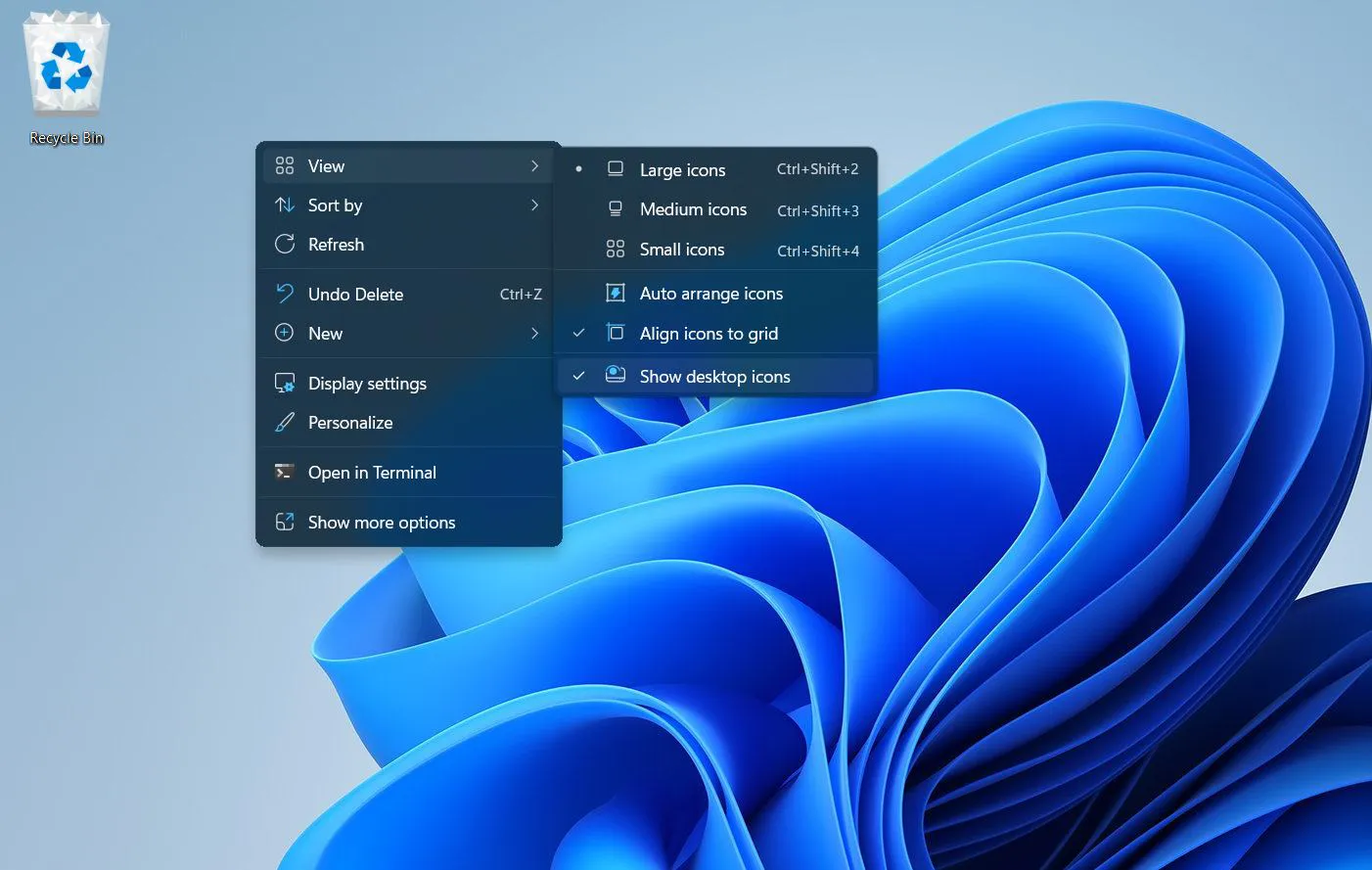
Before accessing desktop icon settings, verify that the ‘Show desktop icons’ feature is enabled. This master toggle controls whether any icons appear on the desktop at all.
- Right-click on an empty area of the desktop
- Hover over ‘View’ in the context menu
- Check if ‘Show desktop icons’ has a checkmark next to it
- If unchecked, click on ‘Show desktop icons’ to enable it
When this option is disabled, all desktop icons disappear regardless of individual icon settings. The Recycle Bin won’t show up even after enabling it in desktop icon settings if this master toggle remains off. Most people overlook this simple setting when troubleshooting missing icons.
Quick Method to Restore the Recycle Bin Icon
The fastest way to bring back the Recycle Bin involves accessing desktop icon settings directly. This method works natively in Windows 11 without needing administrative privileges or third-party software.
Watch this: How to Show Recycle Bin on Desktop Windows 11 Easily
Step-by-Step Process
- Right-click anywhere on an empty space of the desktop
- Select ‘Personalize’ from the context menu that appears
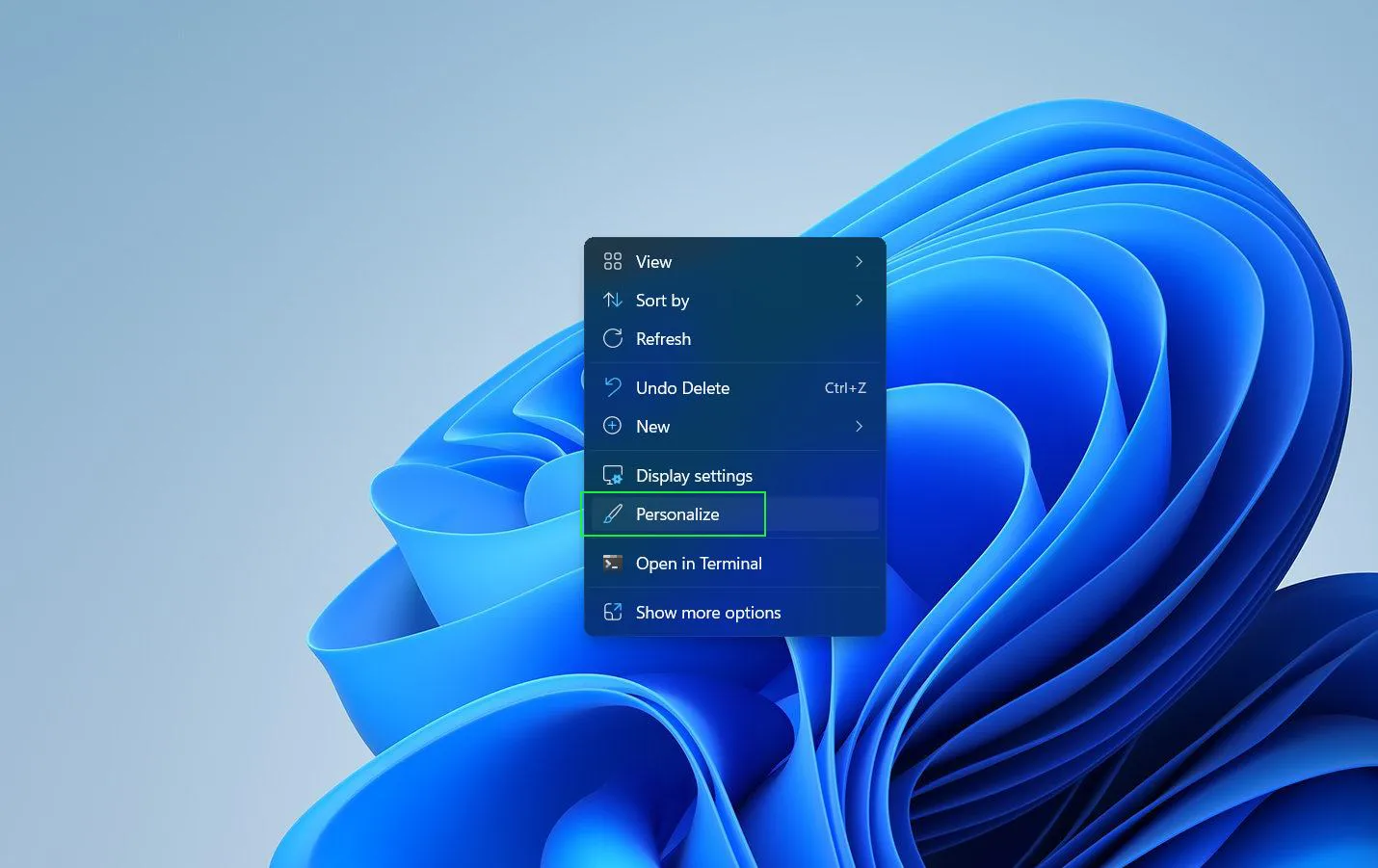
- Click on ‘Themes’
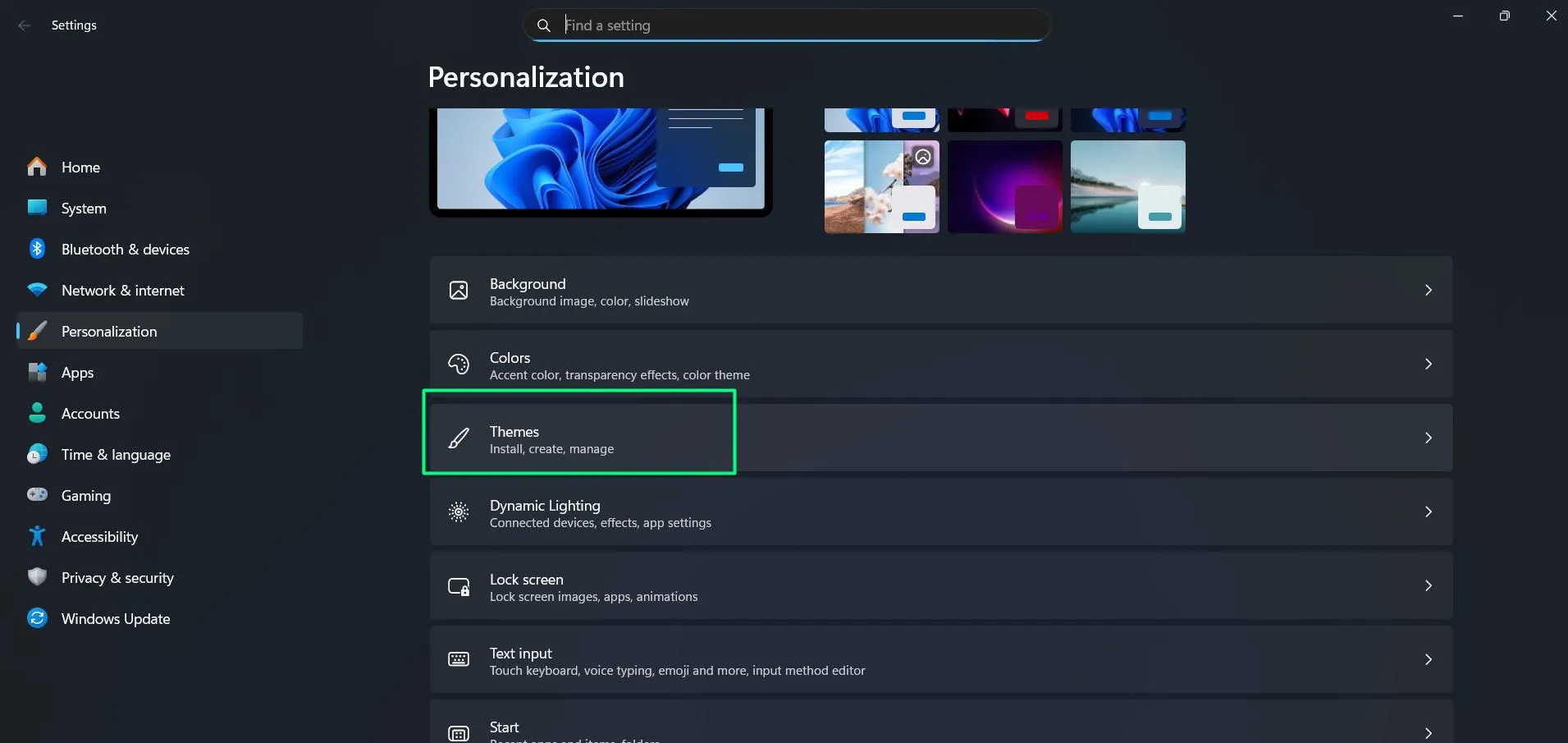
- Scroll down until you see ‘Desktop icon settings’ under Related Settings and click on it to open a new dialog box
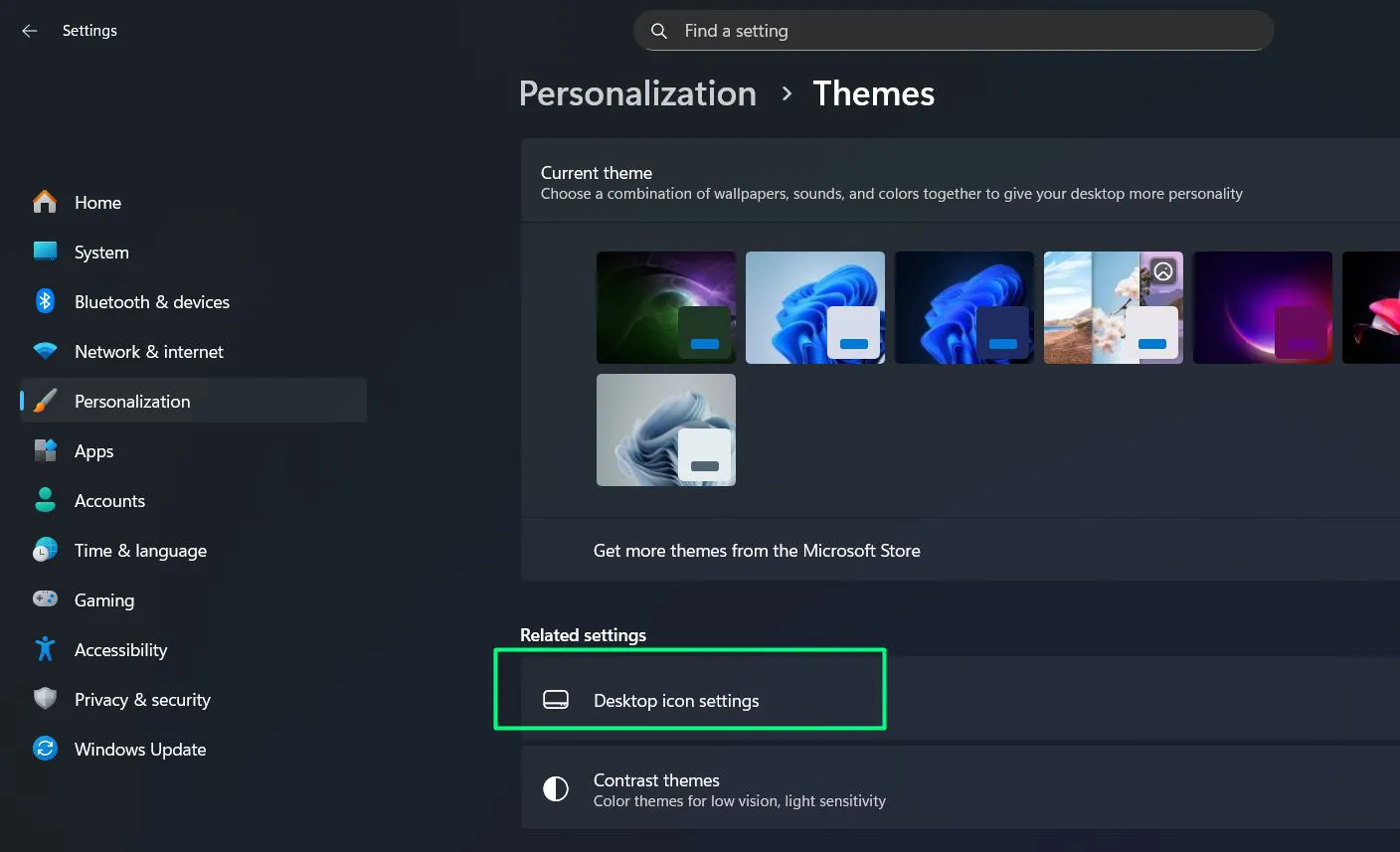
- Check the box next to ‘Recycle Bin’ in the Desktop Icons section
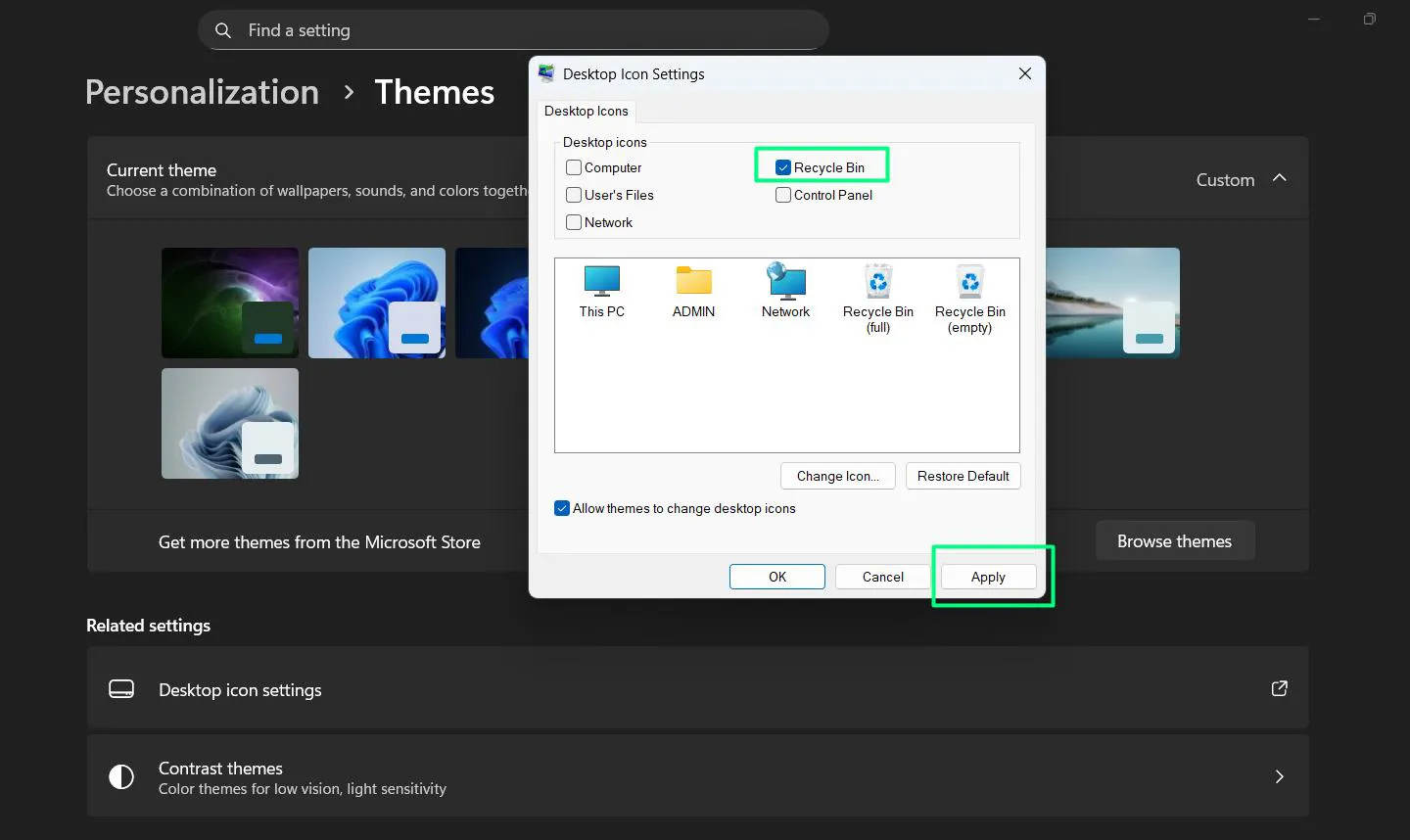
- Click ‘Apply’ and then ‘OK’ to save changes
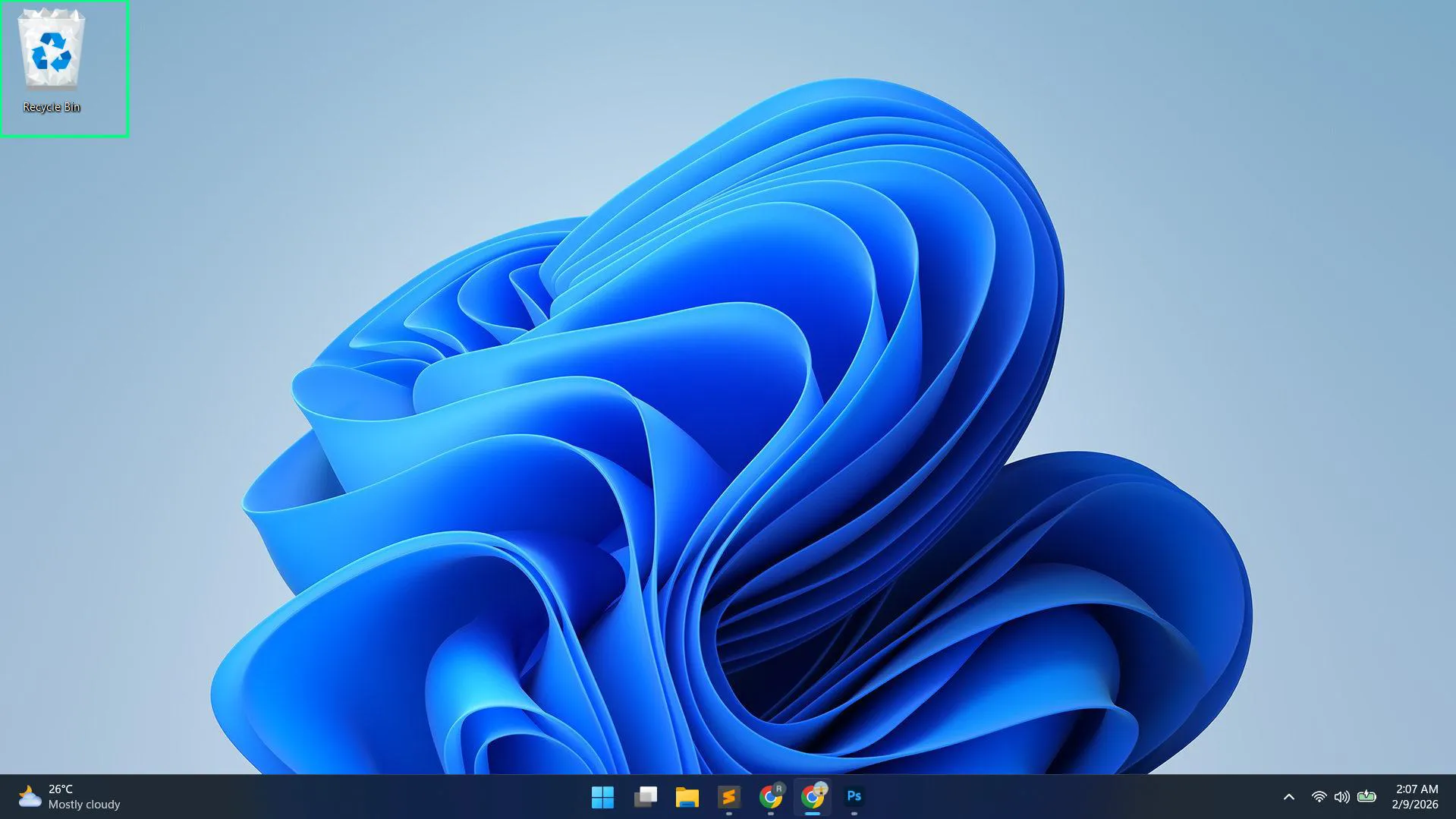
The Recycle Bin icon appears immediately on the desktop after completing these steps. No restart required, no waiting period. This represents the official Microsoft-approved method that maintains system stability.
Alternative Method Using Windows 11 Settings App
Windows 11 provides another path through the redesigned Settings app. Some users prefer this route because it follows the new Windows 11 interface patterns more closely.
- Press Windows key + I to open Settings
- Click on ‘Personalization’ in the left sidebar
- Select ‘Themes’ from the options listed in the main panel
- Find and click ‘Desktop icon settings’ link under Related Settings
- Mark the checkbox beside ‘Recycle Bin’
- Hit ‘Apply’ followed by ‘OK’
Both methods lead to the same destination. The difference lies purely in how you access the desktop icon settings panel. Choose whichever feels more comfortable based on personal preference.
Showing Multiple Desktop Icons Simultaneously
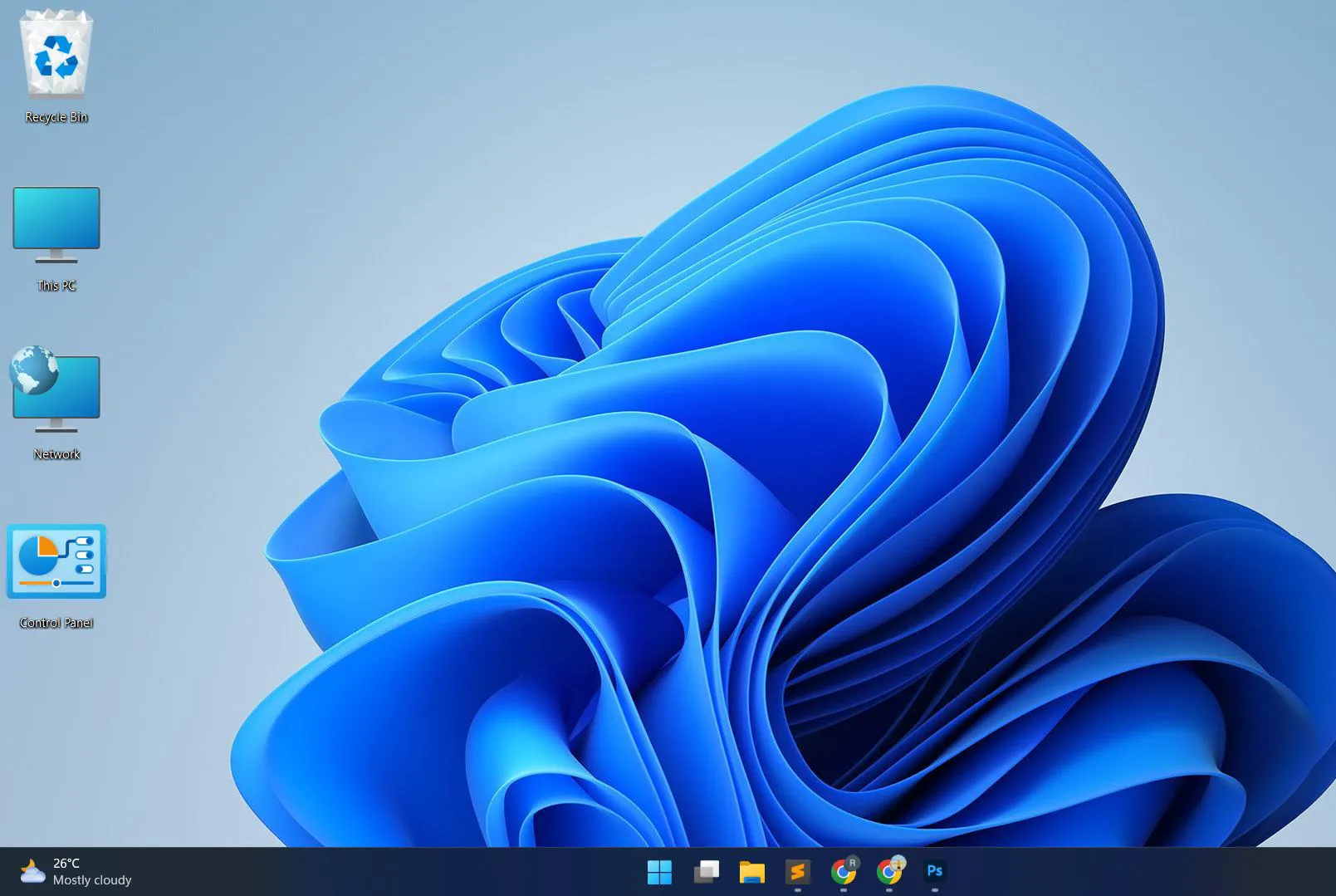
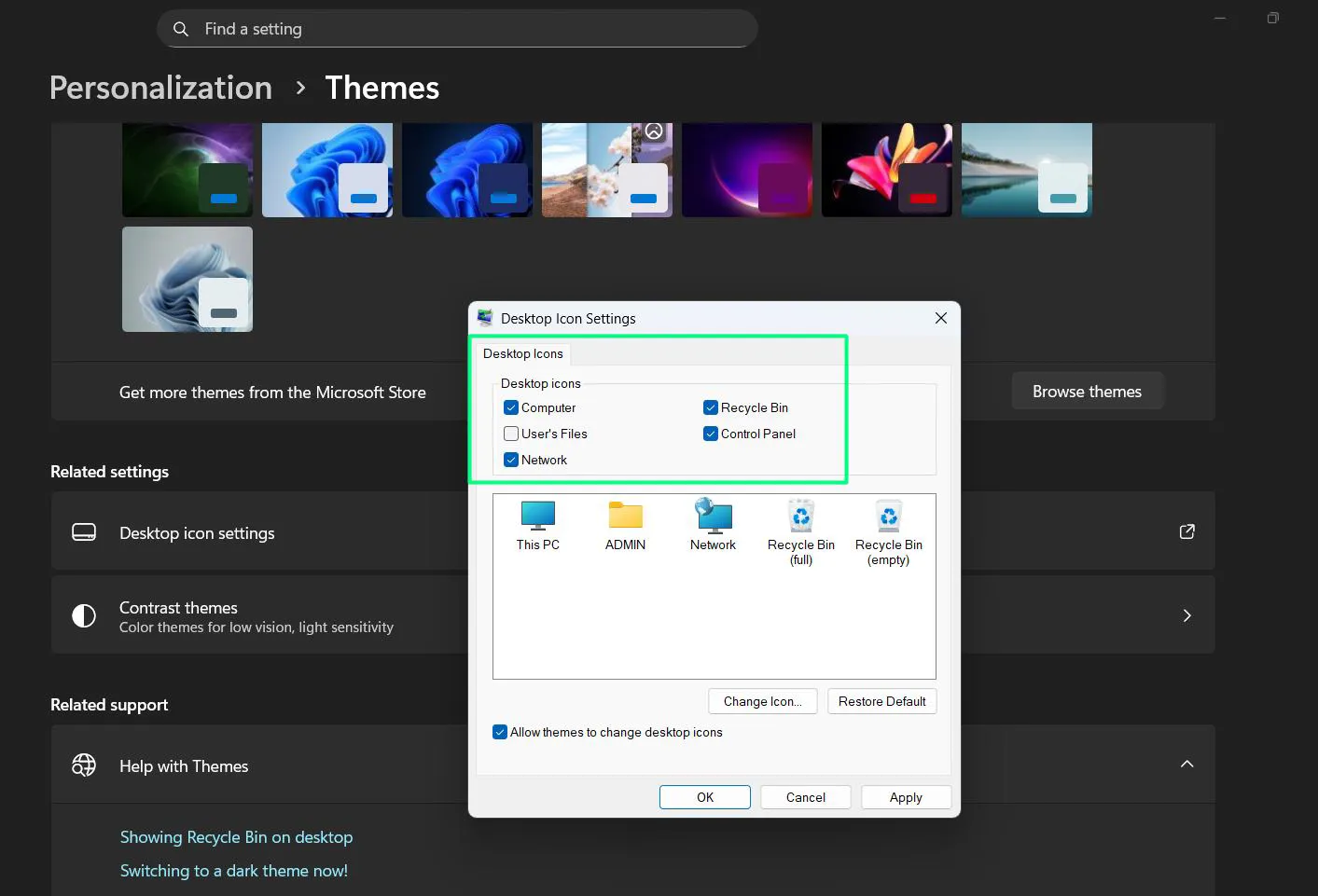
The desktop icon settings panel controls more than just the Recycle Bin. This PC, User’s Files, Network, and Control Panel can all be toggled on or off from this same location in Windows 11.
Many people find that enabling several system icons at once creates faster access to commonly used locations. Check multiple boxes during the same visit to the settings panel. Each selected icon appears on the desktop after clicking Apply.
Windows 11 treats desktop icons differently than Windows 10. The icons automatically align to a grid and support the new snap layouts feature when dragging files onto them.
What to Do When the Icon Still Doesn’t Appear
Sometimes the Recycle Bin refuses to show up even after following standard procedures. This signals a deeper issue with desktop settings or user profile corruption in Windows 11.
Refresh the Desktop
Right-click on the desktop and select ‘Refresh’. This simple action forces Windows 11 to reload all desktop elements. The Recycle Bin might appear after the refresh completes.
Check Desktop Icon Size Settings
Desktop icons set to extremely small sizes become nearly invisible on high-resolution displays. Right-click the desktop, hover over ‘View’, and select a larger icon size like ‘Medium icons’ or ‘Large icons’. Windows 11 scales icons differently than previous versions.
Run System File Checker
Corrupted system files prevent icons from displaying properly. Open Windows Terminal as administrator and type ‘sfc /scannow’. This utility scans and repairs damaged Windows 11 files that might affect desktop functionality.
Create a New User Profile
Profile corruption causes persistent icon problems. Creating a fresh user account through Settings > Accounts > Other users often resolves issues that other methods cannot fix. Transfer important files to the new profile and check if the Recycle Bin appears there.
Accessing Recycle Bin Without Desktop Icon in Windows 11
The Recycle Bin remains accessible even when the icon stays hidden. Click the search icon on the Windows 11 taskbar and type ‘Recycle Bin’. The search results display the Recycle Bin as a clickable option.
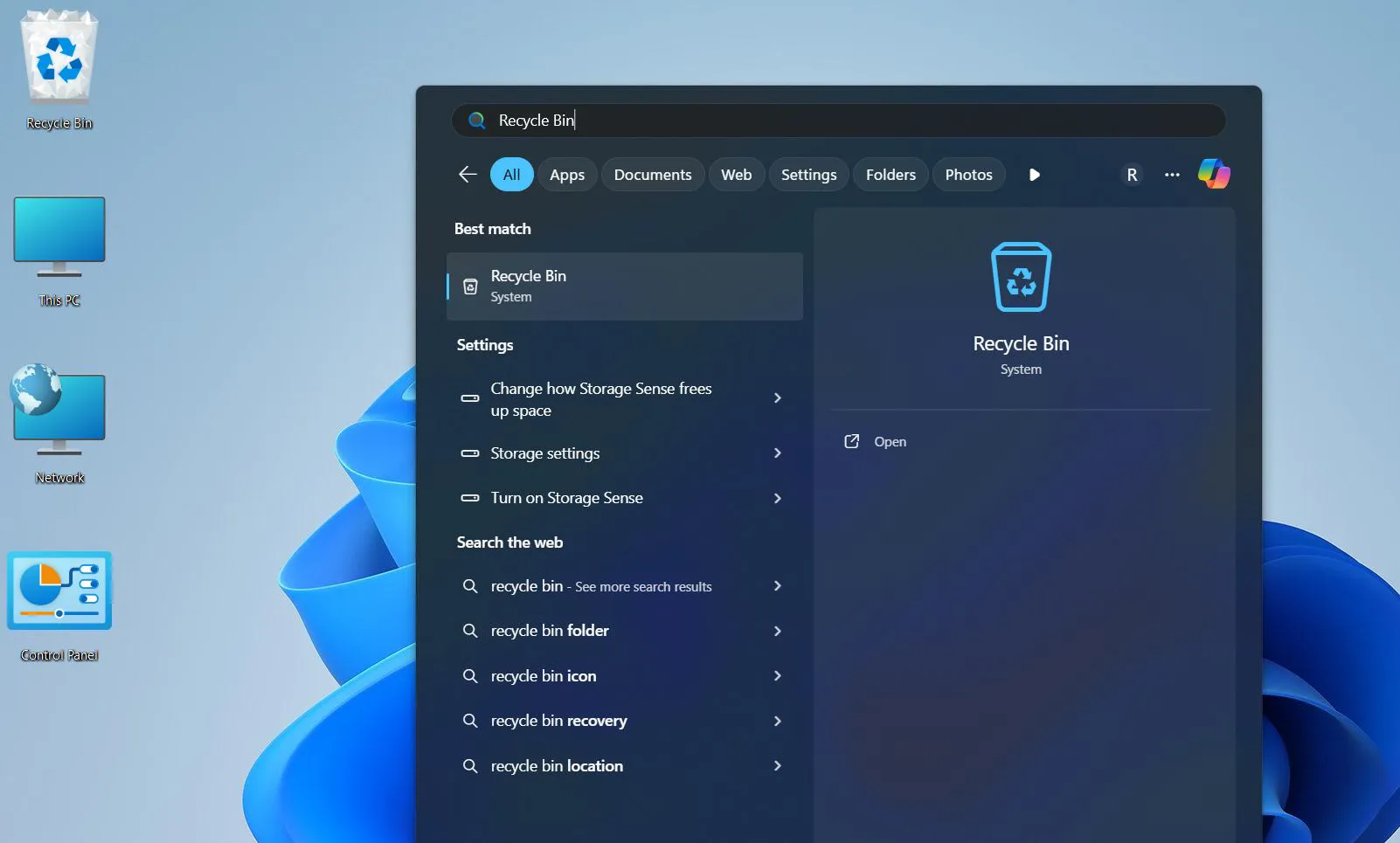
File Explorer also provides direct access. Open any File Explorer window and look at the address bar. Type ‘shell:RecycleBinFolder’ and press Enter. This command opens the Recycle Bin immediately, regardless of desktop icon visibility.
Pinning Recycle Bin to Quick Access in File Explorer creates permanent sidebar access. Drag the Recycle Bin from search results into the Quick Access section. It stays there for one-click opening anytime, integrated with Windows 11’s updated File Explorer interface.
Understanding Recycle Bin Behavior Across Drives
Each hard drive partition maintains its own Recycle Bin folder. Deleting files from the C: drive sends them to C: drive’s Recycle Bin. Files deleted from D: drive go to D: drive’s Recycle Bin.
The desktop icon shows combined contents from all drives. This means one Recycle Bin icon displays deleted files from every partition. Most people find this consolidation helpful because it eliminates the need to check multiple locations.
External drives and network locations work differently. Files deleted from USB drives or network shares often bypass the Recycle Bin entirely. They get permanently deleted instead. The key is to remember this distinction when working with removable storage in Windows 11.
Recycle Bin Icon Missing After Windows 11 Updates
Windows 11 feature updates occasionally reset personalization preferences. The annual major updates have a history of hiding desktop icons as part of their default configuration changes.
Check desktop icon settings immediately after any significant Windows 11 update. Restoring the Recycle Bin takes less time than searching for alternative recovery methods. Make this a standard post-update routine to avoid frustration.
Some updates also change the default icon appearance. The Recycle Bin might look different after an update even if it remains visible. This represents normal behavior as Microsoft periodically refreshes system icon designs to match Windows 11’s evolving visual language.
Group Policy Settings for Recycle Bin
Corporate or managed Windows 11 computers might have Group Policy restrictions that prevent showing desktop icons. IT departments sometimes lock down these settings to maintain consistent desktop appearances across organizations.
Contact the system administrator if desktop icon settings appear grayed out or inaccessible. Group Policy overrides local user preferences. Individual users cannot change these settings without administrative intervention or policy modifications.
Registry Method for Advanced Users
The Windows 11 Registry contains keys that control desktop icon visibility. This method carries risks because incorrect registry changes can cause system instability. Always create a system restore point before attempting registry edits.
Press Windows key + R, type ‘regedit’, and press Enter. Navigate to HKEY_CURRENT_USER\Software\Microsoft\Windows\CurrentVersion\Explorer\HideDesktopIcons\NewStartPanel. Look for a value named {645FF040-5081-101B-9F08-00AA002F954E}. This represents the Recycle Bin.
Set this value to 0 to show the icon or 1 to hide it. Close Registry Editor and restart the computer for changes to take effect. This works best when standard methods fail due to corrupted settings files in Windows 11.
Windows 11 Widgets and Recycle Bin Access
Windows 11 introduced widgets that can provide quick information access. While the Recycle Bin doesn’t have a dedicated widget, users can access it through the redesigned Start menu search or by pinning it to the taskbar indirectly through File Explorer.
The new Windows 11 context menus also streamline access to personalization settings. The ‘Show more options’ command reveals additional desktop customization features that might help troubleshoot icon visibility issues.
Touch Screen and Tablet Mode Considerations
Windows 11 optimizes touch interactions differently than previous versions. On devices with touch screens, desktop icons including the Recycle Bin scale appropriately for finger taps. The spacing between icons adjusts automatically to prevent accidental selections.
Tablet mode in Windows 11 works differently than Windows 10. Desktop icons remain visible and accessible even when using the device as a tablet. This change ensures consistent access to the Recycle Bin across different device configurations.
Frequently Asked Questions
Can the Recycle Bin be permanently removed from Windows 11?
The Recycle Bin cannot be completely removed from Windows 11 as it serves as a core system function. The desktop icon can be hidden, but the Recycle Bin folder continues operating in the background. Deleted files still go there even without visible icon access.
Does hiding the Recycle Bin icon delete its contents?
No, hiding the desktop icon has no effect on files stored in the Recycle Bin. All previously deleted items remain recoverable through File Explorer or search functions. The icon simply provides convenient desktop access to this existing folder.
Why does the Recycle Bin icon keep disappearing after restarting Windows 11?
Persistent icon disappearance after restarts suggests user profile corruption or Group Policy conflicts. Try creating a new user account to test if the issue follows the profile. Check with system administrators on managed computers for potential policy restrictions specific to Windows 11.
Can different users have different Recycle Bin icon settings in Windows 11?
Yes, each user profile maintains independent desktop icon preferences. One user can show the Recycle Bin while another keeps it hidden. These settings save per account and do not affect other users on the same Windows 11 computer.
How do you show the Recycle Bin on a second monitor in Windows 11?
Desktop icons including the Recycle Bin only appear on the primary monitor by default. Windows 11 does not support showing desktop icons across multiple displays. The icon remains on whichever monitor is set as primary in display settings.
What happens if the desktop icon settings option is missing in Windows 11?
Missing desktop icon settings typically indicates a corrupted Windows 11 installation or restricted Group Policy. Run System File Checker to repair damaged files. On managed computers, contact IT support as policies may block access to these customization options.
Does Windows 11 Home have the same Recycle Bin settings as Windows 11 Pro?
Yes, both Windows 11 Home and Pro editions offer identical desktop icon settings for the Recycle Bin. The process to show or hide the icon remains the same across all Windows 11 editions. Only enterprise-level Group Policy features differ between editions.