
Help with color management in Windows 11 becomes essential when display colors appear inconsistent across different applications or don’t match what’s seen on other devices. Windows 11 includes built-in color management tools that allow precise control over how colors display on the screen, ensuring accurate representation for photography, design work, or general use.
Understanding Color Management in Windows 11
Color management controls how Windows 11 interprets and displays colors on the monitor. Think of it as a translator between the computer and the display – it ensures that the colors intended by content creators appear correctly on the screen. Most people find that default settings work fine for everyday tasks, but professionals and enthusiasts often need more precise control.
The system uses color profiles (ICC profiles) to maintain consistency. These profiles contain information about how a specific device reproduces colors, allowing Windows 11 to adjust output accordingly. When properly configured, what appears on screen closely matches printed materials or how images look on other calibrated displays.
Calibrating Display Colors (general calibration)
Watch this: Calibrating Display Colors Easily in Windows 11
Windows 11 includes a built-in calibration tool that guides through adjusting display settings for better color accuracy. Most people find that running this calibration improves color accuracy without requiring expensive hardware.
- Open Settings (Windows key + I)
- Navigate to System and then Display
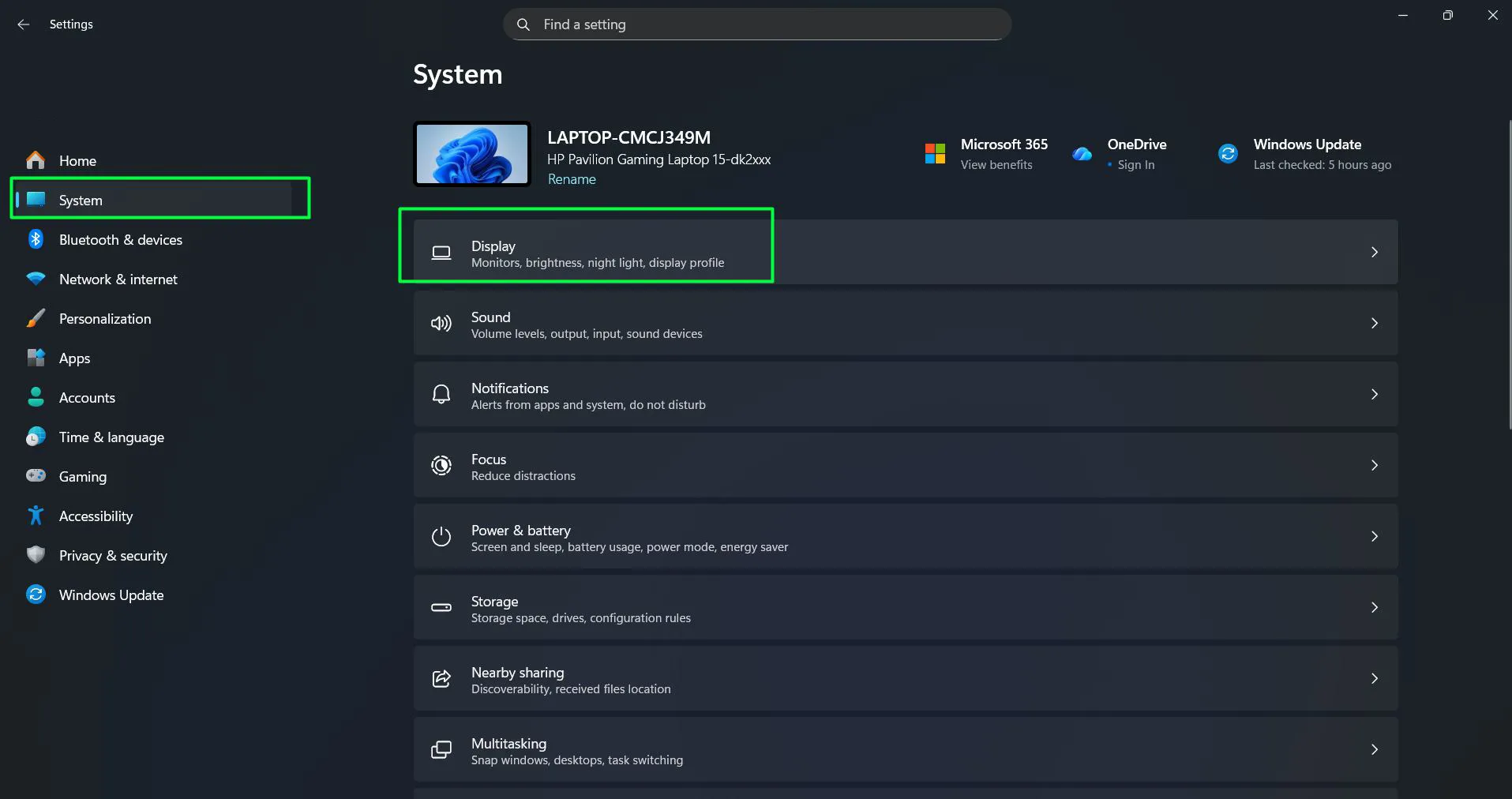
- Scroll down and click ‘Color profile’
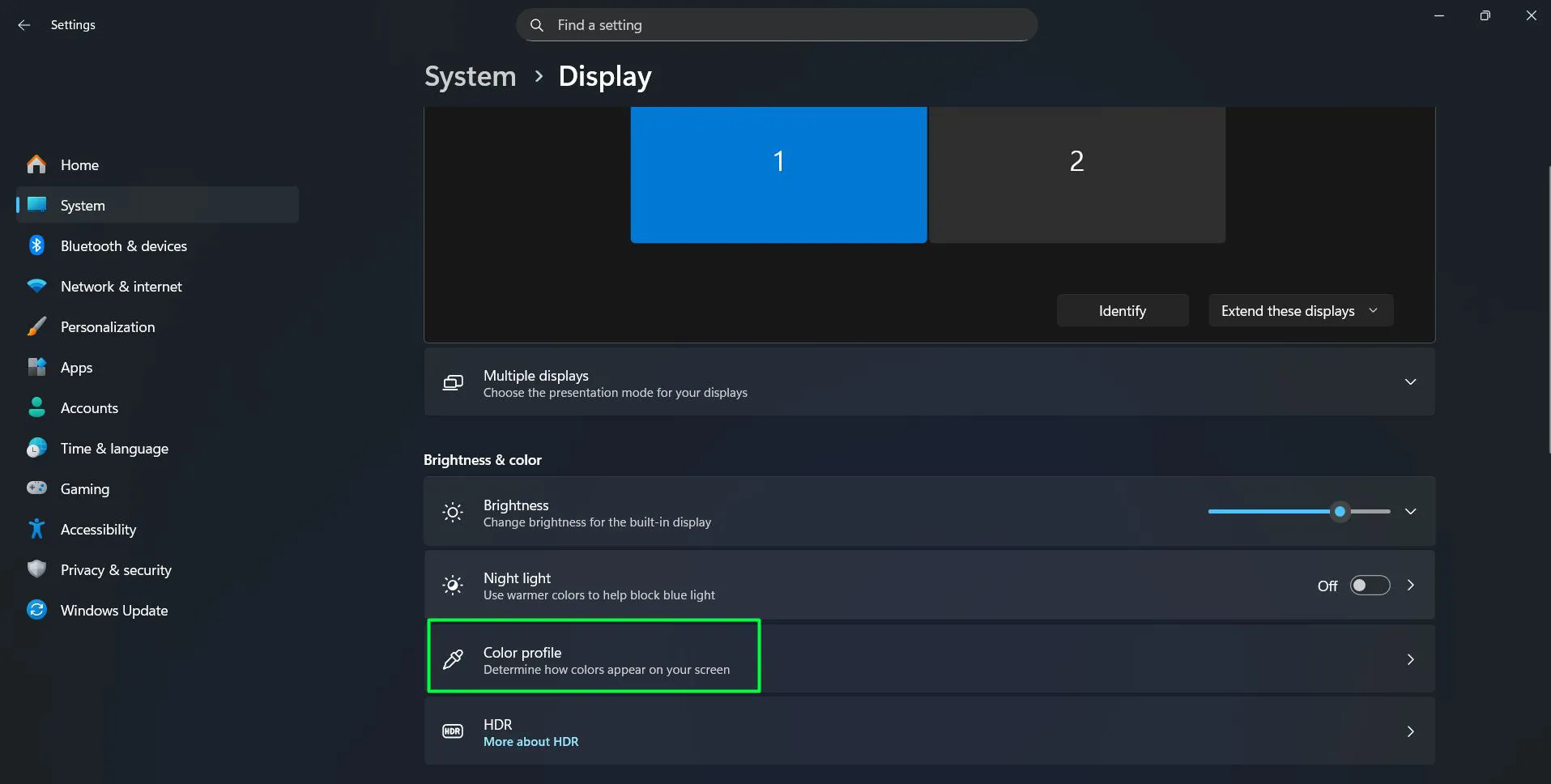
- Under ‘Color calibration’, click ‘Calibrate display’
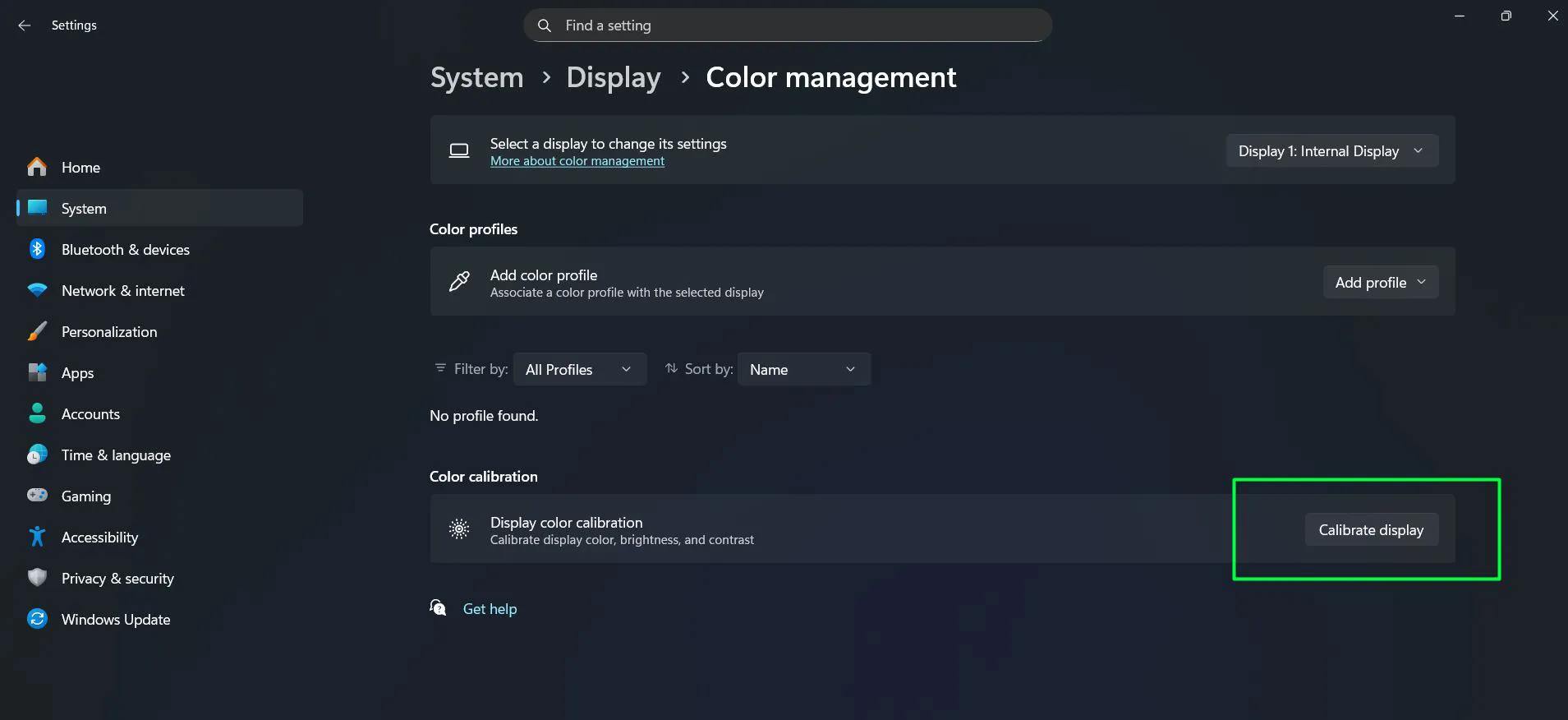
- Click ‘Next’ to begin the calibration wizard
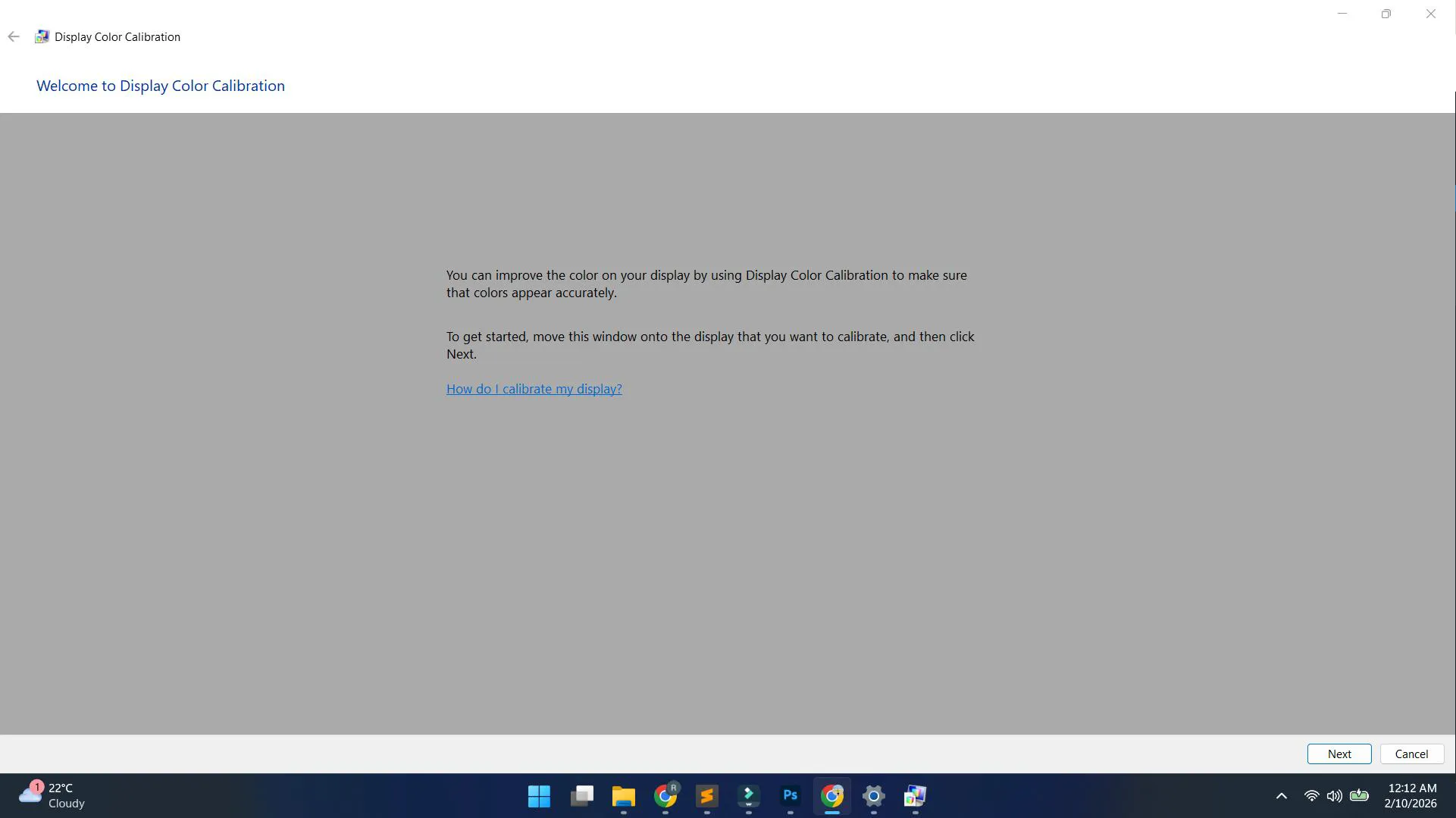
- Follow the on-screen instructions through each step
- Adjust settings based on visual comparisons provided
- Complete the calibration and save the settings
The calibration wizard presents test patterns and asks for adjustments until the display matches standard references. This process creates a new color profile based on the adjustments made, helping optimize gamma, brightness, contrast, and color balance.
Calibrating HDR Display Settings (HDR-specific calibration)
Windows 11 includes a built-in calibration tool that guides through adjusting display settings for better color accuracy. Most people find that running this calibration improves color accuracy without requiring expensive hardware.
- Open Settings (Windows key + I)
- Navigate to System and then Display
- Scroll down and click ‘HDR’
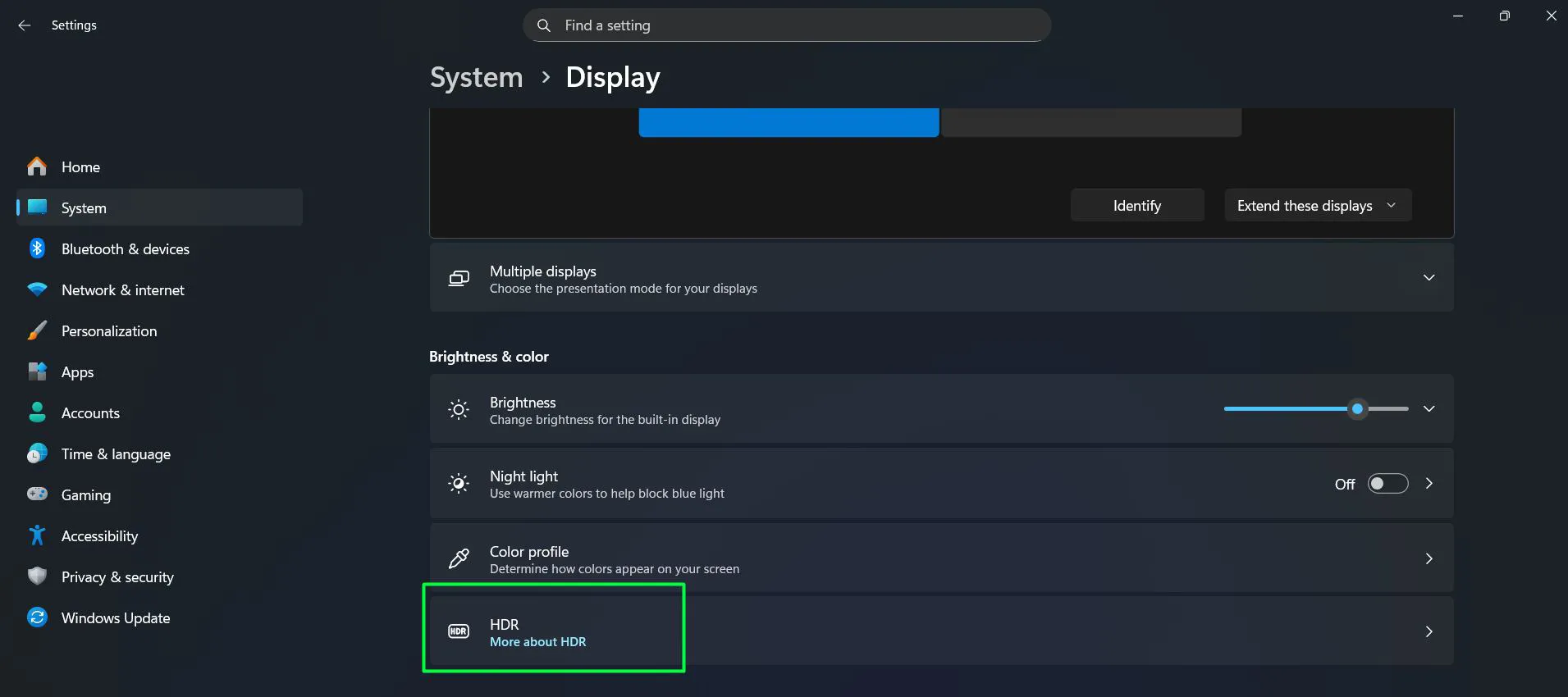
- Expand ‘Display calibration for HDR video’
- Click the ‘Calibrate’ button
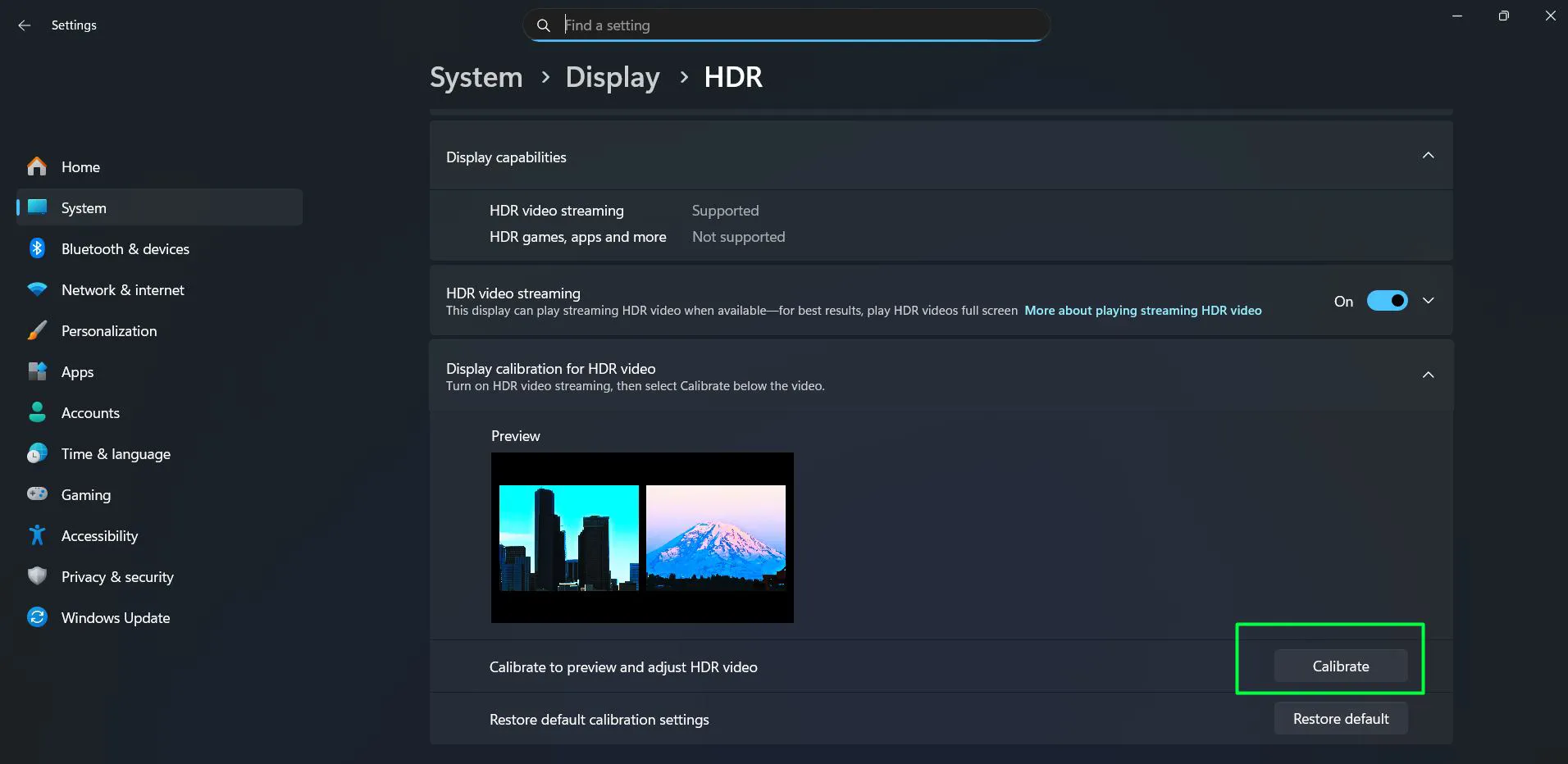
- Follow the on-screen instructions through each step
- Adjust the slider based on visual comparisons provided
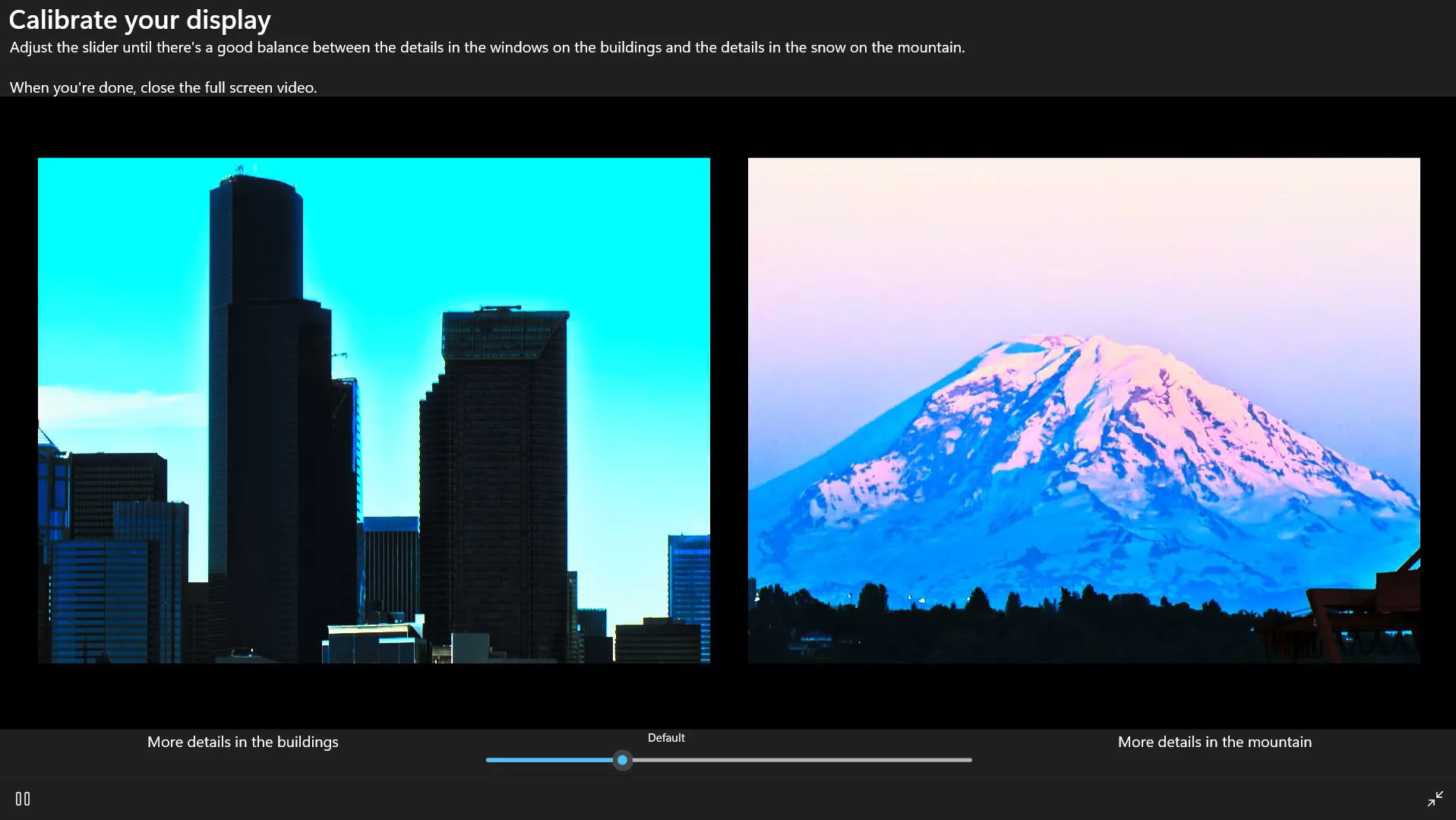
- Close the full screen video when done
The calibration wizard presents test patterns and asks for adjustments until the display matches standard references. This process helps optimize color balance and brightness for the display.
Accessing Color Management Settings
Windows 11 stores color management options in a dedicated control panel. The key is to know where to find these settings, as they’re not immediately visible in the modern Settings app.
- Press Windows key + R to open the Run dialog
- Type ‘colorcpl’ and press Enter
- The Color Management window opens directly
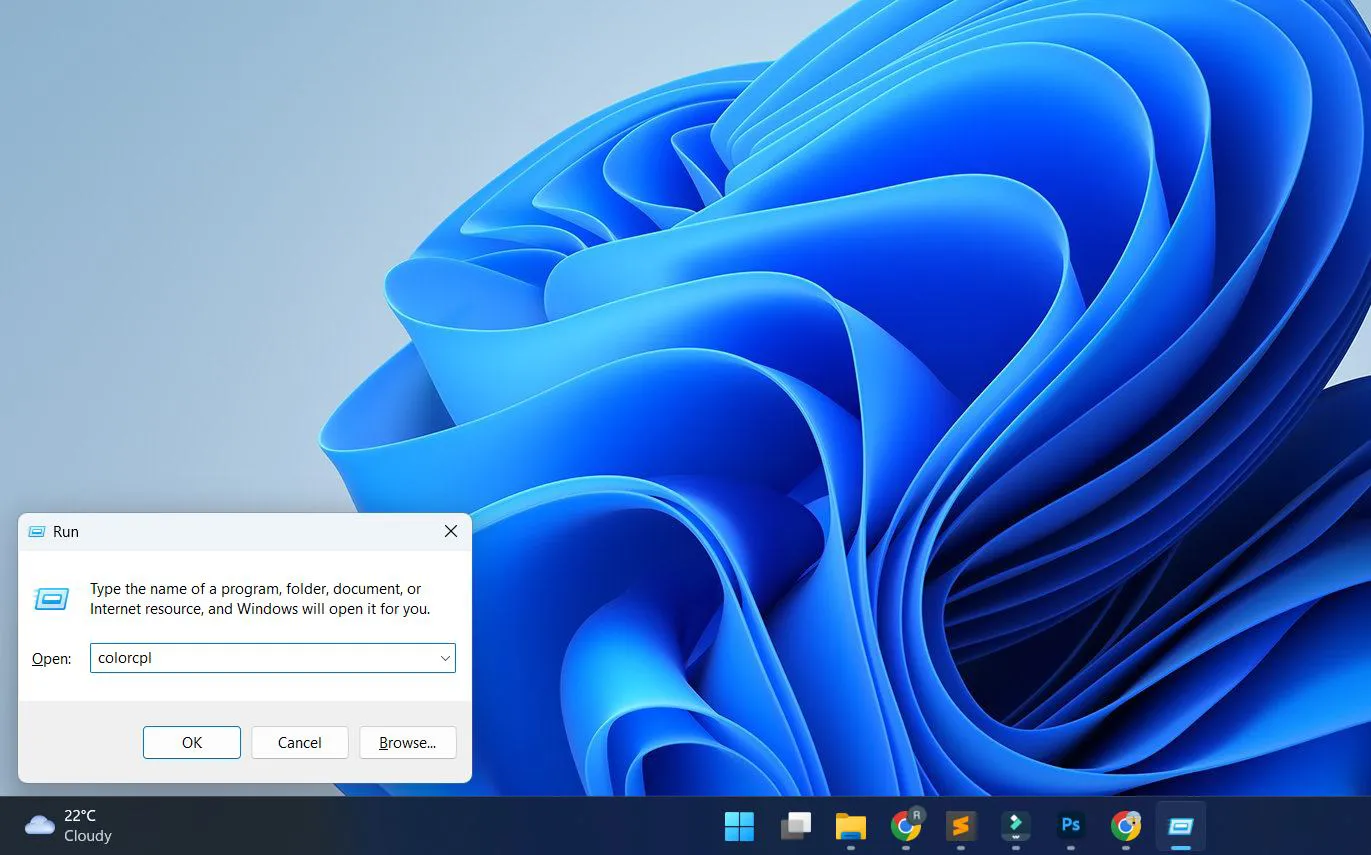
Alternatively, access these settings through the traditional Control Panel:
- Search for ‘Control Panel’ in the Start menu
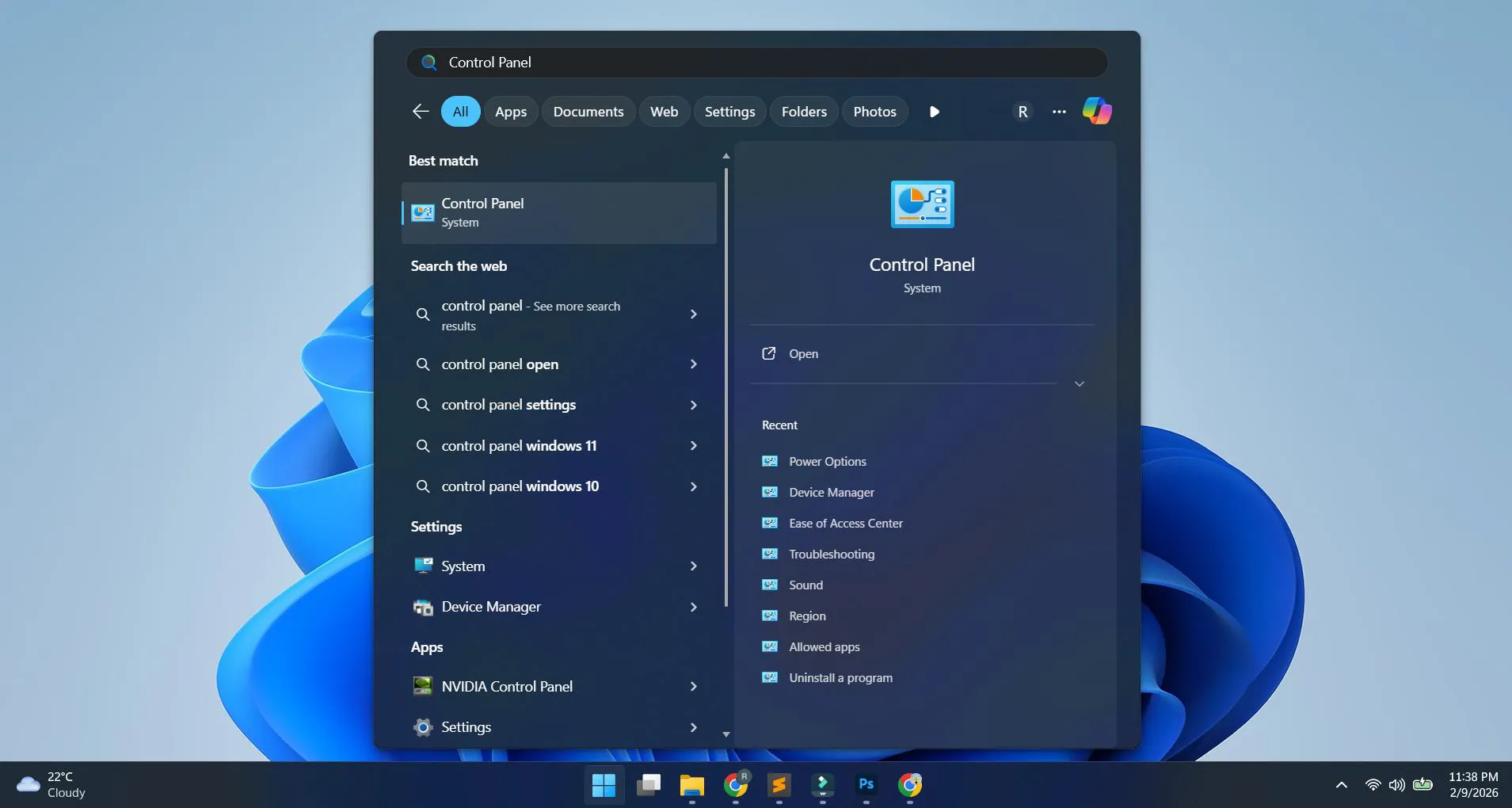
- Set View by to Large icons or Small icons
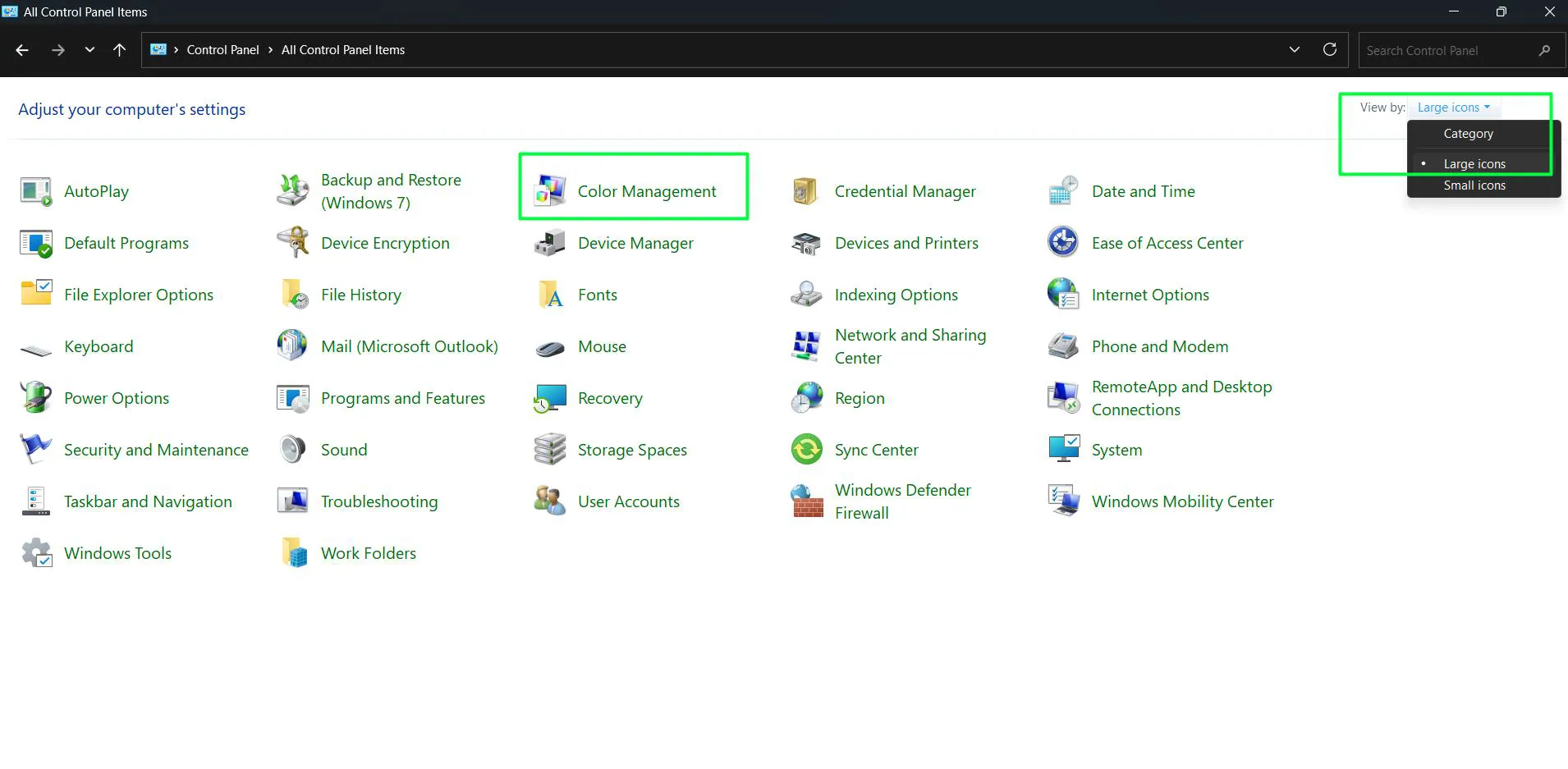
- Click Color Management
Setting Up Color Profiles
Color profiles define how the monitor displays colors. Windows 11 typically assigns a default profile, but changing it can improve accuracy for specific tasks.
Adding a Color Profile
This works best when using profiles specifically designed for the monitor model or created through calibration.
- Open Color Management using ‘colorcpl’ command
- Ensure the correct monitor is selected in the ‘Device’ dropdown
- Check the box ‘Use my settings for this device’
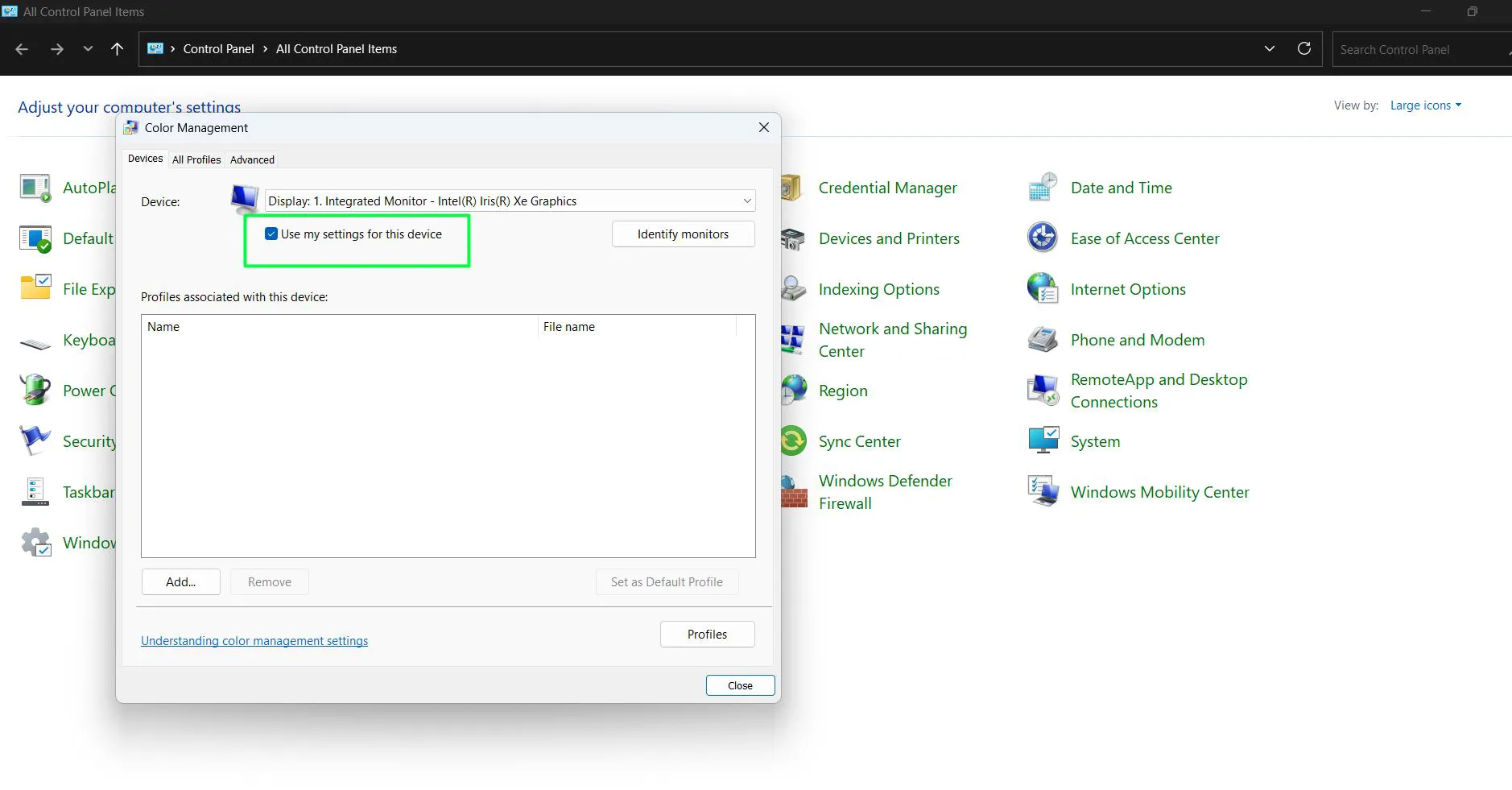
- Click the ‘Add’ button
- Browse the list of installed profiles or click ‘Browse’ to add a custom profile
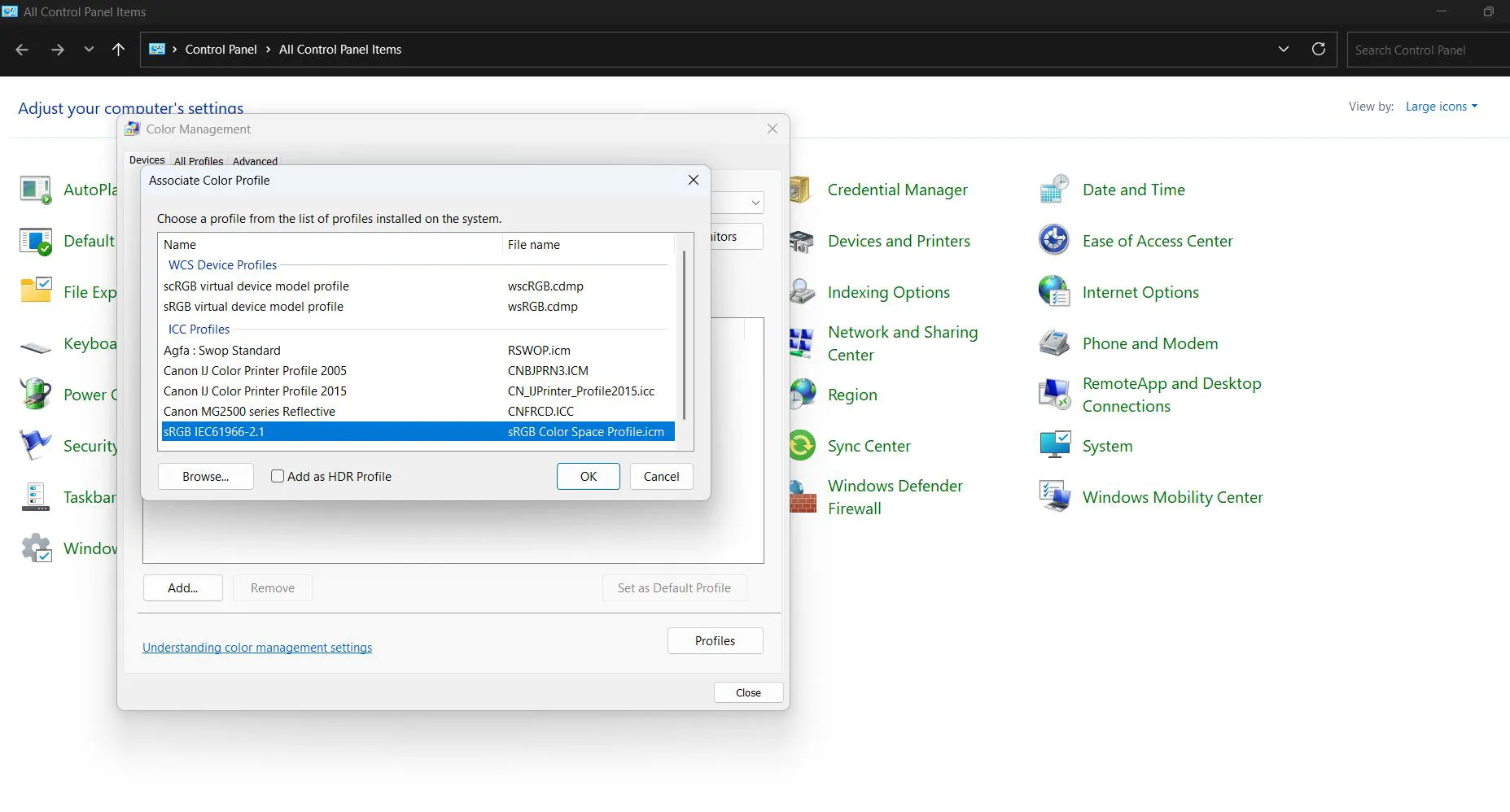
- Select the desired profile and click ‘Add’
- Highlight the newly added profile in the list
- Click ‘Set as Default Profile’
- Click ‘Close’ to apply changes
Custom ICC profiles usually come from the monitor manufacturer’s website or are generated using calibration hardware. Once downloaded, these files need to be placed in the correct folder before they appear in the profile list.
Managing Color Profiles for Multiple Displays
Systems with multiple monitors require individual color profile management. Each display can have different characteristics, so separate profiles ensure consistency across all screens.
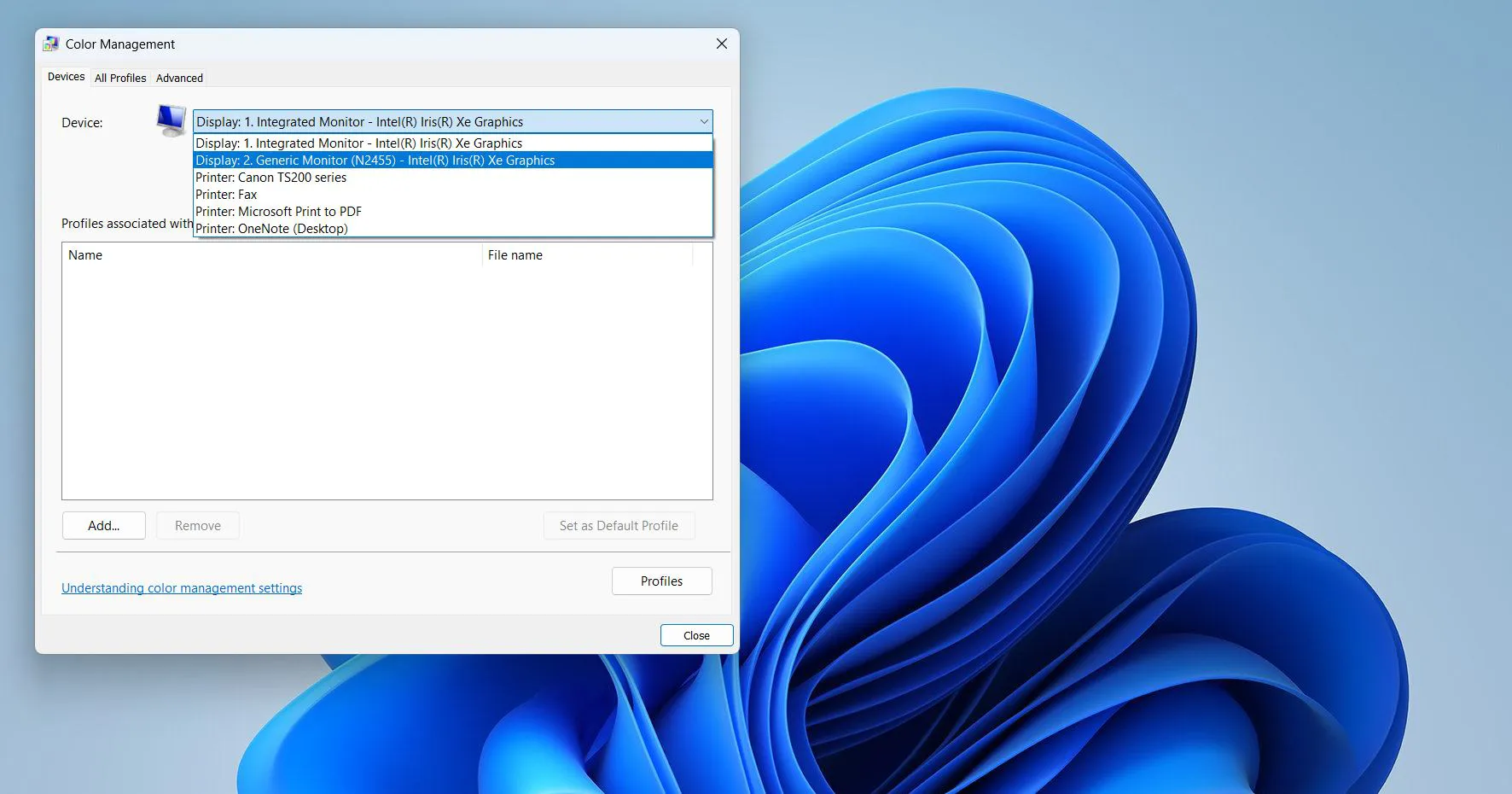
- Open Color Management with ‘colorcpl’
- Use the ‘Device’ dropdown to select each monitor
- Check ‘Use my settings for this device’ for each display
- Add and set appropriate profiles for each monitor individually
- Apply changes and close the window
Professional workflows often require matching colors between displays. Using identical profiles won’t work if monitors have different panels or manufacturers – each needs calibration with its own profile.
Advanced Color Management Settings
Some applications handle colors differently than Windows. Browsers, photo editors, and design software may use their own color management systems.
The ‘Advanced’ tab in Color Management contains settings that affect how applications interact with color profiles:
- Open Color Management
- Click the ‘Advanced’ tab
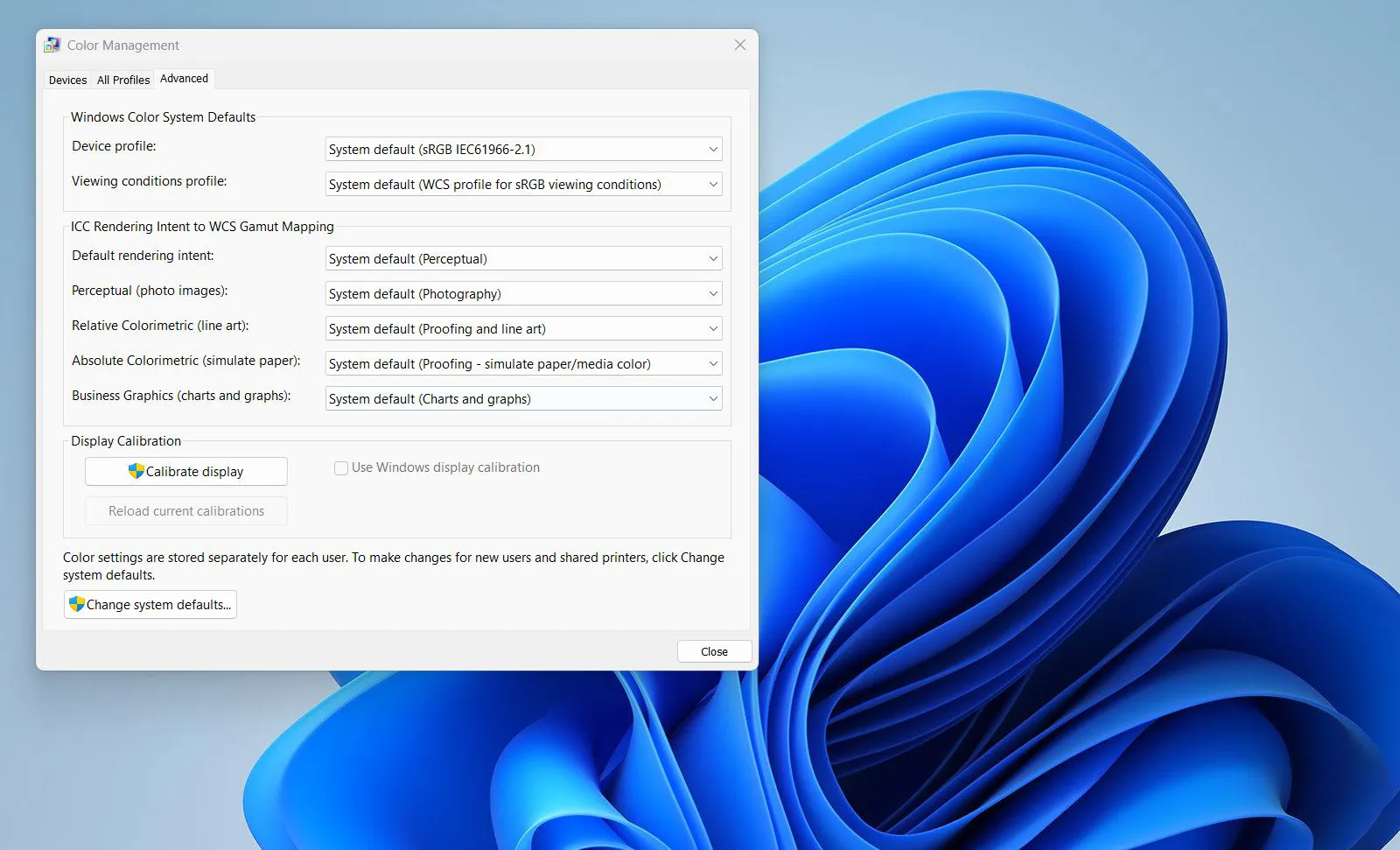
- Review ‘Windows Color System Defaults’ section showing device profile and viewing conditions profile
- Check ‘ICC Rendering Intent to WCS Gamut Mapping’ settings for different content types
- Click ‘Change system defaults’ button to modify settings for all users
- Use ‘Calibrate display’ button under Display Calibration section if needed
Photo editing software typically overrides these settings with its own color engine. The key is to ensure consistency between what’s displayed during editing and final output.
Resetting Color Management to Default
If colors appear worse after changes or settings become confusing, returning to defaults provides a clean start.
- Open Color Management
- Select the device from the dropdown
- Uncheck ‘Use my settings for this device’
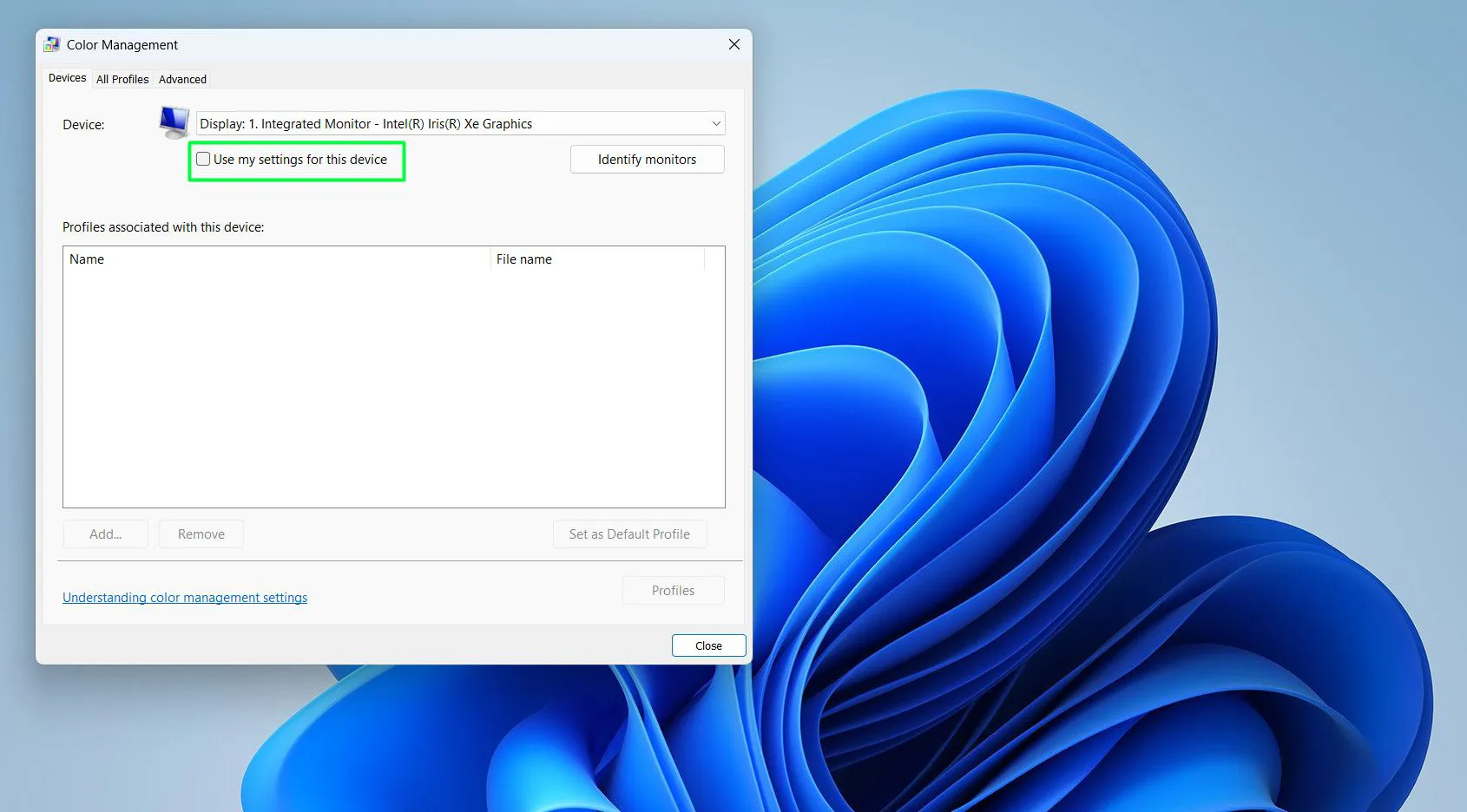
- Windows 11 reverts to the default profile for that display
For additional Windows 11 configuration guides, check the Windows help section for comprehensive tutorials.
Verifying Color Profile Application
After setting profiles, confirmation ensures changes actually took effect. Sometimes Windows 11 reverts to defaults after updates or driver changes.
- Open Color Management again
- Check that the correct device is selected
- Verify ‘Use my settings for this device’ remains checked
- Confirm the intended profile shows ‘(default)’ next to it
- Open a color-accurate image to visually verify appearance
Test images with known color values help identify if profiles are working correctly. Photographs with skin tones or neutral grays reveal inaccuracies most clearly.
Frequently Asked Questions
How do color profiles affect display quality in Windows 11?
Color profiles tell Windows 11 how the monitor reproduces colors, allowing the system to adjust output for accurate representation. Without proper profiles, colors may appear too saturated, too dim, or have incorrect hues. Profiles are particularly important for photography, video editing, and design work where color accuracy matters. Standard users might not notice significant differences, but professionals rely on profiles to ensure what appears on screen matches printed output or displays on other calibrated devices.
Can Windows 11 automatically manage colors without manual setup?
Yes, Windows 11 automatically assigns default color profiles to displays based on information the monitor provides. For most everyday tasks like browsing, office work, or streaming video, automatic management works adequately. However, automatic profiles are generic and may not account for individual monitor variations or specific calibration needs. Manual setup becomes beneficial when color accuracy is critical or when using high-end displays that come with manufacturer-specific profiles.
What happens if the wrong color profile is selected?
Selecting an incorrect profile causes colors to display inaccurately – images might look washed out, overly saturated, or have incorrect color casts. Reds might appear orange, blues could look purple, and neutral grays may have color tints. The effect varies depending on how different the wrong profile is from what the monitor actually needs. Simply switching back to the correct profile or resetting to system defaults immediately reverses these issues without causing permanent damage to the display.
Do color management settings persist after Windows 11 updates?
Major Windows 11 updates sometimes reset color management settings to defaults, though this doesn’t happen with every update. Graphics driver updates more frequently affect color profiles, as new drivers may override existing settings. After any significant system update, checking Color Management settings ensures custom profiles remain active. Creating a backup of custom ICC profiles helps quickly restore settings if they get reset during updates.
Is hardware calibration better than Windows 11 color management?
Hardware calibration devices like colorimeters measure actual display output and create highly accurate custom profiles. While Windows 11 includes built-in calibration tools, they rely on visual judgment rather than precise measurements. Hardware calibration produces superior results for professional color work, but the built-in tools offer significant improvement over uncalibrated defaults at no additional cost. For most users, Windows 11 calibration provides sufficient accuracy, while professionals benefit from investing in calibration hardware.
Why do colors look different between applications on the same monitor?
Some applications use their own color management engines instead of Windows system profiles. Web browsers, photo editors, and design software often bypass Windows color management for more precise control. This explains why an image might look different in a browser versus the Photos app. Color-managed applications typically produce more accurate results when working with calibrated profiles, while non-color-managed programs just display colors directly without profile adjustments.