
Finding the best free office software for Windows 11 doesn’t mean settling for limited features or clunky interfaces. Modern alternatives deliver professional-grade tools without the subscription fees, making them perfect for students, freelancers, and businesses watching their budget.
The right office suite handles everything from complex spreadsheets to polished presentations. Most people find that free options now match paid software in core functionality, with some offering unique features that even premium suites lack.
LibreOffice: The Most Complete Free Suite
LibreOffice stands as the most powerful completely free office software available for Windows 11. This open-source suite includes six applications that cover every productivity need.
What Makes LibreOffice Stand Out
The suite includes Writer for documents, Calc for spreadsheets, Impress for presentations, Draw for diagrams, Base for databases, and Math for formulas. Each tool integrates seamlessly with the others, creating a unified workspace that feels professional and polished.
File compatibility works both ways. Documents open and save in Microsoft Office formats without conversion headaches. The key is that formatting stays intact, which matters when collaborating with teams using different software.
Installing LibreOffice on Windows 11
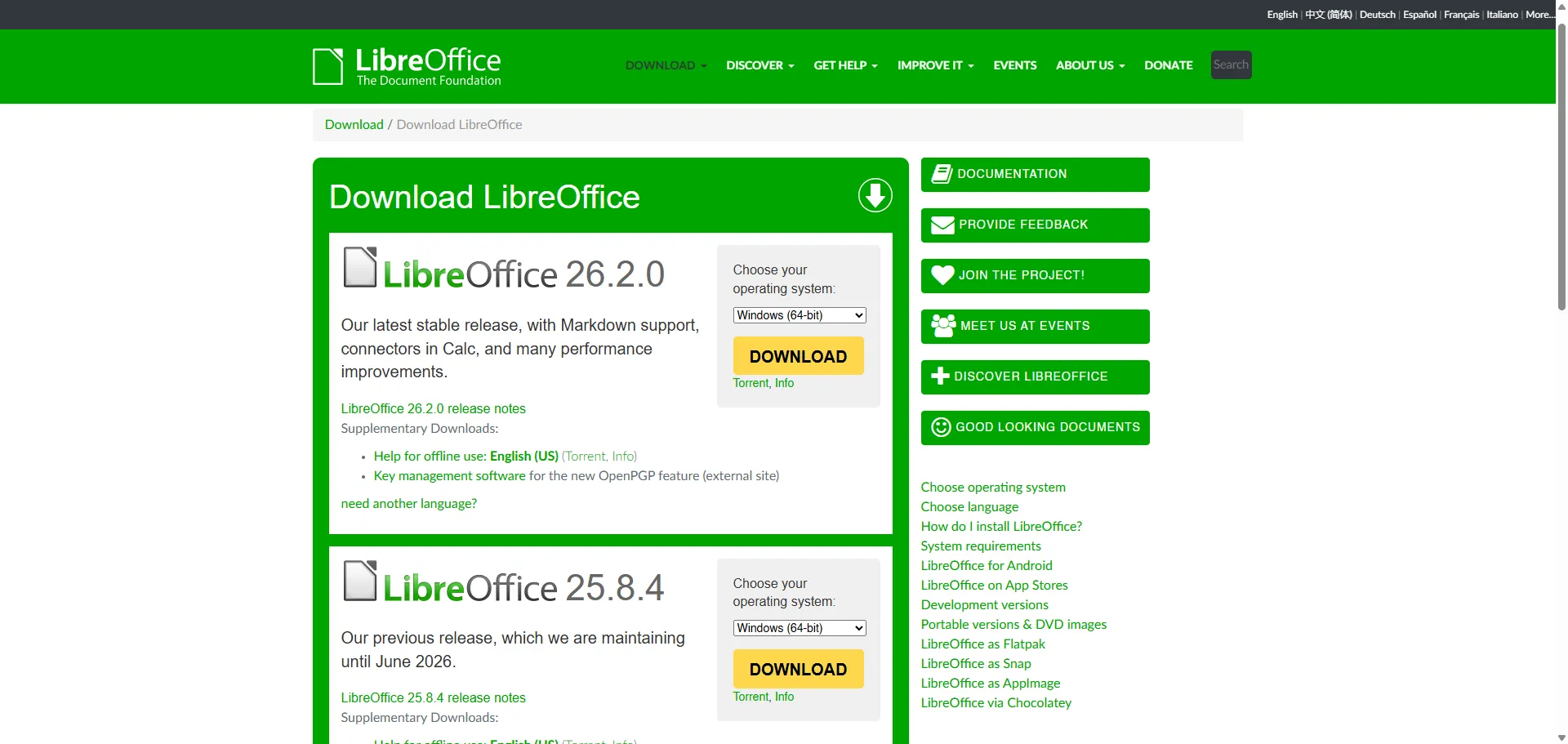
- Visit the official LibreOffice website and download the Windows installer
- Run the downloaded file and follow the installation wizard
- Select which components to install (choosing all gives complete functionality)
- Allow the installer to complete and launch any application from the Start menu
The installation process takes just a few minutes, and updates arrive automatically to keep everything secure and current.
Key Features for Daily Use
Advanced formatting tools rival anything found in paid software. Templates speed up document creation, while built-in PDF export eliminates the need for additional converters. The interface might look different from Microsoft Office, but most users adapt within days.
Extensions expand functionality even further. Add-ons provide specialized tools for specific industries, from academic citation managers to advanced data analysis packages.
ONLYOFFICE Desktop Editors: Cloud-Native Productivity
ONLYOFFICE Desktop Editors brings modern collaboration features to free office software. The interface mirrors Microsoft Office closely, making the transition nearly effortless for anyone familiar with commercial suites.
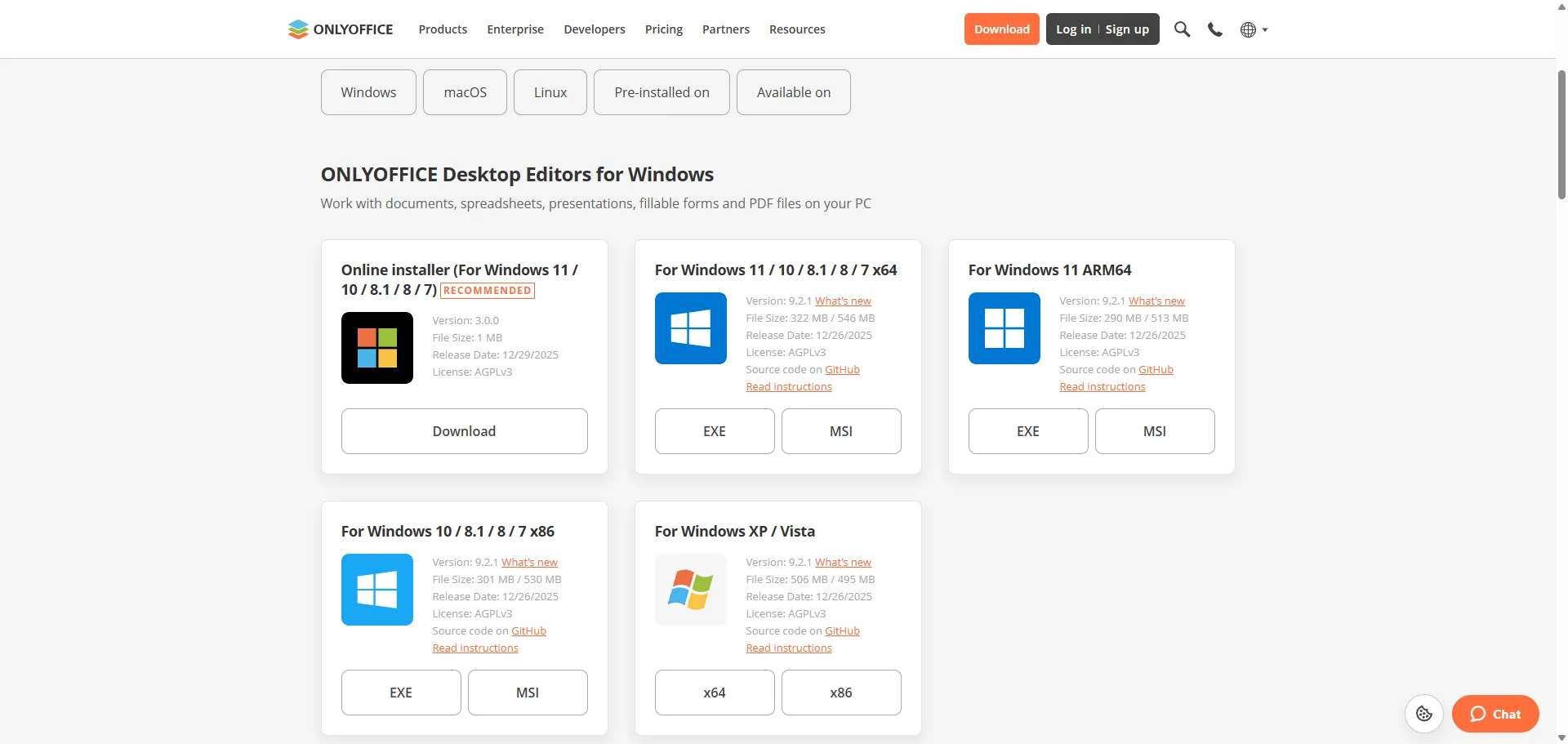
Setting Up ONLYOFFICE
- Download the desktop editors from the ONLYOFFICE official site
- Install the application following the standard Windows 11 setup process
- Connect cloud storage services like Google Drive or Dropbox for seamless file access
- Start creating documents with the familiar ribbon interface
Collaboration Without Barriers
Real-time co-editing works smoothly when multiple people need to work on the same document. Changes appear instantly, and built-in chat keeps conversations organized without switching apps. This works best when teams value integrated communication over separate messaging tools.
The software handles Microsoft Office files natively. Opening a DOCX or XLSX file shows exactly what others see, eliminating the formatting surprises that plague some alternatives.
Privacy and Security Features
End-to-end encryption protects sensitive documents when working with cloud storage. Local editing mode keeps everything offline when privacy concerns outweigh collaboration needs. Version history tracks changes automatically, making it simple to revert mistakes or review document evolution.
WPS Office Free: Feature-Rich with Familiar Design
WPS Office Free delivers a polished experience that feels remarkably similar to Microsoft Office. The tabbed interface lets users work on multiple documents simultaneously, boosting productivity for anyone juggling several projects.
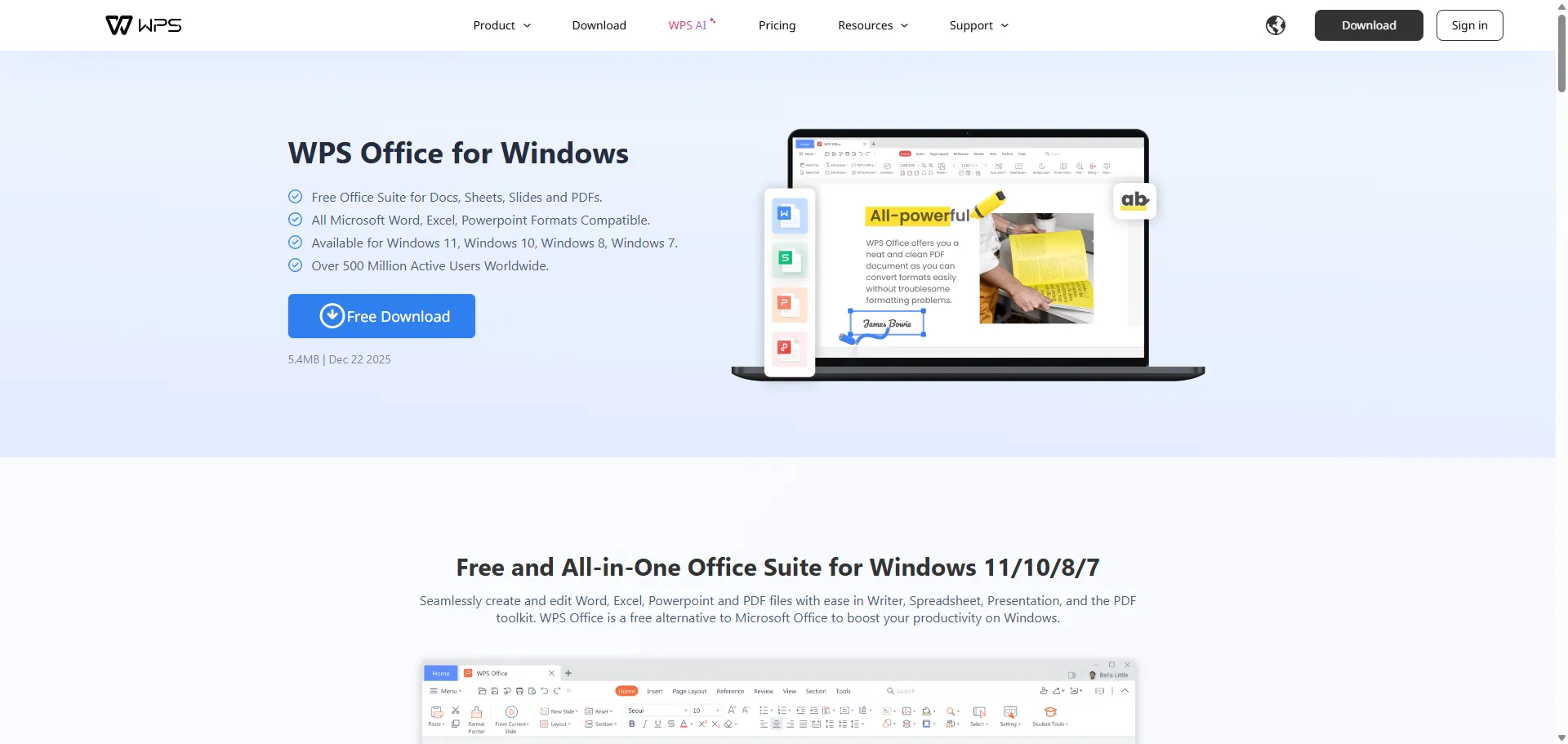
Getting Started with WPS Office
- Download WPS Office from the official website
- Run the installer and choose the free version during setup
- Complete the installation and open the integrated workspace
- Access Writer, Spreadsheets, and Presentation tools from a single window
Built-In Advantages
PDF editing comes standard, eliminating the need for separate tools. Templates cover business reports, academic papers, and creative projects. Cloud storage integration connects to major services, keeping files synchronized across devices.
The free version includes advertisements, but they stay unobtrusive and don’t interrupt workflow. Most people find the trade-off acceptable given the feature set available without payment.
Performance on Windows 11
The software launches quickly and handles large files without lag. Memory usage stays reasonable even with multiple documents open. Compatibility with older Windows file formats ensures legacy documents open correctly, which matters for businesses maintaining historical records.
FreeOffice: Lightweight and Fast
FreeOffice from SoftMaker focuses on speed and efficiency. The suite requires minimal system resources while delivering core functionality that handles everyday office tasks reliably.
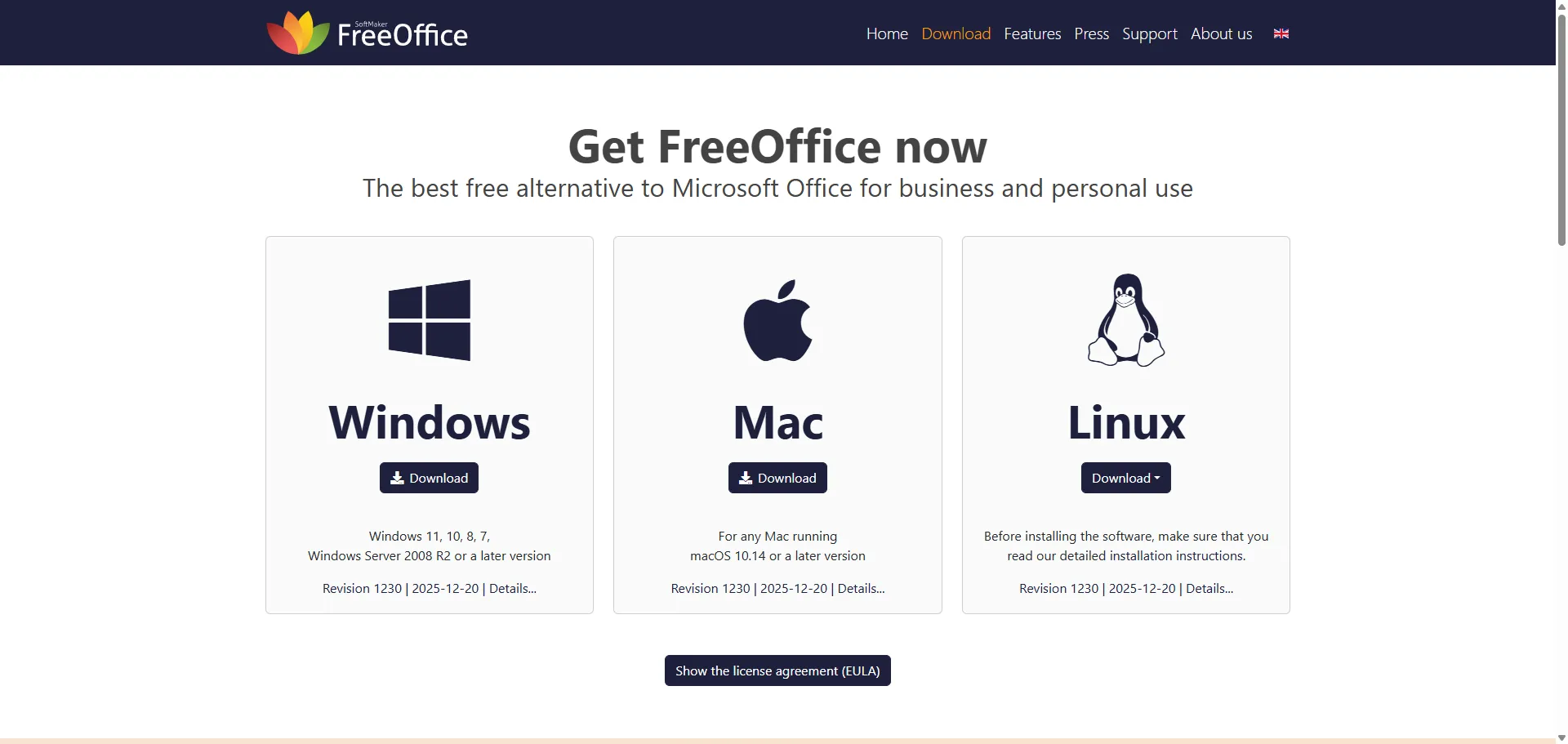
Installation Process
- Navigate to the FreeOffice website and register for a free license key
- Download the installer for Windows 11
- Enter the license key during installation to activate all features
- Launch TextMaker, PlanMaker, or Presentations from the Start menu
Why Speed Matters
Older computers benefit most from FreeOffice’s efficient design. Documents load almost instantly, and the interface responds without delays. This works best when working on hardware with limited RAM or processing power.
Microsoft Office compatibility reaches back to older file formats, making it valuable for accessing documents created years ago. Modern format support ensures current projects stay accessible to collaborators using commercial software.
Unique Features
Professional typography tools give documents a polished appearance. Master pages in Presentations create consistent slide designs effortlessly. The ribbon interface places frequently used tools within easy reach, reducing the clicks needed for common tasks.
Google Workspace (Free Web-Based Option)
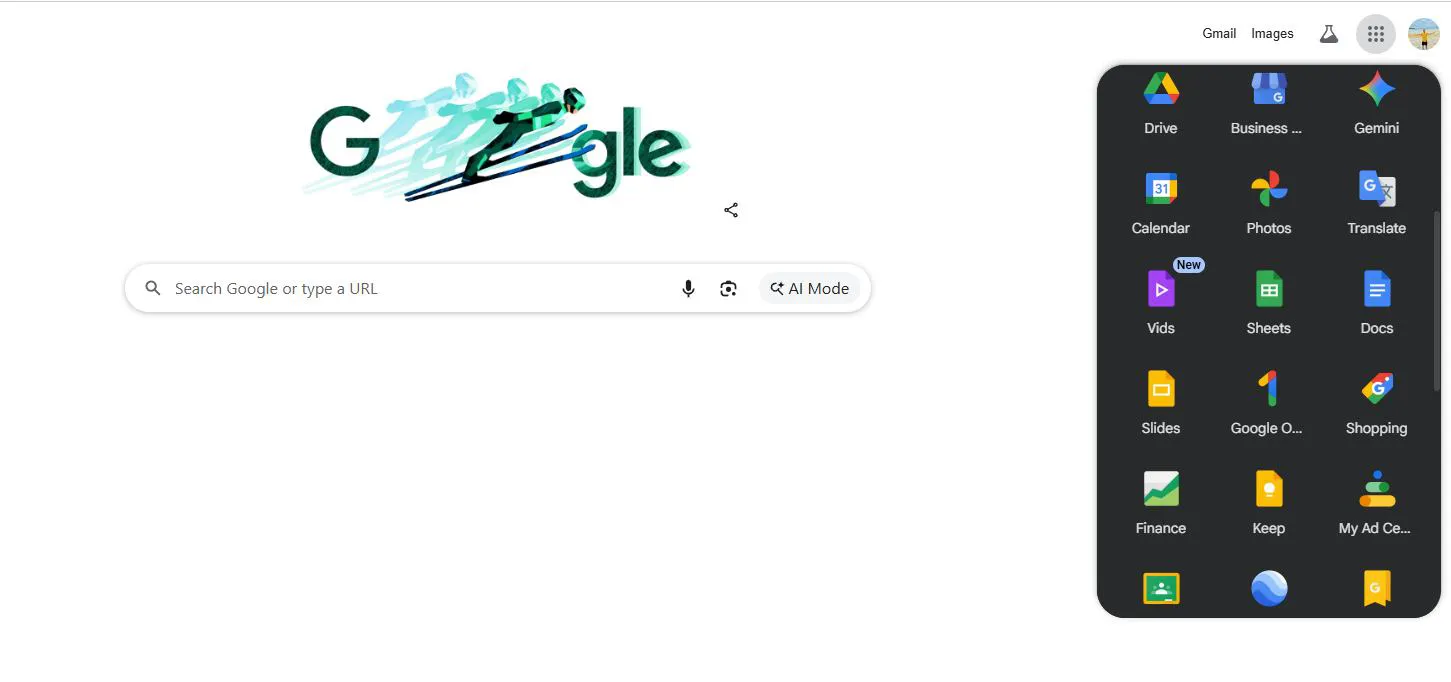
Google Docs, Sheets, and Slides work entirely in a web browser, eliminating installation requirements. The cloud-native approach means documents stay accessible from any device with internet access.
Accessing Google Workspace
- Create a free Google account if one doesn’t exist already
- Navigate to docs.google.com, sheets.google.com, or slides.google.com
- Start creating documents immediately in the browser
- Install the offline extension for Chrome to work without internet
Collaboration as Standard
Sharing documents takes seconds. Multiple users edit simultaneously with changes syncing automatically. Comments and suggestions facilitate feedback without altering original content. Version history preserves every change, making it simple to track document evolution or restore previous versions.
Integration with Windows 11
Desktop shortcuts create quick access to frequently used documents. The Google Drive desktop app syncs files locally, bridging web-based editing with traditional file management. This approach works best when internet reliability isn’t a concern.
For more productivity tools, explore additional software solutions that enhance Windows 11 functionality.
Choosing the Right Free Office Software
Different suites excel at different tasks. The best choice depends on specific needs, technical comfort, and collaboration requirements.
For Complete Offline Functionality
LibreOffice provides the most comprehensive offline experience. Every feature works without internet access, and no account registration interrupts the workflow. Organizations with strict data privacy requirements appreciate keeping all documents on local systems.
For Teams and Collaboration
ONLYOFFICE Desktop Editors or Google Workspace handle real-time collaboration most effectively. Built-in communication tools keep discussions organized, and automatic syncing prevents conflicting document versions.
For Familiar Interface
WPS Office Free mimics Microsoft Office most closely. The transition requires minimal learning, making it ideal for users switching from commercial software who want to maintain productivity during the adjustment period.
For Older Hardware
FreeOffice runs smoothly on systems where other suites might lag. Minimal resource requirements ensure responsive performance even on computers several years old.
Maximizing Free Office Software on Windows 11
Getting the most from free office suites involves understanding their strengths and configuring them appropriately for specific workflows.
Customizing the Interface
Most suites allow toolbar customization. Placing frequently used tools within easy reach reduces unnecessary clicks and speeds up common tasks. Keyboard shortcuts accomplish repetitive actions faster than mouse navigation.
Theme options reduce eye strain during extended work sessions. Dark modes work particularly well in low-light environments, while high-contrast themes improve visibility on certain displays.
Setting Default File Formats
Configuring the default save format ensures compatibility with collaborators. Saving as DOCX, XLSX, or PPTX by default prevents format conversion issues when sharing files. The key is maintaining compatibility while preserving formatting integrity.
Leveraging Templates
Templates eliminate repetitive formatting work. Creating custom templates for frequently used document types saves time and ensures consistency across projects. Most suites include template galleries, but custom templates tailored to specific needs prove more valuable.
Regular Updates
Keeping software updated ensures access to latest features and security patches. Most free office suites update automatically, but checking occasionally confirms the installation stays current.
Additional Windows 11 optimization tips can be found in the comprehensive Windows guide section.
File Compatibility Considerations
Understanding how different formats work across software prevents frustrating compatibility issues when sharing documents.
Microsoft Office Format Support
All major free office suites read and write Microsoft Office formats. However, complex formatting sometimes shifts slightly between applications. Testing critical documents in the recipient’s software before final delivery prevents unexpected layout changes.
Fonts cause most compatibility issues. Using standard fonts like Arial, Times New Roman, or Calibri ensures text appears correctly across different systems. Custom fonts require embedding or may substitute unexpectedly.
PDF Export Quality
Built-in PDF export in most free suites produces professional results. Export settings control image compression and font embedding. This works best when balancing file size against visual quality for specific distribution methods.
Legacy Format Support
Older document formats from previous Microsoft Office versions open reliably in most free alternatives. This matters when maintaining archives or accessing historical business documents that haven’t been converted to modern formats.
Frequently Asked Questions
Can free office software replace Microsoft Office completely?
For most users, free office software handles every task Microsoft Office does. Standard documents, spreadsheets, and presentations work identically. Advanced features like complex macros or specialized business intelligence tools might require commercial software, but typical productivity needs are fully met by free alternatives.
Which free office software works best with Microsoft Office files?
ONLYOFFICE Desktop Editors and WPS Office Free maintain Microsoft Office compatibility most consistently. Both handle DOCX, XLSX, and PPTX files with minimal formatting changes. LibreOffice also works well but occasionally requires minor formatting adjustments on complex documents.
Do free office suites work offline on Windows 11?
LibreOffice, ONLYOFFICE Desktop Editors, WPS Office Free, and FreeOffice all function completely offline after installation. Google Workspace requires internet by default but offers offline mode through a Chrome extension. Downloaded documents remain accessible without connectivity until syncing occurs.
Are free office programs safe to use?
Reputable free office software from official sources is completely safe. LibreOffice, ONLYOFFICE, WPS Office, and FreeOffice all undergo regular security audits. Downloading from official websites prevents malware risks associated with unofficial sources. Regular updates maintain security against emerging threats.
Can multiple free office programs be installed on Windows 11 simultaneously?
Windows 11 handles multiple office suites without conflicts. Different programs can coexist, allowing users to choose the best tool for specific tasks. File associations determine which application opens documents by default, but this setting changes easily through Windows settings.
How much storage space do free office suites require?
Most free office suites require between 500MB to 1.5GB of storage space. LibreOffice needs approximately 600MB, ONLYOFFICE requires around 1GB, WPS Office uses about 500MB, and FreeOffice requires roughly 700MB. These are minimal requirements that won’t strain modern Windows 11 systems.