
Testing a webcam before important video calls or online meetings is essential. This free webcam test allows anyone to verify their camera is working properly in seconds. No downloads, no installations – just instant results.
Most people find that testing their webcam ahead of time prevents embarrassing technical issues during virtual meetings. The process is straightforward and takes less than a minute to complete.
How to Test Your Webcam
Running a webcam test is incredibly simple. The key is to allow browser permissions when prompted. Here’s exactly what to do:
- Click the ‘Start Camera’ button above
- Allow camera access when the browser asks for permission
- Wait for the video feed to appear on screen
- Check if the image is clear and properly lit
- Test the ‘Take Photo’ feature to verify snapshot functionality
- Click ‘Stop Camera’ when finished testing
The entire process happens directly in the browser. This works best when using updated browser versions like Chrome, Firefox, Safari, or Edge.
What This Webcam Test Checks
This online webcam test verifies several important aspects of camera functionality. Understanding what gets tested helps ensure everything is working as expected.
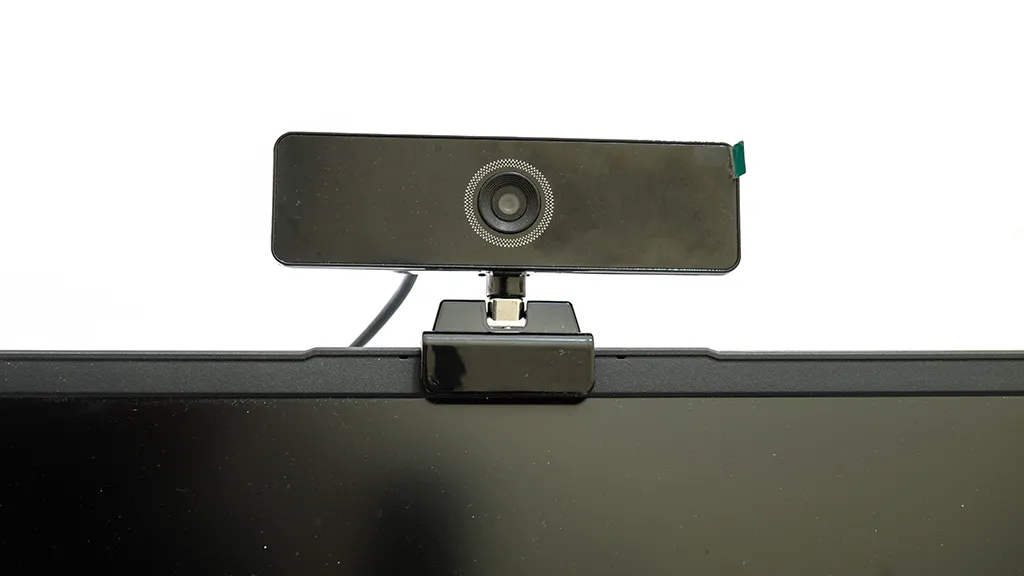
Video Feed Quality
The test displays live video from the webcam in real-time. This allows checking for issues like blurry images, poor lighting, or incorrect camera angles. Most people find that adjusting room lighting makes a significant difference in video quality.
Camera Resolution
The test attempts to access the camera at its optimal resolution, typically 1280×720 pixels or higher. Higher-end webcams may display even sharper images at 1920×1080 resolution.
Browser Compatibility
Running this test confirms that the browser can properly access and display the webcam feed. This is crucial for video conferencing platforms, streaming software, and other applications that require camera access.
Common Webcam Test Scenarios
Different situations call for testing webcam functionality. Knowing when to run a quick test saves time and prevents technical difficulties.
Before Important Video Meetings
Testing the webcam 5-10 minutes before a scheduled video call is smart practice. This gives enough time to fix any issues without delaying the meeting. The key is to check both video quality and camera positioning.
After System Updates
Operating system updates can sometimes affect webcam drivers or permissions. Running a test after updating Windows or other systems ensures the camera still functions correctly.
When Using New Software
Different video conferencing platforms may have varying requirements. Testing the webcam through this free tool confirms the camera itself works, even if specific software has additional settings to configure.
Checking New Webcam Hardware
After connecting a new external webcam or upgrading laptop hardware, running this test verifies the device is recognized and functioning properly.
Understanding Camera Permissions
Modern browsers require explicit permission before accessing webcams. This security feature protects privacy but requires user action during the first test.
When clicking ‘Start Camera’ for the first time, a permission prompt appears near the browser’s address bar. Selecting ‘Allow’ grants the website temporary access to the webcam. This permission typically lasts only for the current browsing session.
The test never records or stores any video. Everything happens locally in the browser, and stopping the camera immediately terminates access.
Webcam Test Results
Interpreting test results is straightforward. The webcam works correctly if:
- Live video appears within 2-3 seconds of clicking ‘Start Camera’
- The image is clear and not excessively pixelated
- Movement appears smooth without significant lag
- The ‘Take Photo’ feature successfully captures snapshots
- No error messages display during the test
Most people find that successful test results indicate the camera is ready for video calls, streaming, or any other application requiring webcam functionality.
Supported Devices and Browsers
This free webcam test works across multiple devices and platforms. Compatibility is broad, covering the most common scenarios.
Desktop and Laptop Computers
The test functions on both built-in laptop cameras and external USB webcams. Desktop users with dedicated webcam devices can verify their setup works properly.
Mobile Devices
Smartphones and tablets with front or rear-facing cameras can also run this test. The mobile browser accesses the camera the same way desktop browsers do.
Browser Support
Modern versions of Chrome, Firefox, Safari, Edge, and Opera all support this webcam test. The key is using a browser version released within the last two years.
Privacy and Security
Privacy concerns around webcam testing are valid and important. Understanding how this test handles camera access provides peace of mind.
The test operates entirely within the browser without sending video data to any server. Nothing gets recorded, stored, or transmitted. Closing the browser tab or clicking ‘Stop Camera’ immediately terminates all access.
This works best when testing on trusted devices. Avoid running webcam tests on public or shared computers where other users might have installed monitoring software.
Quick Camera Check Tips
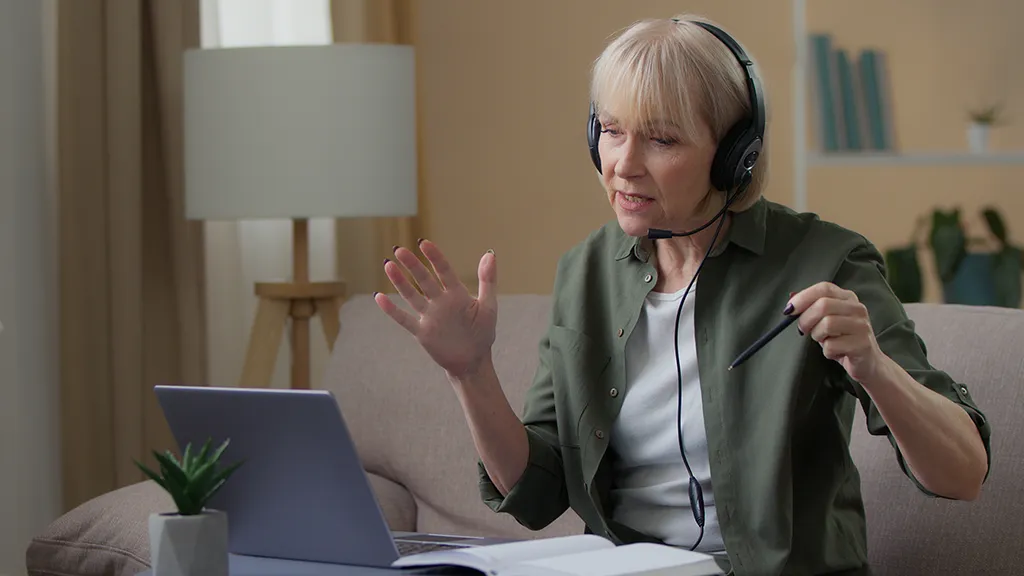
Getting the best results from a webcam test involves simple preparation steps. These practical tips improve video quality:
- Position the camera at eye level for natural-looking video
- Ensure adequate lighting from the front, not behind
- Clean the camera lens with a soft cloth if the image appears smudged
- Close other applications that might be using the camera
- Check that the correct camera is selected if multiple devices are connected
Most people find that proper lighting makes more difference than camera quality. Facing a window or desk lamp significantly improves video appearance.
Frequently Asked Questions
Why won’t my webcam work during the test?
The most common reason is denied browser permissions. Check the address bar for a camera icon and click it to allow access. Another possibility is that another application is currently using the camera – close video conferencing software, streaming apps, or other programs that might have camera access.
Is this webcam test really free?
Yes, this is completely free with no hidden costs, subscriptions, or premium features. The test provides full functionality at no charge and doesn’t require account creation or personal information.
Does the test work on phones and tablets?
Absolutely. Mobile browsers can access both front and rear cameras. The test automatically adapts to smaller screens and touch interfaces for easy mobile use.
Can this test check microphone functionality?
This particular test focuses exclusively on video camera functionality. It doesn’t test audio or microphone features. The camera-only approach ensures faster loading and simpler operation.
How long does the webcam test take?
Testing a webcam takes approximately 30-60 seconds. Most of that time is spent visually inspecting the video quality and trying the snapshot feature. The actual camera activation happens within 2-3 seconds.
Will this test work with virtual backgrounds or filters?
This test displays raw camera output without filters, backgrounds, or effects. It shows exactly what the camera sees, which helps verify the base video quality before adding effects in other applications.
What happens to the photos I take during the test?
Photos captured during testing remain only in the browser window. They aren’t uploaded, saved to any server, or stored permanently. Refreshing the page or closing the browser removes all captured images.
Can I test multiple webcams on the same computer?
The test accesses whichever camera the browser designates as default. To test a different camera, change the default camera in system settings before running the test again.
Why does the video appear flipped or mirrored?
Many webcams display a mirrored image by default, similar to looking in a mirror. This is normal and helps create a more natural viewing experience. The actual video that others see in calls is typically not mirrored.
Do I need to install any software to use this test?
No installation is required. The test runs entirely in the web browser using standard technologies. This makes it accessible from any device with a camera and internet connection.