
Adjusting screen refresh rate on Windows 11 can significantly improve display smoothness and reduce eye strain during extended computer use. The refresh rate determines how many times per second the screen updates its image, measured in Hertz (Hz). Higher refresh rates create smoother motion, especially noticeable during gaming or scrolling through content.
Most people find that changing from 60Hz to 120Hz or 144Hz makes everyday tasks feel more responsive. The process takes just a few clicks through Windows 11 settings, though the available options depend on monitor capabilities and connection type.
Understanding Refresh Rate Basics
Screen refresh rate represents the frequency at which the display redraws the image. A 60Hz monitor updates 60 times per second, while a 144Hz monitor refreshes 144 times per second. This works best when the monitor, graphics card, and cable all support the desired refresh rate.
Modern displays often support multiple refresh rates, from standard 60Hz up to 240Hz or even 360Hz for premium gaming monitors. The key is to match the refresh rate with what the hardware can deliver consistently.
How to Change Refresh Rate Through Windows Settings
The primary method for adjusting screen refresh rate on Windows 11 uses the built-in display settings. This approach works for most users and allows viewing the current refresh rate and changing it in the same location.
Watch this: Adjusting Screen Refresh Rate on Windows 11 Easily
Using the Display Settings
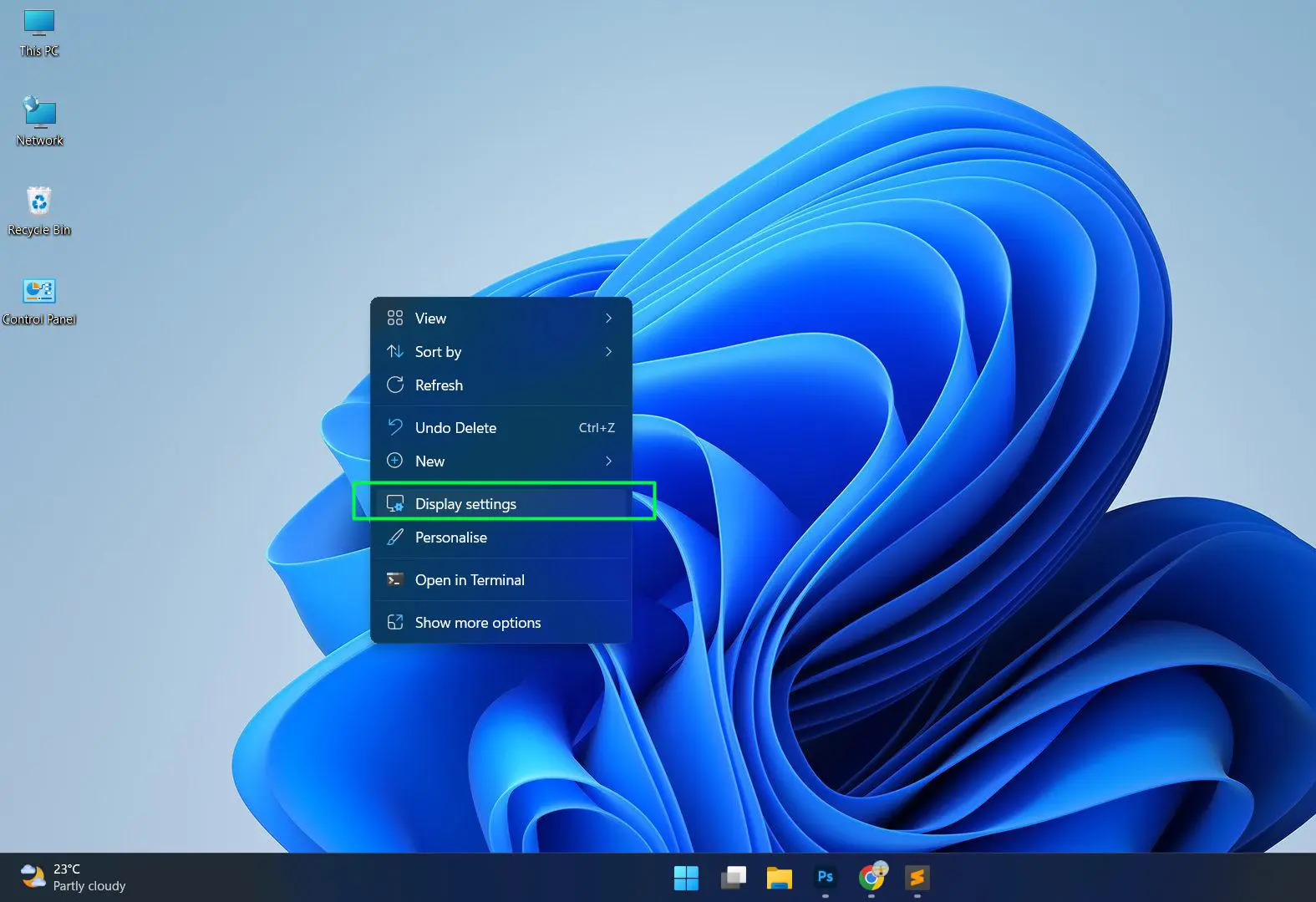
- Right-click anywhere on the desktop
- Select ‘Display settings’ from the context menu
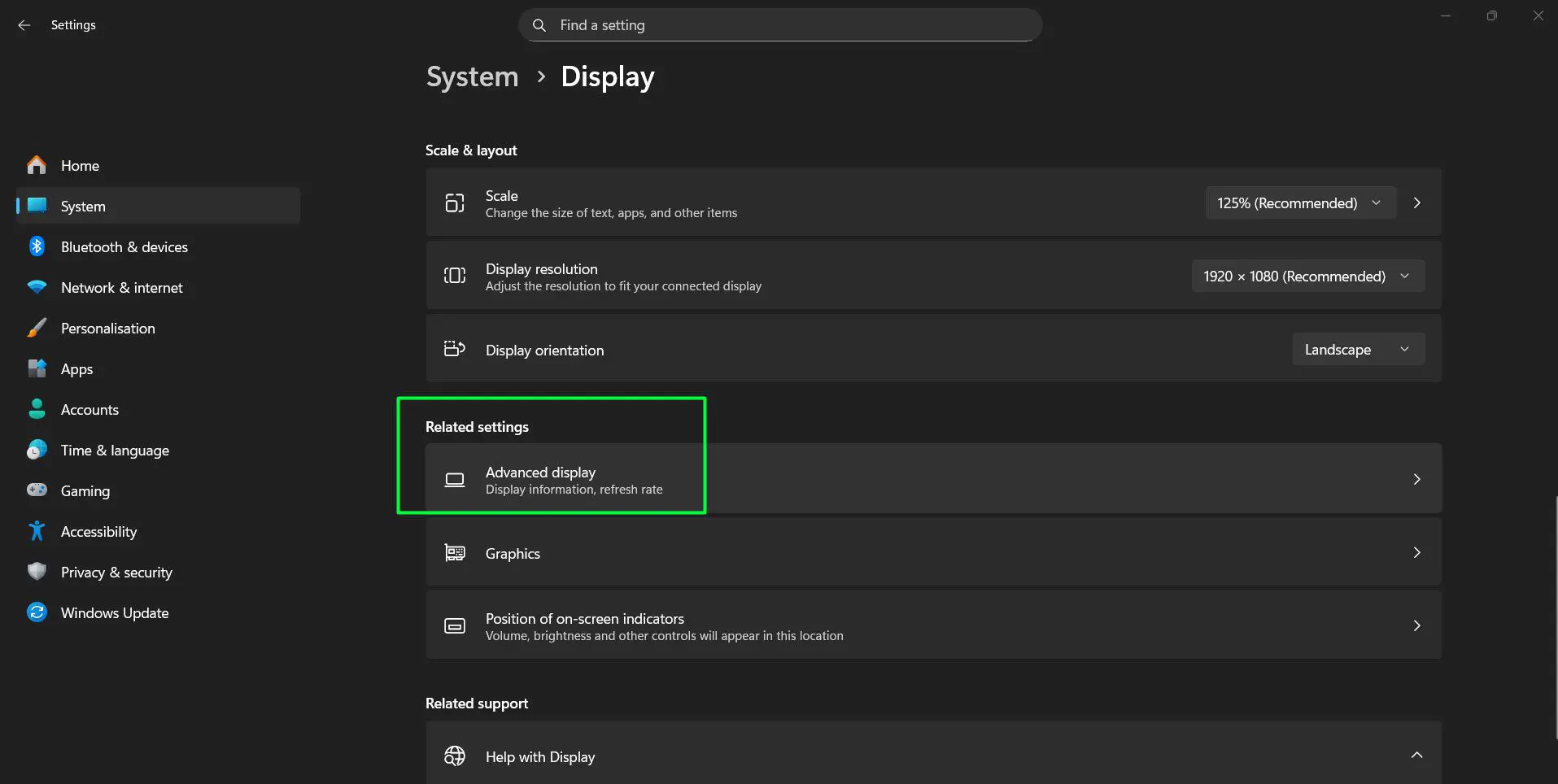
- Scroll down to ‘Related settings’ section
- Click on ‘Advanced display’
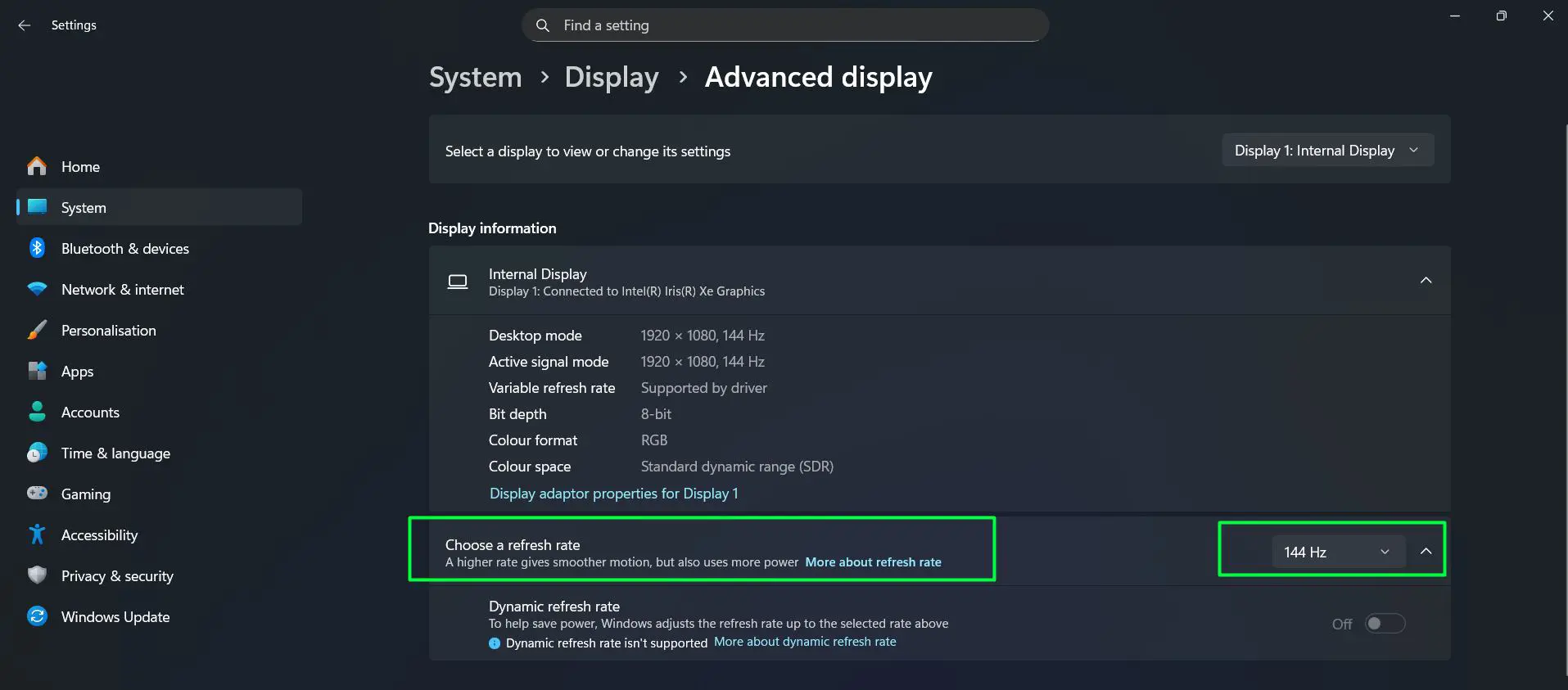
- Find the ‘Choose a refresh rate’ dropdown to see the current setting
- Select the desired refresh rate from available options
- The change applies immediately without requiring a restart
The advanced display page shows detailed information about the connected monitor, including resolution, bit depth, and active refresh rate. If multiple monitors are connected, each display has independent refresh rate settings.
Pro-Tip: Matching Refresh Rate to Monitor Capabilities
Always select the highest refresh rate available in the dropdown menu, as this represents the maximum the monitor can handle with the current connection. Lower options exist for compatibility purposes, but using the maximum supported rate provides the smoothest experience. If the desired refresh rate doesn’t appear in the list, check the cable quality and connection type—HDMI 1.4 cables, for example, can’t deliver 4K at 144Hz, while DisplayPort 1.4 handles it easily.
Selecting a Display to Change Refresh Rate
When using multiple monitors with Windows 11, each display can operate at a different refresh rate. The system treats each monitor as an independent device with its own configuration options.
- Right-click anywhere on the desktop
- Select ‘Display settings’ from the context menu
- Look at the top of the page ‘Select a display to view or change its settings’
- Click the dropdown to view all connected displays
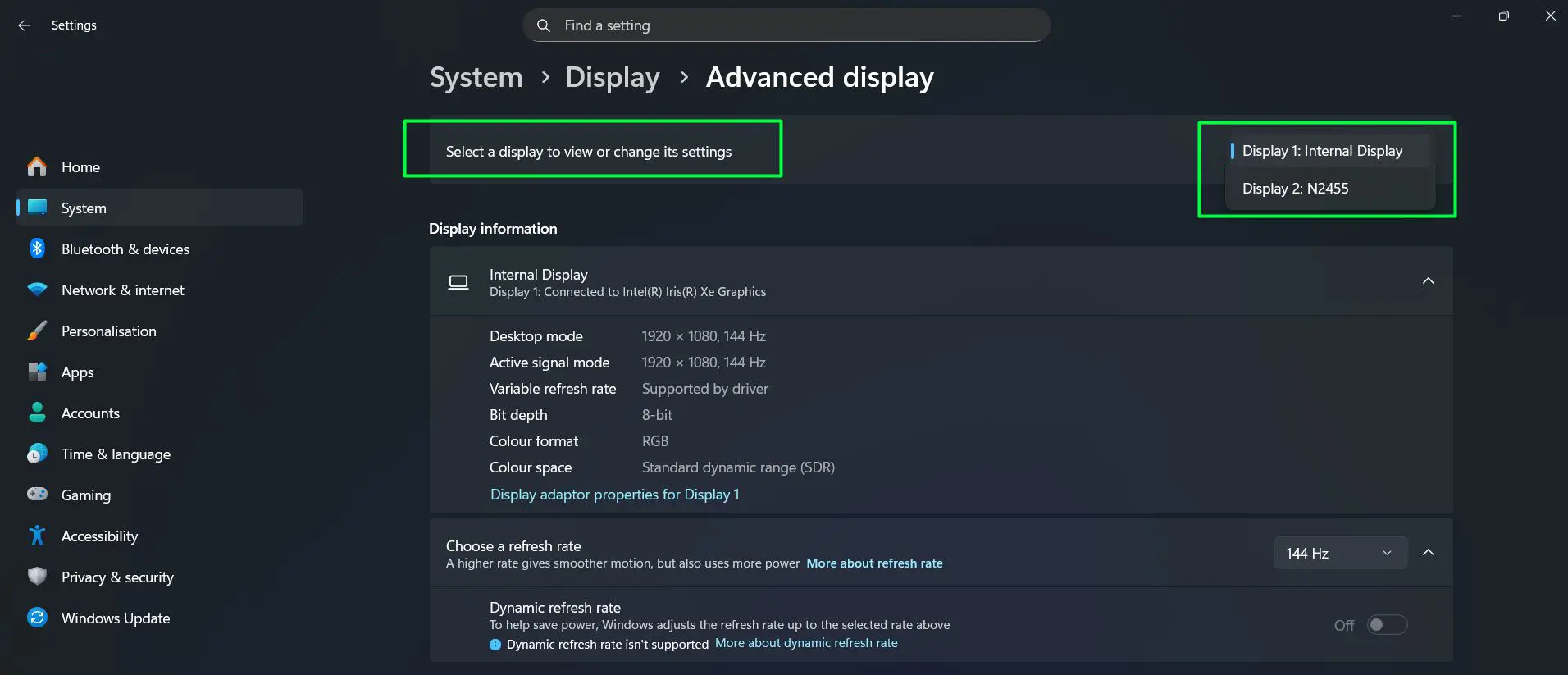
- Select the specific monitor that needs refresh rate adjustment (such as ‘Display 1: Internal Display’ or ‘Display 2: N2455’)
- Find the ‘Choose a refresh rate’ dropdown to see the current setting
- Proceed to adjust the refresh rate for that specific display
After selecting a specific display, all the information shown below updates to reflect that monitor’s capabilities and current settings. The refresh rate options available will vary based on each display’s specifications and connection method. This flexibility allows pairing a high-refresh gaming monitor with a standard office display without any conflicts.
Adjusting Refresh Rate for Gaming Performance
Gamers often need specific refresh rate configurations to match their monitor’s capabilities with game performance. Windows 11 remembers separate refresh rates for different applications when using fullscreen mode.
Many modern games automatically detect and use the maximum available refresh rate. However, some older titles may need manual configuration through their graphics settings menus. The general rule: set Windows to the highest supported refresh rate, then configure individual games as needed.
Variable refresh rate technologies like G-SYNC and FreeSync work alongside fixed refresh rate settings. These features synchronize the display’s refresh with the graphics card output, preventing screen tearing even when frame rates fluctuate.
Common Refresh Rate Limitations
Several factors can restrict available refresh rate options. Understanding these limitations helps set realistic expectations.
Cable and Connection Types
The physical connection between computer and monitor determines maximum refresh rate capabilities. HDMI 2.0 supports 1080p at 240Hz or 4K at 60Hz. HDMI 2.1 extends this to 4K at 120Hz. DisplayPort 1.4 handles 4K at 120Hz or 1080p at 240Hz easily.
Using the wrong cable type prevents higher refresh rates from appearing in the settings menu, even when both the monitor and graphics card support them. This works best when using certified cables rated for the required bandwidth.
Graphics Card Capabilities
The GPU must support the desired refresh rate at the current resolution. Older graphics cards may lack the processing power or port specifications to drive high refresh rates. Checking the graphics card specifications confirms its maximum output capabilities.
Monitor Native Refresh Rate
Each monitor has a maximum native refresh rate determined by its panel technology. A 60Hz monitor cannot be forced to run at 144Hz, regardless of other hardware. The specifications sheet or manufacturer website lists the maximum supported refresh rate.
Verifying the New Refresh Rate
After changing settings, confirming the new refresh rate actually applied ensures everything works correctly. Several methods verify this information.
The most straightforward approach involves checking the Windows 11 advanced display settings again. The dropdown menu shows the currently active refresh rate. Additionally, many monitors display the active refresh rate in their on-screen menu system, accessible through physical buttons on the display.
Online tools and websites can also test refresh rate detection. These pages animate content at specific speeds to visually confirm the display is running at the expected rate. Most people find that motion appears noticeably smoother after successfully increasing the refresh rate.
Best Practices for Refresh Rate Management
Certain situations call for specific refresh rate considerations. Battery-powered laptops benefit from lower refresh rates when unplugged, as higher rates consume more power. Windows 11 can automatically adjust this through power management settings.
For content creation work involving video editing or color grading, matching the display refresh rate to the project frame rate sometimes helps with accurate preview playback. Film projects at 24fps, television at 30fps or 60fps, and gaming content at 60fps or higher each have different ideal configurations.
Professional monitors often include factory-calibrated modes that set specific refresh rates along with color profiles. Using these presets maintains calibration accuracy.
When to Use Lower Refresh Rates
While higher refresh rates generally provide better experiences, some scenarios benefit from lower settings. Older applications not designed for high refresh rates may experience timing issues or run too quickly at 144Hz or higher.
Power consumption increases with higher refresh rates. Laptop users working away from power outlets can extend battery life by temporarily reducing the refresh rate to 60Hz. The difference in power draw can add 30-60 minutes of additional runtime.
Some video content looks more natural at specific refresh rates. Film content at 24fps displays best on monitors that support exact multiples like 48Hz, 72Hz, or 120Hz, avoiding judder from frame rate mismatches.
Multiple Monitor Refresh Rate Configuration
Windows 11 allows independent refresh rate settings for each connected display. This flexibility helps when using monitors with different capabilities simultaneously.
- Right-click anywhere on the desktop
- Select ‘Display settings’ from the context menu
- Click ‘Advanced display’
- Use the monitor selector dropdown at the top to choose the specific display
- Adjust the refresh rate for that display
- Repeat the process for each additional monitor
The key is to optimize each display individually rather than forcing all monitors to use the same settings. A gaming monitor might run at 144Hz while a secondary productivity display operates at 60Hz without any conflicts.
Refresh Rate and Display Resolution Relationship
Higher resolutions typically limit maximum available refresh rates due to bandwidth constraints. A monitor might support 1080p at 240Hz but only 4K at 144Hz. This relationship exists because more pixels require more data transmission.
When adjusting resolution settings, Windows 11 automatically refreshes the available refresh rate options. Lowering resolution often reveals higher refresh rate choices that weren’t previously available. This works best when prioritizing smoothness over image detail, particularly in competitive gaming scenarios.
Graphics Driver Impact on Refresh Rates
Graphics card drivers play a crucial role in available refresh rate options. Outdated drivers may not expose all supported refresh rates, while updated drivers can add support for new standards and features.
Both NVIDIA and AMD provide control panels with additional refresh rate options beyond what Windows displays. These manufacturer-specific tools sometimes allow custom refresh rates or overclocking display capabilities, though such adjustments require careful testing to ensure stability.
Keeping graphics drivers current ensures access to the latest display features and compatibility improvements. Driver updates occasionally fix bugs that prevented certain refresh rates from working correctly. You can find more software optimization guides for keeping your system running smoothly.
HDR and Refresh Rate Considerations
High Dynamic Range (HDR) content introduces additional variables to refresh rate configuration. Some monitors reduce their maximum refresh rate when HDR is enabled due to bandwidth limitations. A display might offer 144Hz in SDR mode but drop to 120Hz when HDR activates.
Windows 11 manages these transitions automatically when properly configured. The system switches between modes based on content requirements, ensuring the best balance between color accuracy and motion smoothness. Check out more Windows 11 optimization tips to enhance your display experience.
Frequently Asked Questions
What refresh rate should be used for everyday tasks on Windows 11?
For general productivity work like browsing, document editing, and video watching, 60Hz provides perfectly acceptable performance. However, if the monitor supports higher rates like 120Hz or 144Hz, using the maximum available creates noticeably smoother scrolling and cursor movement. There’s no downside to using higher refresh rates for everyday tasks when the hardware supports it.
Can adjusting screen refresh rate damage the monitor?
No, selecting any refresh rate from the Windows 11 dropdown menu is completely safe. The system only displays options that the monitor officially supports. The hardware prevents any settings that could cause damage. However, third-party overclocking tools that force unsupported rates carry some risk and should be used cautiously.
Why doesn’t the desired refresh rate appear in Windows 11 settings?
Missing refresh rate options usually indicate a limitation in the connection chain. The most common causes include using an incompatible cable (like HDMI 1.4 for high refresh 4K), outdated graphics drivers, or hardware that doesn’t support the desired rate. Checking cable specifications, updating drivers, and verifying monitor capabilities typically resolves the issue.
Does higher refresh rate impact graphics card performance?
Yes, higher refresh rates require the graphics card to render more frames per second to take full advantage. For desktop work, this impact is minimal. In games, pushing 144fps at 144Hz demands more GPU power than 60fps at 60Hz. This relationship means users might need to adjust graphics quality settings to maintain smooth performance at higher refresh rates.
How to tell if the refresh rate change actually worked?
The easiest verification method involves checking the Windows 11 advanced display settings, which show the active refresh rate. Additionally, most monitors display their current refresh rate in the on-screen menu. Visually, higher refresh rates produce noticeably smoother motion when moving windows, scrolling pages, or moving the mouse cursor quickly across the screen.
Can laptop displays use different refresh rates than external monitors?
Yes, Windows 11 treats the built-in laptop display and external monitors as separate devices with independent settings. A laptop with a 60Hz internal screen can connect to a 144Hz external monitor, with each running at its optimal refresh rate simultaneously. Configure each display individually through the advanced display settings.
What happens if the system becomes unstable after changing refresh rate?
Windows 11 includes automatic reversion protection. If the display goes black or becomes unusable after applying a new refresh rate, waiting 15 seconds without taking action causes the system to automatically revert to the previous setting. This safety feature prevents users from getting stuck with incompatible configurations.
Do refresh rate settings affect battery life on laptops?
Yes, significantly. Higher refresh rates require more frequent screen updates, increasing power consumption. A laptop display running at 144Hz drains the battery much faster than the same display at 60Hz. Many laptops include power management features that automatically reduce refresh rates when operating on battery power to extend runtime. For more tips on optimizing laptop performance, visit the hardware optimization section.