
When executing advanced system commands, knowing how to run CMD as administrator is an absolute requirement. This step-by-step guide provides direct solutions to launch the Command Prompt with elevated privileges, ensuring full access to modify operating system settings. Bypassing standard user restrictions is essential for deep system diagnostics, network resets, and advanced configuration tasks.
Key Takeaways
- The fastest and most reliable method is utilizing the built-in Start Menu search feature combined with a quick keyboard shortcut.
- Administrative rights are strictly necessary to run powerful system tools like disk checkers or system file scanners.
- There are multiple built-in pathways to achieve an elevated terminal, including the Run dialog box, Task Manager, and File Explorer.
- Creating a dedicated desktop shortcut saves time for users who frequently need elevated command line access.
Understanding Standard Versus Administrator Mode
Before diving into the exact methods, it is helpful to understand why Windows separates standard user access from administrator access. By default, opening the terminal without elevated privileges launches it in standard mode. In this restricted environment, users can perform basic tasks such as checking an IP address, pinging a website, or navigating through standard document directories.
However, the operating system protects core system files, registry keys, and network configurations from accidental changes or malicious software. When a command requires the ability to modify these protected areas, standard mode will simply return an ‘Access Denied’ error. Learning how to run CMD as administrator grants the terminal the highest level of system permission. This is what IT professionals refer to as an ‘elevated command prompt’. Without it, essential maintenance commands will fail to execute.
Method 1: Using the Start Menu Search
Most people find that searching directly is the most efficient way to access elevated tools in Windows. This straightforward method requires no deep navigation and relies purely on the basic user interface.
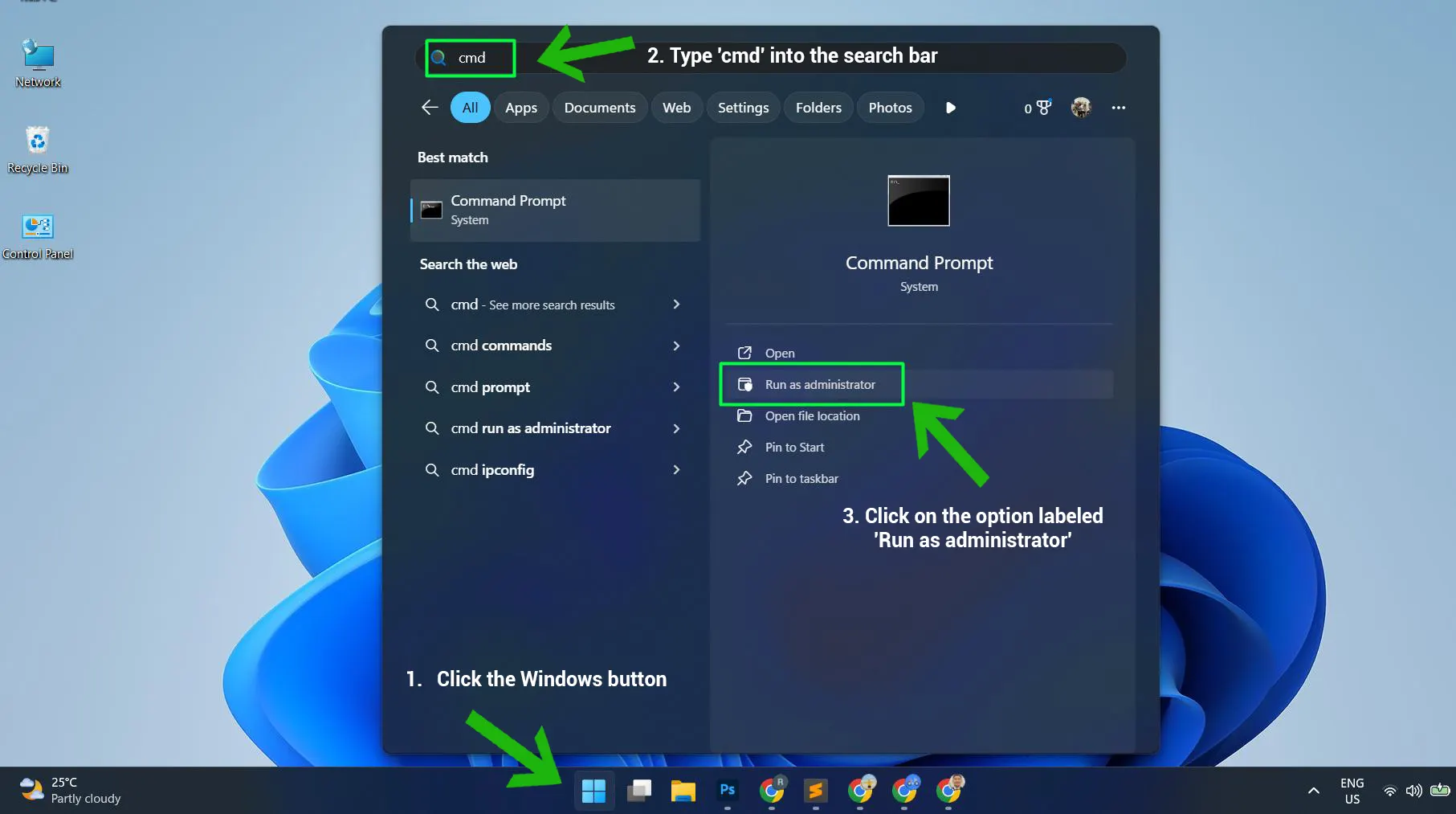
- Step 1: Click the Windows button on the taskbar or press the Windows key directly on the keyboard to open the Start Menu.
- Step 2: Type ‘cmd’ into the search bar located at the top or bottom of the menu.
- Step 3: Look at the right side of the search results panel and click on the option labeled ‘Run as administrator’.
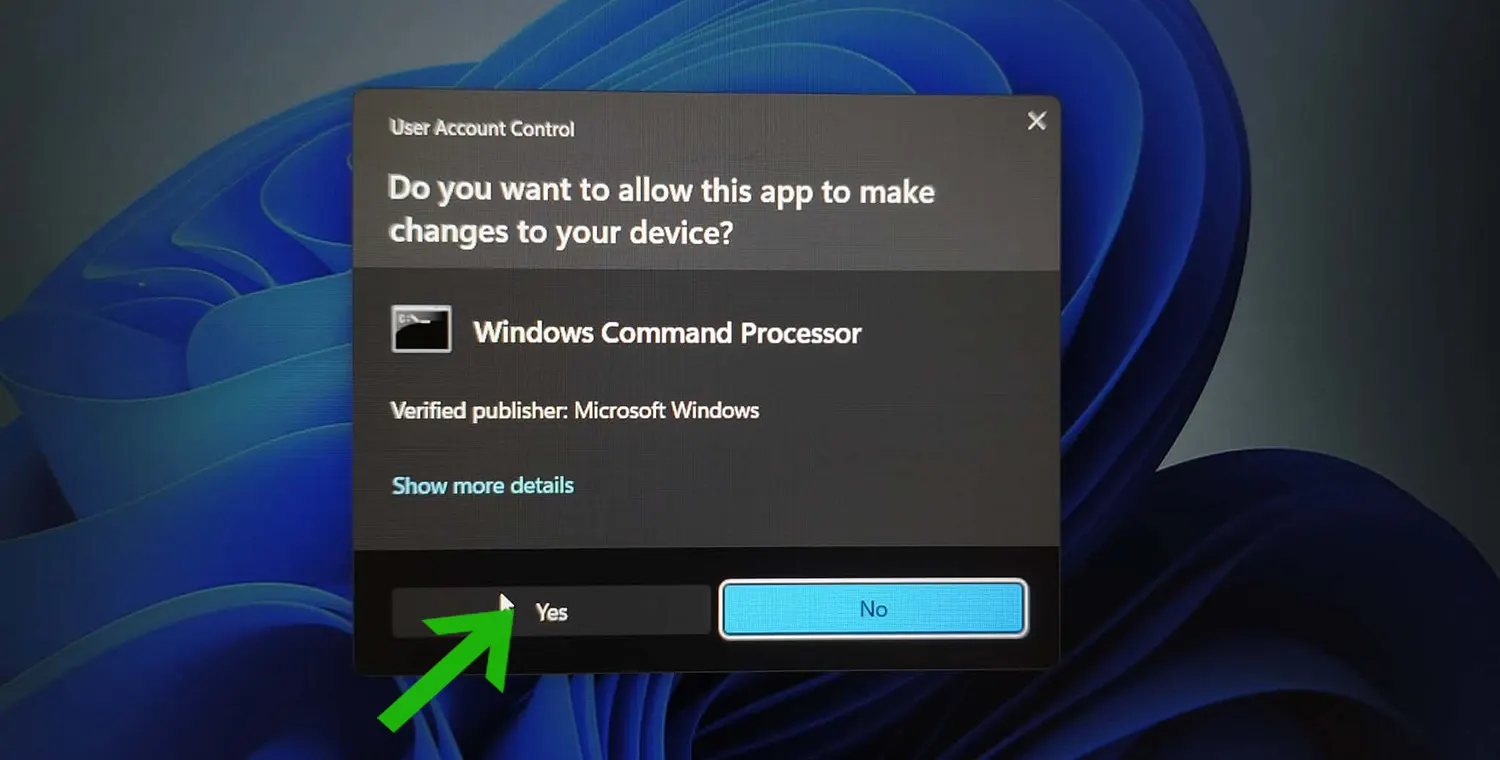
- Step 4: Click ‘Yes’ when the User Account Control prompt appears asking for permission to allow the app to make changes to the device.
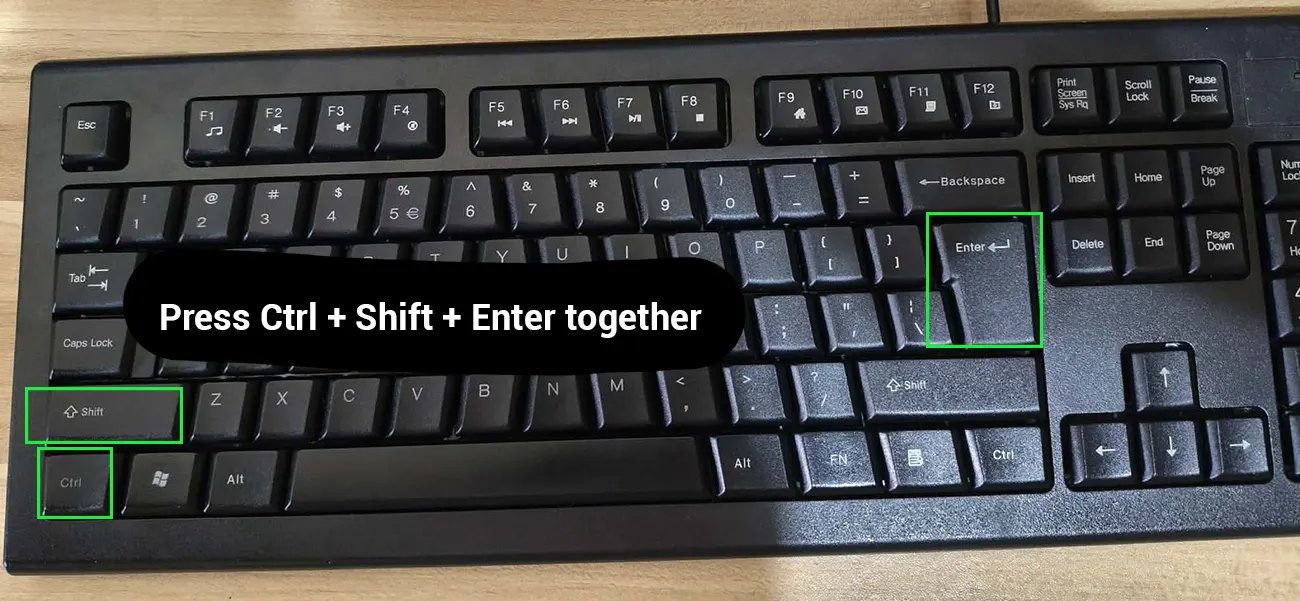
Pro-Tip: Instead of clicking through the menus, simply highlight the Command Prompt result after typing ‘cmd’ and press Ctrl + Shift + Enter at the exact same time. This universal Windows shortcut instantly triggers administrative mode for any highlighted application.
Method 2: Using the Run Dialog Box
This approach works best when the graphical interface is acting sluggish, or when relying heavily on keyboard shortcuts to navigate the operating system. The Run dialog box is a powerful tool for quickly launching core utilities without waiting for search indexes to load.
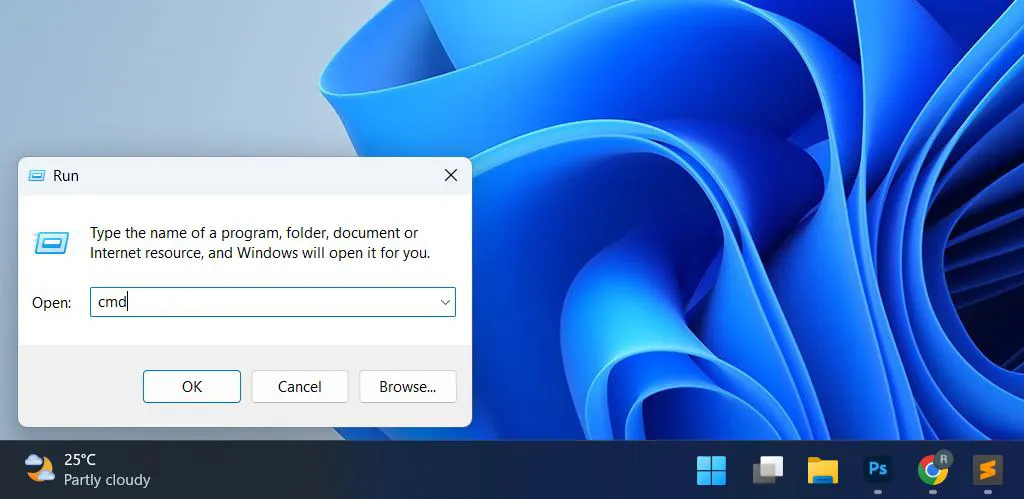
- Step 1: Press the Windows key + R simultaneously to immediately open the Run dialog box in the lower-left corner of the screen.
- Step 2: Type ‘cmd’ into the empty text field provided.
- Step 3: Press Ctrl + Shift + Enter together rather than clicking the OK button or pressing the standard Enter key.
- Step 4: Accept the User Account Control confirmation screen by clicking ‘Yes’ to finalize the elevation process.
Method 3: Launching Through the Task Manager
If system errors are preventing normal navigation, launching the terminal directly through the Task Manager is a reliable fallback. This is especially useful when troubleshooting unresponsive software that completely freezes the desktop environment, preventing access to the standard Start Menu or taskbar.
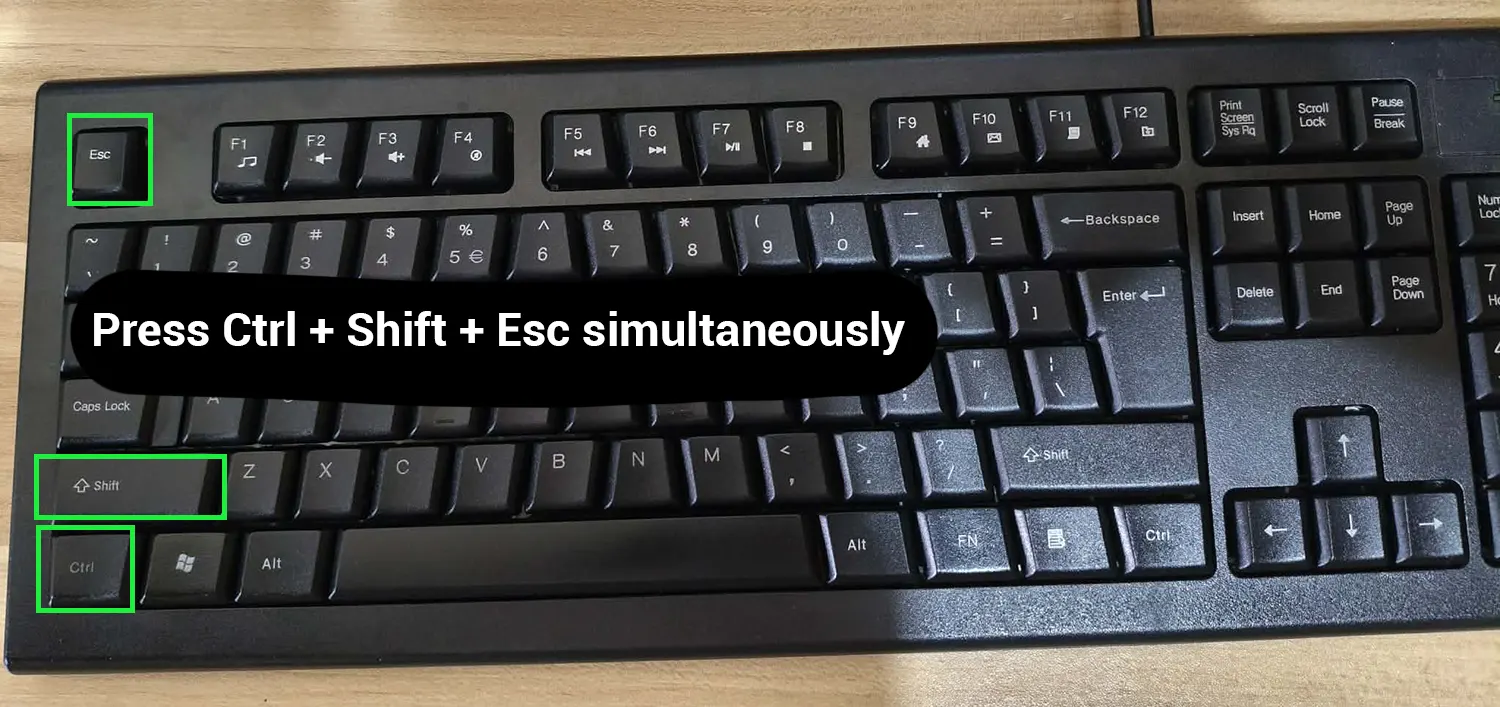
- Step 1: Press Ctrl + Shift + Esc simultaneously to instantly force the Task Manager to open.
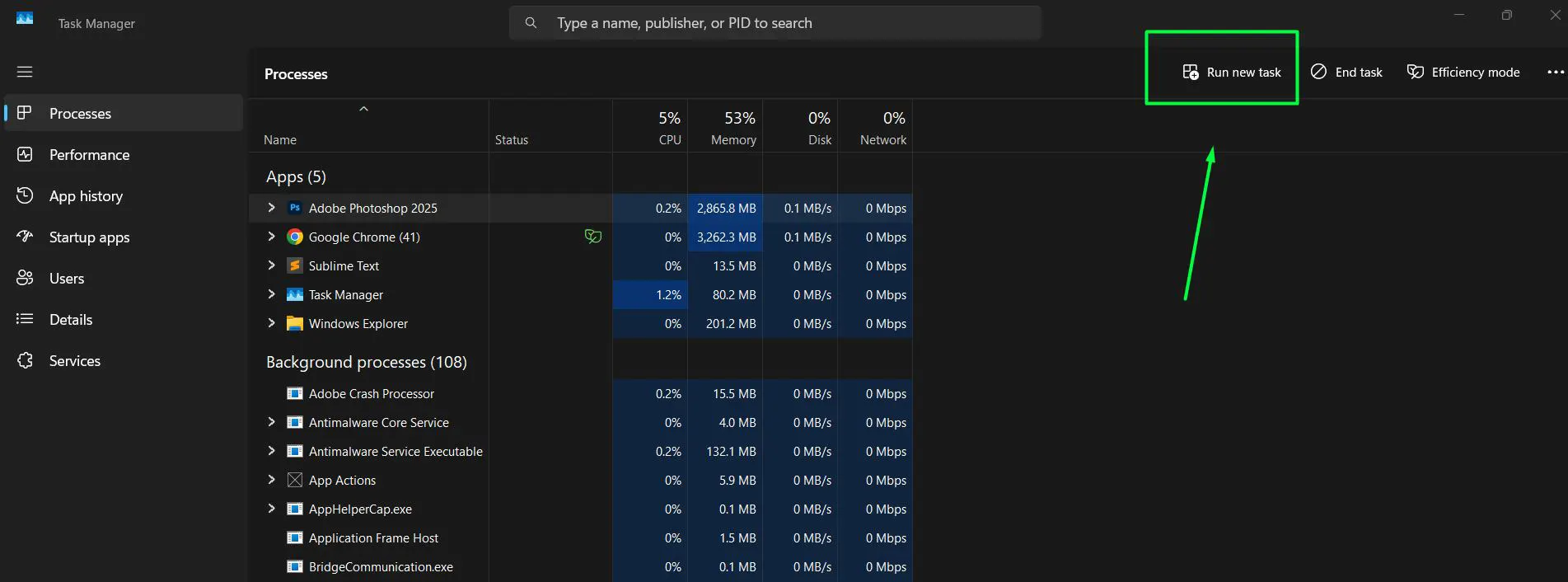
- Step 2: Click on ‘Run new task’ from the drop-down menu located in the top left corner of the window
- Step 3: Type ‘cmd’ into the open input box.
- Step 4: Check the crucial box located just below the text field that says ‘Create this task with administrative privileges’.
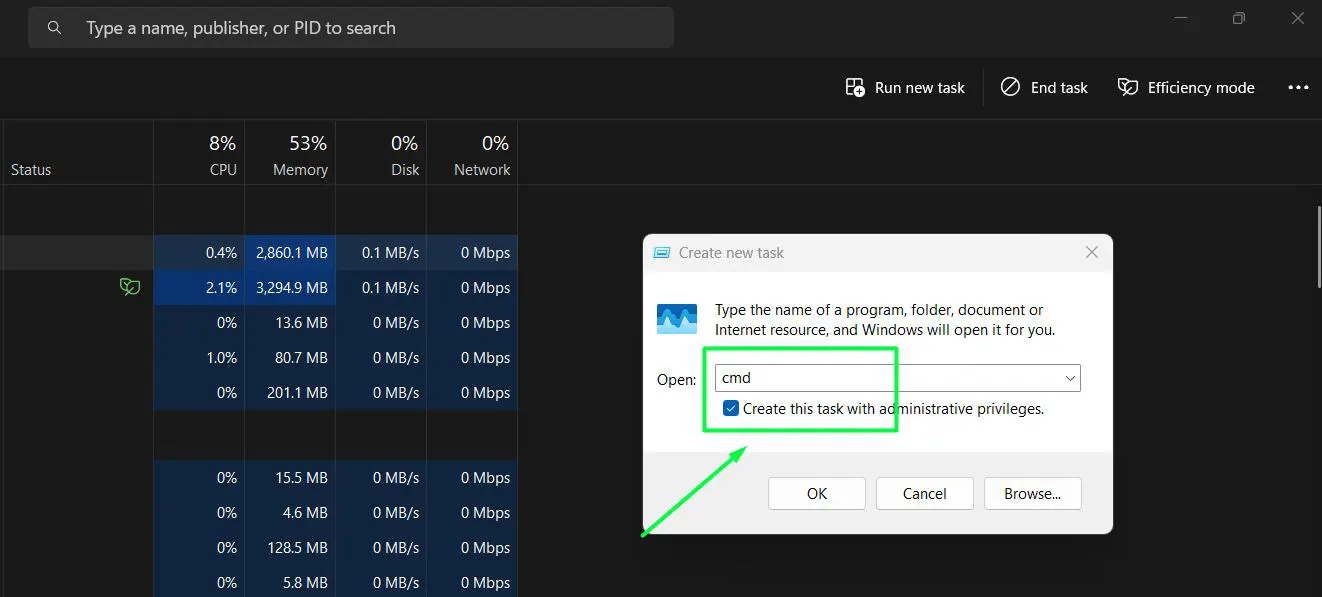
- Step 5: Click ‘OK’ or press Enter to launch the elevated window.
Method 4: Navigating via File Explorer
When keyboard shortcuts fail or the Start Menu is completely broken, accessing the executable file directly through File Explorer is a foolproof, manual method. This involves locating the actual application file hidden within the operating system directory.
- Step 1: Open File Explorer by clicking the folder icon on the taskbar or pressing the Windows key + E.
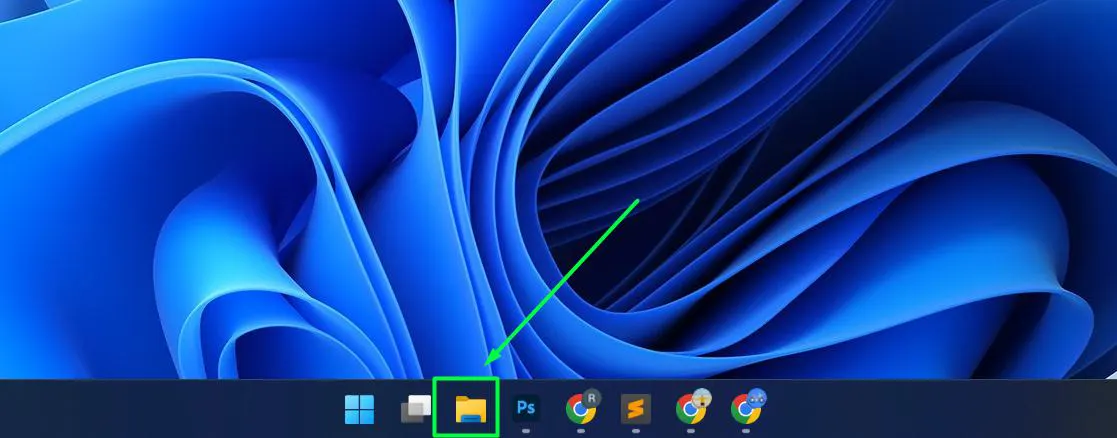
- Step 2: Navigate to the primary system drive, which is usually ‘Local Disk (C:)’.
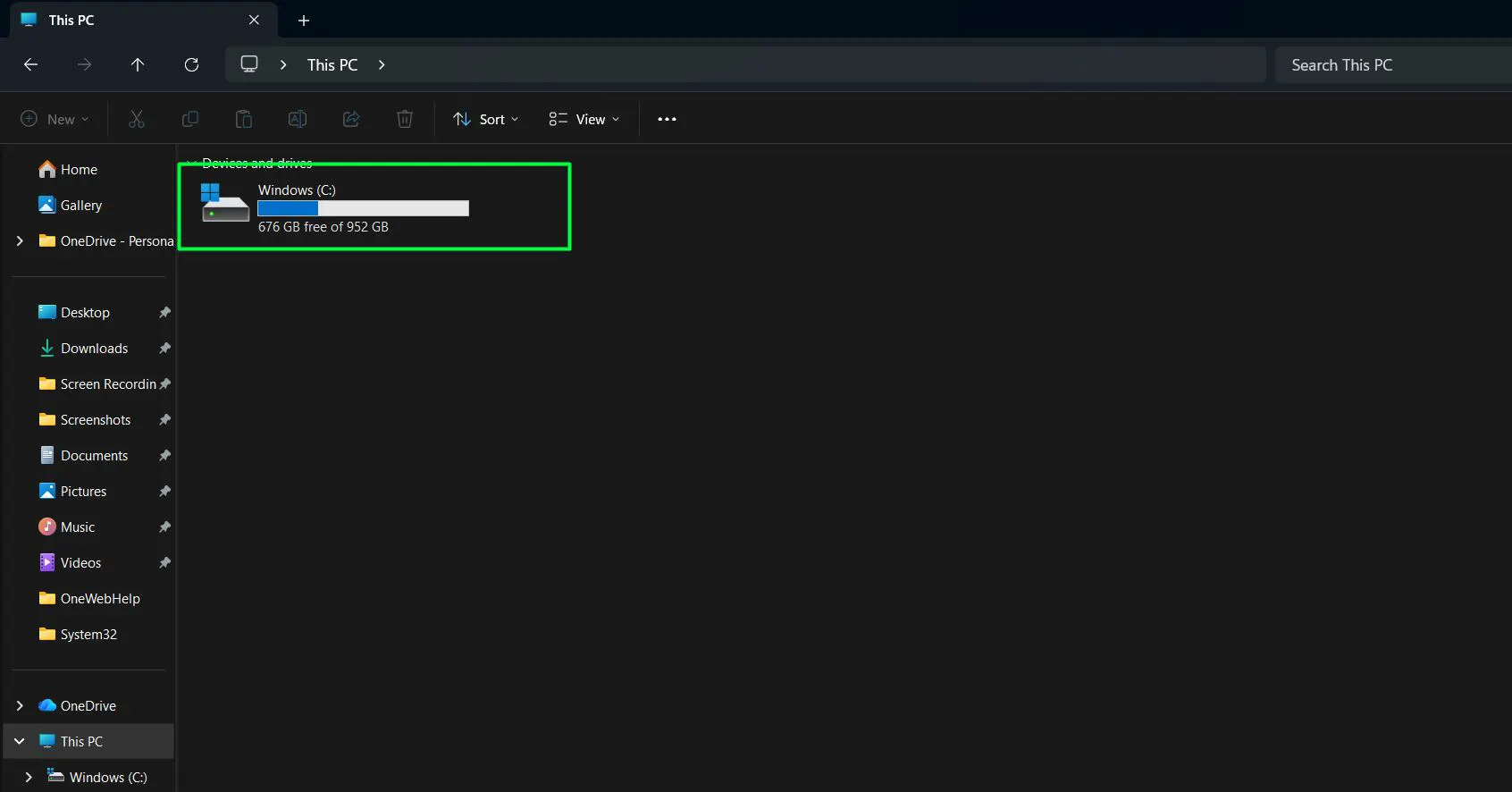
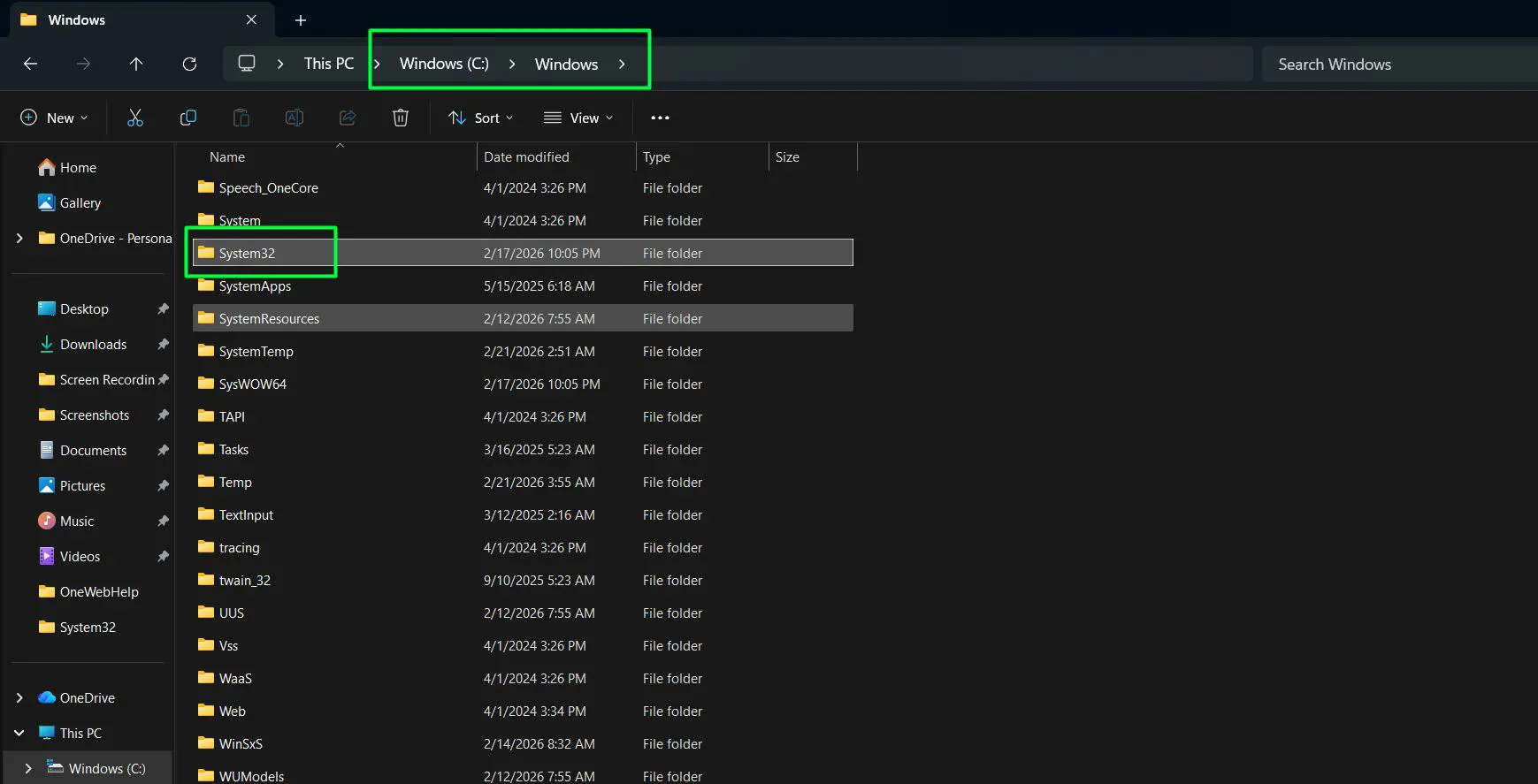
- Step 3: Open the ‘Windows’ folder, scroll down, and open the ‘System32’ folder.
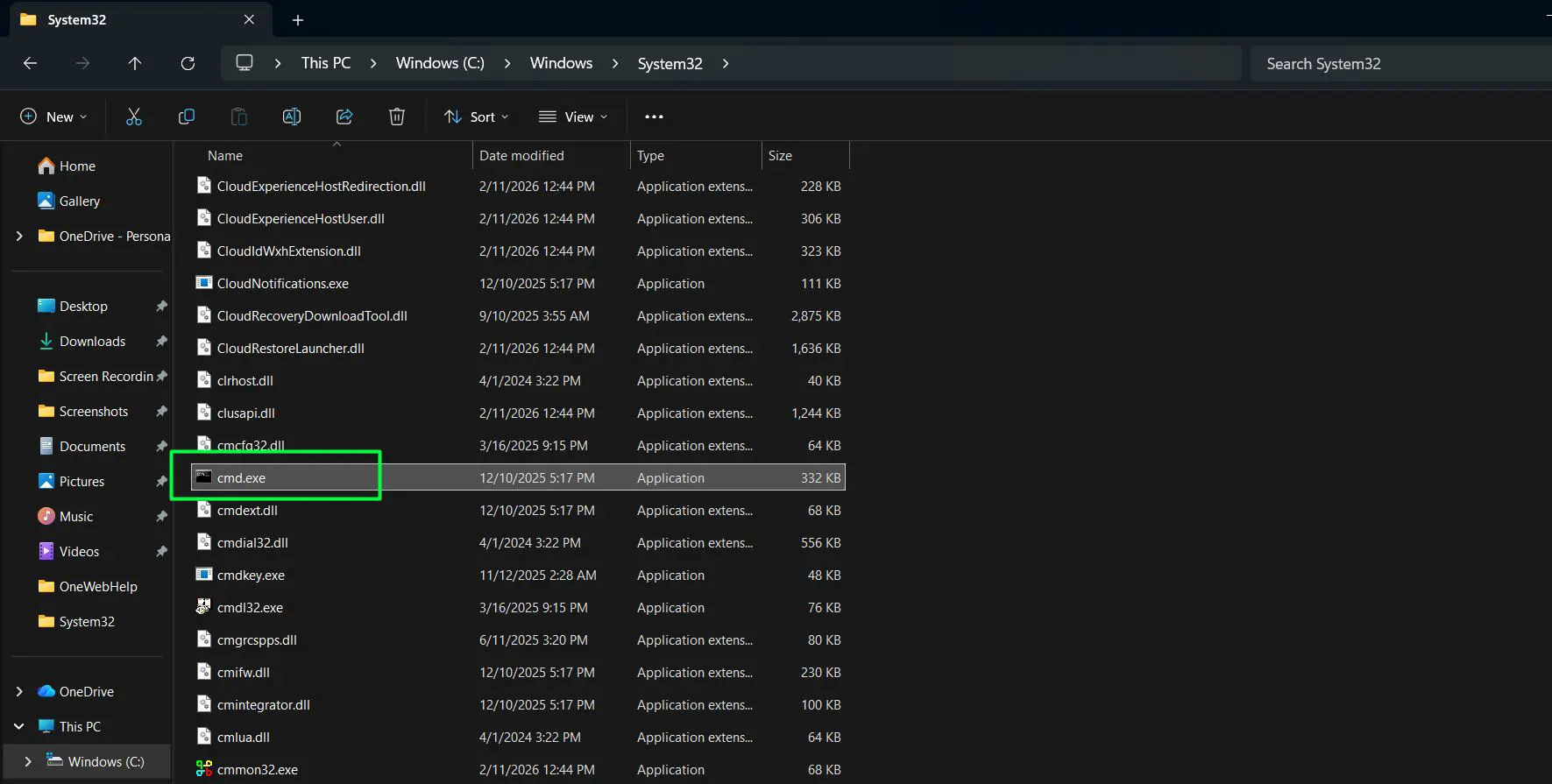
- Step 4: Scroll through the extensive list of files until locating ‘cmd.exe’.
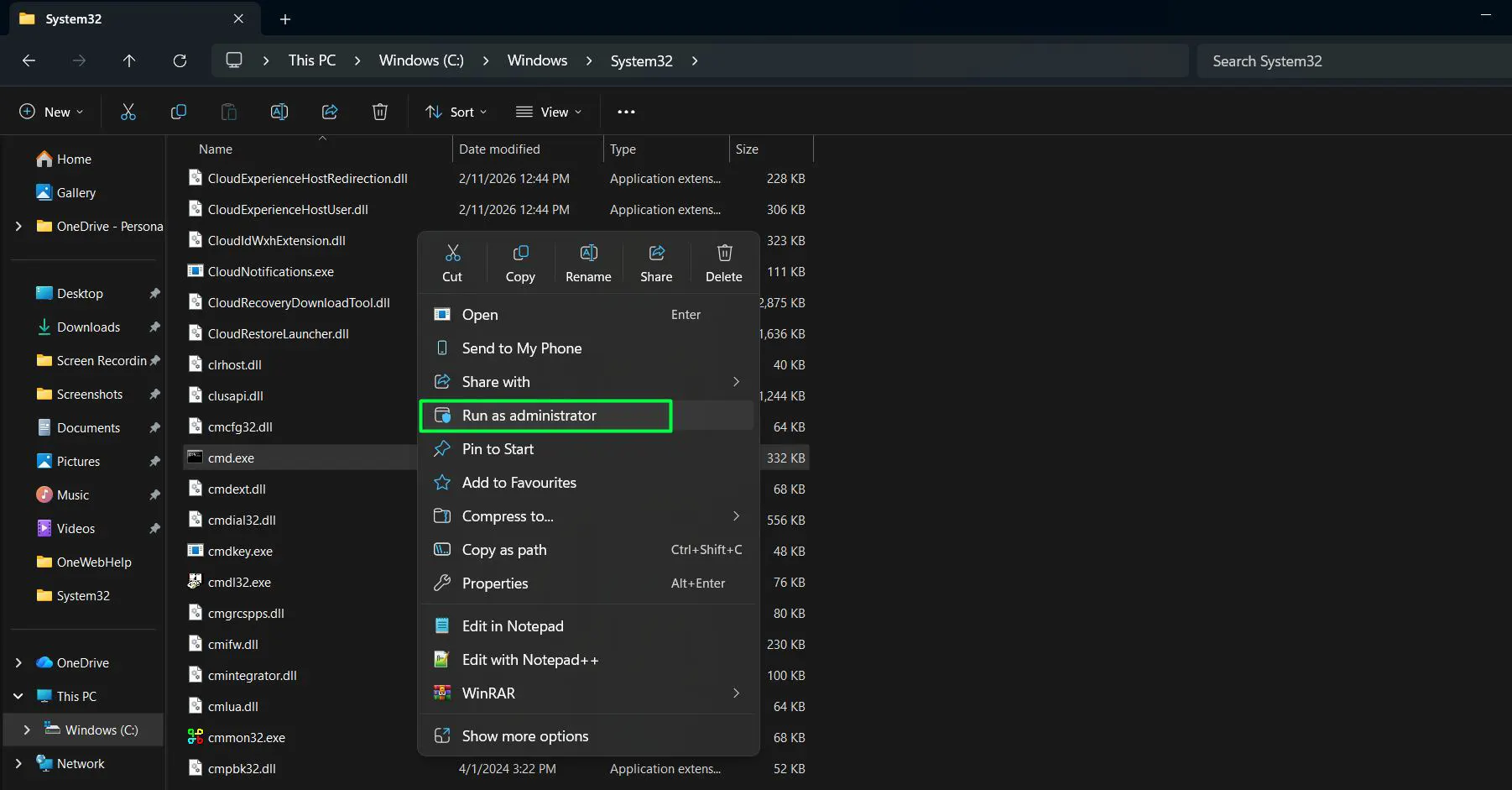
- Step 5: Right-click on the ‘cmd.exe’ file and select ‘Run as administrator’ from the context menu.
- Step 6: Confirm the User Account Control prompt by selecting ‘Yes’.
Method 5: Creating a Permanent Desktop Shortcut
For individuals who frequently configure hardware components or run daily network diagnostics, repeating the elevation steps every single time becomes tedious. Creating a dedicated shortcut that always opens with full rights saves significant time and effort.
- Step 1: Right-click on any empty space directly on the desktop.
- Step 2: Hover over ‘New’ in the context menu and select ‘Shortcut’.
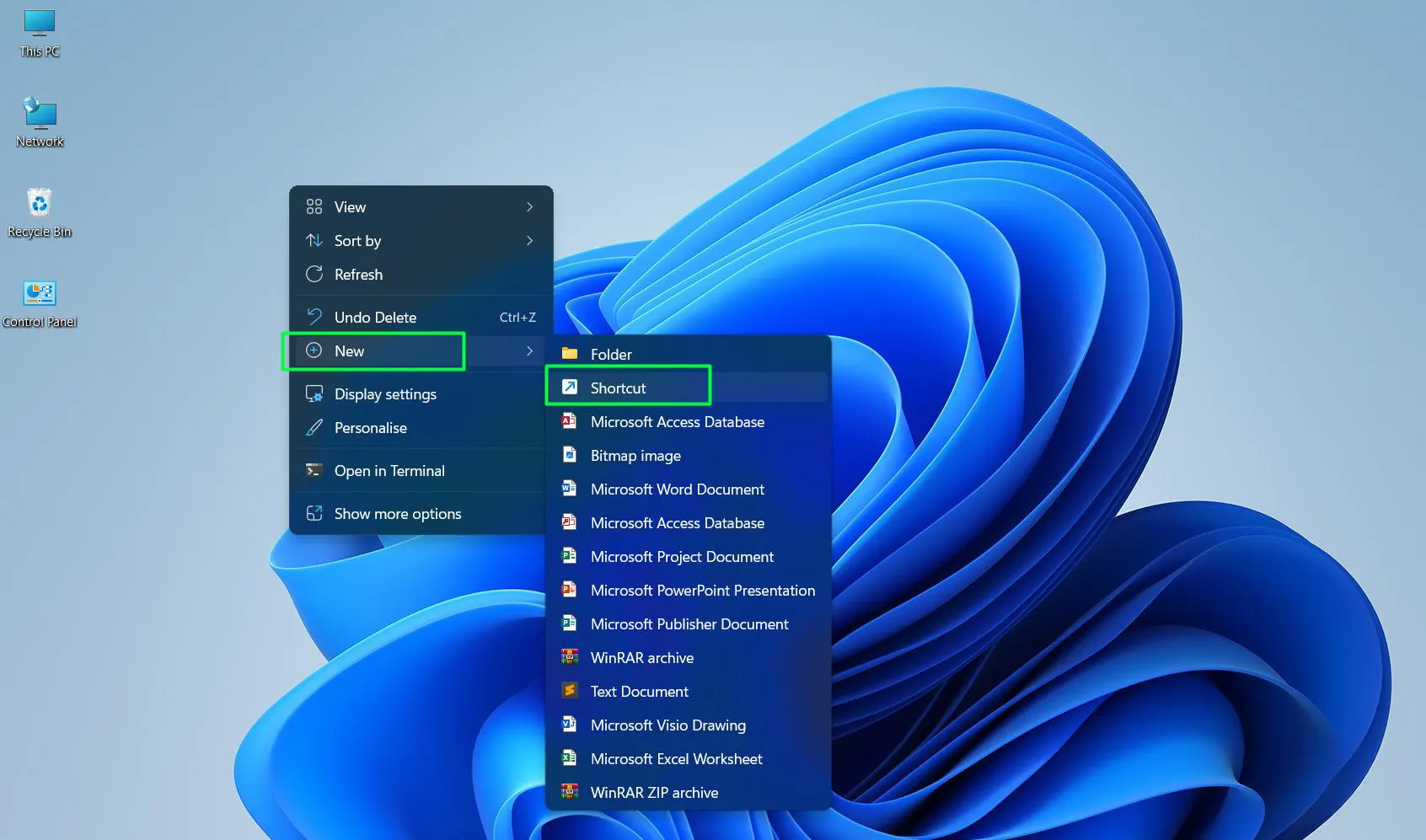
- Step 3: In the location field, type ‘cmd.exe’ and click ‘Next’.
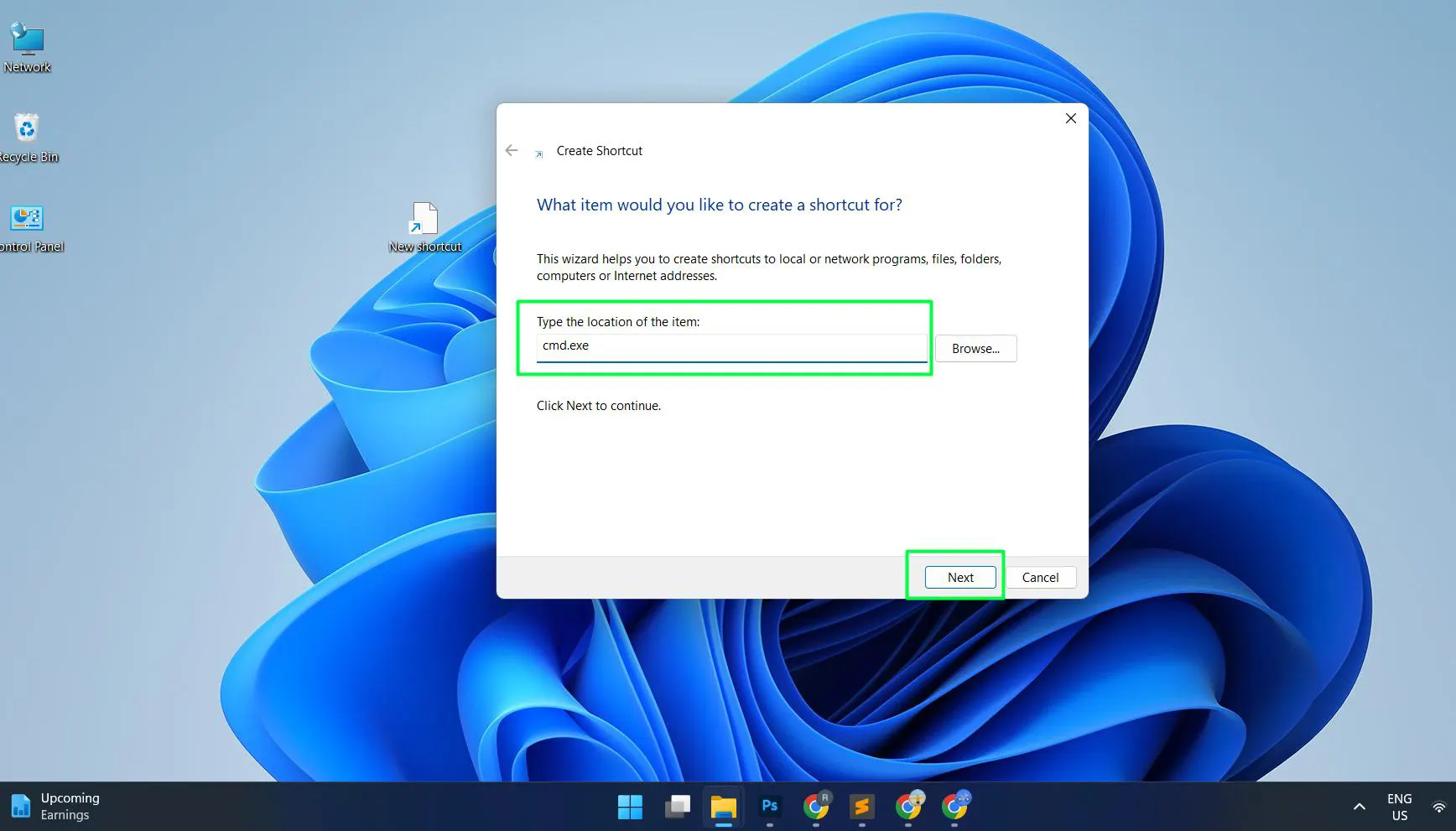
- Step 4: Name the shortcut something recognizable, such as ‘Admin Command Prompt’, and click ‘Finish’.
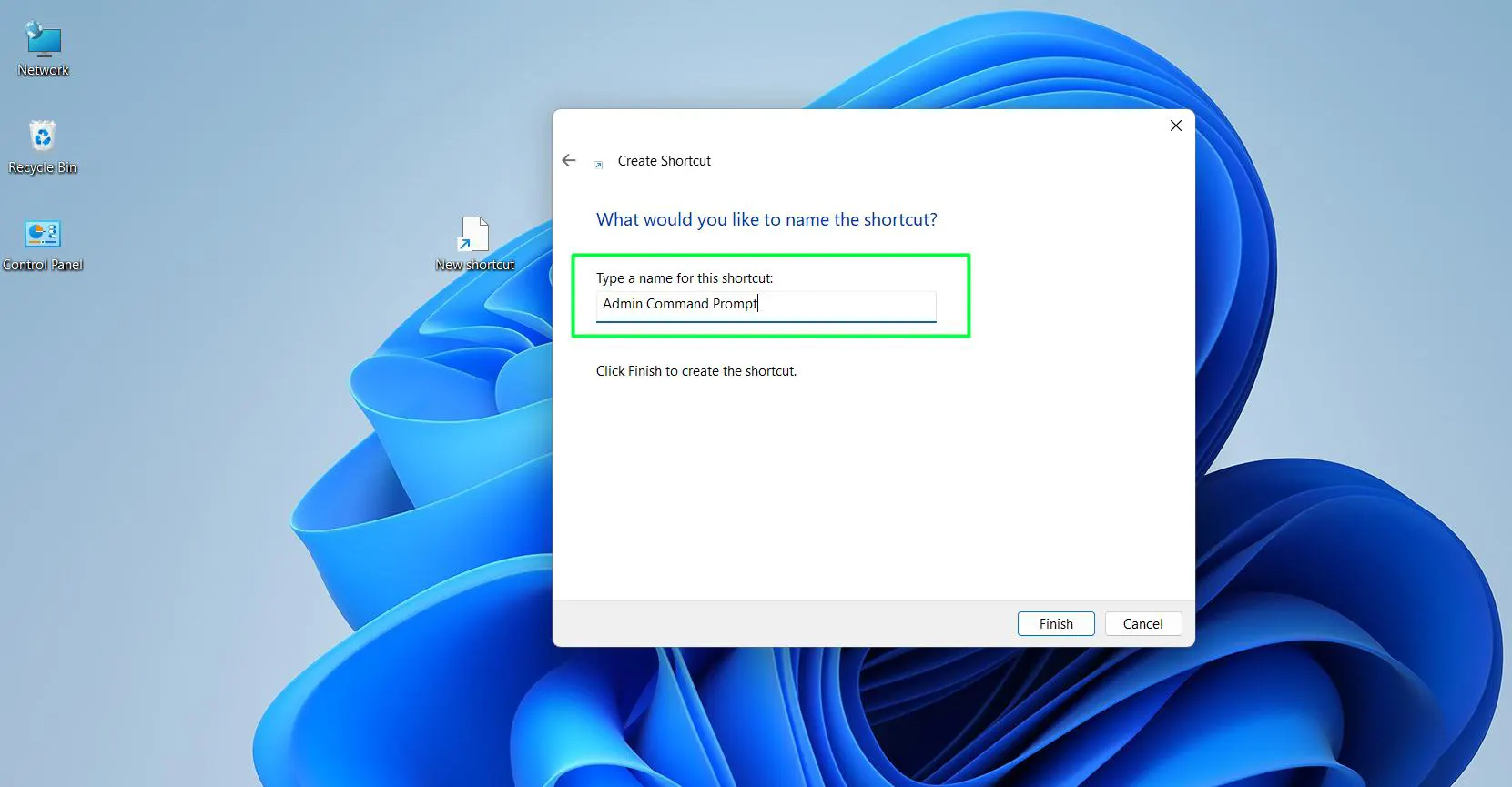
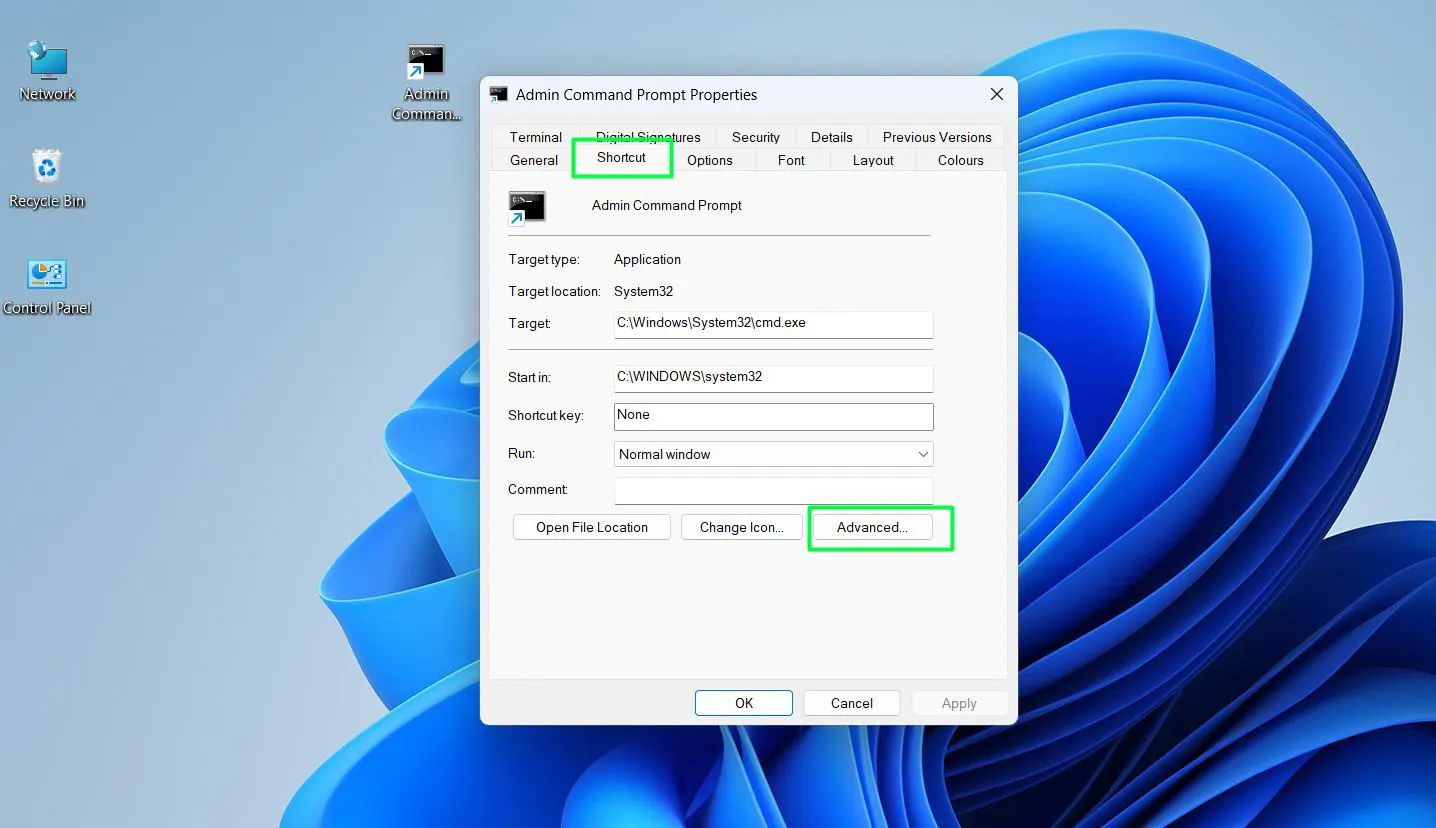
- Step 5: Right-click the newly created shortcut on the desktop and select ‘Properties’.
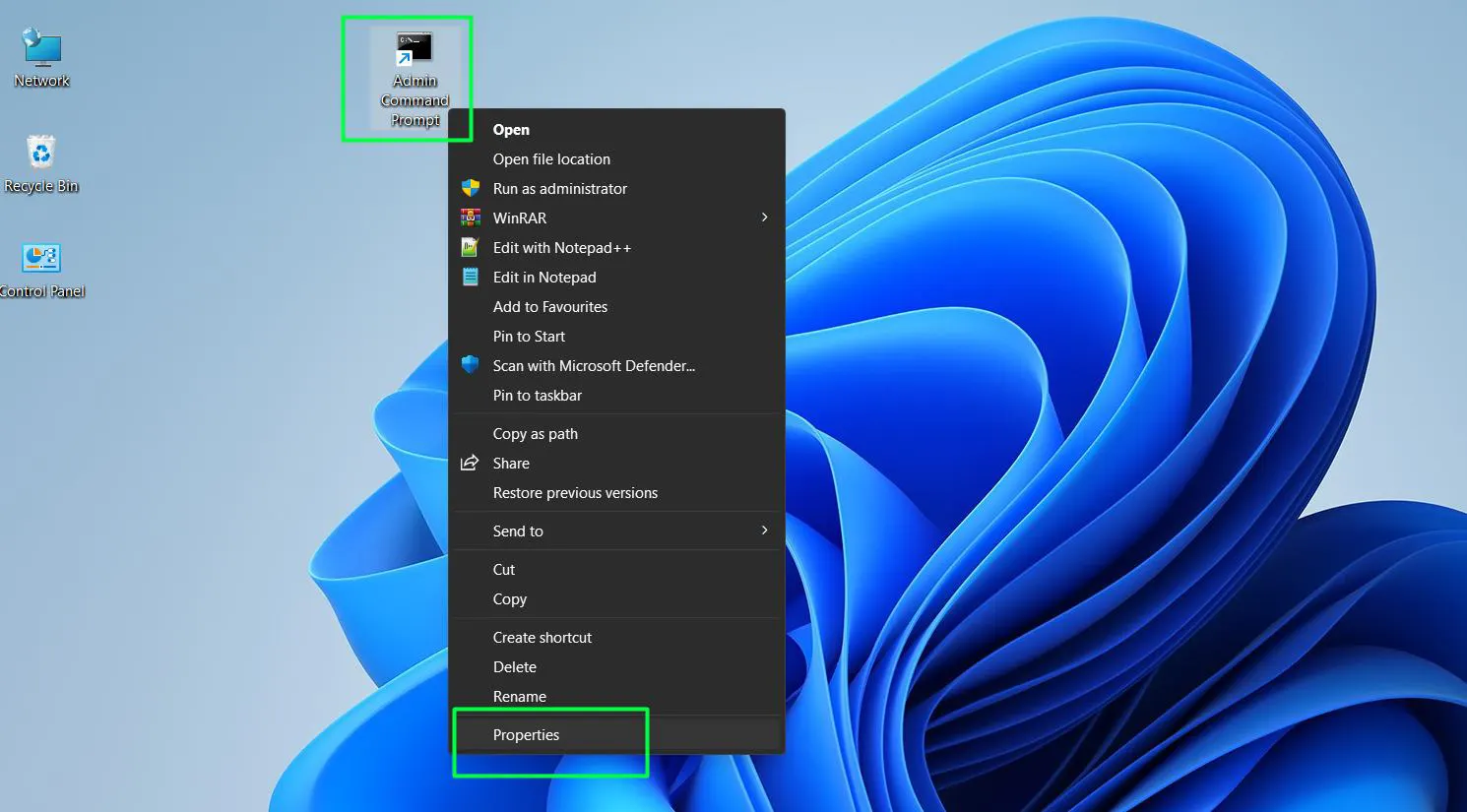
- Step 6: Navigate to the ‘Shortcut’ tab and click the ‘Advanced’ button near the bottom right.
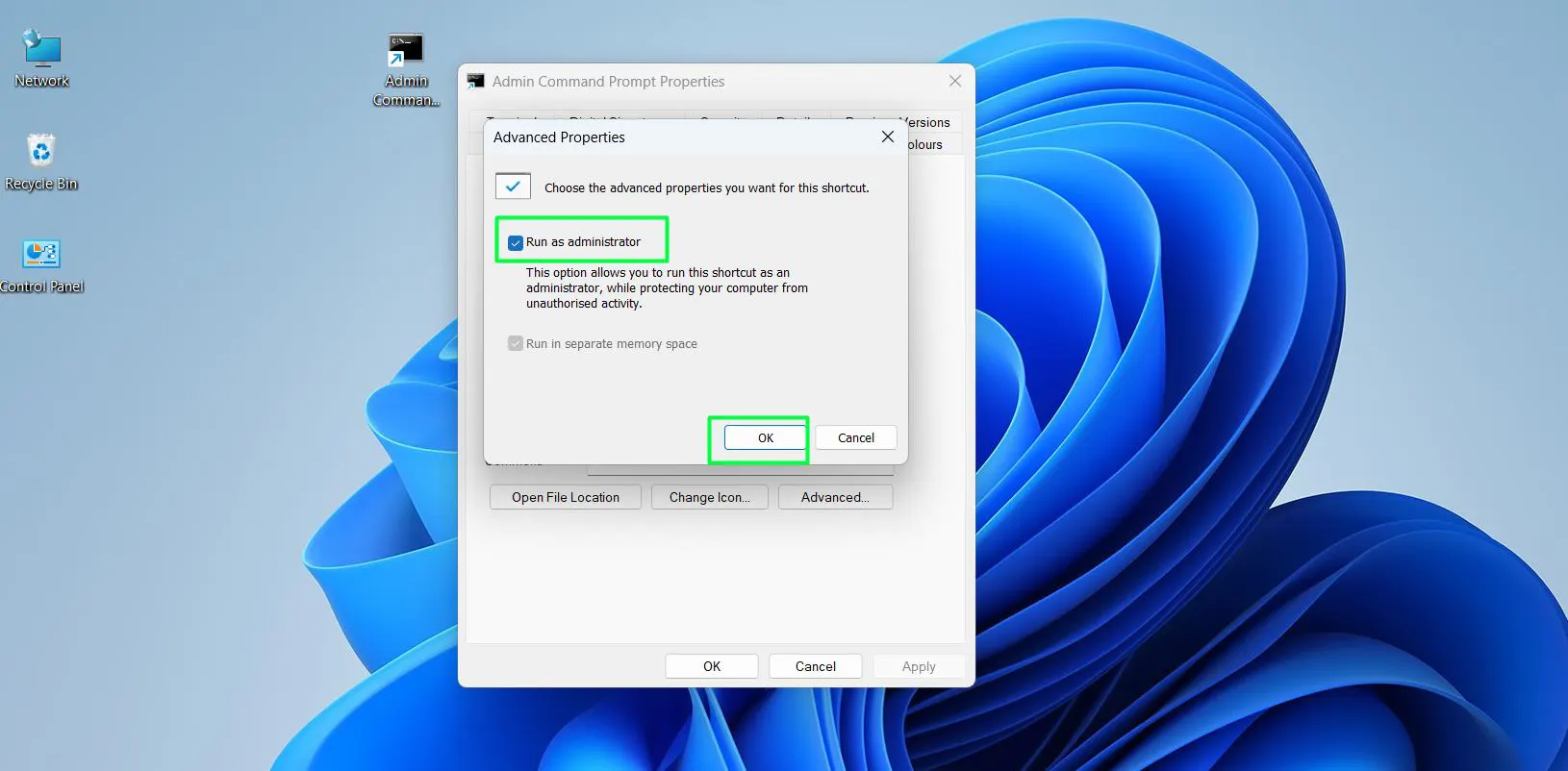
- Step 7: Check the box next to ‘Run as administrator’, then click ‘OK’ on both open windows to save the new configuration.
Essential Tips for Managing the Command Prompt
Working in the Command Prompt — especially with elevated admin privileges — can be powerful, but it requires care. Whether you’re a beginner or experienced user, these best practices will help you avoid common mistakes and work more efficiently in the command-line interface.
Check Elevation Status First
- Before typing any long or complex command, verify the terminal is elevated
- Look at the title bar — it should read
Administrator: Command Prompt - Skipping this step can result in a frustrating
Access Deniederror after typing a lengthy command
Watch Your Starting Directory
- Standard mode opens in:
C:\Users\Username - Admin mode opens in:
C:\Windows\System32 - Commands run in the current working directory unless a full path is specified
- Always use the
cdcommand to navigate to the correct folder before running commands
Use Copy & Paste to Avoid Typos
- Instead of manually typing complex commands, copy them directly from your source
- In modern Windows, simply right-click inside the terminal window to instantly paste
- This reduces the risk of typos that can cause commands to fail — or do something unintended
Exit the Terminal Cleanly
- Type
exitand press Enter to close the session - This is cleaner than clicking the X button, especially if a background process was recently running
- It’s a good habit that ensures the session closes safely and completely
Common Problem and Troubleshooting Guide
Sometimes, attempting to run CMD as administrator does not work as expected, leaving the terminal stuck in standard mode or failing to launch entirely. Understanding these common roadblocks makes troubleshooting the issue much easier.
The most frequent reason for elevation failure is being logged into a standard, restricted user account rather than an account with admin privileges. If the User Account Control prompt appears but asks for a specific password instead of simply presenting a ‘Yes’ or ‘No’ option, it means the current profile lacks the necessary permissions to authorize the action. The key is to obtain the correct login credentials from the device owner, network administrator, or IT department to bypass this security measure.
Another common issue occurs when third-party antivirus software becomes overly aggressive. Certain security programs restrict access to system terminals to prevent malware from executing hidden commands. If the terminal flashes briefly and closes immediately, try temporarily disabling the antivirus software or adding an exclusion for ‘cmd.exe’ to see if normal functionality returns.
If all methods fail, the operating system files themselves might be corrupted. Booting the machine into Safe Mode and running a System File Checker scan is often the best course of action to repair broken terminal pathways.
Frequently Asked Questions
How can a user tell if Command Prompt is running as administrator?
Check the title bar at the very top of the application window. If it has elevated privileges, the title bar will explicitly read ‘Administrator: Command Prompt’. Additionally, the default file path displayed on the first line of the terminal will open to ‘C:\Windows\System32’ instead of the standard user profile folder.
Is it safe to always use the elevated terminal for daily tasks?
Using elevated privileges gives commands the raw power to alter, delete, or modify core system files without any secondary warnings. It is best to stick to standard access for everyday, basic tasks. Only elevate the terminal when specific commands explicitly require it to prevent accidental system changes or catastrophic data loss.
Can the terminal be pinned to the taskbar with admin rights permanently?
Yes, this is easily achievable. Pin the standard application to the taskbar first. Then, right-click the pinned icon on the taskbar, right-click the ‘Command Prompt’ name in the resulting jump list, and select ‘Properties’. From there, click the ‘Advanced’ button, check the ‘Run as administrator’ box, and save the changes. Clicking that specific taskbar icon will now always trigger an elevated session.
What is the difference between Command Prompt and PowerShell?
While both are command-line interfaces used to interact with the operating system, PowerShell is a more advanced, modern framework built on .NET. It uses complex scripts called cmdlets to automate wide-scale administrative tasks. Command Prompt is older, simpler, and primarily used for executing basic legacy commands and batch files.