
Knowing how to find the Downloads folder in Windows 11 is one of those basic skills that saves a lot of time. Whether a file just came from a browser or an installer seems to have vanished, the Downloads folder is almost always where it ends up. Fortunately, Windows 11 offers several quick ways to get there – and this guide covers all of them, step by step.
Key Takeaways
- The Downloads folder sits at C:\Users\YourUsername\Downloads by default
- File Explorer is the fastest and most reliable way to access it
- The Run dialog and Quick Access panel both provide fast shortcuts
- Pinning Downloads to Quick Access makes future access even faster
- The folder location can move to another drive whenever needed
How to Find the Downloads Folder in Windows 11
Method 1: Using File Explorer
This is the most straightforward method to start with. File Explorer gives direct access to the Downloads folder in two places – the left sidebar and the Quick Access panel in the main view.
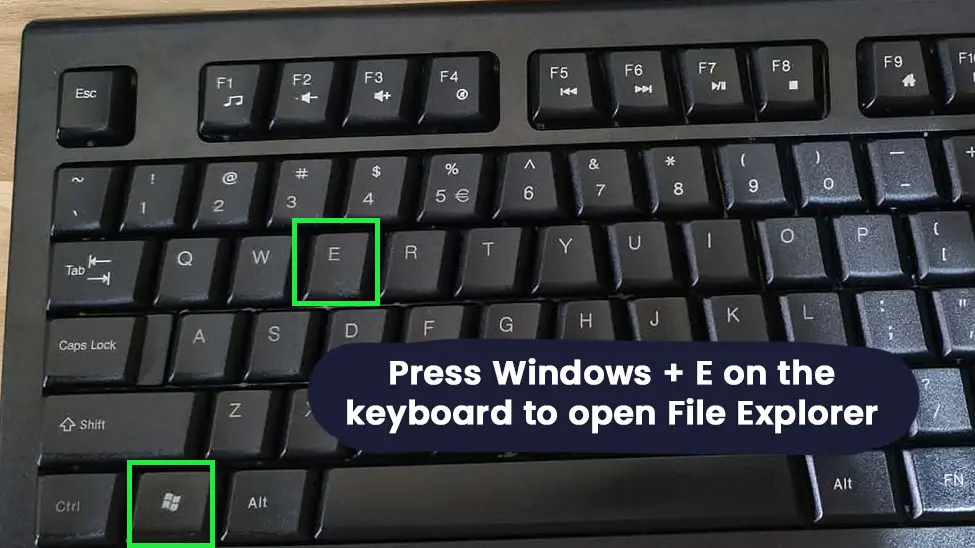
- Step 1: Press Windows + E on the keyboard to open File Explorer
- Step 2: On the left sidebar, look for Downloads listed directly under the pinned Quick Access folders
- Step 3: Alternatively, look at the main panel on the right – the Quick Access section displays Downloads as a folder tile
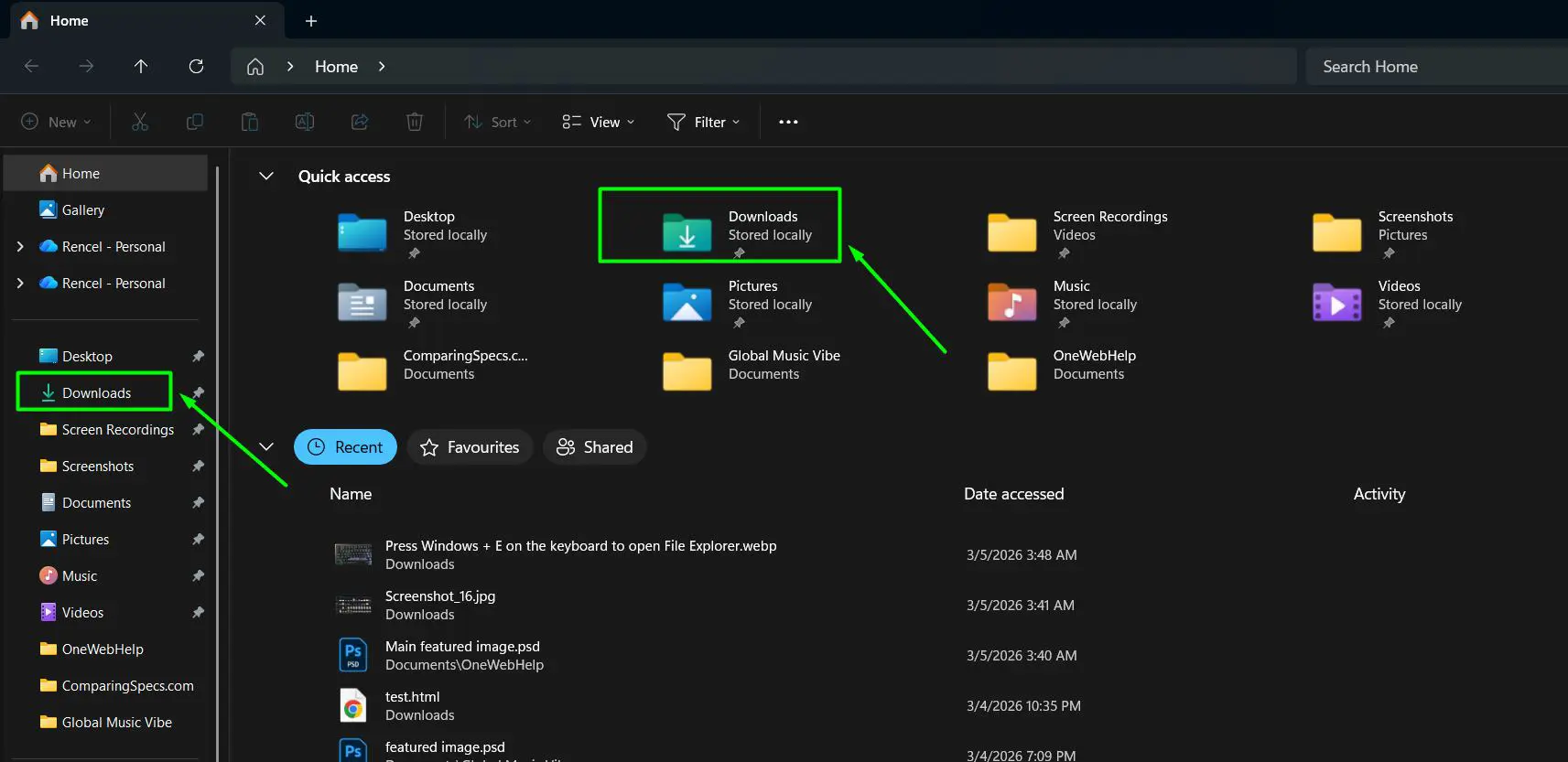
- Step 4: Click Downloads from either location to open it
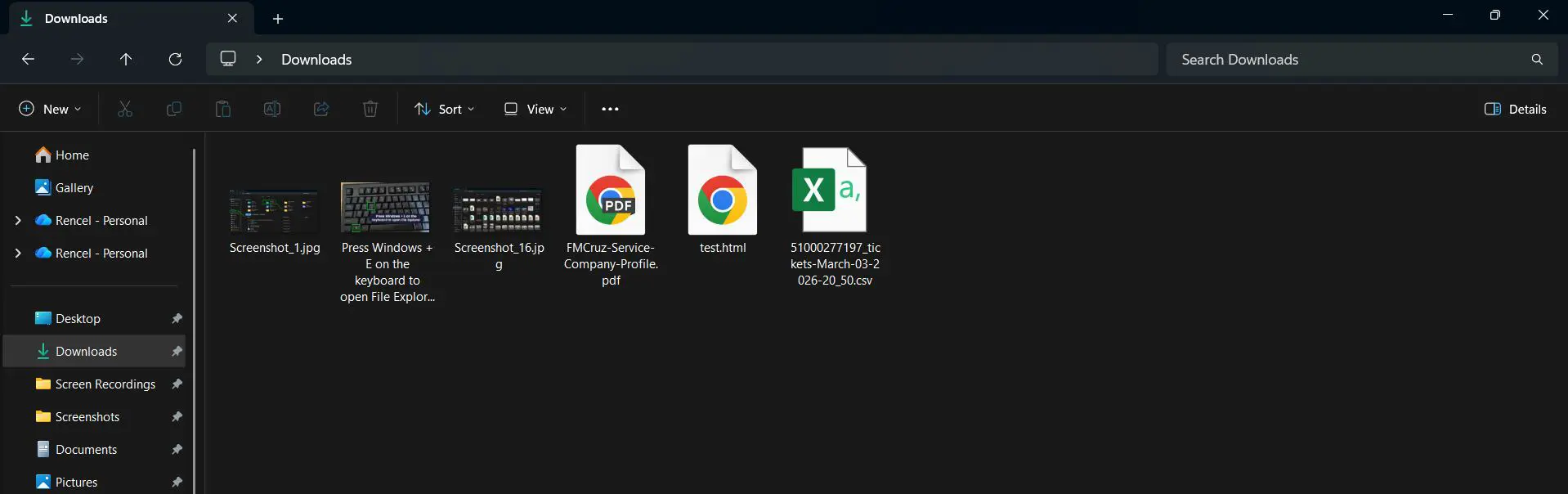
Most people find this method the easiest because Windows 11 pins the Downloads folder to the sidebar by default. As a result, it takes just one click to get there once File Explorer is open.
Method 2: Using the Run Dialog
The Run dialog offers a fast alternative that works even when the taskbar is not accessible. In addition, it skips any sidebar navigation entirely.
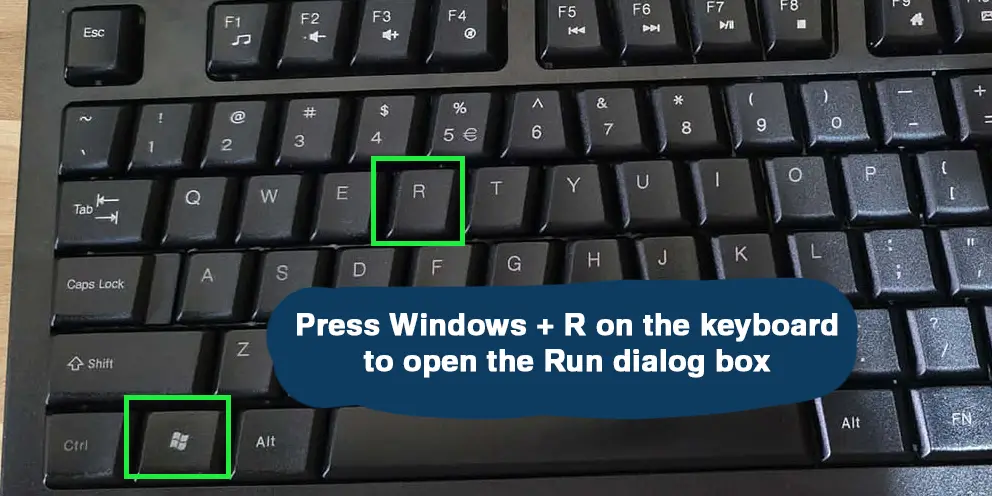
- Step 1: Press Windows + R to open the Run dialog box
- Step 2: Type shell:downloads in the text field
- Step 3: Press Enter or click OK
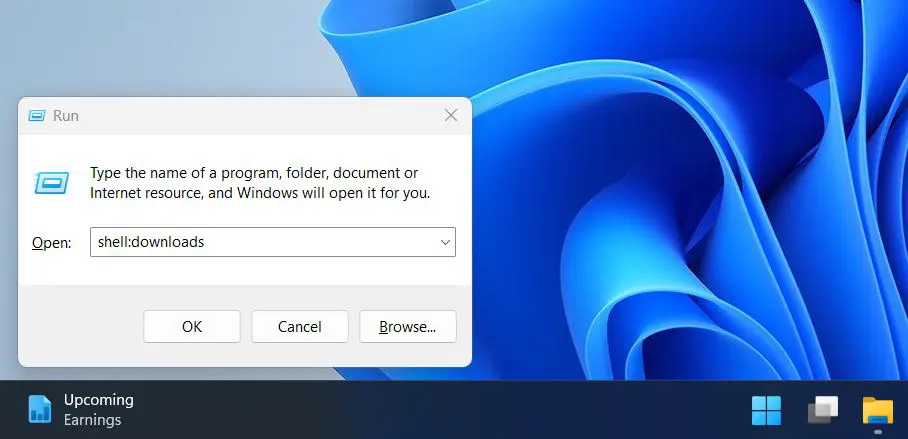
- Step 4: File Explorer then opens the Downloads folder instantly
Method 3: Using Windows Search With the Folders Filter
Typing ‘Downloads’ in Windows Search actually pulls up ‘Downloads folder privacy settings’ as the top result – not the folder itself. To get directly to the folder, the Folders filter needs to be used. This method works well when File Explorer is already closed.
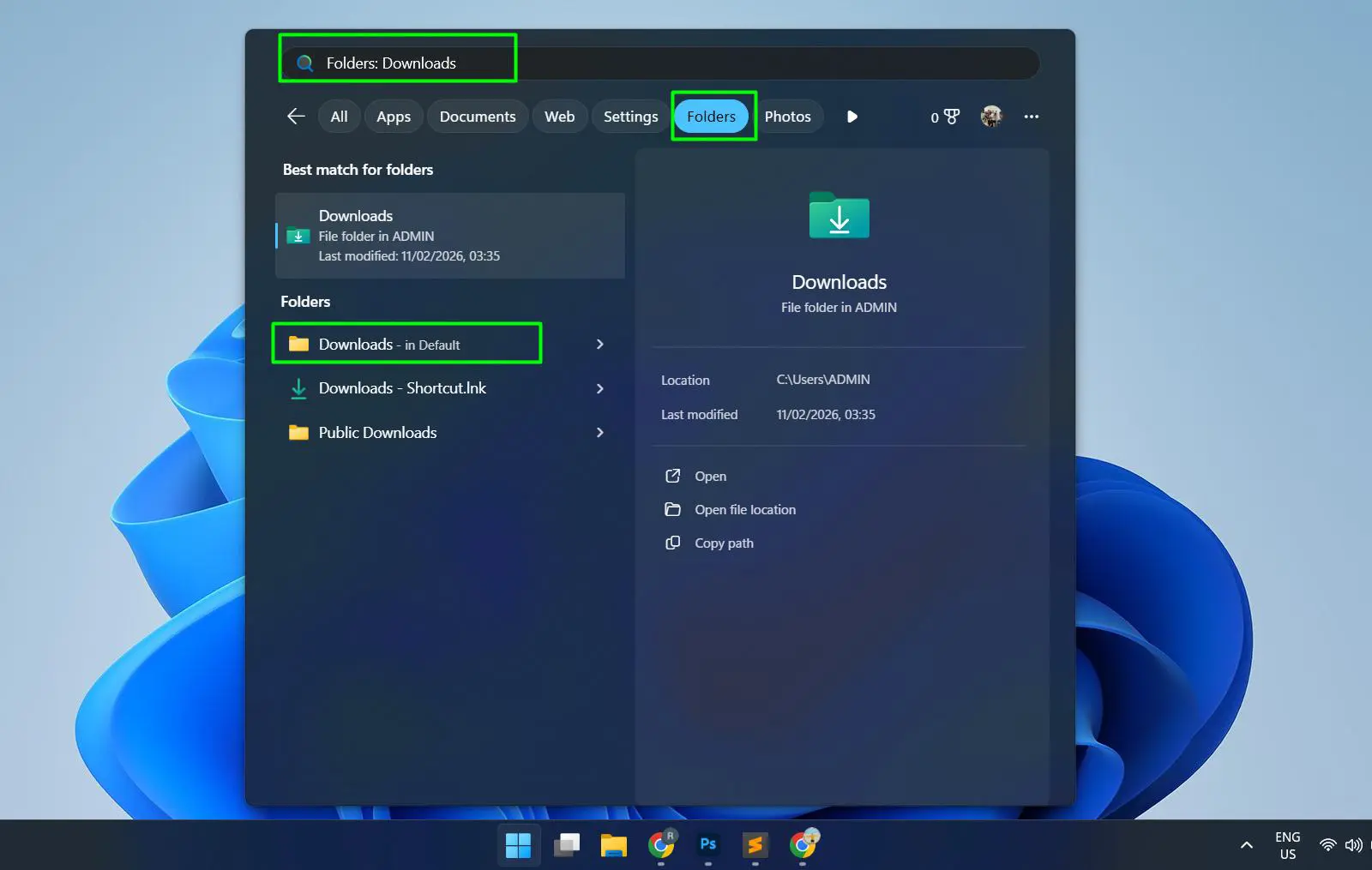
- Step 1: Click the Search icon on the taskbar (or press Windows + S)
- Step 2: Type Downloads in the search bar
- Step 3: At the top of the results, click the ‘Folders’ filter tab
- Step 4: Click on the Downloads folder that appears in the results to open it
Skipping the Folders filter means Windows Search defaults to system settings results instead of the actual folder. So always switch to the Folders tab for this to work correctly.
Method 4: Navigating Directly via File Explorer Address Bar
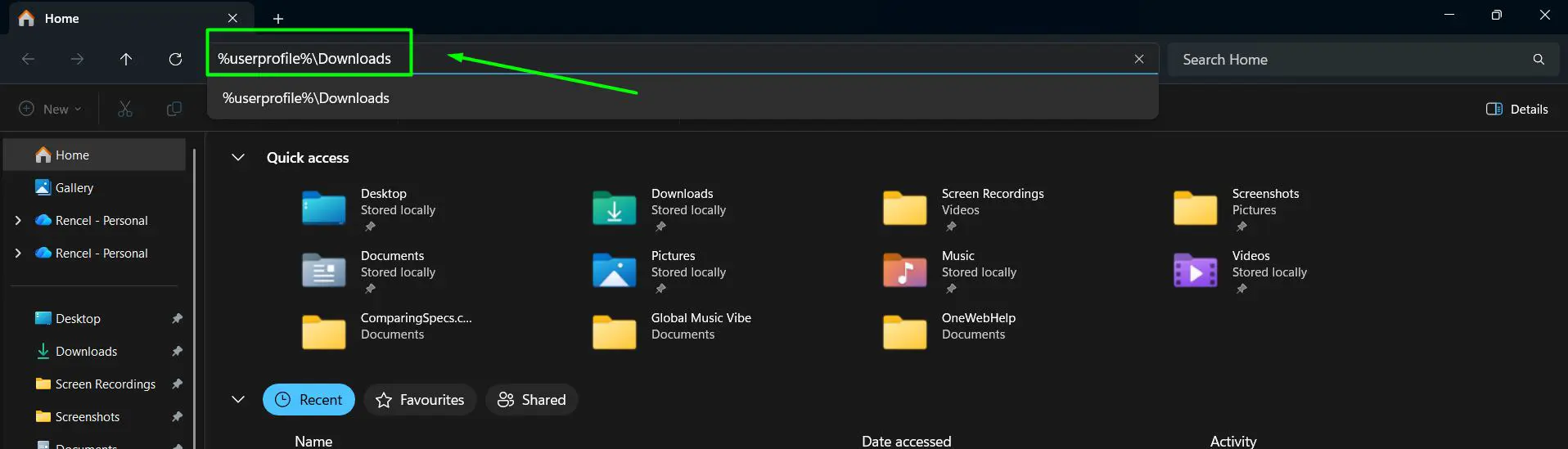
This method works well when typing the path directly is faster. Furthermore, it removes the need to know the exact username on the account.
- Step 1: Open File Explorer using Windows + E
- Step 2: Click on the address bar at the top of the window
- Step 3: Type %userprofile%\Downloads and press Enter
- Step 4: File Explorer loads the Downloads folder immediately
This works because %userprofile% is a system variable that automatically points to the current user’s profile folder. Therefore, there is no need to type the full path with the username manually.
Pro Tip: Right-click on the Downloads folder in File Explorer and select ‘Pin to Quick Access’ to keep it always visible at the top of the left sidebar. This is the key to never hunting for it again.
Method 5: Through the Browser’s Download Panel
Most browsers also give direct access to the Downloads folder through their built-in panels. For example, pressing Ctrl + J in Chrome or Edge opens the browser’s download history, which includes a link that opens the folder directly. This approach also pairs well with knowing how to clear browser cache to keep things running smoothly.
Tips for Managing the Downloads Folder
- Sort files by Date Modified to bring the most recently downloaded files to the top
- Use the search bar inside File Explorer to locate a specific filename within the Downloads folder quickly
- Regularly move important files out of Downloads into proper folders – this habit prevents clutter from building up over time
- Change the default save location in the browser if downloads should go to a different folder automatically
Pro Tip: To move the Downloads folder to a larger drive, right-click it in File Explorer, select Properties, go to the Location tab, then click Move. This approach works especially well when the C: drive starts running low on space.
Common Problems With the Downloads Folder
Downloads Folder Not Showing in the Sidebar
If the Downloads folder does not appear in the File Explorer sidebar, someone likely unpinned it from Quick Access. To fix this, navigate to C:\Users\YourUsername\Downloads manually. Next, right-click the folder and choose ‘Pin to Quick Access’ to restore it to the sidebar.
Can’t Find a Recently Downloaded File
Open the Downloads folder and sort by Date Modified by clicking the column header. The newest file then appears at the top. However, if the file still does not show up, check whether the browser changed its download save location in settings.
Downloads Folder Looks Empty But Files Were Downloaded
Some browsers or applications save files to a custom path set in their preferences. First, check the browser’s download settings to confirm where files actually go. Additionally, check if the Recycle Bin holds any accidentally deleted files.
Access Denied When Opening the Downloads Folder
This issue usually occurs when user account permissions change unexpectedly. To resolve it, right-click the Downloads folder, select Properties, go to the Security tab, and confirm the current user account holds full access rights.
Frequently Asked Questions
Where is the Downloads folder located in Windows 11?
The Downloads folder sits at C:\Users\YourUsername\Downloads by default. Simply replace ‘YourUsername’ with the actual Windows account name on the device.
How do you open the Downloads folder quickly in Windows 11?
The quickest way is to press Windows + E to open File Explorer, then click Downloads in the left sidebar. Alternatively, press Windows + R, type shell:downloads, and press Enter to get there even faster.
Can the Downloads folder location be changed in Windows 11?
Yes, it can. Right-click the Downloads folder in File Explorer, go to Properties, then open the Location tab. From there, click Move to select a new folder location on any available drive.
Why can’t the Downloads folder be found after downloading a file?
The browser likely saved the file to a custom location. To confirm, open the browser’s settings and check the download path. Once the correct folder appears there, navigate directly to it.
How do you sort files in the Downloads folder by date?
Open the Downloads folder in File Explorer, right-click on an empty area, hover over Sort by, and choose Date modified. The most recent files then move to the top of the list automatically.
Is the Downloads folder the same for all user accounts on one PC?
No, each user account maintains its own separate Downloads folder. For example, one account stores downloads at C:\Users\Account1\Downloads while another uses C:\Users\Account2\Downloads instead.
How do you pin the Downloads folder to the taskbar in Windows 11?
Open File Explorer and navigate to the Downloads folder. Then right-click on the File Explorer icon in the taskbar and pin the folder through the jump list. Alternatively, pin it in Quick Access for easy sidebar access instead.
Does Windows 11 automatically clear the Downloads folder?
Windows 11 includes a Storage Sense feature that can automatically delete files in the Downloads folder after a set number of days. However, this setting stays off by default. To enable it, go to Settings – System – Storage – Storage Sense and configure it manually.
Can downloads go directly to the desktop instead?
Yes, any browser allows changing its default download location to the Desktop or any other folder. In Windows 11, the Desktop path is typically C:\Users\YourUsername\Desktop.
What is the keyboard shortcut to open File Explorer in Windows 11?
Pressing Windows + E opens File Explorer instantly. From there, the Downloads folder appears in the left sidebar under Quick Access or This PC, ready to open with a single click.