
The 3 best driver updater tools for Windows 11 simplify the process of keeping system drivers current without manual intervention. Outdated drivers cause performance issues, hardware malfunctions, and compatibility problems that many users struggle to diagnose. Dedicated driver updater software scans the system, identifies outdated or missing drivers, and installs the correct versions automatically, eliminating the guesswork involved in manual driver management.
Windows 11 includes a built-in driver update mechanism through Windows Update, but it often misses manufacturer-specific optimizations and newer releases. Third-party driver updater tools access broader driver databases and provide more comprehensive updates for graphics cards, audio devices, network adapters, and peripheral hardware. The right tool saves time, reduces technical headaches, and ensures the system runs at peak efficiency.
Quick Summary Table
| Tool | Best For | Key Feature |
|---|---|---|
| Driver Booster | Gaming performance | Game-ready driver optimization |
| Snappy Driver Installer | Offline updates | Portable, no installation required |
| DriverPack Solution | Bulk installations | Massive driver database coverage |
Driver Booster: Comprehensive Gaming and Performance Updates

Driver Booster stands out for its focus on gaming hardware and performance optimization. The tool maintains a database of over 6 million drivers and prioritizes updates for graphics cards, sound devices, and gaming peripherals. It automatically identifies outdated drivers that could impact frame rates or cause game crashes, making it particularly valuable for systems used primarily for gaming or creative work.
The software scans the entire system in under two minutes and presents a clear list of available updates ranked by priority. High-priority drivers affecting system stability appear at the top, while optional updates for less critical components show separately. This organization helps users make informed decisions about which updates to install first, especially when working with limited time or bandwidth.
Driver Booster creates automatic restore points before installing any driver, providing a safety net if an update causes compatibility issues. The rollback feature allows reverting to the previous driver version with a single click, which proves essential when new drivers introduce bugs or performance regressions. This protection makes the tool safer than manual driver installation, where creating restore points often gets overlooked.
Pro-Tip: Schedule Driver Booster scans during off-hours to avoid interruptions. The tool can automatically download and queue updates overnight, then prompt for installation when convenient. This approach ensures drivers stay current without disrupting active work or gaming sessions.
The free version handles basic driver updates but limits download speeds and restricts some advanced features. The paid version removes these limitations and adds priority customer support, though the free tier remains sufficient for most users who update drivers occasionally rather than constantly. Driver Booster works particularly well alongside other system optimization tasks to maintain overall Windows 11 performance.
Snappy Driver Installer: Portable Offline Driver Solution
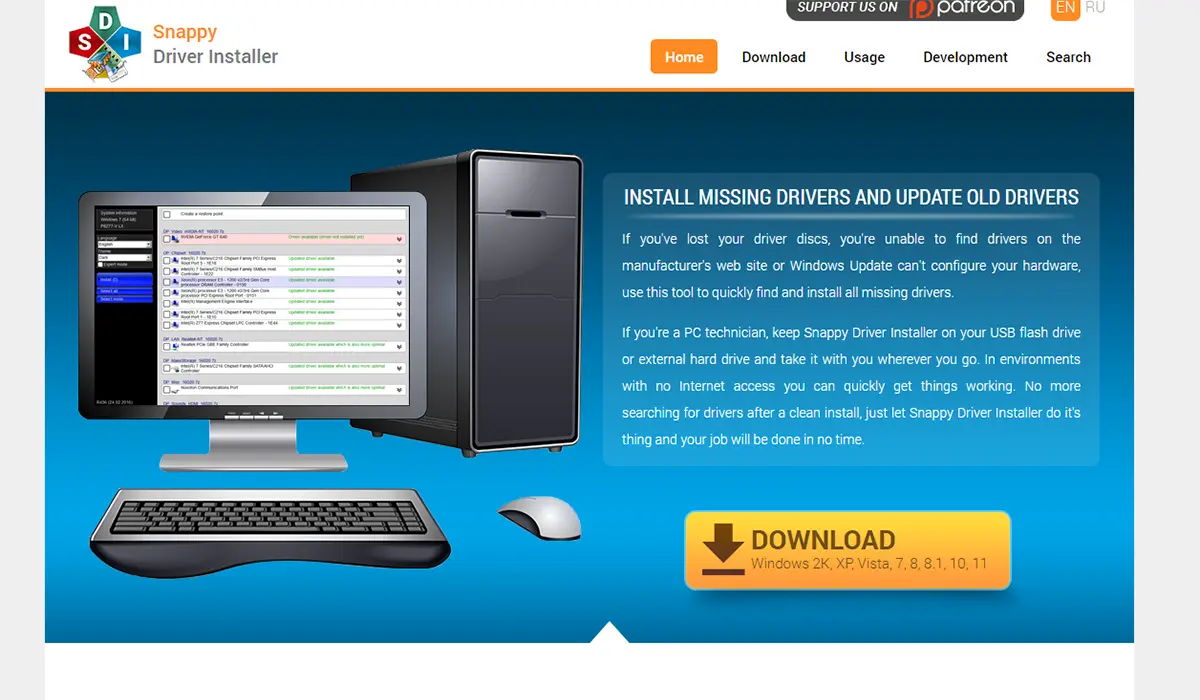
Snappy Driver Installer operates entirely offline once the driver packs are downloaded, making it ideal for systems without reliable internet connectivity or for technicians managing multiple computers. The tool requires no installation and runs directly from a USB drive, allowing driver updates on any Windows 11 machine without leaving traces or requiring administrative setup on the host system.
The interface appears more technical than consumer-focused alternatives, displaying detailed driver information including version numbers, release dates, and hardware IDs. This transparency appeals to advanced users who want complete control over the update process, though beginners might find the amount of information overwhelming initially. The learning curve pays off with precise control over which drivers get installed and when.
Snappy Driver Installer downloads driver packs in compressed formats that users can save and reuse across multiple systems. A technician can download the latest driver collection once, then use that same package to update dozens of computers without repeated downloads. This efficiency makes the tool popular in enterprise environments and repair shops where bandwidth conservation matters.
The software supports selective driver installation, allowing users to choose specific drivers rather than updating everything simultaneously. This granular control helps when troubleshooting hardware issues, as users can update one driver at a time to identify which change resolves the problem or causes new issues. The approach contrasts with all-or-nothing updaters that make isolating problematic drivers difficult.
Snappy Driver Installer remains completely free with no premium tiers or subscription options. The open-source nature means the community actively maintains the driver database and adds support for new hardware as it becomes available. Users concerned about transparency and avoiding vendor lock-in appreciate this model, though it requires more technical knowledge than streamlined commercial alternatives.
DriverPack Solution: Automated Bulk Driver Management
DriverPack Solution excels at handling complete system driver installations, particularly on fresh Windows 11 setups or after major hardware changes. The tool automatically detects all missing drivers and installs them in a single operation, dramatically reducing the time needed to get a new system fully operational. This bulk installation capability makes it especially useful after reinstalling Windows or upgrading major components.
The software includes drivers for nearly every hardware component imaginable, from common devices like network adapters and graphics cards to obscure peripherals and legacy hardware. This comprehensive coverage means users rarely encounter situations where DriverPack cannot find an appropriate driver, even for older equipment that manufacturers no longer actively support.
DriverPack Solution offers both online and offline modes, with the offline version bundling all drivers into a massive downloadable package. The offline installer exceeds 20 GB but ensures complete driver coverage without requiring internet access during installation. This proves valuable when setting up systems in locations without network connectivity or when dealing with network adapter drivers that must be installed before internet access becomes possible.
The installation process moves quickly once initiated, automatically handling driver conflicts and dependencies without user intervention. The tool installs drivers in the correct order, ensuring that prerequisite drivers get installed before dependent components. This intelligent sequencing prevents common installation failures that occur when drivers are installed in the wrong sequence.
Pro-Tip: Disable the optional software offers during DriverPack installation to avoid unwanted bundled programs. The tool sometimes suggests additional software that has nothing to do with driver updates. Careful attention during the installation process ensures only drivers get installed without extra bloatware.
DriverPack Solution includes a network mode that allows updating multiple computers from a single network source, similar to how enterprise IT departments manage driver updates across many machines. Home users typically skip this feature, but it demonstrates the tool’s flexibility for different use cases and environments. The free version provides full driver update functionality, making it accessible regardless of budget constraints.
Choosing the Right Driver Updater for Specific Needs
Selecting the best driver updater depends on usage patterns and technical comfort level. Gamers benefit most from Driver Booster’s gaming-specific optimizations and automatic game-ready driver installations. The tool’s focus on performance-critical drivers ensures graphics cards, sound devices, and gaming peripherals always run the latest optimized versions, directly impacting gameplay quality and stability.
Users managing multiple computers or working with limited internet bandwidth should prioritize Snappy Driver Installer’s offline capabilities and portable design. The ability to maintain a local driver repository and update systems without repeated downloads saves significant time and bandwidth, especially when dealing with dozens of machines or slow connections that make online updates impractical.
DriverPack Solution suits situations requiring complete driver installations from scratch, such as after clean Windows installations or major hardware upgrades. The tool’s comprehensive database and automated bulk installation process turn what would normally be hours of manual driver hunting into a simple automated task. This efficiency particularly benefits users less comfortable with manual driver installation or those setting up multiple new systems.
Consider combining approaches based on circumstances. DriverPack Solution works excellently for initial system setup, while Driver Booster handles ongoing maintenance and gaming-specific updates. Snappy Driver Installer serves as a reliable offline backup option for emergencies or systems with connectivity issues. No single tool perfectly addresses every scenario, so understanding each option’s strengths allows choosing appropriately.
Driver Update Safety and Best Practices
Always create a system restore point before installing driver updates, even when using automated tools that claim to handle this automatically. Manual restore points provide additional insurance and give more control over the restoration process if problems occur. Windows 11 makes system maintenance tasks straightforward, and taking this precaution takes only seconds while potentially saving hours of troubleshooting.
Verify that driver updater tools source drivers from official manufacturer channels rather than generic or modified versions. Reputable tools explicitly state their driver sources and update processes, while questionable software may bundle modified drivers with hidden components or security vulnerabilities. Stick with established tools that have positive user reviews and transparent update mechanisms.
Monitor system behavior after major driver updates, particularly for critical components like graphics cards, network adapters, and storage controllers. Occasionally, newer drivers introduce bugs or compatibility issues that older versions did not exhibit. If unusual behavior appears after updates, use the rollback feature to revert to the previous driver version while waiting for manufacturers to release fixed versions.
Avoid updating all drivers simultaneously unless necessary, as this makes identifying problematic updates difficult when issues arise. Update drivers in batches by category—graphics drivers one day, network drivers another—to isolate any problems to specific hardware categories. This methodical approach simplifies troubleshooting and prevents cascading failures where multiple driver conflicts compound into system instability.
Some drivers, particularly for printers and specialty hardware, work better when left at older stable versions rather than constantly updated. If a device functions perfectly, updating its driver purely because a newer version exists may introduce problems without providing noticeable benefits. Focus updates on drivers affecting performance, security, or stability rather than treating every available update as mandatory.
Frequently Asked Questions
Are driver updater tools safe to use on Windows 11?
Reputable driver updater tools from established developers are safe when downloaded from official sources. Tools like Driver Booster, Snappy Driver Installer, and DriverPack Solution have been tested extensively and maintain good security track records. However, avoid unknown driver updaters or those bundled with suspicious software, as these may contain malware or install incorrect drivers that cause system instability.
Can driver updater tools damage the computer?
Driver updater tools themselves do not damage hardware, but installing incorrect or incompatible drivers can cause software issues ranging from device malfunctions to system crashes. Quality tools minimize this risk by verifying hardware compatibility before installation and creating restore points automatically. Always use the rollback feature if a driver update causes problems rather than continuing to troubleshoot without reverting changes.
How often should drivers be updated on Windows 11?
Critical drivers for graphics cards, network adapters, and security-related components should be checked monthly or when performance issues arise. Other drivers for stable, functioning devices can be updated quarterly or when specific bugs need fixing. Constant driver updates are unnecessary and may introduce instability, so focus on updates that provide tangible improvements or security patches rather than updating everything available.
Do free driver updater tools work as well as paid versions?
Free driver updaters provide core functionality for finding and installing drivers, though paid versions often include faster download speeds, automatic scheduling, priority support, and advanced features like driver backups. For occasional driver maintenance, free tools suffice for most users. Paid versions make sense for users who update drivers frequently, manage multiple systems, or need guaranteed support when issues occur.
Will Windows Update install all necessary drivers automatically?
Windows Update handles basic driver installations for common hardware but often misses manufacturer-specific optimizations and newer driver releases. Graphics card drivers from Windows Update typically lag weeks or months behind versions available from NVIDIA or AMD directly. Third-party updater tools access manufacturer databases directly, providing more current and optimized drivers than Windows Update alone delivers.
Can driver updates improve gaming performance?
Graphics driver updates frequently include game-specific optimizations that improve frame rates, reduce stuttering, and fix compatibility issues with new game releases. NVIDIA and AMD release game-ready drivers specifically timed with major game launches to ensure optimal performance. Updating graphics drivers before playing new games often results in measurable performance improvements compared to using older driver versions.
Should every driver that shows as outdated be updated immediately?
No, prioritize updates based on importance and current system stability. Graphics, network, and security-related drivers warrant prompt updates, while drivers for functioning devices that show no problems can wait. Some updates fix bugs that do not affect all users, so if the device works correctly with the current driver, updating immediately may be unnecessary and could introduce new issues.
What happens if a driver update fails or causes problems?
Most driver updater tools create automatic restore points before installations, allowing rollback to the previous driver version through Device Manager or the tool’s interface. If the system becomes unstable and cannot boot normally, Windows 11 Safe Mode allows removing problematic drivers or using System Restore to revert to a pre-update state. Always keep installation media or recovery drives available for worst-case scenarios.
Maintaining Driver Health Beyond Automated Tools
Driver updater tools streamline maintenance but should complement rather than replace basic system awareness. Monitoring Windows 11 Event Viewer helps identify driver-related errors before they cause noticeable problems, allowing proactive updates rather than reactive troubleshooting. Learning to read basic error logs turns vague system issues into specific, solvable driver problems.
Bookmark manufacturer websites for critical hardware components like graphics cards, motherboards, and network adapters. Checking these sources directly ensures access to the absolute latest drivers and beta versions that may not appear in updater tool databases yet. Manufacturers often release hotfix drivers addressing specific issues that automated tools may not prioritize or immediately index.
Participate in hardware manufacturer forums and communities to learn about driver issues before they affect personal systems. Other users often report problems with new driver releases, providing early warning about updates to avoid until manufacturers release fixes. This community knowledge complements automated tools by adding human experience and real-world testing insights.
The combination of automated driver management and informed oversight creates the most stable Windows 11 environment. Tools handle routine maintenance efficiently, while personal attention catches edge cases and unusual situations that automated systems might miss. This balanced approach minimizes both the time spent on driver management and the risk of driver-related system problems.