
Setting the time and time zone manually in Windows 11 is something many users need to do – especially after a fresh install, traveling to a different region, or when the automatic sync stops working. The process is quick and straightforward once you know where to look.
Quick Summary
- Go to Settings > Time and Language > Date and Time
- Turn off ‘Set time automatically’ to enable manual time entry
- Turn off ‘Set time zone automatically’ to pick your time zone from the list
- Click ‘Change’ under ‘Set the date and time manually’ to enter the correct values
- Save changes and verify the clock in the taskbar
How to Set Your Time and Time Zone Manually in Windows 11
Follow the steps below to manually configure the date, time, and time zone on a Windows 11 PC. No extra tools or admin tricks needed – just a few clicks inside Settings.
Set the Date and Time Manually
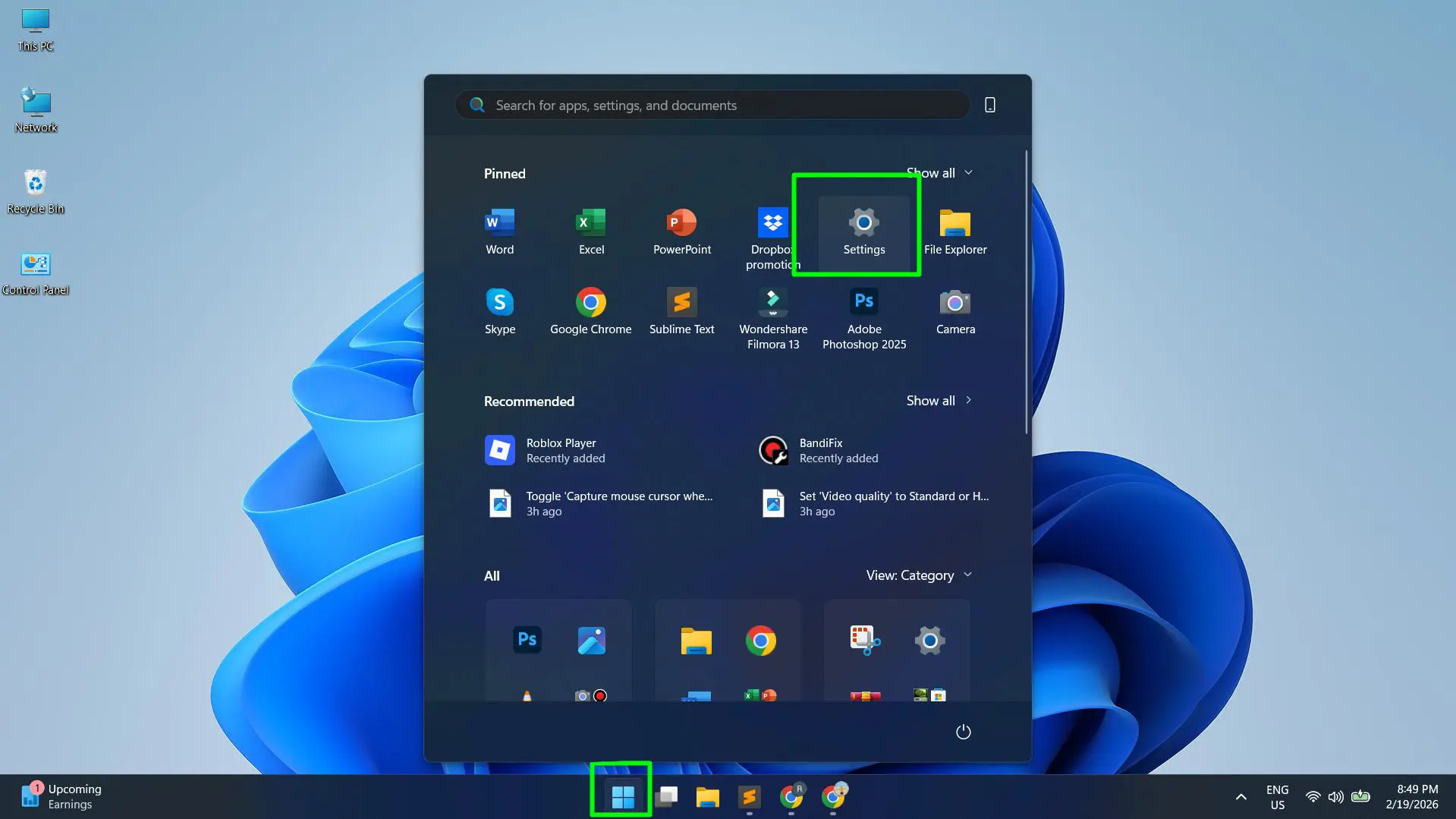
- Step 1: Click the Start button or press the Windows key on your keyboard.
- Step 2: Open Settings (the gear icon).
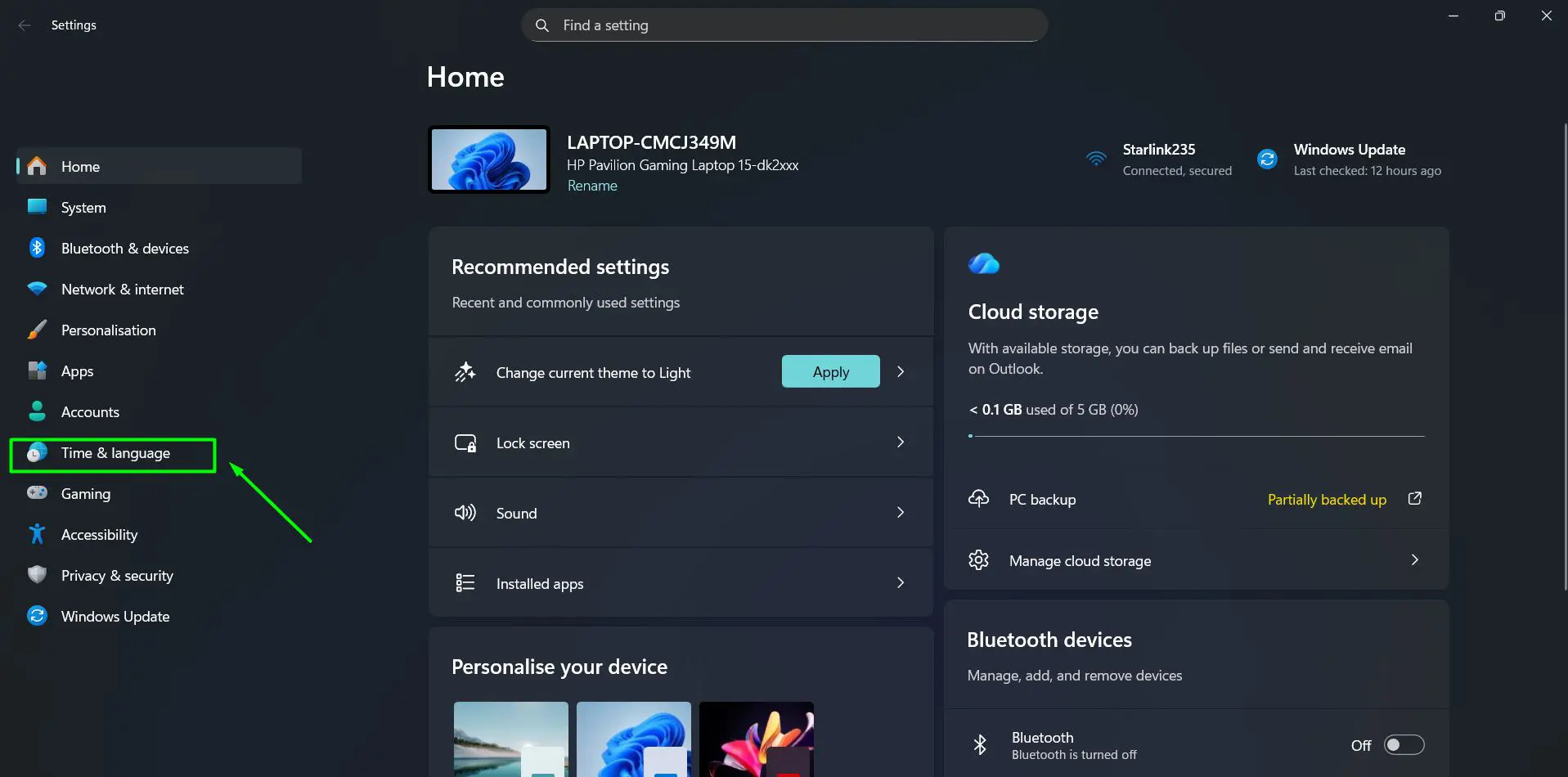
- Step 3: In the left sidebar, click Time and Language.
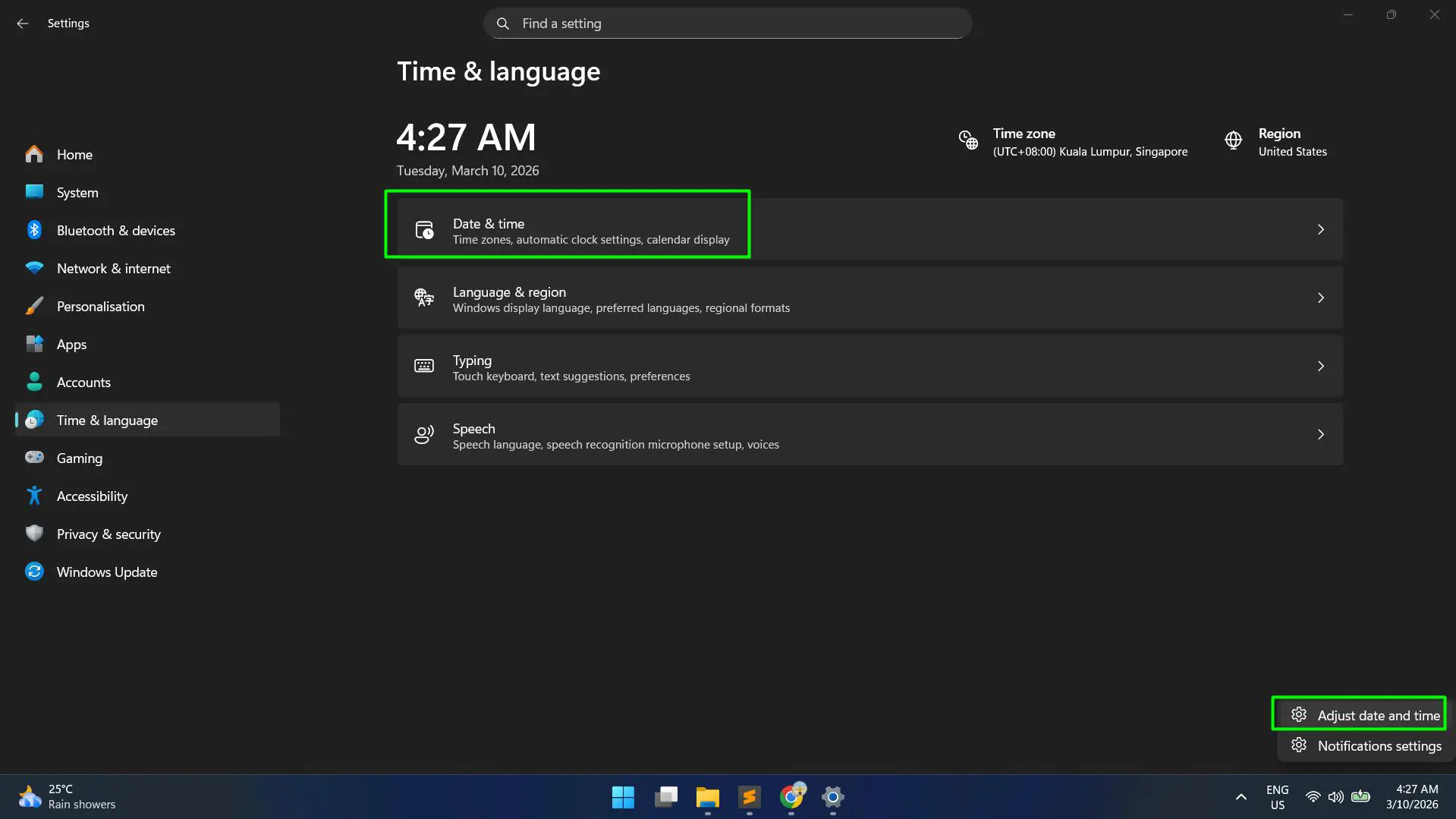
- Step 4: Select Date and Time. Alternatively, right-click the clock in the taskbar and choose ‘Adjust date and time’ to get there faster.
- Step 5: Find the toggle labeled ‘Set time automatically’ and turn it Off. This step is required – keeping it on locks the manual entry option.
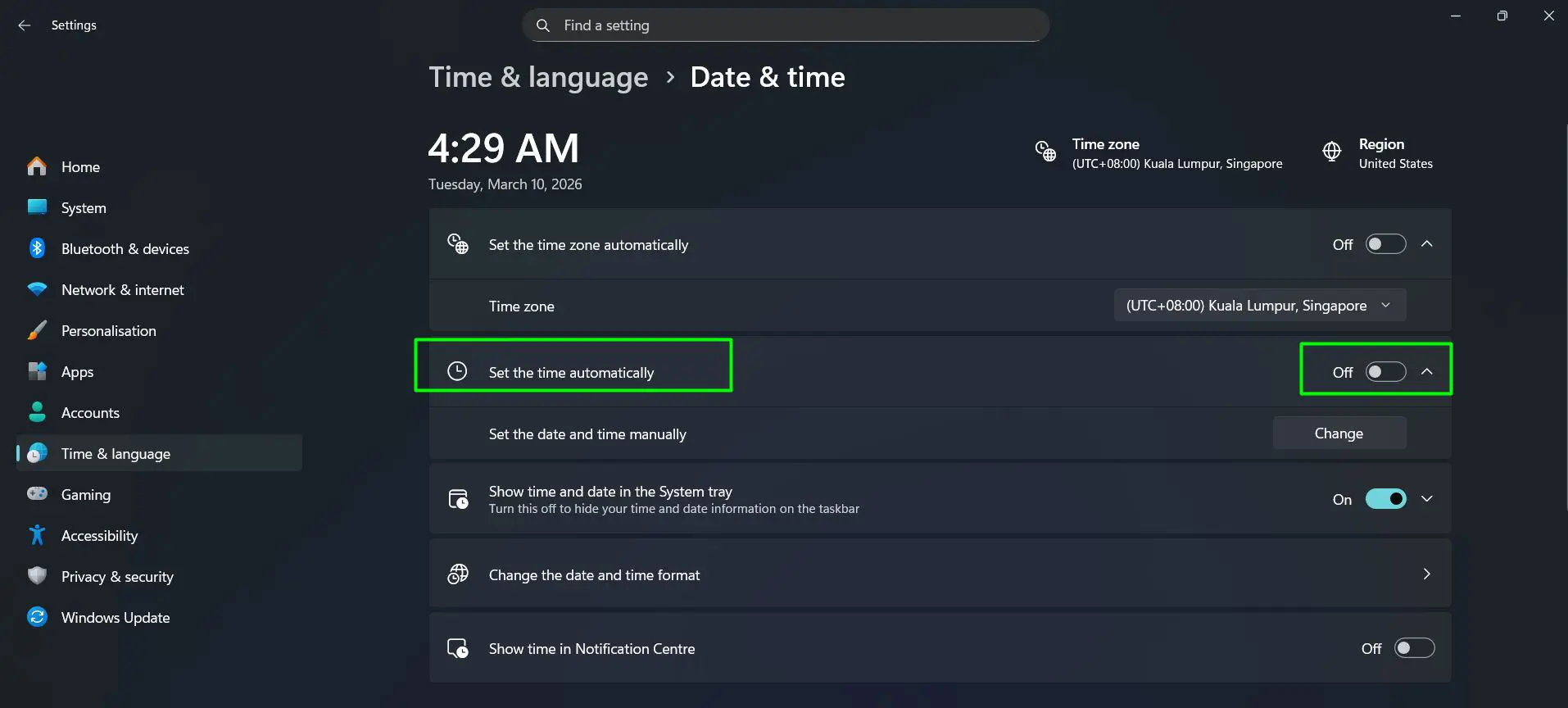
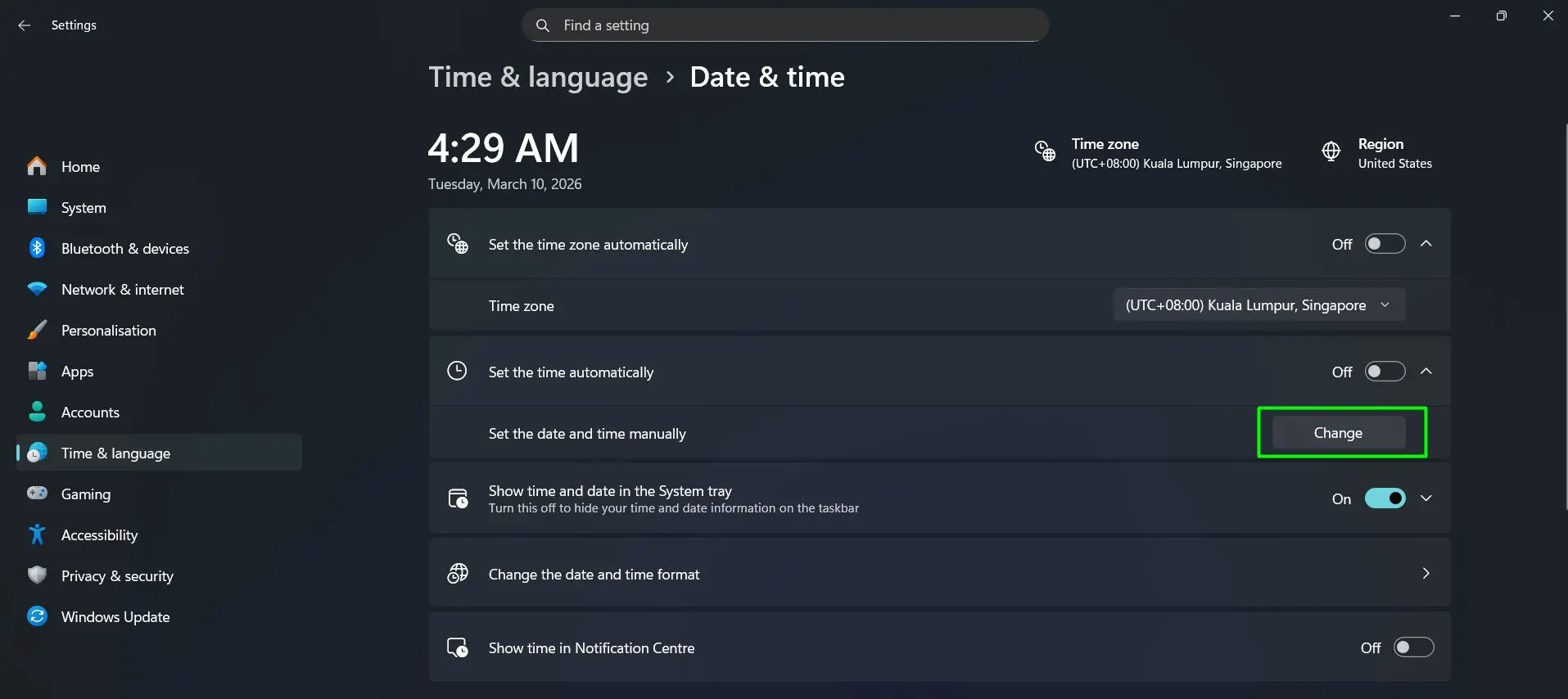
- Step 6: Under the section labeled ‘Set the date and time manually’, click the Change button.
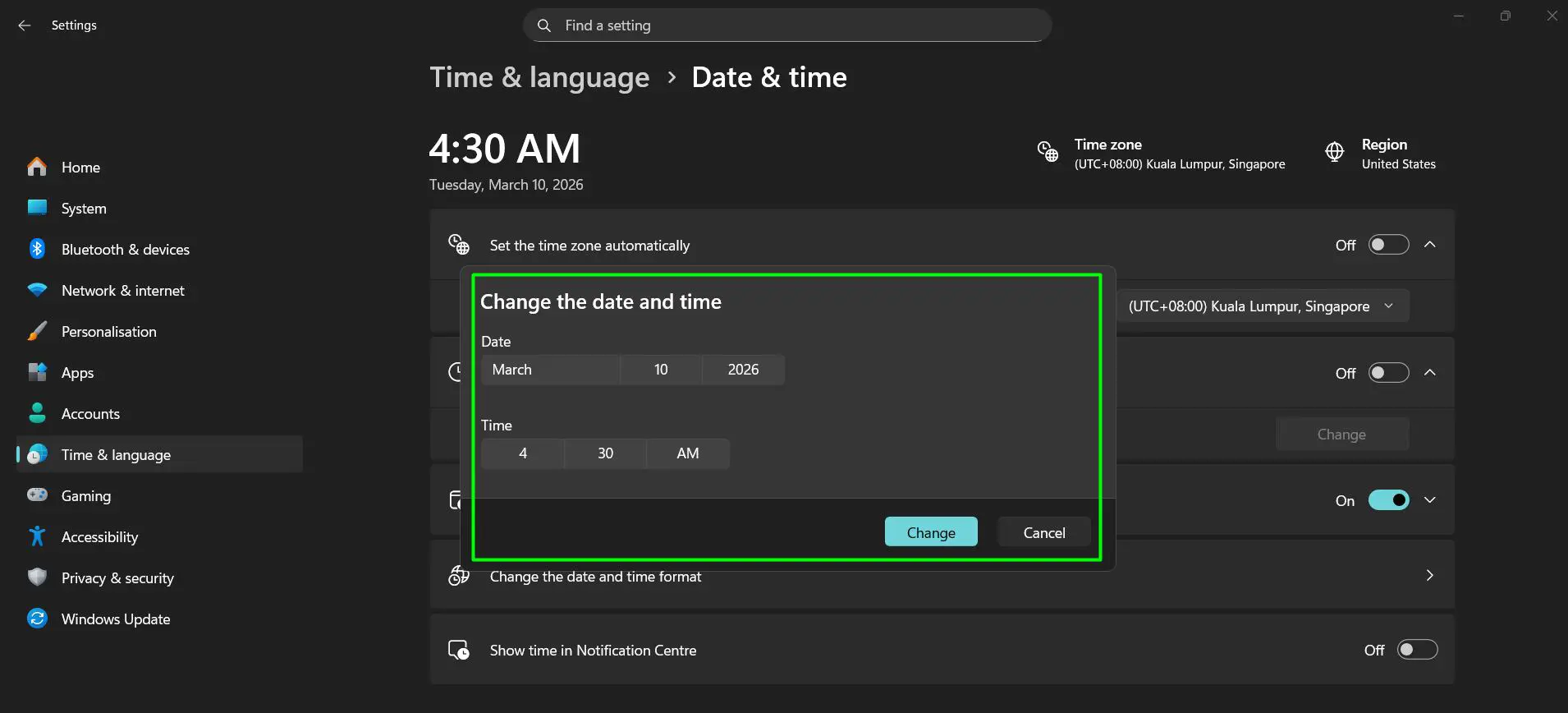
- Step 7: A small window will appear. Enter the correct date (month, day, year) and time (hour and minutes), then click Change to apply. The taskbar clock updates instantly.
Pro-Tip: If the ‘Change’ button still appears grayed out after turning off automatic time, wait a few seconds and try again. Windows 11 sometimes needs a brief moment to register the toggle before it activates the manual entry option.
Set the Time Zone Manually
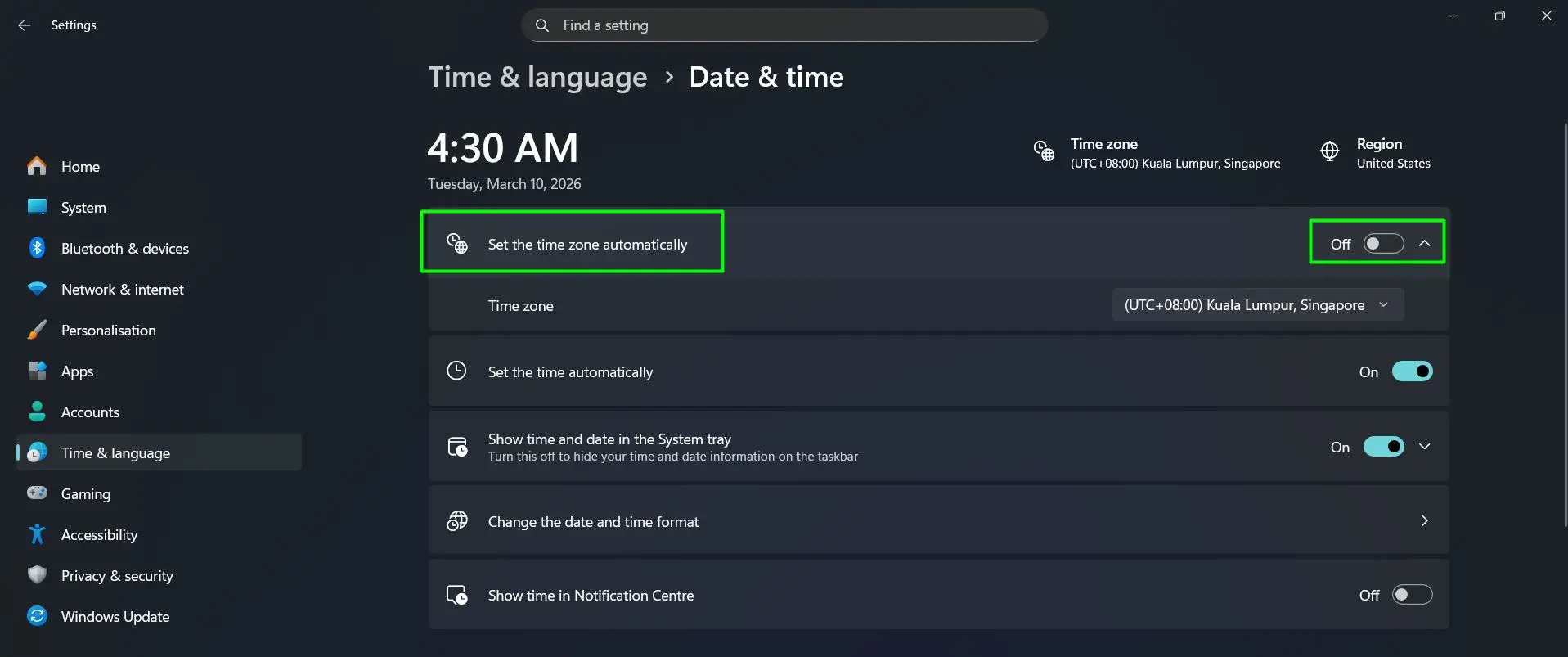
- Step 8: Back on the Date and Time page, find the toggle for ‘Set time zone automatically’ and turn it Off. The Time zone dropdown becomes clickable immediately.
- Step 9: Click the Time zone dropdown and select the zone that matches the current location.
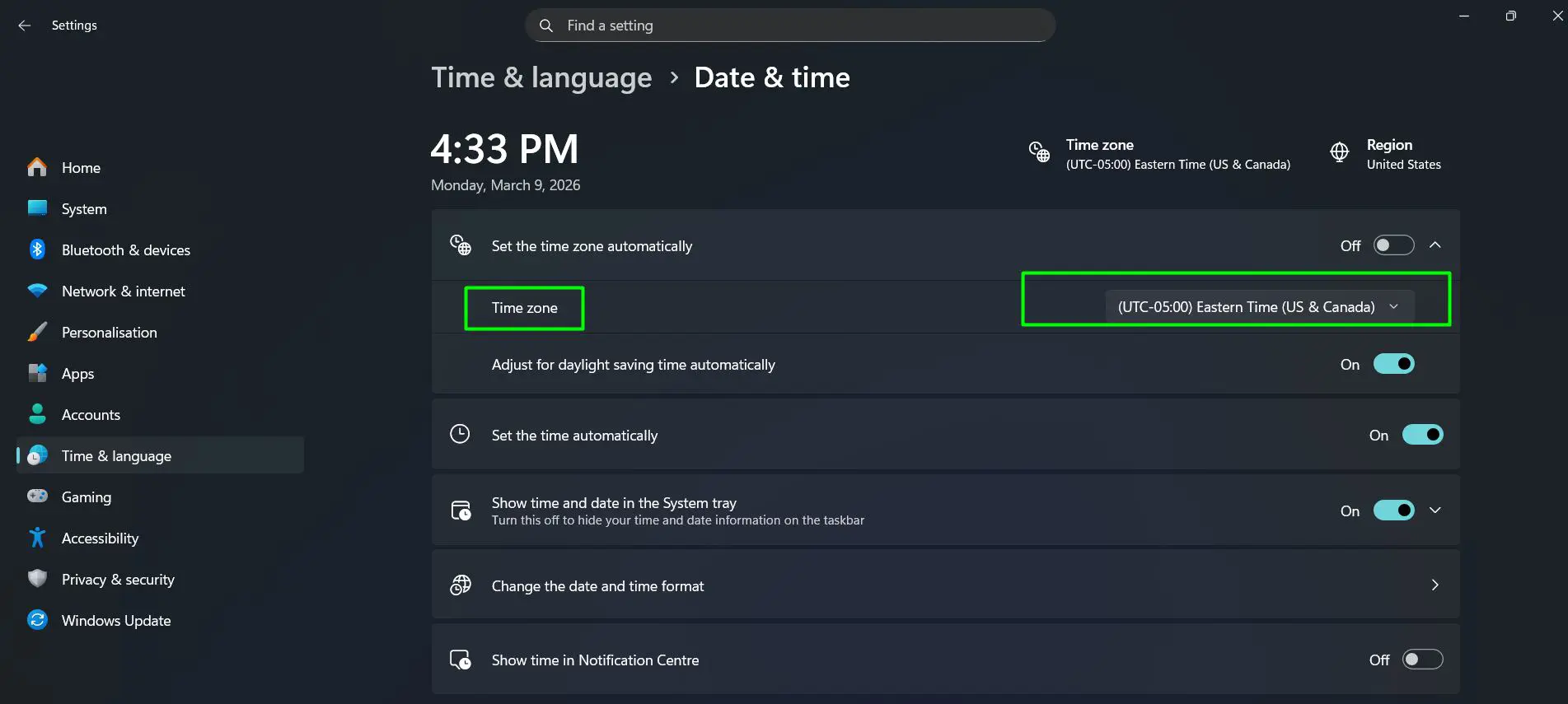
- Step 10: If the selected time zone observes daylight saving time (such as US or European time zones), an ‘Adjust for daylight saving time automatically’ toggle will appear directly below the dropdown. Turn it On to let Windows handle the clock change automatically. For time zones that do not observe DST – such as Japan, the Philippines, or most of Southeast Asia – this toggle will not appear, and that is completely normal.
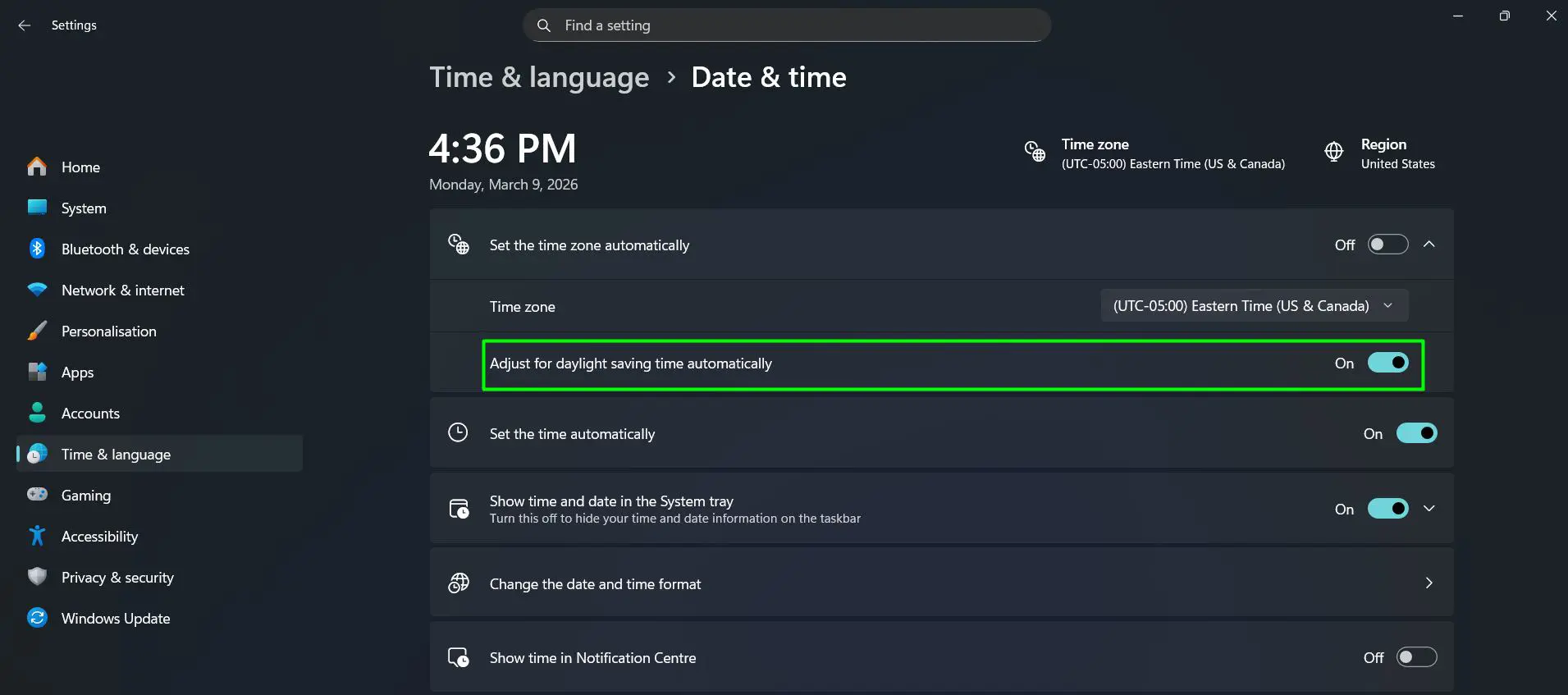
For example, users on the US East Coast would pick (UTC-05:00) Eastern Time (US and Canada). Those in the Philippines would select (UTC+08:00) Manila. The list groups regions by UTC offset, making it easy to find the right match.
The change takes effect immediately – no reboot needed. Double-check the taskbar clock to confirm everything looks right. To also adjust how the time displays (12-hour vs. 24-hour format), visit this guide on changing the time format in Windows.
Pro-Tip: If the exact city does not appear in the time zone list, match by UTC offset instead. UTC+08:00, for instance, covers the Philippines, Singapore, and parts of China – any entry with that offset keeps the clock accurate.
Tips for Managing Time Settings in Windows 11
- If the time keeps resetting after a reboot, a low or dead CMOS battery on the motherboard is likely the cause. Replacing it is a simple hardware fix.
- For users who frequently switch between regions – like frequent travelers – adjusting the time zone manually each time beats waiting on automatic detection, which can lag.
- Accurate date and time settings matter beyond just the clock. They also affect SSL certificates, scheduled tasks, and sync services like OneDrive or Google Drive.
- If the system clock is off by exactly one hour, check the daylight saving time toggle. It sits right below the Time zone dropdown on the Date and Time settings page.
- For other display-related settings on the PC, adjusting display brightness settings is another quick win worth knowing.
Common Problems and Fixes
The ‘Change’ Button is Grayed Out
‘Set time automatically’ is still toggled on. Turn it off first, and the manual Change button becomes available right away.
Time Reverts After Restart
A dead CMOS battery usually causes this. Windows reads the time from the hardware clock on boot – when that battery dies, the clock resets. Swapping in a new CR2032 coin cell fixes it permanently.
Time Zone Dropdown is Not Clickable
Turn off the ‘Set time zone automatically’ toggle first. Once it is off, the dropdown becomes interactive immediately.
Clock Drifts Over Time
If the clock slowly loses or gains minutes, turn ‘Set time automatically’ back on and sync with an internet time server. Go to Date and Time settings and click ‘Sync now’ under the ‘Additional settings’ section to force an immediate sync.
Windows 11 Cannot Find the Right Time Zone
Match by UTC offset instead of city name. Most regions share a UTC offset in the dropdown list, so picking the right offset will keep the clock accurate.
Frequently Asked Questions
How do you manually set the time in Windows 11?
Go to Settings > Time and Language > Date and Time. Turn off ‘Set time automatically,’ then click the ‘Change’ button under ‘Set the date and time manually.’ Enter the correct date and time, then click Change to apply.
Why can’t the time be changed in Windows 11?
The most common reason is that ‘Set time automatically’ is still turned on. Disabling this toggle unlocks the manual time entry option. If it remains locked, the account may lack administrator permissions.
How do you change the time zone in Windows 11?
On the Date and Time settings page, turn off ‘Set time zone automatically.’ Once it is off, click the Time zone dropdown and choose the correct region from the list.
Does changing the time zone affect other settings?
Changing the time zone updates the system clock display and affects time-stamped files, emails, calendar events, and scheduled tasks. It does not touch the display language or any other system preferences. For language settings, visit this guide on changing display language preferences in Windows.
Will changing the time zone require a restart?
No. Time zone changes in Windows 11 take effect immediately. The taskbar clock updates right away without any restart.
How do you sync the Windows 11 clock with the internet?
On the Date and Time settings page, go to ‘Additional settings’ and click Sync now. This connects to Microsoft’s time server and corrects the clock automatically. Make sure ‘Set time automatically’ is on for this to work.
Can the time zone be changed without administrator access?
Typically, administrator privileges are required to change the time zone in Windows 11. Standard user accounts may find the option locked. Switching to an admin account or contacting the device administrator will resolve this.
What is the difference between UTC and a time zone?
UTC (Coordinated Universal Time) is the global standard reference point for time. Time zones express offsets from UTC – for example, Eastern Time runs at UTC-5 during standard time and UTC-4 during daylight saving. The Windows 11 time zone list shows both the UTC offset and the regional name for easy matching.
Why does the Windows 11 clock show the wrong time after a fresh install?
After a fresh install, Windows may default to UTC or a time zone that does not match the actual location. Manually selecting the correct time zone and date fixes this right away.
How do you verify the time is correct after making changes?
Check the taskbar clock in the bottom-right corner of the screen. Hovering over it reveals the date as well. Cross-checking against a phone or a world clock website gives a quick confirmation.