
Here is Your Current Public IP Address:
IPv4: Detecting...
IPv6: Detecting...
ISP: Detecting...
Location: Detecting...
Need to find your IP address fast? The quickest way is right inside the browser that is already open on the screen. No extra tools, no digging through settings – just a browser and a few seconds. This guide covers exactly how to use a browser to find your IP address in Windows 10 and 11, with step-by-step instructions for every major method.
Quick Summary
- The fastest method: open any browser, type a URL like whatismyipaddress.com directly into the address bar, or use the built-in IP checker tool on this page
- Works on Windows 10 and Windows 11 with Chrome, Edge, Firefox, or any browser
- A browser shows the public (external) IP address – this is the address that websites and servers see
- No downloads, no sign-ups, and no technical knowledge needed
- The tool embedded in this article shows the IPv4, IPv6, ISP, and location in seconds
Step-by-Step: How to Find Your IP Address Using a Browser
There are several reliable browser-based methods to check an IP address on Windows 10 and 11. Each one works without installing anything. Pick the method that fits best.
Method 1: Use the IP Checker Tool on This Page
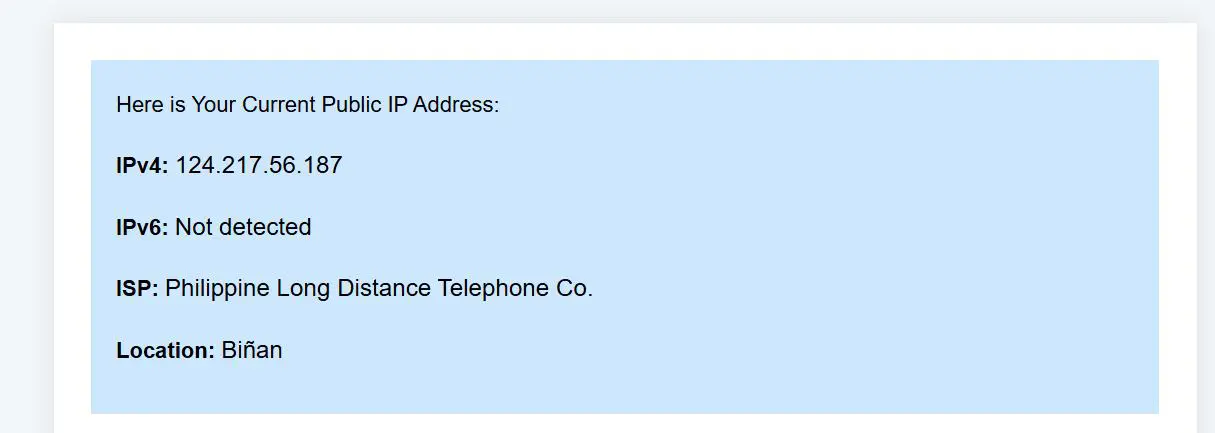
This is the most direct option. The tool above detects the public IP address automatically the moment the page loads – no typing required.
- Step 1: Scroll up to the IP checker widget at the top of this page
- Step 2: Wait 1-2 seconds for the tool to load the details
- Step 3: The IPv4 address, IPv6 address, ISP name, and location will appear instantly
This works best when a quick check is needed without leaving the page. The tool pulls real-time data, so the result is always accurate and current.
Method 2: Type a Trusted IP Lookup URL Directly Into the Address Bar
The most reliable standalone method is typing a dedicated IP lookup site directly into the browser address bar. These sites display the public IP address automatically the moment the page opens – no searching, no clicking links.
- Step 1: Open any browser on the Windows 10 or Windows 11 device – Chrome, Edge, Firefox, or Brave all work
- Step 2: Click the address bar at the very top of the browser window
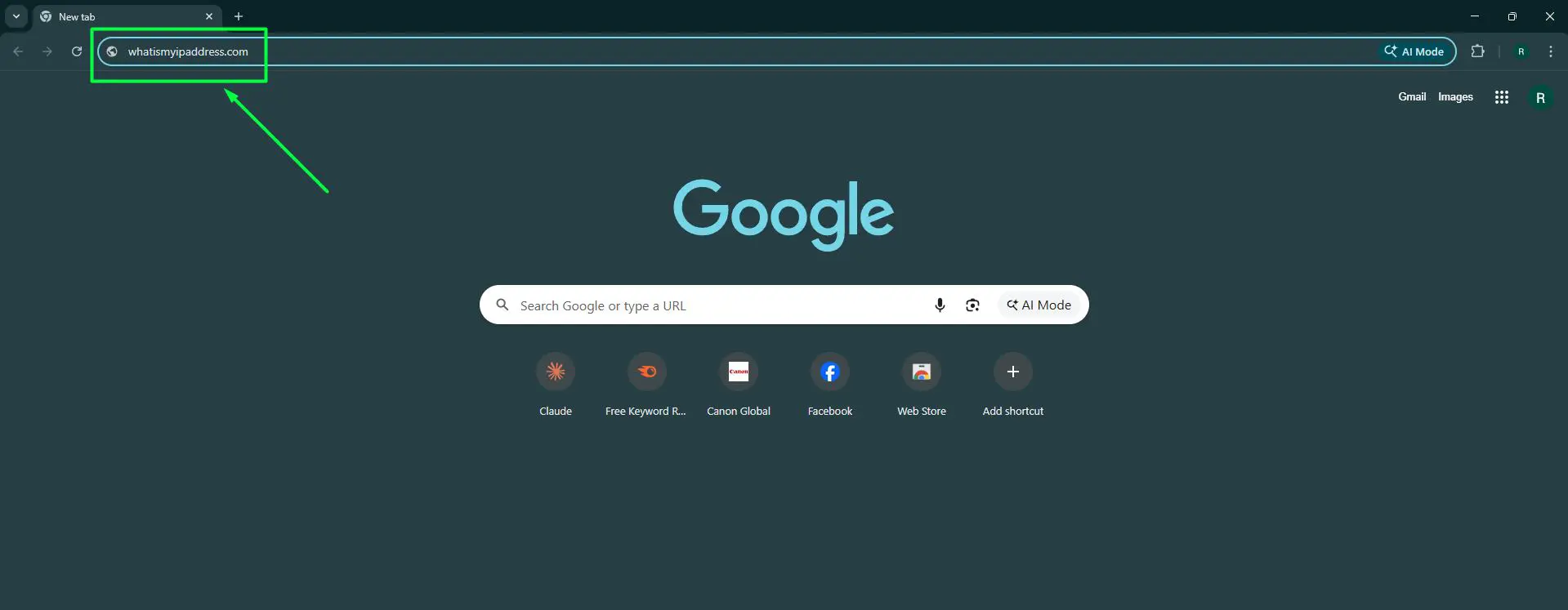
- Step 3: Type one of the following and press Enter:
- whatismyipaddress.com – shows the public IPv4 and IPv6 address along with ISP and location
- whatismyip.com – clean, simple layout that shows the public IP immediately on load
- ipwho.is – lightweight page that displays IPv4, IPv6, ISP, and location details
- Step 4: The public IP address appears on screen right away – no extra clicks needed
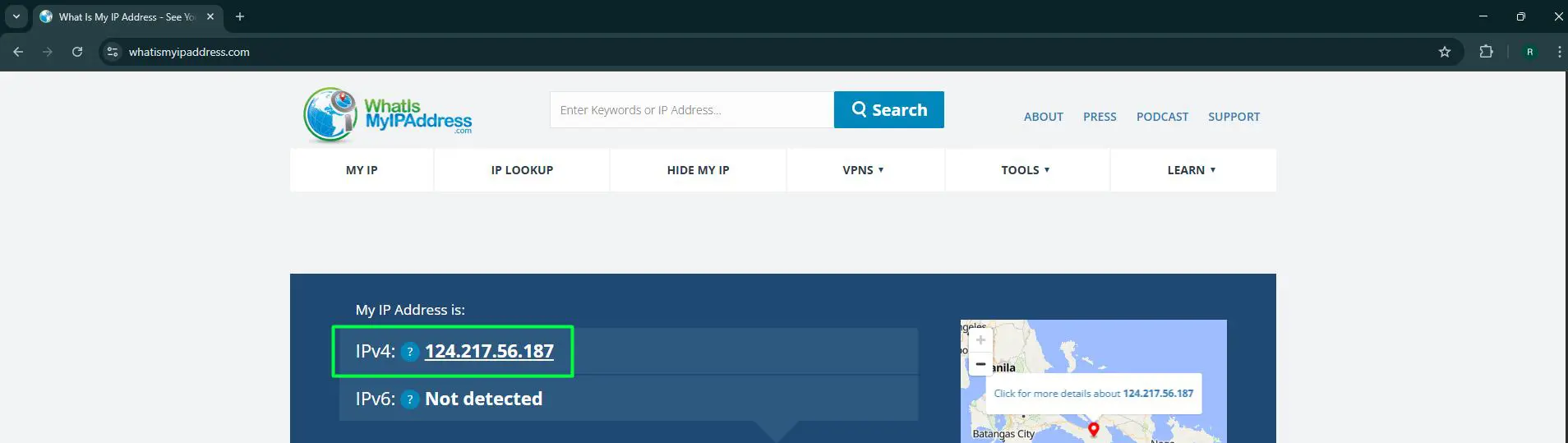
The key is typing the URL directly into the address bar, not into a search engine. Typing it into the address bar takes the browser straight to the website. Typing it into a search box opens search results instead, which requires an extra click. Pro-Tip: If the device is connected to a VPN, any of these sites will show the VPN server’s IP address rather than the actual home or office IP. To see the real public IP, disconnect from the VPN first and then reload the page.
Method 3: Use ifconfig.me for a Plain-Text IP Result
For a no-frills, instant IP address with zero page clutter, ifconfig.me is one of the most reliable options available. It returns just the raw public IP address – nothing else.
- Step 1: Open any browser on the Windows 10 or Windows 11 device
- Step 2: Click the address bar and type: ifconfig.me
- Step 3: Press Enter
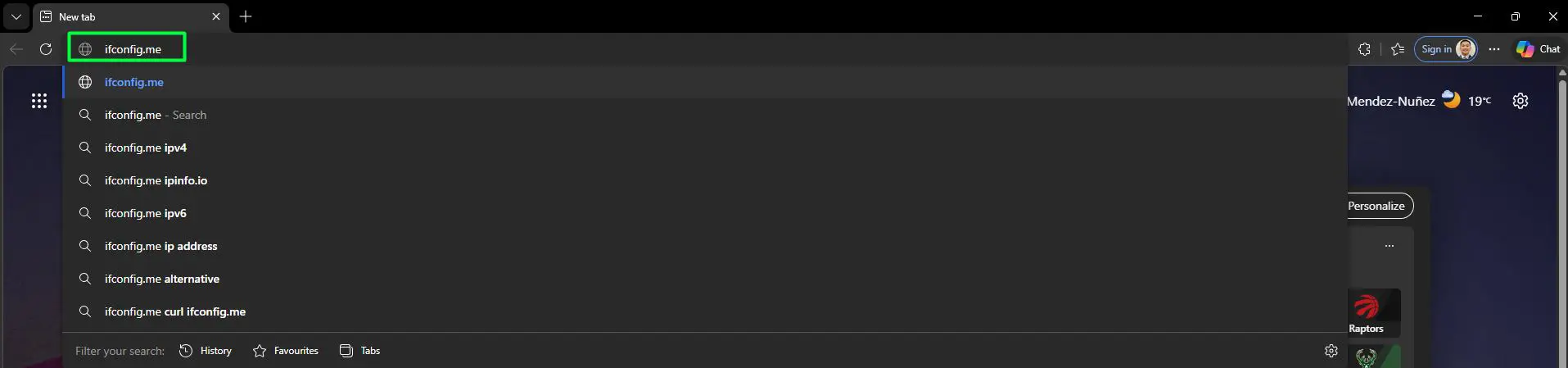
- Step 4: The page loads and shows the public IP address in plain text at the top – no ads, no banners, no extra steps
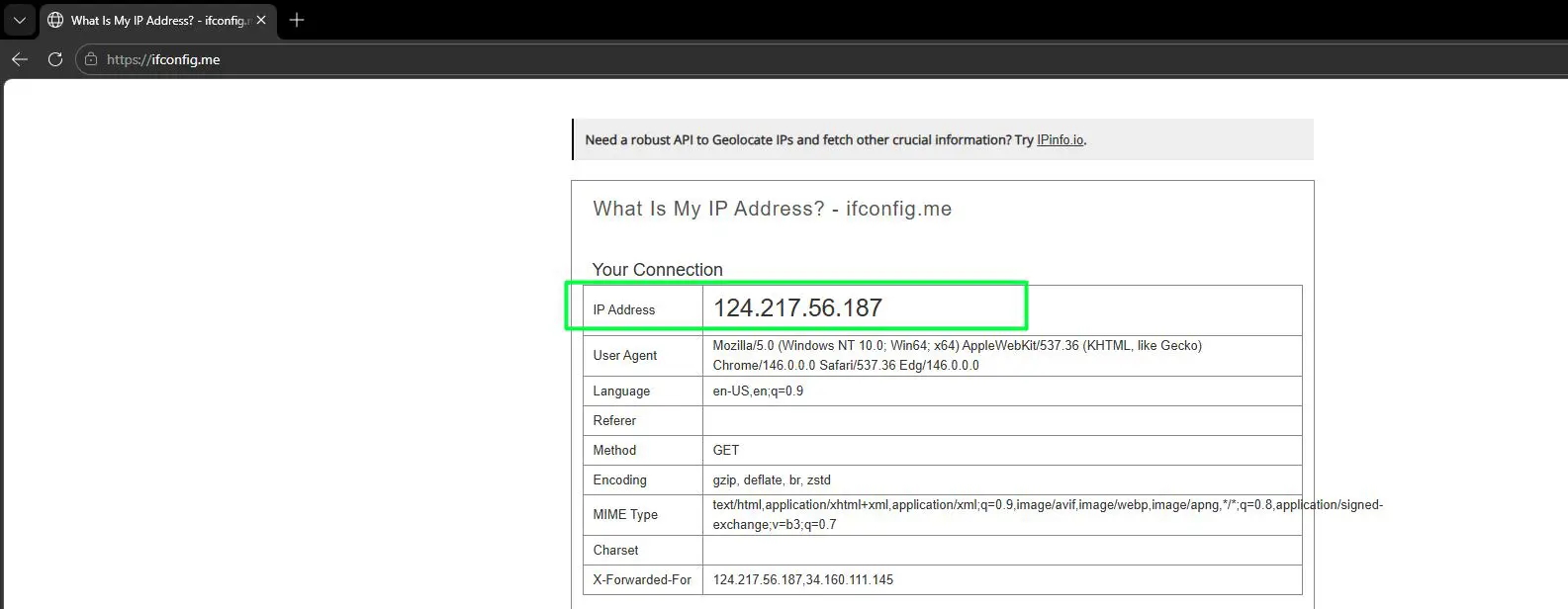
This method is particularly useful when only the raw IP number is needed and a clean, distraction-free result is preferred. It works in every browser and on both Windows 10 and Windows 11 without any issues.
Method 4: Use a Browser Extension to See the IP at All Times
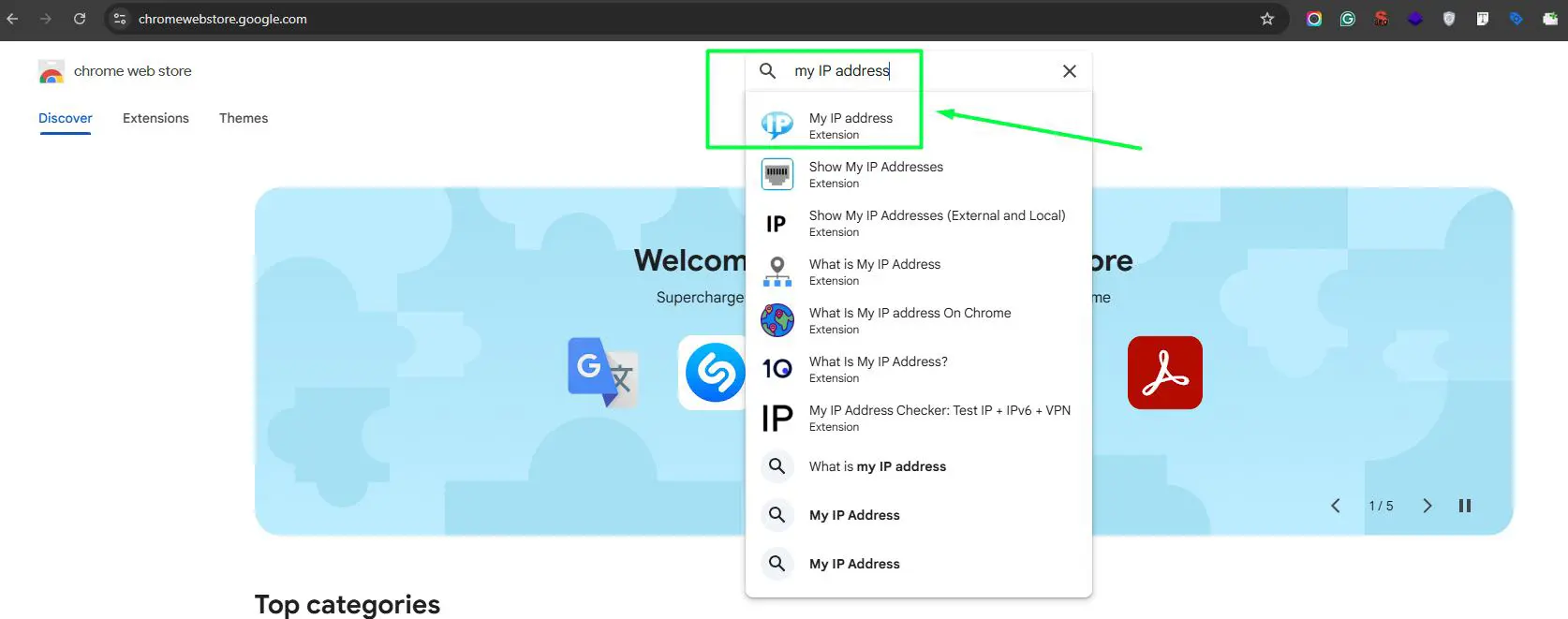
For anyone who checks their IP address regularly, installing a lightweight browser extension is the most convenient long-term solution. These extensions display the current public IP address directly in the browser toolbar – always visible without opening any website.
- Step 1: Open the browser being used on the Windows device – Chrome, Edge, or Firefox
- Step 2: Go to the browser’s extension store:
- Chrome: visit chrome.google.com/webstore
- Edge: visit microsoftedge.microsoft.com/addons
- Firefox: visit addons.mozilla.org
- Step 3: Search for ‘my IP address’ or ‘IP address display’
- Step 4: Choose a well-rated extension and click Add to browser
- Step 5: Once installed, the public IP address appears in the browser toolbar and updates automatically whenever the network changes
This works best for people who frequently switch networks, use a VPN, or need to monitor IP changes without manually opening a lookup site each time.
What the IP Address Result Actually Means
When a browser is used to look up an IP address, the result is the public IP address. This is the address that the internet sees – assigned by the internet service provider and shared across all devices on the same router or network connection. This is different from a local (private) IP address, which is the internal address assigned to a specific device by the router (for example, 192.168.1.5). A browser-based check will always return the public address, not the local one. Understanding this difference matters for tasks like setting up remote access, port forwarding, or checking whether a change to the IP address on Windows has taken effect externally.
IPv4 vs IPv6: Which One Shows Up?
Depending on the network setup, the browser may return an IPv4 address, an IPv6 address, or both.
- IPv4 looks like four sets of numbers separated by dots, for example: 203.0.113.42
- IPv6 looks like groups of alphanumeric characters separated by colons, for example: 2001:0db8:85a3::8a2e:0370:7334
Most home networks in Windows 10 and 11 still primarily use IPv4 for external communication. The IP checker tool on this page detects and displays both automatically.
Tips for Getting an Accurate IP Address Result
- Make sure the device is connected to the internet before running any browser-based IP check
- Disable or disconnect any active VPN connection if the goal is to find the actual public IP address
- If the IP address looks unfamiliar or unexpected, try clearing the browser cache and refreshing the page – cached responses can occasionally show outdated data on certain IP lookup tools
- For the most reliable result, use the IP checker tool embedded on this page since it queries the IP directly on page load
- On public Wi-Fi networks, the IP address shown belongs to the shared network, not the individual device
- Search engines like Google and Bing no longer reliably show an instant IP answer at the top of results – always go directly to a lookup URL for a guaranteed instant result
Pro-Tip: The public IP address can change over time, especially on home networks that use dynamic IP assignment. If a static, unchanging IP address is needed for hosting or remote access purposes, contact the internet service provider to request a static IP – or consider switching the default browser to one where a trusted IP lookup site can be pinned as a homepage for instant access.
Common Problems When Checking IP Address in a Browser
Search engines do not show an instant IP answer
Neither Google nor Bing currently display a reliable instant IP answer card in their search results. Google shows a list of third-party links, and Bing shows Copilot-based results without a direct IP card. The correct approach is to skip search engines entirely and type a lookup URL like whatismyipaddress.com or ifconfig.me directly into the browser address bar.
The IP address shown does not match what was expected
This usually happens when a VPN, proxy, or corporate network is active. The browser will show the IP address of the VPN server or proxy, not the actual device’s public IP. Disconnect from the VPN and re-check.
The IP lookup tool shows ‘Not detected’ or fails to load
This can happen due to browser extensions blocking network requests (such as ad blockers or privacy shields), or because of strict firewall settings. Try opening the page in a private or incognito window, or temporarily disabling browser extensions.
The IPv6 address does not appear
Not all networks support IPv6. If the router or ISP does not provide IPv6, only an IPv4 address will be available. This is normal and does not indicate a problem.
The location shown seems wrong
IP-based geolocation is not always precise. It typically shows the general city or region of the ISP’s data center, not the exact physical address of the device. This is expected behavior for all browser-based IP lookup tools.
Frequently Asked Questions
What is the easiest way to find an IP address using a browser in Windows 10 or 11?
The easiest method is to open any browser and type whatismyipaddress.com or ifconfig.me directly into the address bar, then press Enter. The public IP address appears on screen immediately – no search, no extra clicks.
Can search engines like Google or Bing show the IP address instantly?
No, not reliably in 2026. Searching ‘what is my IP address’ on Google returns a list of third-party links. Bing shows Copilot-powered results and related articles but no direct instant IP card. The most dependable approach is always to go directly to a trusted IP lookup website by typing the URL into the address bar.
Does the browser show the public IP address or the local IP address?
A browser always shows the public IP address – the one assigned by the internet service provider and visible to websites and servers. The local (private) IP address assigned by the router to a specific device is not visible through browser-based checks.
Can this method be used to find the IP address on both Windows 10 and Windows 11?
Yes. All browser-based IP lookup methods work identically on both Windows 10 and Windows 11. The operating system version does not affect the result since the IP is determined by the network connection, not the OS.
Does using a VPN affect the IP address shown in the browser?
Yes. When a VPN is active, the browser will show the IP address of the VPN server rather than the actual public IP address. To find the true public IP, disconnect from the VPN before running the browser check.
What is the difference between an IPv4 and IPv6 address?
IPv4 addresses use four number groups separated by dots (like 203.0.113.42) and are the most common format. IPv6 addresses use longer alphanumeric groups separated by colons and were introduced to handle the growing number of internet-connected devices. Many networks assign both types simultaneously.
Is it safe to look up an IP address using a browser?
Yes. Using a browser to check a public IP address is completely safe. The public IP is already visible to every website visited, so looking it up through a dedicated tool does not expose any additional information.
Why does the IP address shown keep changing?
Most home internet connections use a dynamic IP address, which the ISP can change periodically. This is normal. If a permanent, unchanging IP is needed, a static IP must be requested from the ISP.
Can the browser-based method show the IP address of another device on the network?
No. A browser-based IP check only shows the public IP address of the current network connection – not individual device addresses. All devices sharing the same router will show the same public IP when checked through a browser.
What if the IP lookup website is blocked or not loading?
Try a different browser, open the page in a private or incognito window, or disable any active browser extensions. Network-level restrictions (like workplace firewalls) can sometimes block access to IP lookup websites. In that case, using the embedded tool on this page is the most reliable alternative.
Is there a way to always know the current IP address without checking manually?
Yes. Installing a browser extension designed to display the public IP address in the toolbar is the most convenient long-term solution. Searching the browser extension store for ‘IP address display’ will surface several well-rated options that update automatically whenever the network changes.