
Adjusting the mouse pointer speed on Windows 11 can dramatically improve the overall computing experience. When the cursor moves too fast, it becomes difficult to click precisely on small buttons or icons. When it moves too slowly, navigating across multiple monitors or large screens feels frustrating and inefficient. Finding that perfect balance makes every task smoother, from basic web browsing to professional design work.
Windows 11 offers several straightforward methods to customize pointer speed settings. The process takes less than a minute once you know where to look. Most people find that making this small adjustment significantly improves their daily workflow, whether working with software applications or managing files across the operating system.
Understanding Mouse Pointer Speed Settings
The pointer speed setting controls how far the cursor travels on screen relative to physical mouse movement. A higher speed means less hand movement produces more cursor movement. A lower speed requires more physical motion to move the cursor the same distance. This setting works independently from mouse DPI (dots per inch), though both affect the overall feel.
Windows 11 includes an enhancement feature called ‘pointer precision’ that adjusts cursor speed dynamically based on how quickly the mouse moves. When moving the mouse slowly, the cursor travels shorter distances for precise selections. Quick movements accelerate the cursor further. Some users prefer this feature for general productivity, while others—particularly gamers and designers—disable it for consistent, predictable movement.
Method 1: Adjust Pointer Speed Through Settings App
The Settings app provides the most straightforward approach to modifying mouse pointer speed. This modern interface in Windows consolidates most system configurations in one accessible location.
Watch this tutorial on How to Adjust Pointer Speed Through Settings App Easily in Windows 11
Step-by-Step Process
- Press the Windows key + I to open the Settings app, or click the Start button and select Settings from the pinned apps
- Click on ‘Bluetooth & devices’ in the left sidebar menu
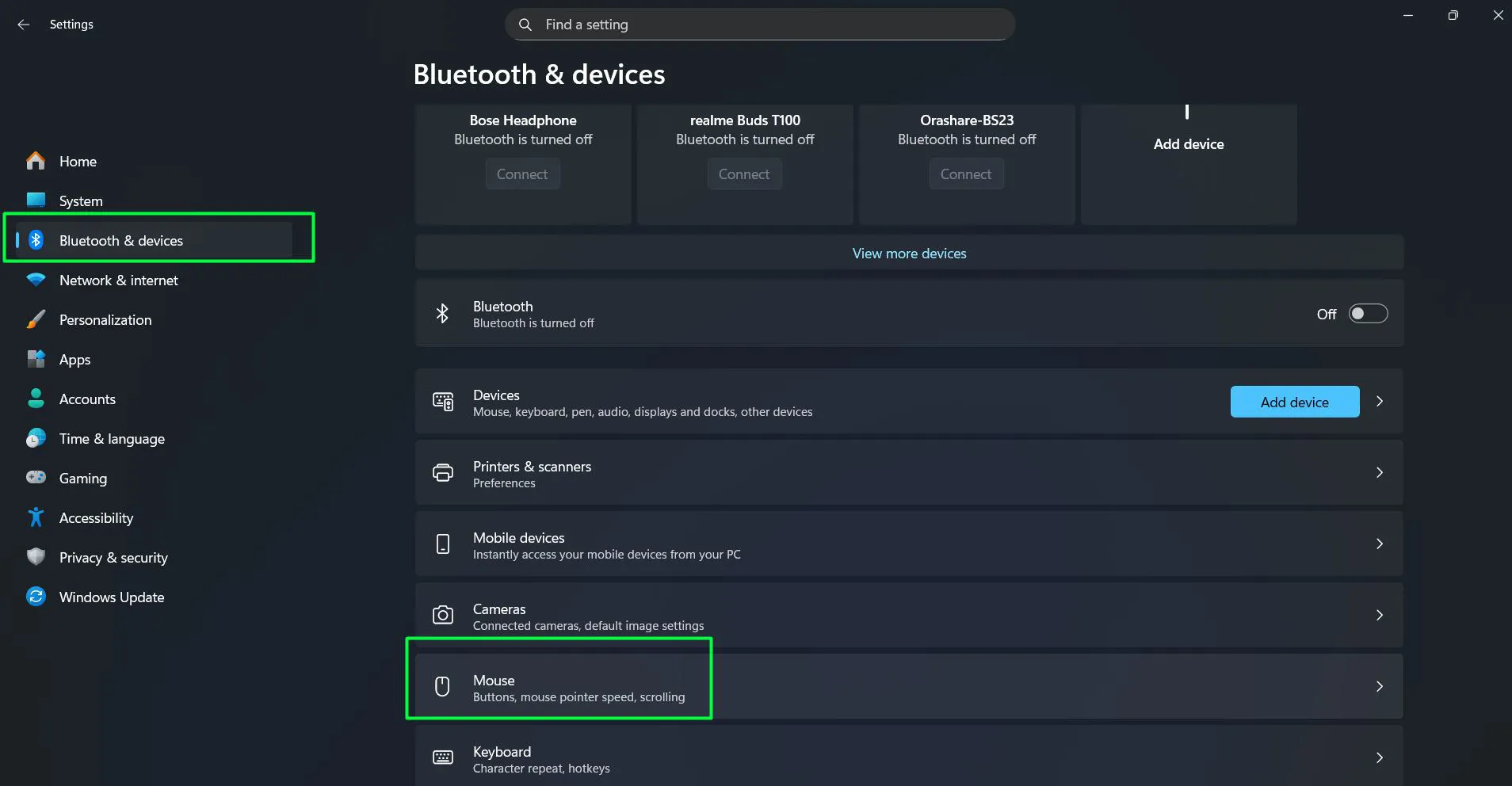
- Select ‘Mouse’ from the list of options on the right side
- Locate the ‘Mouse pointer speed’ slider under the main mouse settings
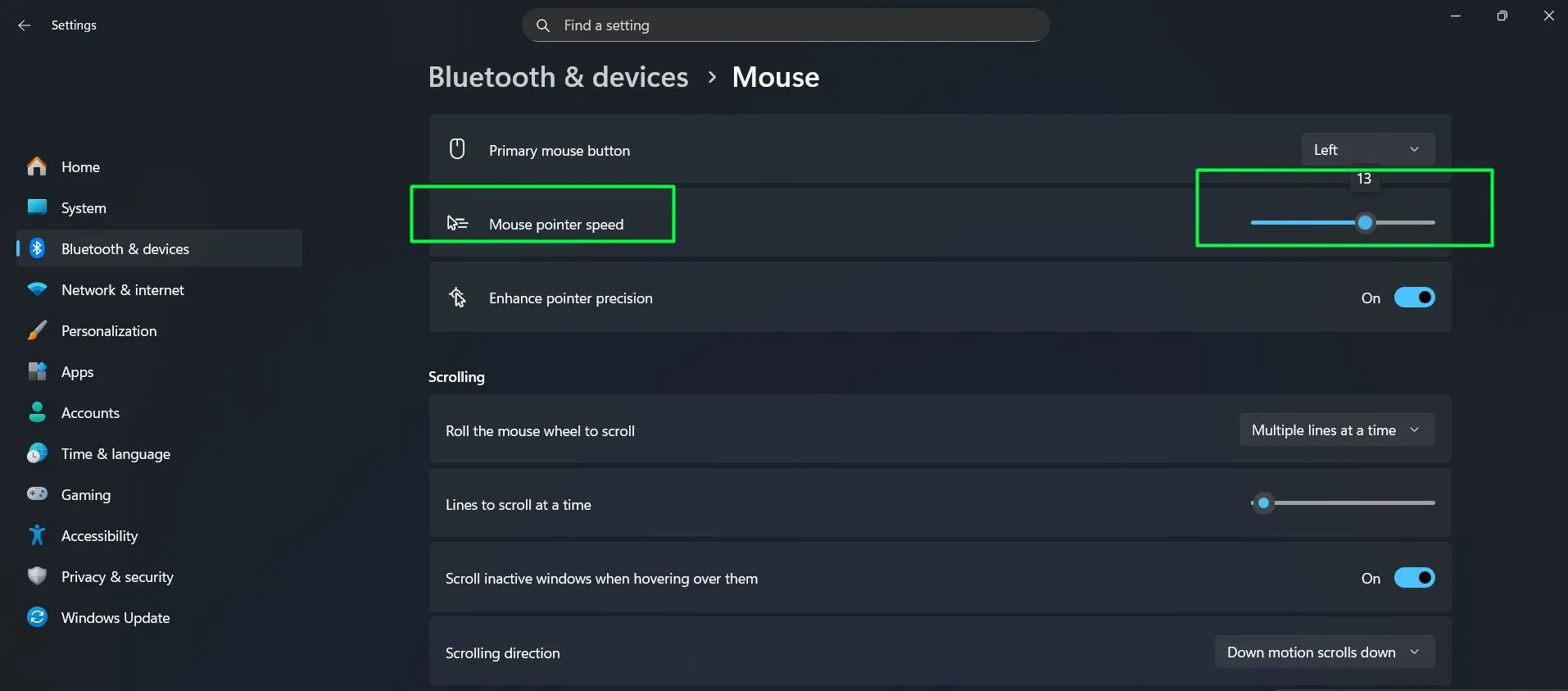
- Drag the slider left to decrease pointer speed or right to increase it
- Test the new speed by moving the mouse around the screen
- Adjust again if needed until finding the comfortable setting
The slider offers a range from 1 to 20, with 10 representing the default middle ground. Most people find their ideal setting falls between 8 and 14, depending on screen size and personal preference. The key is to experiment with different positions while performing typical tasks like clicking icons, selecting text, or navigating menus.
Method 2: Use Control Panel for Advanced Options
The traditional Control Panel still exists in Windows 11 and provides access to additional mouse configuration options. This method offers more granular control, including the ability to enable or disable pointer precision enhancement.
Watch this: Use Control Panel to Adjust Pointer Speed on Windows 11
Accessing Control Panel Mouse Settings
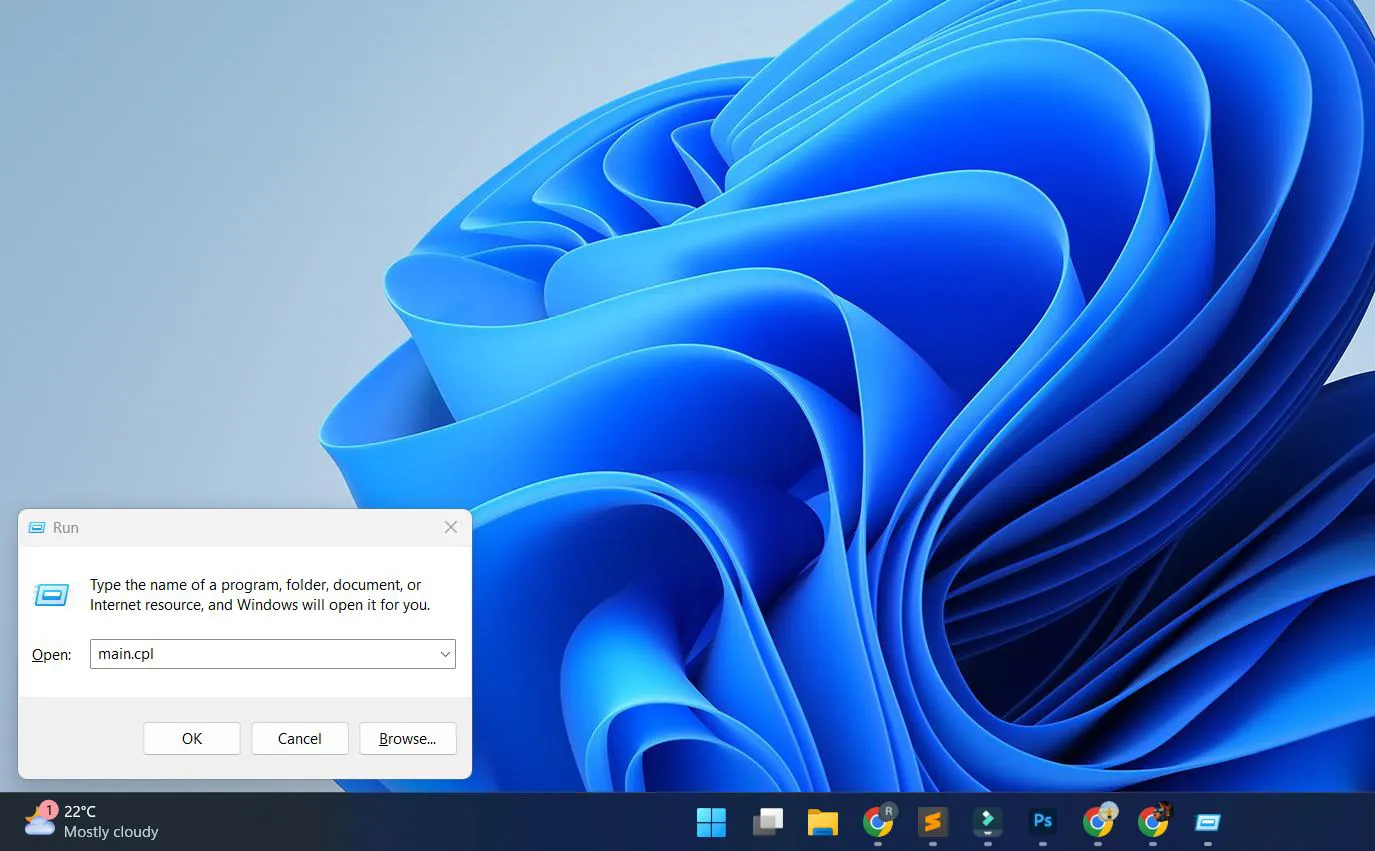
- Press Windows key + R to open the Run dialog box
- Type ‘main.cpl’ and press Enter to launch Mouse Properties directly
- Click on the ‘Pointer Options’ tab at the top of the window
- Find the ‘Motion’ section at the top of this tab
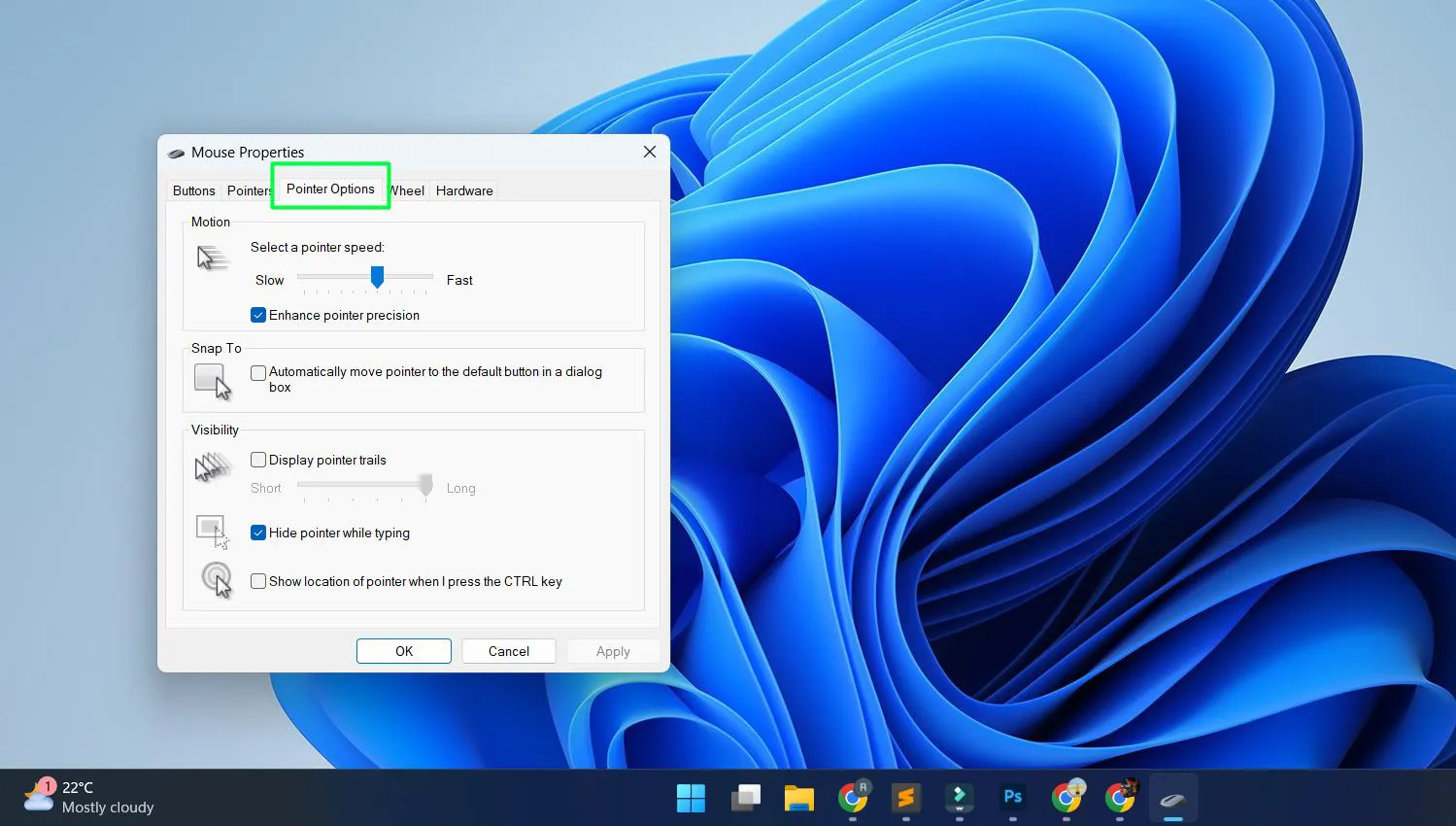
- Adjust the slider under ‘Select a pointer speed’ to modify movement speed
- Check or uncheck ‘Enhance pointer precision’ based on preference
- Click ‘Apply’ to test the changes without closing the window
- Click ‘OK’ when satisfied with the configuration
This works best when needing precise control over cursor behavior. The Control Panel version displays the same speed range as the Settings app but presents it differently. The checkbox for pointer precision appears only here, making this method essential for users who want complete control over cursor acceleration.
Method 3: Quick Access Through Search
Windows 11’s search function provides instant access to mouse settings without navigating through multiple menus. This approach saves time when making frequent adjustments.
Using Windows Search
- Click the Search icon on the taskbar or press Windows key + S
- Type ‘mouse settings’ in the search box
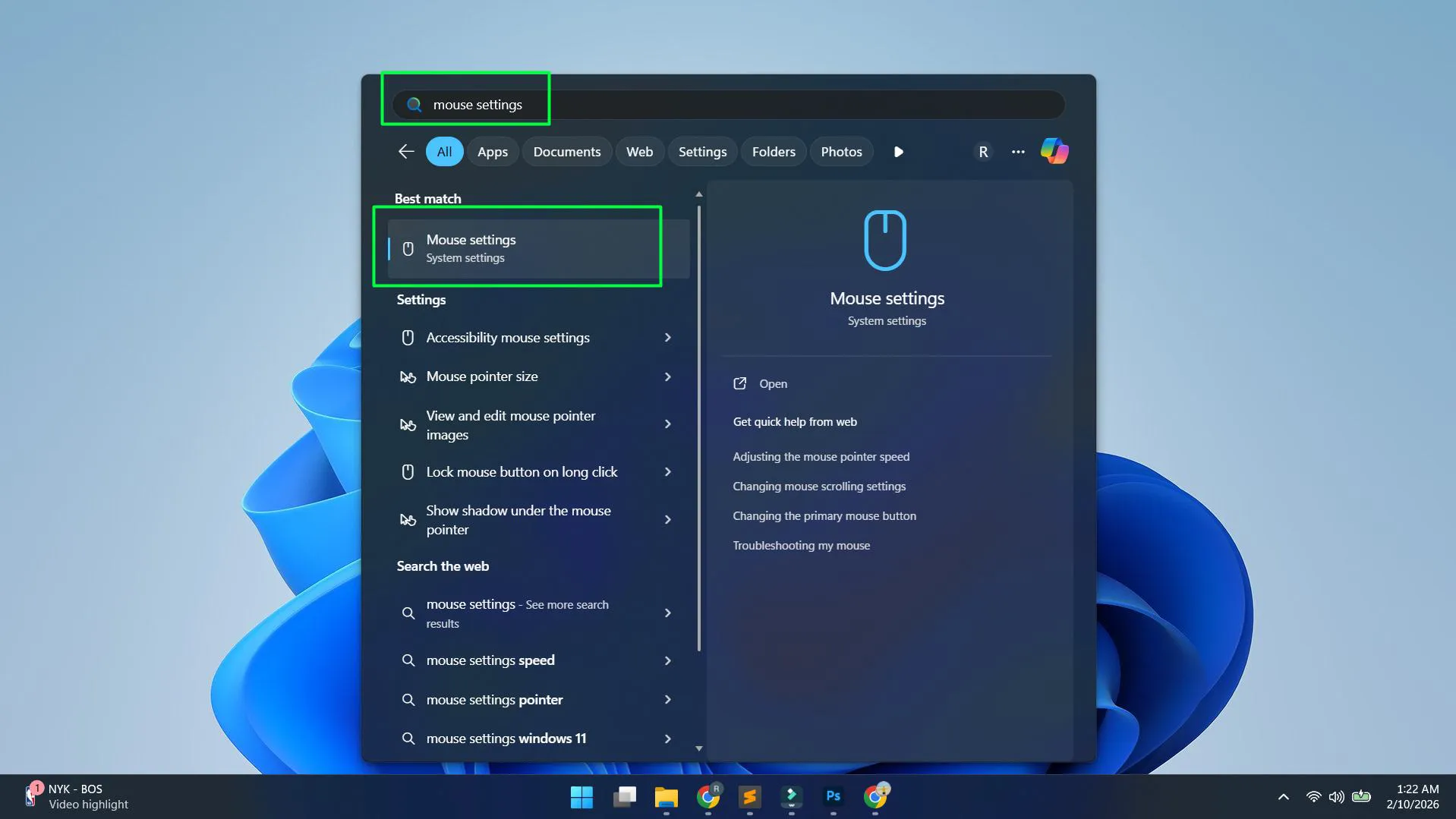
- Click on ‘Mouse settings’ from the results that appear
- Locate the pointer speed slider in the window that opens
- Adjust the slider to the desired position
Alternatively, searching for ‘change mouse pointer speed’ or ‘adjust pointer speed’ produces the same results. The search function recognizes various phrasings and directs to the appropriate settings page. This flexibility makes it easier to find settings even when not remembering exact menu locations.
Testing and Fine-Tuning Pointer Speed
After making initial adjustments, proper testing ensures the new speed setting works well for different tasks. Simply moving the cursor randomly around the screen doesn’t provide enough feedback to judge optimal speed.
Try clicking on small targets like window control buttons (minimize, maximize, close) in the top-right corner of applications. Open a document and practice selecting specific words or phrases with precision. Navigate through dropdown menus with multiple levels. Browse websites and click on various sized links and buttons. These real-world scenarios reveal whether the speed setting suits actual usage patterns.
Screen size significantly impacts ideal pointer speed. Larger monitors or multi-monitor setups typically benefit from faster pointer speeds, reducing the physical distance needed to move between screen edges. Smaller laptop displays often work better with slower speeds, preventing overshooting targets. The key is to match the speed to the specific display configuration being used.
Common Speed Settings for Different Users
Different activities and user preferences call for different pointer speed configurations. Understanding typical settings helps establish a good starting point before fine-tuning.
General Productivity Users
For everyday tasks like email, web browsing, and document editing, most people find comfort in the middle range (speeds 9-12). This provides reasonable coverage across standard displays without sacrificing precision for common clicking tasks. Keeping pointer precision enabled helps with variable-speed tasks, slowing down automatically when hovering over small buttons or input fields.
Gaming Preferences
Gamers typically prefer lower speeds (6-9) with pointer precision disabled. Consistent, predictable movement matters more than speed for competitive gaming. Many games use raw mouse input that bypasses Windows pointer settings entirely, but desktop navigation and in-game menus still rely on system settings. Lower speeds with precision disabled provide the muscle memory consistency gamers need.
Professional Design and Photo Editing
Designers working in applications like Photoshop, Illustrator, or CAD software often choose lower speeds (7-10) similar to gamers. Precise cursor placement matters tremendously when selecting anchor points, adjusting bezier curves, or retouching photos. Disabling pointer precision ensures the cursor travels exactly the same distance for identical hand movements, making repeated actions more predictable.
Large Display and Multi-Monitor Setups
Users with ultrawide monitors or multiple displays benefit from faster speeds (12-16) to traverse large screen real estate efficiently. Moving from one side of a 34-inch ultrawide monitor to the other at slow speeds becomes tiresome quickly. Higher speeds reduce physical fatigue while maintaining acceptable precision for most tasks.
Pointer Precision Enhancement Explained
The ‘Enhance pointer precision’ option deserves special attention because it fundamentally changes how the mouse responds. When enabled, Windows applies acceleration to cursor movement. Slow, deliberate movements result in fine cursor control, while quick flicks send the pointer racing across the screen.
This feature helps casual users who need versatility—precise control when clicking small targets and rapid movement when switching between applications or windows. The adaptive nature feels natural to many people and reduces the compromise between speed and accuracy.
However, this acceleration creates inconsistency that bothers some users. Moving the mouse exactly three inches might move the cursor four inches during a slow drag but eight inches during a quick movement. For tasks requiring muscle memory and repeatable movements, this variability becomes problematic. That’s why precision-focused users typically disable this feature.
Adjusting Speed for Touchpad Users
Laptop touchpads have separate speed settings from external mice. Windows 11 treats them as distinct input devices with independent configurations. The touchpad settings appear in the same Bluetooth & devices menu, under the Touchpad section rather than Mouse.
Touchpad speed typically needs different configuration than mouse speed. The smaller surface area and different gesture-based interaction model mean touchpad users often prefer different sensitivity levels. Adjusting both independently allows for optimal control regardless of which input device is currently in use.
Impact of Mouse DPI on Pointer Speed
Gaming mice and high-end pointing devices often include hardware DPI settings that work alongside Windows pointer speed. DPI (dots per inch) determines how many pixels the cursor moves for each inch of physical mouse movement. Higher DPI means more cursor movement per inch of mouse travel.
When using a mouse with adjustable DPI, consider the relationship between hardware DPI and Windows pointer speed. A 1600 DPI mouse with Windows speed at 10 produces very different results than an 800 DPI mouse at the same Windows setting. Some users prefer setting high DPI on the mouse and lower speed in Windows, while others do the opposite. The combined effect determines actual cursor behavior.
Many modern mice include dedicated DPI buttons that cycle through preset sensitivity levels. This allows quick adjustments without entering Windows settings, useful when switching between different tasks or applications. Finding the right combination of hardware DPI and Windows pointer speed creates the most comfortable experience.
Accessibility Considerations
Pointer speed adjustments play an important role in computer accessibility. Users with limited fine motor control often benefit from slower pointer speeds, making it easier to position the cursor accurately. Conversely, users with limited range of motion might prefer faster speeds, reducing the physical distance required to reach all screen areas.
Windows 11 includes additional accessibility features that complement pointer speed adjustments. Mouse keys allow keyboard number pad control of the cursor. Pointer size and color modifications improve visibility. Click lock enables dragging without holding the mouse button continuously. These features work together with speed settings to accommodate diverse user needs.
Saving and Restoring Preferred Settings
Windows 11 automatically saves pointer speed changes immediately after application. Unlike some settings that require logout or restart, mouse speed modifications take effect instantly and persist across restarts. The operating system stores these preferences in the user profile, meaning different Windows accounts can maintain different pointer speed configurations on the same computer.
When sharing a computer with others, each person can sign into their own account and configure pointer speed independently. This prevents constant readjustment and ensures everyone has their preferred settings. For single-account computers used by multiple people, the trade-off involves finding a compromise speed that works reasonably well for everyone.
Frequently Asked Questions
What is the default mouse pointer speed in Windows 11?
The default mouse pointer speed in Windows 11 is set to 10 on the scale of 1 to 20. This middle position provides balanced cursor movement suitable for most users and standard display sizes. Pointer precision enhancement is also enabled by default.
Does adjusting pointer speed affect gaming performance?
Most modern games use raw mouse input that bypasses Windows pointer speed settings during gameplay. However, the Windows setting still affects in-game menus, inventory screens, and desktop navigation. Some older games do use Windows pointer settings, so checking individual game behavior is recommended.
Can different mice have different speed settings on the same computer?
Windows 11 applies the same pointer speed setting to all mice connected to the computer. However, mice with onboard memory and DPI controls can store hardware-level sensitivity settings that work independently. Switching between different mice may require readjusting Windows pointer speed if the hardware DPI varies significantly.
Why does the cursor sometimes feel inconsistent even at the same speed setting?
Inconsistent cursor behavior typically results from the ‘Enhance pointer precision’ feature, which applies acceleration based on movement speed. Disabling this option in the Control Panel Mouse Properties creates more predictable, linear cursor movement. Surface texture, mouse sensor quality, and driver software can also affect consistency.
Should pointer precision be enabled or disabled?
This depends on personal preference and use case. General productivity users often benefit from pointer precision because it provides both quick navigation and fine control. Gamers, designers, and users requiring consistent muscle memory typically prefer disabling it for predictable, linear movement. Testing both configurations with typical tasks reveals which works better individually.
How do you adjust pointer speed for a wireless mouse separately from a touchpad?
Windows 11 treats external mice and touchpads as separate devices with independent settings. Mouse pointer speed adjusts in the Mouse section under Bluetooth & devices, while touchpad sensitivity controls appear in the separate Touchpad section of the same menu. Both can be configured independently to suit different input methods.
What pointer speed works best for dual monitor setups?
Dual monitor and multi-display configurations typically benefit from higher pointer speeds (12-15 range) to efficiently traverse the expanded screen space. The exact optimal setting depends on total screen width and personal preference. Starting at 12 and adjusting upward until comfortable usually provides good results without sacrificing too much precision.
Can mouse pointer speed be changed using keyboard shortcuts?
Windows 11 does not include built-in keyboard shortcuts for adjusting pointer speed. Third-party utilities and mouse manufacturer software sometimes provide hotkey-based DPI or sensitivity switching. The fastest native method involves using Windows Search to open mouse settings directly.