
Battery optimization apps for Windows 11 help extend laptop runtime, reduce power consumption, and maintain battery health over time. These tools monitor background processes, adjust system settings, and provide actionable insights to maximize every charge cycle.
Quick Summary Table
| App Name | Best For | Key Feature | Compatibility |
|---|---|---|---|
| BatteryCare | Battery health monitoring | Discharge cycle tracking | Windows 11, 10, 8, 7 |
| BatteryInfoView | Detailed diagnostics | Real-time capacity reporting | Windows 11, 10, 8, 7 |
| Battery Optimizer | Automated power management | One-click optimization profiles | Windows 11, 10 |
Understanding Battery Optimization
Windows 11 includes native power management features, but third-party apps offer deeper control and more granular insights. Most battery drain issues stem from background applications, display brightness, and inefficient power plans. The key is to identify which processes consume the most energy and adjust settings accordingly.
Battery optimization works by limiting unnecessary tasks, adjusting processor performance, and managing hardware components like the screen and network adapters. Apps designed for this purpose automate these adjustments based on usage patterns and charging status.
BatteryCare
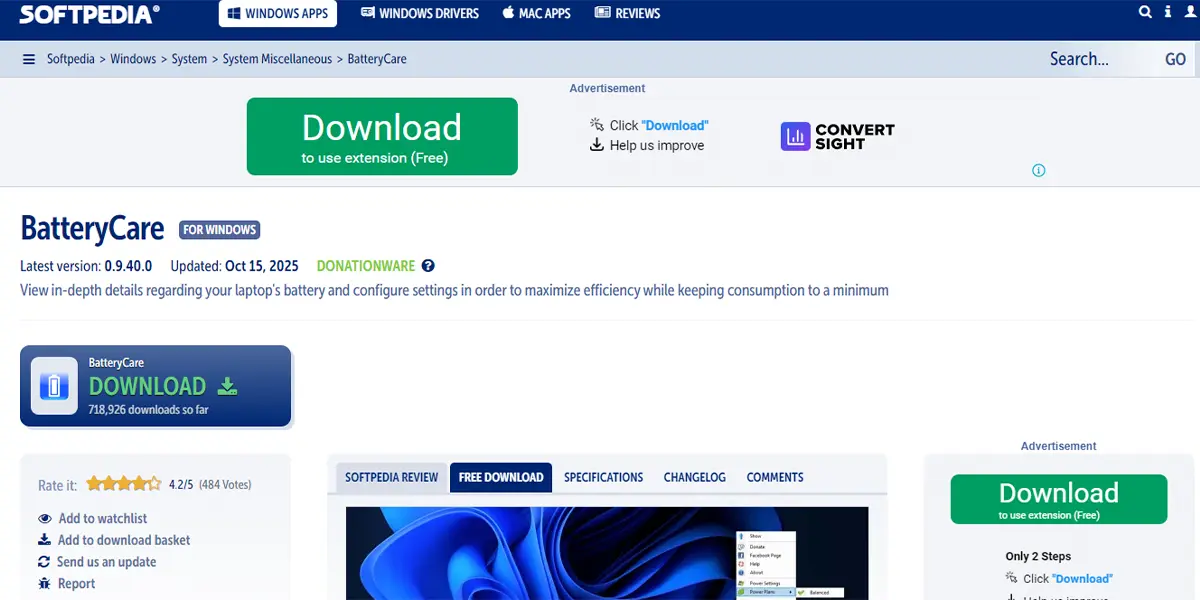
BatteryCare focuses on extending battery lifespan through discharge cycle management and health monitoring. The app tracks charge-discharge cycles, displays detailed battery statistics, and notifies users when calibration is needed.
Core Features
- Monitors discharge cycles and provides recommendations for battery calibration
- Displays real-time capacity, voltage, temperature, and wear level
- Automatically switches power plans based on current power source
- Provides CPU and hard drive temperature monitoring to prevent overheating-related drain
- Lightweight design with minimal system resource usage
How to Use BatteryCare
Download BatteryCare from the official website and run the installer. The app launches automatically and sits in the system tray. Click the icon to view current battery statistics, discharge cycles, and capacity information.
Navigate to the settings menu to configure automatic power plan switching. Enable notifications for low battery levels and calibration reminders. The app requires no manual intervention after initial setup—it works silently in the background.
Pro Tip: Run a full discharge cycle every 30 charges to recalibrate the battery meter and maintain accurate readings. BatteryCare tracks this automatically and sends reminders when calibration is due.
BatteryInfoView
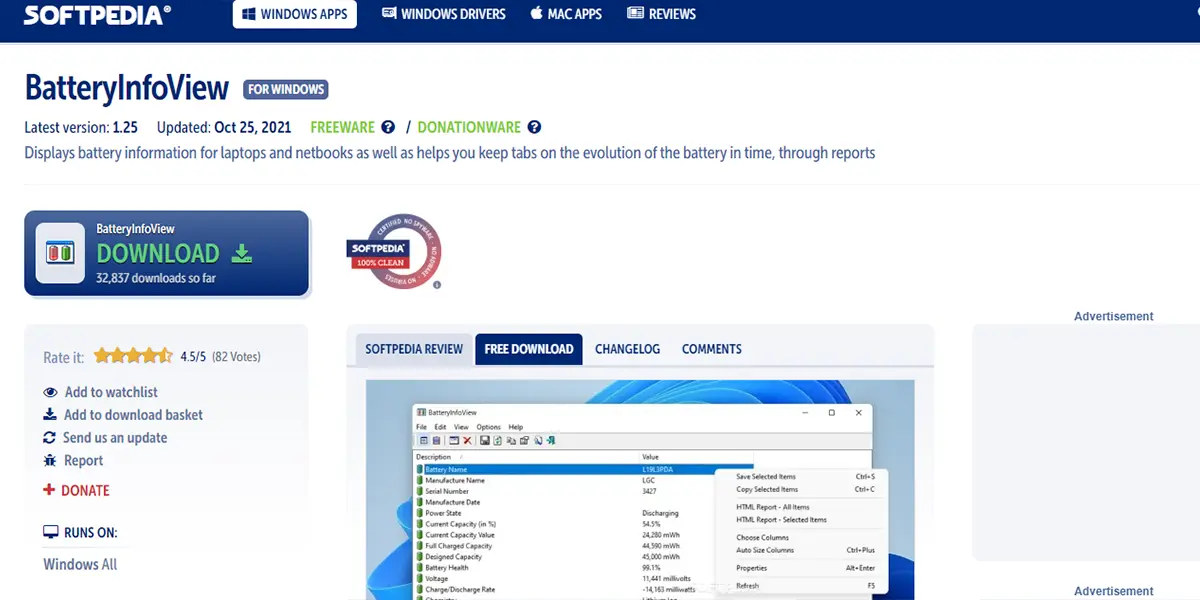
BatteryInfoView delivers comprehensive diagnostics without modifying system settings. This portable tool requires no installation and provides instant access to battery specifications, current status, and historical data.
Core Features
- Shows designed capacity versus current full charge capacity
- Displays charge/discharge rate in real time
- Provides battery wear percentage and health status
- Exports data to HTML, XML, or CSV for record-keeping
- Runs from USB drives without system installation
How to Use BatteryInfoView
Download the portable version from NirSoft’s website and extract the ZIP file. Double-click the executable to launch the tool immediately. The main window displays all battery information in a single view with no navigation required.
Refresh the data by pressing F5 to see updated statistics. Export reports by selecting ‘Save Selected Items’ from the File menu. The tool works well alongside other optimization apps since it operates in read-only mode.
Most people find that checking battery health monthly helps identify degradation patterns early. Comparing designed capacity against current capacity reveals actual wear percentage.
Battery Optimizer
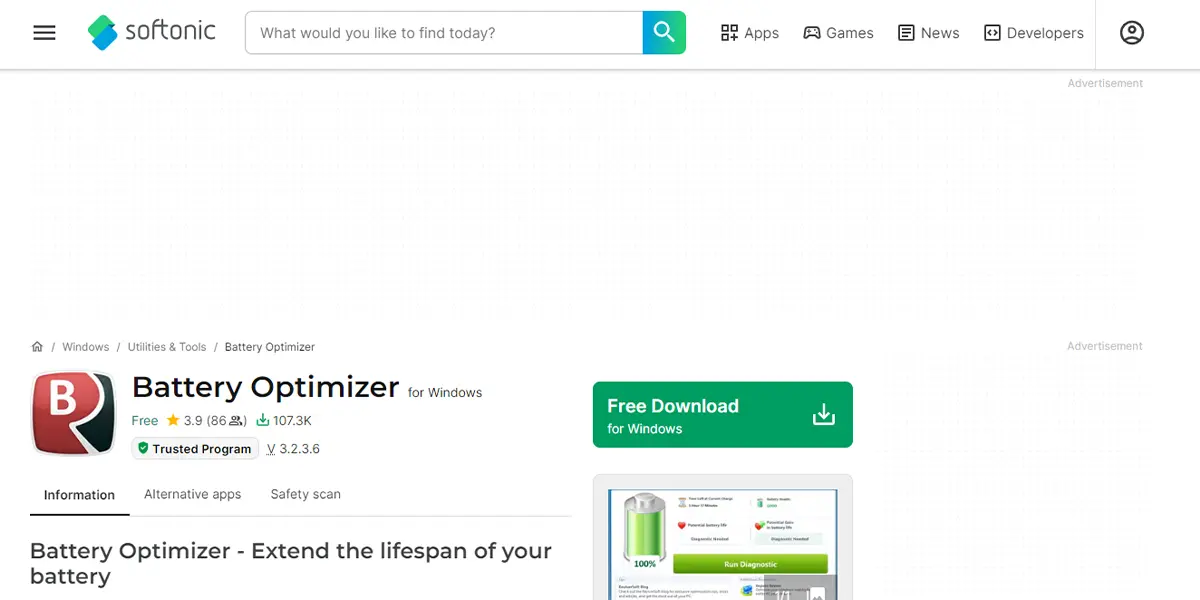
Battery Optimizer combines diagnostic tools with automated power management profiles. The app analyzes system usage and applies optimizations based on detected patterns.
Core Features
- Scans for power-hungry applications and services
- Creates custom power profiles for different scenarios
- Adjusts screen brightness, sleep timers, and processor states automatically
- Provides estimated runtime based on current usage
- Includes battery health reports with improvement suggestions
How to Use Battery Optimizer
Install Battery Optimizer from the Microsoft Store or official website. Launch the app and run the initial system scan to identify optimization opportunities. Review the suggested changes before applying them.
Create custom profiles for work, entertainment, and travel scenarios. The app switches between profiles automatically based on power source and detected activity. Access quick settings from the system tray icon to toggle profiles manually when needed.
For the best results, allow the app to run for several days while it learns usage patterns. The optimization engine becomes more effective over time as it gathers behavioral data.
Choosing the Right App
BatteryCare works best for users focused on long-term battery health and lifespan extension. The cycle tracking and calibration features prevent premature degradation from improper charging habits.
BatteryInfoView suits those who need detailed technical information without system modifications. IT professionals and advanced users prefer this tool for diagnostics and reporting.
Battery Optimizer fits users seeking automated power management with minimal manual configuration. The profile system adapts to different usage scenarios without constant adjustment.
Additional Battery Optimization Tips
Beyond dedicated apps, several system-level adjustments improve battery performance. Reducing screen brightness manually or enabling adaptive brightness saves significant power. Disconnecting unused peripherals and disabling Bluetooth when not needed also helps.
Windows 11’s built-in power and sleep settings provide baseline control over energy consumption. Adjusting these settings complements third-party optimization apps.
Background app management plays a crucial role in battery life. Navigate to Settings > Privacy & security > Background apps and disable unnecessary programs. This works best when combined with the scanning features in Battery Optimizer.
Regular Windows updates often include power management improvements. Keeping the system updated ensures access to the latest optimization features and driver efficiency gains.
Common Battery Issues and Solutions
Rapid battery drain usually indicates background processes consuming excessive resources. Task Manager shows which applications use the most power. Sort by power usage to identify culprits quickly.
Battery not charging fully typically signals calibration issues or wear. Run a complete discharge-recharge cycle to recalibrate the battery meter. If capacity remains low after calibration, physical degradation may require battery replacement.
Overheating during use accelerates battery wear. Ensure proper ventilation and consider adjusting GPU power settings to reduce heat generation during intensive tasks.
Frequently Asked Questions
Do battery optimization apps actually work?
Yes, battery optimization apps provide measurable improvements by managing background processes, adjusting power plans, and monitoring battery health. Effectiveness varies based on usage patterns and system configuration, but most users experience 10-25% longer runtime with proper optimization.
Can these apps damage the battery?
No, legitimate battery optimization apps do not damage batteries. They work within Windows power management frameworks and avoid harmful practices like overcharging or deep discharge cycles. Apps like BatteryCare specifically protect battery health through calibration reminders and cycle tracking.
Which app is best for gaming laptops?
Battery Optimizer works best for gaming laptops because it creates custom profiles for different scenarios. Gaming laptops benefit from automated switching between performance mode when plugged in and power-saving mode on battery.
How often should battery calibration be performed?
Calibrate laptop batteries every 30-40 discharge cycles or approximately once per month for regular users. Modern lithium-ion batteries require less frequent calibration than older battery types, but periodic calibration maintains accurate capacity readings.
Are these apps compatible with Windows 11 on ARM?
BatteryCare and Battery Optimizer support Windows 11 on ARM devices through x64 emulation. BatteryInfoView runs natively on ARM processors. Performance remains consistent across processor architectures.
Do optimization apps work with external monitors?
Yes, but external monitors increase power consumption regardless of optimization settings. Battery apps cannot reduce the inherent power draw of additional displays. Disconnecting external monitors provides the most significant battery life improvement when working unplugged.
Can multiple optimization apps run simultaneously?
BatteryInfoView works alongside other apps since it operates in read-only mode. However, running multiple apps that modify power settings simultaneously may cause conflicts. Choose one active optimization tool and use diagnostic tools like BatteryInfoView for monitoring.
How do these apps compare to Windows 11 built-in battery saver?
Third-party apps offer more granular control and detailed diagnostics than Windows 11’s native battery saver. Built-in features provide basic power management, while dedicated apps deliver cycle tracking, health monitoring, and custom automation profiles.