
Finding the best PC cleaner software for Windows 11 can dramatically improve system performance and free up valuable storage space. The right cleaning tool removes junk files, optimizes startup programs, and keeps the operating system running smoothly without constant manual maintenance.
Windows 11 accumulates temporary files, cache data, and system clutter over time. This buildup slows down boot times, reduces available storage, and can cause performance hiccups during regular use. A quality PC cleaner addresses these issues efficiently while maintaining system stability.
Top PC Cleaner Software Options for Windows 11
Several reliable cleaning tools stand out for their effectiveness and safety when working with Windows 11. Each option offers different features tailored to specific cleaning needs.
CCleaner
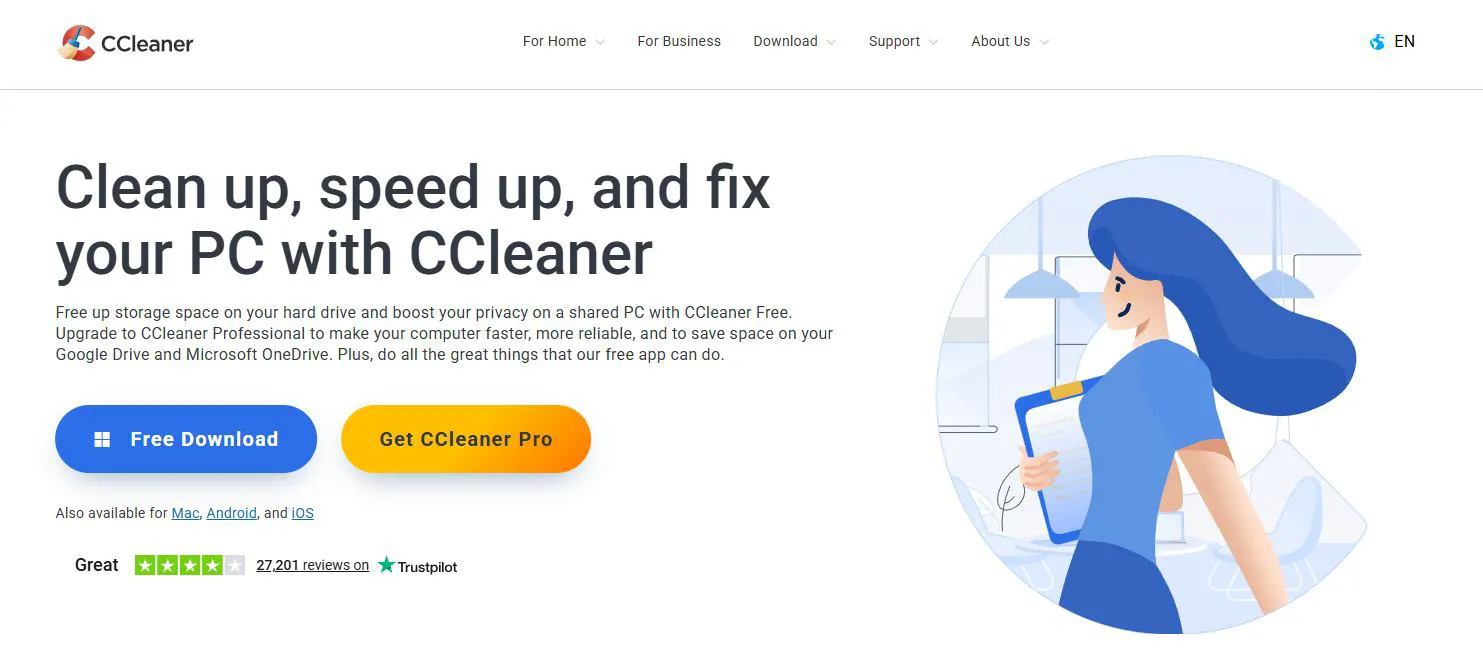
CCleaner remains one of the most popular choices for Windows 11 optimization. The software excels at removing temporary files, browser cache, and registry entries that accumulate during normal computer use.
The free version handles most cleaning tasks effectively. It scans common areas where junk files collect, including the Downloads folder, Recycle Bin, and Windows temporary directories. The interface presents findings clearly, allowing users to review what will be deleted before proceeding.
Most people find that running CCleaner weekly keeps their system responsive. The tool also includes a startup manager that disables unnecessary programs from launching with Windows, which significantly reduces boot time.
BleachBit
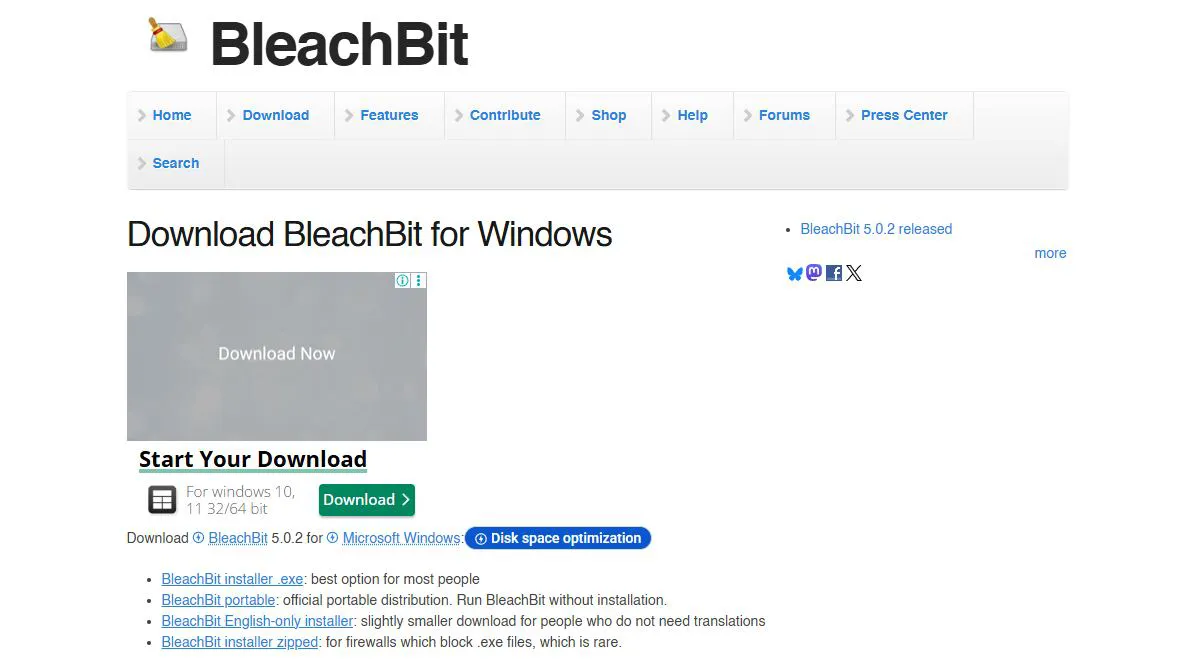
BleachBit offers a completely free, open-source alternative with powerful cleaning capabilities. This works best when more control over the cleaning process is desired, as it provides detailed options for what gets removed.
The software targets similar areas as CCleaner but includes additional options for cleaning specific applications. It can remove cache files from browsers, media players, and office suites with precision. The deep clean feature securely overwrites deleted files, making recovery nearly impossible.
BleachBit requires slightly more technical knowledge since it doesn’t automatically select safe cleaning options. However, this flexibility makes it ideal for users who want granular control over system maintenance.
Wise Disk Cleaner
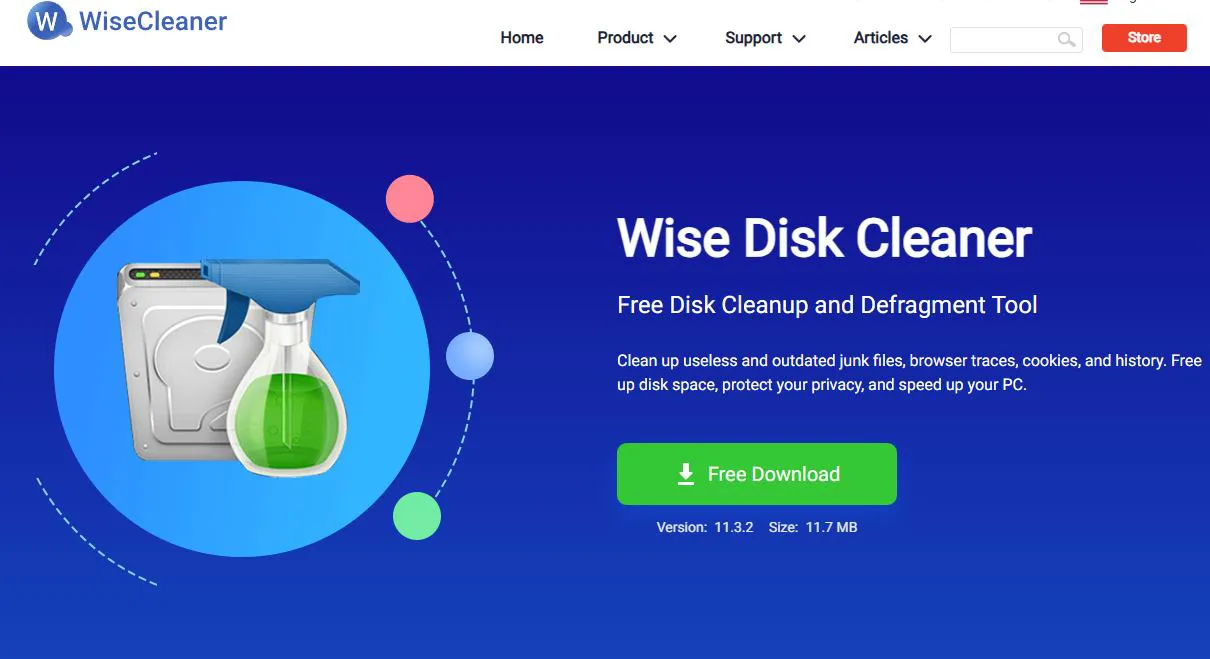
Wise Disk Cleaner combines simplicity with effectiveness, making it accessible for users at any skill level. The software automatically identifies safe files to remove while protecting important system data.
One standout feature is the disk defragmentation tool, which reorganizes file storage for faster access times on traditional hard drives. The scheduled cleaning option runs maintenance automatically at set intervals, requiring minimal user intervention.
The interface uses a straightforward design that displays scan results in easy-to-understand categories. This makes deciding what to clean much simpler compared to tools with overwhelming technical details.
Glary Utilities
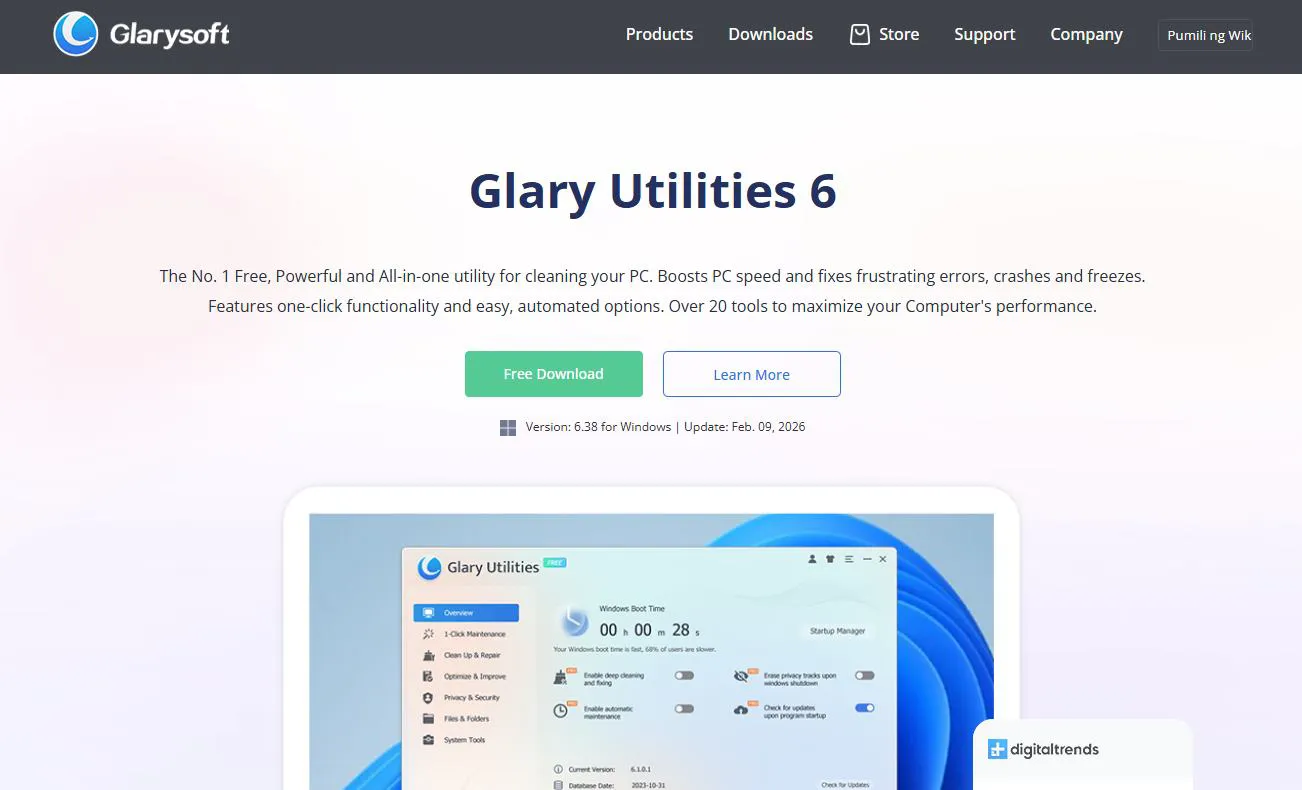
Glary Utilities bundles PC cleaning with additional system optimization tools in one package. Beyond removing junk files, it includes registry repair, duplicate file finder, and privacy protection features.
The one-click maintenance option appeals to users who prefer automated solutions. It performs a comprehensive system scan and applies recommended fixes without requiring detailed knowledge of each issue.
Advanced users can access individual tools for targeted optimization. The startup manager, uninstaller, and file shredder provide specialized functions that complement basic cleaning operations. For those interested in comprehensive software management, this all-in-one approach proves particularly valuable.
AVG TuneUp

AVG TuneUp takes a premium approach to PC cleaning with subscription-based pricing. The investment brings automatic maintenance that runs in the background without disrupting regular computer use.
The software uses intelligent scanning to identify not just junk files but also programs that drain system resources. It can put rarely-used applications into sleep mode, freeing up RAM and processing power for active tasks.
Disk Cleaner within AVG TuneUp goes beyond basic temporary file removal. It finds duplicate photos, large forgotten files, and unnecessary program data that consumes significant storage space. The visual reports help users understand exactly what occupies their hard drive.
How to Choose the Right PC Cleaner
Selecting the most suitable cleaner depends on specific needs and technical comfort level. Several factors influence which option works best for different situations.
Safety and Reliability
The key is to choose software from reputable developers with proven track records. Lesser-known cleaning tools sometimes bundle unwanted programs or make aggressive changes that destabilize Windows 11.
Reliable cleaners clearly show what they’ll remove before taking action. They avoid deleting system files critical for Windows operation and provide restore options if problems occur after cleaning.
Feature Requirements
Basic cleaning needs only require tools that handle temporary files and browser cache. More comprehensive maintenance benefits from software that includes registry cleaning, startup optimization, and duplicate file detection.
Consider whether automatic scheduling matters for the intended use case. Some users prefer manual control, while others want set-it-and-forget-it solutions that maintain the system without regular attention.
Cost Considerations
Free PC cleaners handle routine maintenance adequately for most users. They remove the majority of junk files and offer basic optimization features without ongoing expenses.
Paid options justify their cost through advanced features like automatic maintenance, technical support, and additional optimization tools. The subscription model makes sense for users who want comprehensive system care without learning technical details.
Installing and Using PC Cleaner Software
Getting started with PC cleaning software follows a straightforward process that takes just a few minutes to complete.
Download and Installation Steps
- Visit the official website of the chosen PC cleaner to ensure downloading the legitimate version without bundled software
- Click the download button and save the installer file to an easily accessible location like the Downloads folder
- Run the installer by double-clicking the downloaded file and granting administrator permissions when Windows 11 requests them
- Follow the installation wizard, carefully reading each screen to avoid installing optional extras or changing default settings unintentionally
- Decline any toolbar installations or homepage changes unless specifically wanting these modifications
- Complete the installation and launch the software from the Start menu or desktop shortcut
Performing Your First Scan
- Open the PC cleaner and locate the scan or analyze button, typically displayed prominently on the main screen
- Start the initial scan and wait for the software to examine the system for junk files, which usually takes between 30 seconds to several minutes depending on system size
- Review the scan results carefully to understand what the software found and plans to remove
- Uncheck any categories that seem unclear or contain files worth keeping, especially if using the cleaner for the first time
- Click the clean or delete button to remove the selected items and free up disk space
- Wait for the cleaning process to finish and review the summary showing how much space was recovered
Optimizing Cleaning Settings
Most PC cleaners allow customization of what gets scanned and cleaned. This works best when adjusted based on individual usage patterns and comfort level with system maintenance.
Enable automatic cleaning schedules if preferring hands-off maintenance. Weekly scans typically provide good balance between system cleanliness and resource usage. Daily cleaning might be excessive unless working with limited storage or generating large amounts of temporary files.
Adjust file age thresholds for deletion to avoid removing recently created temporary files that active programs might still need. Setting cleaners to target files older than 24-48 hours provides a safety margin against disrupting current work.
Maintaining Windows 11 Performance Between Cleanings
Regular PC cleaner use delivers better results when combined with good computing habits that minimize junk file accumulation.
Managing Downloads and Temporary Files
The Downloads folder becomes a major source of clutter when files accumulate without organization. Sorting through downloads monthly and moving important files to proper locations prevents gigabytes of forgotten files from occupying valuable space.
Browser cache grows quickly with regular internet use. Most cleaners handle this automatically, but manually clearing browser data between cleanings helps maintain performance. This proves especially helpful when browsing slows down or web pages display incorrectly.
Uninstalling Unused Programs
Programs installed for one-time tasks often remain on the system indefinitely. Reviewing installed software quarterly and removing unused applications frees up disk space while reducing background processes that consume system resources.
Windows 11 includes a built-in uninstaller accessible through Settings, but PC cleaners often provide enhanced removal that eliminates leftover files and registry entries. This thorough approach works particularly well for stubborn programs that leave traces after standard uninstallation.
Monitoring Startup Programs
Applications that launch with Windows directly impact boot time and available system resources. Most PC cleaners include startup managers that disable unnecessary programs from automatic launching.
Keeping startup items limited to essential security software and frequently used applications significantly improves system responsiveness. Programs can still be launched manually when needed without the constant resource drain of running in the background.
Understanding What PC Cleaners Actually Remove
PC cleaning software targets specific types of files that accumulate during normal computer operation. Understanding these categories helps users make informed decisions about what to clean.
Temporary Files and Cache
Windows 11 creates temporary files during updates, installations, and regular operation. These files serve immediate purposes but remain on the system long after becoming unnecessary. Cache files from applications speed up repeated operations but can occupy gigabytes of space over time.
Removing these files rarely causes problems since Windows and applications regenerate them as needed. The key is to recognize that initial launches after cleaning might take slightly longer while new cache builds up.
Registry Entries
The Windows registry stores configuration settings for the operating system and installed programs. Uninstalled applications sometimes leave behind registry entries that serve no purpose but clutter the database.
Registry cleaning remains somewhat controversial among technical experts. While cleaners remove obsolete entries safely, the performance improvement is often minimal on modern systems. Most people find that focusing on file-based cleaning delivers more noticeable results.
Browser Data
Web browsers accumulate cookies, cached images, download history, and saved form data during regular use. This information speeds up browsing but grows substantially over time, especially with multiple browsers installed.
Cleaning browser data frees considerable space but signs users out of websites and clears saved preferences. Reviewing what specific browser data the cleaner targets prevents unexpected logouts from important accounts. Understanding proper hardware maintenance alongside software cleaning ensures comprehensive system care.
Common Mistakes to Avoid with PC Cleaners
Even reliable cleaning software can cause issues when used incorrectly. Awareness of common pitfalls helps maintain system stability while benefiting from regular cleaning.
Over-Cleaning the System
Running PC cleaners daily or multiple times per day provides diminishing returns while potentially interfering with normal system operations. Windows 11 manages many temporary files automatically, and excessive cleaning disrupts these built-in processes.
Weekly or bi-weekly cleaning schedules suit most users perfectly. More frequent cleaning only makes sense for systems with very limited storage or specialized use cases that generate unusual amounts of temporary data.
Ignoring Scan Results
Blindly clicking through cleaning operations without reviewing what will be deleted risks removing important files. While modern cleaners include safeguards, taking a moment to verify scan results prevents potential problems.
This works best when users develop familiarity with typical scan results. After several cleaning sessions, the expected file types and sizes become recognizable, making unusual findings stand out for closer examination.
Using Multiple Cleaners Simultaneously
Installing several PC cleaners with the intention of thorough system maintenance often backfires. Multiple cleaning tools can conflict with each other, duplicate efforts, and consume system resources unnecessarily.
Selecting one reliable cleaner and using it consistently delivers better results than rotating through multiple programs. Each cleaner approaches optimization differently, and switching tools prevents establishing baseline performance metrics.
Measuring the Impact of PC Cleaning
Tracking specific metrics before and after cleaning helps evaluate whether the chosen software effectively improves system performance.
Storage Space Recovery
The most immediately visible benefit comes from freed disk space. Quality cleaners typically recover anywhere from a few hundred megabytes to several gigabytes depending on how long since the last cleaning.
Windows 11 displays available storage through Settings under System and Storage. Checking this before cleaning and again afterward provides concrete evidence of the cleaner’s effectiveness. Systems with less than 20% free space benefit most noticeably from regular cleaning.
Boot Time Improvement
Startup optimization features reduce the time Windows 11 takes to become fully operational after powering on. Timing boot sequences before and after optimization reveals the real-world impact.
Most people find that disabling unnecessary startup programs shaves 15-30 seconds off boot time. The improvement varies based on how many programs were launching automatically and the system’s hardware specifications.
Application Responsiveness
Cleaning frees up system resources that applications can use, potentially improving responsiveness during multitasking. This effect proves most noticeable on systems with limited RAM or older processors.
Opening multiple programs simultaneously and switching between them provides a practical test of overall system performance. Smoother transitions and faster application launches indicate successful optimization.
Frequently Asked Questions
How often should PC cleaner software be run on Windows 11?
Running PC cleaner software weekly provides optimal balance between system maintenance and resource usage for most users. Systems with heavy daily use or limited storage might benefit from twice-weekly cleaning, while light users can extend the interval to every two weeks without significant performance degradation.
Can PC cleaners damage Windows 11 or cause system instability?
Reputable PC cleaners from established developers pose minimal risk to Windows 11 stability when used as designed. The software includes safeguards that prevent deletion of critical system files. However, aggressive registry cleaning or removing files without reviewing scan results can occasionally cause application errors that require troubleshooting or system restore.
Do free PC cleaners work as well as paid versions?
Free PC cleaners effectively remove temporary files, browser cache, and basic junk data comparable to paid versions. Paid software typically adds automatic scheduling, priority support, advanced optimization tools, and more aggressive cleaning algorithms. For routine maintenance, free options meet the needs of most Windows 11 users adequately.
Will using PC cleaner software speed up a slow computer significantly?
PC cleaners improve performance on systems slowed by software clutter but cannot overcome hardware limitations. Expect noticeable improvements in boot time and application responsiveness when the slowdown results from junk files, excessive startup programs, or full storage drives. Computers slow due to insufficient RAM, aging processors, or failing hard drives require hardware upgrades for significant speed increases.
Is it safe to use the registry cleaning feature in PC cleaners?
Registry cleaning features in modern PC cleaners operate safely but deliver modest performance improvements on current Windows 11 systems. The registry database is more resilient than in older Windows versions, and orphaned entries rarely cause noticeable slowdowns. Users can enable registry cleaning without significant risk, though focusing on disk cleanup and startup optimization typically yields better results.
Can PC cleaner software remove viruses or malware?
PC cleaners are not designed to detect or remove viruses and malware. While they may delete some temporary files associated with malicious software, they lack the specialized scanning engines and threat databases that antivirus software uses. Systems suspected of infection require dedicated antivirus or anti-malware tools rather than relying on PC cleaners for security protection.