
Learning how to change mouse scrolling settings in Windows can transform the way you navigate documents, web pages, and applications. Scrolling behavior affects every computing task, from reading lengthy articles to reviewing spreadsheets. When scroll speed feels too fast, content flies by before it can be read. When it’s too slow, reaching the bottom of long pages becomes tedious and time-consuming.
Windows offers multiple ways to customize scrolling behavior, including scroll speed, direction, and the number of lines moved per wheel notch. These settings work across all software applications and help create a more comfortable computing experience. Most people find that spending a few minutes adjusting these settings dramatically improves daily productivity and reduces scrolling frustration.
Understanding Windows Scrolling Settings
Windows scrolling settings control how the mouse wheel interacts with content on screen. The primary setting determines how many lines of text or content move with each wheel notch. Lower values create slower, more controlled scrolling, while higher values enable faster navigation through long documents.
The system also includes options for changing scroll direction and enabling smooth scrolling in compatible applications. Some settings apply universally across Windows, while others depend on individual application support. Understanding these distinctions helps in choosing the right configuration for different tasks.
Method 1: Change Scrolling Speed Through Settings App
The Windows Settings app provides the most accessible way to modify mouse scroll behavior. This modern interface consolidates mouse configuration options in one convenient location.
Watch this: Change Mouse Scrolling Settings in Windows 11 Easily Using Windows Setting
Step-by-Step Instructions
- Press the Windows key + I to open the Settings application
- Click on ‘Bluetooth & devices’ in the left navigation panel
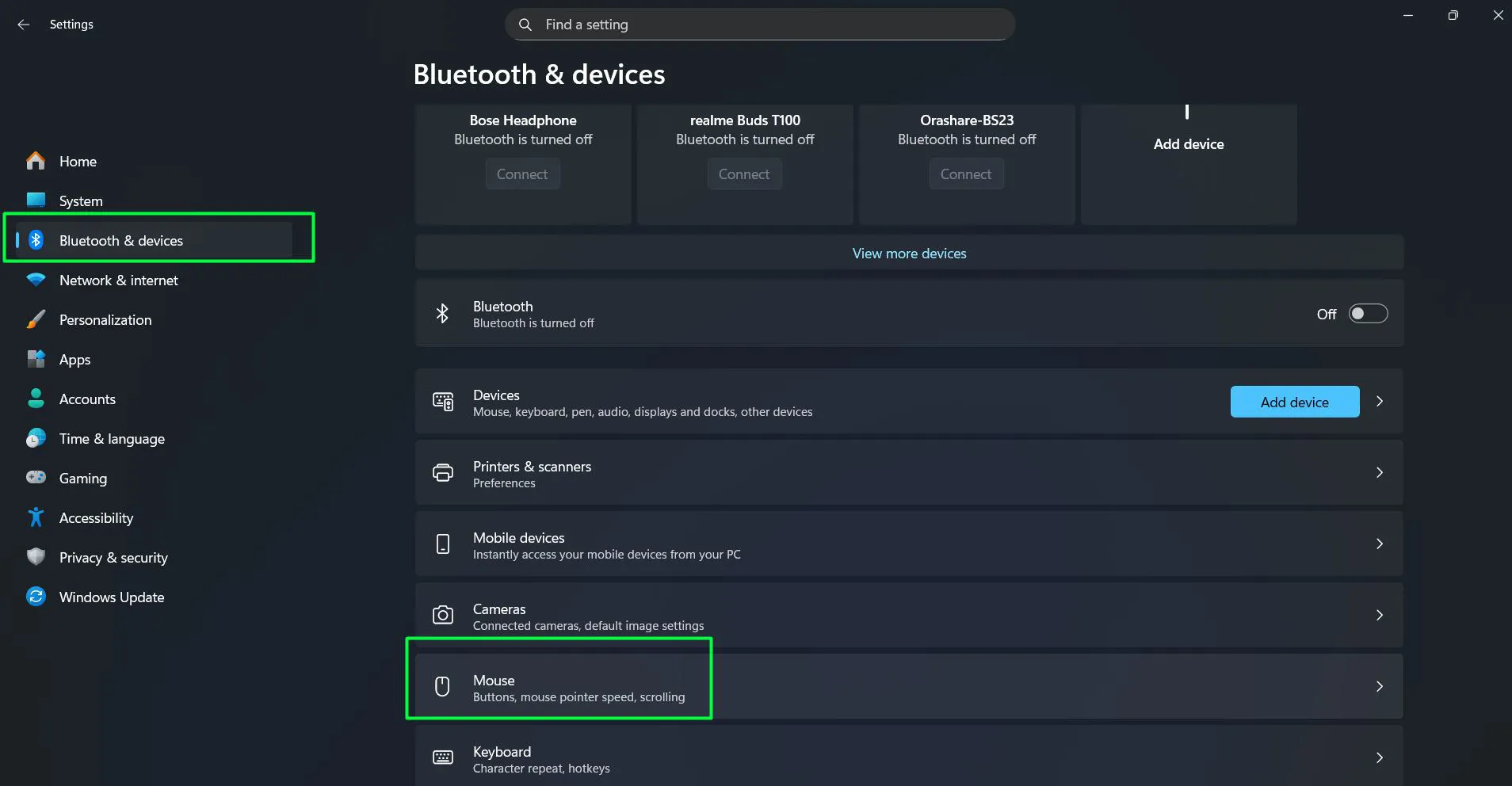
- Select ‘Mouse’ from the available options on the right side
- Under the ‘Scrolling’ section, locate ‘Lines to scroll at a time’
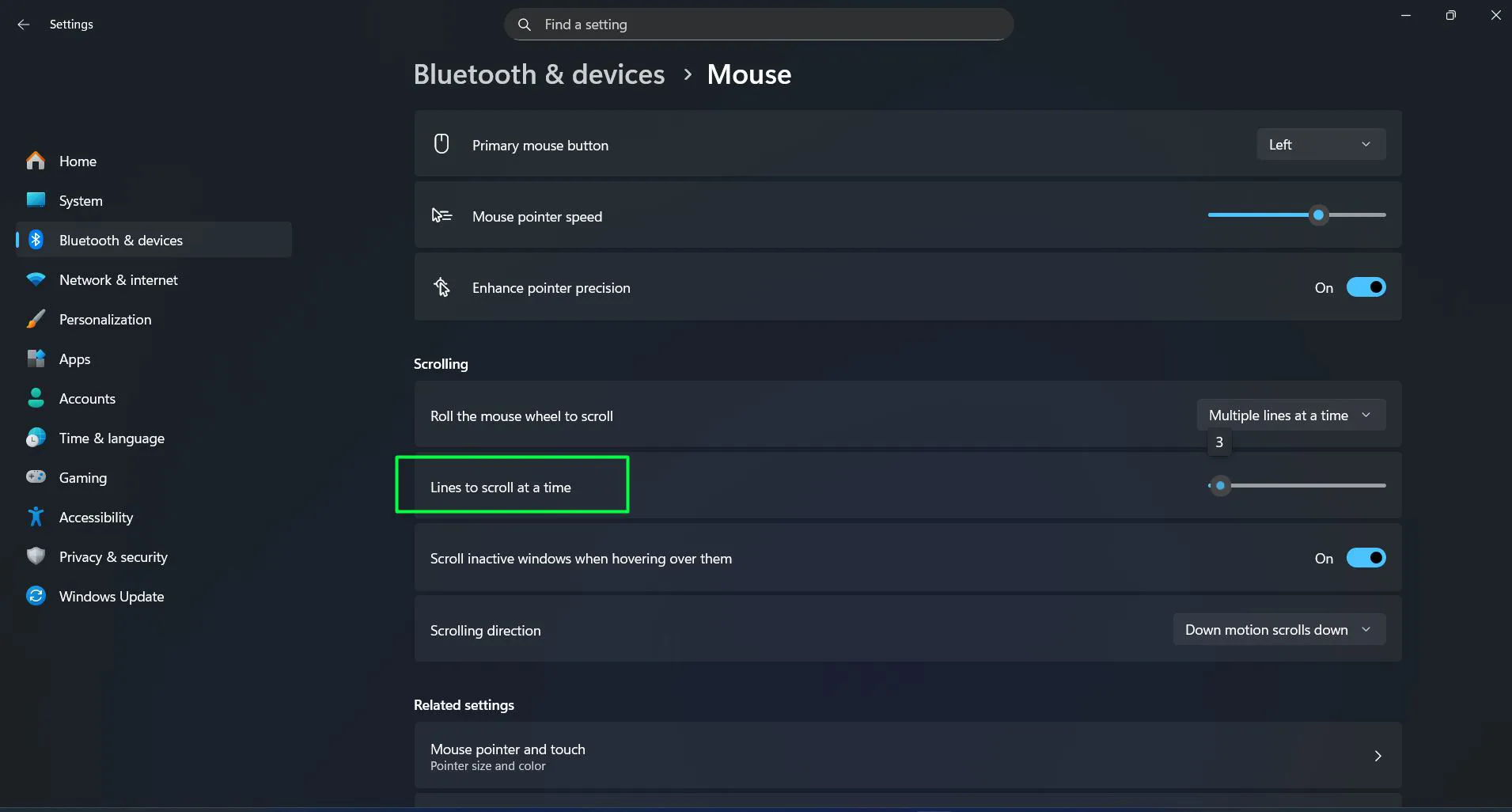
- Adjust the slider to change how many lines scroll with each wheel movement
- The slider allows you to set the number of lines from minimum to maximum
- Optionally, toggle ‘Scroll inactive windows when hovering over them’ on or off as desired
- You can also adjust the ‘Scrolling direction’ dropdown if needed (currently set to ‘Down motion scrolls down’)
- Changes are applied automatically without needing to click Apply or OK
The key is to test different values with actual content. Opening a long document or web page and scrolling through it reveals whether the setting feels natural. Most people find comfort in the range of 3 to 6 lines per notch, though preferences vary based on screen size and content type.
Method 2: Use Control Panel for Complete Control
The traditional Control Panel offers direct access to mouse scrolling properties without navigating through multiple Settings menus. This approach saves time when making frequent adjustments.
Accessing Mouse Properties Directly
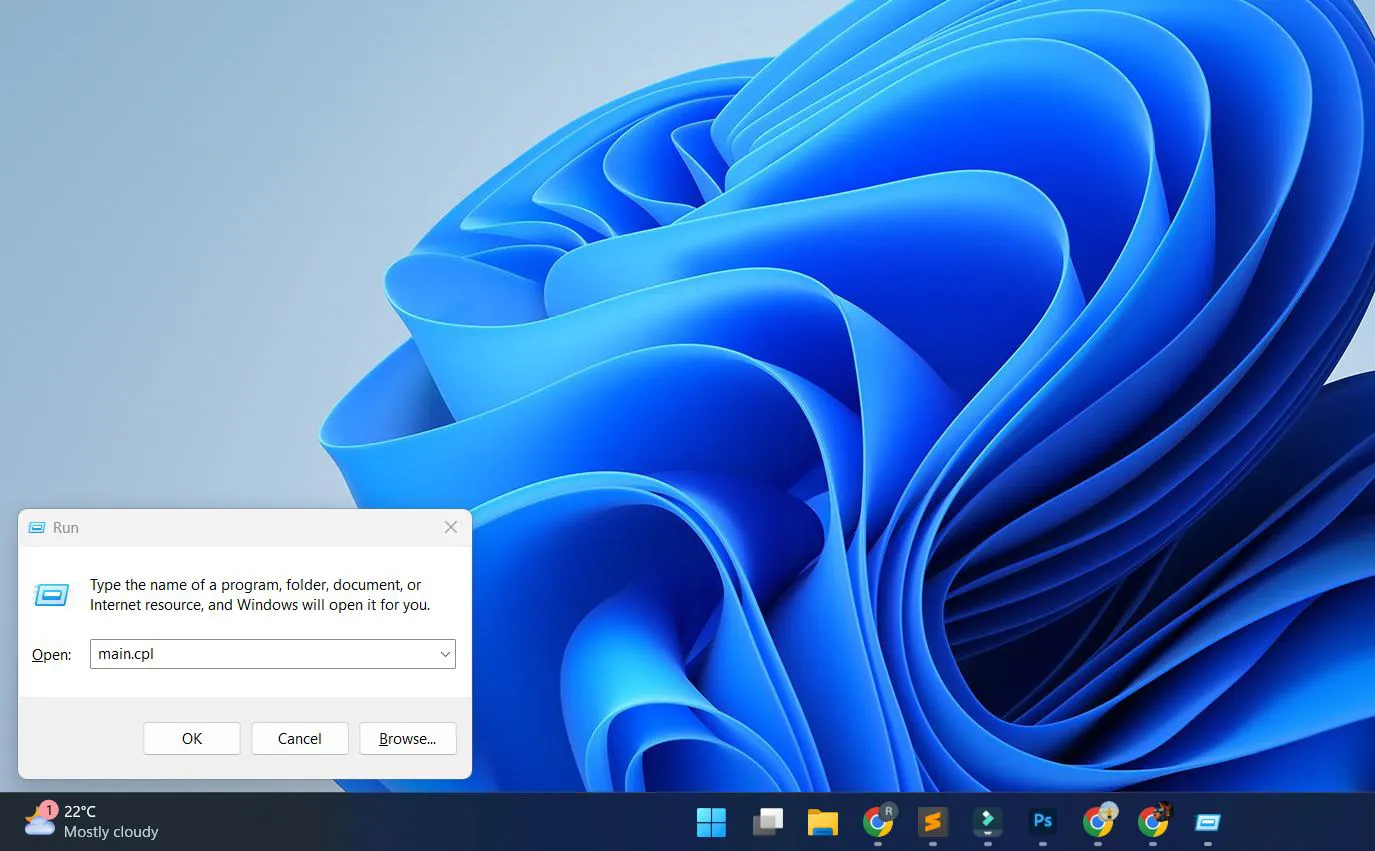
- Press Windows key + R to launch the Run dialog
- Type ‘main.cpl’ and press Enter to open Mouse Properties immediately
- Click the ‘Wheel’ tab at the top of the Mouse Properties window
- Find the ‘Vertical Scrolling’ section
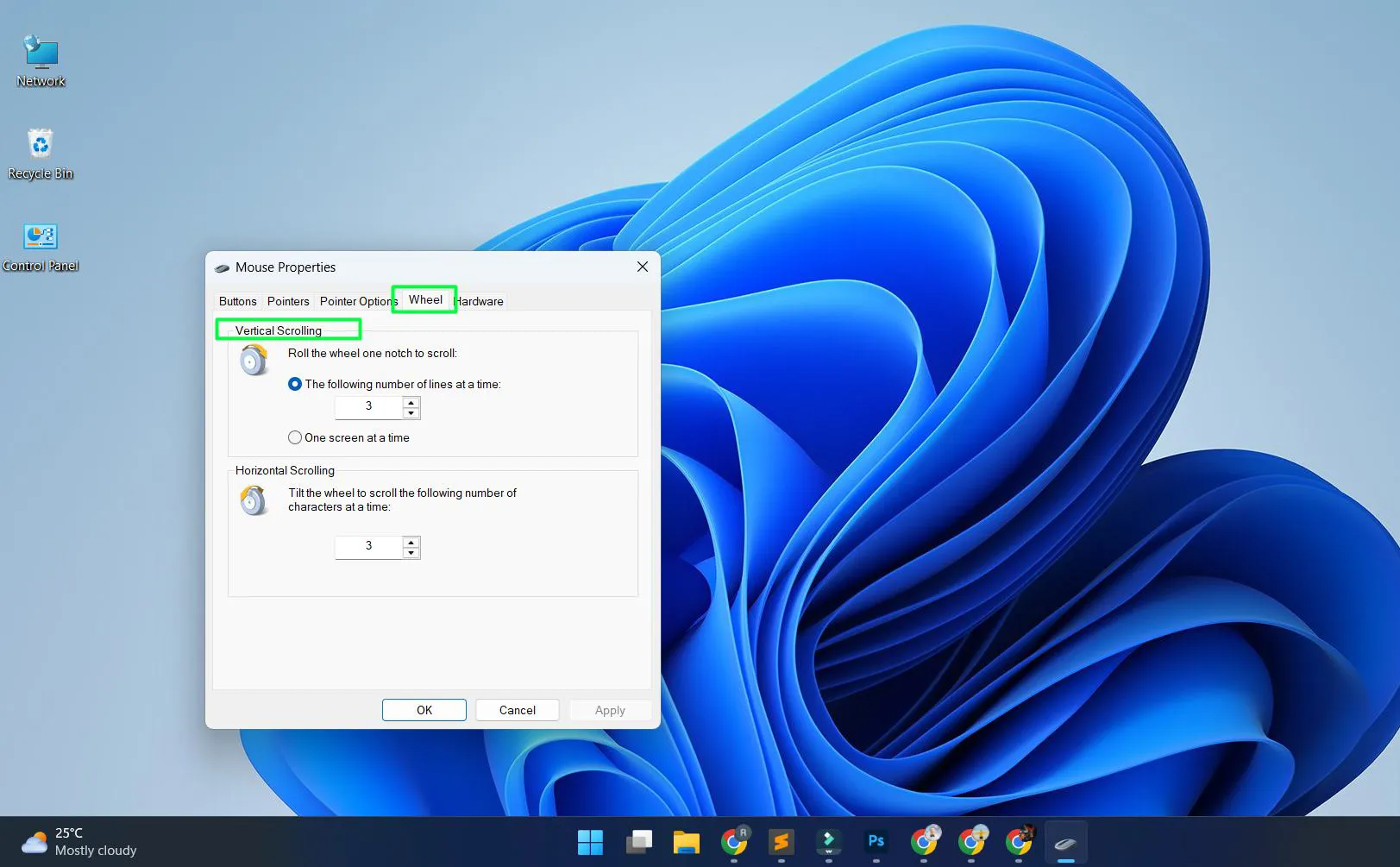
- Select ‘The following number of lines at a time’ option if not already selected
- Enter the desired number of lines (1-100) in the input box
- For horizontal scrolling mice, adjust ‘Horizontal Scrolling’ to set characters per tilt
- Click ‘Apply’ to preview the changes
- Click ‘OK’ to save and exit
This works best when making multiple configuration changes at once, as all mouse-related settings appear in the same window. The Control Panel method remains faster than navigating through the modern Settings interface for experienced users.
Method 3: Quick Access via Search
Windows Search provides instant access to mouse scrolling settings without memorizing menu paths or keyboard shortcuts.
Using Windows Search Function
- Click the Search icon on the taskbar or press Windows key + S
- Type ‘settings’ into the search box
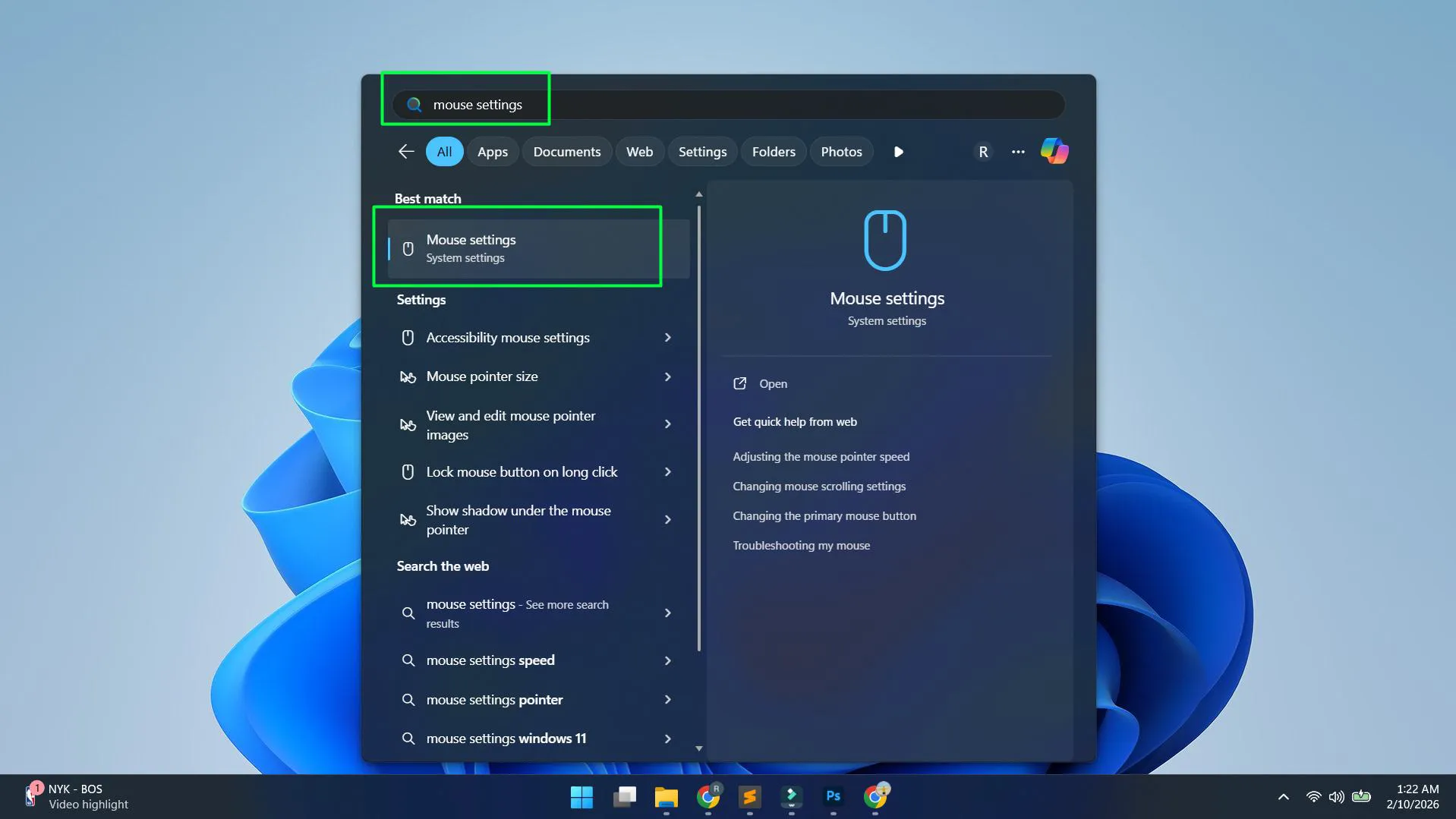
- Click ‘Mouse settings’ from the search results
- Select ‘Additional mouse settings’ to reach the Mouse Properties window
- Navigate to the ‘Wheel’ tab
- Modify the scrolling values as needed
Searching for ‘change mouse scroll’ or ‘mouse wheel settings’ produces similar results, directing to the appropriate configuration pages. This flexibility accommodates different search terms and phrasing preferences.
Adjusting Scroll Lines Per Wheel Notch
The scroll lines setting determines how much content moves with each physical click of the mouse wheel. Lower values between 1 and 3 provide precise control, useful when working with spreadsheets, code, or detailed documents where maintaining context matters.
Medium values from 4 to 6 offer balanced scrolling suitable for general productivity tasks like email, web browsing, and document reading. This range allows reasonably quick navigation without losing track of content position.
Higher values from 7 to 15 enable rapid movement through long documents, social media feeds, or extensive web pages. Some users set values above 15 for maximum speed, though this can make precise positioning difficult. Values above 20 typically feel too fast for controlled navigation.
The optimal setting depends on mouse wheel tactile feedback, screen resolution, and personal preference. Mice with smooth, continuous scrolling wheels benefit from higher line counts, while wheels with pronounced detents work better with lower values. Testing different numbers while performing typical tasks reveals the most comfortable configuration.
Enabling Scroll Inactive Windows
Windows includes a feature that allows scrolling within windows without clicking to activate them first. When hovering over an inactive window, the scroll wheel affects that window’s content rather than the currently active window.
This feature proves particularly useful when referencing information from one window while working in another. For example, scrolling through a reference document while typing in a word processor becomes seamless without constant window switching.
To enable this functionality, navigate to Settings > Bluetooth & devices > Mouse, then toggle on ‘Scroll inactive windows when hovering over them’. The setting takes effect immediately without requiring application restart.
Some users find this feature counterintuitive initially, as it changes long-standing scrolling behavior. Accidentally scrolling the wrong window happens occasionally during the adjustment period. However, most people find it invaluable once accustomed to the behavior.
Configuring Horizontal Scrolling
Mice with tilt wheels or horizontal scroll capabilities allow sideways navigation through wide content like spreadsheets or timelines. The horizontal scrolling setting controls how many characters move per wheel tilt.
In the Mouse Properties Wheel tab, the ‘Horizontal Scrolling’ section contains a value that determines movement amount. The default is typically 3 characters, but this can be adjusted based on content width and personal preference.
Horizontal scrolling works best with specific content types. Spreadsheet users benefit from moderate values that align roughly with column widths. Timeline applications and wide code editors may require different settings for optimal navigation. Not all applications support horizontal scrolling, even when the mouse hardware provides the capability.
Understanding One Screen at a Time Option
The Mouse Properties Wheel tab includes an alternative to line-based scrolling: ‘One screen at a time’. When selected, each wheel notch scrolls exactly one viewport height, similar to pressing Page Down or Page Up.
This option suits reading-focused tasks where maintaining context after scrolling matters less than covering ground quickly. Reading long articles or books works well with screen-at-a-time scrolling, as it mimics turning pages.
However, this setting proves problematic for tasks requiring precise positioning or frequent reference to previous content. Code editing, data entry, and detailed document formatting become more difficult when scrolling jumps entire screens. Most productivity users prefer line-based scrolling for its flexibility and control.
Scrolling Settings for Touchpads
Touchpad scrolling operates independently from mouse wheel settings. Windows treats touchpads as separate input devices with distinct configuration options found in Settings > Bluetooth & devices > Touchpad.
Touchpad scrolling uses gestures rather than physical wheels. Two-finger swipe gestures typically control scrolling direction and speed. The touchpad settings include scroll direction reversal, sometimes called ‘natural scrolling’, which inverts the relationship between finger movement and content direction.
Scroll speed for touchpads adjusts separately from mouse settings. Some users prefer faster touchpad scrolling to compensate for the smaller gesture area compared to continuous mouse wheel rotation. Others match both settings to maintain consistent behavior across input devices.
Application-Specific Scroll Behavior
While Windows provides system-wide scrolling settings, individual applications sometimes override these preferences with their own scroll handling. Web browsers, PDF readers, and design applications frequently implement custom scrolling behavior.
Microsoft Edge, Google Chrome, and Firefox include smooth scrolling options that interpolate between scroll positions, creating animated transitions rather than instant jumps. These settings exist within browser preferences and work independently of Windows configuration.
Adobe applications, Microsoft Office programs, and CAD software often include zoom-with-scroll functionality where holding modifier keys (typically Ctrl) transforms scrolling into zooming. Some applications provide internal scroll speed multipliers that combine with Windows settings to determine final behavior.
Understanding this layered approach helps troubleshoot situations where scrolling feels different in specific programs. Checking both Windows settings and application preferences ensures complete control over scrolling behavior.
Optimal Scroll Settings for Different Tasks
Different activities benefit from different scrolling configurations. Understanding common use cases helps establish effective starting points before fine-tuning.
Document Reading and Web Browsing
For consuming content without precise positioning requirements, moderate scroll speeds between 4 and 6 lines work well. This range allows comfortable reading pace while enabling quick navigation through long articles. Enabling inactive window scrolling helps when referencing multiple documents simultaneously.
Spreadsheet and Data Work
Working with Excel, Google Sheets, or database applications benefits from slower scrolling between 2 and 4 lines. Lower speeds prevent overshooting specific rows or cells during data entry. Horizontal scrolling becomes more important for wide spreadsheets, with settings around 2-3 characters providing controlled column navigation.
Code Editing and Development
Programmers typically prefer slower, more controlled scrolling in the 1 to 3 line range. Maintaining context while reviewing code matters more than rapid navigation. Precise positioning when debugging or refactoring requires fine-grained scroll control. Many code editors also support Ctrl+scroll for text size adjustment, making appropriate scroll speed even more important.
Creative and Design Work
Photo editing, graphic design, and video editing applications often repurpose scrolling for zooming or timeline navigation. Lower Windows scroll settings between 2 and 4 provide better control when applications multiply these values for their internal functions. Testing within specific creative applications helps determine optimal system settings.
Gaming
Games rarely use mouse wheel for scrolling in the traditional sense, instead mapping it to weapon switching, zoom, or other functions. System scroll settings typically don’t affect in-game behavior. However, menu navigation and configuration screens do use standard scrolling, making moderate settings around 3-5 lines most versatile.
Reverse Scrolling Direction
Some users prefer reversing scroll direction, sometimes called ‘natural scrolling’. This makes scrolling behave like touchscreen swiping—moving fingers down scrolls content down, opposite to traditional mouse wheel behavior.
Windows doesn’t include a built-in option for reversing mouse wheel direction in the standard interface. Third-party utilities and mouse manufacturer software sometimes provide this functionality. Some gaming mice include driver software with scroll direction reversal options.
Registry modifications can reverse scroll direction, though this requires technical knowledge and comfort with system-level changes. For most users, adapting to traditional scroll direction or using touchpad natural scrolling proves more practical than attempting mouse wheel reversal.
Mouse Manufacturer Software
Mice from Logitech, Razer, Corsair, and other manufacturers often include dedicated configuration software providing additional scrolling options beyond Windows defaults. These applications enable per-application scroll profiles, allowing different scroll speeds for different programs.
Some gaming mice feature free-spinning scroll wheels that can toggle between notched and continuous scrolling modes. The software controls when and how this mode activates, typically mapping it to a dedicated button. Free-spin mode enables extremely rapid scrolling through very long documents or web pages.
Manufacturer software may also provide scroll button remapping, horizontal scroll emulation for mice without tilt wheels, and scroll acceleration curves that change speed based on wheel rotation rate. These advanced features go beyond Windows built-in capabilities but require installing and maintaining additional software.
Testing and Fine-Tuning Scroll Settings
After adjusting scroll settings, proper testing ensures the configuration works well across different scenarios. Simply scrolling a bit in the Settings window doesn’t provide sufficient feedback about real-world performance.
Open several different applications that represent daily tasks. Try scrolling through a long web page with mixed text and images. Navigate a large spreadsheet with both vertical and horizontal scrolling. Review a lengthy document with detailed formatting. Browse through email messages or social media feeds.
Pay attention to whether content moves too quickly to read comfortably or too slowly to navigate efficiently. Notice if overshooting desired positions happens frequently, indicating excessive scroll speed. Test inactive window scrolling by hovering over background windows to ensure the feature helps rather than hinders workflow.
Fine-tuning often requires multiple iterations. Changing values by 1 or 2 lines at a time allows gradual refinement toward the optimal setting. The key is to actually use the computer normally for several hours before judging whether the new settings improve or impair the experience.
Touchpad Gesture Scrolling Configuration
For laptop users and those with external touchpads, gesture-based scrolling provides an alternative to mouse wheels. Accessing touchpad settings through Settings > Bluetooth & devices > Touchpad reveals options for two-finger scrolling customization.
Touchpad scrolling includes direction options (traditional or reversed), scroll speed, and gesture sensitivity. Some touchpads support three-finger swipes for additional navigation functions. Windows Precision Touchpads offer more configuration options than basic touchpads, including acceleration curves and palm rejection settings that affect scrolling behavior.
Balancing mouse and touchpad scroll settings for devices that use both input methods requires consideration of the different physical interactions. Some users maintain consistent speeds across both, while others optimize each independently based on the different tactile feedback and gesture mechanics.
Scroll Wheel Click and Middle Button
While not strictly a scrolling setting, the middle mouse button (scroll wheel click) can be configured in Mouse Properties under the Buttons tab. By default, clicking the scroll wheel often triggers autoscroll or middle-click paste functions depending on the application.
Some users prefer disabling scroll wheel click to prevent accidental activation when applying pressure during scrolling. Others remap it to different functions through manufacturer software or third-party utilities. The physical scroll wheel provides both rotational input for scrolling and button input when pressed, each with separate configuration options.
Frequently Asked Questions
How do you make scrolling faster in Windows?
To make scrolling faster, open Mouse Properties by pressing Windows key + R, typing ‘main.cpl’, and pressing Enter. Navigate to the Wheel tab and increase the number next to ‘The following number of lines at a time’. Higher values like 7-10 create faster scrolling compared to the default 3. Click Apply to test the speed, then OK to save.
Why does scrolling feel different in certain applications?
Many applications implement their own scrolling behavior that overrides or modifies Windows settings. Web browsers often use smooth scrolling, while design applications may map scrolling to zoom functions. Check individual application preferences for scroll-related settings that may be affecting behavior independently of Windows configuration.
Can scroll direction be reversed to match touchscreen behavior?
Windows doesn’t include a built-in setting to reverse mouse wheel scroll direction in the standard interface. Some mouse manufacturer software provides this option, called ‘natural scrolling’. Touchpads have a reverse scroll direction option in Settings > Bluetooth & devices > Touchpad, but this doesn’t affect mouse wheels.
What is the best scroll speed setting?
The optimal scroll speed varies by individual preference, screen size, and task type. Most users find 3-6 lines per wheel notch comfortable for general use. Document-heavy work benefits from 2-4 lines for precision, while quick browsing works well with 6-10 lines. Testing different values with typical daily tasks reveals the most comfortable setting.
How does scroll inactive windows feature work?
When enabled in Settings > Bluetooth & devices > Mouse, this feature allows scrolling any window by hovering the mouse cursor over it, without clicking to activate that window first. This proves useful when referencing one document while working in another, eliminating constant window switching for scrolling purposes.
Why doesn’t horizontal scrolling work with the mouse wheel?
Horizontal scrolling requires a mouse with tilt wheel capability or dedicated horizontal scroll buttons. Not all mice include this hardware feature. Additionally, some applications don’t support horizontal scroll wheel input even when the mouse provides it. Check mouse specifications and application documentation to confirm horizontal scroll compatibility.
Can different scroll speeds be set for different applications?
Windows itself doesn’t support per-application scroll speed settings. However, some mouse manufacturer software like Logitech Options or Razer Synapse allows creating application-specific profiles with different scroll configurations. Without such software, the Windows scroll setting applies universally across all applications.
What does one screen at a time scrolling do?
The ‘One screen at a time’ option in Mouse Properties makes each scroll wheel notch move content by exactly one viewport height, similar to pressing Page Down. This setting suits reading tasks where jumping full pages works well, but makes precise positioning difficult for editing or data entry work.
Do touchpad and mouse scroll settings affect each other?
No, Windows treats touchpads and mice as separate input devices with independent scroll configurations. Mouse wheel settings adjust in Mouse Properties under the Wheel tab, while touchpad scrolling configures separately in Settings > Bluetooth & devices > Touchpad. Changes to one don’t affect the other.
How can scrolling be made smoother?
Smooth scrolling is primarily an application-level feature rather than a Windows system setting. Most web browsers include smooth scrolling options in their settings that animate transitions between scroll positions. Some mouse manufacturer software also provides scroll smoothing or interpolation features that create animated scrolling effects.