
If the clock on your Windows 11 taskbar suddenly shows 13:00 instead of 1:00 PM, you’re probably looking at the 24-hour time format. This usually happens after changing your region settings or when a Windows Update resets the system clock format, which catches a lot of people off guard. I’ve run into this several times while configuring PCs, and the fix is buried in Windows’ Region settings where the short-time format controls what the taskbar displays. Once you know where that setting lives, switching between the 12-hour and 24-hour clock only takes a moment.
Quick Summary
- Windows 11 supports both 12-hour (AM/PM) and 24-hour clock formats
- The Settings app and Control Panel both let users change the time format quickly
- Changes take effect system-wide, including the taskbar clock, immediately after saving
- No restart is required – Windows applies the new format right away
- Short time controls the taskbar clock display, while Long time includes seconds
How to Change the Time Format in Windows 11 via Settings
This is the fastest and most straightforward method for most users. The Settings app in Windows 11 offers a clean interface for adjusting time and date display preferences, and it only takes about a minute to complete.
- Step 1: Click the Start button or press the Windows key on the keyboard.
- Step 2: Open Settings by clicking the gear icon or pressing Windows + I.
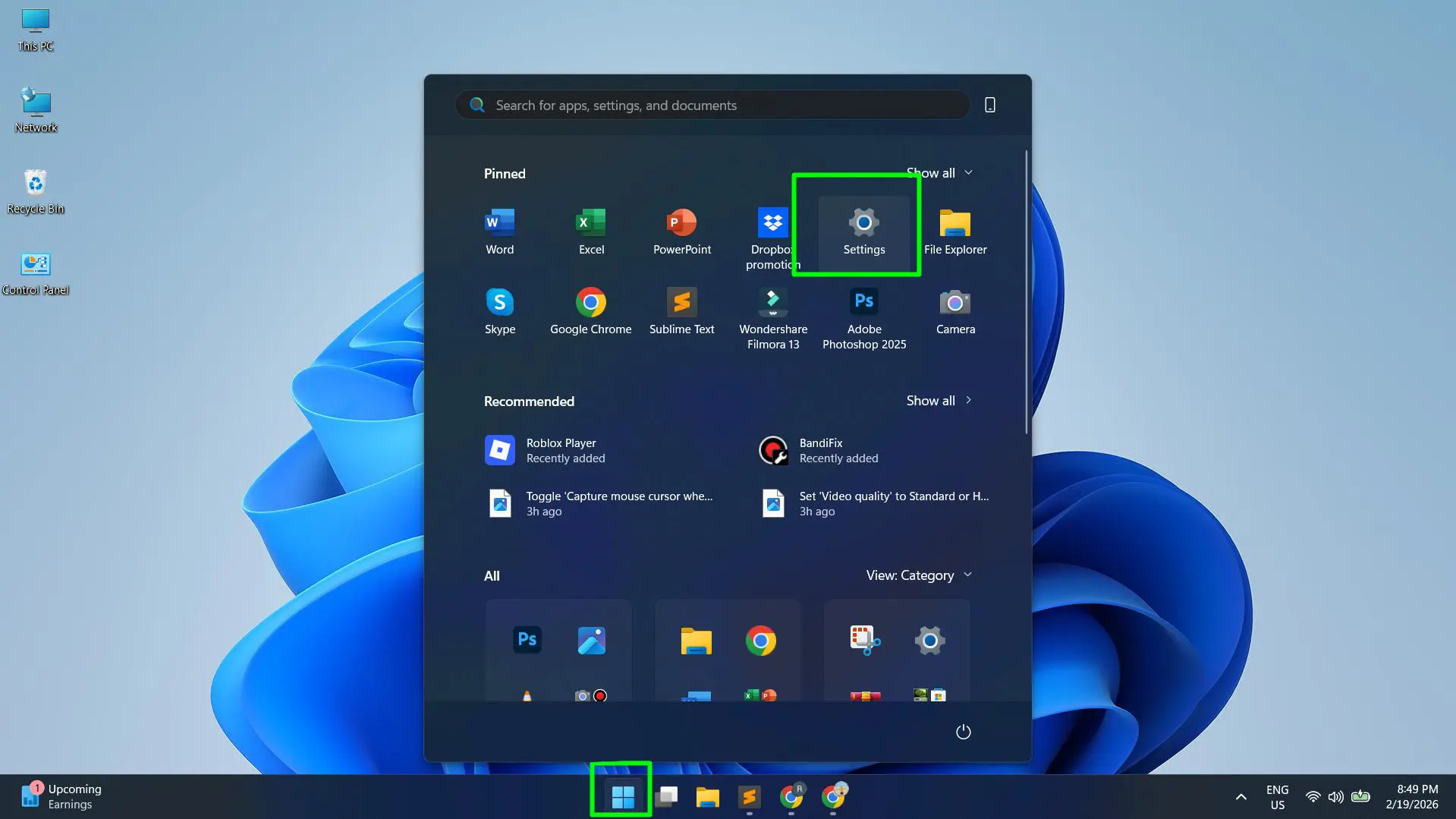
- Step 3: Click on Time & language from the left sidebar.
- Step 4: Select Language & region.
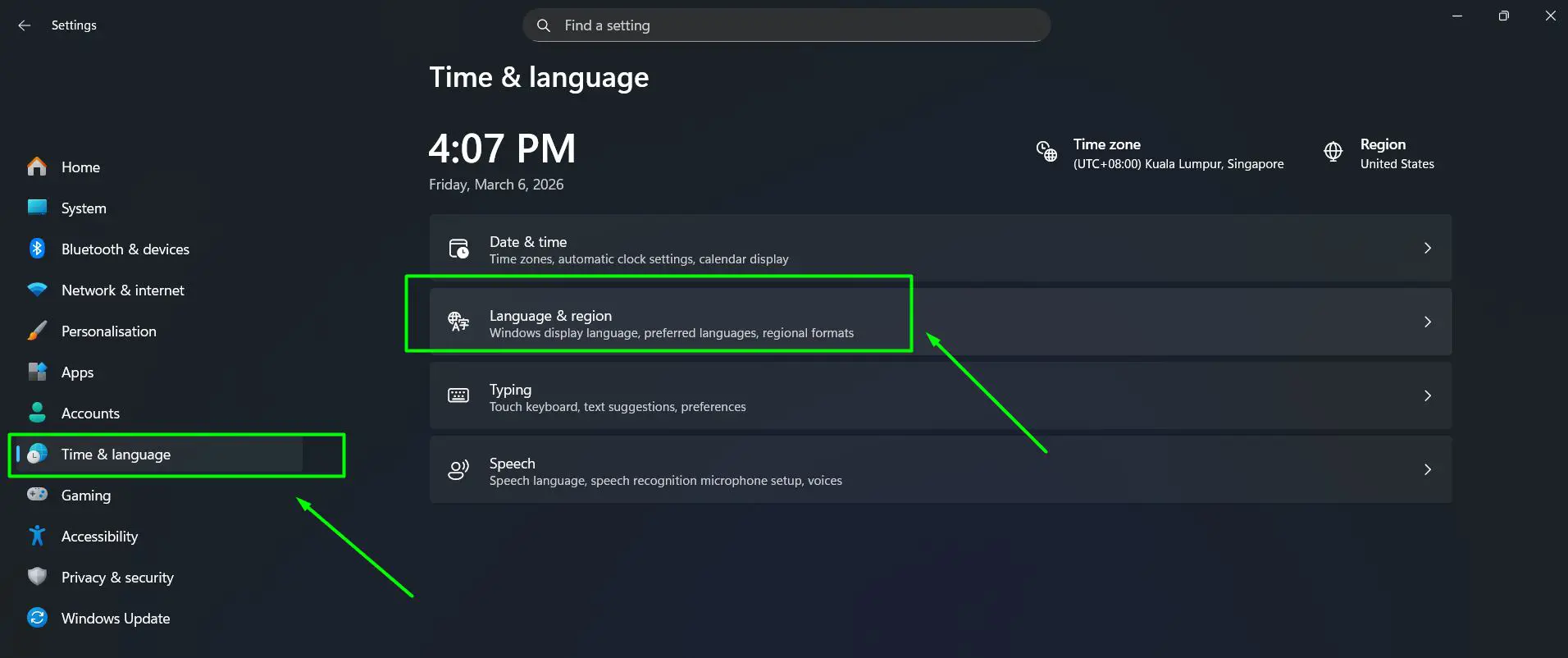
- Step 5: Under the Region section, click Regional format to expand it.
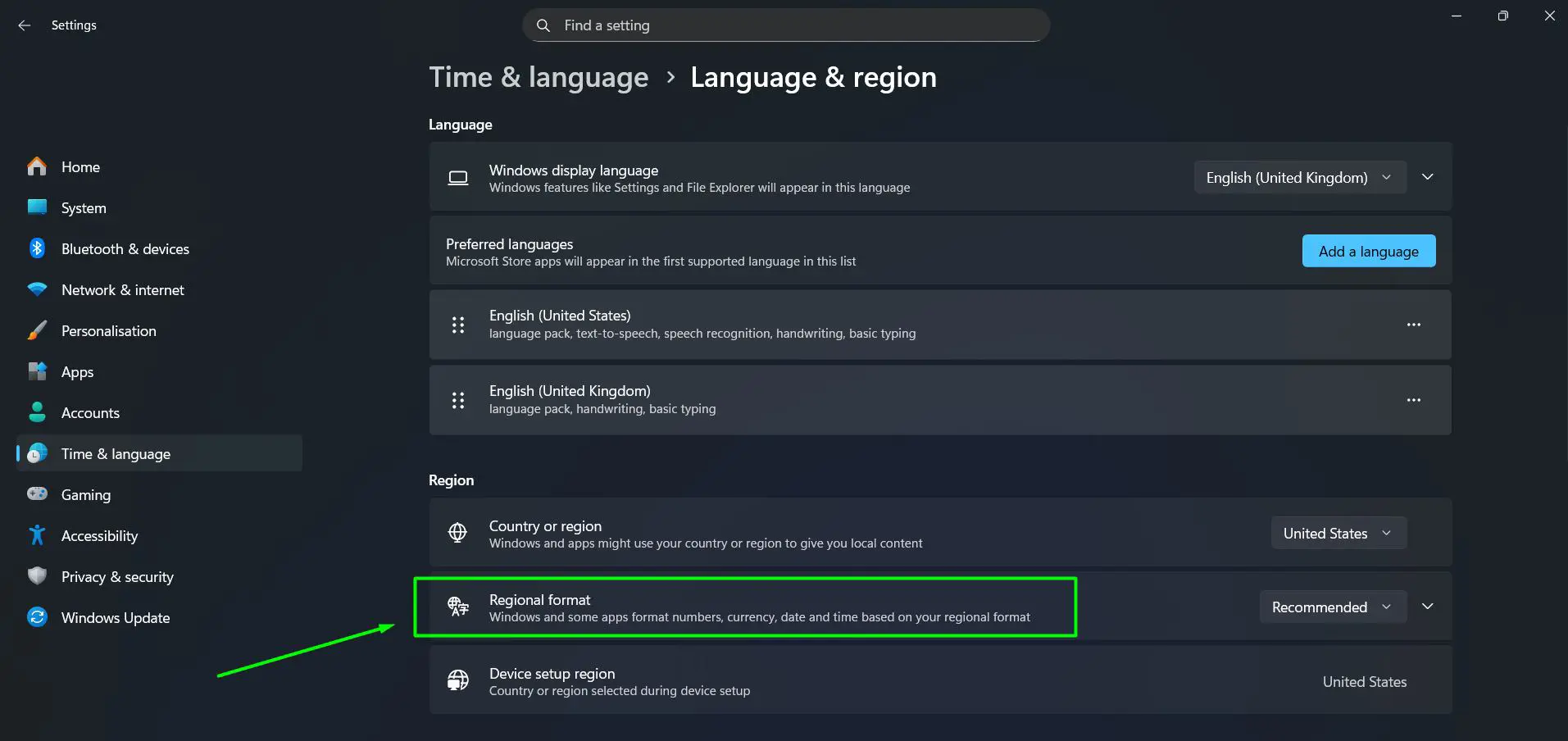
- Step 6: Click Date & time format.
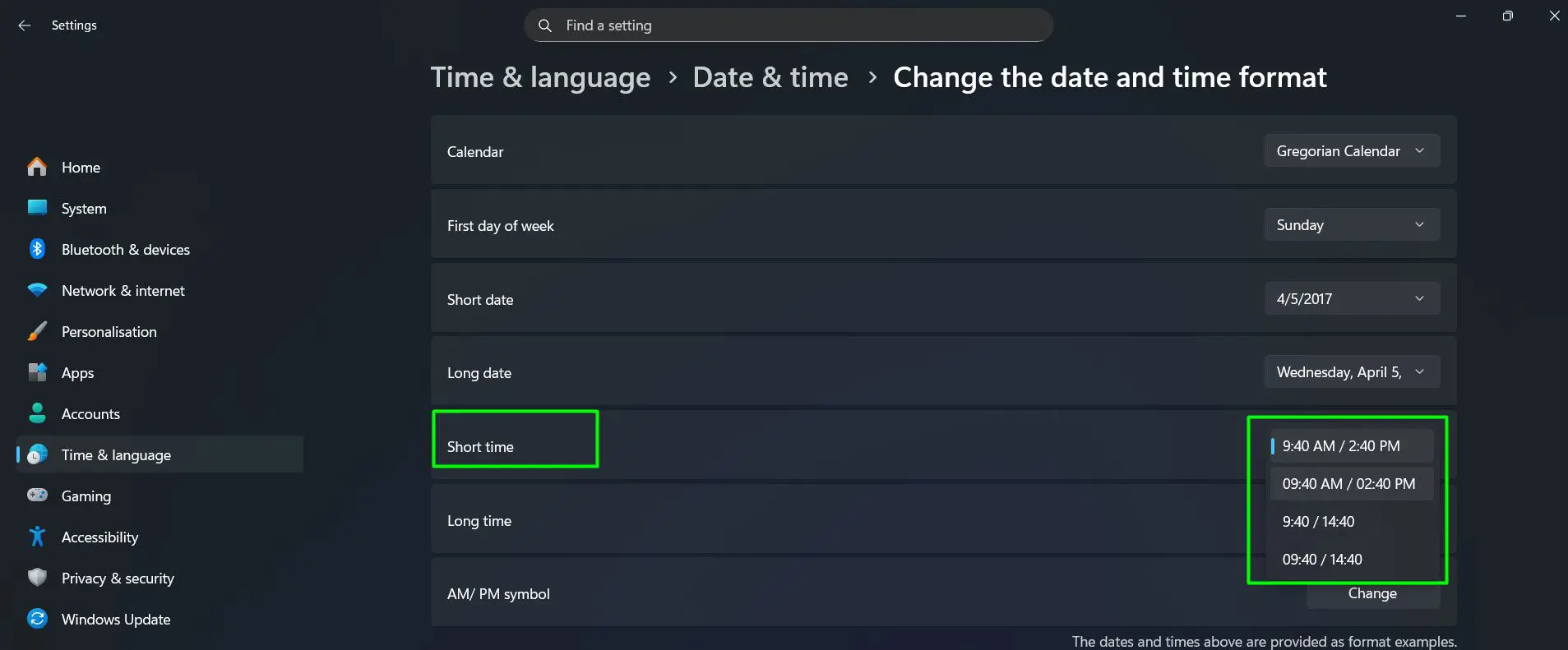
- Step 7: Next to Short time, click the dropdown and select the preferred format. For 12-hour, choose ‘9:40 AM / 2:40 PM’. For 24-hour, choose ‘9:40 / 14:40’.
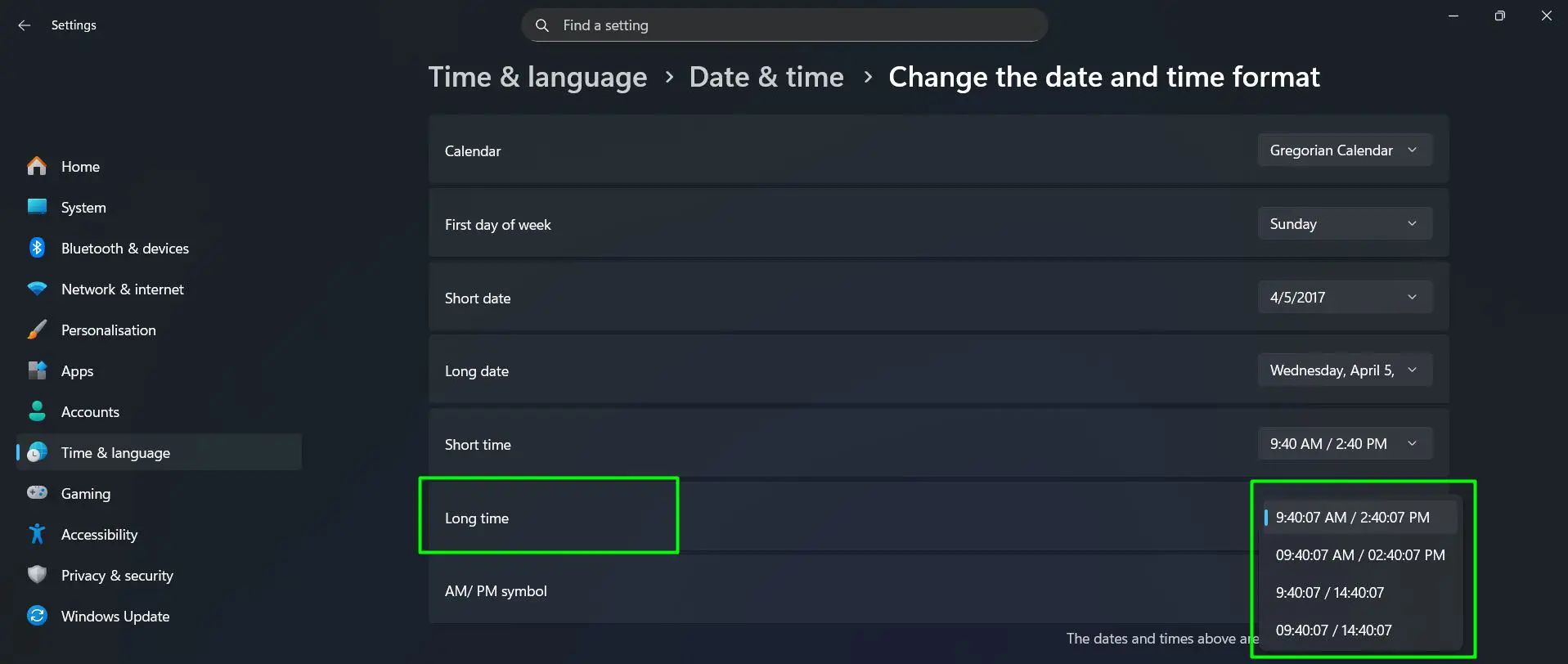
- Step 8: Next to Long time, click the dropdown and select the matching format. For 12-hour, choose ‘9:40:07 AM / 2:40:07 PM’. For 24-hour, choose ‘9:40:07 / 14:40:07’.
Once selected, the change takes effect immediately. The taskbar clock updates right away to show the new format, so there is no need to restart the computer.
Pro-Tip: The dropdown options display both 12-hour and 24-hour previews side by side (for example, ‘9:40 / 14:40’), making it easy to confirm the correct choice before selecting. Always update both Short time and Long time together to keep the display consistent throughout Windows.
How to Change Time Format Using Control Panel
The Control Panel method offers more granular control, including the option to enter custom time format codes manually. This approach works best when a very specific display format is needed beyond the preset dropdown options.
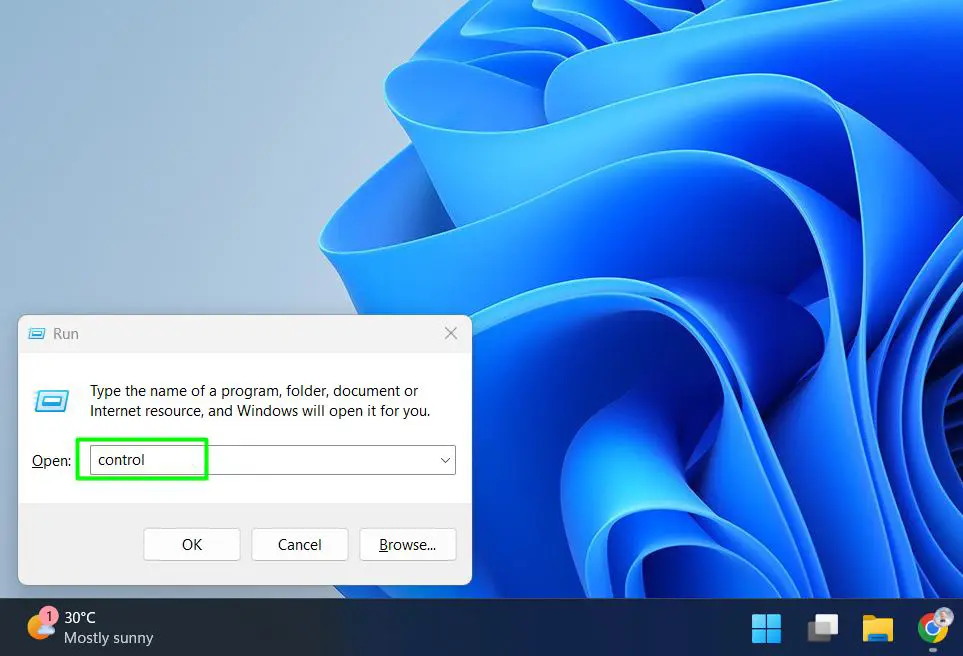
- Step 1: Press Windows + R to open the Run dialog box.
- Step 2: Type control and press Enter to open the Control Panel.
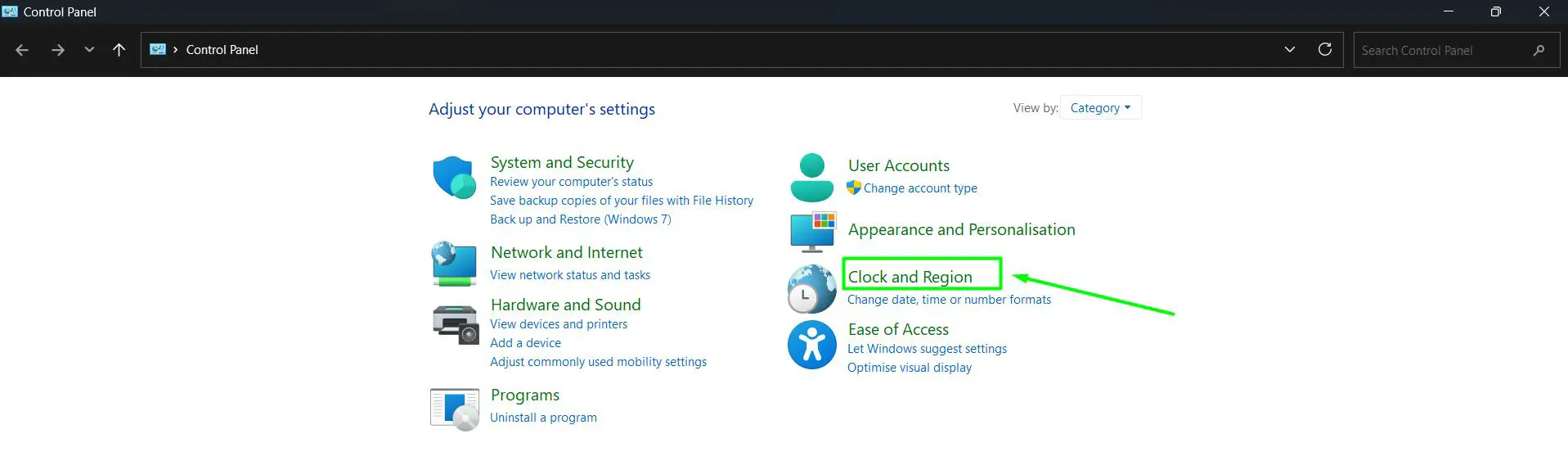
- Step 3: Click on Clock and Region.
- Step 4: Click Region.
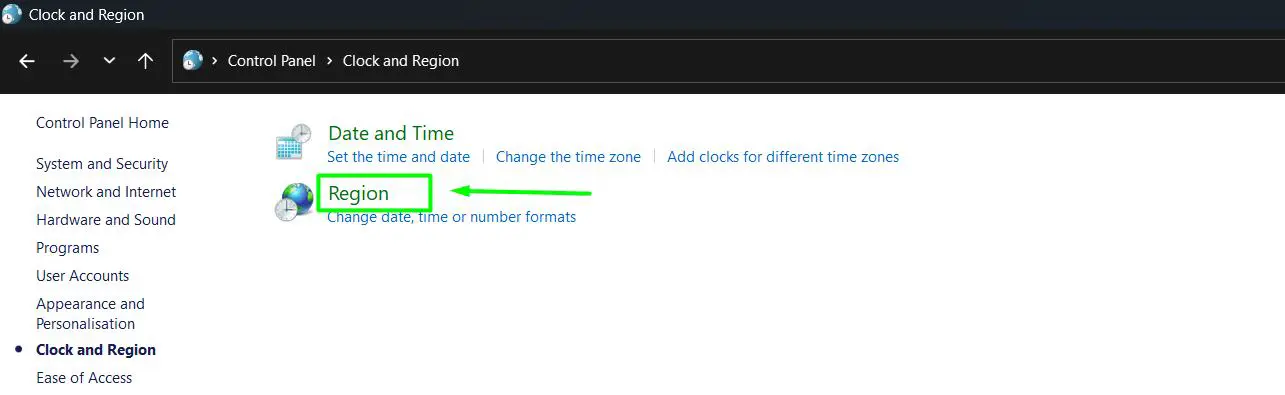
- Step 5: In the Region window, the Formats tab opens by default. Under Date and time formats, find the Short time dropdown.
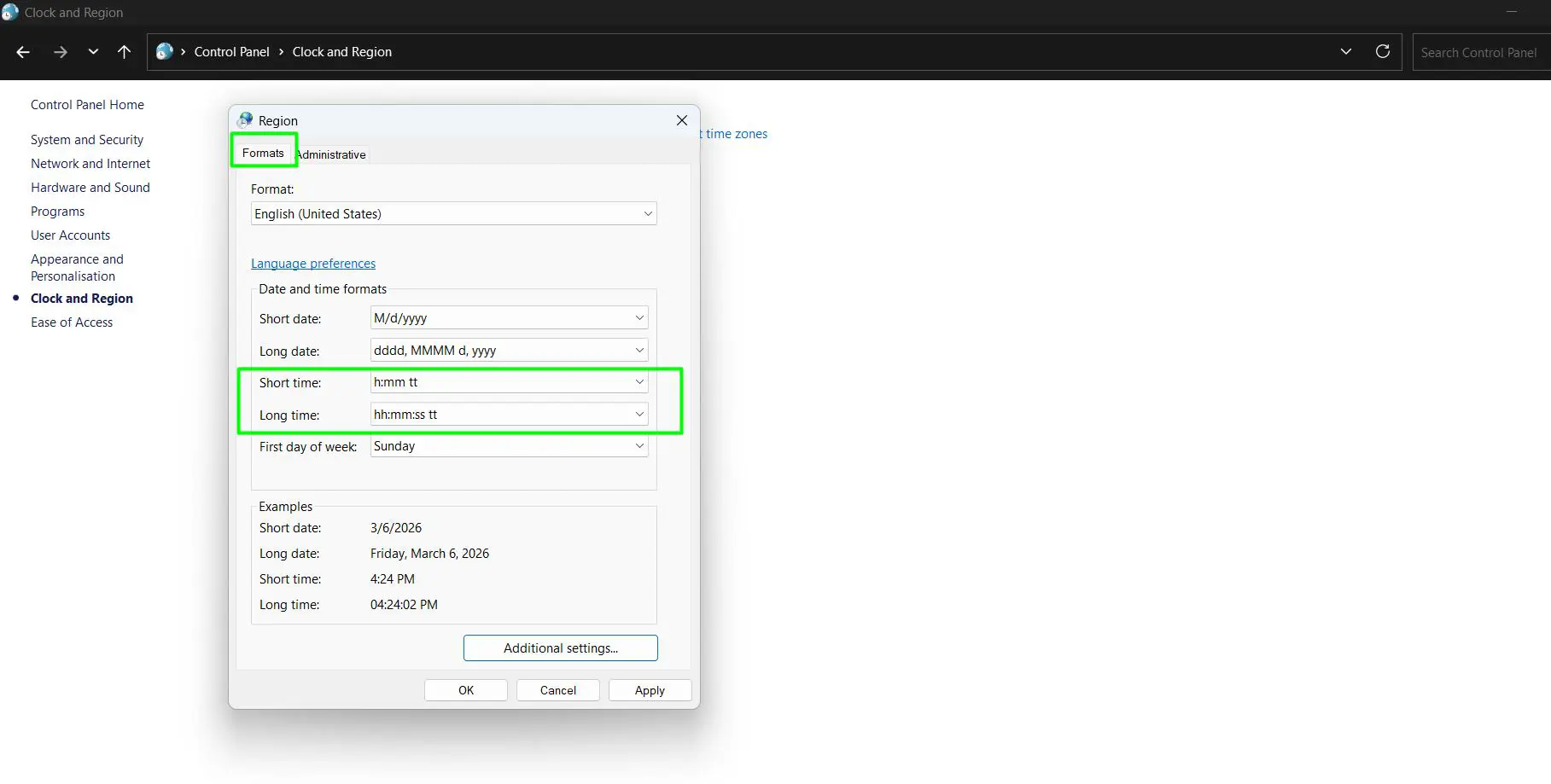
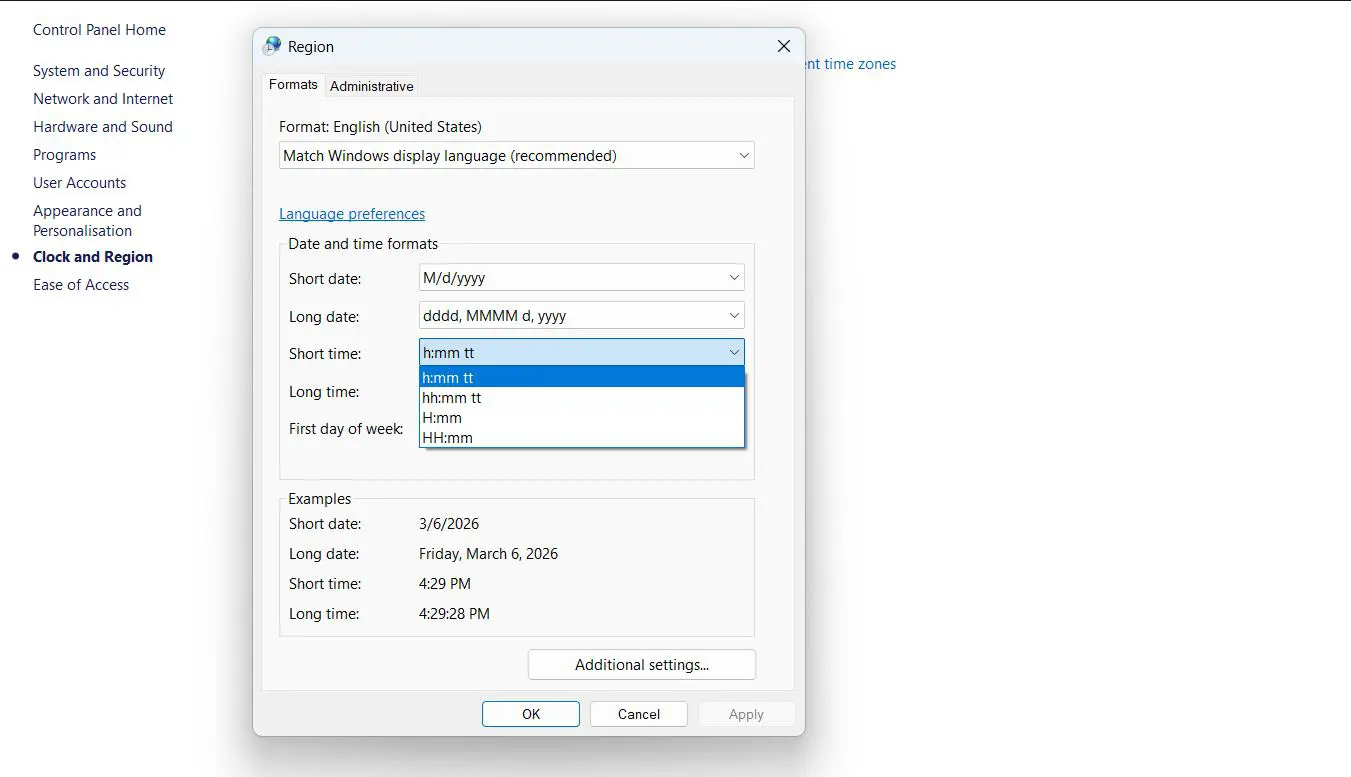
- Step 6: Click the Short time dropdown and select the preferred format. Choose h:mm tt or hh:mm tt for 12-hour, or H:mm or HH:mm for 24-hour.
- Step 7: Click the Long time dropdown and select the matching format. Choose h:mm:ss tt or hh:mm:ss tt for 12-hour, or H:mm:ss or HH:mm:ss for 24-hour.
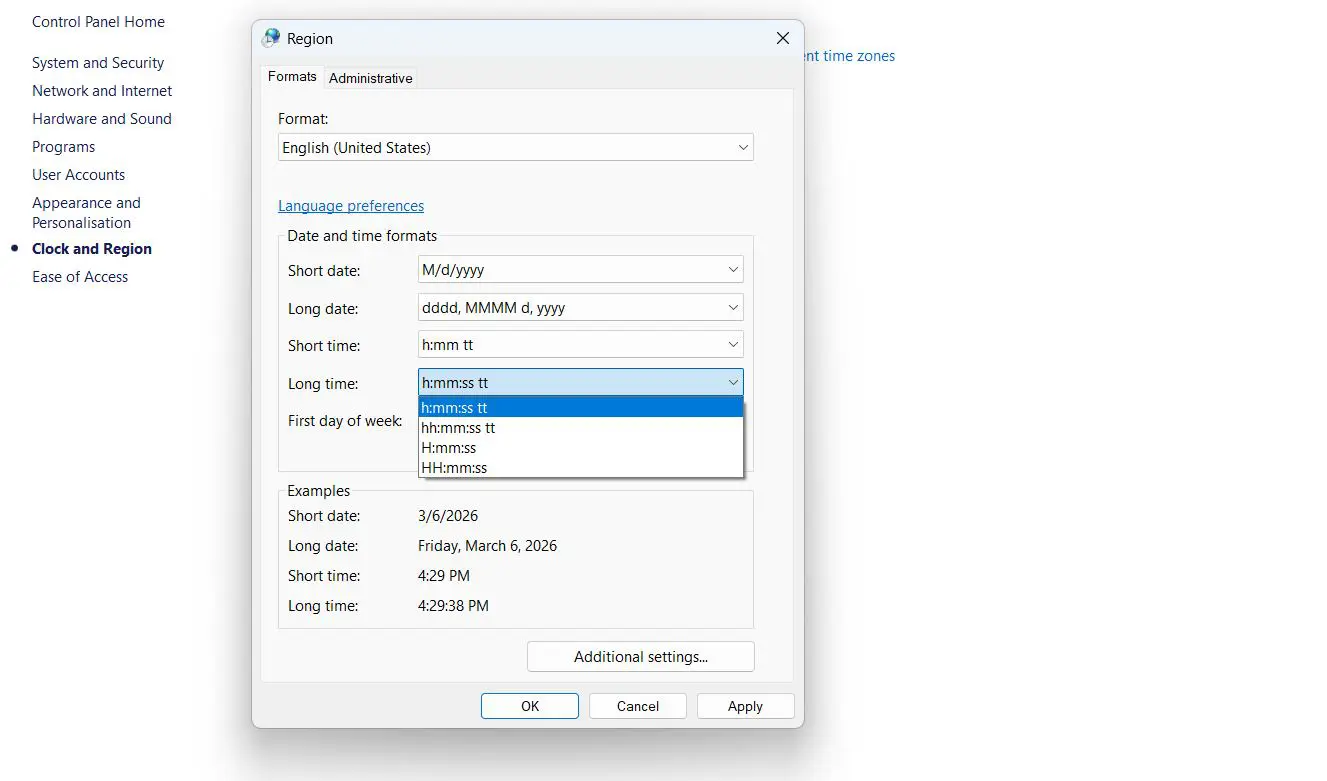
- Step 8: Click Apply then OK to save the changes.
Just like adjusting display language preferences in Windows, these region settings offer full control over how information appears on screen. Both methods lead to the same result, so the choice simply comes down to personal preference.
Understanding Windows Time Format Options
Windows 11 presents time format choices as visual previews in the dropdown menu, so there is no need to memorize format codes when using the Settings method. As a result, picking the right format stays intuitive and quick.
Here is what each dropdown option means:
- 9:40 AM / 2:40 PM – 12-hour format without leading zero (Short time)
- 09:40 AM / 02:40 PM – 12-hour format with leading zero (Short time)
- 9:40 / 14:40 – 24-hour format without leading zero (Short time)
- 09:40 / 14:40 – 24-hour format with leading zero (Short time)
- 9:40:07 AM / 2:40:07 PM – 12-hour format with seconds (Long time)
- 09:40:07 AM / 02:40:07 PM – 12-hour format with seconds and leading zero (Long time)
- 9:40:07 / 14:40:07 – 24-hour format with seconds (Long time)
- 09:40:07 / 14:40:07 – 24-hour format with seconds and leading zero (Long time)
For those using the Control Panel method instead, the underlying format codes still apply. Furthermore, these codes combine in different ways for full customization:
- h – 12-hour clock, no leading zero (1-12)
- hh – 12-hour clock, with leading zero (01-12)
- H – 24-hour clock, no leading zero (0-23)
- HH – 24-hour clock, with leading zero (00-23)
- mm – Minutes with leading zero
- ss – Seconds with leading zero
- tt – AM/PM designator
How to Change the Time Format for the Taskbar Clock
The taskbar clock automatically reflects the Short time format set in the system settings. So once the Short time format changes, the taskbar clock updates instantly without any extra steps needed.
However, if the goal is to reach the date and time format settings even faster, here is a direct shortcut:
- Step 1: Right-click on the taskbar clock.
- Step 2: Select Adjust date and time.
- Step 3: This opens the Date & time settings page. From there, navigate to Language & region and follow the steps in the first method above.
In the same way that small tweaks like adjusting display brightness settings in Windows improve daily comfort, updating the clock format helps the interface match personal habits right away.
Pro-Tip: If the time format change does not appear on the taskbar right away, try signing out and back into the Windows account. In rare cases, a quick sign-out forces Windows to refresh the display settings and correctly apply the updated format.
Tips for Changing Time Format in Windows 11
- Always update both the Short time and Long time dropdowns together to keep the format consistent across all parts of Windows.
- The Short time format controls the taskbar clock display, while Long time appears in places like File Explorer details that include seconds.
- Some third-party apps maintain their own time format settings and therefore may not reflect Windows system changes automatically.
- When managing multiple user accounts on one PC, each account stores its own Region settings, so the format change needs to happen on each account separately.
- These format changes are non-destructive, so reverting to the original format at any point is quick and easy.
Need to set your time correctly? Check this guide on How to Set Your Time and Time Zone Manually in Windows 11
Common Problems When Changing Time Format in Windows 11
Time Format Not Updating on the Taskbar
After saving the format change, if the taskbar clock still displays the old format, sign out of the Windows account and sign back in. This action forces Windows to reload the shell and correctly apply the new format settings.
AM/PM Still Showing After Switching to 24-Hour Format
This typically happens because a 12-hour option is still active in the Short time or Long time dropdown. To fix it, return to Settings, go to Time & language, then Language & region, expand Regional format, click Date & time format, and select a 24-hour option from both dropdowns.
Changes Apply to One App but Not Another
Some applications, particularly older or third-party software, manage their own time display settings separately from Windows. In those cases, the app itself controls the time format, so the adjustment needs to happen inside the app’s own preferences panel.
Format Reverts After Windows Update
Occasionally, a major Windows update resets region and format settings back to defaults. If the time format reverts unexpectedly, simply repeat the steps above to restore the preferred format. Keeping a note of the selected option makes this a quick fix.
Frequently Asked Questions
How do you change the time format in Windows 11 from 12-hour to 24-hour?
Go to Settings, then Time & language, then Language & region. Under the Region section, expand Regional format and click Date & time format. Next to Short time, select ‘9:40 / 14:40′ or ’09:40 / 14:40’ for 24-hour display. Do the same for Long time.
Does changing the time format affect all apps in Windows 11?
It affects most native Windows apps and system displays, including the taskbar clock. However, some third-party apps maintain their own internal time format settings and therefore do not follow Windows region changes automatically.
What is the difference between Short time and Long time in Windows 11?
Short time shows only hours and minutes and controls the taskbar clock display. Long time also includes seconds and appears in areas like detailed file timestamps. Both settings live under Date & time format in Language & region settings.
Why does the taskbar clock still show AM/PM after switching to 24-hour?
A 12-hour option is most likely still active in the Short time dropdown. To resolve this, go back to Settings, open Language & region, expand Regional format, click Date & time format, and select a 24-hour option from the Short time dropdown.
Do time format changes apply to all user accounts on the same PC?
No. Each user account in Windows stores its own Region settings independently. Therefore, if multiple accounts exist on the same computer, the format change must happen on each account individually.
Is there a way to show seconds in the Windows 11 taskbar clock?
Yes. In Windows 11, go to Settings, then Personalization, then Taskbar. From there, expand ‘Taskbar behaviors’ and toggle on ‘Show seconds in system tray clock’. This setting works alongside the time format selected in Language & region.
Where does the Long time format appear in Windows 11?
The Long time format appears in places that display detailed timestamps, such as file property details and certain system dialogs. It includes seconds alongside hours and minutes, so it offers a more precise time display than the Short time format.
Will changing the time format affect how dates appear in Windows?
No. Windows keeps time and date formats as separate settings. As a result, adjusting the time format only changes how the clock displays and does not affect the date format in any way.
Can the AM/PM symbol be customized in Windows 11?
Yes. The Date & time format page in Settings includes an AM/PM symbol field with a Change button. Clicking it lets users replace the default AM and PM labels with custom text if preferred.
What happens to the time format if Windows is reset or reinstalled?
A Windows reset or reinstall brings all settings back to their defaults. Consequently, the time format reverts to the regional default, so the preferred format needs to be configured again after reinstalling.