
Changing your user account picture in Windows 11 takes just a few clicks and helps personalize the desktop experience. Whether using a photo from the device or taking a new one with the webcam, the process remains straightforward and quick.
Quick Summary Table
| Task | Method | Time Required |
| Change account picture | Settings > Accounts > Your info | 1-2 minutes |
| Use custom image | Browse files and select photo | 30 seconds |
| Take new photo | Use Camera option | 1 minute |
How to Change Your Account Picture in Windows 11
The Settings app provides the method for updating the user account picture. This approach works for both local accounts and Microsoft accounts linked to Windows 11.
Watch this tutorial by OneWebHelp on How to Change User Account Picture Easily in Windows 11
Follow these steps to change the account picture:
- Step 1: Press Windows key + I to open Settings, or click Start and select Settings
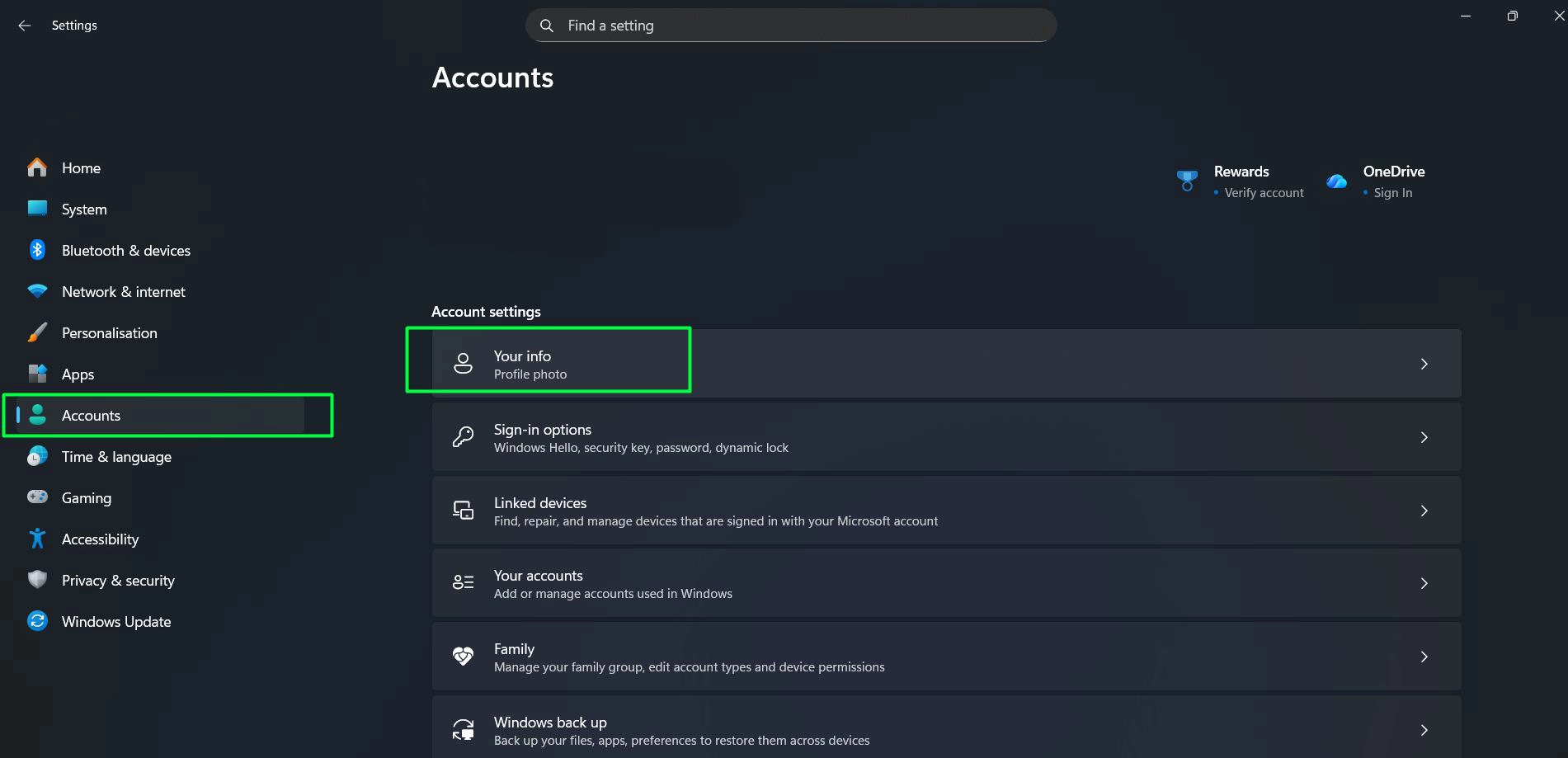
- Step 2: Click on ‘Accounts’ from the left sidebar menu
- Step 3: Select ‘Your info’ from the account options
- Step 4: Under ‘Adjust your photo’, choose one of two options:
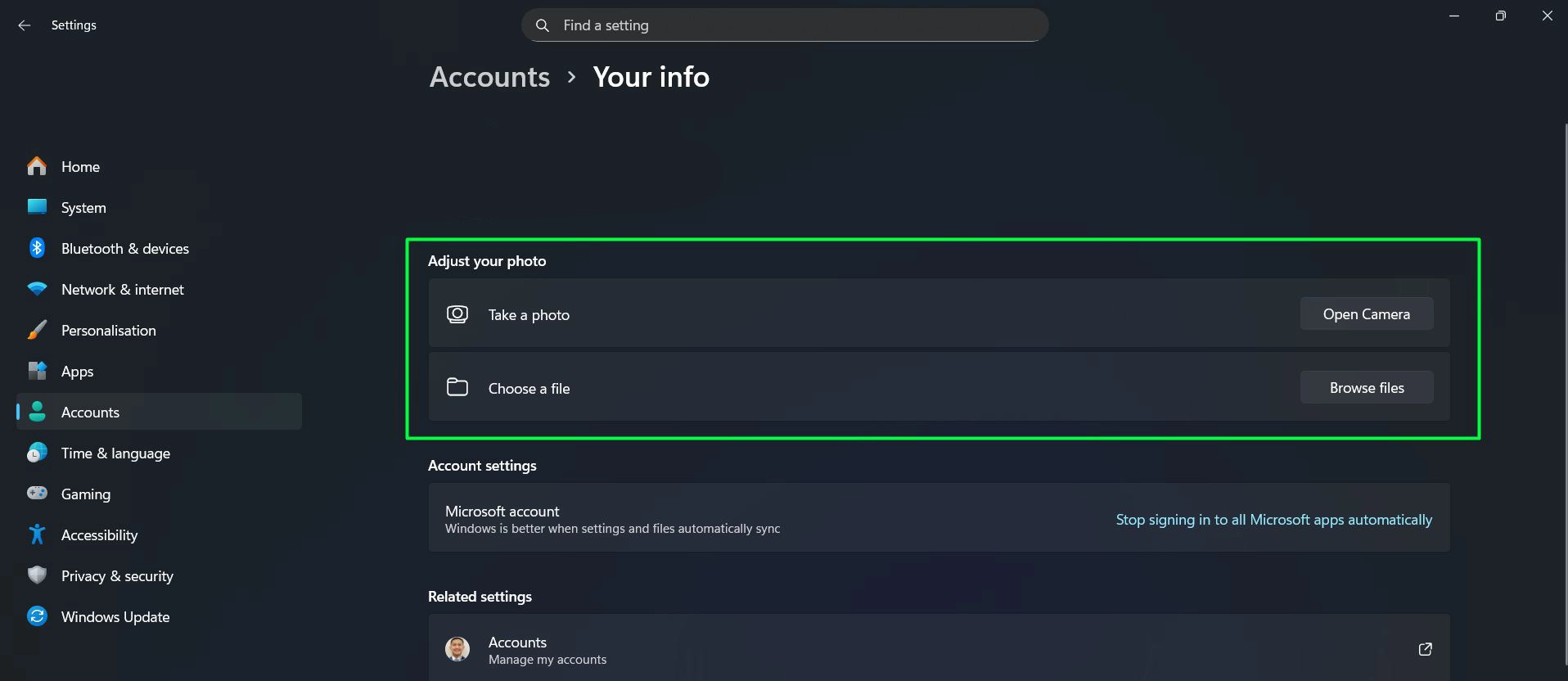
Option A: Browse and Select an Existing Photo
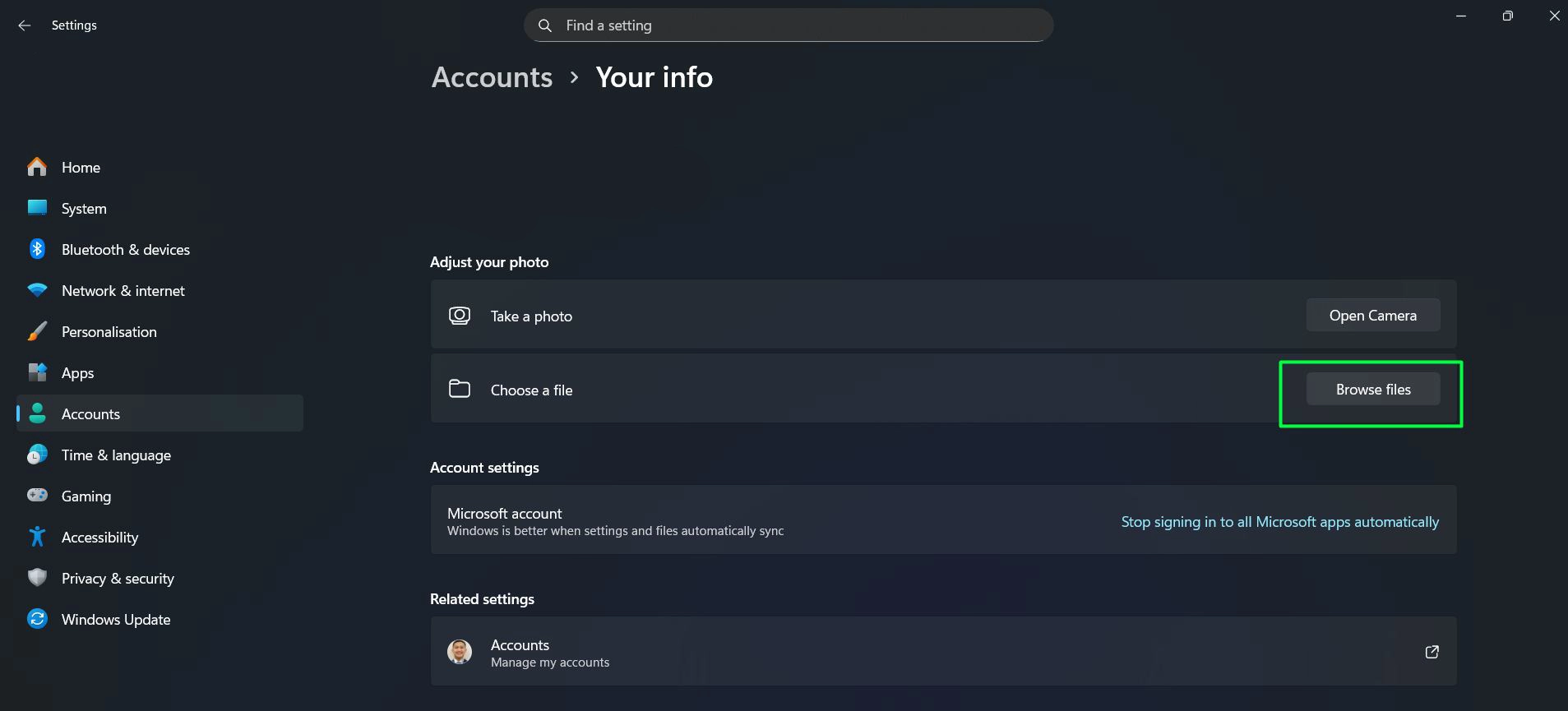
- Step 5: Click ‘Browse files’ button
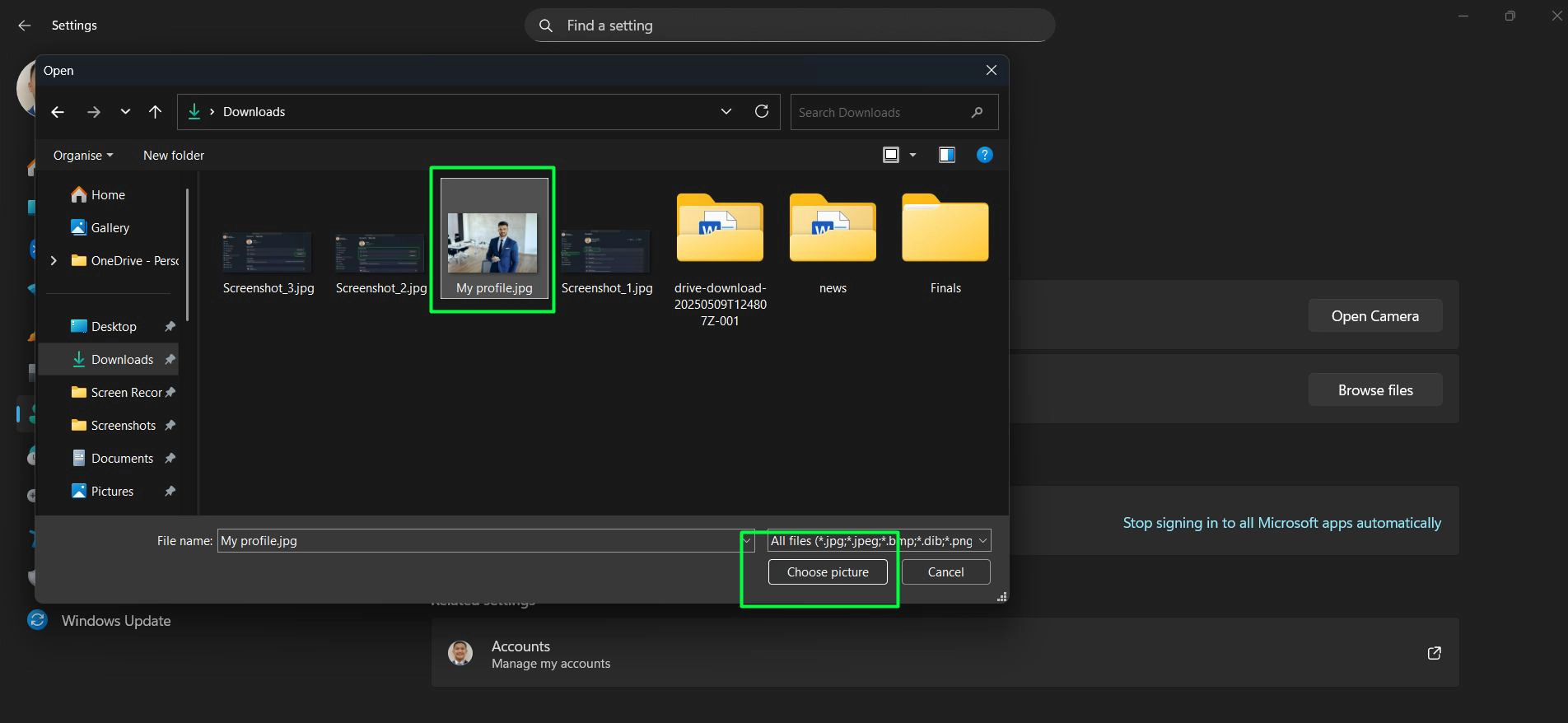
- Step 6: Navigate to the folder containing the desired image
- Step 7: Select the photo and click ‘Choose picture’
The new picture appears immediately on the account screen and login page. Most people find that using square images works best since Windows 11 displays the picture in a circular frame.
Pro-Tip: Use images with dimensions of at least 448×448 pixels for the sharpest display quality. The system automatically crops and resizes larger images, but starting with proper dimensions ensures better results.
Option B: Take a New Photo with Your Camera
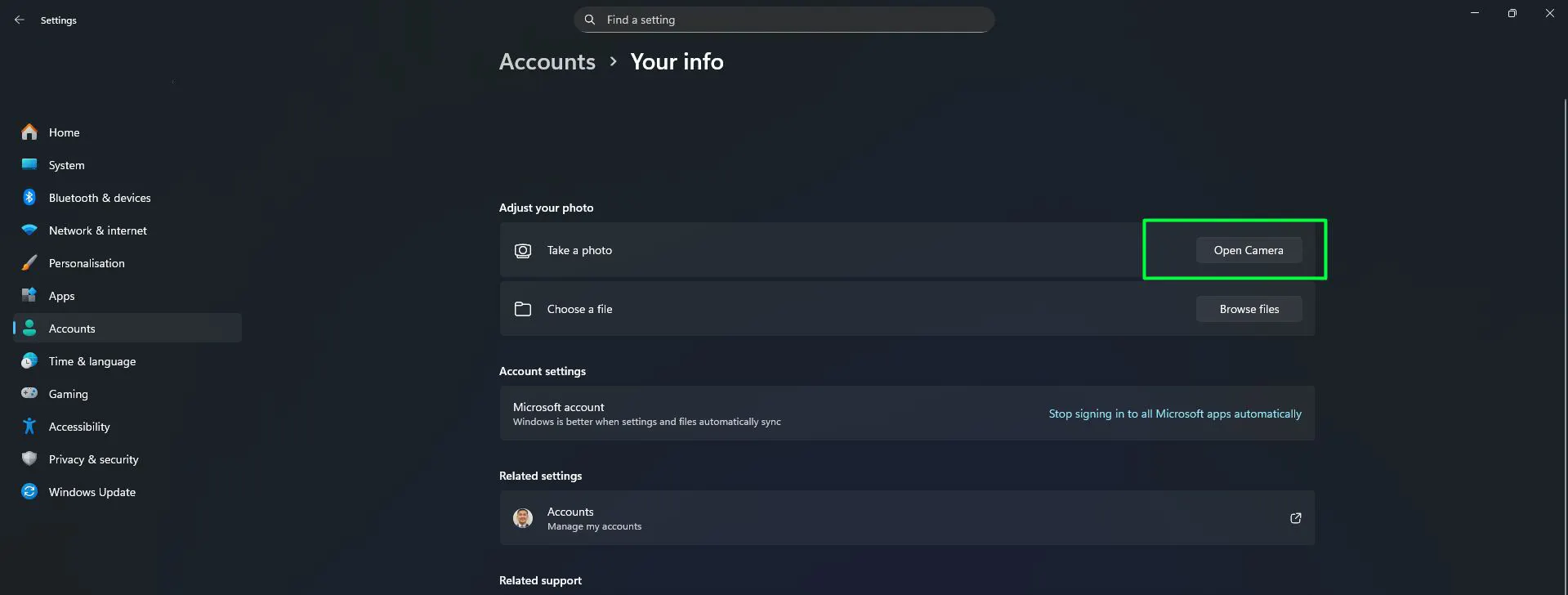
- Step 5: Click ‘Open Camera’ button
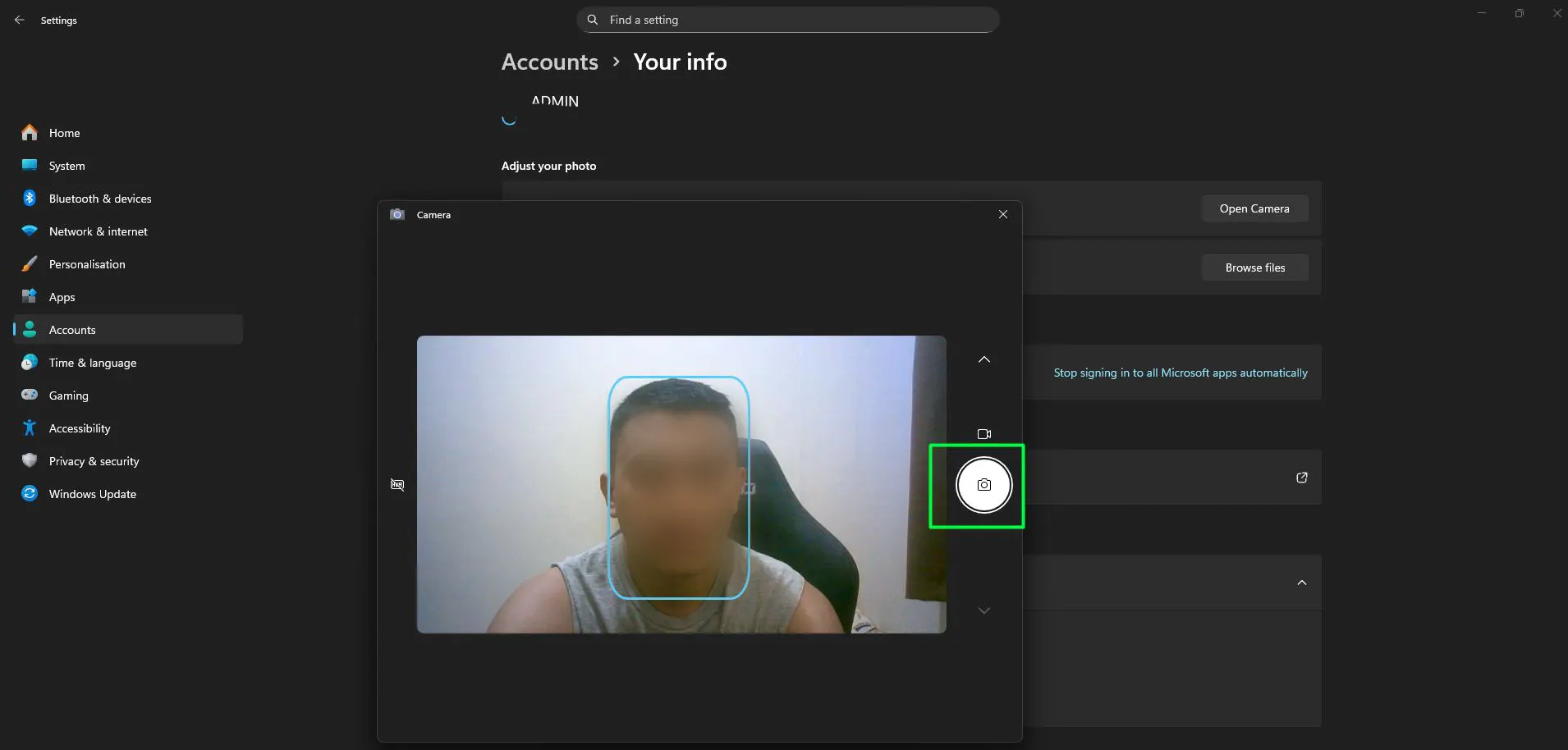
- Step 6: Position yourself in the camera frame
- Step 7: Click the camera button to capture the photo
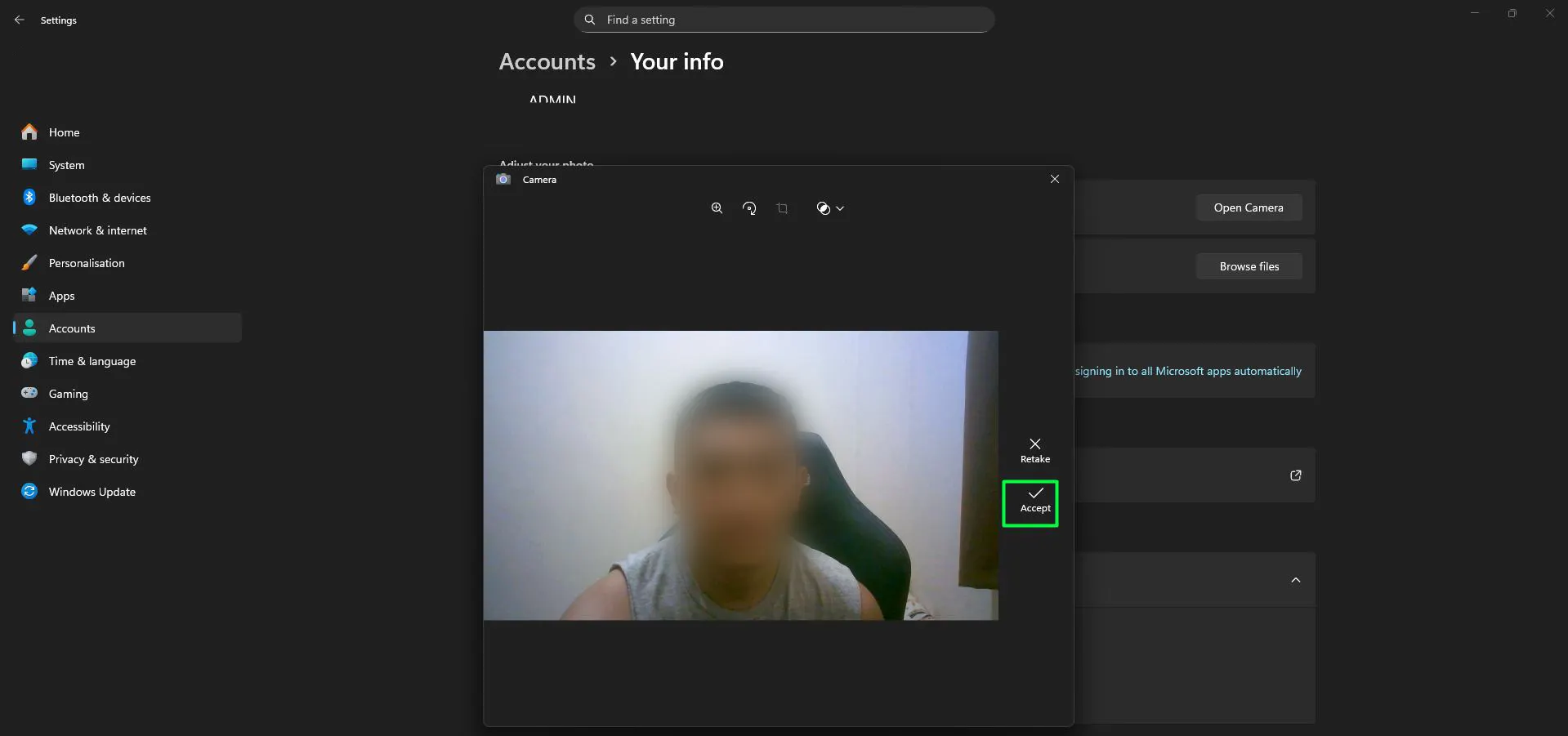
- Step 8: Review the image and retake if needed
- Step 9: Click ‘Accept’ to set it as the account picture
This feature works best when there’s adequate lighting in the room. The key is to ensure the face is centered and clearly visible for the best results on the login screen.
Supported Image Formats
Windows 11 accepts several common image file types for account pictures:
- JPEG (.jpg, .jpeg)
- PNG (.png)
- BMP (.bmp)
- GIF (.gif)
PNG format often provides the best quality with transparency support, though JPEG works perfectly fine for most photos. The system handles the conversion and optimization automatically.
Where Windows Stores Account Pictures
Understanding the storage location helps when managing or backing up custom account pictures. Windows 11 saves these images in a specific system folder.
The account pictures are stored at: C:\Users\[Username]\AppData\Roaming\Microsoft\Windows\AccountPictures
This folder contains all pictures ever used for the account. Windows creates different size versions of each image to display properly across various interface elements.
Common Problems and Solutions
Picture Not Changing After Selection
Sometimes the account picture appears unchanged even after selecting a new image. This usually happens due to cached data or permission issues.
Solution: Sign out and sign back in to refresh the user interface. If the problem persists, restart the computer to clear the system cache completely.
Cannot Access Camera Option
The Camera option might be grayed out or unavailable in the Settings app.
Solution: Check that the device has a functioning webcam and that camera permissions are enabled in Settings > Privacy & security > Camera. Make sure Windows 11 has permission to access the camera hardware.
Image Appears Blurry or Pixelated
Low-resolution images look poor when displayed as account pictures.
Solution: Use higher resolution images with minimum dimensions of 448×448 pixels. Avoid stretching small images as this causes pixelation and quality loss.
Pro-Tip: Keep a backup copy of the original high-resolution image in a separate folder like Documents or Pictures. This makes it easy to reapply the same picture if Windows updates or account resets occur.
Tips for Choosing the Best Account Picture
Selecting an appropriate image enhances the overall Windows 11 experience. Here are practical considerations when choosing an account picture:
- Use clear, well-lit photos where the subject is easily recognizable
- Avoid images with too much background detail that gets lost in the circular crop
- Choose pictures with the subject centered for better framing
- Test how the image looks at different sizes before finalizing
- Consider professional headshots for work devices
The account picture appears in multiple locations throughout Windows 11, including the Start menu, lock screen, and task switcher. Selecting something recognizable makes it easier to identify the correct account on shared devices.
Need help with User Account Control in Windows? Check this guide here for easy tips!
Difference Between Local and Microsoft Account Pictures
Windows 11 handles account pictures differently depending on the account type being used.
Local Account Pictures
Pictures for local accounts stay stored only on the specific device. Changing the image on one computer doesn’t affect other machines, and the picture won’t sync across devices.
Microsoft Account Pictures
Microsoft accounts sync the profile picture across all connected devices and services. Updating the picture in Windows 11 changes it on Xbox, Outlook, Office, and other Microsoft platforms automatically.
To change a Microsoft account picture that syncs everywhere, visit account.microsoft.com and update the profile photo there. The change propagates to all connected devices within a few minutes.
Removing or Resetting the Account Picture
Windows 11 doesn’t provide a direct ‘remove picture’ button, but reverting to the default avatar is still possible.
To reset the account picture to default:
- Step 1: Open File Explorer and navigate to C:\Users\[Username]\AppData\Roaming\Microsoft\Windows\AccountPictures
- Step 2: Delete all files in this folder
- Step 3: Sign out and sign back in to the account
Windows automatically generates a new default avatar based on the account name. This method works for both local accounts and Microsoft accounts on the specific device.
Want to secure your PC quickly? Check this guide on how to change your PIN on Windows!
Related Topics
Learn more about customizing Windows 11 at Windows guides and tutorials. For additional system customization options, check out software tips and solutions.
Frequently Asked Questions
Can the account picture be changed without admin rights?
Yes, standard users can change their own account pictures without administrator privileges. The Settings app allows any user to modify their personal account picture, though admin rights are needed to change pictures for other users on the device.
Does changing the account picture affect system performance?
No, updating the account picture has no impact on system performance or speed. The image files are small and Windows handles them efficiently without consuming significant resources.
Why does the old picture still appear in some places?
Cached copies of the previous picture may linger in certain apps or system areas. Signing out and back in usually resolves this, though some third-party applications might need to be restarted to display the updated image.
Can animated images or GIFs be used as account pictures?
While Windows 11 accepts GIF files, only the first frame displays as the account picture. The animation doesn’t play in the user interface, so static images work better for account pictures.
How do you change another user’s account picture on the same computer?
Administrator accounts can change pictures for other users by going to Settings > Accounts > Family & other users, selecting the target account, and clicking ‘Change account type’ or accessing their specific account settings. The other user must be signed out for changes to apply properly.
What happens to the account picture when Windows 11 is reinstalled?
Reinstalling Windows 11 removes all custom account pictures unless the user profile is preserved or backed up beforehand. After reinstallation, the account reverts to the default avatar until a new picture is selected.