
It’s incredibly frustrating when you click a link in an email only to have Edge hijack the session, even though you just spent time installing Chrome or Firefox. Microsoft fundamentally changed the default app logic in Windows 11, burying your preferences under a granular list of individual file protocols. The mistake most people make is ignoring the specific .html and .htm associations, which often causes Windows to “forget” your choice and revert to the factory defaults after a reboot.
Instead of relying on the “Set Default” button inside your browser’s settings—which often fails to trigger the right menu—you need to manually verify the application’s deep-link permissions in the system Apps menu. I’ve found that if you don’t explicitly check the HTTPS and HTTP protocols at the bottom of the list, certain system-level links will still bypass your preferred browser entirely.
Understanding Default Browser Settings in Windows 11
Windows 11 handles default applications differently than Windows 10. Instead of allowing browsers to claim default status automatically, the operating system requires manual configuration through Settings. This change gives users more control but adds an extra layer of steps. The default browser determines which application opens when clicking links in emails, documents, or other programs.
The system associates specific file types and protocols with applications. When a link is clicked or a web file is opened, Windows checks these associations to determine which program should handle the request. This architecture allows precise control over different content types, though it requires more configuration time than previous Windows versions.
Step-by-Step Guide to Change Your Default Web Browser
The process involves accessing Windows Settings and selecting the preferred browser for different file types and protocols. Here’s exactly how to do it:
Method 1: Through Windows Settings
- Click the Start button and select ‘Settings’ (or press Windows key + I)
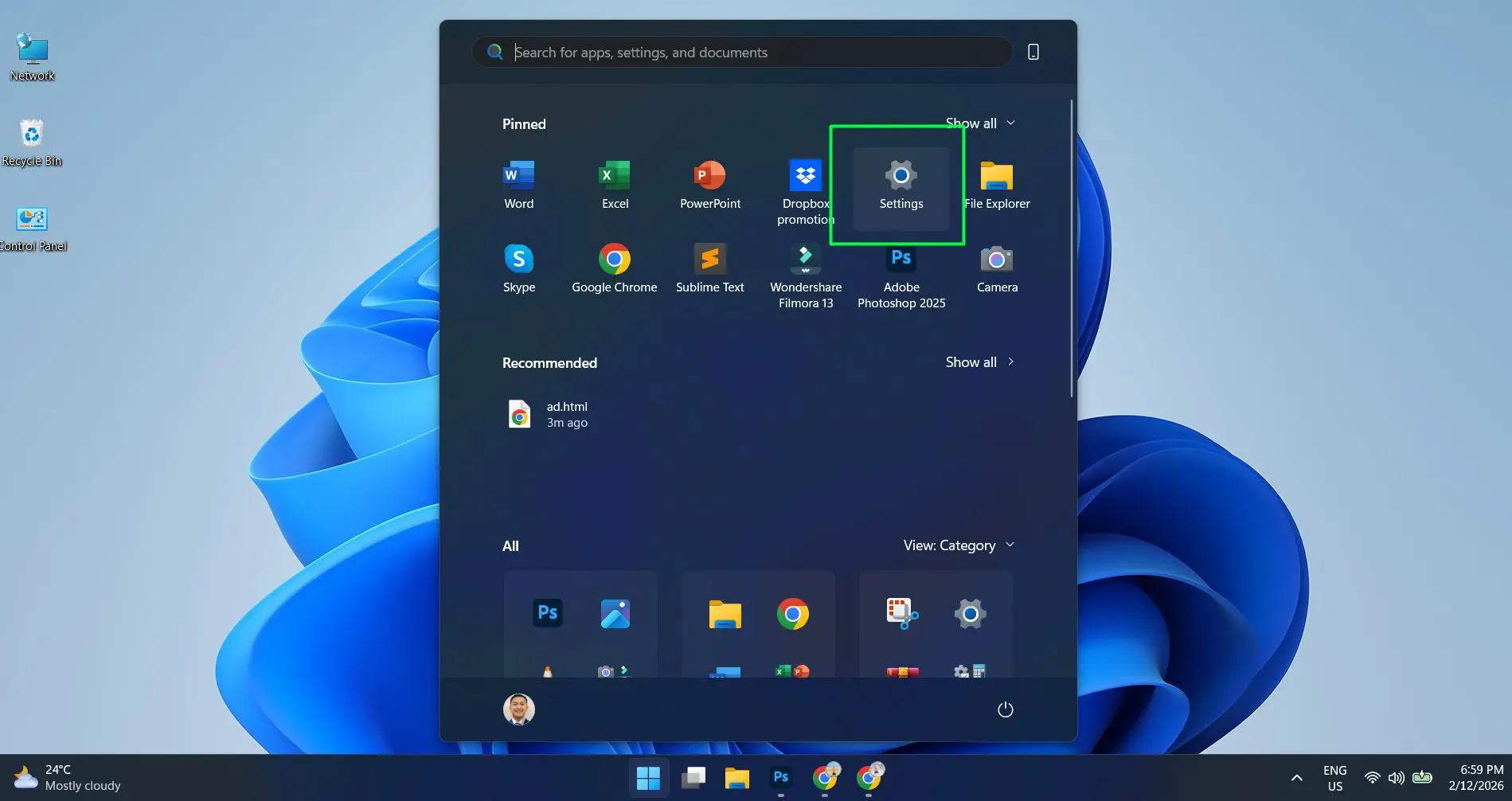
- Navigate to ‘Apps’ in the left sidebar
- Click on ‘Default apps’ from the Apps menu
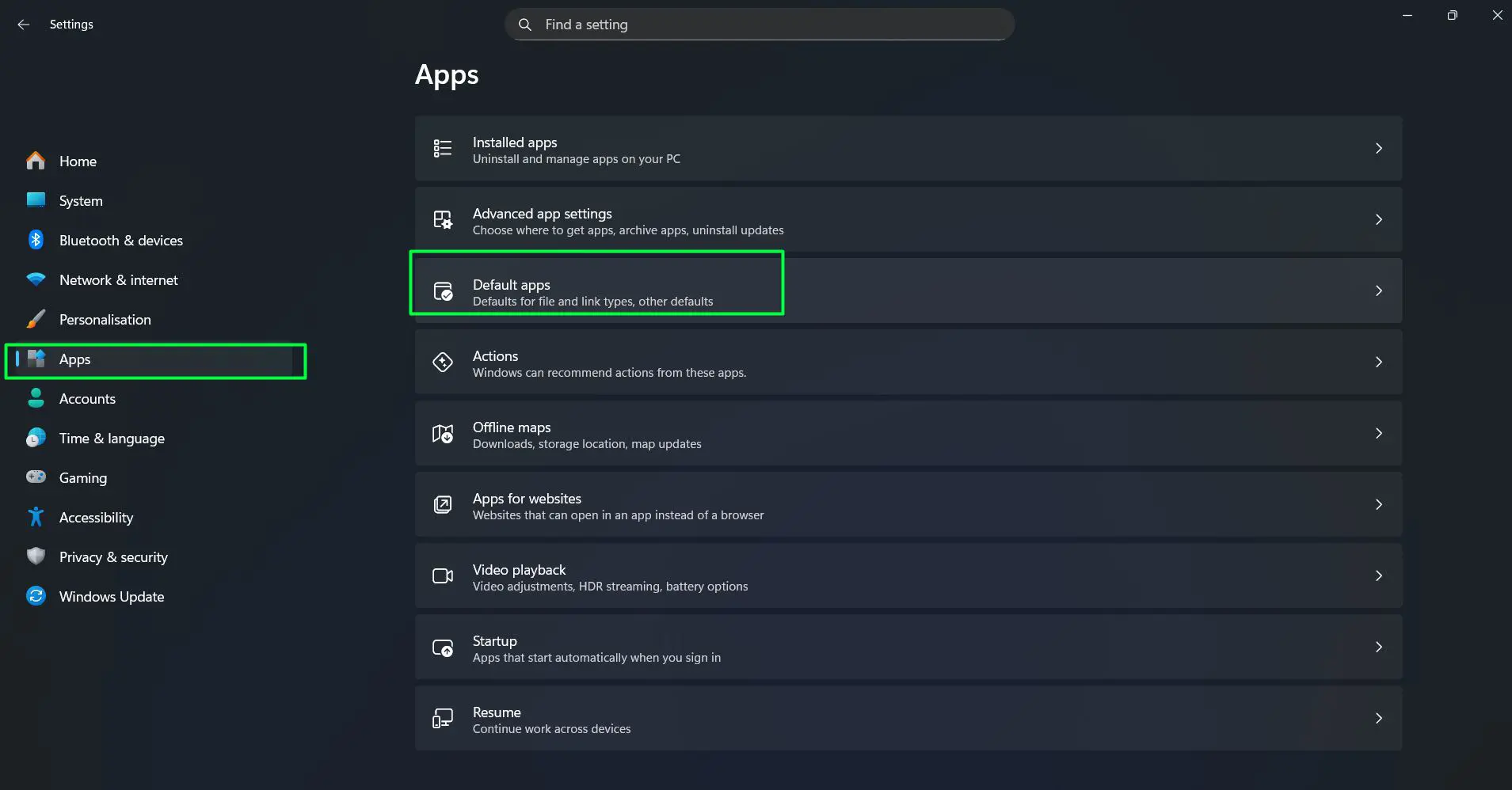
- Use the search bar to type the name of the browser to set as default (such as Microsoft Edge or Google Chrome), or scroll down to find it in the list
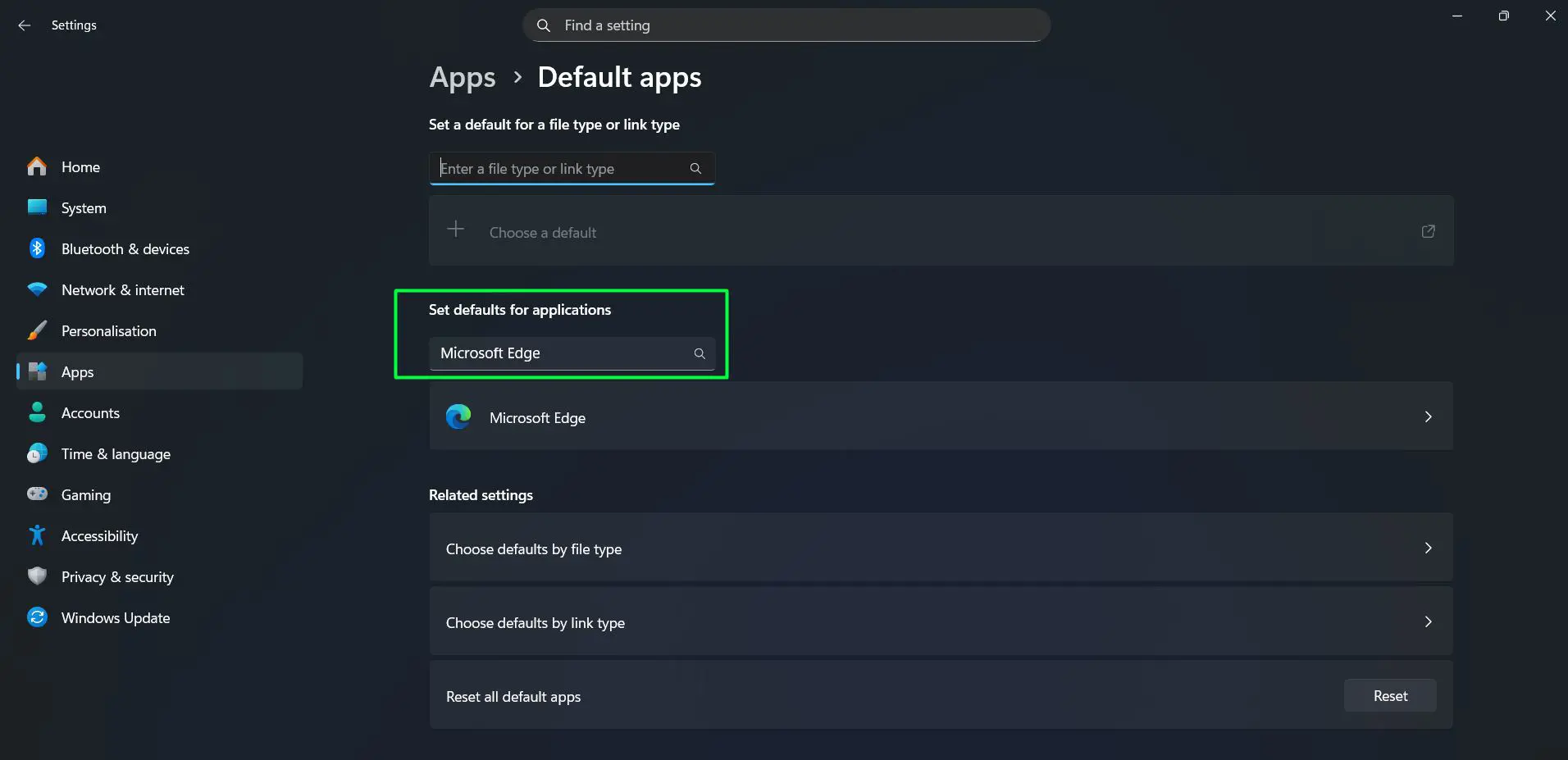
- Click on the browser name to open its settings
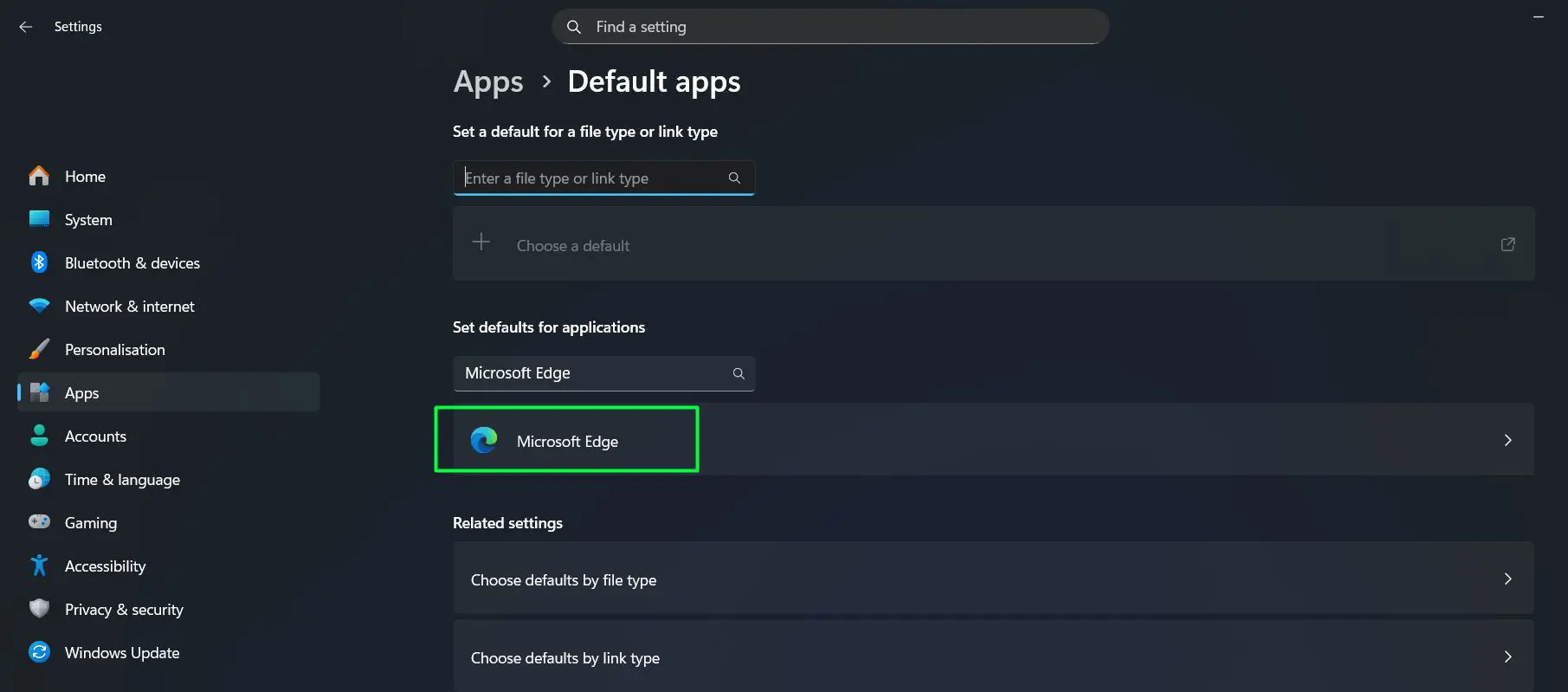
- A list of file types and link types will appear (like .htm, .html, HTTP, HTTPS, PDF)
- Click on each file type individually and select the preferred browser from the pop-up menu
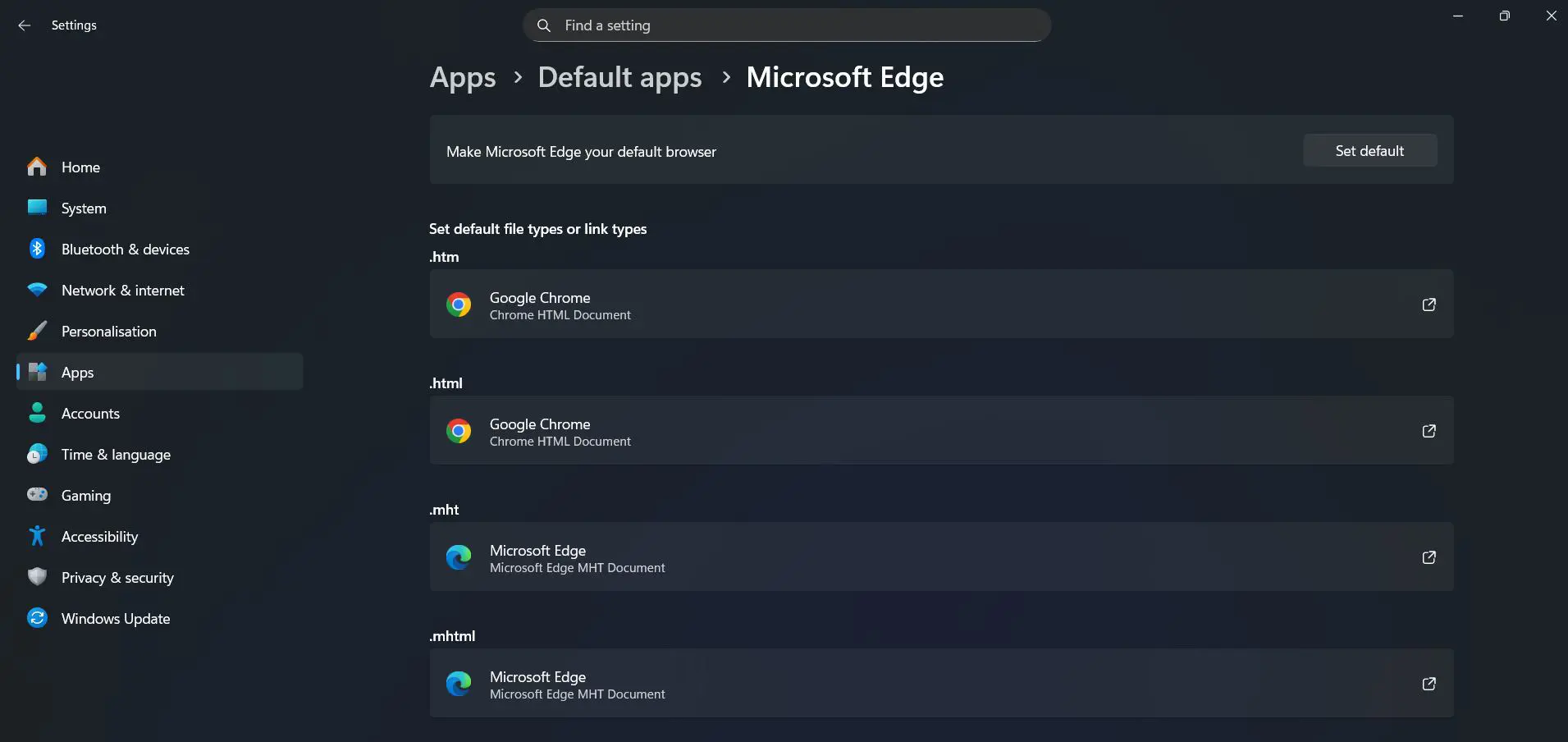
- Repeat this for all relevant file types to ensure complete default status
Pro-Tip: Most people find that setting defaults for .htm, .html, HTTP, HTTPS, and FTP protocols covers the majority of web browsing scenarios. However, checking PDF associations ensures that browser-based PDF viewing works correctly when that’s the preferred option.
Watch this: How to Change Your Default Web Browser Easily in Windows 11
Method 2: Setting Default Browser Through File Association
Another effective approach involves using an HTML file to trigger the default browser selection. This method often proves simpler than navigating through multiple Settings menus:
- Download a sample HTML file from the internet (such as from filesamples.com/formats/html) or create a simple HTML file on the desktop
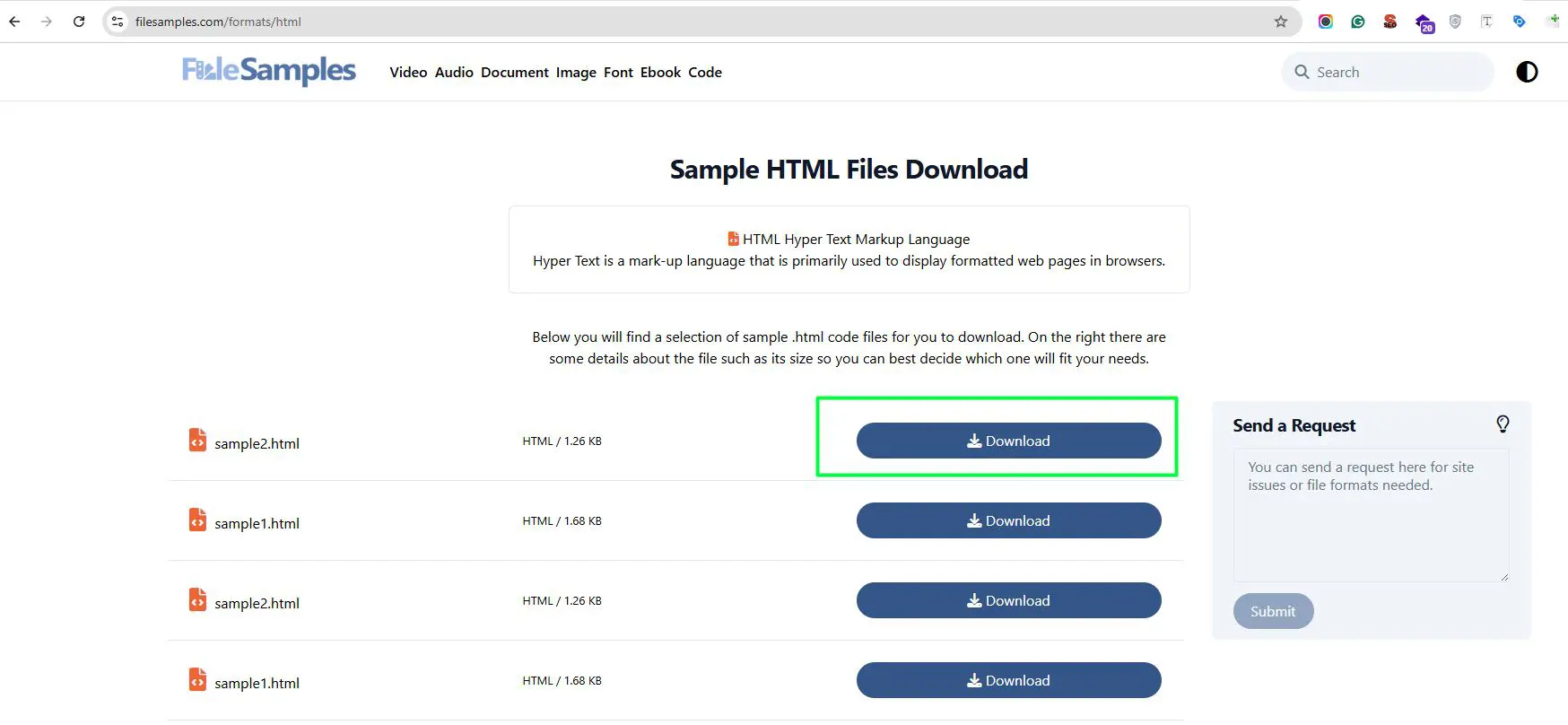
- Open Download folder and locate the downloaded sample html file
- Right-click on the HTML file and select ‘Open with’ from the context menu
- Click on ‘Choose another app’ from the submenu
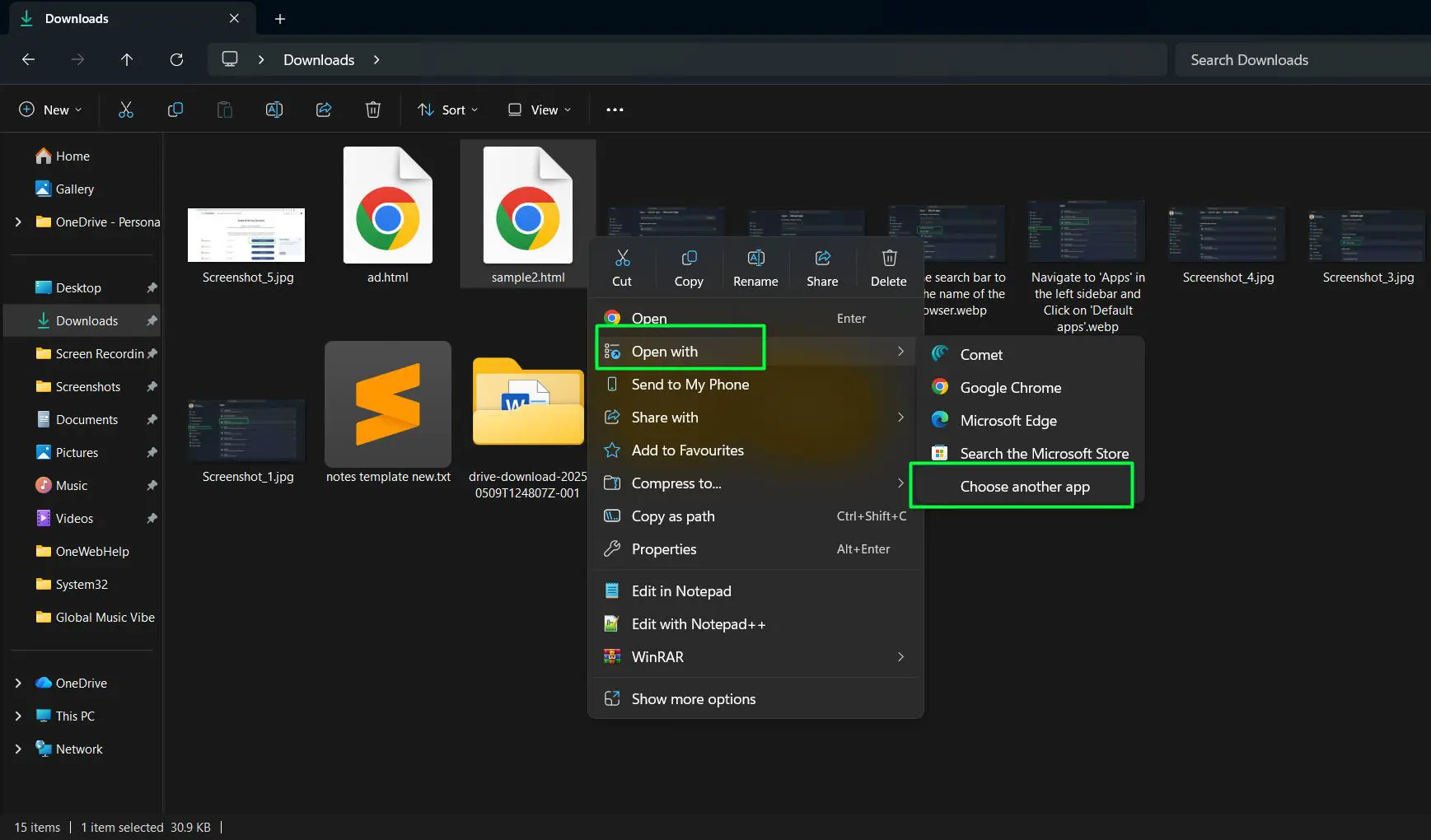
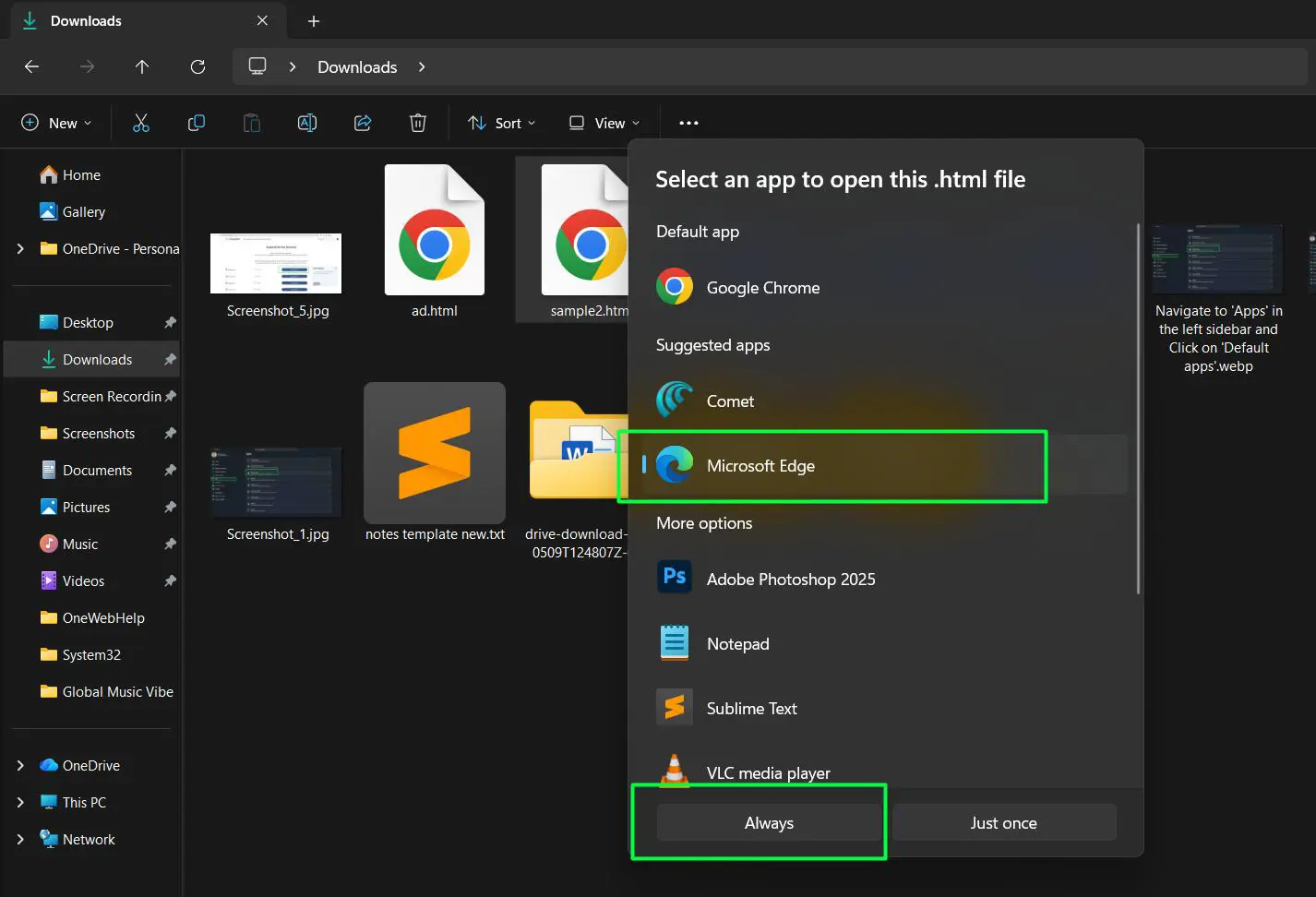
- Select the preferred browser from the list of available applications
- Click ‘Always’ to confirm the selection
- Return to Settings > Apps > Default apps and search for the chosen browser
- Configure the remaining file types and protocols (HTTP, HTTPS, .htm) to complete the setup
This approach establishes the initial association through the file context menu, then requires completing the remaining associations through Windows Settings. While it still involves multiple steps, starting with a file association often feels more intuitive than searching through Settings menus. The ‘Always’ option creates a permanent association for that specific file type, building the foundation for broader default browser status.
Setting Defaults for Specific File Types
Sometimes only certain file types need a different browser. For example, one browser might handle HTML files while another opens HTTP links. Windows 11 allows this granular control:
- Go to Settings > Apps > Default apps
- Scroll down and click ‘Choose defaults by file type’
- Find the specific extension (like .html or .pdf)
- Click the current default app next to it
- Select the preferred browser from the list
This approach works best when using multiple browsers for different purposes. Professional workflows often benefit from this flexibility, allowing specialized tools for specific tasks while maintaining a general-purpose browser for everyday use.
Verifying the Default Browser Change
After making changes, confirming that everything works correctly prevents future confusion. The verification process takes just a moment:
- Open any program with a clickable web link (email client, document, messaging app)
- Click a link and observe which browser opens
- Try opening an HTML file from File Explorer
- Check that the correct browser launches in both scenarios
If the wrong browser still opens, revisit the default apps settings and ensure all relevant protocols were changed. Some applications cache default settings, so restarting the computer might resolve lingering issues. Testing with multiple link types ensures comprehensive coverage across different scenarios.
Common File Types and Protocols to Configure
Complete default browser configuration requires setting multiple associations. The most important ones include:
Web Protocols:
- HTTP – Standard web page protocol
- HTTPS – Secure web page protocol
- FTP – File transfer protocol for downloads
- MAILTO – Email links that may open web-based email clients
File Extensions:
- .htm – HTML web page files
- .html – HTML web page files
- .pdf – PDF documents (if browser-based viewing is preferred)
- .svg – Scalable vector graphics files
- .xht – XHTML files
- .mht – MHTML archived web pages
- .mhtml – MHTML archived web pages
Setting all these ensures comprehensive default status. Missing even one can lead to unexpected behavior when certain links or files are opened. Taking time to configure each association prevents switching back and forth between browsers unintentionally.
Browser Recommendations for Different Use Cases
Choosing a default browser involves more than just personal preference. Performance, privacy features, extension availability, and software compatibility all play roles in the decision. Modern browsers offer similar core functionality, but differences emerge in resource usage and specialized features.
For Speed and Performance
Microsoft Edge has shown excellent performance on Windows 11 systems, particularly with hardware acceleration and battery efficiency on laptops. Built on Chromium, it offers Chrome-like speed while integrating seamlessly with Windows features. The browser uses less RAM than Chrome in many scenarios, making it ideal for systems with limited memory.
Brave browser delivers exceptional speed through aggressive ad and tracker blocking by default. Pages load faster when unnecessary elements are blocked, and the privacy-focused approach reduces background data consumption. This works best when speed takes priority over certain website features that might break with aggressive blocking.
For Privacy and Security
Firefox stands out as the privacy-focused choice among major browsers. Mozilla’s commitment to user privacy means fewer data collection practices and more transparent handling of personal information. Enhanced Tracking Protection blocks third-party cookies and trackers automatically, giving users control over their digital footprint.
Brave takes privacy even further with built-in ad blocking, tracker protection, and automatic HTTPS upgrades. The browser also includes features like fingerprinting prevention and a built-in Tor mode for anonymous browsing. These features make it the strongest option for privacy-conscious users.
For Extension Ecosystem
Google Chrome dominates in extension availability and compatibility. The Chrome Web Store hosts the largest collection of browser extensions, plugins, and themes. Developers typically prioritize Chrome when creating new extensions, ensuring early access to the latest tools and features. This makes Chrome ideal for users who rely heavily on browser extensions for productivity or specialized tasks.
For Microsoft Ecosystem Integration
Microsoft Edge integrates deeply with Windows 11 and Microsoft services. Features like Collections, vertical tabs, and seamless syncing with Microsoft accounts make it valuable for users invested in the Microsoft ecosystem. Office 365 users particularly benefit from tight integration with SharePoint, OneDrive, and other Microsoft tools.
Essential Tips for Managing Your Default Browser
Pro-Tip: The key is to match browser capabilities with daily workflow requirements. Heavy tab users benefit from memory-efficient options, while privacy-focused individuals might prioritize browsers with built-in tracking protection and minimal data collection.
Keep Your Browser Updated
Security vulnerabilities emerge regularly, and browser developers release patches to address them. Enable automatic updates to ensure the default browser stays current with the latest security fixes and performance improvements. Most modern browsers update silently in the background, requiring only a restart to apply changes.
Sync Settings Across Devices
Most browsers offer cloud syncing for bookmarks, passwords, history, and settings. Setting up sync before changing the default browser ensures that all data transfers smoothly. This becomes particularly valuable when using multiple devices or switching between computers regularly.
Configure Startup Behavior
Default browsers can be configured to open specific pages on startup, restore previous sessions, or start with a blank page. Customizing startup behavior improves workflow efficiency by eliminating repetitive actions. Power users often configure browsers to restore previous tabs, maintaining context between browsing sessions.
Manage Multiple Profiles
Browser profiles separate work and personal browsing, each with distinct bookmarks, extensions, and settings. Setting up profiles before making a browser the default allows clean separation between different contexts. This works best when maintaining strict boundaries between professional and personal online activities.
Review Privacy and Security Settings
After changing the default browser, reviewing privacy settings ensures appropriate data handling. Check settings for cookies, tracking prevention, password management, and data collection. Different browsers offer varying levels of control, and taking time to configure these settings protects personal information.
Clear Cache and Cookies Periodically
Browsers accumulate cached data and cookies over time, which can slow performance and raise privacy concerns. Establishing a routine for clearing this data maintains browser speed and limits tracking. Most browsers allow selective clearing, preserving login information while removing unnecessary data.
Test Critical Websites
Some websites work better with specific browsers due to optimization or compatibility issues. After changing the default browser, test frequently used websites to ensure proper functionality. Banking sites, work applications, and specialized tools sometimes perform differently across browsers, and identifying issues early prevents frustration.
Bookmark Frequently Used Sites
Moving to a new default browser means rebuilding bookmarks unless sync is enabled. Taking time to organize bookmarks by category improves navigation efficiency. A well-organized bookmark structure reduces time spent searching for frequently accessed sites.
Understanding the Windows 11 Default Apps Philosophy
Microsoft’s approach to default apps in Windows 11 reflects a broader shift toward user control and security. By requiring explicit permission for each file type and protocol, the system prevents malicious software from hijacking default applications without user knowledge. This extra security comes at the cost of convenience, but the trade-off protects against common attack vectors.
The design also acknowledges that users often prefer different applications for different tasks. Someone might use Edge for general browsing while preferring Chrome for development work due to specific extensions. The granular control enables these mixed workflows without forcing a single browser for all web-related activities.
Frequently Asked Questions
Can the default browser be changed back to Microsoft Edge?
Yes, Microsoft Edge can be set as the default browser at any time using the same process. Navigate to Settings > Apps > Default apps, search for Microsoft Edge, and configure the file types and protocols. Edge integrates deeply with Windows 11, so the system readily accepts it as the default choice.
Why does Windows 11 require setting defaults for each file type separately?
Microsoft designed this approach to give users granular control over which applications handle specific content types. While more time-consuming than a single toggle, it prevents applications from automatically claiming default status without explicit permission. This protects against unwanted changes from software installations.
Do all browsers work equally well as the default in Windows 11?
All major browsers function properly as the default in Windows 11. Chrome, Firefox, Edge, Opera, Brave, and others handle standard web protocols and file types without issues. Performance differences relate more to the browser itself rather than its status as the system default. Some browsers integrate more tightly with specific Windows features, but basic functionality remains consistent across options.
Will changing the default browser affect browser-specific features or extensions?
No, changing the default browser only determines which application opens links and web files. All installed browsers retain their individual settings, extensions, bookmarks, and features regardless of default status. Multiple browsers can coexist on the same system, with each maintaining its own configuration independently.
How often should default browser settings be verified?
Check default settings after major Windows updates, new browser installations, or when unexpected behavior occurs with link handling. Most people find that settings remain stable once configured, but occasional verification prevents issues. Software updates sometimes reset preferences, making periodic checks worthwhile for consistent experience.
Is it possible to use different browsers for different types of links?
Yes, Windows 11 allows assigning different browsers to different protocols and file types. This enables using one browser for HTTP links while another handles PDF files or email links. The flexibility supports specialized workflows where different browsers excel at different tasks.