
The lock screen is the first thing visible when starting a Windows 11 computer or waking it from sleep. Changing the lock screen background on Windows 11 offers a simple way to personalize the system and make it feel more unique. This guide walks through the exact steps needed to customize this visual element.
Understanding Windows 11 Lock Screen Options
Windows 11 provides three main options for lock screen customization. The system allows users to display a single picture, create a slideshow of multiple images, or use Windows Spotlight for automatically rotating backgrounds. Each option serves different preferences and use cases.
The picture option works best for those who prefer a consistent, favorite image. Slideshows suit users who enjoy variety without manual changes. Windows Spotlight delivers fresh, curated images directly from Microsoft, often featuring stunning photography from around the world.
Accessing Lock Screen Settings
Opening the lock screen settings requires just a few clicks. The Settings app serves as the central hub for all customization options in Windows 11.
- Step 1: Click the Start button or press the Windows key
- Step 2: Select ‘Settings’ from the menu (or press Windows + I)
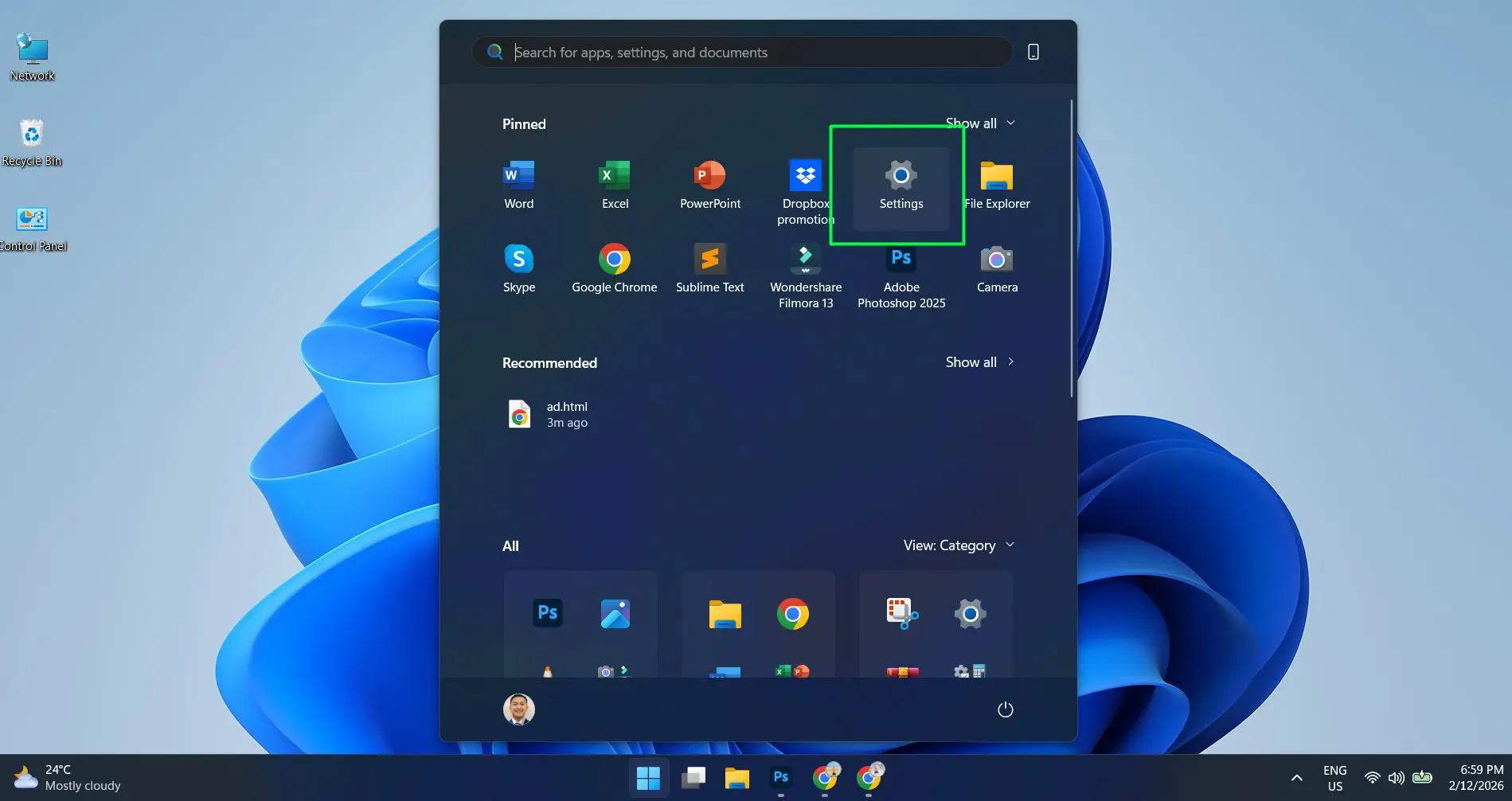
- Step 3: Click on ‘Personalization’ in the left sidebar
- Step 4: Select ‘Lock screen’ from the personalization options
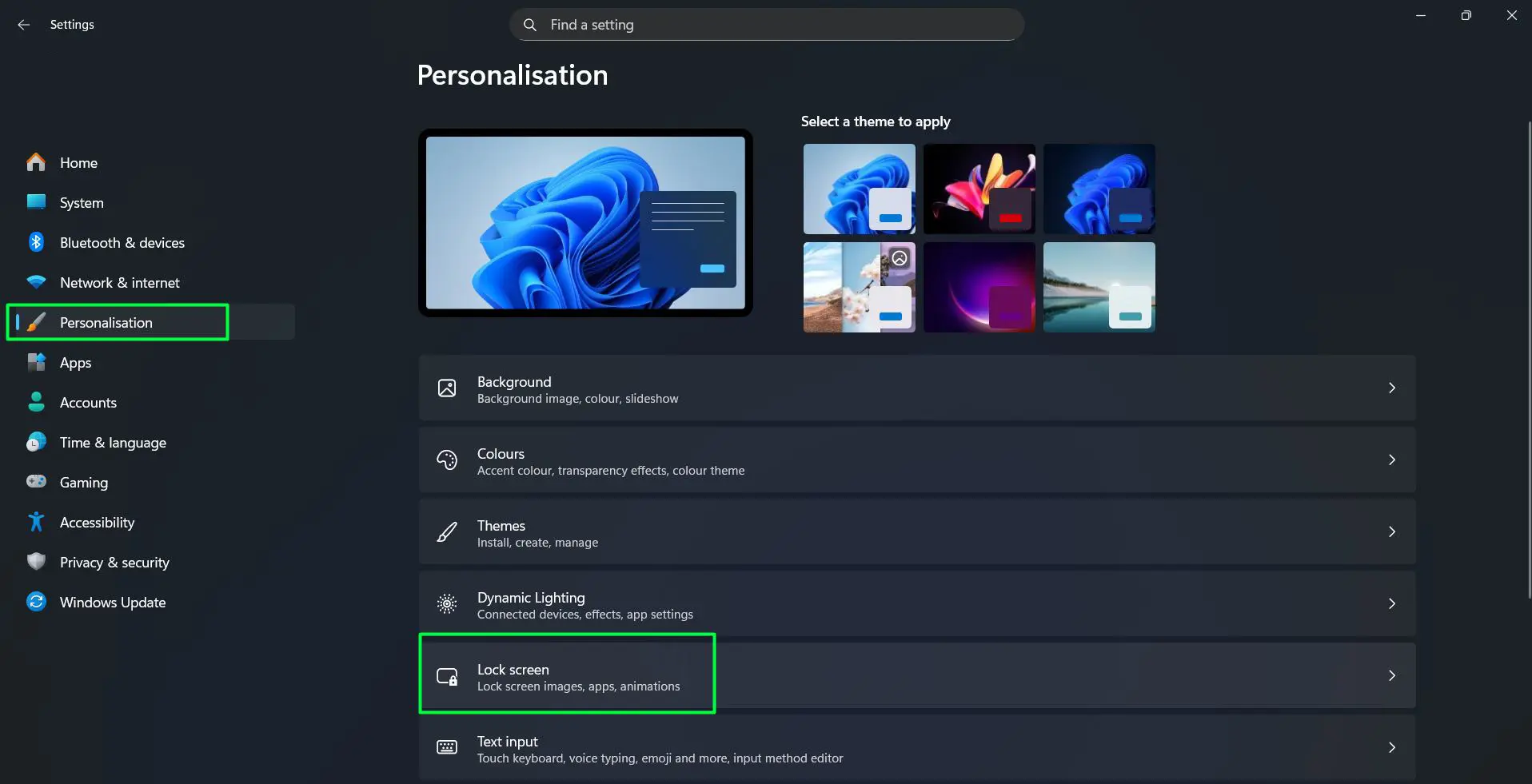
The Lock screen settings page displays the current background and all available customization options. This interface provides complete control over how the lock screen appears.
Changing to a Single Picture Background
Setting a custom picture as the lock screen background takes only moments. This method works perfectly for displaying personal photos, artwork, or downloaded wallpapers.
Watch this tutorial: How to Change Your Lock Screen Background on Windows 11 Easily
- Step 1: In the Lock screen settings, click the dropdown menu next to ‘Personalize your lock screen’
- Step 2: Select ‘Picture’ from the available options
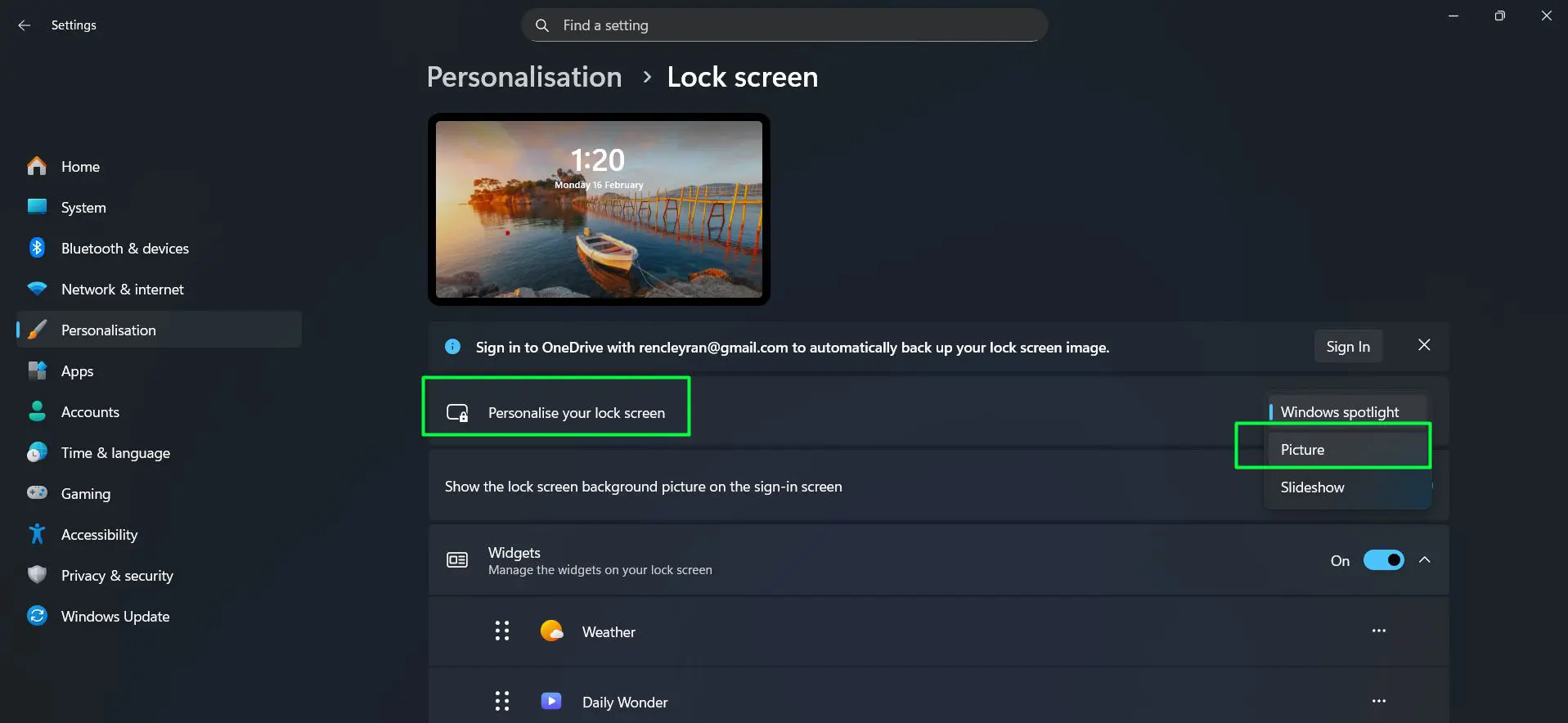
- Step 3: Choose one of the preset images shown below, or click ‘Browse photos’ to select a custom image
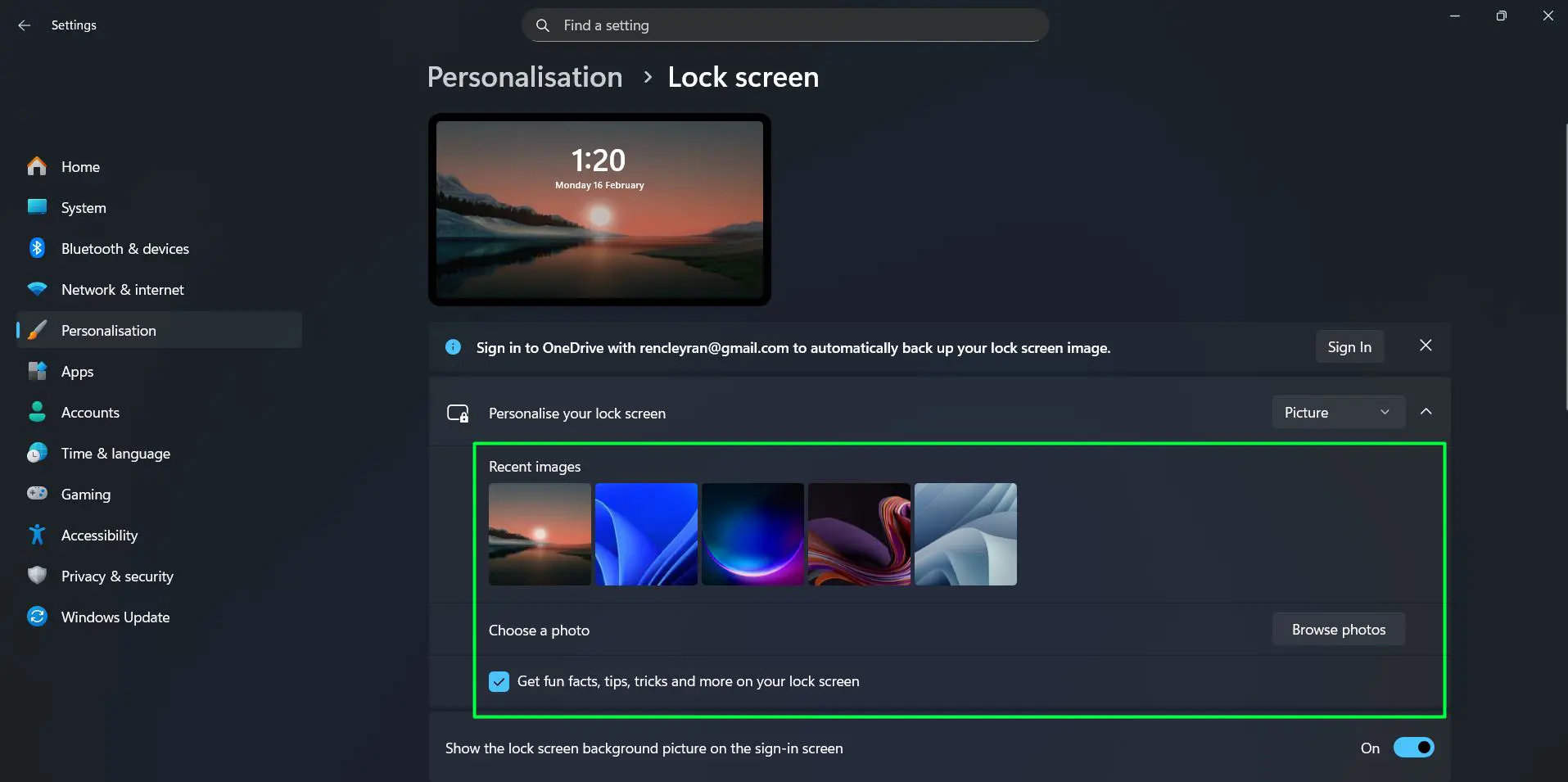
- Step 4: Navigate to the desired image file on the computer
- Step 5: Select the image and click ‘Choose picture’
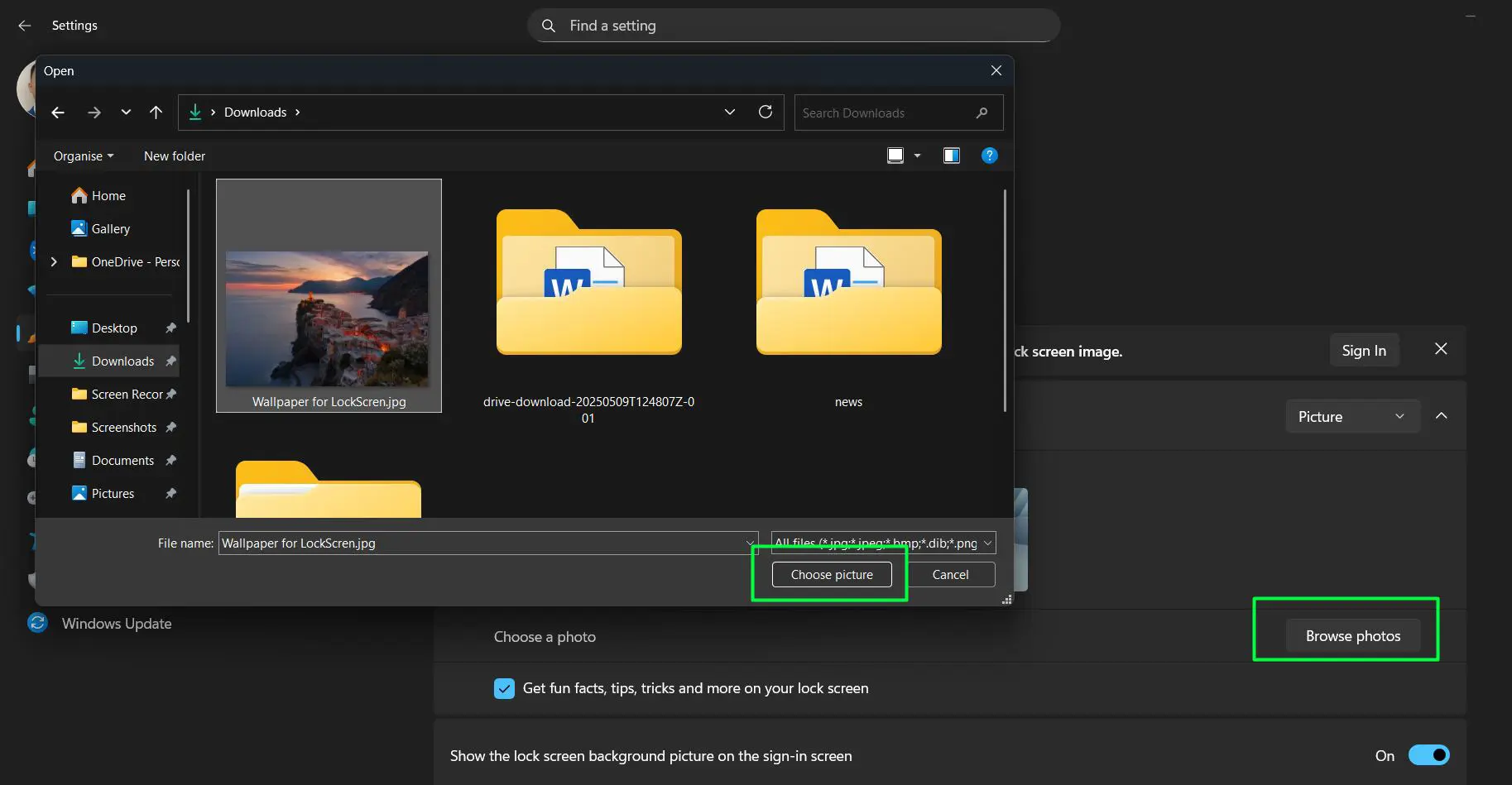
The selected image immediately becomes the new lock screen background. Windows 11 automatically adjusts the image to fit the screen dimensions while maintaining proper aspect ratios.
Pro-Tip: For the best visual results, use images with a resolution matching the display resolution. Most modern displays work best with 1920×1080 or higher resolution images to avoid pixelation or stretching.
Setting Up a Slideshow
A slideshow rotates through multiple images automatically, providing fresh visuals without manual intervention. This feature adds dynamic variety to the lock screen experience.
- Step 1: In the Lock screen settings, select ‘Slideshow’ from the dropdown menu
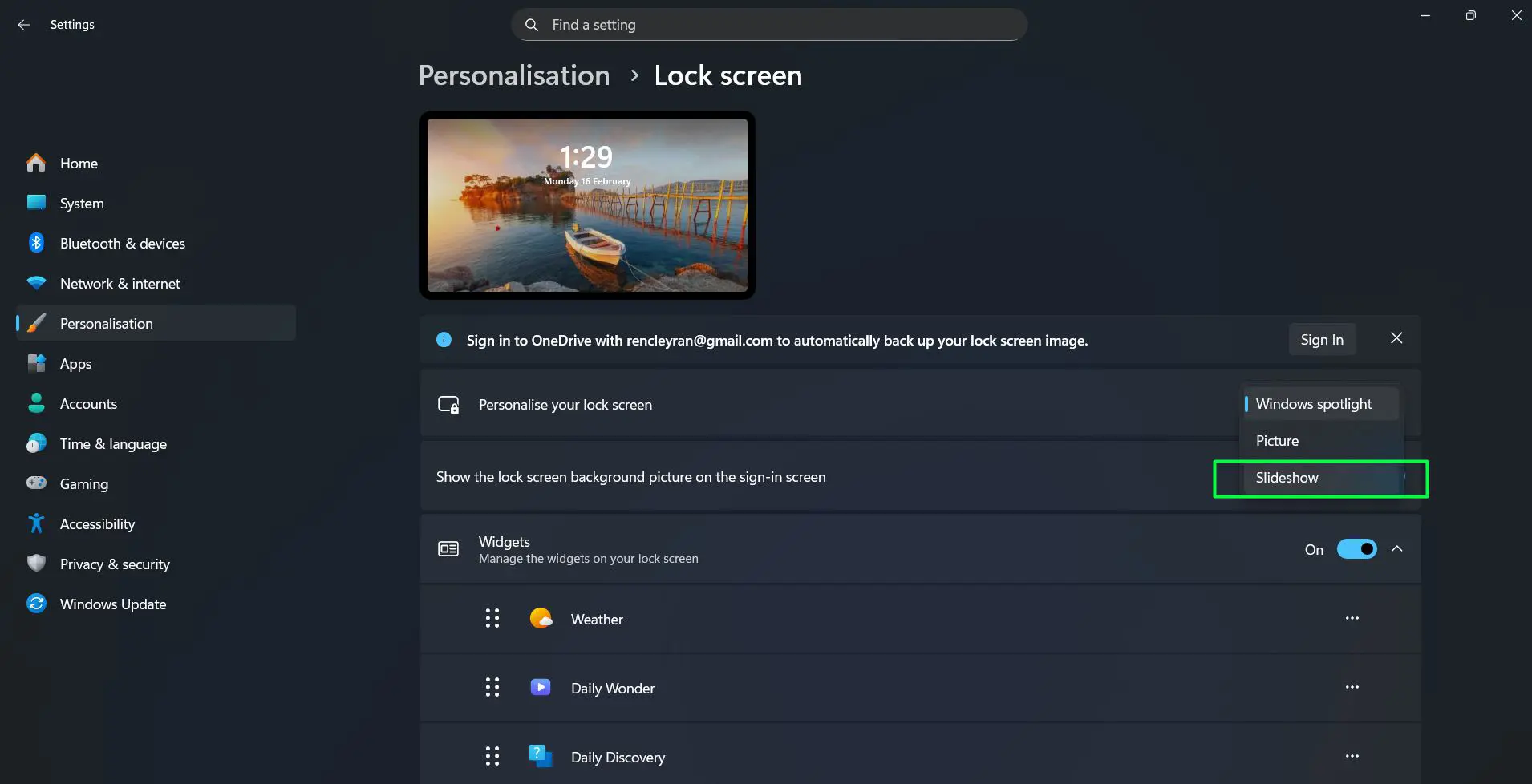
- Step 2: Click ‘Browse’ under ‘Choose albums for your slideshow’
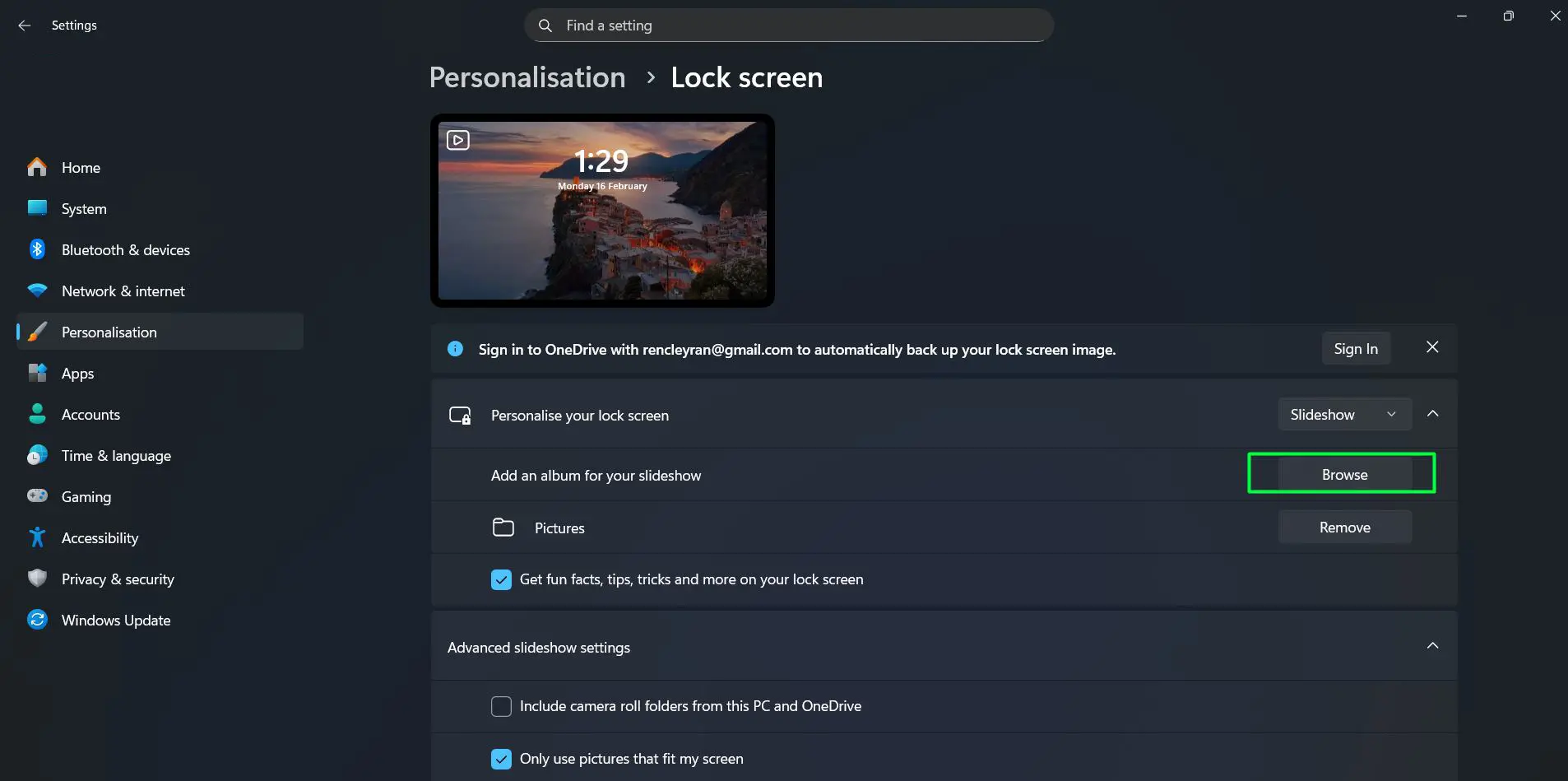
- Step 3: Browse to the folder containing desired images
- Step 4: Select the folder and click ‘Choose this folder’
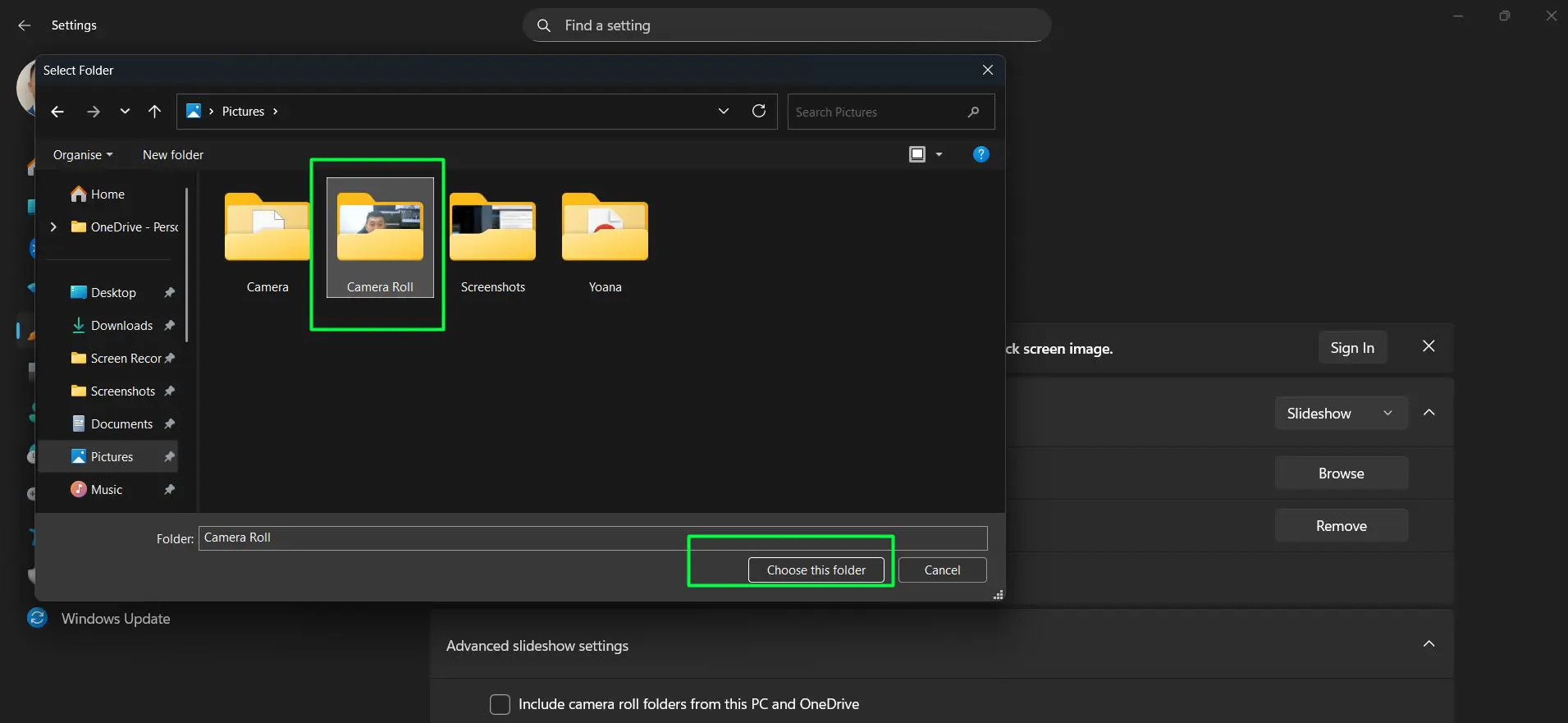
- Step 5: Add multiple folders if desired by repeating the process
Additional slideshow options appear below the folder selection. These settings control slideshow behavior, including whether to use images from the Camera Roll folder, display only pictures that fit the screen, and slideshow playback preferences.
The ‘Advanced slideshow settings’ link provides even more control. Users can choose to turn off the screen after the slideshow plays for a specific duration, helping to conserve battery life on laptops.
Enabling Windows Spotlight
Windows Spotlight automatically downloads and displays featured images from Microsoft. This option requires an internet connection but eliminates the need for manual image selection.
- Step 1: Open Lock screen settings following the previous instructions
- Step 2: Select ‘Windows Spotlight’ from the dropdown menu
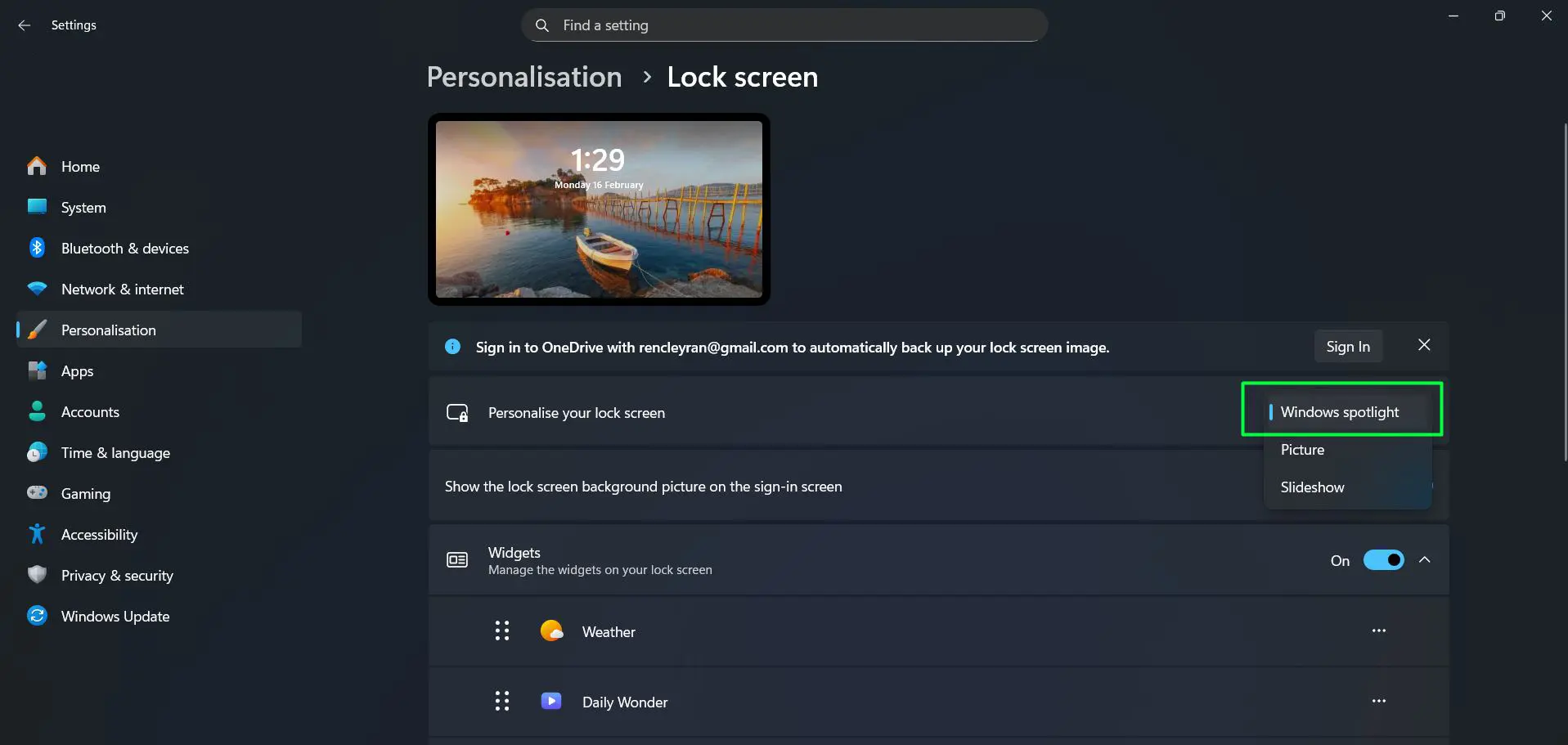
- Step 3: Wait for Windows to download the first featured image
Spotlight images change regularly, typically daily. The feature often includes interesting facts about the displayed locations or subjects, appearing as small text overlays on the lock screen. Most people find this option convenient when they want fresh content without effort.
Customizing Lock Screen Status and Apps
Beyond the background image, Windows 11 allows additional lock screen customization. The status section controls which app information appears directly on the lock screen.
The detailed status option shows information from one app, while quick status displays data from multiple apps. Weather, calendar events, and email notifications commonly appear in these slots. Click on the app slots under ‘Lock screen status’ to choose which applications display information.
Pro-Tip: Limit lock screen app notifications to essential items only. Too many status items create visual clutter and may display sensitive information when the computer is unattended in public spaces.
Verifying the New Lock Screen
Testing the new lock screen ensures everything appears as intended. The quickest method involves locking the computer manually.
Press Windows + L to immediately lock the system. The new background displays instantly, along with any configured status information. This verification step confirms the changes took effect properly.
Alternatively, allow the computer to lock automatically based on power settings. Both methods reveal the customized lock screen in actual use conditions.
Managing Lock Screen Images
Over time, managing lock screen images becomes necessary. Windows 11 stores downloaded Spotlight images and recently used pictures in specific system folders, though accessing these locations requires some navigation through hidden system directories.
For slideshow folders, simply add or remove images from the selected directories. Windows automatically includes new images in the rotation and stops displaying removed ones. The key is to maintain organized image folders for easy management.
Regular cleanup of unused images helps maintain system performance and prevents old pictures from appearing unexpectedly. Create dedicated folders for lock screen images separate from general photo libraries for better organization.
Additional Personalization Options
The Personalization section of Windows 11 Settings offers related customization options worth exploring. The Windows interface provides numerous ways to create a cohesive visual experience.
Background settings control the desktop wallpaper, which can match or complement the lock screen. Colors adjust the accent color scheme throughout the system interface. Themes bundle these elements together for consistent styling across all visual elements.
These interconnected settings work together to create a unified appearance. Coordinating lock screen, desktop, and system colors produces a polished, professional look. For more customization ideas, explore additional software options and hardware considerations that enhance the overall computing experience.
Frequently Asked Questions
Can the lock screen background be different from the desktop wallpaper?
Yes, Windows 11 treats the lock screen and desktop wallpaper as completely separate settings. Change one without affecting the other through their respective sections in the Personalization settings. This separation allows for distinct visual themes that serve different purposes – perhaps a professional image for the lock screen and a personal photo for the desktop.
Why does the lock screen background revert to Windows Spotlight automatically?
This typically occurs when group policies or organizational settings enforce specific lock screen configurations. Some workplace or school computers have restrictions preventing personal customization. Check with system administrators if settings continuously revert without user action. Windows updates rarely change these preferences unless managed by enterprise policies.
How often do Windows Spotlight images change on the lock screen?
Windows Spotlight typically updates with new images daily, though the exact timing varies. The system downloads fresh content automatically when connected to the internet. Some images may remain for multiple days if the download fails or if Microsoft chooses to feature certain content longer. The feature requires an active internet connection to receive new images.
What image formats work for custom lock screen backgrounds?
Windows 11 supports common image formats including JPG, JPEG, PNG, and BMP for lock screen backgrounds. PNG files with transparency display with a solid background color. The system handles image sizing automatically, though images matching screen resolution produce the best visual quality without distortion or pixelation.
Can multiple user accounts on the same computer have different lock screens?
Yes, each user account maintains independent lock screen settings. One user’s customization does not affect other accounts on the same device. This allows family members or colleagues sharing a computer to personalize their individual lock screens according to personal preferences. Changes only apply to the currently logged-in user profile.