
Clearing the browser cache in Google Chrome on Windows 11 is a simple yet essential maintenance task that can resolve loading issues, free up storage space, and improve overall browsing performance. When Chrome stores too much cached data, websites may display outdated content or behave unexpectedly. This guide walks through the exact steps needed to clear the cache quickly and effectively.
What Browser Cache Actually Does
Browser cache serves as temporary storage for website elements like images, scripts, and stylesheets. Chrome saves these files locally so pages load faster on repeat visits. Instead of downloading the same logo or stylesheet every time, the browser pulls it from the cache. This works great until the cached version becomes outdated or corrupted.
Most people find that clearing cache solves mysterious website problems. A site that looks broken might just be loading old files from cache. The key is to understand that cache helps performance but needs occasional cleaning.
When Cache Clearing Makes Sense
Certain situations call for cache removal more than others. Websites displaying outdated layouts, login issues on familiar sites, or pages failing to load properly often trace back to cache problems. Chrome might show an old version of a site even after the actual site updated its design.
Storage space becomes another factor. Cache accumulates over time and can consume gigabytes of disk space. This works best when done periodically rather than waiting for problems to appear.
Signs That Cache Needs Clearing
Broken page layouts, missing images, or functionality that worked before but suddenly fails are telltale signs. Forms that refuse to submit or buttons that do not respond often improve after cache removal. Website updates not appearing despite multiple refreshes indicate cached content taking precedence over new data.
How to Clear Google Chrome Browser Cache in Windows 11
The process requires just a few clicks through Chrome’s settings. Windows 11 users can access the same Chrome features as other operating systems, making this method universal across platforms.
Using the Settings Menu
This method provides the most control over what gets deleted and offers options for selecting specific time ranges.
- Open Google Chrome on the Windows 11 computer
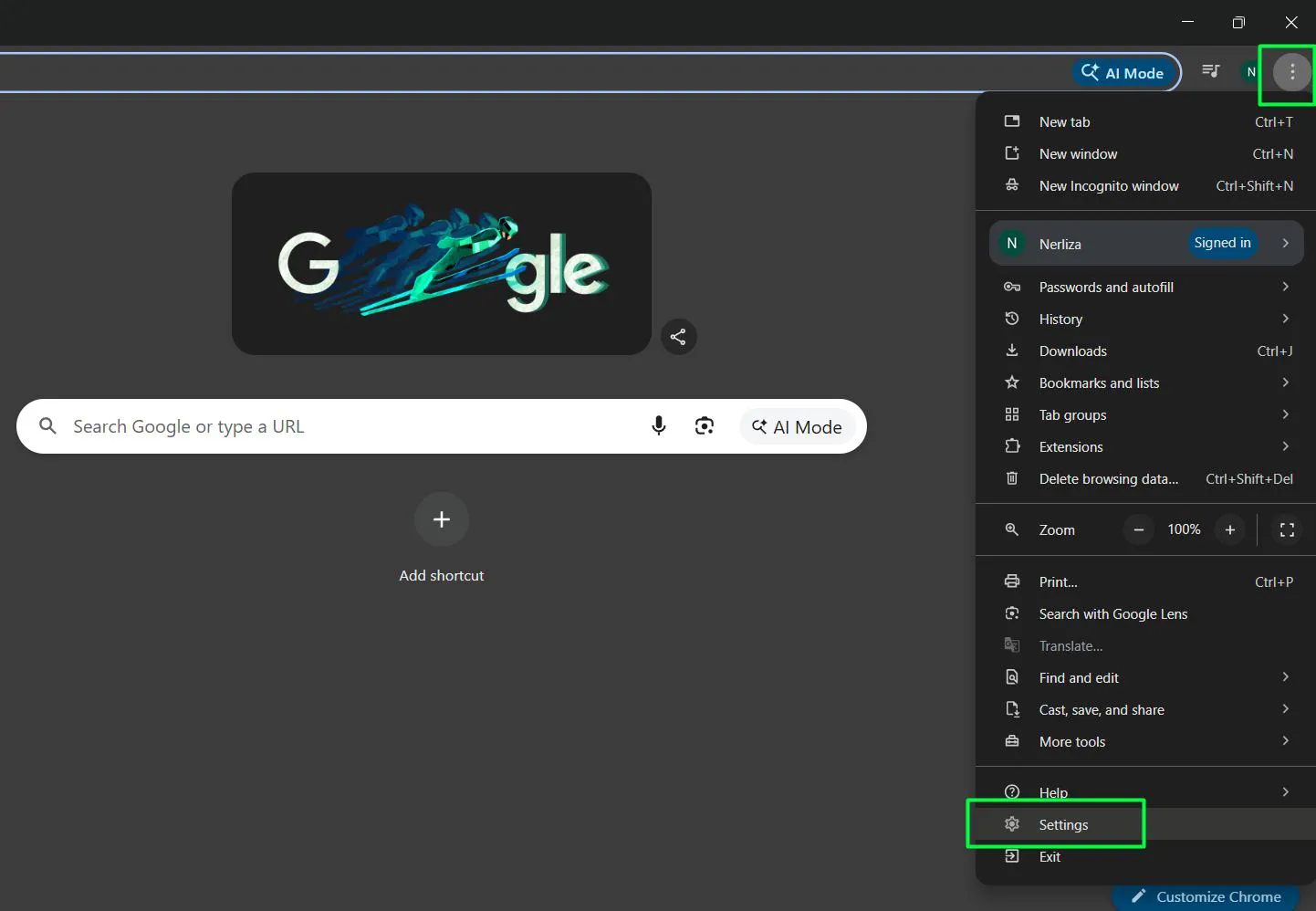
- Click the three vertical dots in the top-right corner of the browser window
- Select ‘Settings’ from the dropdown menu
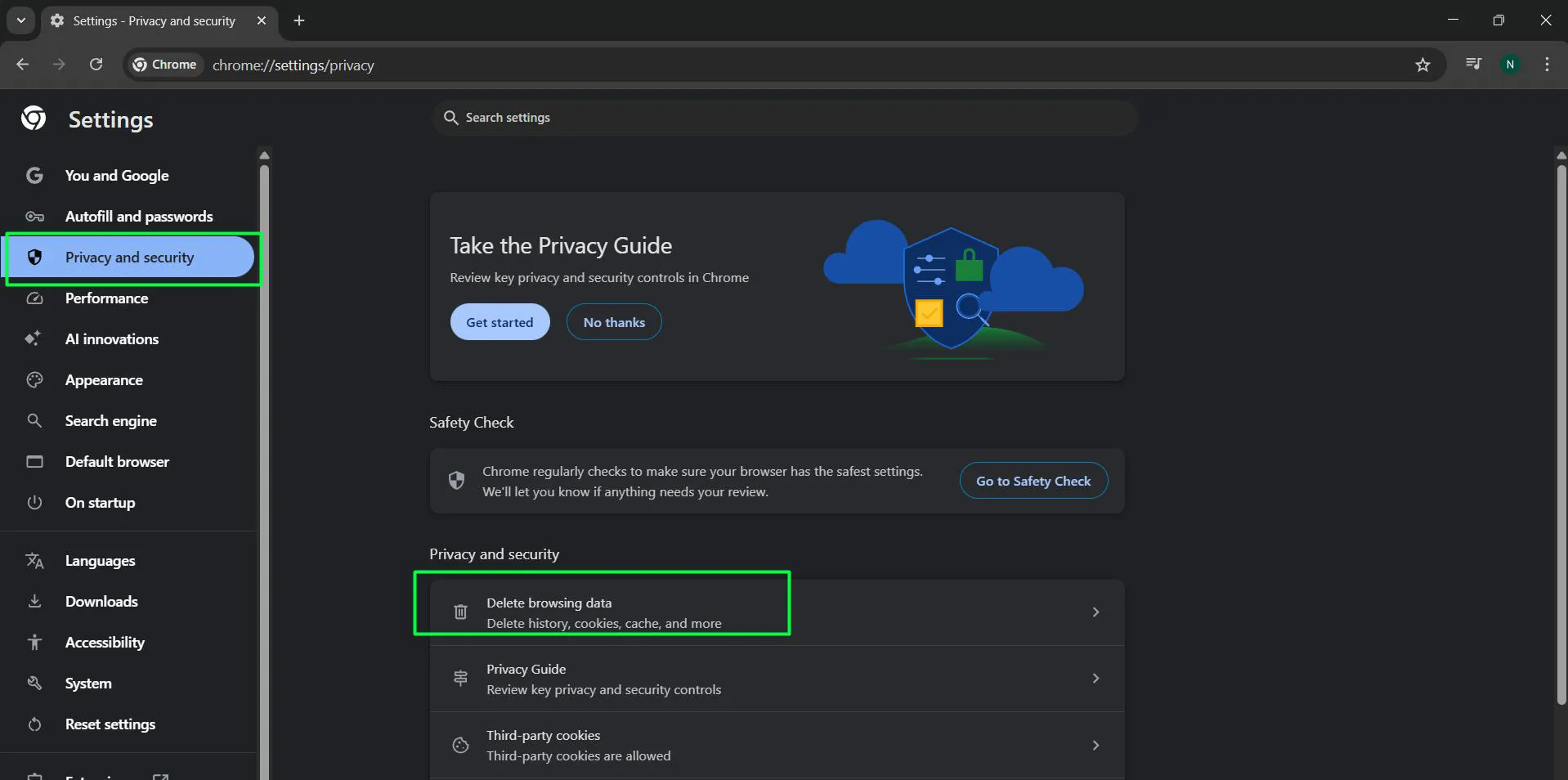
- Navigate to ‘Privacy and security’ in the left sidebar
- Click on ‘Delete browsing data’
- The ‘Delete browsing data’ dialog box will appear with time range options at the top
- Select the desired time range from the available options: ‘Last 15 min’, ‘Last hour’, ‘Last 24 hours’, ‘Last 7 days’, or click ‘More’ to access ‘Last 4 weeks’ and ‘All time’
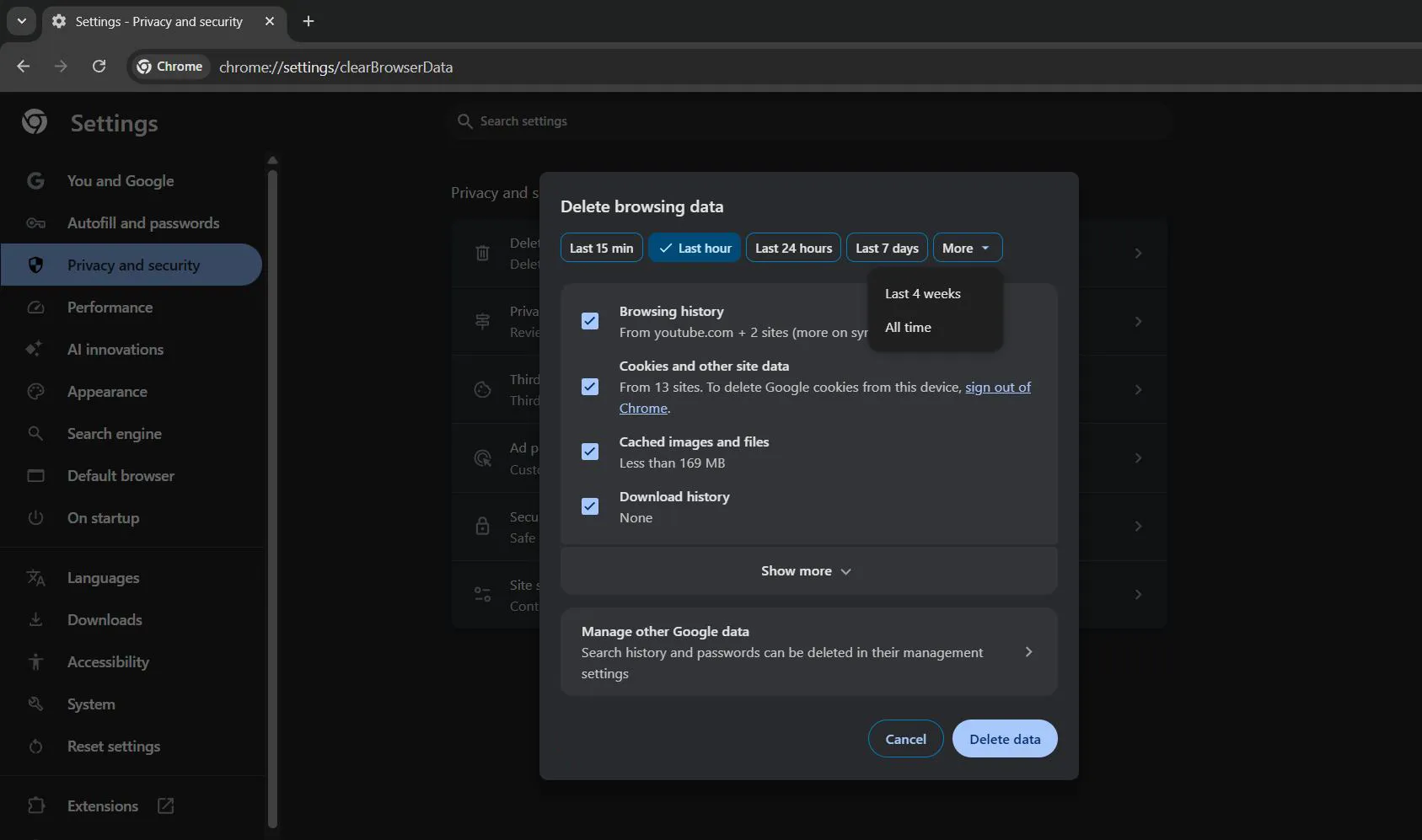
- Ensure the checkbox next to ‘Cached images and files’ is checked (it will show the amount of cached data, such as ‘Less than 169 MB’)
- Optionally check or uncheck other data types like ‘Browsing history’, ‘Cookies and other site data’, or ‘Download history’ based on preferences
- Click the ‘Delete data’ button at the bottom-right to complete the process
The time range option deserves attention. ‘Last hour’ removes only recent cache, while ‘All time’ wipes everything Chrome has stored. Most people find that clearing all time works best for troubleshooting, though it means websites will load slightly slower on the next visit as Chrome rebuilds the cache.
Using Keyboard Shortcuts
Chrome includes a faster method through keyboard commands that jumps directly to the cache clearing screen.
- Press ‘Ctrl + Shift + Delete’ simultaneously while Chrome is open
- The ‘Delete browsing data’ window appears immediately
- Ensure ‘Cached images and files’ has a checkmark
- Select the desired time range from the options at the top
- Click ‘Delete data’ to finish
This shortcut saves time compared to navigating through menus. Power users rely on this method because it requires less than five seconds from start to finish.
Using the Chrome Menu
Another quick access method involves using the Chrome menu directly from the main browser window.
- Click the three vertical dots menu icon in the top-right corner of Chrome
- Look for ‘Delete browsing data…’ option in the menu (it may show the keyboard shortcut ‘Ctrl+Shift+Del’ next to it)
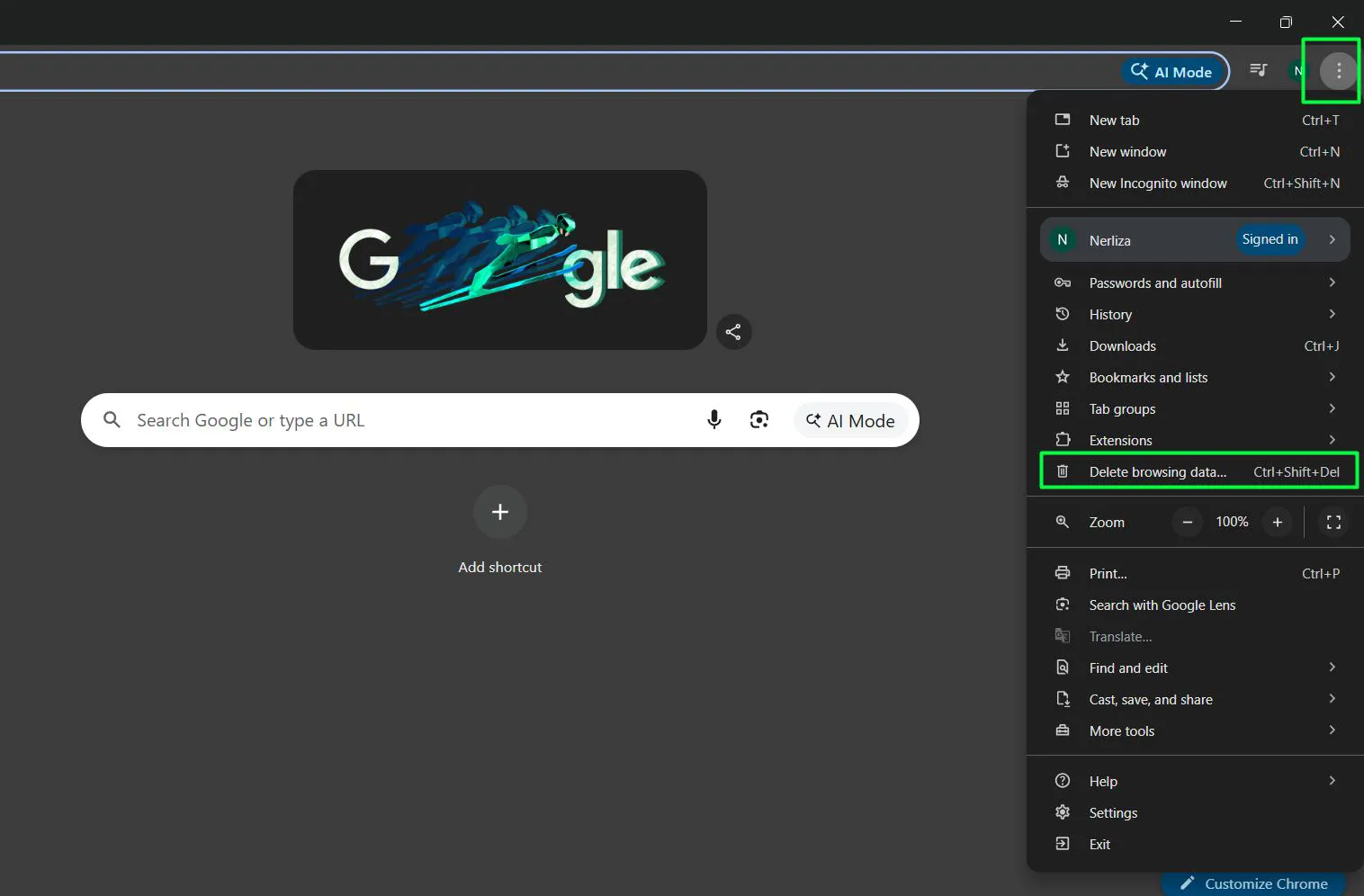
- Click on ‘Delete browsing data…’ to open the clearing dialog
- Select time range and ensure ‘Cached images and files’ is checked
- Click ‘Delete data’ to remove the cached files
Advanced Cache Clearing Options
The ‘Advanced’ tab in the clear browsing data window provides additional control. This section lets users delete specific types of data while preserving others. Someone might want to clear cache but keep passwords and autofill information intact.
Selecting Specific Data Types
The Advanced tab breaks down data into categories. Browsing history, download history, cookies, cached images, passwords, autofill data, and site settings each have individual checkboxes. This works best when targeting specific issues without affecting other browser functions.
For example, keeping cookies while clearing cache maintains login sessions on favorite websites. The browser removes outdated files but remembers site preferences and authentication tokens.
What Happens After Clearing Cache
Chrome removes all stored temporary files matching the selected criteria. The browser size decreases immediately, though the exact amount depends on how much was cached. Websites load from scratch on the next visit, which means initial page loads take longer than usual.
Login sessions might remain active if cookies were not deleted alongside cache. This distinction matters because cache stores page elements while cookies handle authentication and preferences. Clearing only cache leaves login information untouched.
Expected Performance Changes
The first visit to previously cached sites will feel slower. Images, stylesheets, and scripts download fresh rather than loading from local storage. Subsequent visits return to normal speed as Chrome rebuilds the cache with current files.
Problem websites should display correctly after cache removal. Outdated layouts disappear, replaced by current versions. Functionality returns to normal as the browser uses fresh code instead of stale cached scripts.
Alternative Methods for Cache Management
Chrome offers additional tools beyond manual clearing. Extensions exist specifically for cache management, providing scheduled clearing or one-click removal. The browser also includes developer tools with cache controls for advanced users.
Using Developer Tools
Right-clicking anywhere on a webpage and selecting ‘Inspect’ opens Chrome DevTools. The Network tab includes an option to disable cache while DevTools remains open. This helps developers test changes without cached files interfering, though it requires keeping DevTools active.
A hard refresh also bypasses cache for a single page. Pressing ‘Ctrl + Shift + R’ forces Chrome to ignore cached files and download everything fresh. This works best for checking if a specific page has updates without clearing the entire cache.
Maintaining Browser Performance
Regular cache clearing prevents accumulation but should not happen too frequently. Monthly clearing strikes a balance between performance and convenience. More frequent clearing eliminates the speed benefits cache provides, while less frequent clearing allows outdated files to accumulate.
The key is to clear cache when problems arise rather than on a rigid schedule. Proactive clearing makes sense before major software updates or when troubleshooting website issues. Otherwise, letting Chrome manage cache automatically works well for most users.
Storage Space Considerations
Cache rarely exceeds a few gigabytes even with heavy browsing. Modern computers handle this easily, though systems with limited storage benefit from regular clearing. Checking cache size before clearing helps determine if storage is actually a concern.
Chrome stores cache in a specific folder within the user profile. Advanced users can locate this folder to see exact size, though the settings method provides the same information in a friendlier format.
Common Misconceptions About Cache
Clearing cache does not delete passwords, bookmarks, or browsing history unless specifically selected. The ‘Cached images and files’ option targets only temporary website data. This misconception causes hesitation, but cache clearing is safe when done correctly.
Another myth suggests cache clearing speeds up the browser permanently. The reality involves a temporary slowdown followed by normal performance. Speed improvements from cache clearing usually indicate the old cache was causing problems rather than the absence of cache helping performance.
Integration with Windows 11 Features
Windows 11 includes storage management tools that can identify browser cache as part of temporary files. The Settings app under ‘System’ and ‘Storage’ shows how much space Chrome uses. This provides context for whether cache clearing will meaningfully impact available storage.
The operating system does not automatically clear browser cache, leaving that responsibility to the browser or user. Windows can clean system temporary files, but application-specific cache like Chrome’s requires separate action.
Troubleshooting Cache-Related Issues
Sometimes clearing cache alone does not resolve website problems. Cookies or extensions might be causing the issue instead. Testing in Chrome’s incognito mode helps identify whether cache, cookies, or extensions are responsible. Incognito mode runs without cache or extensions, providing a clean baseline.
If a website works in incognito but not in regular mode, cache or cookies are likely culprits. Clearing both usually resolves the problem. If issues persist even in incognito mode, the problem lies elsewhere, perhaps with the website itself or network connectivity.
Frequently Asked Questions
Does clearing cache delete passwords in Chrome?
No, clearing cached images and files does not remove saved passwords. Passwords are stored separately and only delete if the ‘Passwords and other sign-in data’ option is selected in the clear browsing data menu. Cache clearing targets only temporary website files like images and scripts.
How often should Chrome cache be cleared?
Monthly clearing works well for most users, though the ideal frequency depends on browsing habits. Heavy internet users might benefit from clearing every two weeks, while light users can wait longer. Clear cache immediately when experiencing website display problems or loading errors.
Will clearing cache make Chrome faster?
Cache clearing speeds up Chrome only if corrupted cache was causing slowdowns. Otherwise, the browser temporarily becomes slower as it rebuilds cache from scratch. The long-term effect is neutral, with performance returning to normal after a few browsing sessions.
Can cache be cleared automatically in Chrome?
Chrome does not include built-in automatic cache clearing on a schedule. Extensions from the Chrome Web Store can automate this process, clearing cache at set intervals or when closing the browser. Manual clearing remains the standard approach without third-party tools.
What is the difference between cache and cookies?
Cache stores website files like images and stylesheets to speed up loading, while cookies store user preferences and login information. Clearing cache removes temporary files but keeps login sessions active. Clearing cookies logs users out of websites and removes personalized settings.
Does incognito mode use cache?
Incognito mode creates temporary cache during the session but deletes everything when the window closes. This mode does not access or add to the regular browsing cache. Each incognito session starts fresh without any stored files from previous browsing.