
Connecting to Wi-Fi using a QR code on Windows 11 offers a quick and secure way to join wireless networks without manually typing lengthy passwords. This method has become increasingly popular as more routers and network administrators generate shareable QR codes for easy access. The process eliminates typing errors and speeds up connectivity, especially useful when setting up multiple devices or sharing network access with guests.
What You’ll Need Before Starting
Before diving into the connection process, ensure a few basic requirements are met. Windows 11 must be up to date with the latest version installed. The device needs a working camera—most laptops have built-in webcams, while desktop users might need an external USB camera. Additionally, the Wi-Fi network owner must provide a valid QR code containing the network credentials. This QR code typically includes the network name (SSID) and password encoded in a scannable format.
Most modern routers automatically generate Wi-Fi QR codes through their admin panels or companion mobile apps. Some network administrators create custom QR codes using online generators or dedicated software. The quality of the QR code matters too—blurry or damaged codes won’t scan properly, so requesting a fresh printout or clear digital version helps avoid frustration.
Understanding Wi-Fi QR Codes on Windows 11
Wi-Fi QR codes contain encrypted network information in a standardized format that devices can read and interpret. When scanned, these codes automatically extract the network name and password, then prompt the device to connect without manual input. Windows 11 supports this feature through dedicated scanning applications and the built-in camera app with barcode functionality.
The technology behind Wi-Fi QR codes follows the ZXing format, which embeds text strings in a two-dimensional barcode. Most codes follow this structure: WIFI:T:WPA;S:NetworkName;P:Password;;. The ‘T’ indicates security type (WPA, WPA2, or WEP), ‘S’ represents the network name, and ‘P’ contains the password. Windows 11 automatically decodes this information when the camera detects the pattern.
Using WiFi QR Code Scanner App for Direct Connection
The most efficient method to connect to Wi-Fi using a QR code on Windows 11 is through the WiFi QR Code Scanner app by Matthias Duyck from the Microsoft Store. This dedicated application provides enhanced functionality specifically designed for Wi-Fi QR codes, offering automatic connection capabilities that streamline the entire process from scanning to connecting.
- Open the Microsoft Store by searching for it in the Start menu
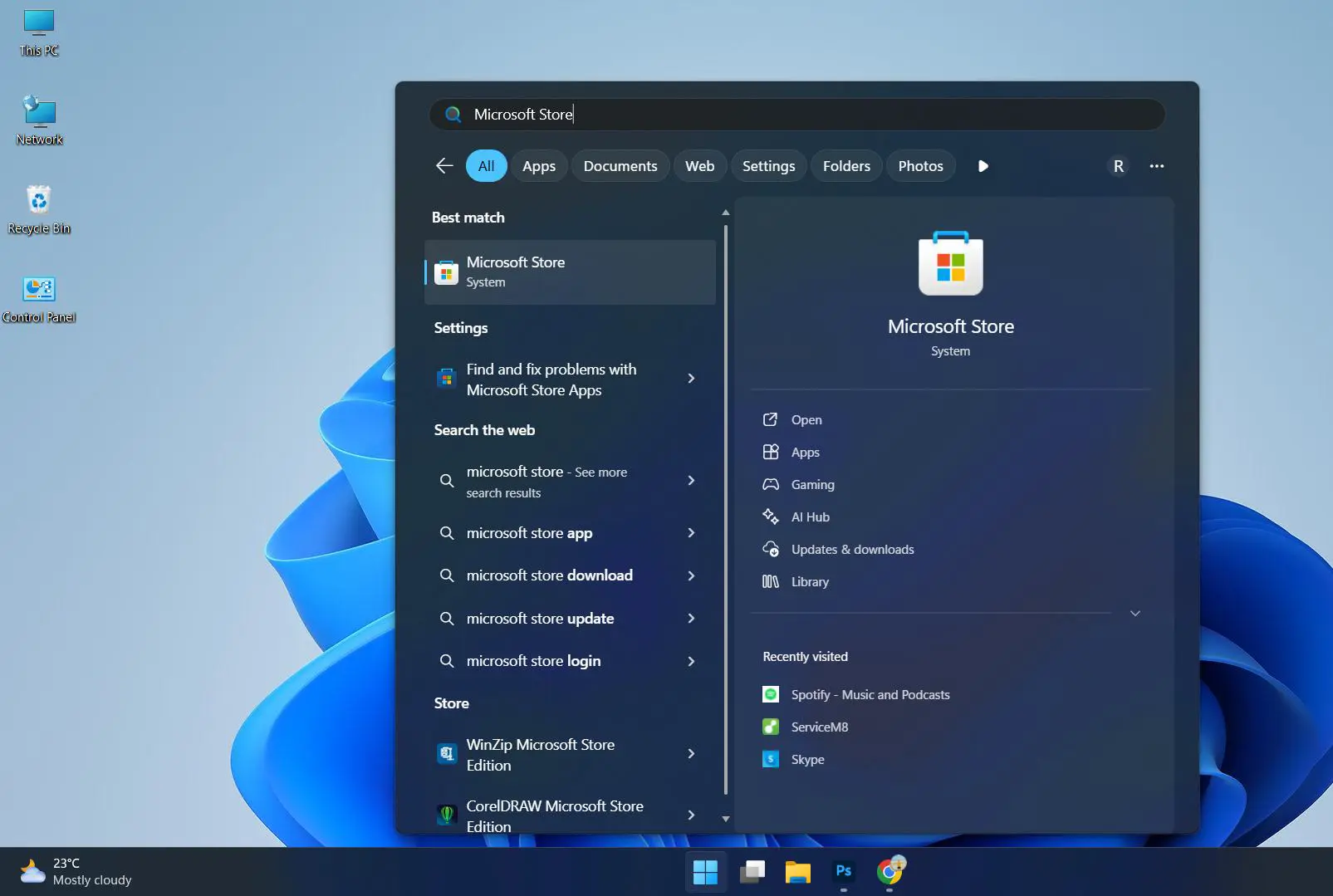
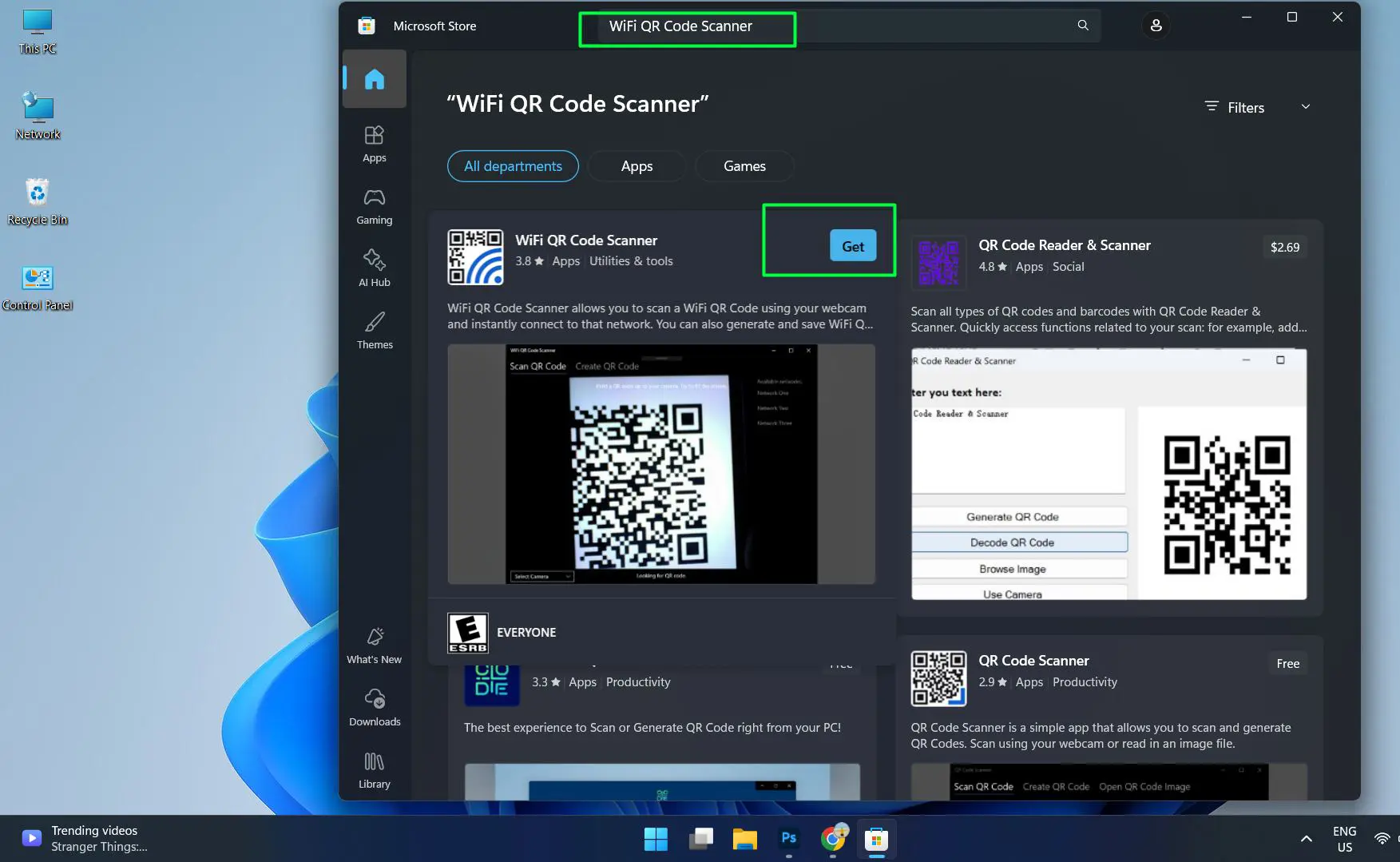
- Search for ‘WiFi QR Code Scanner’
- Click the Get button to install the application
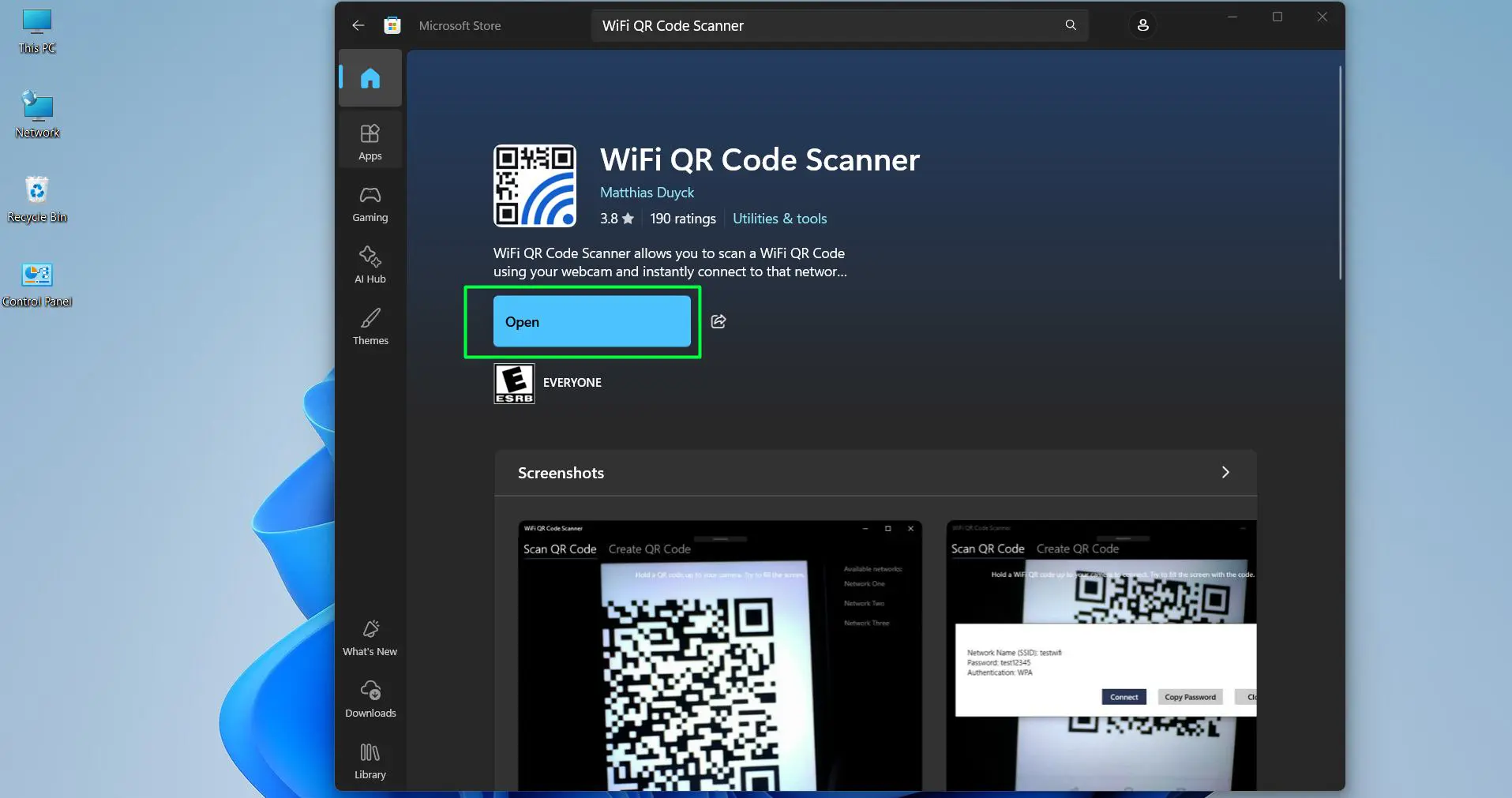
- Click ‘Open’ to launch the WiFi QR Code Scanner app after installation completes
- Grant camera access permission when the app requests it—this allows the app to use the webcam for scanning
– Let WiFi QR Code Scanner access your precise location? Click Yes
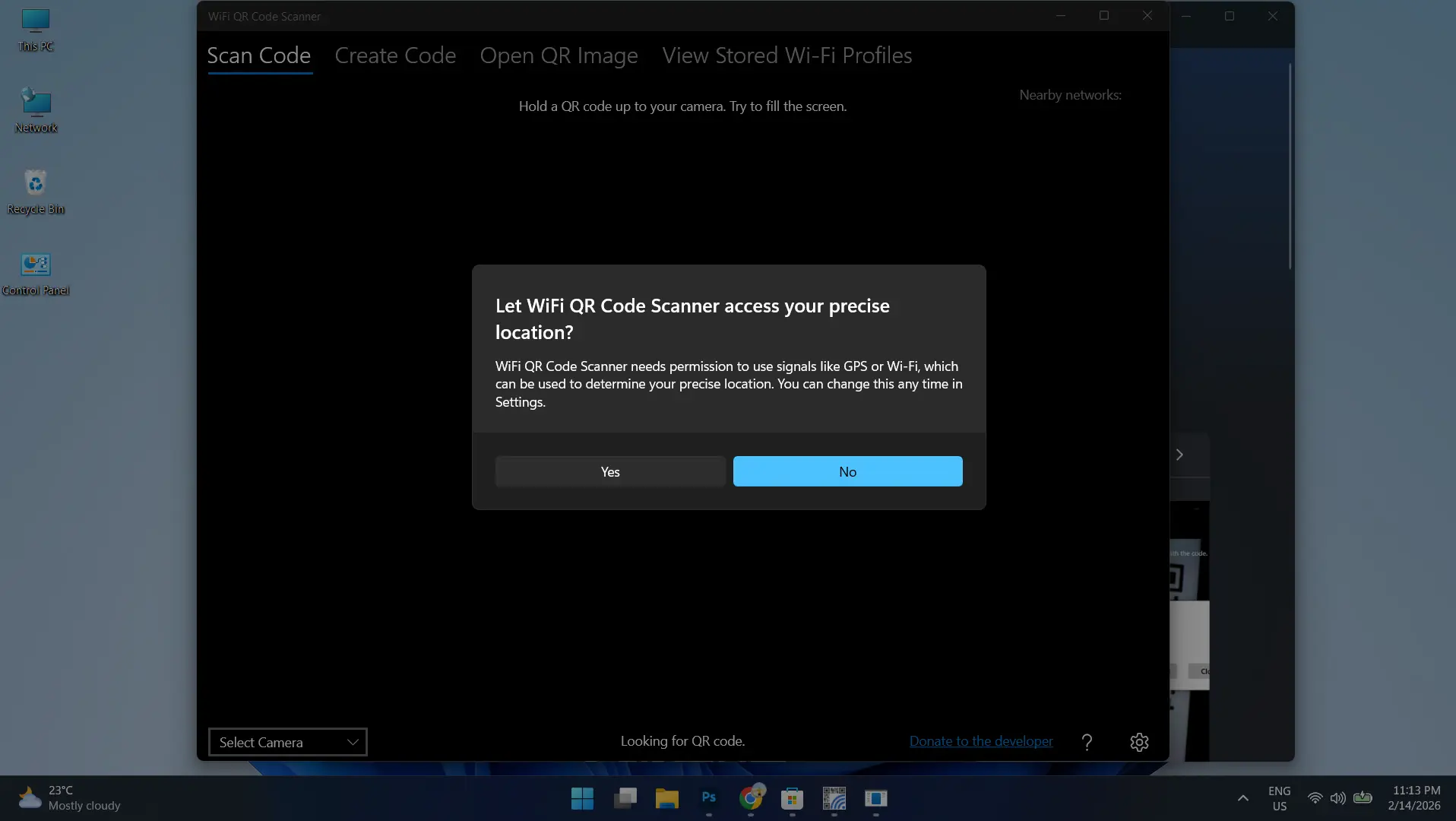
– Let WiFi QR Code Scanner access your camera? Click Yes
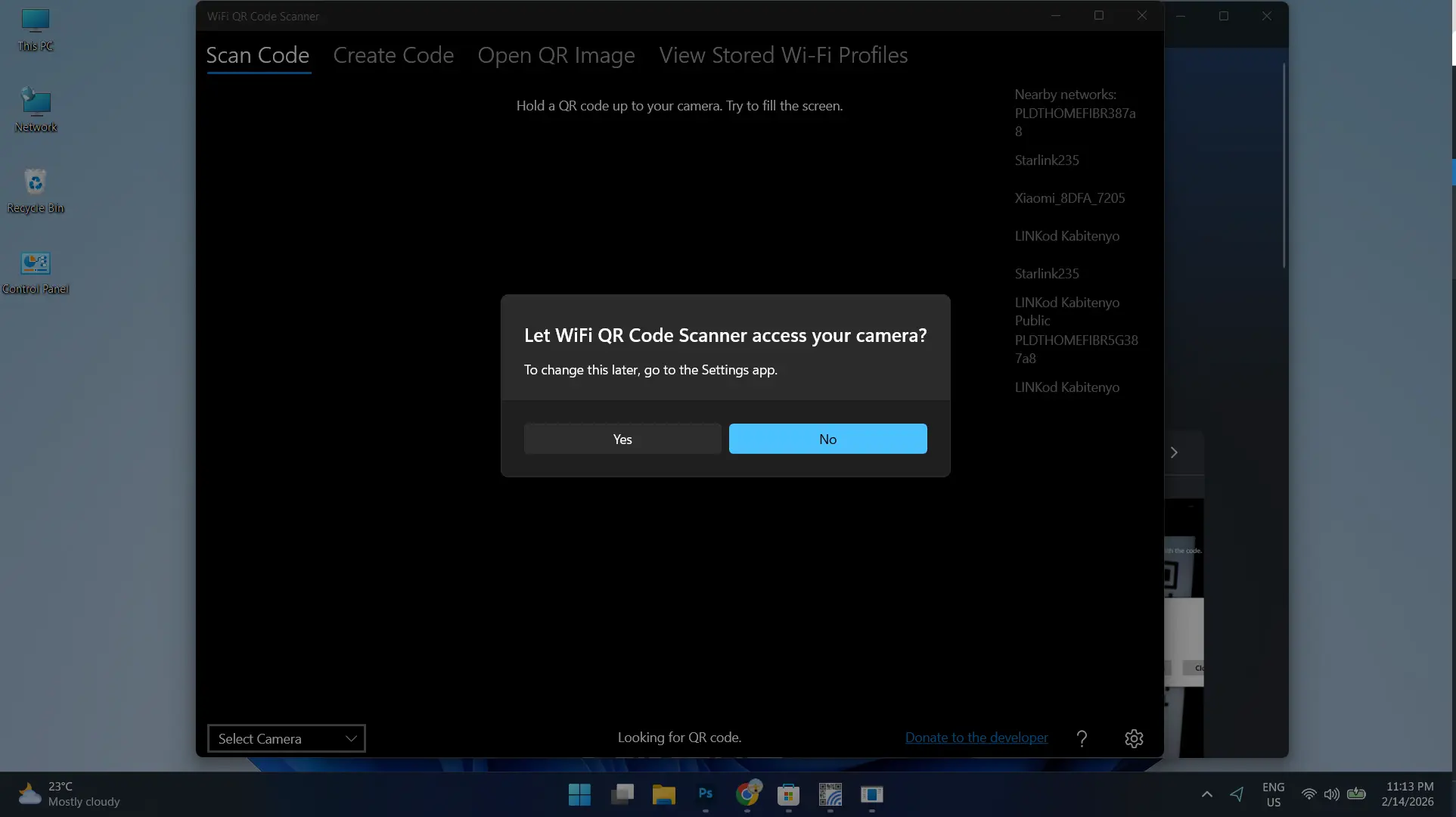
- Click on ‘Scan Code’ tab if not already selected
- Position the Wi-Fi QR code within the camera viewfinder displayed in the app
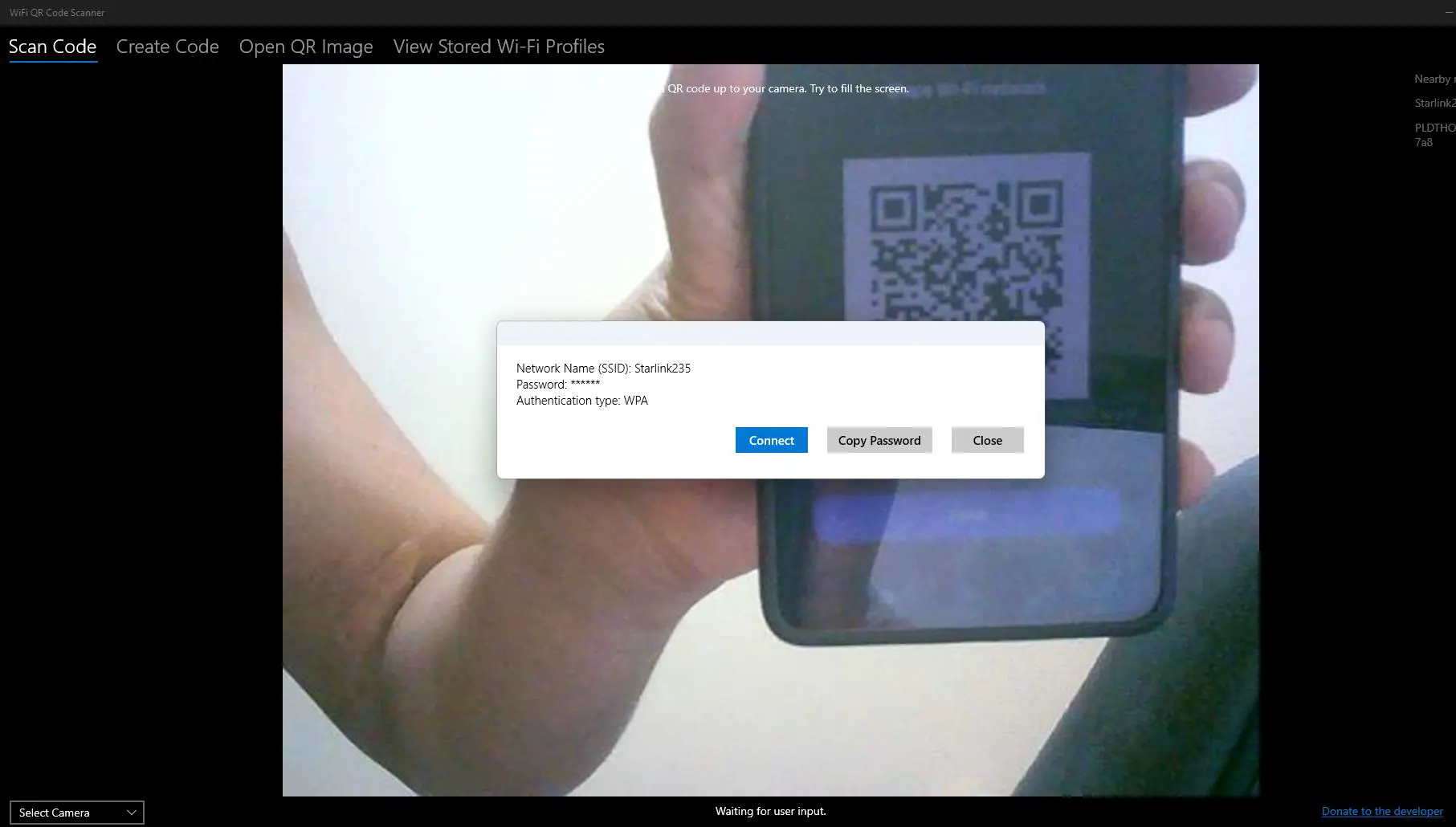
- The app automatically detects and decodes the QR code, displaying network details including SSID, password, and authentication type
- Click the ‘Connect’ button that appears after successful scanning
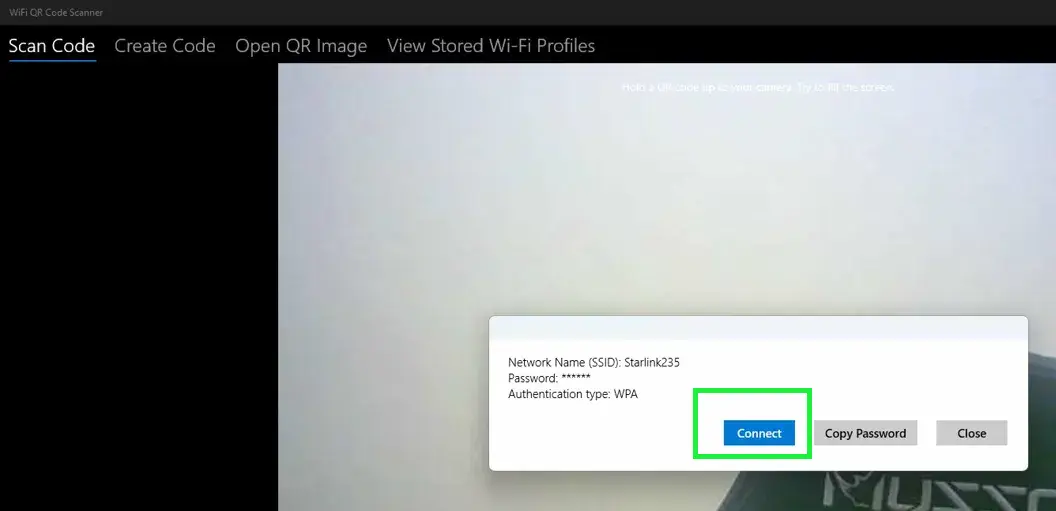
- Wait 5-10 seconds for Windows 11 to establish the connection
- Verify successful connection by checking the Wi-Fi icon in the system tray
This dedicated app offers significant advantages for connecting to networks via QR codes. Unlike other methods that only display credentials, WiFi QR Code Scanner handles the entire connection process automatically. The interface is designed specifically for Windows 11 Wi-Fi management, making the process more intuitive. The app also includes features for creating custom QR codes and managing saved network profiles, providing comprehensive Wi-Fi management capabilities.
Pro-Tip: When scanning a QR code displayed on a smartphone or tablet screen, lower the screen brightness significantly. High brightness creates glare that interferes with camera detection, while medium to low brightness allows the laptop or PC camera to capture the QR code pattern more accurately.
How to View Wi-Fi Details Using the Camera App with Barcode Feature
The built-in Camera app in Windows 11 includes barcode scanning functionality that can read Wi-Fi QR codes and display the network credentials. However, this method only reveals the Wi-Fi details—network name and password—without automatically connecting to the network. Users must manually enter these credentials into Windows network settings to establish a connection.
- Open the Camera app by searching for it in the Start menu or pressing Windows key + typing ‘Camera’
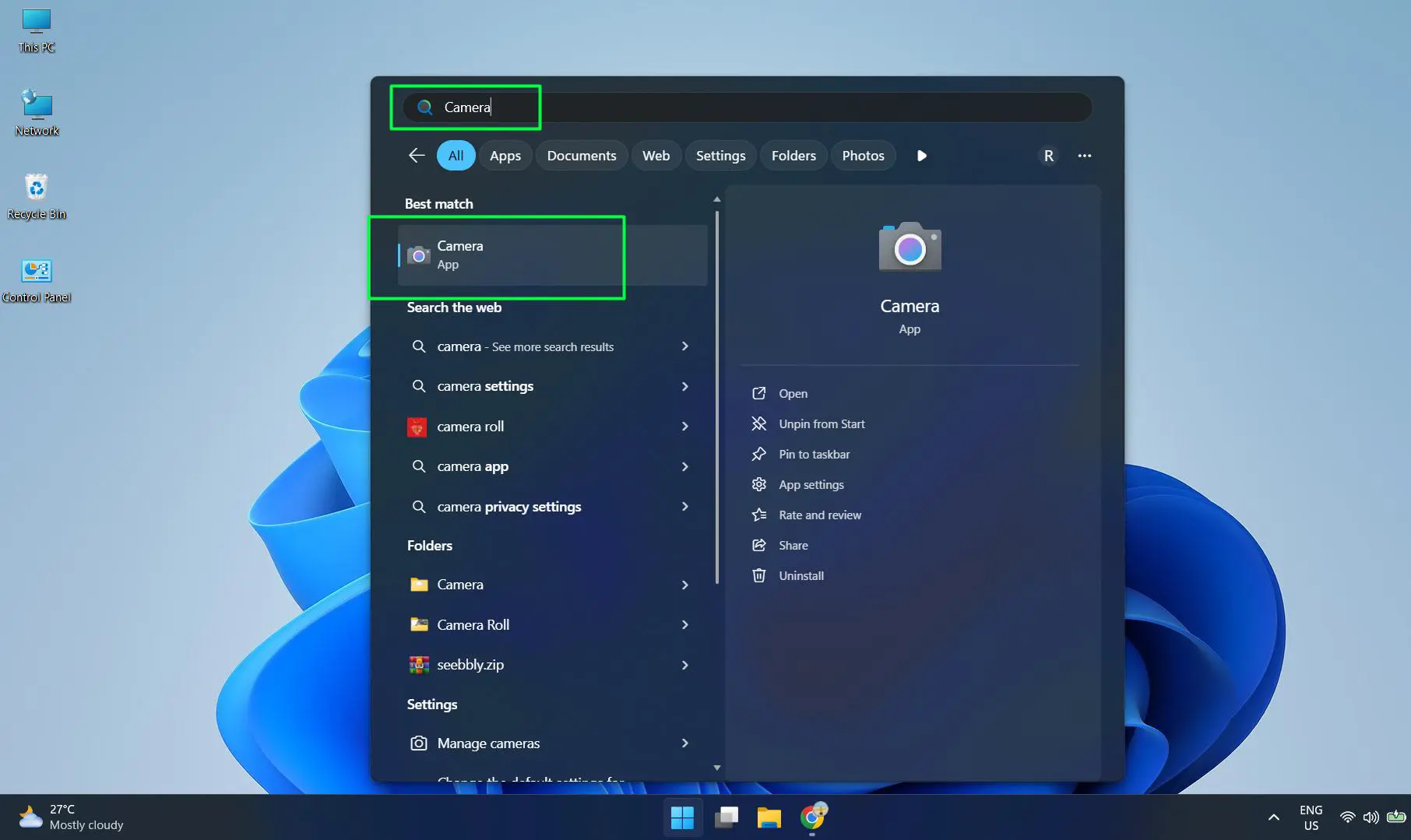
- Look for the barcode icon in the Camera app interface—typically located on the right side or bottom of the screen
- Double click on the barcode icon to activate the QR code scanning mode
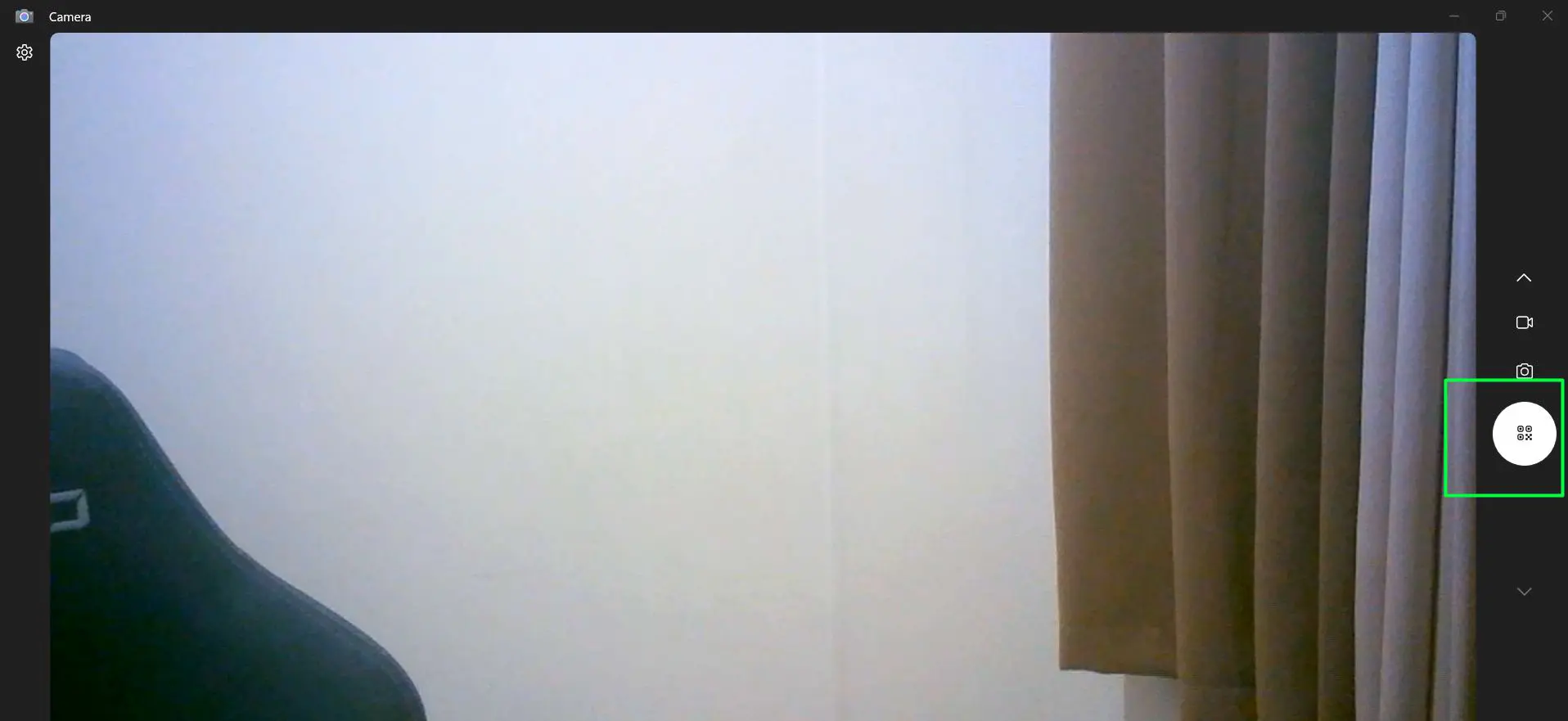
- Point the camera directly at the Wi-Fi QR code, ensuring the entire code fits within the viewfinder
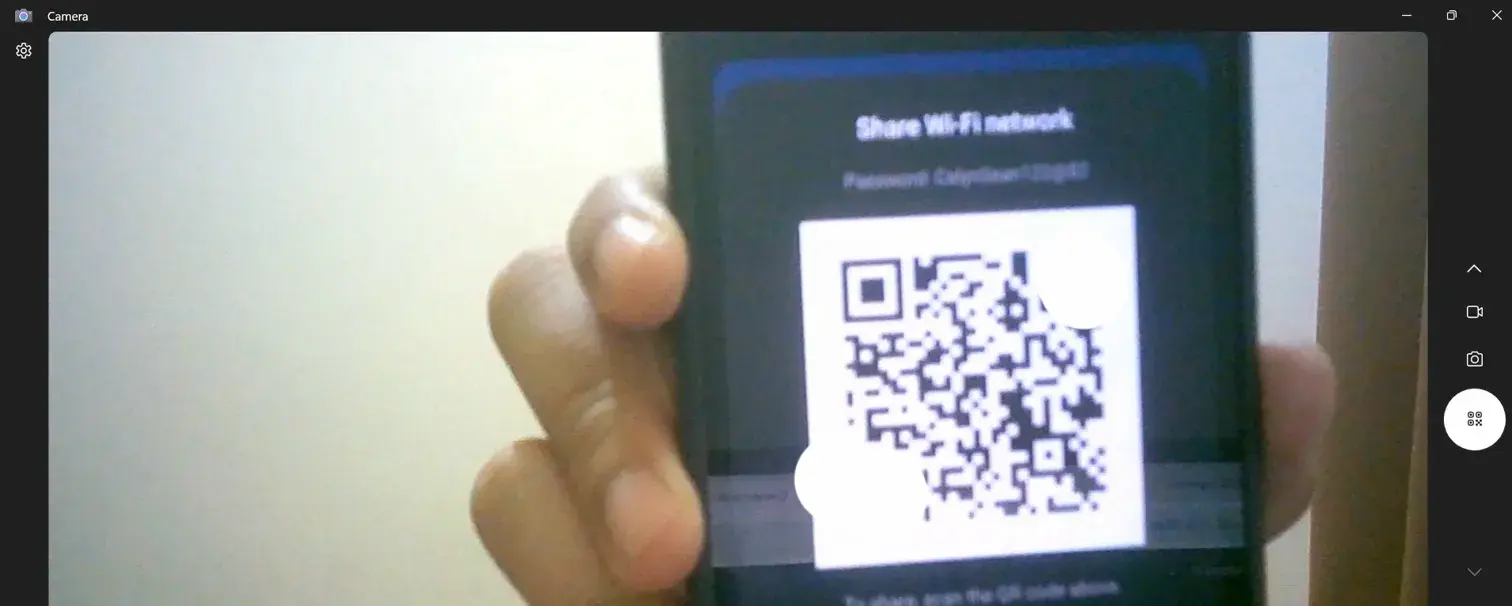
- Hold the device steady for 2-3 seconds while the camera focuses and recognizes the code
- The decoded information appears at the bottom of the screen, showing the network name (SSID) and password
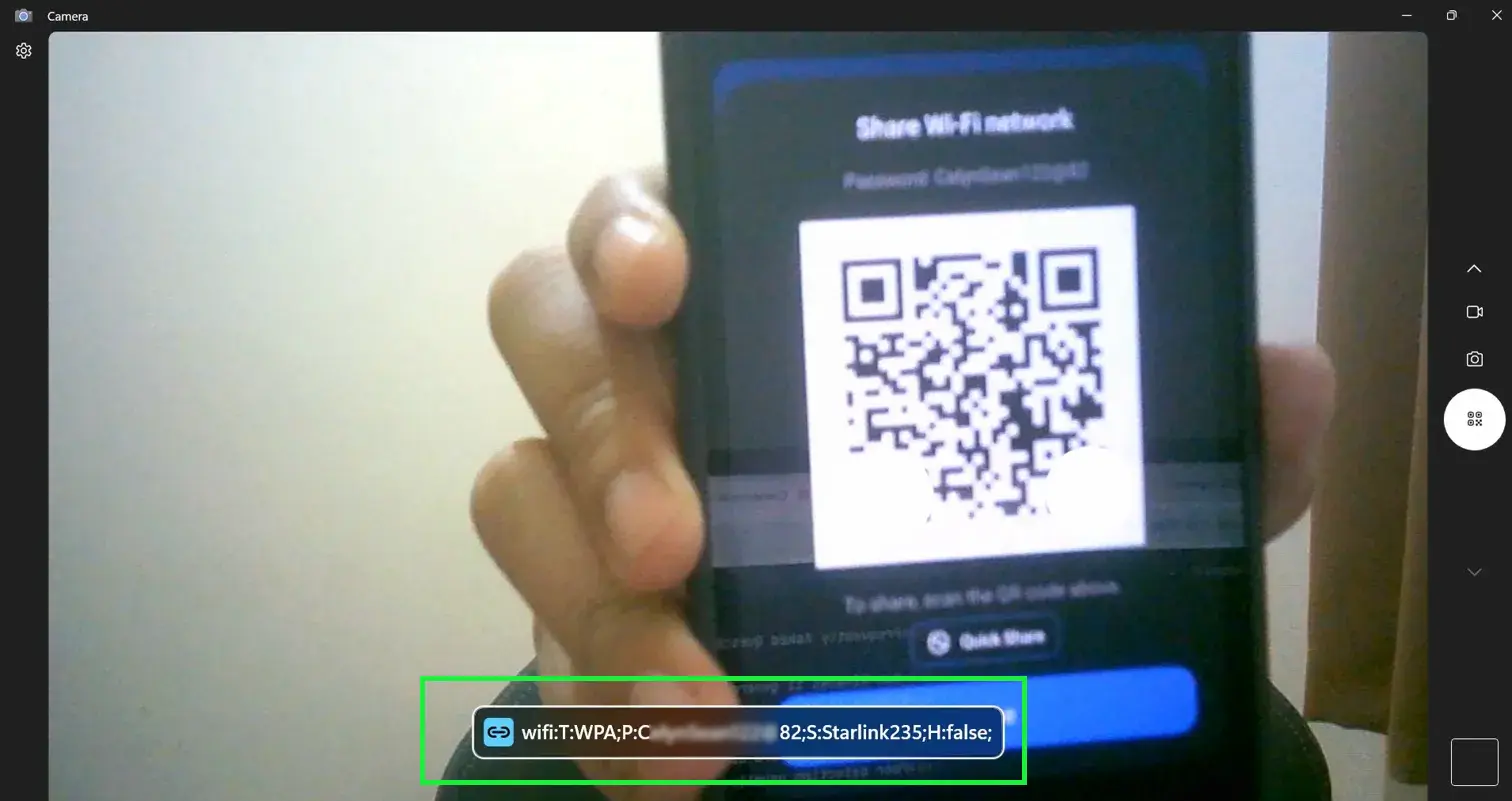
- Write down or memorize the displayed credentials
- Click the Wi-Fi icon in the system tray
- Select the Wi-Fi name from the list of available networks
- Enter the password manually when prompted
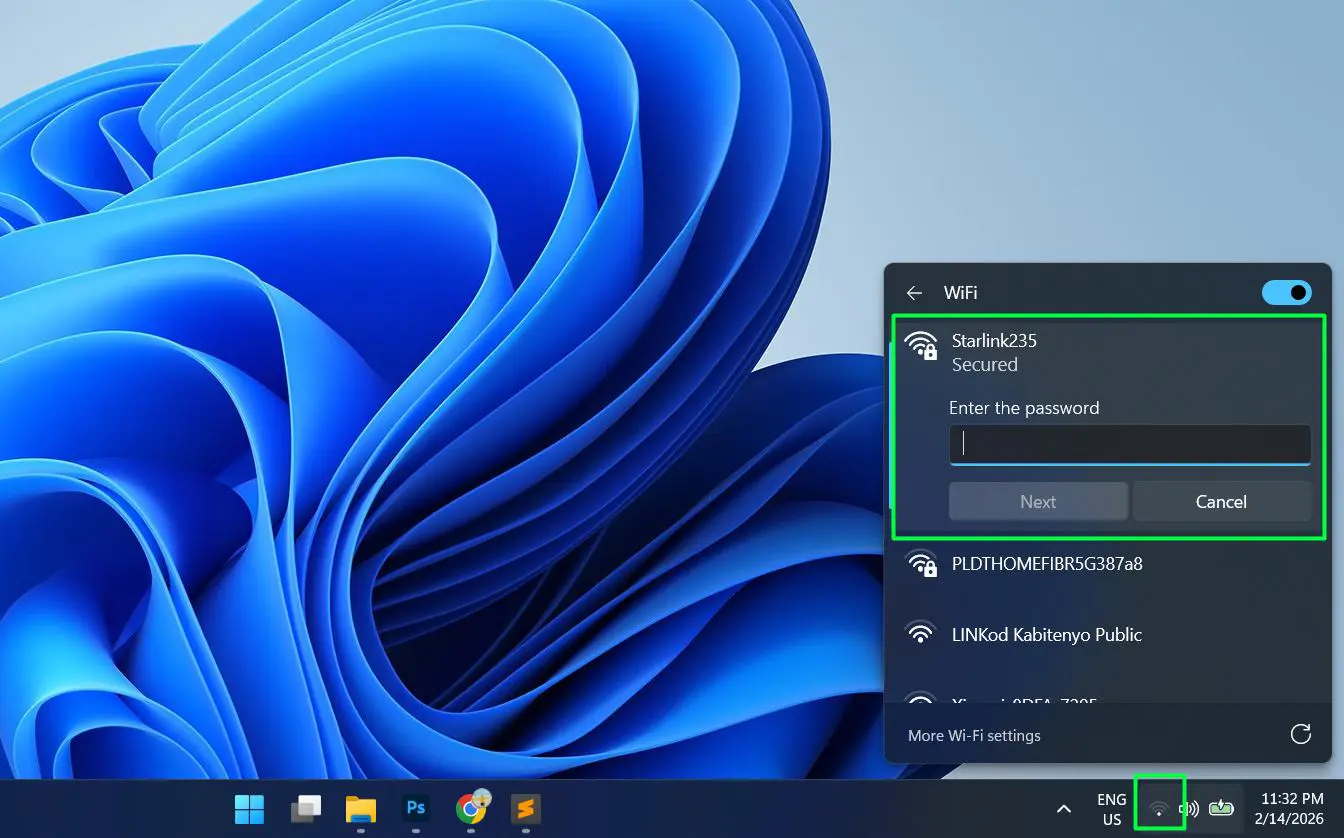
- Click Next to connect and establish the connection
The Camera app barcode feature serves as a convenient credential decoder rather than a complete connection tool. This approach works when quick credential viewing is needed or when troubleshooting connection issues. The scanning process typically takes only seconds when lighting conditions are adequate. Natural daylight or bright indoor lighting produces the best results. If the camera struggles to focus, adjusting the distance between the device and QR code often resolves the issue.
Ensuring Camera Permissions Are Enabled
Camera access must be properly configured for QR code scanning to function. Windows 11 includes privacy controls that sometimes block camera usage, preventing apps from accessing the camera hardware. This applies to both the built-in Camera app and third-party applications like WiFi QR Code Scanner.
- Open Settings by pressing Windows key + I
- Navigate to Privacy & security in the left sidebar
- Click on Camera under App permissions
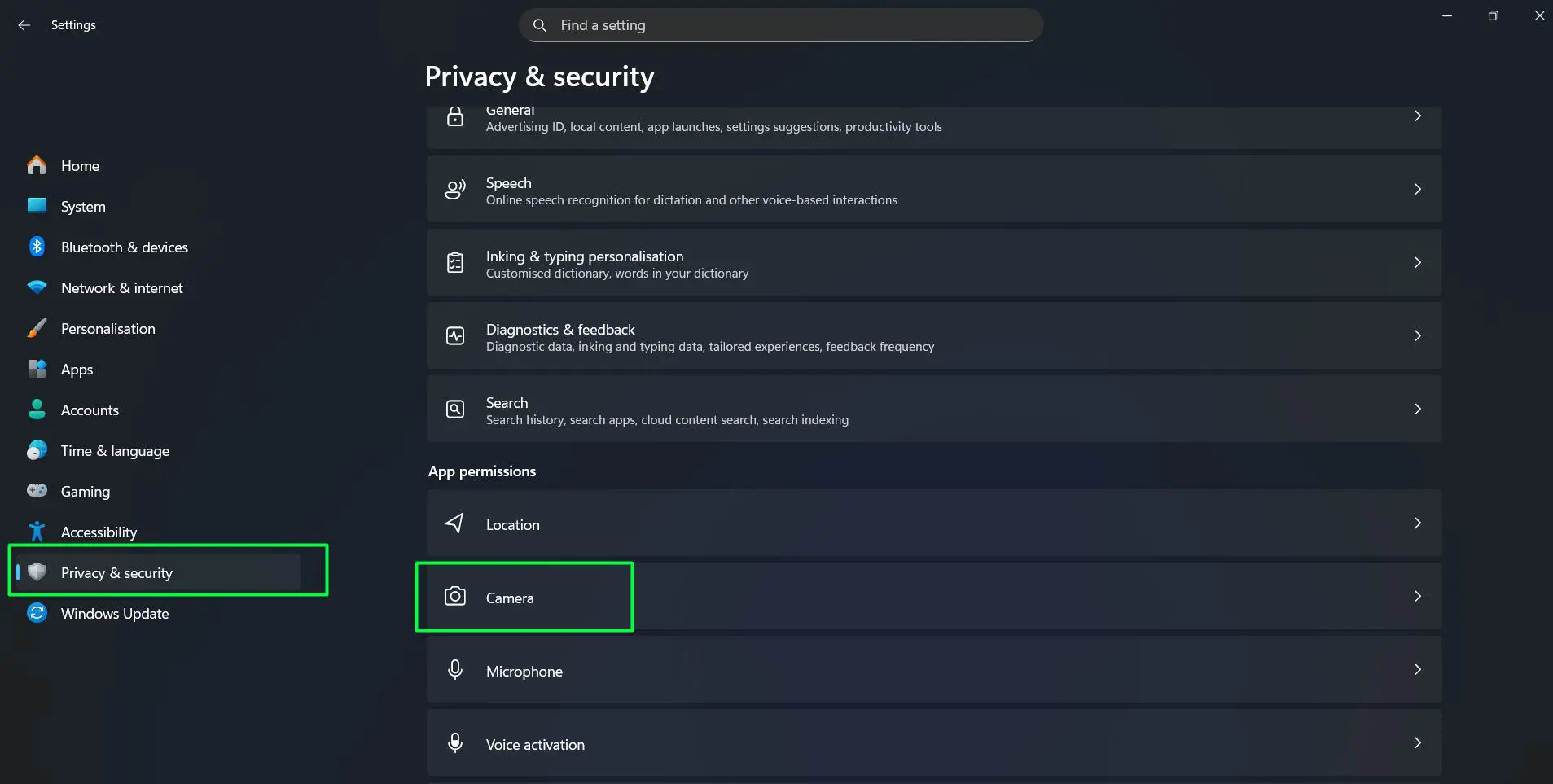
- Ensure the ‘Camera access’ toggle at the top is turned ON
- Scroll down and verify that ‘Let apps access your camera’ is also enabled
- Find Camera app in the list and confirm its toggle is switched ON
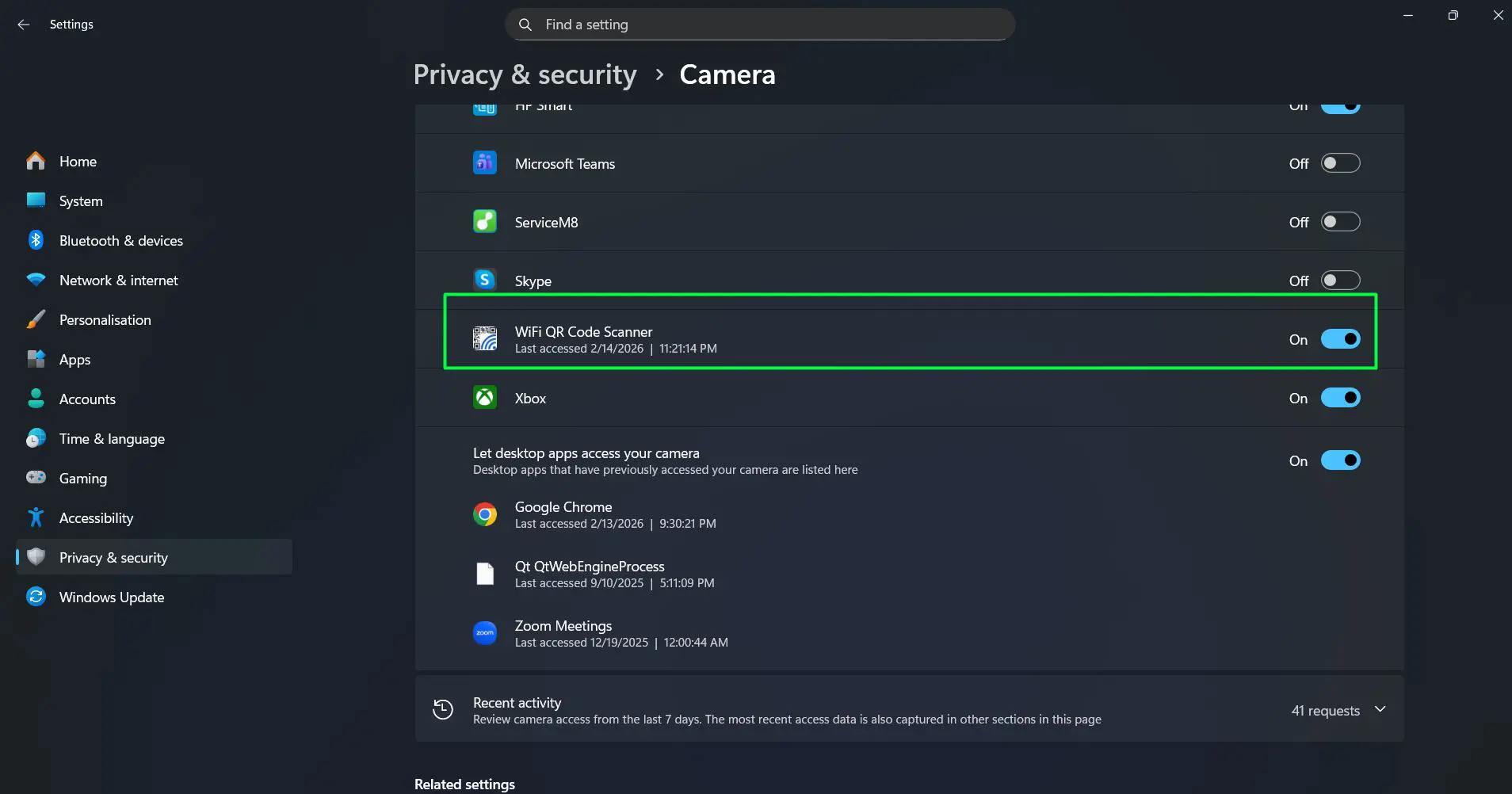
- If using WiFi QR Code Scanner app, locate it in the list and enable camera access
- Restart the respective app if changes were made to apply new permissions
Permission issues account for a significant portion of scanning problems. When camera access is disabled, Windows 11 simply won’t allow any app to activate the webcam. Checking these settings takes less than a minute and eliminates one of the most common obstacles. Desktop users with external cameras should also verify the device is properly plugged in and recognized by Windows.
Pro-Tip: When first launching WiFi QR Code Scanner or any QR scanning app, Windows 11 displays a permission dialog. Always select ‘Yes’ or ‘Allow’ to grant camera access. Without this permission, the app cannot function properly. If accidentally denied, manual permission adjustment through Settings becomes necessary.
What Happens After Successful Connection
Once the QR code scan completes successfully and connection is established, Windows 11 stores the network profile in its known networks list. This means future connections to the same network happen automatically when in range—no need to rescan the QR code. The saved profile includes the network name, password, and security settings, all encrypted for protection.
The Wi-Fi icon in the system tray changes from empty bars to filled bars, indicating signal strength and active connection. Opening the network settings panel shows the connected network name at the top of the Wi-Fi section. Internet access typically becomes available within seconds, though some networks with captive portals might require additional browser-based authentication.
Network properties can be managed by right-clicking the Wi-Fi icon and selecting ‘Network & Internet settings.’ From there, adjusting connection priority, enabling metered connection mode, or forgetting the network becomes straightforward. Windows 11 treats QR-code-connected networks identically to manually configured ones, providing full control over all connection parameters.
When to Use QR Code Connection
QR code connectivity shines in specific scenarios where traditional password entry becomes cumbersome. Guest networks at cafes, offices, or conference venues increasingly provide QR codes for instant access. Home users can generate QR codes for their networks and display them for visitors, eliminating the need to verbally share complex passwords.
Setting up new devices benefits greatly from this method—tablets, laptops, and convertibles with touch screens can scan codes faster than typing. The approach also reduces security risks associated with writing down passwords or storing them in easily accessible locations. Educational institutions and businesses with rotating network credentials find QR codes particularly useful since updating access requires only generating a new code rather than notifying every user.
Temporary networks set up for events, presentations, or short-term projects become more manageable with QR codes. Participants can connect quickly without IT support, and access can be revoked by simply discontinuing the QR code. This flexibility makes the method ideal for dynamic environments where network access needs change frequently.
Frequently Asked Questions
Can Windows 11 generate Wi-Fi QR codes to share networks?
Windows 11 doesn’t include a native feature to generate Wi-Fi QR codes directly. However, the WiFi QR Code Scanner app from the Microsoft Store includes QR code generation functionality. Router admin panels often provide this feature natively, or free online QR code generators designed specifically for Wi-Fi sharing can be used safely to create shareable codes.
What if the camera doesn’t detect the QR code?
Poor detection usually stems from lighting issues, camera focus problems, or damaged QR codes. Try improving lighting conditions, cleaning the camera lens, or adjusting the distance between camera and code. If scanning a QR code from a phone screen, significantly lower the screen brightness to reduce glare. Ensuring camera permissions are enabled in Windows 11 settings also resolves most detection failures.
Is connecting via QR code secure?
Yes, QR code connections are secure when the code comes from a trusted source. The method uses the same encryption standards as manual password entry. The main security consideration involves ensuring the QR code originates from the legitimate network owner, as malicious codes could theoretically direct devices to compromised networks.
Do all Wi-Fi routers support QR code generation?
Not all routers automatically generate QR codes, though most modern models from major manufacturers include this feature in their mobile apps or web interfaces. Older routers may require third-party tools or apps like WiFi QR Code Scanner to create shareable QR codes using the network name and password.
Which method is better: Camera app or WiFi QR Code Scanner app?
The WiFi QR Code Scanner app offers superior functionality with automatic connection capabilities and network profile management. The built-in Camera app with barcode feature only decodes the QR code and displays credentials, requiring manual connection setup afterward. For seamless connectivity and frequent QR code usage, the dedicated app provides better user experience and eliminates extra steps.