
Fast Startup in Windows 11 is a feature designed to reduce boot time by saving a portion of the system state to a hibernation file when you shut down. While it sounds helpful, it can sometimes cause problems – from driver conflicts and update issues to devices not responding properly after a restart. Knowing how to disable Fast Startup in Windows 11 is a practical fix that many users find solves these issues quickly.
Key Takeaways
- Fast Startup is enabled by default in Windows 11 and can interfere with full system shutdowns.
- Disabling it can resolve boot errors, driver issues, and dual-boot conflicts.
- The main method uses Control Panel – Power Options – Choose what the power buttons do.
- Administrator access is required to make this change.
- The change takes effect immediately after saving and does not require a restart.
How to Disable Fast Startup in Windows 11
The most reliable way to turn off Fast Startup is through the Control Panel power settings. This method works on all editions of Windows 11 and only takes about a minute to complete.
- Step 1: Press the Windows key on the keyboard, type Control Panel, and click on it from the search results to open it.

- Step 2: In Control Panel, click on System and Security.

- Step 3: Under the ‘Power Options’ section, click Change what the power buttons do. This is a direct link that opens the system settings panel for shutdown behavior.

- Step 4: At the top of the page, click Change settings that are currently unavailable. This is required to unlock the Fast Startup option – without this step, the checkbox stays grayed out.

- Step 5: Scroll down to the ‘Shutdown settings’ section. Uncheck the box that says Turn on fast startup (recommended).

- Step 6: Click Save changes to apply the setting.

That is all it takes. The next time the computer is shut down, Windows 11 will perform a full shutdown instead of the hybrid sleep-like shutdown that Fast Startup uses. For more control over how the system handles power and sleep settings in Windows, it is worth reviewing those options as well.
Pro-Tip: If the ‘Turn on fast startup’ checkbox is missing entirely, it usually means hibernation is disabled on the system. Open Command Prompt as administrator and run powercfg /hibernate on to re-enable hibernation – the Fast Startup option will then appear. Learning how to run CMD as administrator is a quick process if needed.
How to Disable Fast Startup Using Command Prompt
For those who prefer a faster approach or need to apply this change across multiple systems, the Command Prompt method works just as well. This is especially useful for IT administrators or power users.
- Step 1: Press Windows + S, type cmd, right-click on Command Prompt, and select Run as administrator.

- Step 2: In the Command Prompt window, type the following command and press Enter: powercfg /hibernate off

This command disables hibernation entirely, which also disables Fast Startup since Fast Startup depends on the hibernation file (hiberfil.sys) to function. The change is immediate – no restart needed.
To confirm it worked, type powercfg /a and press Enter. The output will list available sleep states, and hibernation should no longer appear as an option.
How to Disable Fast Startup via Registry Editor
The Registry Editor method gives direct access to the underlying setting. Use this approach carefully, as incorrect edits to the registry can affect system behavior.
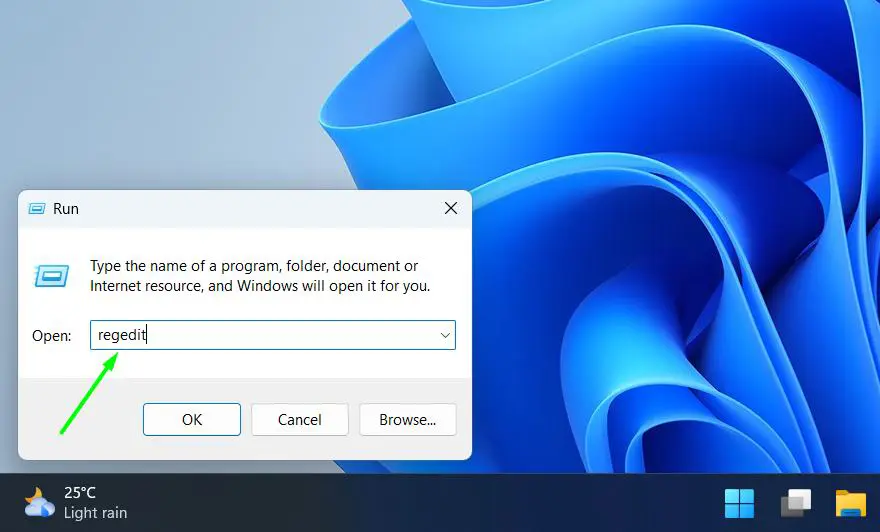
- Step 1: Press Windows + R, type regedit, and press Enter to open Registry Editor.
- Step 2: Navigate to the following path: HKEY_LOCAL_MACHINE\SYSTEM\CurrentControlSet\Control\Session Manager\Power

- Step 3: In the right pane, look for a value named HiberbootEnabled.

- Step 4: Double-click on HiberbootEnabled and change the value data from 1 to 0.

- Step 5: Click OK and close Registry Editor.
Setting this value to 0 disables Fast Startup at the registry level. It is a good idea to create a restore point before making registry changes, just as a precaution.
How to Disable Fast Startup via Group Policy (Windows 11 Pro and Enterprise)
Windows 11 Pro and Enterprise editions include Group Policy Editor, which offers another way to disable Fast Startup – particularly useful in managed environments.
- Step 1: Press Windows + R, type gpedit.msc, and press Enter.
- Step 2: In the left panel, navigate to: Computer Configuration – Administrative Templates – System – Shutdown.
- Step 3: In the right panel, double-click on Require use of fast startup.
- Step 4: Select Disabled and click OK.
This method enforces the setting at a policy level, meaning it cannot be overridden through the normal Control Panel interface until the policy is changed back.
Pro-Tip: On systems where Fast Startup keeps turning back on after Windows Updates, the Group Policy method is the most effective way to keep it permanently disabled. Windows Update sometimes re-enables Fast Startup, especially after feature updates – this policy prevents that from happening.
Tips for Managing Fast Startup in Windows 11
- Always use Shut Down from the Start menu rather than the power button if Fast Startup is enabled, as the power button may be set to sleep or hibernate by default.
- If using a dual-boot setup with Linux or another OS, disabling Fast Startup is strongly recommended to avoid file system conflicts.
- Disabling Fast Startup slightly increases boot time, but most users report the difference is only a few seconds on modern hardware.
- On laptops, consider reviewing screen timeout settings in Windows alongside power options to balance performance and battery life.
- After disabling Fast Startup, a full shutdown will clear the page file and refresh all drivers on the next boot – which is helpful after installing new drivers or software.
Common Problems When Disabling Fast Startup
The ‘Turn on fast startup’ option is grayed out
This happens when hibernation is disabled. Open Command Prompt as administrator and run powercfg /hibernate on to enable hibernation first. After that, return to the Power Options panel and the checkbox will be available.
Fast Startup keeps re-enabling after Windows Update
Windows Updates – especially major feature updates – can reset certain power settings back to defaults. Using the Group Policy method (for Pro/Enterprise users) prevents this. Alternatively, check after every major update and re-disable it if needed.
The ‘Change settings that are currently unavailable’ link is missing
This usually means the user account does not have administrator privileges. Log in with an administrator account, or ask the system administrator to make the change. Standard user accounts cannot modify shutdown settings.
Computer still boots fast after disabling Fast Startup
Fast boot speed after disabling Fast Startup is likely due to an SSD rather than the feature itself. SSDs have very fast read speeds and will boot Windows 11 quickly regardless of Fast Startup being enabled or disabled. This is normal behavior and not a sign that the change did not apply.
Dual-boot issues persist after disabling Fast Startup
If another OS (like Linux) still cannot access the Windows partition after Fast Startup is disabled, make sure to perform a full shutdown (not a restart) before switching operating systems. Also verify that hibernation is fully disabled using powercfg /hibernate off in Command Prompt.
Frequently Asked Questions
What does Fast Startup do in Windows 11?
Fast Startup is a hybrid shutdown feature that combines elements of a full shutdown and hibernate mode. When the computer shuts down, it saves the kernel session and drivers to a hibernation file. On the next boot, Windows loads this file instead of doing a full initialization – which reduces startup time. However, it means the system never fully resets between sessions.
Is it safe to disable Fast Startup in Windows 11?
Yes, it is completely safe to disable Fast Startup. Disabling it simply means Windows will perform a full, traditional shutdown each time. The only noticeable difference is that boot times may increase slightly – usually by just a few seconds on modern hardware with an SSD.
Will disabling Fast Startup affect performance?
Disabling Fast Startup does not affect general system performance while the computer is running. It only affects the speed of shutting down and starting up. On most modern PCs with SSDs, the difference in boot time is minimal and often unnoticeable in day-to-day use.
Why is Fast Startup causing problems on a PC?
Fast Startup can cause issues because it prevents a true full shutdown. This means that driver states, update processes, and hardware initialization are not fully refreshed between sessions. Common symptoms include USB devices not being recognized after boot, Windows Updates failing to install correctly, and dual-boot systems running into file access conflicts.
Does disabling Fast Startup fix the Windows 11 black screen on startup?
In many cases, yes. A black screen on startup is sometimes caused by graphics drivers not initializing correctly when loaded from a hibernation file. Disabling Fast Startup forces the GPU and its drivers to fully reload on each boot, which often resolves this kind of issue.
Does disabling Fast Startup improve laptop battery life?
Not directly. Fast Startup is a shutdown behavior, so it does not affect how the battery drains while the laptop is on. However, if hibernation is disabled alongside Fast Startup, it removes the option for the system to hibernate during low-battery situations – so it is worth keeping hibernation available on laptops even if Fast Startup itself is turned off.
Can Fast Startup be re-enabled after disabling it?
Yes. To re-enable Fast Startup, follow the same steps through Control Panel – Power Options – Choose what the power buttons do, and simply check the ‘Turn on fast startup’ box again before saving changes. It can be toggled on and off as needed.
Does disabling Fast Startup affect dual-boot systems?
Disabling Fast Startup is highly recommended for dual-boot systems. When Fast Startup is on and Windows shuts down, it locks the NTFS partitions. Other operating systems like Linux cannot mount these locked partitions in read-write mode, which can lead to data access errors or filesystem corruption over time.
Is there a way to check if Fast Startup is currently enabled?
Yes. Open Command Prompt and type powercfg /a. If ‘Hibernate’ appears in the list of available sleep states, Fast Startup is likely enabled (assuming it has not been manually unchecked in settings). Alternatively, navigate to Control Panel – Power Options – Choose what the power buttons do to see the current state of the checkbox directly.
Does Windows 11 Home have the option to disable Fast Startup?
Yes. The Control Panel method and the Command Prompt method both work on Windows 11 Home. The only method not available on Home edition is Group Policy Editor (gpedit.msc), which is exclusive to Windows 11 Pro and Enterprise editions.