
File Explorer in Windows 11 gets the job done, but it lacks many features that power users and productivity enthusiasts rely on daily. The good news is that several excellent alternatives offer tabbed browsing, dual-pane views, advanced search capabilities, and customizable interfaces that transform how files are managed on Windows.
This guide covers three proven File Explorer alternatives that stand out for their reliability, feature sets, and user experience. Each option has been tested extensively on Windows 11 systems to ensure compatibility and performance.
Quick Comparison of Top File Explorer Alternatives
| File Manager | Best For | Key Features | License |
|---|---|---|---|
| Files App | Modern interface lovers | Fluent Design, tabs, cloud integration | Free & Open Source |
| Total Commander | Power users | Dual-pane, FTP, archive handling | Paid (trial available) |
| Directory Opus | Professional workflows | Customization, scripting, advanced filtering | Paid (trial available) |
Files App: Modern Design Meets Functionality
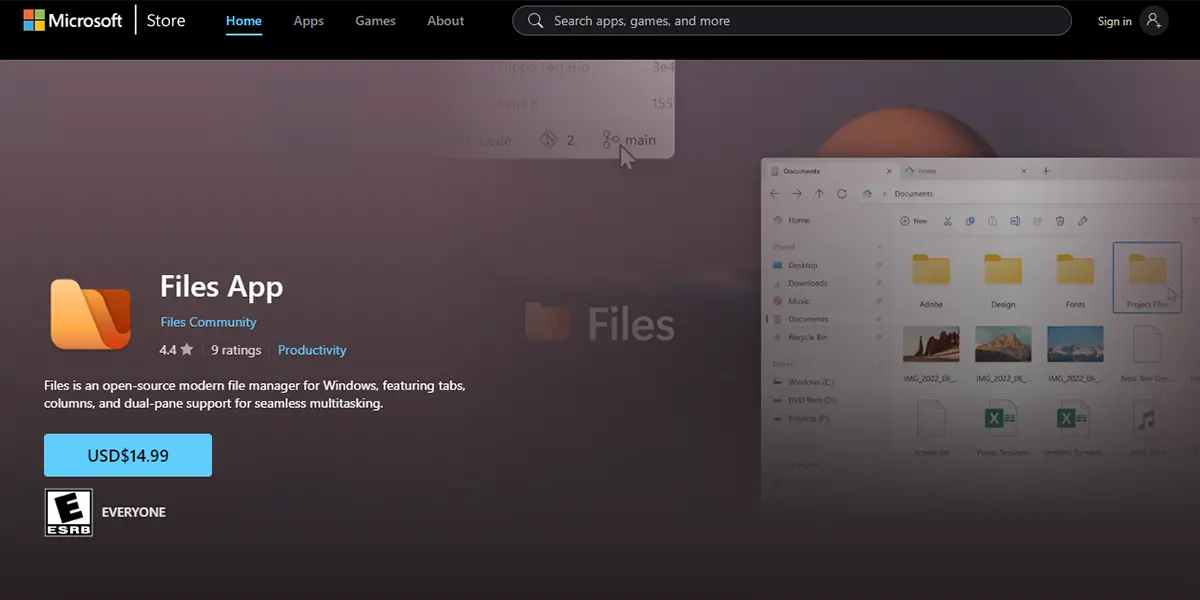
Files App brings a fresh, contemporary interface to Windows 11 that feels right at home with the operating system’s design language. Built by community developers, this free alternative respects the Fluent Design principles while adding features that native File Explorer should have included from the start.
Why Files App Stands Out
The tabbed interface allows multiple folders to stay open simultaneously without cluttering the taskbar. Navigation becomes significantly faster when working across different directories. The column view option, borrowed from macOS Finder, provides a hierarchical way to browse nested folders that many find more intuitive than traditional tree views.
Cloud storage integration works seamlessly with OneDrive, Google Drive, and other services. Instead of managing separate windows or web interfaces, everything appears in one unified location. The tag system helps organize files across different folders without creating duplicate copies.
Getting Started with Files App
Download Files App from the Microsoft Store or GitHub releases page. The Store version updates automatically, while the GitHub version offers more frequent beta builds for testing new features.
After installation, right-click any folder and select ‘Open in Files’ to launch the application. To make Files App the default file manager, navigate to Settings > Default Apps, search for File Explorer, and change the default to Files App.
Pro Tip: Files App supports keyboard shortcuts similar to File Explorer in Windows, making the transition almost seamless. Press Ctrl+T for new tabs, Ctrl+W to close tabs, and Ctrl+Shift+N for new folders.
Key Features Worth Noting
- Multi-tab support with drag-and-drop between tabs
- Column view for hierarchical browsing
- Built-in file preview for images, videos, and documents
- Custom themes and accent colors
- QuickLook-style preview pane
- Git integration showing repository status
Total Commander: The Veteran’s Choice
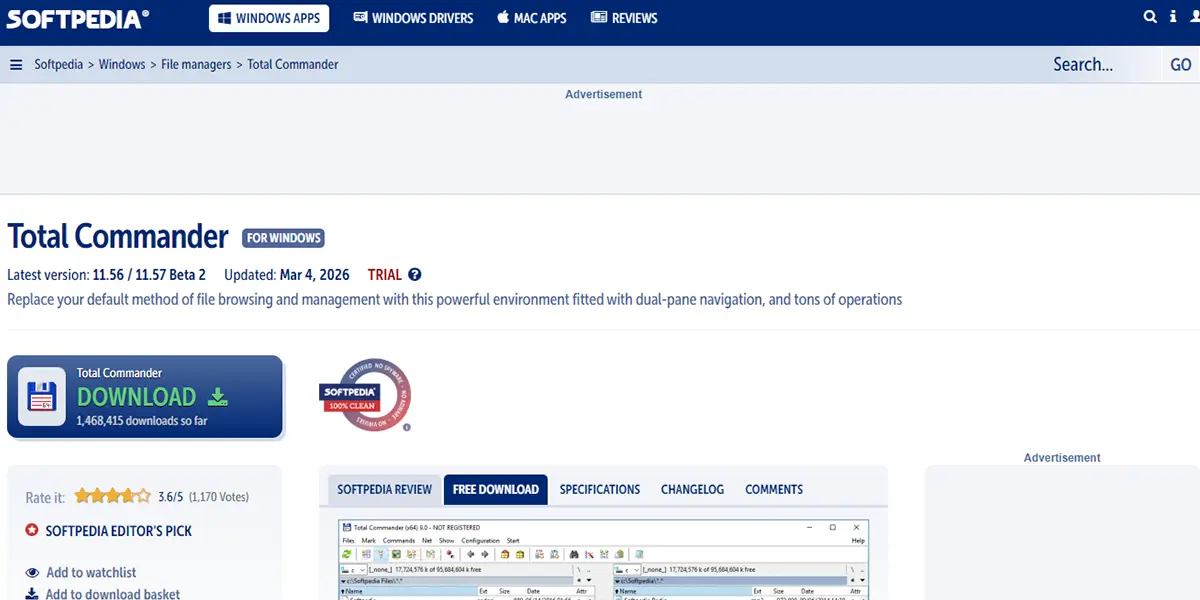
Total Commander has been a staple in the Windows file management ecosystem for decades. This dual-pane file manager takes a functional approach that prioritizes efficiency over aesthetics. The learning curve exists, but the productivity gains become apparent once muscle memory develops.
Understanding the Dual-Pane Interface
The two-panel layout displays different locations side by side, making file comparisons and transfers straightforward. Copying files between drives or network locations becomes a matter of selecting files in one pane and pressing F5 to copy to the destination shown in the other pane.
Built-in FTP client functionality eliminates the need for separate applications when managing remote servers. The archive handling treats ZIP, RAR, and other compressed formats as regular folders, allowing browsing without extraction.
Installation and Initial Setup
Download Total Commander from the official website and run the installer. The shareware model provides full functionality during the trial period, with a registration prompt appearing at startup after the trial expires.
First-time users should spend time customizing the toolbar and keyboard shortcuts. Access these options through Configuration > Options > Miscellaneous. The default setup includes many features, but tailoring the interface to specific workflows dramatically improves efficiency.
Advanced Capabilities
- Batch file renaming with regex support
- Synchronized directory browsing
- File comparison tool
- Multi-rename tool with live preview
- Plugin architecture for extended functionality
- Command line integration
The search function goes beyond Windows default capabilities. Regular expressions enable complex pattern matching, while content search looks inside files rather than just filenames. Most people find that the advanced search alone justifies using Total Commander.
Directory Opus: Professional-Grade File Management
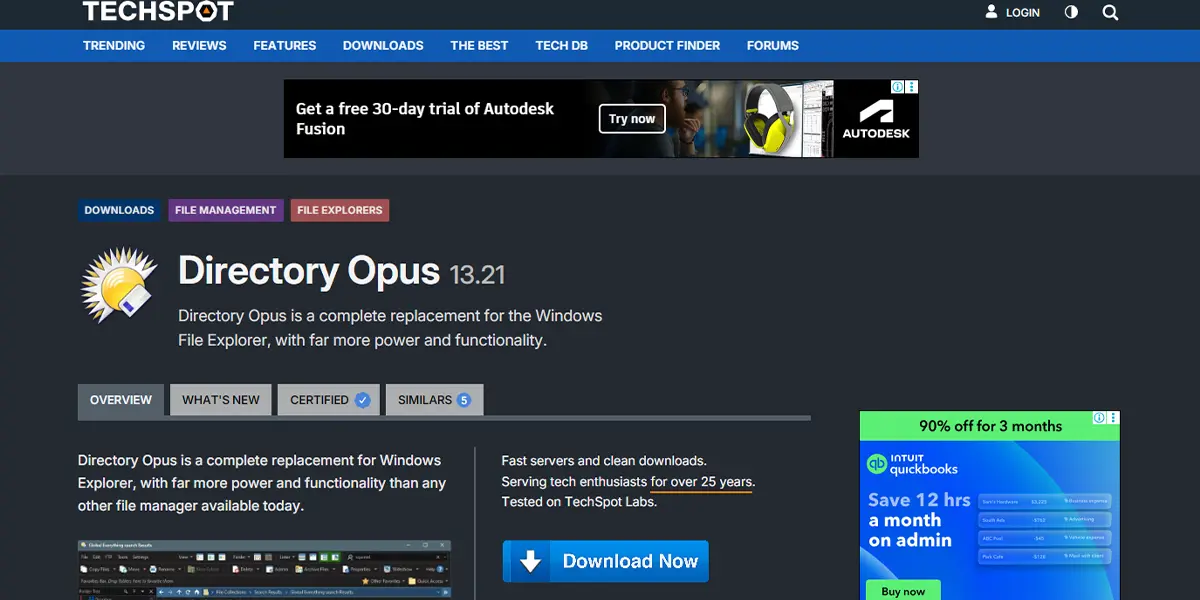
Directory Opus represents the premium tier of file managers, targeting users who spend significant time managing files and need maximum flexibility. The extensive customization options and powerful scripting capabilities justify the higher price point for professionals.
What Makes Directory Opus Different
The metadata handling surpasses other file managers significantly. Custom columns display specific file properties relevant to different file types. Image folders show resolution and camera data, music folders display bitrate and album information, and video folders reveal codec details and duration.
Flat view mode displays contents of a folder and all its subfolders in a single list, making bulk operations across nested directories simple. Combined with advanced filtering, this feature handles tasks that would require scripting in other file managers.
Setting Up Directory Opus
Download the trial from the official GPSoftware website. The evaluation period provides full access to all features without limitations. After installation, Directory Opus integrates with Windows Explorer, allowing it to replace the default file manager completely or run alongside it.
The initial configuration wizard helps set up basic preferences. Mouse settings and toolbar layouts can be customized extensively through Settings > Preferences.
Pro Tip: Directory Opus includes a portable mode that runs from USB drives without installation. This proves invaluable when working on multiple computers or troubleshooting systems where installing software isn’t practical.
Power User Features
- VBScript and JScript support for automation
- Advanced file filtering with complex logic
- Customizable toolbars with button scripting
- Folder formats that remember view settings per directory
- Image conversion and editing tools
- Synchronize and backup utilities
Choosing the Right File Manager
The best File Explorer alternative depends on specific needs and workflows. Files App works well for users wanting a modern interface without complexity. The familiar design reduces the learning curve while adding genuinely useful features like tabs and cloud integration.
Total Commander suits those comfortable with keyboard-driven workflows and dual-pane interfaces. The feature set handles professional tasks without overwhelming casual users who can ignore advanced functions until needed.
Directory Opus makes sense for users who manage thousands of files regularly or need automation capabilities. The investment pays off when file management represents a significant portion of daily work.
Performance Considerations
All three alternatives handle large directories better than stock File Explorer. Files App loads fastest on modern systems due to its lightweight codebase. Total Commander maintains responsiveness even with network drives and slow storage. Directory Opus offers the most configurability for performance tuning, including options to control thread usage and caching behavior.
The key is to test each option with typical workflows. Most people find that certain features become indispensable once they experience them, making it difficult to return to basic file managers.
Common Questions About File Manager Alternatives
Switching file managers raises valid concerns about compatibility, security, and workflow disruption. These questions address the most common considerations.
Security and Updates
Third-party file managers require the same security consciousness as any installed software. Files App, being open source, allows code inspection and benefits from community security reviews. Total Commander and Directory Opus come from established developers with decades of track records.
Regular updates remain important regardless of which option is chosen. Files App updates through the Microsoft Store automatically. Total Commander and Directory Opus check for updates on launch, with options to download and install new versions directly.
Frequently Asked Questions
Can these file managers completely replace Windows File Explorer?
Yes, all three alternatives can serve as complete replacements for File Explorer. Files App and Directory Opus offer the most seamless integration, automatically handling all file management tasks that would normally open File Explorer. Total Commander can be configured to intercept File Explorer calls through registry modifications, though some users prefer running it alongside rather than as a replacement.
Will using a third-party file manager cause compatibility issues with Windows 11?
No significant compatibility issues exist with any of these alternatives on Windows 11. These file managers have been updated specifically for Windows 11 compatibility and work with all system features including dark mode, snap layouts, and modern context menus. Some advanced Windows features like OneDrive placeholders require specific handling, which all three applications support properly.
Do these file managers work with network drives and cloud storage?
All three alternatives handle network drives and cloud storage, though implementation varies. Files App provides the best cloud integration with native support for multiple providers. Total Commander excels at network drive management and includes FTP functionality. Directory Opus offers the most flexibility for network operations with advanced synchronization tools and configurable network handling.
How much system resources do these file managers use compared to File Explorer?
Resource usage varies by application and configuration. Files App typically uses slightly more memory than File Explorer due to its additional features but remains lightweight. Total Commander maintains a small footprint even with multiple panels open. Directory Opus uses more resources when advanced features are active but provides extensive options to control memory usage and performance based on system capabilities.
Can multiple file managers be installed simultaneously without conflicts?
Yes, all three applications can coexist on the same system without conflicts. They install to separate directories and do not interfere with each other or File Explorer. This allows testing different options to find the best fit before committing to one primary file manager. The only consideration is setting default file handler preferences to avoid confusion about which application opens when clicking folders.