
The screen turns off but nothing locks. Or the lock screen never shows up after walking away from the desk. To fix Windows 11 lock screen timeout after inactivity, it actually takes two settings working together – the screen off timer alone is not enough. The sign-in requirement needs to be enabled separately, and that second step is what most people skip. This full guide covers both parts so the lock screen works exactly as expected.
Key Takeaways
- Fixing lock screen timeout after inactivity requires two settings – the screen off timer and the sign-in requirement
- The screen off timer is in Settings > System > Power and battery
- The sign-in requirement is in Settings > Accounts > Sign-in options
- Both settings must be configured together for the lock screen to appear after inactivity
- Changes take effect immediately – no restart needed
How to Fix Windows 11 Lock Screen Timeout After Inactivity
There are two parts to this fix. The first part sets when the screen turns off after inactivity. The second part makes sure the lock screen actually appears when the device wakes back up. Both need to be set correctly or the lock screen will not behave as expected.
Part 1: Set the Screen Off Timer
- Step 1: Press Windows + I to open Settings, or click the Start button and select Settings.

- Step 2: Click System in the left-hand sidebar.
- Step 3: Select Power and battery from the System options.
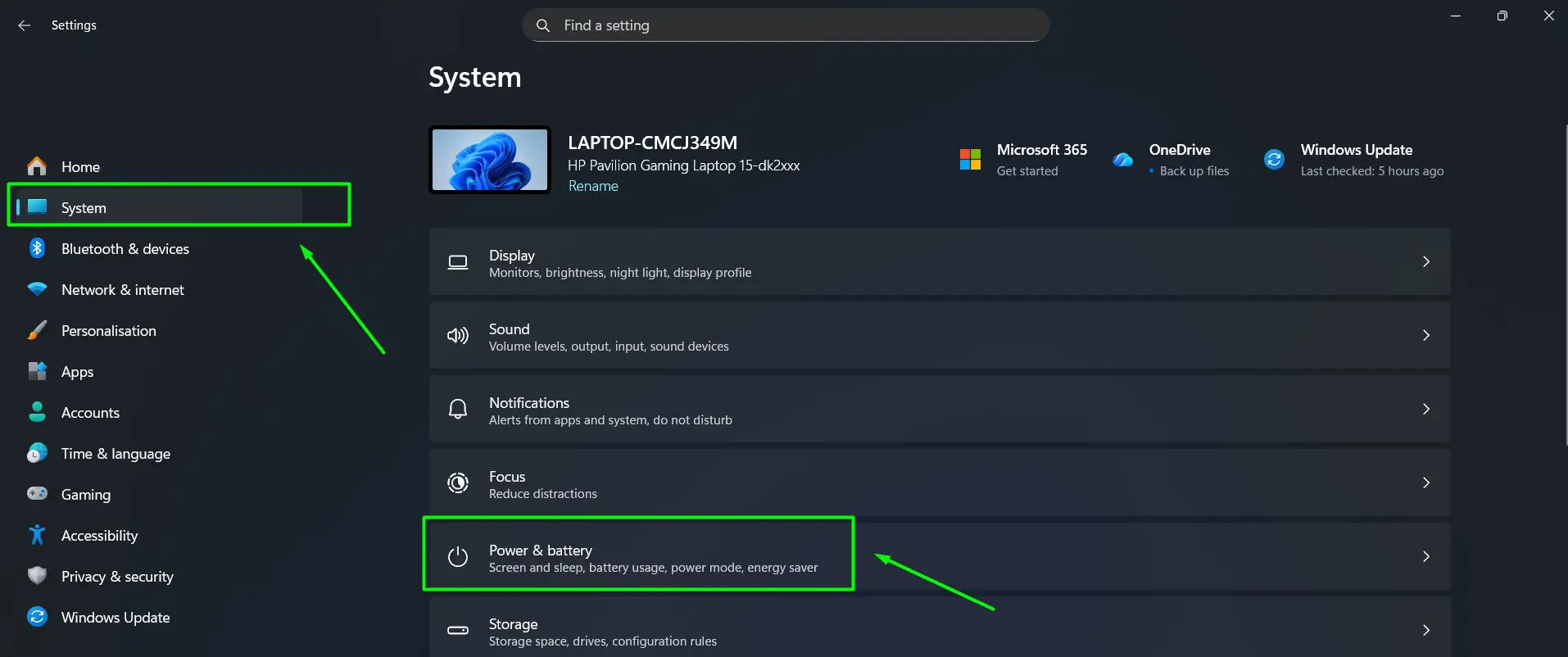
- Step 4: Click on Screen, sleep, and hibernate time-outs to expand the section.

- Step 5: Under Plugged in, click the dropdown next to Turn my screen off after and choose a time interval.

- Step 6: Scroll down to On battery and set the Turn my screen off after dropdown there as well.

This controls when the display shuts off during inactivity. For a full overview of all the options available in this section, the power and sleep settings guide covers everything in detail.
Part 2: Enable the Sign-In Requirement
- Step 7: Go back to the main Settings menu and click Accounts.
- Step 8: Select Sign-in options from the Accounts menu.

- Step 9: Under the Additional settings section, find the option that reads ‘If you’ve been away, when should Windows require you to sign in again?’
- Step 10: Click the dropdown and select Every time.

Once both parts are done, the screen will turn off after the chosen inactivity period and the lock screen will appear every time the device wakes up. This is the complete fix – the screen timer and the sign-in setting working together is what makes lock screen timeout after inactivity function correctly in Windows 11.
Pro-Tip: The screen turning off and the lock screen appearing are two completely separate behaviors in Windows 11. The screen off timer handles the display, but without setting the sign-in requirement to ‘Every time,’ the device will wake straight to the desktop with no lock screen at all – no matter how long the inactivity timeout is set to.
How to Lock the Screen Without Waiting for Inactivity
For situations where stepping away from the desk happens before the inactivity timeout kicks in, there is a faster option. Pressing Windows + L on the keyboard locks the screen instantly. No settings need to be changed and it works regardless of how the timeout is configured.
This pairs well with automatic device locking, which can lock the device when a paired phone moves out of range – useful for shared workspaces where forgetting to lock after inactivity is a common issue.
Tips for Fixing Lock Screen Timeout After Inactivity
- Always configure both the ‘Plugged in’ and ‘On battery’ screen off timers – they are independent and both affect when the lock screen appears after inactivity.
- The sign-in requirement under Accounts > Sign-in options is the step most people miss – the lock screen will not appear after inactivity without it set to ‘Every time.’
- Use Windows + L to lock the screen immediately when stepping away before the inactivity timer runs out.
- Shorter inactivity timeouts work best in shared or public environments where leaving the screen unlocked is a security risk.
- Customizing the lock screen background is a separate setting and does not affect how the inactivity timeout behaves.
Common Problems with Lock Screen Timeout After Inactivity
Screen turns off after inactivity but lock screen does not appear
This is almost always because the sign-in requirement is not enabled. Go to Settings > Accounts > Sign-in options and make sure the ‘If you’ve been away, when should Windows require you to sign in again?’ option is set to ‘Every time.’ This is the most commonly missed step when fixing lock screen timeout after inactivity.
Lock screen appears but does not ask for a password or PIN
Check that a PIN or password is actually set up on the account. Go to Settings > Accounts > Sign-in options and confirm that a Windows Hello PIN or password is configured. Without a sign-in method set up, Windows will show the lock screen but let anyone through without authentication.
Sign-in option is grayed out or missing
This can happen on devices managed by a workplace or school. Group Policy settings set by an administrator may restrict access to sign-in options. On a personal device, make sure the account is a standard Microsoft or local account and not restricted by any parental control or device management policy.
Lock screen timeout after inactivity keeps resetting after Windows update
Windows updates can occasionally reset power and account settings back to defaults. After any major update, it is worth checking both the screen off timer in Power and battery settings and the sign-in requirement in Accounts > Sign-in options to confirm both are still correctly set for inactivity locking.
Want to quickly switch between virtual desktops in Windows 11? Check this guide: How to Switch Between Desktops in Windows.
Frequently Asked Questions
How do you fix Windows 11 lock screen timeout after inactivity?
Two settings need to be configured together. First, set the screen off timer under Settings > System > Power and battery. Second, go to Settings > Accounts > Sign-in options and set ‘If you’ve been away, when should Windows require you to sign in again?’ to ‘Every time.’ Both settings must be active for the lock screen to appear after inactivity.
Why is the lock screen not appearing after inactivity in Windows 11?
The sign-in requirement is most likely not enabled. Go to Settings > Accounts > Sign-in options and set the sign-in dropdown to ‘Every time.’ Without this, the device wakes straight to the desktop after inactivity without showing the lock screen.
Where is the sign-in requirement setting in Windows 11?
It is located under Settings > Accounts > Sign-in options, in the Additional settings section. The option is labeled ‘If you’ve been away, when should Windows require you to sign in again?’ and needs to be set to ‘Every time’ for the lock screen to appear after inactivity.
Does the screen off timer and the lock screen timeout after inactivity work the same way?
No, they are different things. The screen off timer only controls when the display shuts down after inactivity. The lock screen requiring a sign-in is a separate behavior controlled by the sign-in requirement setting in Accounts. Both need to be configured together for the lock screen to appear automatically after inactivity.
How do you lock the screen immediately without waiting for inactivity?
Press Windows + L on the keyboard. This locks the screen instantly without waiting for any inactivity timeout. It is the fastest way to secure the device when stepping away unexpectedly.
Can the lock screen inactivity timeout be set differently for battery and plugged-in use?
Yes. The screen off timer in Settings > System > Power and battery has separate values for ‘Plugged in’ and ‘On battery.’ Each can be set independently to control when the lock screen appears after inactivity. The sign-in requirement in Accounts > Sign-in options applies to both profiles equally.
Why does the lock screen timeout after inactivity not work on a work or school device?
Managed devices often have Group Policy settings that restrict power and sign-in options. If the sign-in requirement is grayed out or the inactivity timeout reverts on its own, it is likely being controlled by an administrator. Contact the IT department to request changes to those settings.
What happens if the sign-in requirement is set to ‘Never’?
The screen will still turn off after inactivity based on the screen off timer, but when the device wakes up it will go straight to the desktop without showing the lock screen or asking for a password. This means anyone can access the device immediately after inactivity without any authentication.
Does fixing lock screen timeout after inactivity affect sleep mode in Windows 11?
The sign-in requirement setting applies to both screen wake and sleep wake events. If the device wakes from sleep after inactivity, the lock screen will appear as long as the sign-in requirement is set to ‘Every time.’ The sleep timer itself is a separate setting and does not need to be changed to fix lock screen timeout after inactivity.