
Focus Sessions in Windows 11 is a built-in productivity feature designed to help users minimize distractions and stay on task through structured work intervals. Many assume it is just another timer, but it actually integrates task management, background music, and progress tracking into one experience. This feature becomes especially useful when juggling multiple responsibilities or struggling to maintain concentration during deep work.
Key Takeaways
- Focus Sessions combines timed work intervals with task tracking and optional background music
- The feature integrates with Microsoft To Do to help prioritize tasks during each session
- Users can customize session length, break duration, and enable Do Not Disturb mode automatically
- Progress is tracked through a dashboard showing total focus time and completed sessions
- Spotify integration allows curated focus playlists to play during work intervals
How Focus Sessions Integrates Task Management and Timers
Unlike standalone timer apps, Focus Sessions pulls tasks directly from Microsoft To Do and displays them within the Clock app. Before starting a session, users select which task to focus on, giving each work interval a clear purpose. The timer follows the Pomodoro Technique by default, suggesting 25-minute focus periods followed by short breaks.
The integration means tasks marked as complete during a session automatically sync back to Microsoft To Do. This eliminates the need to switch between apps and keeps productivity tools connected. The system also tracks how many sessions were needed to finish specific tasks, offering insight into time estimation over weeks of use.
What Happens During an Active Focus Session
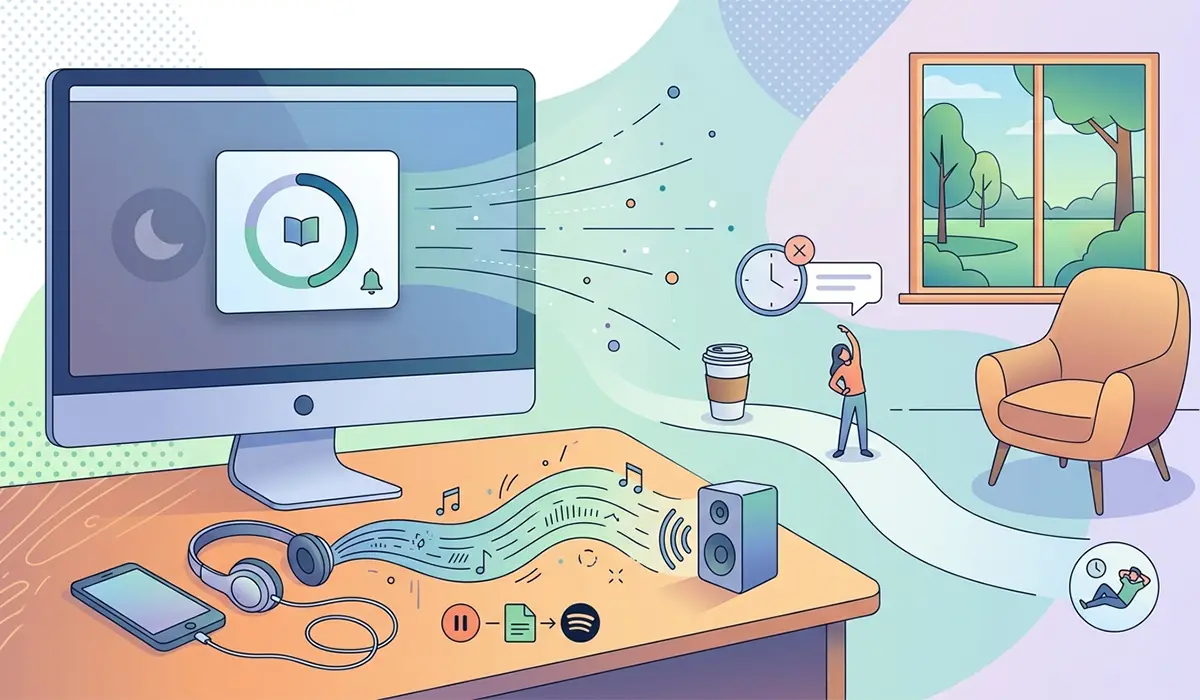
Once a session starts, Windows 11 can automatically enable Do Not Disturb mode, silencing notifications from apps and system alerts. The Clock app remains visible in a compact window showing the remaining time and current task. A progress ring fills gradually as the session advances, providing visual feedback without requiring constant attention.
Background music plays through Spotify integration if enabled, offering playlists curated for concentration. The music pauses automatically during breaks and resumes when the next session begins. Pro-Tip: Selecting instrumental or ambient playlists tends to reduce cognitive load compared to music with lyrics, especially during writing or analytical work.
Break reminders appear when the timer ends, encouraging users to step away briefly. Skipping breaks is possible, but the feature discourages it by showing a gentle prompt about rest importance. Longer breaks are suggested after every four sessions, following traditional Pomodoro intervals.
How Do Not Disturb Mode Affects System Behavior
When activated through Focus Sessions, Do Not Disturb hides notification banners and mutes alert sounds. Calls and alarms still come through unless manually adjusted in power and notification settings. Priority contacts can be configured to bypass these restrictions, ensuring urgent messages reach the user even during focus time.
The feature also dims the taskbar notification badges, reducing visual clutter. Apps continue running normally in the background—only their ability to interrupt is restricted. This makes Focus Sessions different from airplane mode or full app blocking, as users retain access to everything while controlling distractions.
Why Focus Sessions Tracks Progress Over Time
The dashboard inside the Clock app logs every completed session with timestamps and task details. Weekly summaries show total focus time, average session length, and streaks for consecutive days of use. These metrics help identify productivity patterns, such as which days yield the most focused work or when energy levels drop.
Gamification elements like badges and milestones appear after reaching certain thresholds—10 hours of focus time, seven-day streaks, or 50 completed sessions. While optional, these rewards tap into motivational psychology by making abstract productivity gains feel more tangible. The data also syncs across devices signed into the same Microsoft account, allowing continuity between desktop and laptop workflows.
How Session History Differs From Traditional Time Tracking
Focus Sessions does not track idle time or monitor which apps are open during work intervals. The system only records whether a session was started, paused, or completed. This approach respects privacy while still offering insights into habits. Users looking for detailed app usage analytics would need third-party software, but Focus Sessions deliberately avoids that level of monitoring.
When Focus Sessions Works Best and When It Doesn’t
This feature shines during tasks requiring sustained concentration—writing reports, coding, studying, or designing. Structured intervals help break large projects into manageable chunks, reducing overwhelm. The integration with task lists also makes it effective for goal-oriented work where clear objectives exist before starting.
However, Focus Sessions struggles with creative work that doesn’t follow predictable timelines. Brainstorming, freeform design exploration, or spontaneous collaboration often clash with rigid intervals. The feature also assumes users work alone at a computer; it offers little value during meetings, calls, or fieldwork away from the device.
Multitasking-heavy workflows face friction too. Switching between unrelated tasks mid-session disrupts the intended flow, and the feature doesn’t adapt well to interruptions. Jobs requiring frequent communication checks—like customer support or project coordination—may find the Do Not Disturb mode too restrictive.
Why Some Users Disable Automatic Do Not Disturb
The automatic silencing of notifications frustrates users who need to stay responsive. Missing a time-sensitive message or call because Focus Sessions muted everything can create more stress than the feature alleviates. Adjusting notification and sleep settings helps, but many prefer controlling Do Not Disturb manually rather than letting sessions toggle it.
How Focus Sessions Compares to Third-Party Productivity Apps
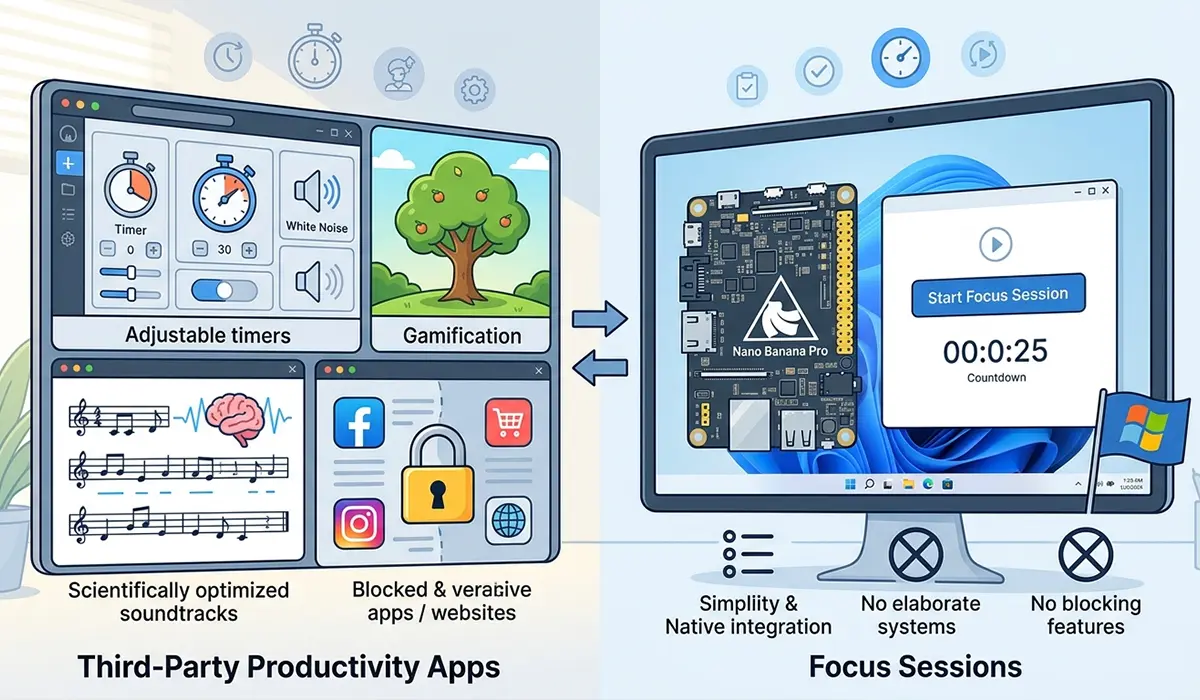
Dedicated Pomodoro apps often provide more customization—adjustable interval lengths, white noise options, or website blocking. Focus Sessions trades flexibility for simplicity, offering just enough features to avoid overwhelming users with choices. The native integration with Windows 11 also means no additional software installation or background processes consuming resources.
Apps like Forest or Focus@Will add gamification layers or scientifically optimized soundtracks, appealing to users who want deeper engagement. Focus Sessions keeps things minimal, which suits those who prefer straightforward tools without elaborate reward systems. The lack of website or app blocking also distinguishes it from stricter productivity enforcers like Cold Turkey or Freedom.
Adjusting Focus Sessions to Match Personal Work Styles
Session length can be customized beyond the default 25 minutes, ranging from 10 minutes to two hours. Shorter intervals work well for high-energy tasks requiring intense bursts of effort, while longer sessions suit deep work with fewer natural stopping points. Break durations adjust proportionally, though users can override suggestions and skip breaks entirely if needed.
The Spotify integration allows playlist selection before each session, but music can be disabled for those who prefer silence or external audio sources. Task selection from Microsoft To Do is optional too—sessions can start without linking to a specific task, functioning purely as a timer. This flexibility accommodates different productivity philosophies without forcing a single workflow.
Notification settings deserve attention during setup. Allowing priority contacts through Do Not Disturb prevents missed emergencies, while blocking all notifications creates stricter boundaries. Testing these configurations during low-stakes sessions helps avoid unwanted interruptions during critical work periods.
What Happens When Focus Sessions Conflicts With System Updates or Meetings
Windows Update installations can interrupt active sessions, though the timer pauses rather than resetting completely. Resuming after a restart preserves the task selection and elapsed time, minimizing disruption. Calendar notifications still appear if exempted from Do Not Disturb, ensuring scheduled meetings aren’t missed during focus time.
Battery-saving modes may throttle background processes, including the music streaming component of Focus Sessions. Plugging into power or adjusting energy profiles prevents audio dropouts during longer sessions. Managing power settings ensures consistent performance across different usage scenarios.
Why Focus Sessions Stops Tracking During Sleep Mode
If the device enters sleep mode mid-session, the timer pauses automatically. This prevents misleading data where hours of inactivity count as focused work. Adjusting screen timeout settings helps keep the system awake during active sessions without disabling power management entirely.
Frequently Asked Questions
Can Focus Sessions work without a Microsoft account?
Focus Sessions requires a Microsoft account to sync progress and integrate with Microsoft To Do. Local accounts can access the basic timer, but task management and cross-device syncing remain unavailable. The feature also needs an active internet connection for Spotify playlist streaming, though offline work is possible without music integration.
Does Focus Sessions block distracting apps or websites?
Focus Sessions does not block apps or restrict browser access. It only manages notifications through Do Not Disturb mode. Users seeking stricter controls need third-party software or manual discipline to avoid opening distracting sites during sessions.
How does Focus Sessions handle interrupted sessions?
Pausing a session stops the timer without ending the interval. Resuming picks up where it left off, and the total elapsed time still counts toward progress tracking. However, sessions abandoned entirely without completion are not logged in the dashboard, so closing the Clock app mid-session erases that attempt.
Can Focus Sessions run in the background while using other apps?
The Clock app can be minimized, and the session continues running in the background. A compact widget in the system tray shows remaining time without keeping the full app visible. Do Not Disturb mode stays active regardless of which apps are open, maintaining distraction control across the entire system.
Why does Spotify integration sometimes fail to load playlists?
Connection issues between Windows 11 and Spotify usually stem from expired authentication tokens or network restrictions. Signing out and back into Spotify within the Clock app refreshes permissions. Firewall settings may also block the integration, requiring adjustments to allow communication between the two services.
Does Focus Sessions track which apps are used during work intervals?
Focus Sessions does not monitor app usage or record screen activity. The feature only logs session duration and task completion status. Users wanting detailed productivity analytics need separate time-tracking tools that measure application-level behavior.
Can multiple tasks be assigned to a single Focus Session?
Each session links to one task from Microsoft To Do, though users can switch tasks mid-interval by pausing and restarting. The dashboard records only the final task associated with a completed session, so switching tasks frequently leads to inaccurate tracking data.
Why do notifications still appear during Focus Sessions despite Do Not Disturb being enabled?
Priority notifications bypass Do Not Disturb if configured in system settings. Alarms, calls from favorite contacts, and certain app permissions can override the silence. Reviewing notification settings ensures only critical alerts interrupt focus time while blocking everything else.
Conclusion
Focus Sessions transforms the Clock app into a productivity hub by combining timers, task management, and distraction control. The feature works best for structured, goal-driven work that benefits from scheduled intervals and reduced interruptions. While it lacks the advanced blocking or customization found in dedicated productivity apps, its native integration with Windows 11 makes it accessible without additional software overhead. Understanding when to enable automatic Do Not Disturb, how session tracking logs progress, and which workflows benefit most from timed intervals helps users decide whether Focus Sessions fits their daily routine or remains an underutilized tool in the system tray.