
Notepad remains one of the most reliable text editors in Windows 11, but even this simple tool sometimes needs troubleshooting. Whether the app won’t open, features aren’t working as expected, or files aren’t saving properly, knowing how to get help with Notepad in Windows 11 can save time and frustration.
This guide covers practical solutions for common Notepad issues, from basic troubleshooting to advanced fixes that actually work in real-world scenarios.
Understanding Notepad in Windows 11
Windows 11 introduced a redesigned Notepad with modern features like dark mode, tabs, and autosave. The updated interface looks different from previous versions, which sometimes confuses users who’ve been working with the classic version for years.
The new Notepad stores settings differently and uses Windows 11’s app framework. This means troubleshooting approaches that worked in Windows 10 might need adjustment. Most people find that understanding these changes makes problem-solving much more straightforward.
Quick Fixes for Common Notepad Problems
Before diving into complex solutions, try these quick fixes that resolve most Notepad issues:
Restart Notepad Completely
Sometimes Notepad gets stuck in the background. The key is to close all instances properly:
- Press Ctrl + Shift + Esc to open Task Manager, or right-click the Windows icon and select Task Manager.
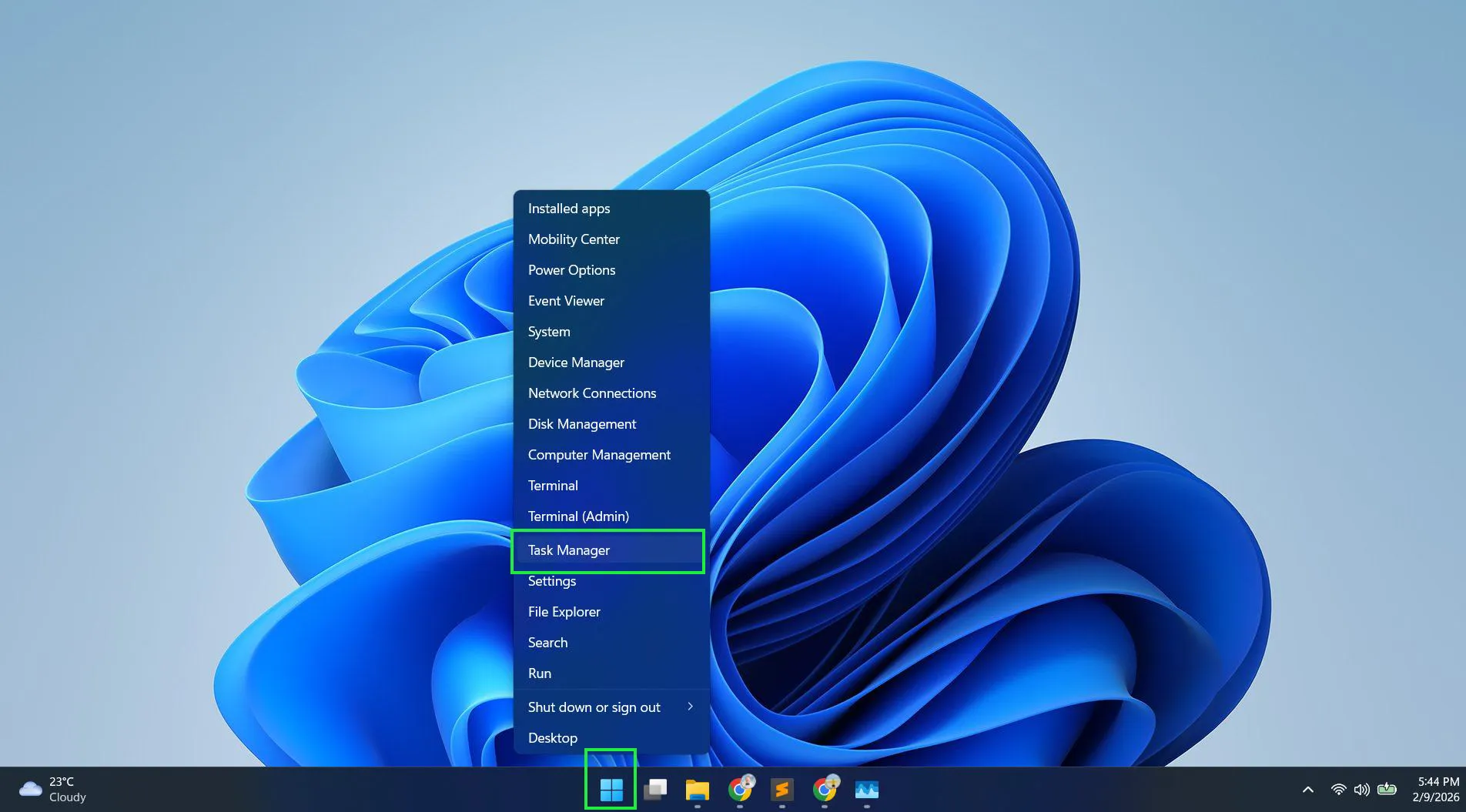
- Look for ‘Notepad’ under the Processes tab
- Right-click on any Notepad entries and select ‘End task’
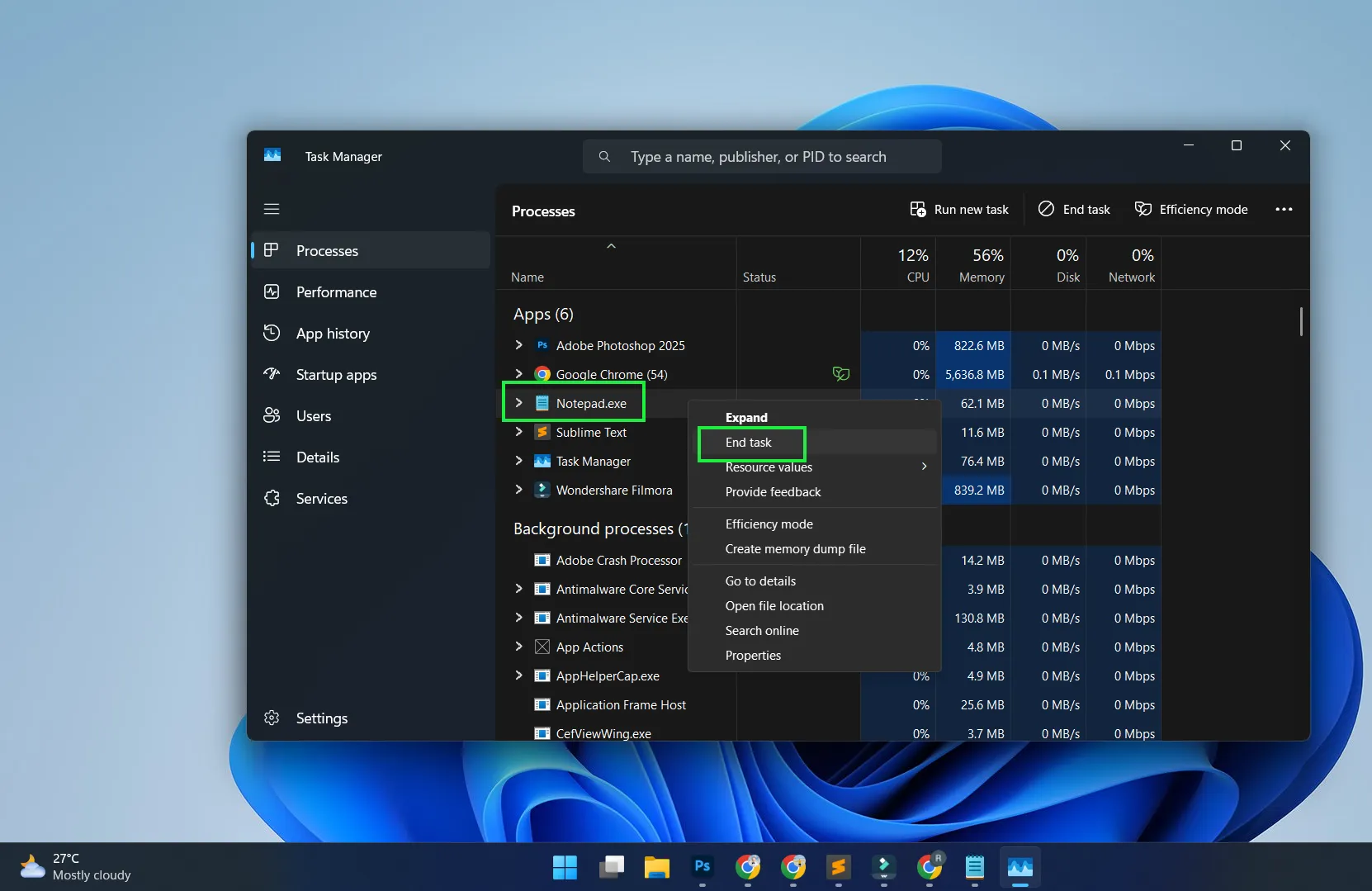
- Wait a few seconds, then launch Notepad fresh from the Start menu
This works best when Notepad appears frozen or won’t respond to commands.
Check for Windows Updates
Microsoft regularly patches Notepad bugs through Windows Update. Here’s how to ensure the system is current:
- Press Windows key + I to open Settings
- Click on ‘Windows Update’ in the left sidebar
- Select ‘Check for updates’
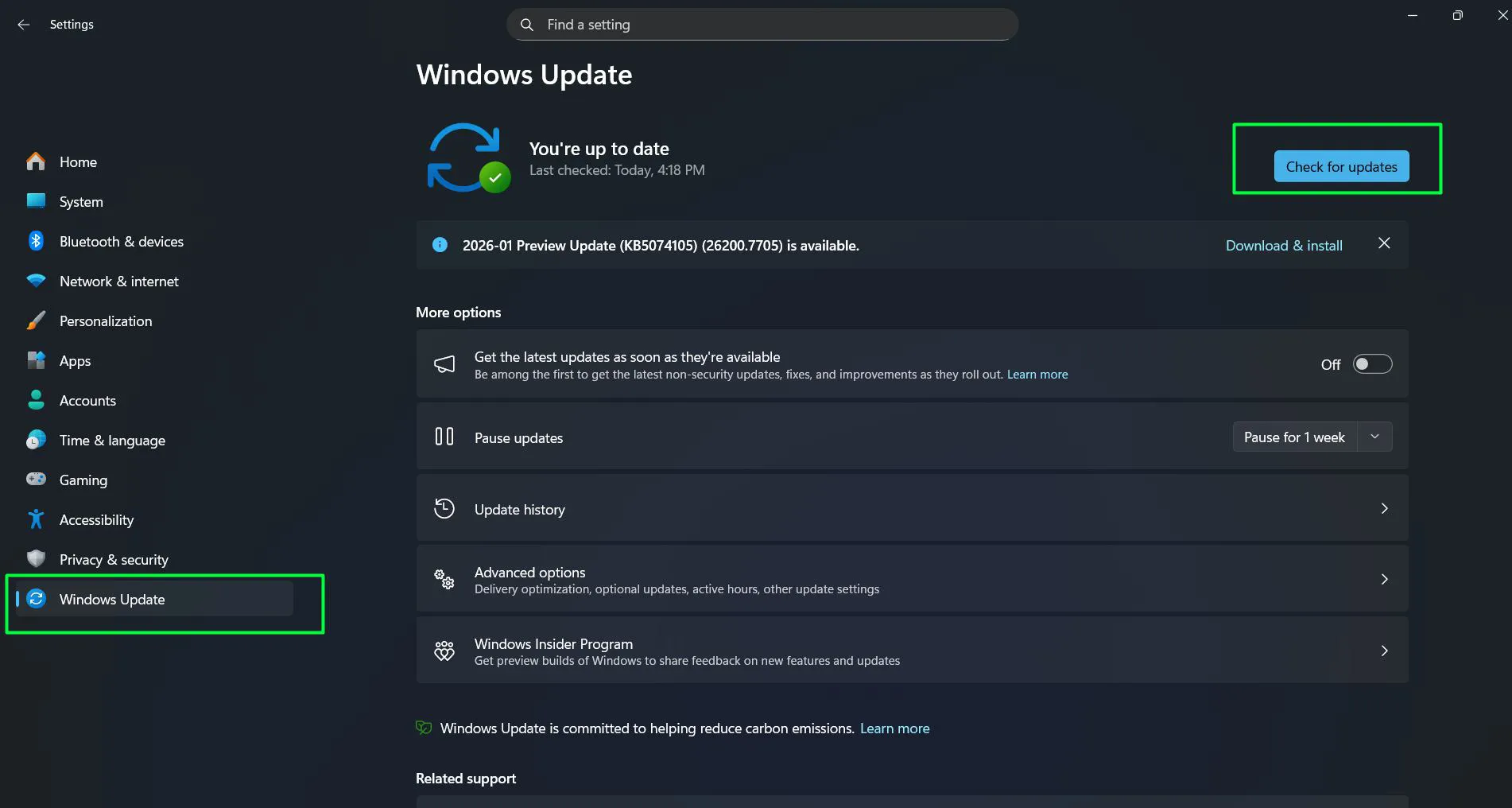
- Install any available updates, especially those labeled as app updates
- Restart the computer after updates complete
Many Notepad issues stem from outdated app versions that Microsoft has already fixed.
Resetting Notepad to Default Settings
When Notepad behaves strangely or settings seem corrupted, resetting the app often restores normal function. This process doesn’t delete any text files—it simply resets Notepad’s configuration.
Using Windows Settings to Reset
- Open Settings by pressing Windows key + I
- Navigate to ‘Apps’ and then click ‘Installed apps’
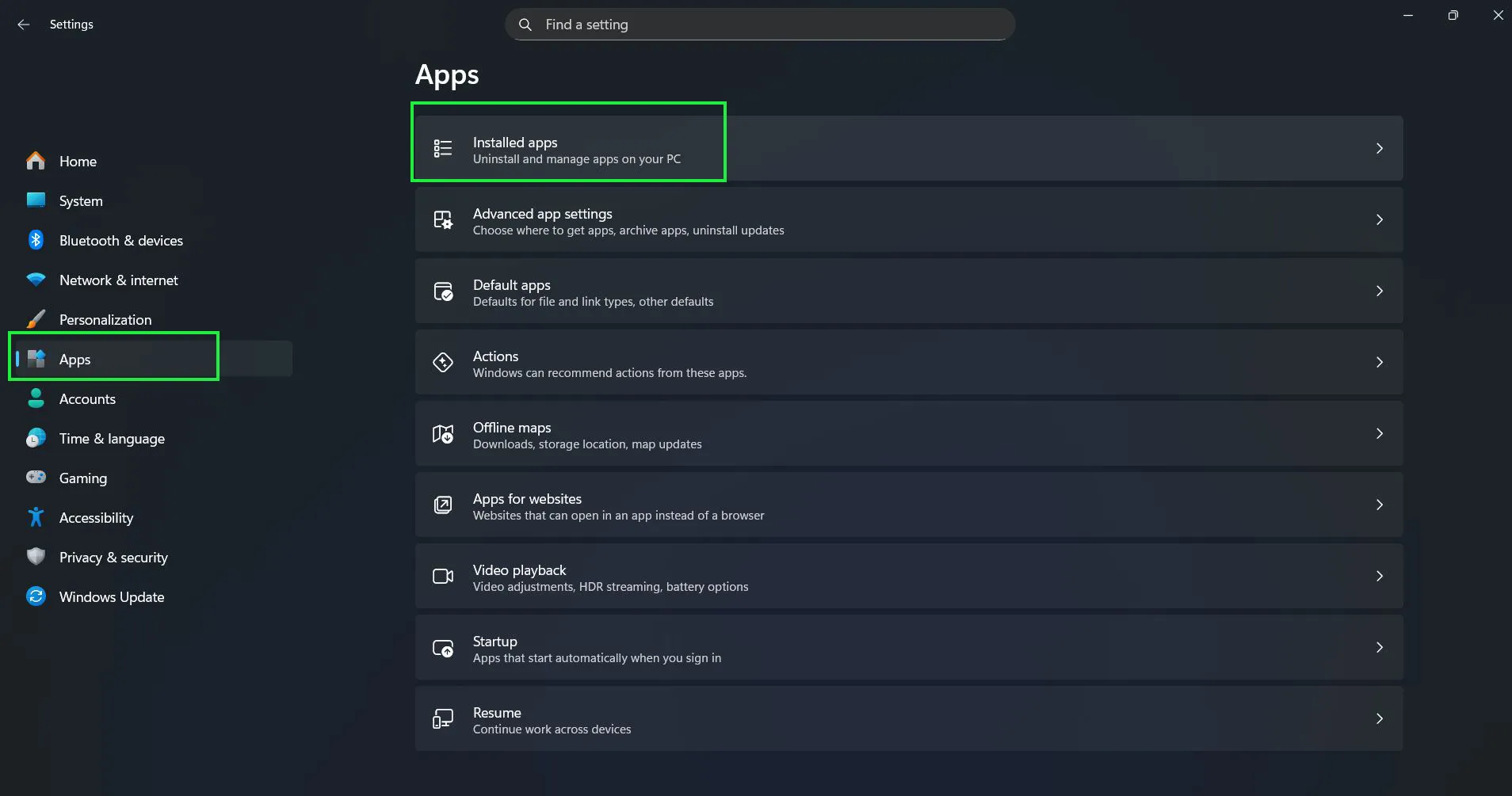
- Scroll down and find ‘Notepad’ in the list
- Click the three-dot menu next to Notepad
- Select ‘Advanced options’
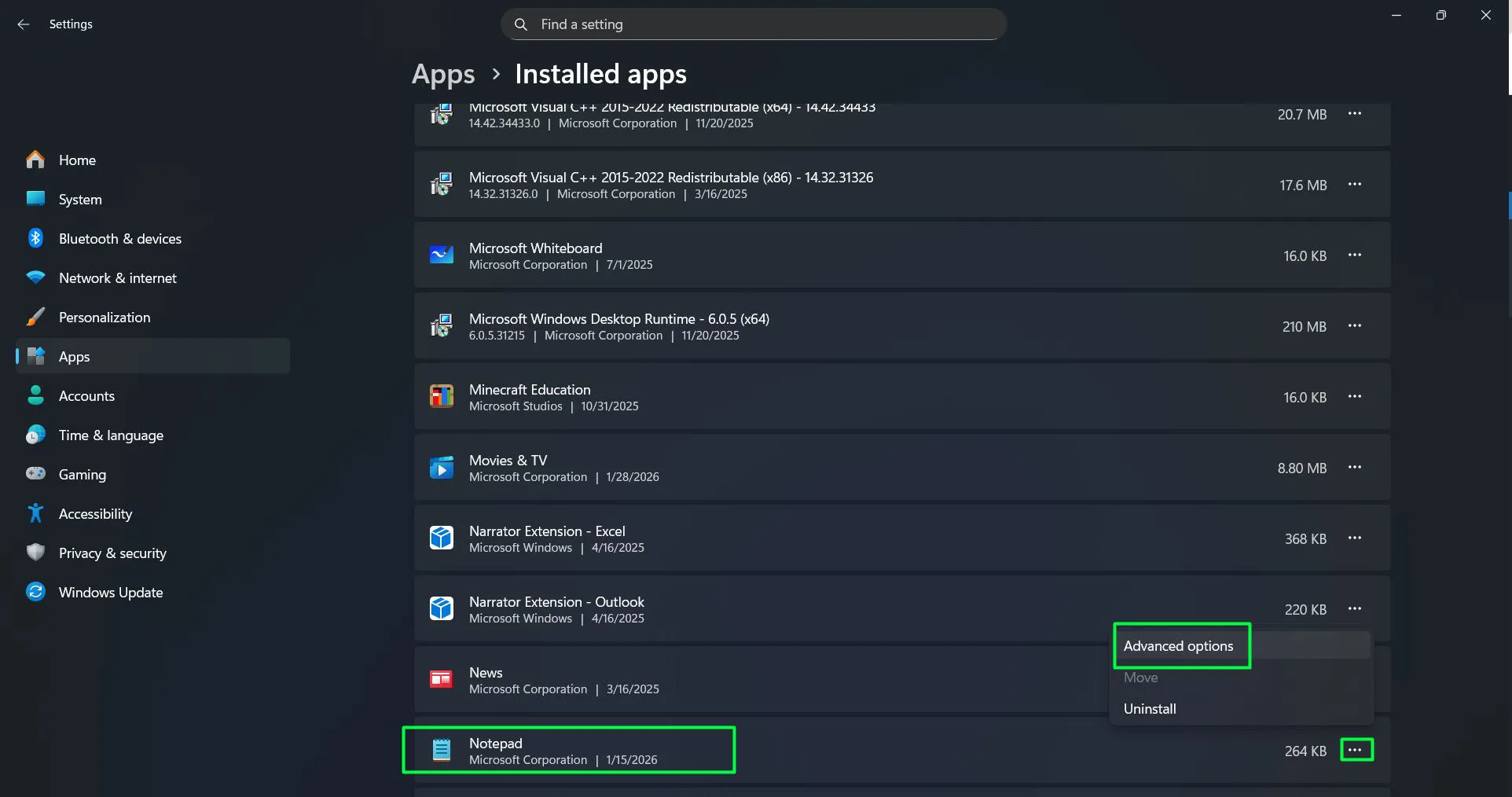
- Scroll down to the Reset section
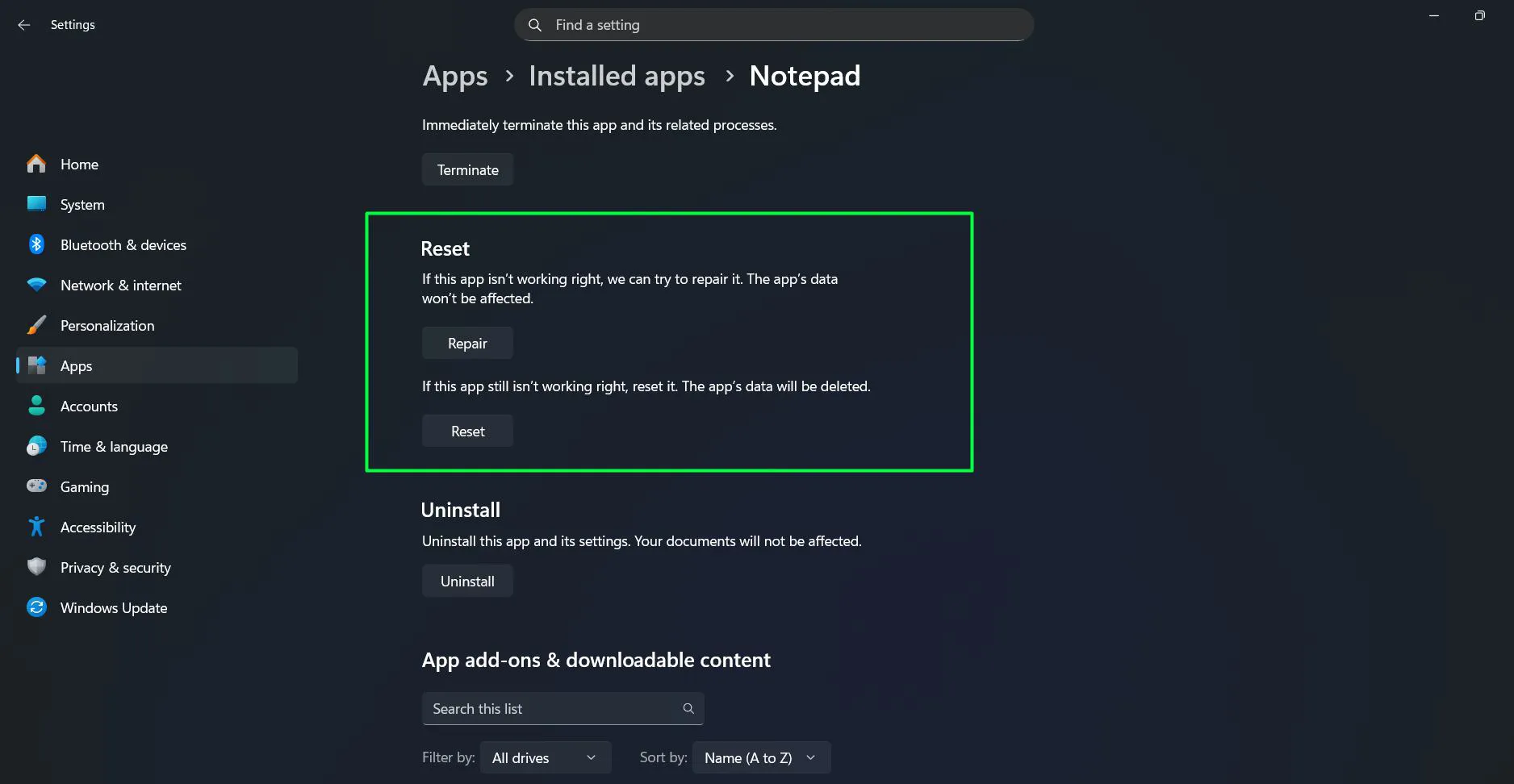
- Click ‘Repair’ first (this fixes issues without losing settings)
- If repair doesn’t work, click ‘Reset’ to restore defaults
The repair option works for most situations, while reset should be a last resort since it clears all preferences.
Fixing Notepad When It Won’t Open
A Notepad that refuses to launch requires different troubleshooting steps depending on what’s happening—or not happening—when attempting to open it.
Run the Windows Troubleshooter
Windows 11 includes built-in troubleshooting tools specifically designed for app problems:
- Right-click the Start button and select ‘Settings’
- Go to ‘System’ and then select ‘Troubleshoot’
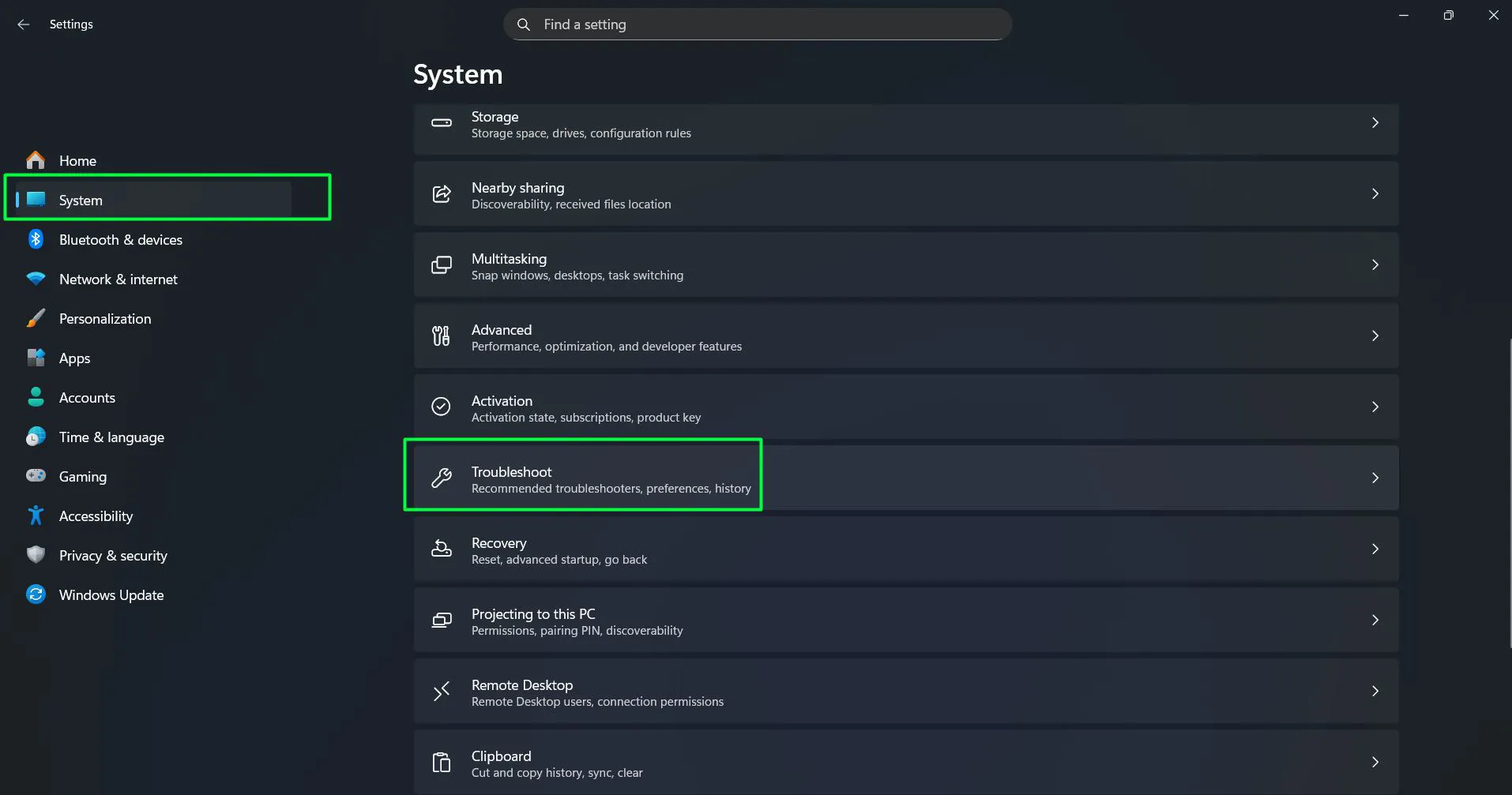
- Click on ‘Other troubleshooters’
- Find ‘Program Compatibility Troubleshooter’ and click ‘Run’
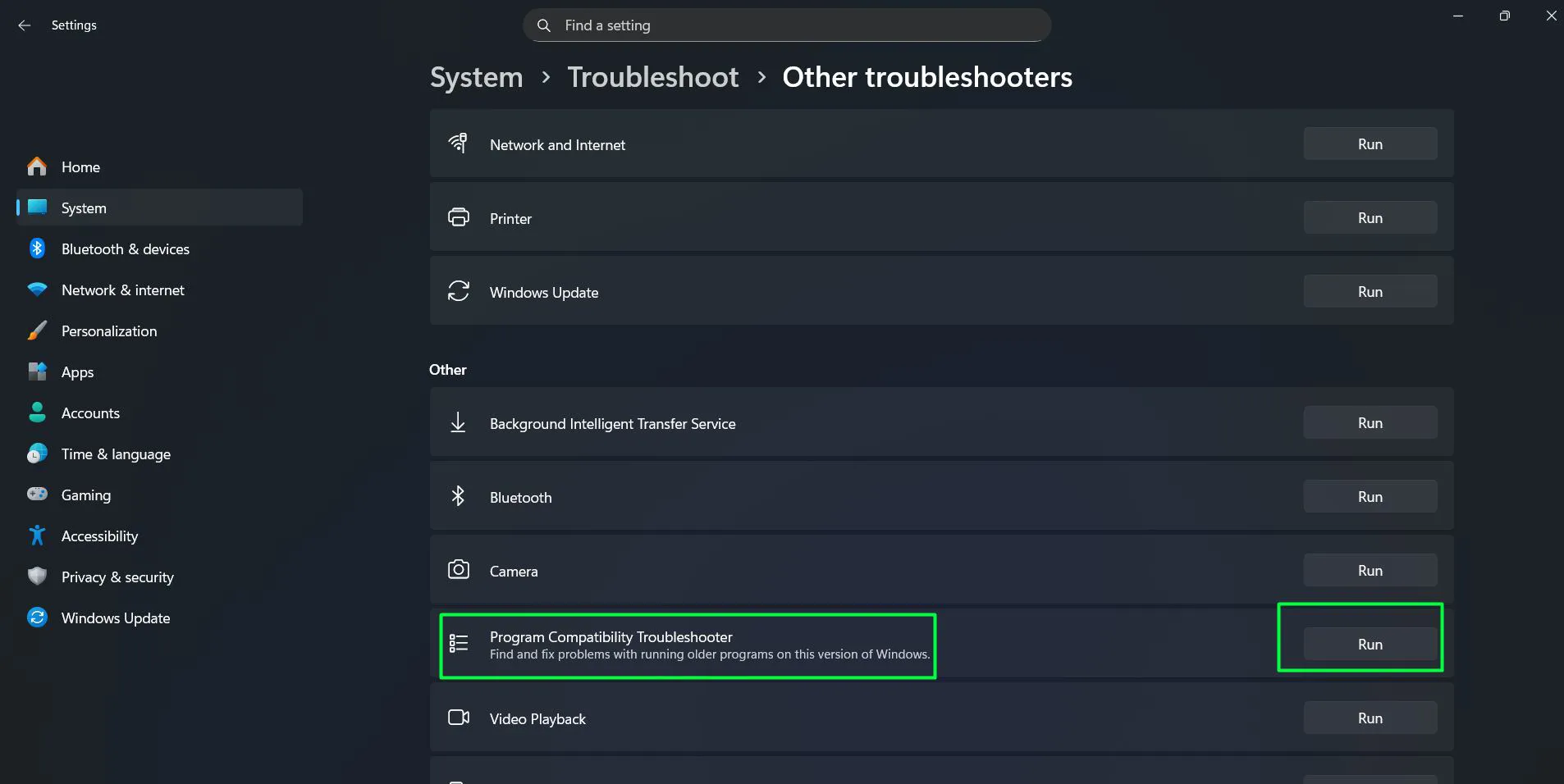
- Follow the on-screen prompts to let Windows diagnose and fix issues
This automated process catches problems that manual troubleshooting might miss.
Check File Associations
Sometimes Notepad won’t open .txt files because file associations got changed. Most people encounter this after installing third-party text editors:
- Right-click any .txt file
- Select ‘Open with’ and then ‘Choose another app’
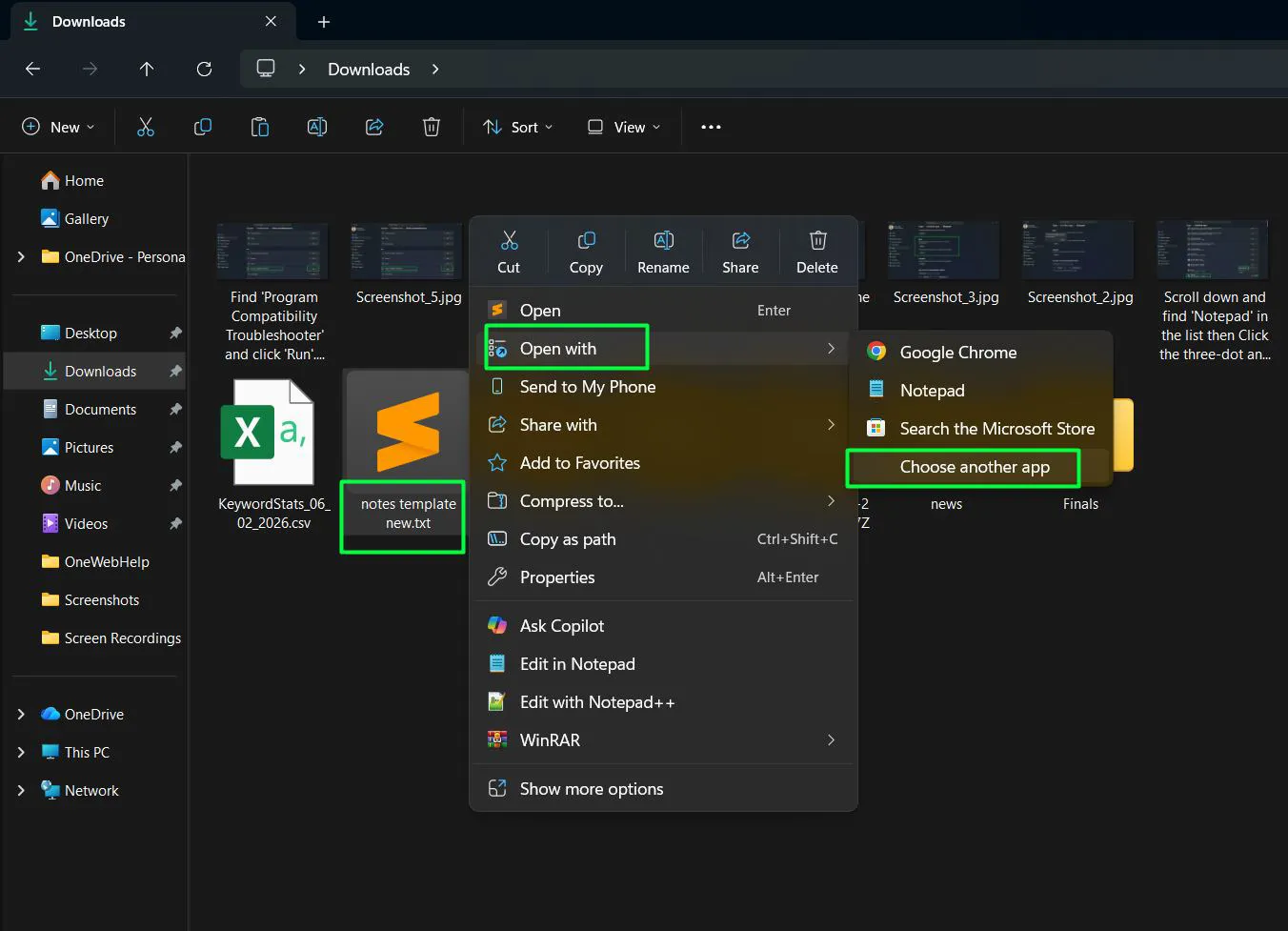
- Pick Notepad from the list and Select ‘Always’
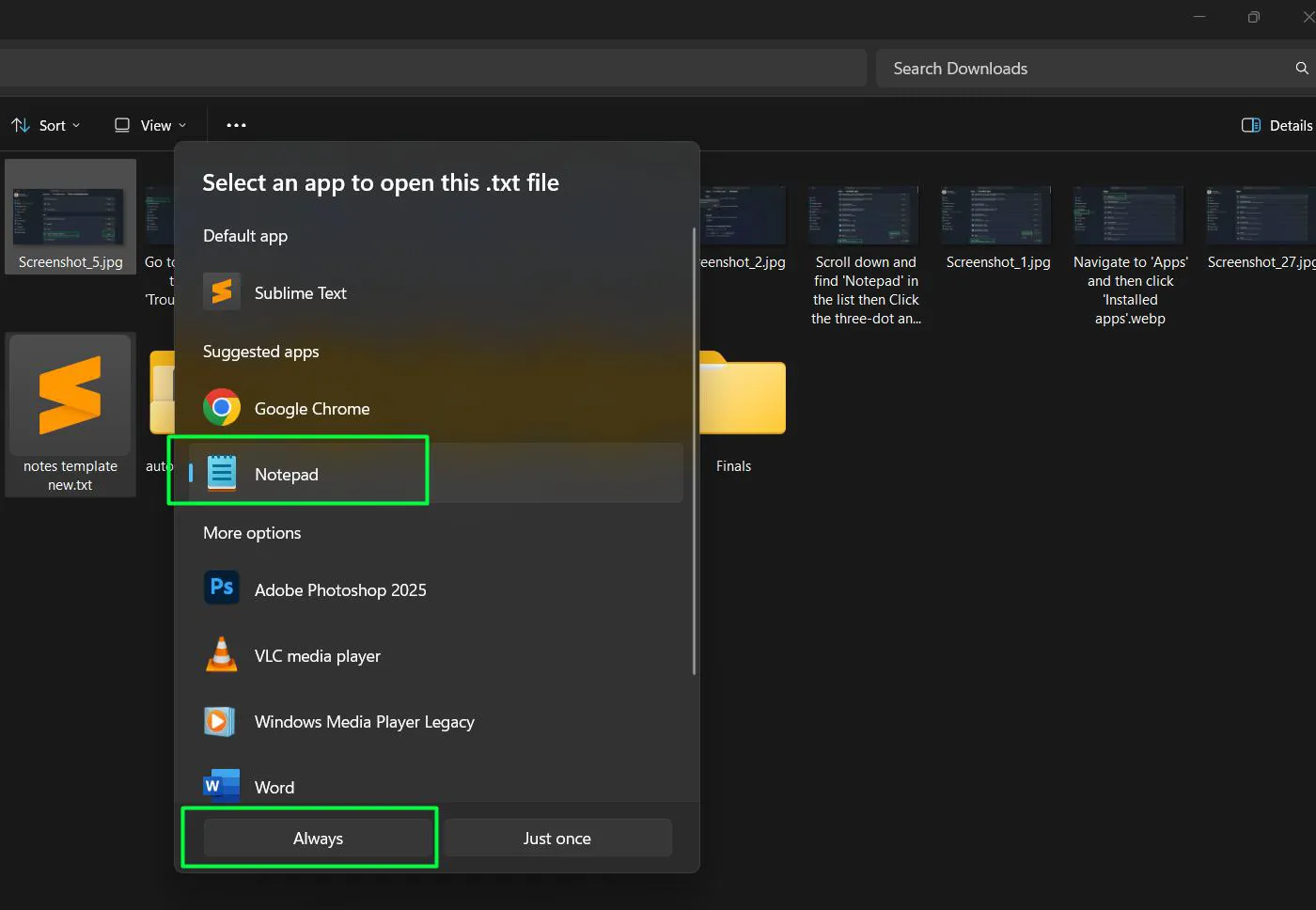
After completing these steps, Notepad will be set as the default app for opening .txt files.
Resolving Performance and Feature Issues
When Notepad runs slowly or certain features don’t work, the problem usually relates to system resources or corrupted app components.
Clear Notepad Cache and Temporary Files
Accumulated temporary data can slow down Notepad. Here’s the cleanup process:
- Close all Notepad windows completely
- Press Windows key + R to open Run dialog
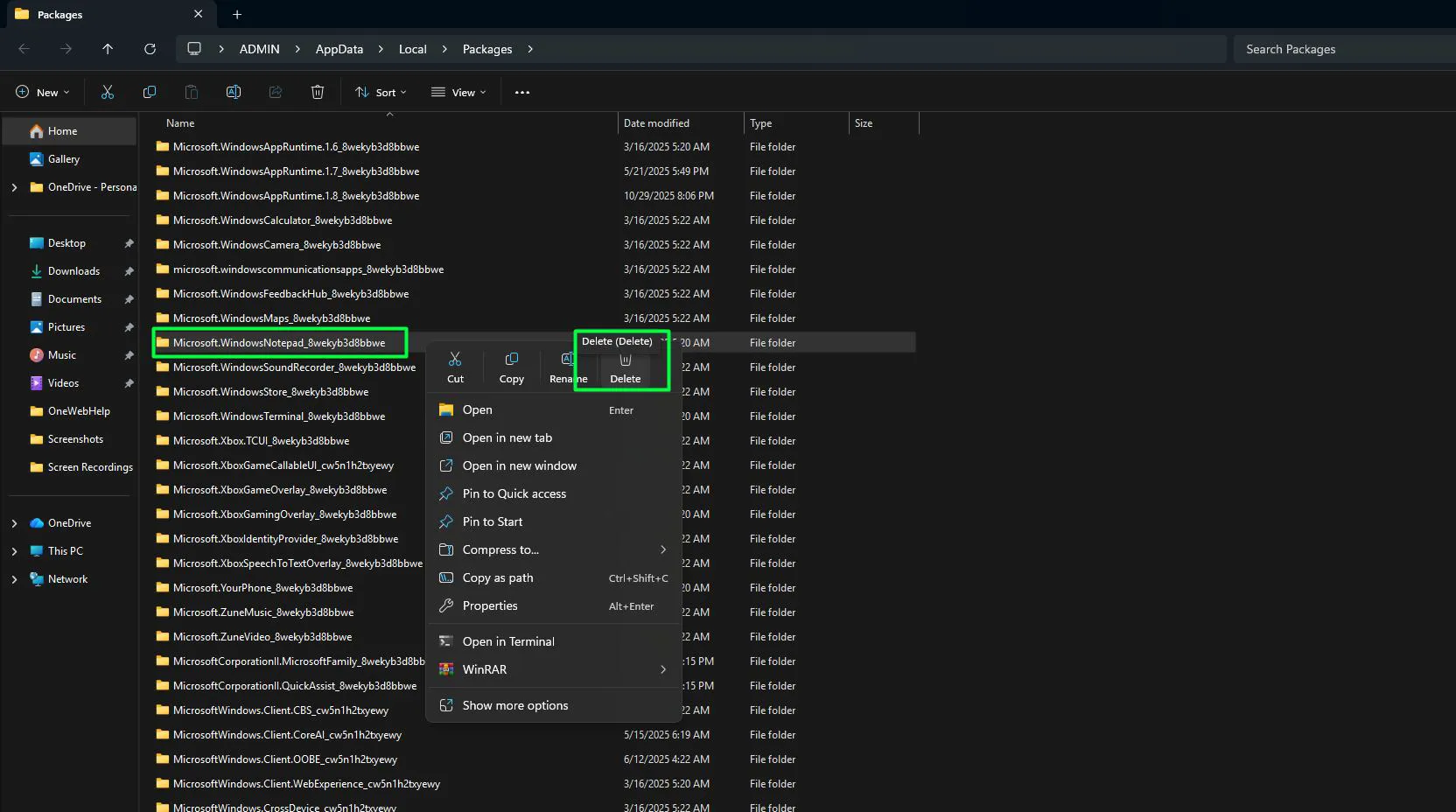
- Type %localappdata%\Packages and press Enter
- Find the folder named ‘Microsoft.WindowsNotepad_8wekyb3d8bbwe’
- Right-click this folder and select ‘Delete’
- Empty the Recycle Bin
- Restart the computer and open Notepad again
This forces Notepad to rebuild its cache with fresh data, which often resolves strange behavior.
Disable Problematic Features Temporarily
New features like tabs or autosave sometimes cause conflicts. Testing Notepad with these disabled helps identify the culprit:
- Open Notepad normally
- Go to Settings (gear icon in the top-right corner)
- Turn off ‘Tabs’ if multiple tabs seem to cause crashes
- Disable ‘Autosave’ if files aren’t saving correctly
- Test Notepad’s stability with features disabled
- Re-enable features one at a time to identify which causes problems
Using PowerShell to Reinstall Notepad
When standard reset options fail, PowerShell offers a more thorough reinstallation. This approach completely removes and reinstalls Notepad:
- Right-click the Start button and select ‘Terminal (Admin)’
- If prompted by User Account Control, click ‘Yes’
- Type or paste: Get-AppxPackage *WindowsNotepad* | Remove-AppxPackage
- Press Enter and wait for the process to complete
- Next, type: Get-AppxPackage -AllUsers *WindowsNotepad* | ForEach {Add-AppxPackage -DisableDevelopmentMode -Register ‘$($_.InstallLocation)\AppXManifest.xml’}
- Press Enter to reinstall Notepad
- Close PowerShell and restart the computer
This method works when Notepad becomes completely non-functional and standard repairs don’t help. For more software troubleshooting guides, additional resources are available.
Getting Help from Microsoft Support
When self-troubleshooting doesn’t resolve the issue, Microsoft provides several support channels specifically for Windows 11 apps.
Using the Get Help App
Windows 11 includes a dedicated support application:
- Press the Start button and type ‘Get Help’
- Open the Get Help app from the results
- Type ‘Notepad not working’ or describe the specific problem
- Follow the automated troubleshooting steps provided
- If needed, request contact with a support agent through the app
The Get Help app connects directly to Microsoft’s support database and can escalate issues to human agents when automated solutions don’t work.
Feedback Hub for Bug Reports
If Notepad has a genuine bug rather than a configuration issue, reporting it helps Microsoft fix the problem:
- Open the Feedback Hub app from the Start menu
- Click ‘Report a problem’
- Select ‘Apps’ and then ‘Notepad’
- Describe what happens and what should happen instead
- Include screenshots if they help illustrate the issue
- Submit the feedback
Microsoft engineers review these reports, and fixes often appear in future updates.
Alternative Solutions and Workarounds
While troubleshooting Notepad, having backup options ensures work continues uninterrupted.
Creating a Notepad Shortcut Easily in Windows 11
Watch this: How to create a Notepad Shortcut Easily in Windows 11
Sometimes launching Notepad with specific parameters bypasses startup issues:
- Right-click on the desktop and select ‘New’ then ‘Shortcut’
- Type notepad.exe as the location
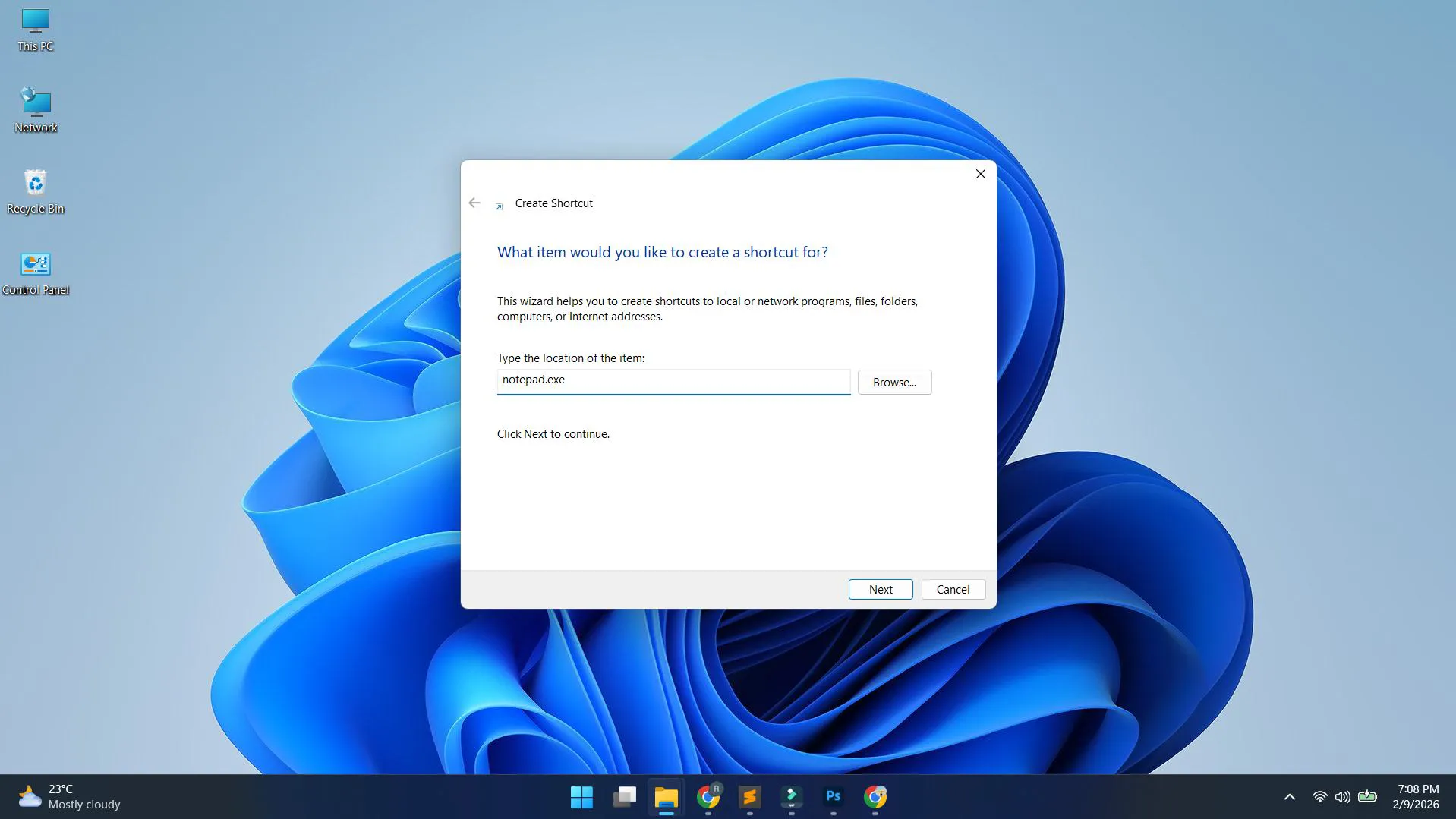
- Click Next and name it ‘Notepad Clean’
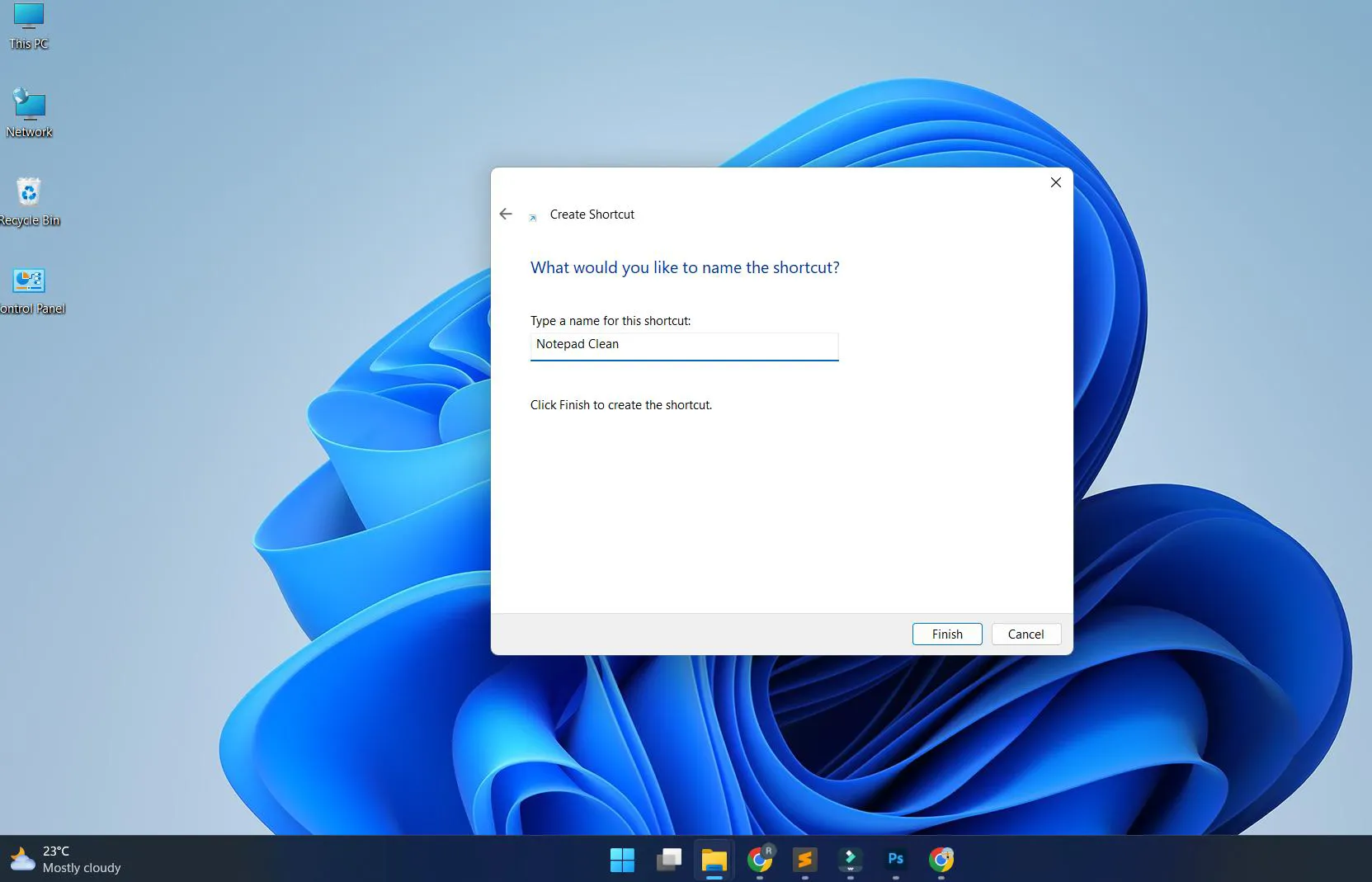
- Click Finish and use this shortcut to launch Notepad
Preventing Future Notepad Issues
Proactive maintenance keeps Notepad running smoothly and reduces the likelihood of problems developing.
Regular System Maintenance
Basic Windows maintenance prevents app issues before they start:
- Run Windows Update monthly to keep all apps current
- Use Disk Cleanup to remove temporary files regularly
- Restart the computer at least once a week to clear memory
- Avoid force-closing Notepad unless absolutely necessary
These simple habits create a more stable environment for all Windows applications, not just Notepad.
Backup Important Text Files
While troubleshooting Notepad issues rarely causes data loss, backing up important files provides peace of mind:
- Copy important .txt files to OneDrive or another cloud service
- Keep local backups on an external drive for critical documents
- Enable File History in Windows 11 for automatic backups
This works best when done automatically rather than relying on manual backups.
Frequently Asked Questions
Why won’t Notepad open in Windows 11?
Notepad might not open due to corrupted app files, missing Windows updates, or conflicts with third-party software. Running the Windows Store Apps troubleshooter from Settings > System > Troubleshoot usually identifies and fixes the problem. If that doesn’t work, resetting Notepad through Apps > Installed apps > Notepad > Advanced options resolves most opening issues.
How do I fix Notepad when it keeps crashing?
Frequent crashes typically result from corrupted cache files or incompatible settings. Close all Notepad instances through Task Manager, then navigate to %localappdata%\Packages and delete the Microsoft.WindowsNotepad folder. Restart the computer and launch Notepad fresh. If crashes continue, disable new features like tabs and autosave in Notepad’s settings to identify which feature causes instability.
Can I reinstall Notepad without losing my files?
Yes, reinstalling Notepad never deletes text files saved on the computer. The app reinstallation only affects Notepad itself, not any documents created with it. Text files remain in their original locations whether stored in Documents, Desktop, or any other folder. Reinstalling through PowerShell or the Settings app is completely safe for existing files.
What’s the difference between Repair and Reset for Notepad?
Repair attempts to fix Notepad issues while preserving all settings and preferences. It’s the gentler option that should be tried first. Reset completely removes all Notepad settings and returns the app to its default state, similar to a fresh installation. Reset works when Repair fails, but requires reconfiguring preferences like theme, font, and autosave settings afterward.
How do I get Notepad back if it’s completely missing?
If Notepad disappeared entirely from Windows 11, open PowerShell as administrator and run: Get-AppxPackage -AllUsers *WindowsNotepad* | ForEach {Add-AppxPackage -DisableDevelopmentMode -Register ‘$($_.InstallLocation)\AppXManifest.xml’}. This command reinstalls Notepad from Windows system files. After running the command and restarting the computer, Notepad appears in the Start menu and search results again.
Why does Notepad look different in Windows 11?
Microsoft redesigned Notepad for Windows 11 with a modern interface that includes tabs, dark mode, better find and replace, and autosave features. The core functionality remains the same, but the updated look aligns with Windows 11’s overall design language. These changes are permanent and intentional—there’s no way to revert to the classic Notepad appearance in Windows 11.
How do I reset Notepad file associations?
Right-click any .txt file, select ‘Open with’ and then ‘Choose another app.’ Pick Notepad from the list, check ‘Always use this app to open .txt files,’ and click OK. This resets the association so .txt files open in Notepad by default. For system-wide association changes, go to Settings > Apps > Default apps, search for Notepad, and set it as default for .txt, .log, and other text file types.
Does Windows 11 have Notepad pre-installed?
Yes, Notepad comes pre-installed with every Windows 11 installation. However, it now updates through the Microsoft Store rather than being tied to Windows Update like in older versions. This means Notepad can receive new features and bug fixes between major Windows updates. If Notepad seems missing, check the Microsoft Store to ensure it’s installed and updated to the latest version.