
Hibernation mode in Windows 11 often gets confused with sleep mode, but the two work in fundamentally different ways. Sleep keeps the system in a low-power state with data stored in RAM. Hibernation saves everything to the hard drive and completely powers down the computer. This makes hibernation particularly useful for laptop users who need to preserve battery life over extended periods without losing their work.
Quick Overview of Hibernation Mode
| Feature | Details |
|---|---|
| Power Consumption | Zero power draw when hibernating |
| Resume Time | Slower than sleep, faster than full boot |
| Data Storage | Saves session to hiberfil.sys on disk |
| Best For | Extended periods away from the device |
| File Size | Approximately 75% of installed RAM |
How Hibernation Saves Your Session to Disk
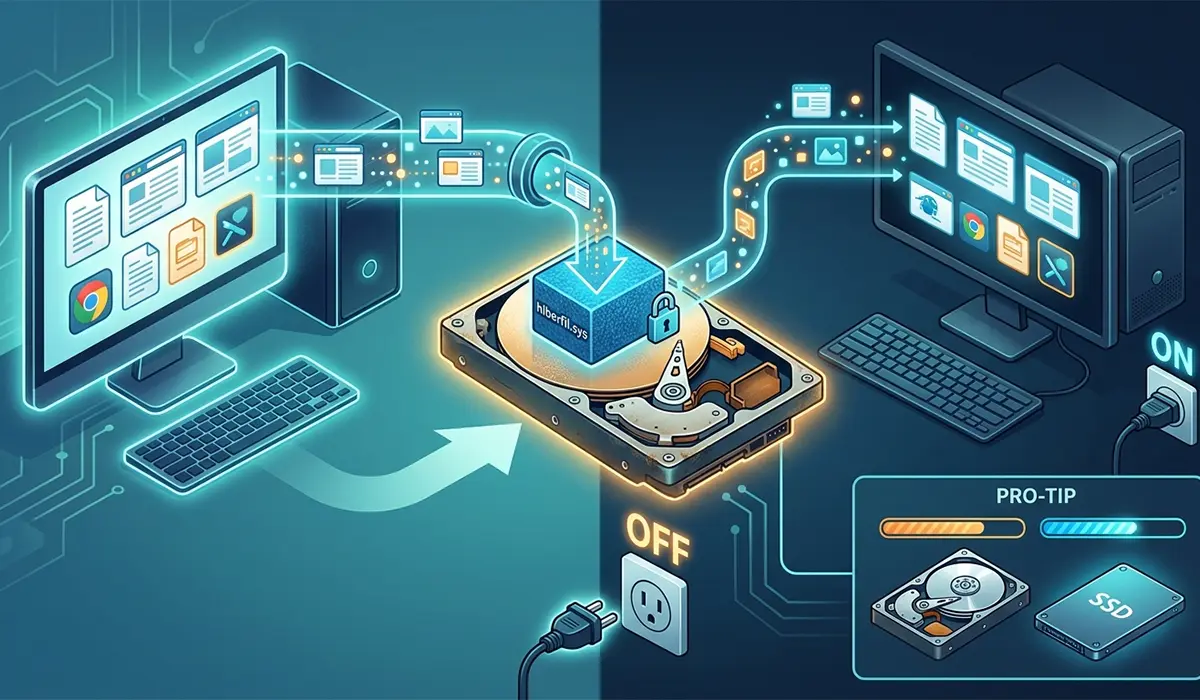
When hibernation activates, Windows 11 takes a snapshot of everything currently in memory. The system then writes this snapshot to a file called hiberfil.sys on the system drive. This includes all open applications, documents, browser tabs, and system processes. The operating system then powers down completely and draws no electricity whatsoever.
The hibernation file acts like a frozen moment in time. Upon restart, Windows reads this file back into memory. The system then restores the exact state the computer maintained before hibernation. This process takes longer than waking from sleep mode. The data must transfer from the hard drive rather than simply reactivating RAM.
Pro-Tip: Hibernation works best on systems with solid-state drives (SSDs). SSDs can read the hibernation file much faster than traditional hard disk drives. The difference in resume time can be substantial on older mechanical drives.
Why Hibernation Matters for Battery Life
The primary advantage of hibernation over sleep mode becomes clear when considering battery preservation. Sleep mode continues to draw power to keep memory active. A laptop left in sleep mode will eventually drain its battery completely. Hibernation eliminates this issue entirely by shutting down all power consumption.
Users who frequently work on battery power benefit most from hibernation. Those who need to step away from their devices for several hours or days find it invaluable. Hibernation offers the perfect middle ground. It preserves the current work session without the battery drain of sleep mode. It also avoids the inconvenience of manually saving and closing everything before a full shutdown.
Desktop users benefit less from hibernation since power consumption rarely concerns them. The feature still proves useful when wanting to preserve a complex work session. System maintenance or planned power outages make hibernation a practical choice even for desktop computers.
Storage Space Requirements and Management
The hibernation file consumes disk space equal to roughly 75% of the installed RAM. On a system with 16GB of memory, expect hiberfil.sys to occupy approximately 12GB. This file remains on the drive even when the computer runs normally. This can concern users with devices that have limited storage capacity.
Windows places this file on the system drive by default. The file cannot relocate to another partition or external drive. The operating system hides and protects the file. It will not appear in normal file browsing unless system files display as visible.
For systems with tight storage constraints, disabling hibernation entirely frees up this space. However, this also removes the ability to use hibernation mode. It may affect other features like fast startup, which relies on a similar hibernation-based mechanism to speed up boot times.
Differences Between Hibernation, Sleep, and Shutdown
Sleep mode keeps the computer in a low-power state with active memory. This allows near-instant resume times but continues to draw power. Shutdown closes all applications and requires a full boot sequence. This takes the longest to restart but consumes no power and requires no disk space for state preservation.
Hibernation sits between these two extremes. It offers zero power consumption like shutdown while preserving the session like sleep mode. The tradeoff comes in resume time. Hibernation resumes faster than a cold boot but slower than waking from sleep. Understanding these distinctions helps in choosing the right power and sleep settings for different situations.
Modern Windows 11 also includes a hybrid sleep mode. Desktop computers primarily use this feature. Hybrid sleep combines elements of both sleep and hibernation. This mode saves the session to disk while also keeping memory powered. It provides protection against power loss while maintaining quick wake times.
When Hibernation Works Best in Practice
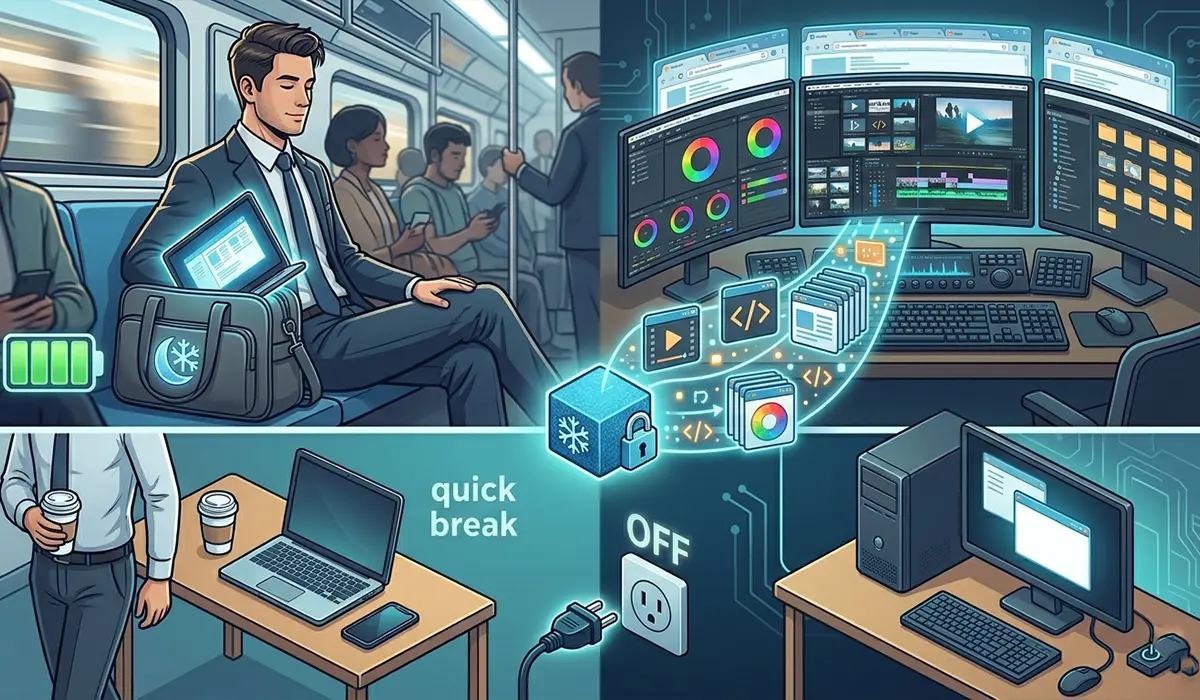
Laptop users who commute or travel frequently find hibernation invaluable for preserving battery during transit. Leaving the device in sleep mode often results in a drained battery upon return. Hibernation ensures the laptop remains ready to resume exactly where it left off, even after days without power.
Users working with resource-intensive applications benefit from hibernation when needing extended breaks. Video editors, developers with multiple IDEs open, or researchers with dozens of browser tabs can hibernate instead of closing everything. This preserves their workflow context without losing progress.
The feature proves less useful for quick breaks or brief periods away from the desk. Sleep mode suits these situations better. Similarly, users who always start fresh sessions may find regular shutdown and startup more straightforward. Those who maintain minimal open applications often prefer the simplicity of a clean restart.
System Compatibility and Hardware Considerations
Most modern Windows 11 devices support hibernation by default. Some manufacturers disable it on certain models or configurations. Systems with minimal storage space may ship with hibernation disabled to conserve disk space. Budget laptops with 64GB or 128GB eMMC storage particularly face this limitation.
Hardware drivers play a critical role in hibernation functionality. Outdated or incompatible drivers can prevent successful hibernation or cause resume failures. Network adapters, graphics cards, and storage controllers particularly affect this feature. Keeping device drivers current helps ensure reliable hibernation performance.
BIOS or UEFI settings may also affect hibernation availability. Some systems require specific power management features enabled in firmware before Windows can access hibernation mode. Checking system documentation or manufacturer support resources can clarify hardware-specific requirements.
Situations Where Hibernation Causes Problems
Corruption of the hibernation file can prevent Windows from resuming properly. This forces a full restart and potentially loses unsaved work. This corruption typically occurs during unexpected power loss while hibernating. Sudden system crashes or disk errors affecting the hiberfil.sys file also trigger this problem.
Security-conscious environments sometimes disable hibernation for data protection reasons. The hibernation file contains an unencrypted snapshot of system memory. Without full disk encryption enabled, someone with physical access to the drive could theoretically recover sensitive data from hiberfil.sys.
Network connections do not automatically reconnect after hibernation on some systems. Users must manually reconnect to Wi-Fi or VPN services. This behavior varies by hardware and driver implementation. Some network adapters handle hibernation gracefully while others require complete reinitialization.
Systems using BitLocker encryption may encounter additional resume delays. The drive must decrypt before the hibernation file can load. The impact usually remains minimal on modern hardware. Older systems with slower processors or mechanical hard drives may notice more significant delays.
Frequently Asked Questions
Does hibernation wear out solid-state drives faster than normal use?
Hibernation writes data to the SSD each time it activates. The amount remains relatively small compared to typical daily usage patterns. Modern SSDs have write endurance ratings that far exceed what hibernation contributes over the drive’s lifespan. The impact on SSD longevity remains negligible for normal usage patterns.
Can hibernation be scheduled to activate automatically after a certain time?
Windows 11 allows hibernation to activate when the computer remains idle for a specified period. Power plan settings control this automatic hibernation feature. Users can configure different settings for battery and plugged-in states. This gives flexibility for different usage scenarios without manual intervention.
Why does hibernation sometimes fail to save the current session?
Hibernation failures typically stem from insufficient disk space for the hibernation file. Driver conflicts preventing proper power state transitions also cause problems. File system errors affecting hiberfil.sys can trigger save failures. Running disk cleanup to free space and updating system drivers usually resolves most hibernation save failures.
Is the hibernation file encrypted when BitLocker is enabled?
Yes, when BitLocker full disk encryption protects the system drive, the hibernation file receives the same encryption protection. This addresses the security concern about sensitive memory contents stored in hibernation. The system must decrypt the drive before reading the file during resume.
Does hibernation preserve running virtual machines or emulators?
Hibernation saves the state of virtual machine software along with everything else in memory. The virtual machines themselves may not resume cleanly depending on their configuration. Some virtualization platforms handle host hibernation gracefully. Others may require manual restart of guest operating systems after the host resumes.
Can hibernation be used on desktop computers with uninterruptible power supplies?
Desktop systems can absolutely use hibernation regardless of power backup solutions. The battery preservation benefit does not apply to desktops. Hibernation still offers the advantage of preserving complex work sessions for later resume. This works without leaving the system consuming power indefinitely.
Why does the hibernation option not appear in the power menu?
Windows 11 hides the hibernation option from the power menu by default even when enabled. Users must manually add the option through power settings. The power button definition section contains the enable option. Some system configurations also disable hibernation entirely through group policy or manufacturer settings.
Does hibernation clear the clipboard and other temporary data?
Hibernation preserves the clipboard contents and all other data stored in memory at the time of hibernation. Everything resumes exactly as it was before. This includes copied text, temporary files in RAM, and application states. This differs from a full shutdown, which clears most temporary data.
Conclusion
Hibernation mode in Windows 11 serves a specific niche that sleep and shutdown cannot effectively fill. Users who need extended battery preservation while maintaining their work session benefit most from this feature. Hibernation delivers exactly what those other power states compromise on. The feature requires understanding the tradeoffs in storage space, resume time, and compatibility. When used appropriately, it becomes an essential tool for mobile productivity. It excels at preserving sessions across extended periods away from the device.