
Key Takeaways
- Changing a PIN on Windows 11 takes less than 2 minutes through the Settings app.
- A PIN only works on the current device and not on any other machine.
- No internet connection is needed to change a Windows 11 PIN.
- The current PIN must be known to set a new one through the standard method.
- Windows 11 supports both numeric-only PINs and alphanumeric PINs with letters and symbols.
Changing a PIN on Windows 11 is one of the quickest security updates anyone can make on their device. Whether the current PIN feels too simple, has been in use for too long, or needs a refresh after sharing the device temporarily, updating it is a smart and easy move. This guide walks through exactly how to change the PIN on Windows 11, step by step, with clear instructions and no unnecessary detours.
Why Changing Your PIN Regularly Matters
A PIN might seem like a small thing, but it acts as the first line of defense between a device and anyone who picks it up. Unlike a password, a Windows 11 PIN lives locally on the device and never travels over the internet. That makes it inherently more secure in certain ways – but keeping it updated and hard to guess still matters more than most people realize.
Think of it this way: if the same PIN has been in use for over a year, or if the initial setup used something easy like ‘1234’ or a birth year, it is probably time for a change. Most people find that refreshing their PIN every few months – or any time someone else has used the device – is a reasonable security habit to keep.
The good news is that Windows 11 makes this process simple. Everything happens inside the standard Settings app, and the whole thing wraps up in under two minutes.
How to Change Your PIN on Windows 11
Watch this tutorial on How to Change PIN on Windows 11 Easily
Follow the steps below to update the PIN on any Windows 11 device. This method works for both Microsoft accounts and local accounts, as long as the current PIN is known.
- Step 1: Open the Start Menu by clicking the Windows icon then click on Settings or use the keyboard shortcut Windows + I to open Settings directly.
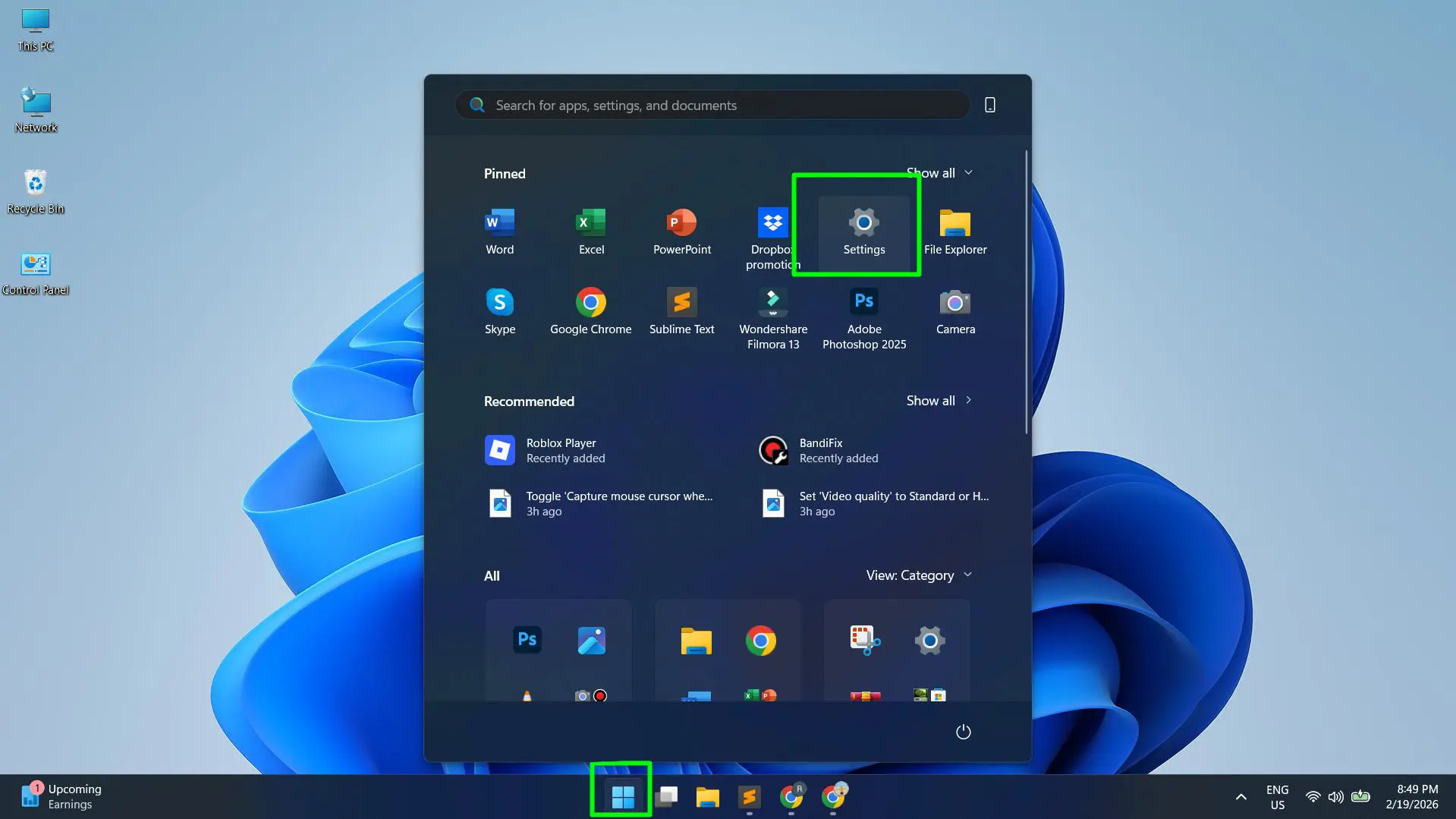
- Step 2: In the left-side navigation panel, click on Accounts.
- Step 3: Under the Accounts section, select Sign-in options.
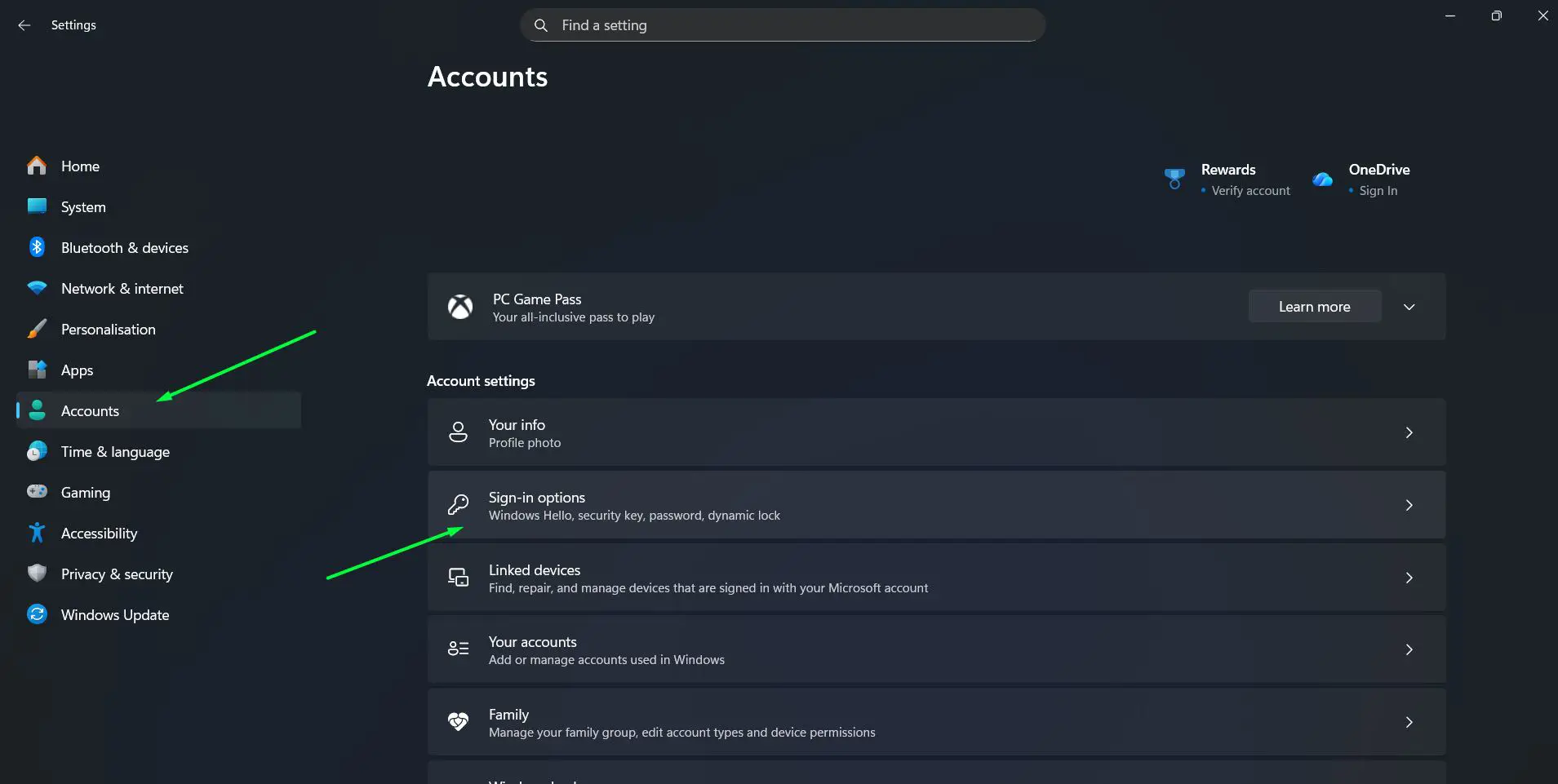
- Step 4: On the Sign-in options page, look under the section labeled ‘Ways to sign in’. Find PIN (Windows Hello) and click on it to expand the available options.
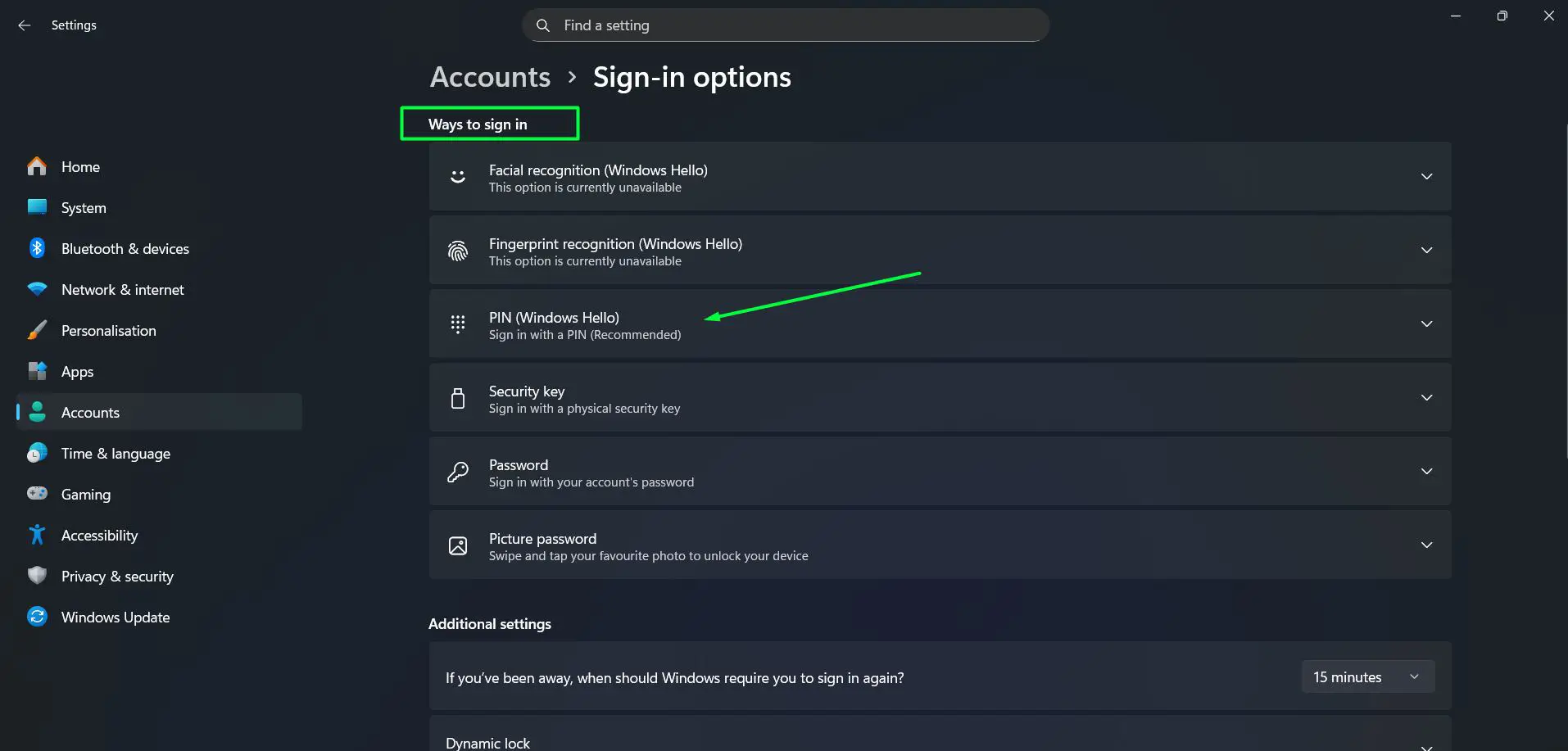
- Step 5: Click the Change PIN button that appears after expanding the PIN section.
- Step 6: A small Windows Security popup will appear. Enter the current PIN in the first field, type the new PIN in the second field, and confirm the new PIN in the third field.
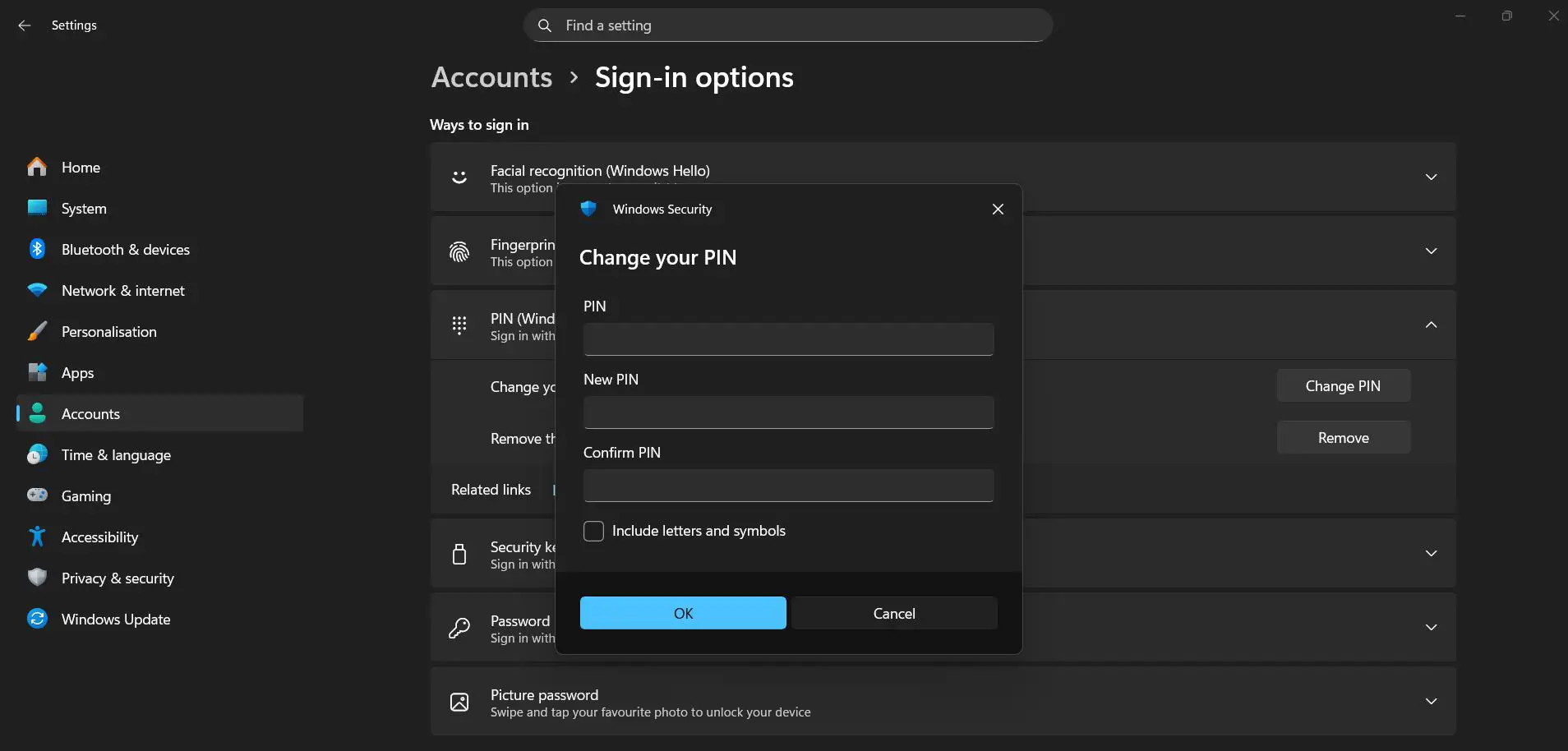
- Step 7: To create a more complex PIN with letters and symbols, check the box labeled ‘Include letters and symbols’ before confirming.
- Step 8: Click OK to save.
What Happens After the Change
The new PIN takes effect immediately. The next time the device locks or restarts, Windows 11 will ask for the new PIN at the sign-in screen. No reboot is necessary for the change to apply, though a quick restart is a good way to confirm everything works correctly.
For anyone managing multiple Windows devices under the same Microsoft account, each device stores its PIN separately. Changing the PIN on one machine does not touch any other device.
Pro-Tip: When the Windows Security popup appears during the PIN change process, check the box that says ‘Include letters and symbols.’ This unlocks the ability to create an alphanumeric PIN – essentially a short passphrase – which offers significantly stronger protection than a number-only PIN while still being fast to type at the login screen.
Tips for Choosing a Strong Windows 11 PIN
Not all PINs offer the same level of protection. A 4-digit PIN made up of ‘0000’ or ‘1234’ provides almost no real security. The key is to pick something personally easy to remember but difficult for anyone else to guess.
What to Avoid
- Sequential or repeated digits like ‘1234’ or ‘1111’.
- Personally identifiable numbers such as birth years, phone numbers, or anniversaries.
- Any number that appears on a public profile or social media account.
What Works Best
- Use at least 6 digits for a numeric PIN – the longer, the better.
- Enable letters and symbols for a much stronger credential.
- A short phrase with numbers mixed in is easier to remember and harder to crack than a purely random string.
- Combine something personally meaningful with a number that has private significance – not something publicly known.
This works best when the chosen PIN connects to something personal but not obvious. Most people find that a memorable combination – not a random jumble – is easier to recall under pressure without sacrificing much security.
Common Problems When Changing a PIN on Windows 11
Forgot the Current PIN
If the current PIN slips from memory, the standard Change PIN method will not work since it requires entering the existing PIN first. The fix is to sign in using a Microsoft account password on the lock screen. Click ‘Sign-in options’ and choose the password option. Once inside Windows, head to Settings, then Accounts, then Sign-in options. From there, remove the existing PIN and set up a brand new one without needing the original.
Change PIN Button Is Grayed Out
This typically appears when the device has not fully set up Windows Hello, or when the session needs a refresh. Signing out of the account completely and signing back in usually clears this up. A full restart also works in most cases.
New PIN Not Working After the Change
On some older hardware, Windows 11 takes a moment to recognize the updated credential. Restarting the device solves this in almost every case. After the reboot, the new PIN works without any issues.
PIN (Windows Hello) Option Is Missing
When the PIN option does not appear under Sign-in options, the device likely has TPM (Trusted Platform Module) turned off in the BIOS, or a software policy restricts Windows Hello. To check TPM status, go to Settings, then Privacy and Security, then Windows Security, and finally Device Security. If ‘Security processor’ does not appear there, TPM needs to be turned on in the BIOS before Windows Hello PIN features become available.
For users dealing with software-related restrictions blocking Windows Hello, the device may be under a workplace or school policy that limits sign-in options. An IT administrator typically controls those settings.
Pro-Tip: To quickly check if TPM is active, press Windows + R, type tpm.msc, and hit Enter. If TPM is ready, the window displays its status and version. If it shows ‘Compatible TPM cannot be found,’ the system BIOS needs a visit to turn TPM on before Windows Hello PIN features become available.
Frequently Asked Questions
Can the PIN be changed without knowing the current PIN?
Not through the standard Change PIN method. Signing in with a Microsoft account password on the lock screen gives access to Settings, where the old PIN can be removed and a fresh one can be created without needing the original.
Does changing a Windows 11 PIN affect other devices?
No. A Windows 11 PIN belongs to the specific device it was created on. Changing it on one machine does not affect the PIN or login credentials on any other device, even when the same Microsoft account links multiple computers together.
How long can a Windows 11 PIN be?
A numeric-only PIN requires a minimum of 4 digits, and Windows 11 does not set a strict maximum length. Enabling letters and symbols allows for a much longer and more complex PIN that works similarly to a passphrase.
Is a PIN safer than a password on Windows 11?
In many practical scenarios, yes. A PIN never leaves the device – it stays local and never travels over a network during sign-in. Even if a network gets compromised, the PIN stays safe. A regular password, by contrast, can potentially grant remote access to an account from anywhere.
Can a PIN be changed from the lock screen?
No. The lock screen only handles sign-in and does not provide access to credential management. To change a PIN, the user must already be signed in and navigate to the Settings app.
What is the minimum length for a Windows 11 PIN?
Windows 11 requires a minimum of 4 digits for a numeric PIN. For stronger protection, 6 or more digits is the better choice. Adding letters and symbols makes even a shorter PIN considerably more secure thanks to the wider range of possible character combinations.