
Testing a keyboard before important tasks or gaming sessions ensures every key responds correctly. This free keyboard tester provides instant feedback on key presses, helping identify stuck, broken, or unresponsive keys in seconds. No downloads or installations required – just start pressing keys.
Most people find that testing their keyboard regularly prevents frustrating mid-task failures. The key is to check all keys systematically, from function keys to special characters.
How to Test Your Keyboard
Running a complete keyboard test takes less than two minutes. The visual feedback makes it easy to spot problems immediately. Here’s the straightforward process:
- Press each key on the keyboard one at a time
- Watch the corresponding key light up green on the visual layout
- Check the statistics panel for key name and code confirmation
- Review the key history to see all pressed keys with timestamps
- Click ‘Reset Test’ to clear results and start fresh
This works best when testing in a quiet environment where focused attention can be given to each key. The tester prevents all default key behaviors, so pressing F5 won’t refresh the page and the Windows key won’t open the Start menu.
What This Keyboard Tester Checks
Understanding what gets tested helps ensure thorough keyboard evaluation. The tester monitors several critical aspects of keyboard functionality.

Key Response Detection
Every key press triggers immediate visual feedback. The corresponding key on the layout turns green, confirming the keyboard is sending the signal correctly. This instant response helps identify keys that are slow to register or completely unresponsive.
Key Code Verification
Each key generates a unique code that the computer recognizes. The tester displays both the key name and its technical code, which is particularly useful for programmers and advanced users who need to verify specific key codes for software development.
Multiple Key Press Tracking
The statistics panel keeps count of how many unique keys have been pressed during the test session. This helps ensure complete keyboard coverage, making sure no key gets accidentally skipped during testing.
Press History Logging
A detailed history shows all pressed keys with precise timestamps. This feature proves valuable when documenting keyboard issues or comparing response times across different keys.
Testing Different Keyboard Types
Different keyboards require slightly different testing approaches. Knowing these distinctions improves testing accuracy.
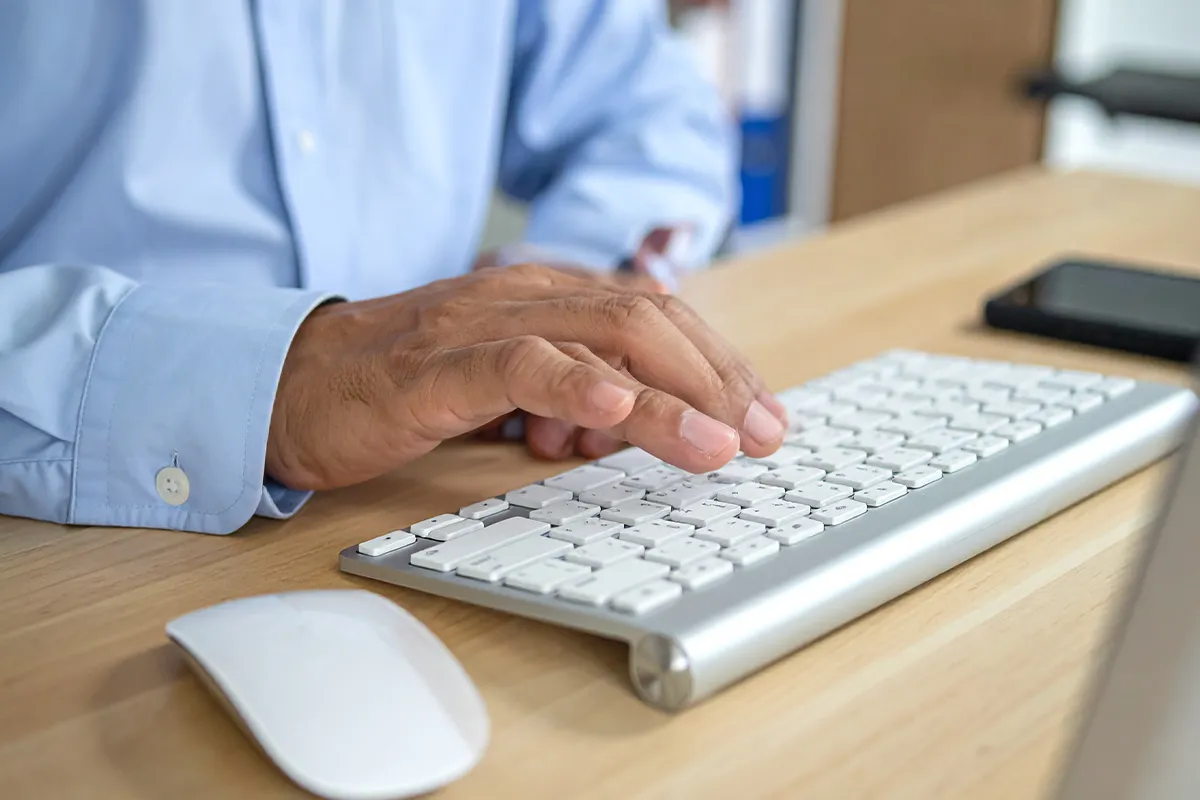
Standard Desktop Keyboards
Full-size keyboards include a number pad, function keys, and navigation cluster. Testing should cover all 104+ keys, including often-forgotten keys like Print Screen, Scroll Lock, and Pause Break.
Laptop Keyboards
Laptop keyboards typically have 78-86 keys and may include special function combinations. The key is to test both normal key presses and any Fn key combinations that control brightness, volume, or other laptop-specific functions.
Gaming Keyboards
Gaming keyboards often feature extra macro keys and N-key rollover. Testing these keyboards should verify that multiple keys can be pressed simultaneously without ghosting – crucial for competitive gaming where complex key combinations are common.
Mechanical Keyboards
Mechanical keyboards use individual switches for each key. Testing helps identify switches that may be failing or inconsistent. Most people find that mechanical keyboards either work perfectly or have very obvious switch failures that show up immediately during testing.
Common Keyboard Testing Scenarios
Different situations call for keyboard testing. Recognizing these scenarios helps maintain keyboard reliability.
Before Purchasing a Used Keyboard
Testing a secondhand keyboard before buying prevents costly mistakes. The seller can demonstrate that all keys work by pressing each one during the test. This works best when testing in person, but screenshots can provide some assurance for online purchases.
After Spilling Liquid on Keyboard
Liquid damage often affects multiple keys. Testing immediately after cleaning determines which keys survived and which need replacement. Some keys may work initially but fail later as residue builds up, so retesting after 24 hours provides better accuracy.
Diagnosing Typing Errors
Frequent typos sometimes stem from keyboard issues rather than typing skill. Testing reveals whether specific keys are registering multiple times or not registering at all. The key history feature shows exactly when double-presses occur.
Verifying New Keyboard Functionality
New keyboards occasionally arrive with manufacturing defects. Testing within the return window ensures all keys function correctly before the warranty period becomes relevant. Most retailers accept returns for defective keyboards if problems are documented promptly.
Checking Wireless Keyboard Connectivity
Wireless keyboards sometimes experience lag or dropped key presses. The timestamp feature in the history log helps identify response delays that might indicate connectivity issues or low battery levels.
Understanding the Visual Keyboard Layout
The on-screen keyboard layout mirrors standard QWERTY keyboards. Watching keys light up provides immediate confirmation of which physical key was pressed. This visual feedback is particularly helpful when testing in dim lighting or when keys have worn labels.
Function keys appear at the top, number row below that, then the main QWERTY section, and arrow keys at the bottom. This matches most physical keyboard layouts, making it intuitive to follow along during testing.
Key Testing Statistics
The three statistics boxes provide real-time information about the testing session. Understanding these metrics helps ensure thorough testing coverage.
Keys Pressed Counter
This number increases each time a new key is pressed for the first time in the session. A standard keyboard has 104 keys, so reaching close to that number indicates comprehensive testing. The counter doesn’t increase when pressing the same key repeatedly.
Last Key Display
Shows the most recently pressed key in readable format. Special keys like Space, Enter, and Shift display by name rather than their actual output, making them easy to identify.
Key Code Display
Technical code that the operating system receives when the key is pressed. Developers use these codes when programming keyboard shortcuts or creating custom hardware configurations.
Testing Keyboard on Different Operating Systems
This keyboard tester works across all major platforms through any modern web browser. The key is using a browser that supports JavaScript, which includes virtually all current browsers.
Windows Keyboard Testing
Windows keyboards include a dedicated Windows key that normally opens the Start menu. During testing, this key press is captured without triggering the menu, allowing proper verification of the key’s functionality.
Mac Keyboard Testing
Mac keyboards feature Command and Option keys instead of Windows and Alt keys. The tester recognizes these keys and displays their proper names, making it clear which Mac-specific key was pressed.
Chromebook Keyboard Testing
Chromebook keyboards lack certain keys found on standard keyboards but include special Chrome OS function keys. All present keys can be tested regardless of the specific keyboard configuration.
Keyboard Test Best Practices
Following a systematic approach ensures no keys get missed during testing. These practices improve testing thoroughness.
- Start from the top left (Escape key) and work systematically across and down
- Test each key only once during the initial pass to build accurate statistics
- Use the history log to verify that each key registered correctly
- Test modifier keys (Shift, Ctrl, Alt) both independently and in combinations
- Check that keys return to their normal appearance after releasing them
- Pay extra attention to frequently used keys that may show wear
Most people find that the systematic approach takes about 90 seconds for a full keyboard. Rushing increases the chance of skipping keys, so maintaining a steady pace works better than speed.
When to Test Your Keyboard
Regular testing catches problems before they become critical. These situations warrant immediate keyboard testing:
- Purchasing any keyboard, new or used
- After cleaning or maintenance
- When experiencing frequent typing errors
- Before important work presentations or exams
- After Windows or system updates that might affect drivers
- When keys feel different or sticky
- Before competitive gaming sessions
The key is to test proactively rather than waiting for obvious problems. Intermittent issues often worsen gradually, and catching them early prevents data loss or missed deadlines.
Reading Test Results
Interpreting the test results determines whether the keyboard passes or needs attention. Here’s what to look for:
A fully functional keyboard shows green highlighting for every pressed key, displays accurate key names in the statistics panel, and logs all presses in chronological order without delays or duplicates. The keys pressed counter should reach close to the total key count after systematic testing.
Problem indicators include keys that don’t light up when pressed, keys that register multiple times from a single press, significant delays between pressing and response, or keys that remain highlighted after release.
Resetting the Test
The reset button clears all statistics and history, returning the tester to its initial state. This proves useful when testing multiple keyboards in succession or when wanting to retest the same keyboard after making adjustments or repairs.
Resetting doesn’t affect the keyboard itself – it only clears the data displayed in the tester. This allows running multiple test sessions without browser refresh or page reload.
Frequently Asked Questions
Why doesn’t my key light up when pressed?
A key that doesn’t light up indicates either the key isn’t registering with the computer, or the physical key is stuck and not making contact. Try pressing the key harder, cleaning around it, or testing on a different device to determine if the issue is keyboard hardware or computer connection.
Can this test fix broken keyboard keys?
No, the keyboard tester is a diagnostic tool that identifies problems but doesn’t repair them. It shows which keys aren’t working correctly, allowing informed decisions about cleaning, repair, or replacement. The tester itself cannot fix hardware issues.
Do I need to install any software?
No installation is required. The keyboard tester runs entirely in the web browser using standard web technologies. Simply load the page and start pressing keys immediately.
Why do some keys show different names than expected?
The tester displays technical key names that the operating system uses. For example, the Windows key appears as ‘Meta’ and the spacebar shows as ‘Space’. These are the standard technical names, even if they differ from the labels printed on physical keys.
Can I test keyboard combinations like Ctrl+C?
Yes, pressing multiple keys simultaneously will show each key lighting up and appearing in the history. However, the tester displays individual key presses rather than combination shortcuts, so Ctrl+C appears as two separate entries for Control and C keys.
How long should keyboard testing take?
Thoroughly testing a full-size keyboard takes approximately 90-120 seconds when pressing each key systematically. Laptop keyboards with fewer keys take 60-90 seconds. Rushing increases the chance of missing keys.
Will testing wear out my keyboard?
No, occasional testing causes negligible wear. Mechanical keyboards are rated for millions of presses, and membrane keyboards handle tens of millions. A single test session uses less than 200 presses total, which is insignificant compared to normal daily use.
Can I save my test results?
The keyboard tester doesn’t automatically save results, but taking a screenshot preserves the key history and statistics for documentation. This works well when reporting keyboard issues to manufacturers or when comparing keyboards before purchase.
Why does the Space key not scroll the page?
The tester prevents all default keyboard behaviors to allow proper testing. This means Space won’t scroll, F5 won’t refresh, and the Windows key won’t open the Start menu. All keys are captured purely for testing purposes without triggering their normal functions.
Does this work with gaming keyboards?
Yes, gaming keyboards work perfectly with this tester. All standard keys, macro keys, and media controls can be tested. However, keyboard-specific features like RGB lighting control or profile switching won’t be tested as those are managed by dedicated software.
Can I test wireless keyboards?
Absolutely. Wireless keyboards work identically to wired keyboards for testing purposes. The tester captures any key signal that reaches the computer, regardless of connection type. Testing wireless keyboards can actually help diagnose connectivity issues if certain key presses show delays in the timestamp log.
What if two keys light up when I press one?
This indicates a hardware problem called ‘key chatter’ where a single press registers multiple times, or ‘ghosting’ where pressing one key triggers another. Both issues require keyboard repair or replacement as they stem from faulty hardware, worn contacts, or damaged circuitry.