
Most people setting up a new Windows device skip right past the account selection screen without realizing they just made a choice that affects how their entire system operates. The difference between a Microsoft account and a local account isn’t just technical jargon — it changes where your files live, how updates work, and whether you can access your data from another device. Understanding this distinction helps avoid frustration down the road when trying to sync settings or recover files.
Microsoft Account vs Local Account: Quick Comparison
| Feature | Microsoft Account | Local Account |
|---|---|---|
| Sign-In Method | Email and password (cloud-based) | Username and password (device-only) |
| Cloud Sync | Settings, files, and preferences sync across devices | No cloud sync — everything stays local |
| OneDrive Integration | Automatic OneDrive access with free storage | OneDrive available but requires separate sign-in |
| Microsoft Store | Full access to download and purchase apps | Limited Store access without signing in |
| Privacy | Activity and preferences sent to Microsoft servers | Data stays on the device |
| Password Reset | Reset online from any device | Cannot reset remotely — requires recovery tools |
| Windows Hello | Works with biometric login options | Works with biometric login options |
What a Microsoft Account Actually Does on Your PC
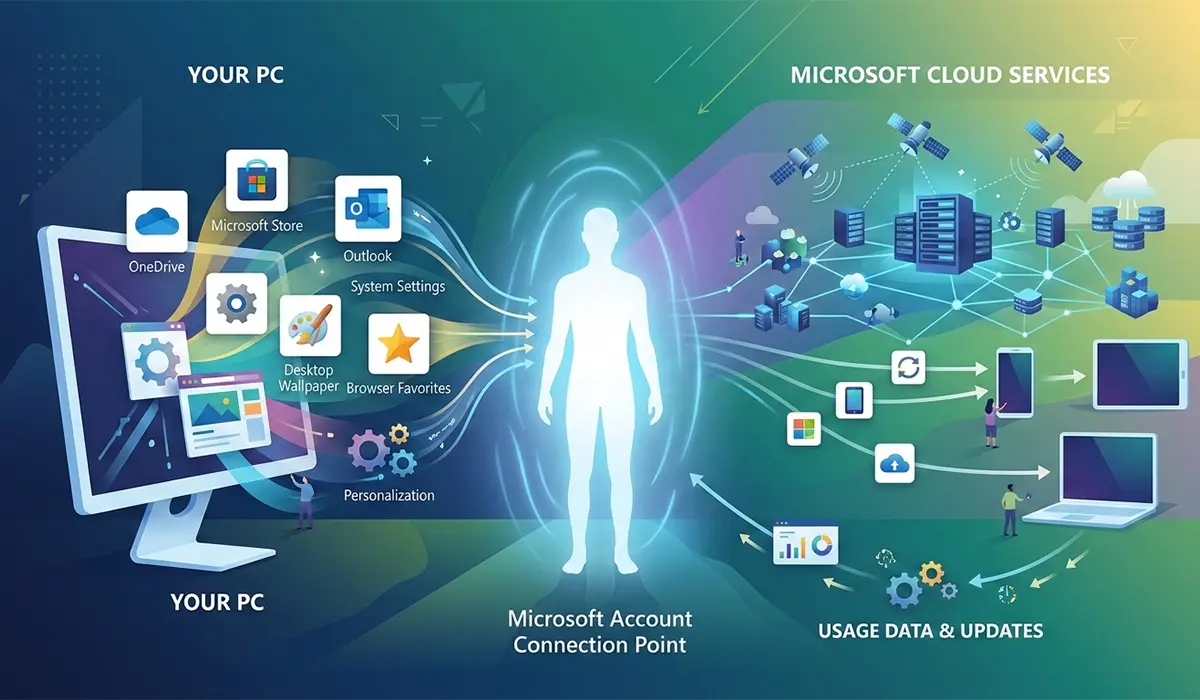
A Microsoft account links your Windows device to cloud services maintained by Microsoft. When signing in with this account type, the operating system connects to Microsoft’s servers to verify identity and pull down synced settings. This means desktop wallpaper, browser favorites, app preferences, and even Wi-Fi passwords follow you from one Windows device to another.
The account also serves as a gateway to Microsoft’s ecosystem. OneDrive becomes the default save location for many files, making documents accessible from phones, tablets, or web browsers. The Microsoft Store requires this account type for downloading most apps and games. Email addresses from Outlook, Hotmail, or Live domains work as Microsoft accounts automatically, though any email address can be converted into one during registration.
Behind the scenes, Windows sends diagnostic data and usage patterns back to Microsoft when using this account type. This information helps improve products but also means activity leaves the local device. Updates and security patches often install more smoothly since Microsoft can push configurations directly to authenticated accounts.
How Local Accounts Keep Everything on Your Device
A local account exists only on the specific computer where it’s created. The username and password never leave the device, and no cloud services activate automatically. This setup appeals to users who prefer complete control over their data or work in environments with strict privacy requirements.
Without cloud connectivity, settings stay confined to the single machine. Installing Windows on a second computer means starting fresh — no synced preferences, no automatic file access, and no shared browsing history. The Microsoft Store still opens, but downloading apps requires signing in with a Microsoft account separately, even if the main system login uses a local account.
Local accounts require more manual management. Forgotten passwords need recovery media or administrator intervention since no ‘reset password online’ option exists. Backing up files becomes entirely the user’s responsibility, as OneDrive integration doesn’t happen automatically. This approach works well for shared computers, systems where User Account Control settings need strict management, or devices used offline frequently.
Why Windows Pushes Microsoft Accounts During Setup
Modern Windows installations strongly encourage Microsoft account creation, sometimes hiding the local account option entirely. Microsoft benefits from connected users through data collection, service subscriptions, and ecosystem lock-in. More accounts mean more OneDrive users, more Store purchases, and more actionable usage data for product development.
From a business perspective, cloud-connected users represent higher lifetime value. They’re more likely to subscribe to Microsoft 365, use Edge browser, and stay within Microsoft’s app ecosystem. The company also reduces support costs when users can reset passwords themselves or recover files from OneDrive after hardware failures.
Pro-Tip: Windows 11 Home edition makes creating a local account during setup intentionally difficult, often requiring network disconnection or specific command-line workarounds. Windows 11 Pro still allows easier local account creation, making it a better choice for users who value this option.
Privacy and Data Control Differences That Actually Matter
Microsoft accounts transmit activity logs, search queries, location data, and app usage to Microsoft’s servers by default. This telemetry helps personalize experiences and improve services, but it also creates a digital trail outside the user’s direct control. Privacy settings can limit some data collection, though certain features require telemetry to function.
Local accounts still send some diagnostic information to Microsoft — Windows itself collects basic system data regardless of account type. However, the personal identifier linking that data to a specific user doesn’t exist without a Microsoft account. Browsing history, document access patterns, and Cortana queries stay on the device rather than syncing to cloud servers.
For users concerned about data sovereignty, local accounts provide more direct control. Files don’t automatically upload to OneDrive, reducing exposure to potential cloud breaches. Authentication happens entirely offline, eliminating risks associated with online account compromises. This setup requires more personal responsibility for backups and security but keeps data physically contained.
When Cloud Sync Becomes Essential vs When It Creates Problems
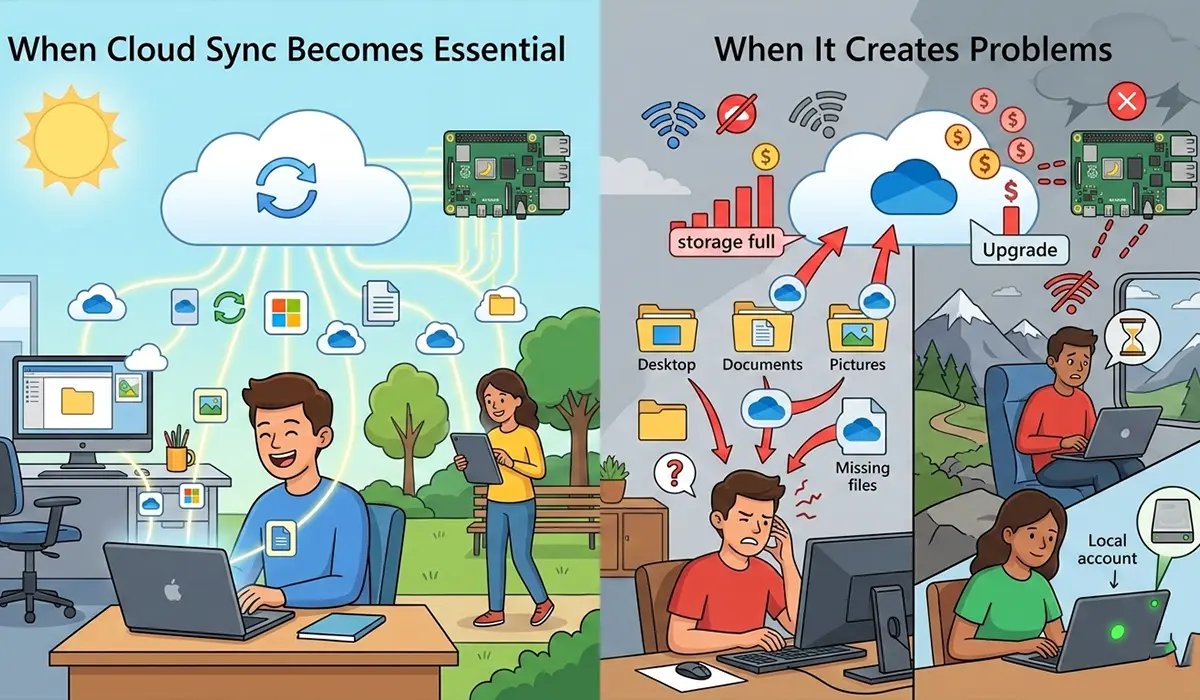
Cloud synchronization shines for users who switch between multiple devices regularly. A desktop at work, laptop at home, and tablet for travel all maintain consistent settings and file access with a Microsoft account. Changes made on one device appear everywhere else within minutes. This seamless experience breaks down with local accounts, where each machine operates independently.
Problems arise when cloud sync conflicts with local storage preferences. OneDrive sometimes redirects Desktop, Documents, and Pictures folders without clear indication, causing confusion when files don’t appear where expected. Limited cloud storage means large file collections quickly exceed free tier limits, triggering constant upgrade prompts.
Network-dependent functionality also becomes a liability in poor connectivity situations. Local accounts function identically whether online or offline, while Microsoft accounts may struggle with authentication or file access when internet quality drops. Users who work in remote areas or travel internationally often find local accounts more reliable for uninterrupted productivity.
Real-World Scenarios Where Each Account Type Makes Sense
Microsoft accounts suit professionals who collaborate across devices and need seamless file access. Remote workers benefit from automatic sync ensuring their latest work appears on every machine. Students using school-provided devices alongside personal computers find the consistency helpful for maintaining organized workflows.
Local accounts make sense for fixed workstations, gaming PCs that never leave the house, or family computers shared by multiple users. Privacy-conscious individuals who avoid cloud services prefer keeping data local. Businesses with strict data handling requirements often mandate local accounts to maintain complete control over information flow.
Shared computers in public spaces, libraries, or labs almost always use local accounts to prevent personal data from persisting between users. Developers working with sensitive codebases frequently choose local accounts to avoid accidental cloud uploads. Machines used primarily for offline tasks — like digital art with Paint or video editing — gain little from cloud connectivity while risking unwanted data transmission.
Account Type Limitations and Switching Complications
Certain Windows features refuse to work without a Microsoft account. BitLocker recovery keys automatically save to Microsoft accounts, making them mandatory for this encryption method on some devices. Windows Hello for Business requires Azure Active Directory authentication. Some pre-installed apps from device manufacturers only activate with Microsoft account sign-in.
Switching between account types mid-use creates friction. Converting a local account to a Microsoft account links all existing files and settings to the cloud immediately, which may trigger unexpected uploads. Moving from a Microsoft account back to local means losing automatic sync — files in OneDrive won’t update, and settings won’t carry to other devices. Neither process erases data, but both change how the system manages information.
Family Safety features and parental controls require Microsoft accounts for both parent and child users. Screen time limits, app restrictions, and activity reporting don’t function with local accounts. This limitation forces families seeking these tools to adopt Microsoft’s account system despite potential privacy preferences.
Frequently Asked Questions
Can you use both account types on the same computer at once?
Yes, Windows allows multiple user accounts on a single device, mixing Microsoft and local accounts freely. Each account maintains separate files, settings, and installed programs. Switching between accounts requires logging out and back in, with each user’s environment isolated from others. This setup works well for shared family computers where some members want cloud sync while others prefer local-only access.
Does a local account make Windows run faster than a Microsoft account?
Performance differences between account types are negligible during normal use. Local accounts skip cloud sync processes, which eliminates background OneDrive uploads and settings synchronization, potentially saving minimal system resources. However, modern hardware handles these tasks easily, and most users won’t notice speed differences. The perception of faster performance with local accounts often comes from reduced startup processes rather than actual computational improvements.
Will switching from local to Microsoft account delete my files?
No, existing files remain untouched when converting account types. Converting a local account to Microsoft account preserves all documents, programs, and settings while adding cloud sync capabilities. The main change involves linking that data to Microsoft’s servers for backup and synchronization. Users should expect OneDrive to begin scanning and potentially uploading files after the switch, which may consume bandwidth initially.
Can you download apps from Microsoft Store with a local account?
The Microsoft Store opens with a local account, but downloading most apps requires signing in with a Microsoft account. Some free apps may install without authentication, though the majority request sign-in before downloading. This requirement exists even when the primary Windows login uses a local account. Users can sign into the Store independently without converting their entire system account.
Do local accounts receive the same Windows updates as Microsoft accounts?
Both account types receive identical Windows updates through Windows Update. Security patches, feature updates, and driver installations happen regardless of account type. Microsoft accounts may receive updates slightly faster in some cases due to cloud-based configuration management, but the difference rarely exceeds a few hours. Critical security updates always deploy universally without account-based delays.
Is it possible to use OneDrive with a local Windows account?
Yes, OneDrive functions with local accounts after signing into the OneDrive app separately. The desktop application prompts for Microsoft account credentials independent of the Windows login type. Once authenticated, OneDrive operates identically to Microsoft account setups, syncing files and providing cloud storage. This allows users to maintain local account privacy while selectively enabling cloud storage for specific folders.
Which account type offers better security against hackers?
Security strength depends more on password quality and enabled protections than account type. Microsoft accounts support two-factor authentication and remote password resets, offering recovery options if credentials are compromised. Local accounts can’t be accessed remotely, providing protection against online attacks targeting Microsoft’s servers. However, physical device access poses greater risk for local accounts since no remote lockout option exists. Enabling Windows Hello and strong passwords matters more than account type for practical security.
Can parental controls work without Microsoft accounts?
No, Windows Family Safety features require both parent and child accounts to be Microsoft accounts. Screen time management, app restrictions, location tracking, and activity reports all depend on cloud-based account linking. Local accounts simply don’t support these features. Families wanting built-in parental controls must accept Microsoft account requirements for all supervised users, though third-party software offers alternatives that may work with local accounts.
Conclusion
The choice between Microsoft and local accounts ultimately reflects how much value cloud integration provides versus how much control over personal data matters. Neither option is universally superior — context determines which account type serves individual needs better. Users who frequently switch devices and embrace Microsoft’s ecosystem benefit from seamless synchronization, while those prioritizing privacy or working with single machines find local accounts perfectly adequate. The good news is Windows allows account type changes later if initial choices prove inconvenient, though making an informed decision upfront saves adjustment hassles down the road.