
Finding the right photo editing apps for Windows 11 can transform how images are enhanced, whether for professional work or personal projects. Windows 11 supports a wide range of photo editing software, from built-in tools to advanced third-party applications. This guide highlights three top-rated photo editing apps that deliver excellent results without unnecessary complexity.
Quick Summary: Top 3 Photo Editing Apps
| App Name | Best For | Key Features | Availability |
|---|---|---|---|
| Adobe Photoshop | Professional editing and advanced manipulation | Layers, masking, RAW support, AI tools, extensive filters | Subscription-based |
| GIMP | Free alternative with professional capabilities | Layer support, customizable interface, plugin ecosystem | Free and open-source |
| Affinity Photo | One-time purchase professional software | Non-destructive editing, RAW processing, advanced retouching | One-time purchase |
Adobe Photoshop: Industry Standard for Professional Photo Editing
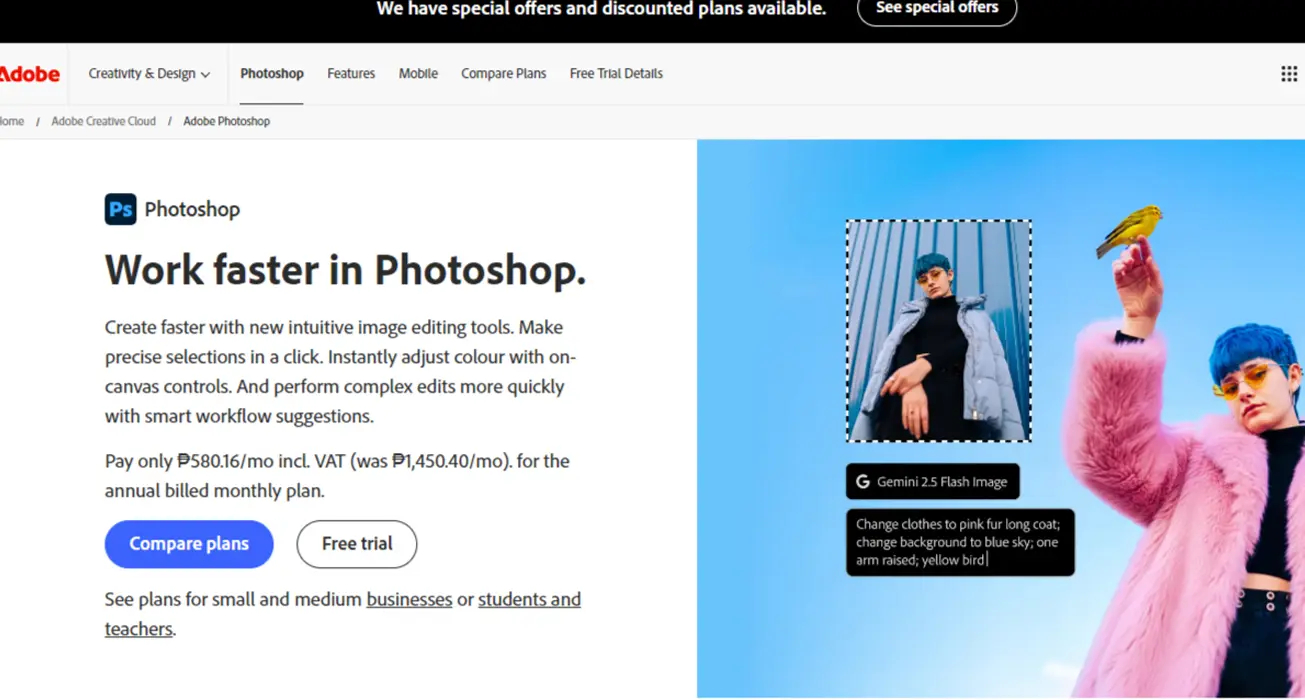
Adobe Photoshop remains the most recognized photo editing application worldwide. The software provides comprehensive tools for photo manipulation, retouching, and creative design work. Photoshop integrates seamlessly with Windows 11, taking advantage of modern hardware capabilities and touch-optimized interfaces.
The application excels in layer-based editing, allowing users to work non-destructively on images. Each adjustment, filter, or modification sits on separate layers, making it simple to revise specific changes without affecting the entire image. The masking system enables precise selection and editing of specific image areas, which proves essential for complex photo compositions.
AI-powered features like Content-Aware Fill, Neural Filters, and Sky Replacement automate time-consuming tasks. These tools analyze image content and make intelligent suggestions or automatic adjustments that would traditionally require manual work. The Camera RAW processor handles files from professional cameras, providing extensive control over exposure, color balance, and detail recovery.
Photoshop supports graphics tablets and stylus input natively on Windows 11, making it suitable for detailed retouching and digital painting. The software receives regular updates with new features, performance improvements, and support for emerging file formats. Cloud integration allows projects to sync across devices and enables collaborative workflows.
Pro-Tip: Enable GPU acceleration in Photoshop preferences under Performance settings. This uses the graphics card to speed up filters, transformations, and viewport rendering, especially beneficial on Windows 11 systems with dedicated GPUs.
GIMP: Powerful Free Alternative for Photo Editing
GIMP(GNU Image Manipulation Program) offers professional-grade photo editing capabilities without subscription fees or purchase costs. The open-source software runs smoothly on Windows 11 and provides tools comparable to commercial alternatives. GIMP suits both beginners learning photo editing and experienced users seeking a cost-effective solution.
The interface can be customized extensively to match different workflows. Users can arrange tool windows, create custom keyboard shortcuts, and save workspace layouts for specific tasks. While the default interface differs from commercial software, the flexibility allows adaptation to personal preferences. Third-party themes and icon sets further enhance the visual appearance.
Layer support in GIMP mirrors professional software, enabling non-destructive editing through adjustment layers, masks, and blend modes. The software handles common image formats including JPEG, PNG, TIFF, and PSD files, making it compatible with projects started in other applications. RAW file support comes through plugins like RawTherapee or Darktable integration.
The plugin ecosystem extends GIMP’s functionality significantly. Community-developed plugins add features ranging from advanced filters to batch processing capabilities. Python and Script-Fu scripting enable automation of repetitive tasks, saving time on bulk image processing. Regular updates from the development community bring new features and bug fixes without cost.
GIMP performs well on modest hardware, making it accessible for older computers or laptops with limited resources. The software doesn’t require high-end specifications to run smoothly, unlike some commercial alternatives. This makes it practical for users who need capable editing tools without investing in expensive hardware upgrades.
Affinity Photo: Professional Features Without Subscription Model
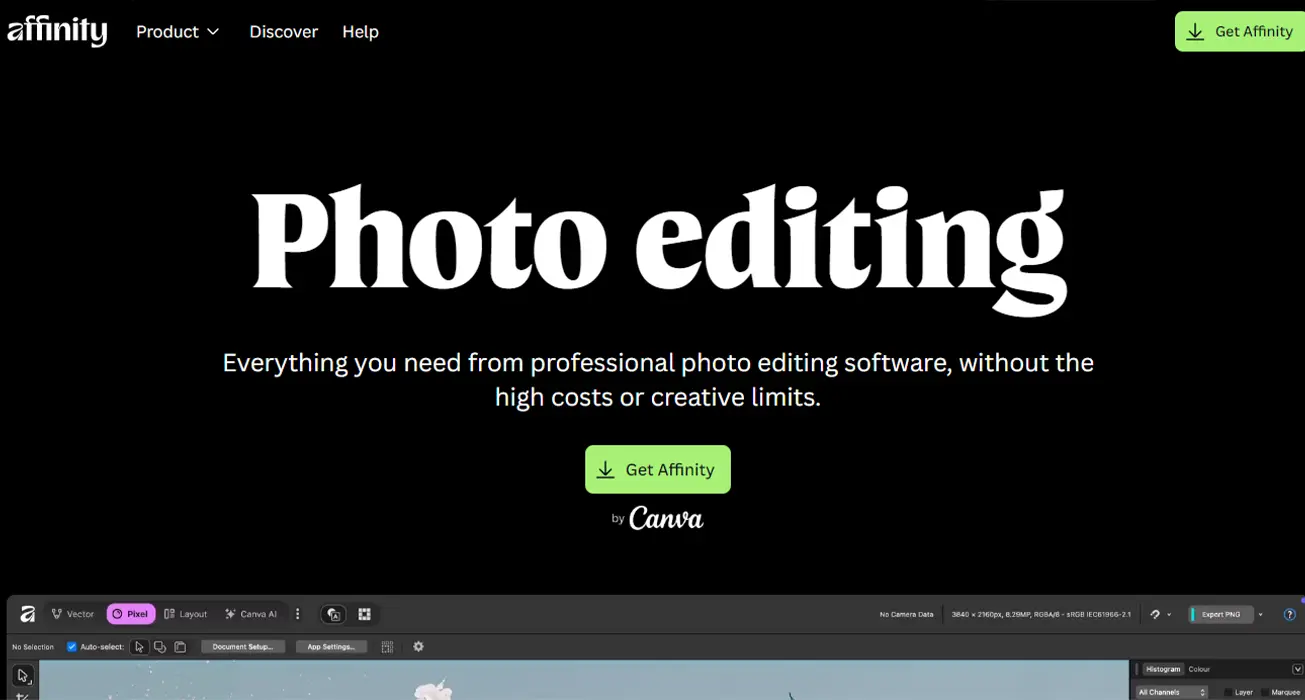
Affinity Photo provides professional photo editing capabilities through a one-time purchase rather than ongoing subscriptions. The software competes directly with industry-standard applications while offering excellent value. Affinity Photo runs natively on Windows 11, utilizing modern system features and optimization.
The editing engine supports unlimited layers, adjustment layers, and non-destructive editing workflows. Live filters update in real-time as parameters change, providing immediate visual feedback. The software handles large image files efficiently, maintaining smooth performance even with complex projects containing numerous layers and effects.
RAW processing in Affinity Photo rivals dedicated RAW converters, offering extensive control over exposure, color grading, and detail enhancement. The develop persona provides a focused environment for RAW file adjustments before moving to detailed editing. Support for over 900 camera RAW formats ensures compatibility with most digital cameras.
Advanced features include focus stacking, HDR merging, panorama stitching, and frequency separation for retouching. The liquify persona enables non-destructive warping and reshaping of image elements. Tone mapping controls help manage high dynamic range images while maintaining natural appearance. These specialized tools handle complex editing scenarios without requiring additional software.
The interface scales properly on high-resolution displays common in Windows 11 devices, maintaining clarity on 4K monitors and high-DPI screens. Pen and touch input work naturally, making the software suitable for use with drawing tablets or touch-enabled Windows 11 laptops. The software receives regular updates with new features and compatibility improvements as a free benefit after purchase.
Affinity Photo includes features typically found only in expensive professional software. Macro recording automates repetitive editing steps. Batch processing applies adjustments to multiple images simultaneously. The software exports to standard formats and integrates with other Affinity applications for design and layout work.
Choosing the Right Photo Editing App
Selection between these three applications depends on specific needs, budget, and experience level. Adobe Photoshop suits professionals requiring industry-standard tools and cloud-based workflows. The extensive tutorial resources and widespread use in professional environments make it the default choice for many commercial projects. However, the subscription model represents ongoing costs that accumulate over time.
GIMP provides the most accessible entry point for those exploring photo editing without financial commitment. The learning curve exists, but extensive community documentation and tutorials help overcome initial challenges. The software handles most common editing tasks competently, making it viable for serious work despite being free. Plugin support addresses gaps in built-in functionality.
Affinity Photo strikes a balance between professional capabilities and affordability. The one-time purchase model appeals to users who prefer owning software outright. Performance and feature sets compete with subscription-based alternatives while costing significantly less over multiple years of use. The software suits both enthusiasts and professionals seeking capable tools without recurring fees.
Hardware capabilities influence software choice as well. Adobe Photoshop and Affinity Photo benefit from powerful GPUs and ample RAM, particularly when working with large files or applying complex effects. GIMP runs acceptably on modest systems but still performs better with adequate resources. Windows 11 GPU management settings can be adjusted to prioritize graphics performance for editing applications.
File format requirements matter for some workflows. Adobe Photoshop handles the broadest range of formats natively and maintains compatibility with industry-standard PSD files. Affinity Photo supports common formats and can import PSD files with good layer preservation. GIMP handles standard formats well but may require plugins for specialized file types. Consider existing project files and collaboration requirements when selecting software.
Getting Started With Photo Editing on Windows 11
Before installing photo editing software, ensure Windows 11 is up to date. System updates include graphics driver improvements and performance optimizations that benefit editing applications. Most modern photo editing apps perform better with dedicated graphics cards, though integrated graphics handle basic editing tasks adequately.
Installation processes vary by application. Adobe Photoshop requires the Creative Cloud desktop app for installation and license management. GIMP downloads as a standard installer from the official website. Affinity Photo installs through a traditional setup executable. All three applications integrate properly with Windows 11 file associations, allowing images to open directly in the chosen editor.
Storage considerations become important when working with photo editing software. RAW files and layered projects consume significant disk space. Maintaining adequate free space on the system drive ensures smooth operation and prevents performance degradation. External drives or network storage can house image libraries while keeping project files on faster local storage.
Color accuracy matters for serious photo editing. Windows 11 includes color management tools that help calibrate displays for accurate color representation. Monitor calibration ensures edited images appear consistent across different devices and in print. Most photo editing applications respect Windows color management settings and can work with monitor profiles.
Backup strategies protect edited work from data loss. Photo editing projects often represent significant time investment. Regular backups to external drives or cloud storage preserve both original images and editing work. Version control becomes valuable when experimenting with different editing approaches on the same image.
Frequently Asked Questions
Can these photo editing apps run on older Windows 11 computers?
All three applications run on Windows 11 systems, but performance varies with hardware. GIMP has the lowest system requirements and runs acceptably on older computers. Adobe Photoshop and Affinity Photo perform better with modern processors, dedicated graphics cards, and 16GB or more RAM. Basic editing tasks work on modest hardware, while complex operations benefit from more powerful systems.
Do these apps support RAW files from all camera brands?
Adobe Photoshop and Affinity Photo support RAW files from hundreds of camera models through regular updates. GIMP requires plugins for comprehensive RAW support but can handle many formats through UFRaw or RawTherapee integration. Camera manufacturers occasionally introduce new RAW formats that require software updates for compatibility.
Is it possible to switch between these apps without losing work?
Switching between applications is possible but requires consideration of file formats. Adobe Photoshop PSD files open in Affinity Photo with good layer preservation. GIMP can import PSD files though some advanced features may not transfer perfectly. Exporting to standard formats like TIFF with layers maintains compatibility across different software. Flattened images in common formats transfer without issues.
Which app works best with drawing tablets on Windows 11?
All three applications support drawing tablets and pen input on Windows 11. Adobe Photoshop has the most refined stylus support with extensive pressure sensitivity options and tilt recognition. Affinity Photo provides excellent pen support with natural brush behavior. GIMP supports tablets well though some users report needing additional configuration for optimal pressure curve response.
Can these photo editing apps create graphics for web and print?
Yes, all three applications handle both web and print graphics. Adobe Photoshop includes presets for various output types and handles CMYK color for print production. Affinity Photo supports CMYK and includes export personas optimized for web delivery. GIMP works primarily in RGB but can convert to CMYK through plugins and exports at appropriate resolutions for print work.
How much storage space do these applications require?
Adobe Photoshop typically requires 4-6 GB for installation plus additional space for scratch disk operations. Affinity Photo needs approximately 2 GB for the application. GIMP installation takes around 200-300 MB. However, working with images requires significantly more storage for project files, especially when using layers and non-destructive editing features.
Do these apps include automatic backup features?
Adobe Photoshop includes automatic recovery and can save to Creative Cloud for backup. Affinity Photo has an autosave feature that creates recovery files at set intervals. GIMP does not include automatic backup by default but can be configured through plugins or relies on manual saving. All applications benefit from Windows 11 File History or third-party backup solutions for comprehensive data protection.
Can beginners learn photo editing with these applications?
Each application suits different learning approaches. Adobe Photoshop has extensive tutorial resources and established educational materials but presents a steep learning curve. Affinity Photo includes tutorial content and a gentler introduction to professional features. GIMP provides good documentation though the interface may initially confuse users familiar with commercial software. Starting with basic adjustments and gradually exploring advanced features works well with any of these applications.
Final Thoughts on Photo Editing Apps for Windows 11
The three photo editing applications covered represent different approaches to image manipulation on Windows 11. Adobe Photoshop dominates professional environments with comprehensive features and industry acceptance. GIMP delivers impressive capability without cost, making sophisticated editing accessible to everyone. Affinity Photo provides professional tools through a fair pricing model that respects user budgets.
Selecting the appropriate software depends on individual requirements rather than objective superiority. Professional work demanding specific features or industry-standard file formats may necessitate Adobe Photoshop. Budget-conscious users or those exploring photo editing find GIMP entirely capable for most tasks. Users seeking a middle ground between free and subscription-based options discover excellent value in Affinity Photo.
Windows 11 provides a solid foundation for photo editing work, with modern hardware support and system optimization benefiting all three applications. Taking time to learn chosen software thoroughly yields better results than constantly switching between different tools. Experimenting with available options helps identify the best fit for specific workflows and editing styles.