
Reinstalling Bluetooth drivers in Windows 11 can resolve connection issues, fix device recognition problems, and restore functionality when Bluetooth stops working properly. This comprehensive guide walks through the exact steps needed to completely remove and reinstall Bluetooth drivers on Windows 11 systems.
Understanding Bluetooth Driver Reinstallation
Bluetooth drivers act as the communication bridge between Windows 11 and Bluetooth hardware. When these drivers become corrupted, outdated, or misconfigured, Bluetooth functionality suffers. Reinstalling the drivers provides a fresh start, clearing out any problematic files or settings that might be causing issues.
Most people find that reinstalling Bluetooth drivers solves persistent connection problems that basic troubleshooting cannot fix. The process removes the existing driver software completely before installing a clean version, which eliminates conflicts and corruption that accumulate over time.
Preparing for Driver Reinstallation
Before starting the reinstallation process, it’s helpful to understand what happens during the procedure. Windows 11 will temporarily lose Bluetooth functionality while the drivers are being removed and reinstalled. Any currently connected Bluetooth devices will disconnect during this process.
The key is to ensure no critical Bluetooth devices are in active use. For example, if a Bluetooth keyboard or mouse is the only input device, consider connecting a wired alternative temporarily. This prevents being locked out of the system during the reinstallation process.
Watch this complete tutorial on Reinstalling Bluetooth Drivers in Windows 11 Easily
Step 1: Uninstalling the Bluetooth Driver
Device Manager serves as the control center for all hardware drivers in Windows 11. This is where the Bluetooth driver reinstallation takes place. Removing the existing Bluetooth driver is the first step in the reinstallation process, which clears out the old driver files and prepares the system for a fresh installation.
- Right-click the Start button in the taskbar and select ‘Device Manager’ (or press Windows key + X and click Device Manager)
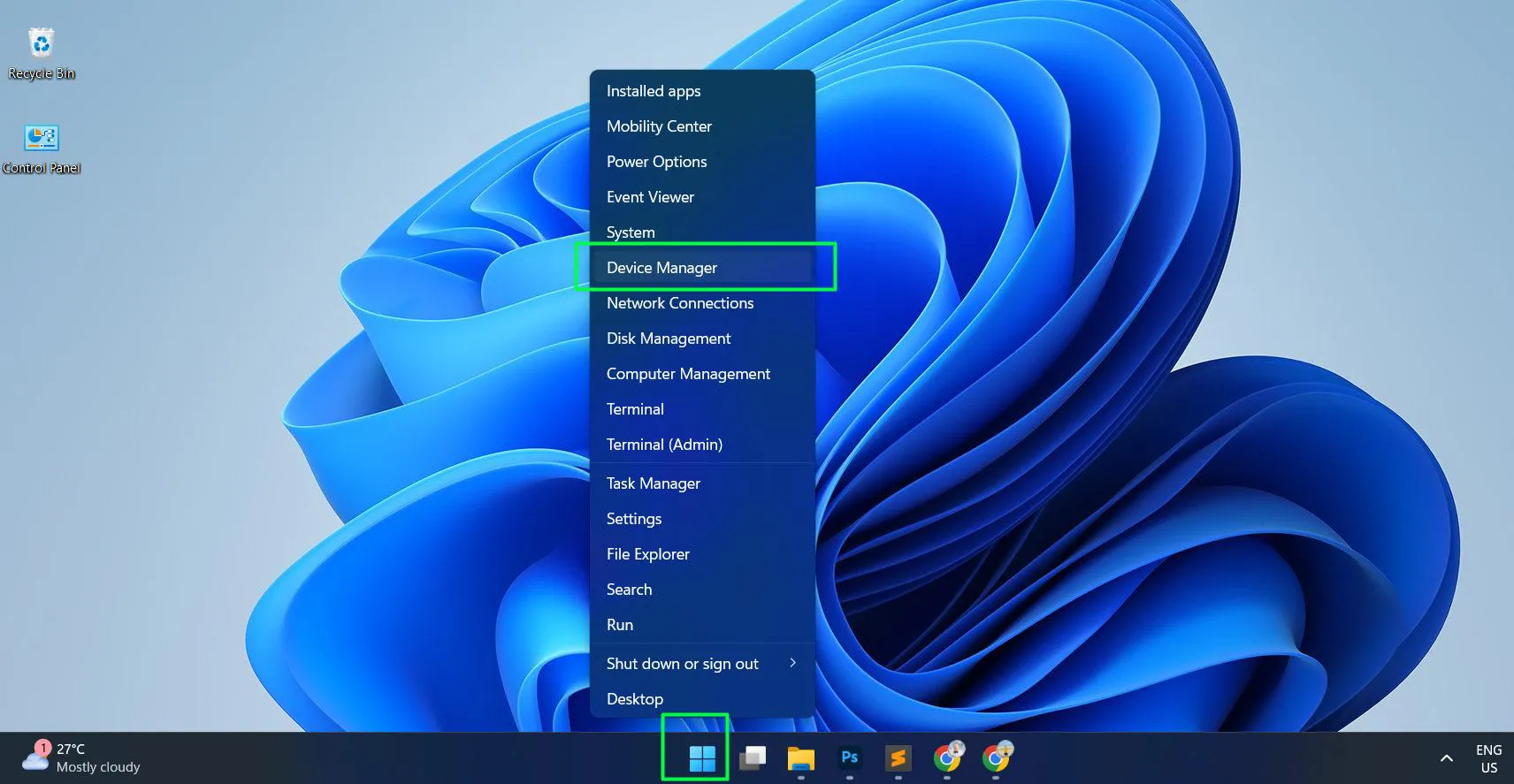
- Wait for the Device Manager window to open and populate with device categories
- Look for the ‘Bluetooth’ category in the Device Manager list
- Click the arrow or plus sign next to ‘Bluetooth’ to expand the category
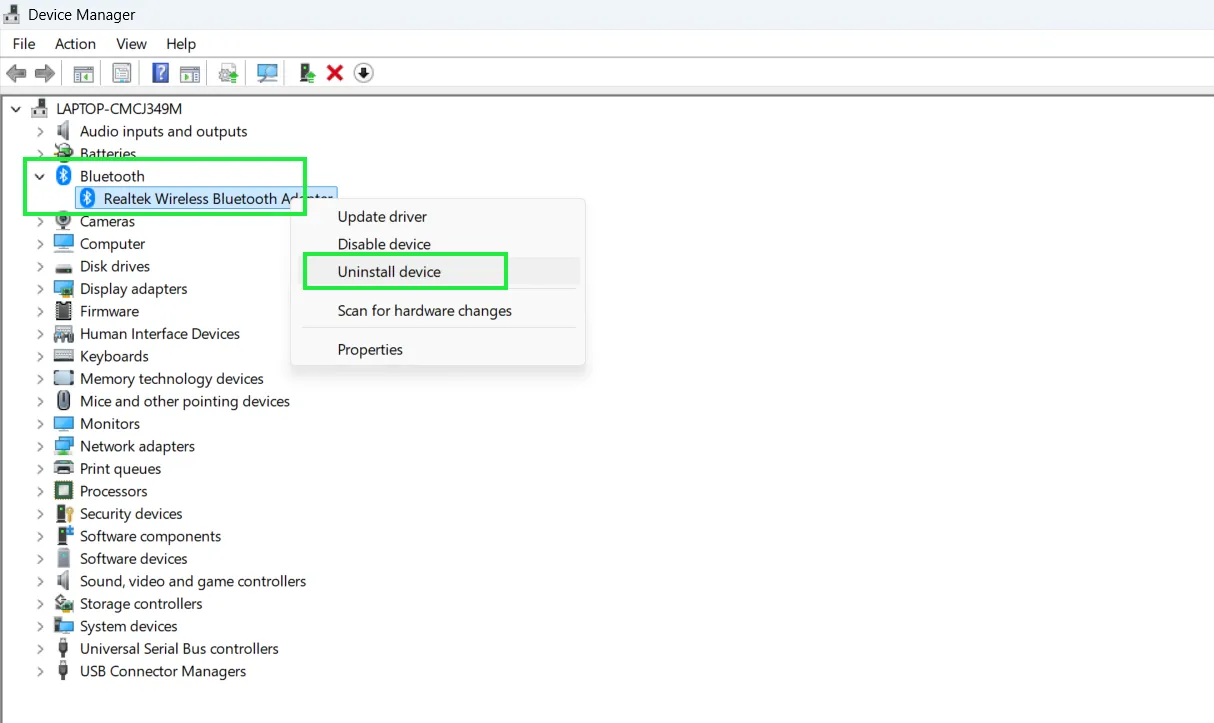
- Identify the Bluetooth adapter listed beneath (it usually contains words like ‘Bluetooth’, ‘Wireless’, or the manufacturer name)
- Right-click on the Bluetooth adapter entry
- Select ‘Uninstall device’ from the context menu
- When the confirmation dialog box appears, check the box labeled ‘Attempt to remove the driver for this device’
- Click ‘Uninstall’ to proceed
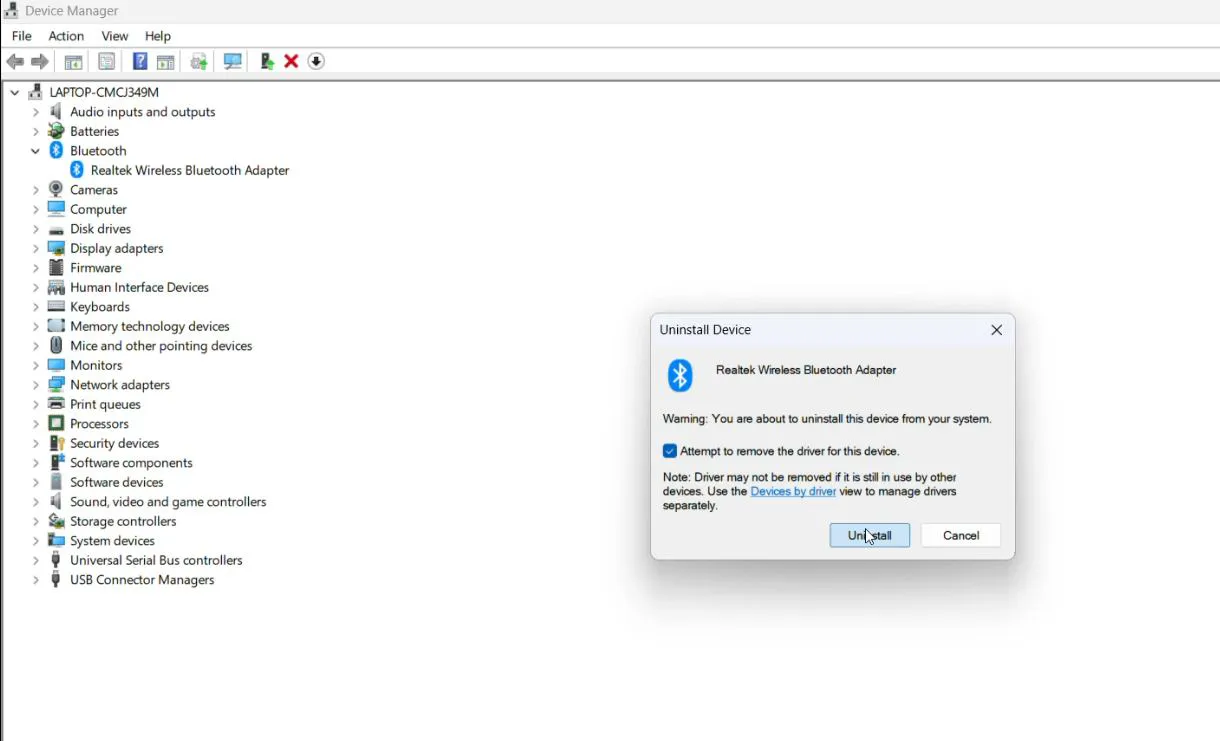
The checkbox for removing driver software is particularly important. Without selecting this option, Windows 11 keeps the old driver files on the system, which defeats the purpose of reinstalling. This works best when the checkbox is enabled, ensuring a complete removal.
After clicking Uninstall, Windows 11 removes the driver. The Bluetooth adapter may disappear from Device Manager temporarily, which is normal behavior during this process. Some computers display multiple Bluetooth-related entries. The main Bluetooth adapter is the primary target for reinstallation, though related components may need attention if problems persist after reinstalling the main driver.
Step 2: Reinstalling the Bluetooth Driver
With the old driver removed, Windows 11 can now install a fresh version. The operating system typically handles this automatically, but manual intervention may be necessary in some cases. Windows 11 usually detects the missing Bluetooth hardware immediately after uninstalling the driver and begins reinstalling automatically.
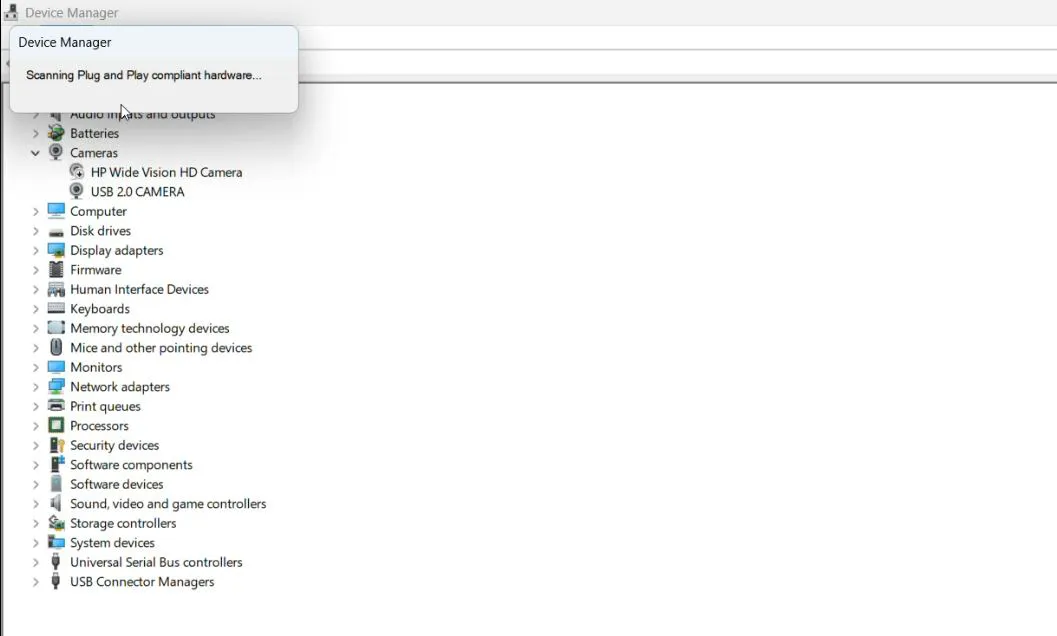
- Click ‘Action’ in the Device Manager menu bar
- Select ‘Scan for hardware changes’ from the dropdown menu
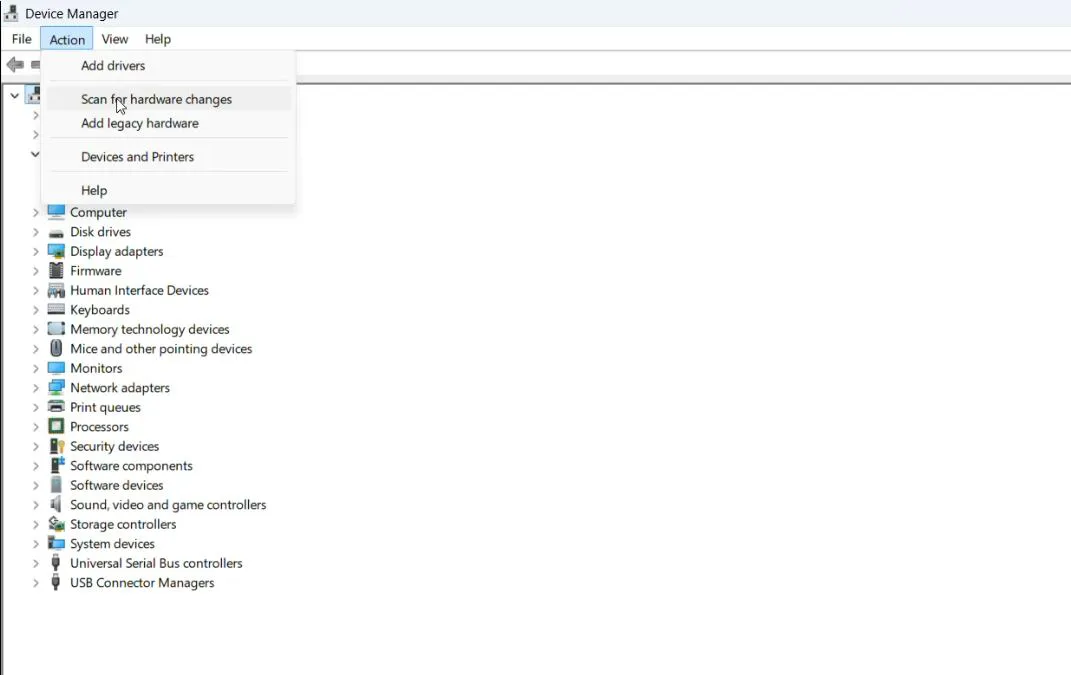
- Windows 11 will search for devices without drivers and automatically download and install the appropriate Bluetooth driver
- Wait for the installation to complete (this typically takes 1-3 minutes)
- If the Bluetooth adapter appears with a yellow exclamation mark, right-click it and choose ‘Update driver’
- Select ‘Search automatically for drivers’ and allow Windows 11 to search online and install the best available driver
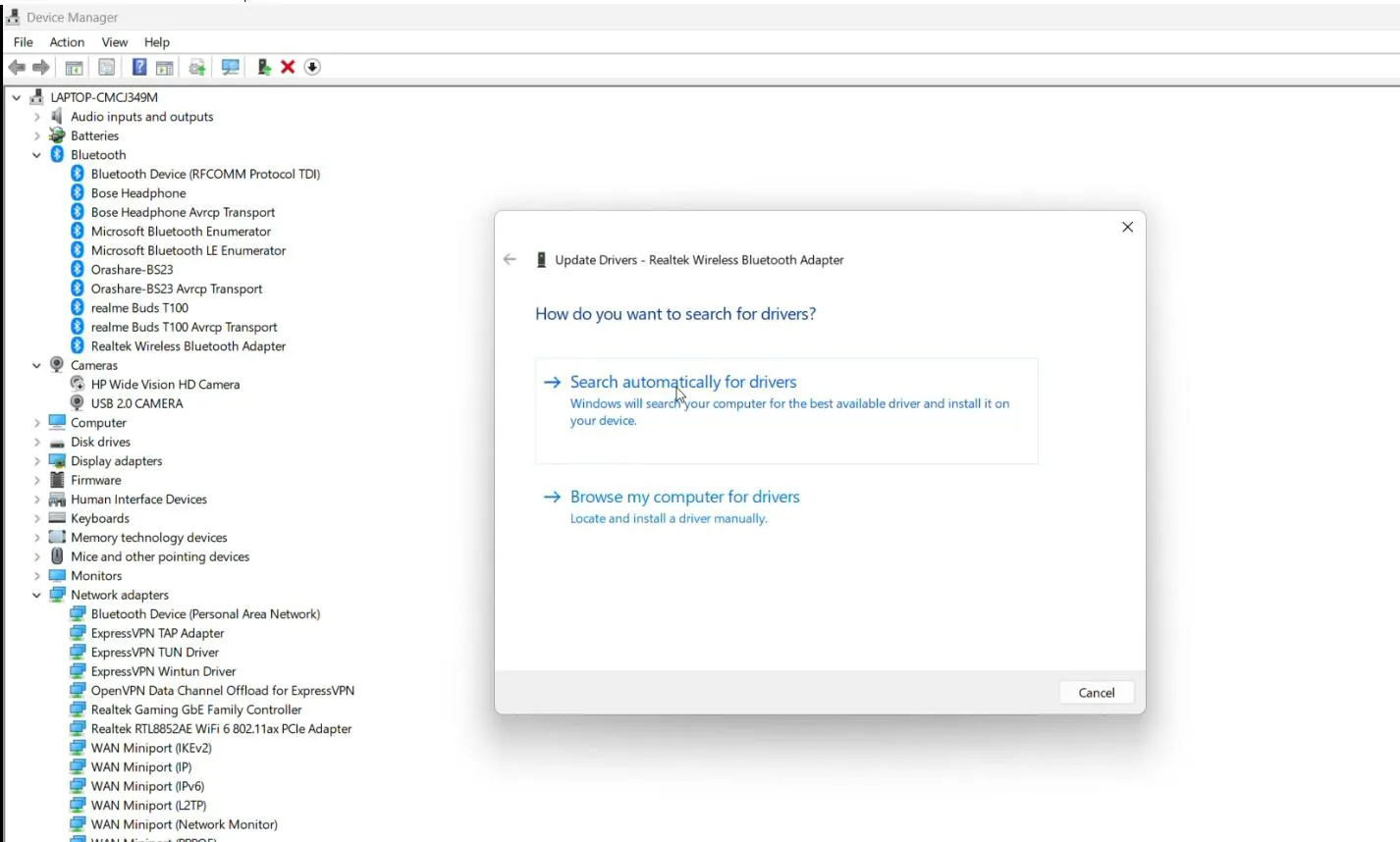
During automatic installation, a progress indicator may appear, or the Bluetooth adapter might simply reappear in Device Manager with no visual feedback. The key is to allow sufficient time for Windows 11 to complete the process without interruption.
Most people find that the automatic search locates suitable drivers without additional steps. However, if Windows 11 reports that the best driver is already installed despite Bluetooth not working, proceeding to manufacturer-specific drivers becomes the next logical step.
Step 3: Installing Manufacturer-Specific Drivers
Manufacturer drivers often provide better performance and compatibility than generic Windows 11 drivers. These drivers come directly from the company that made the Bluetooth hardware and are optimized for specific devices.
- Identify the Bluetooth adapter manufacturer (Intel, Realtek, Qualcomm, Broadcom, etc.)
- Visit the manufacturer’s official website or the computer manufacturer’s support page
- Navigate to the drivers or support section
- Search for Windows 11 Bluetooth drivers specific to the hardware model
- Download the latest driver package
- Run the downloaded installer file
- Follow the on-screen installation prompts
- Restart the computer when prompted
Computer manufacturers like Dell, HP, Lenovo, and ASUS typically provide driver packages specifically tested for their hardware configurations. These drivers often include additional software for enhanced functionality and easier device management. The manufacturer-specific approach ensures compatibility and often delivers features that generic drivers cannot provide.
For more software solutions and detailed guides, exploring additional resources can provide helpful context for various Windows applications and tools.
Alternative Method: Using Windows Update
Windows Update serves as another reliable source for Bluetooth drivers. The operating system maintains a database of verified drivers that have passed Microsoft’s compatibility testing, making this a safe and convenient option.
- Press Windows key + I to open Settings
- Click on ‘Windows Update’ in the left sidebar
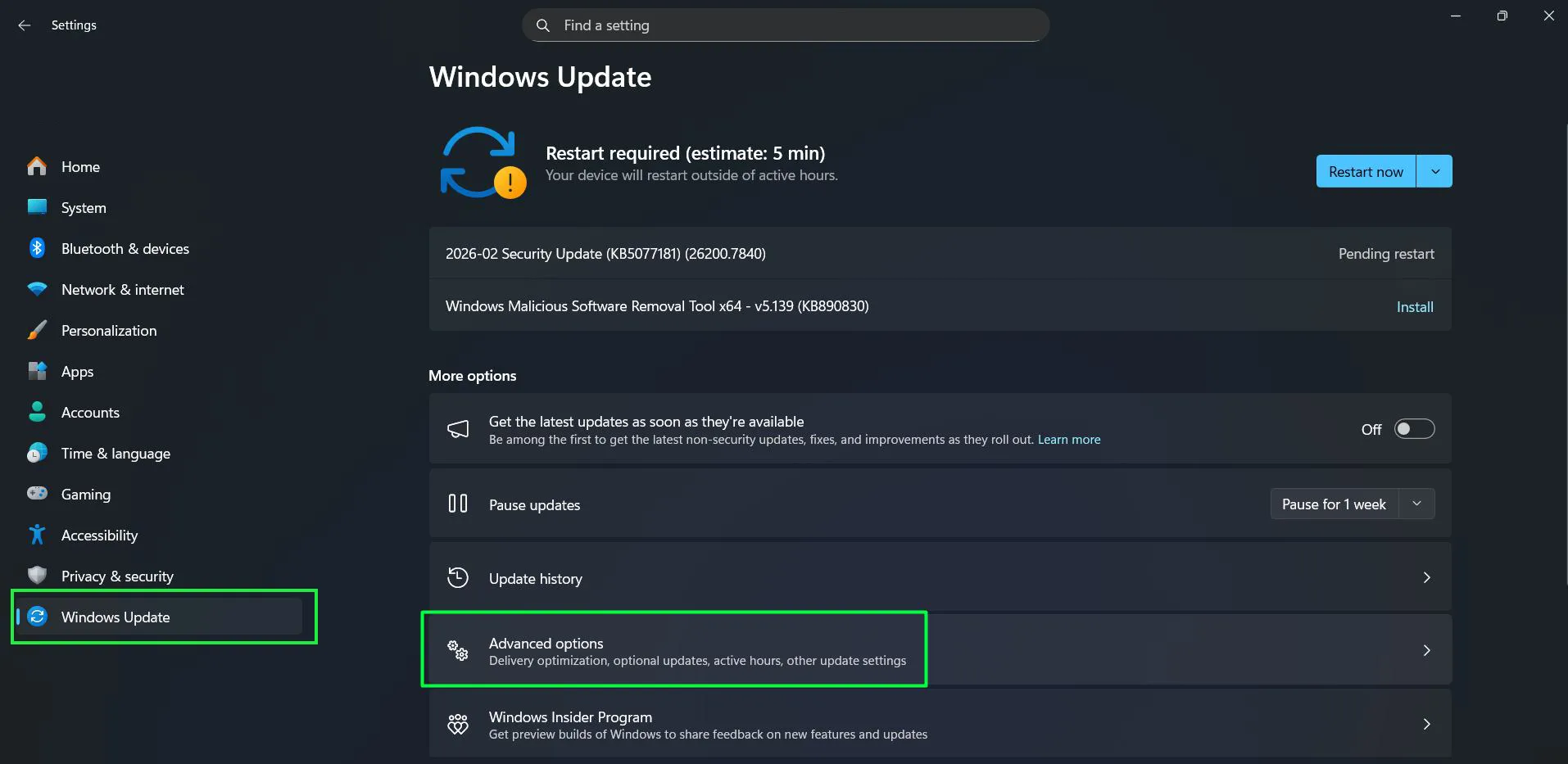
- Select ‘Advanced options’
- Click on ‘Optional updates’
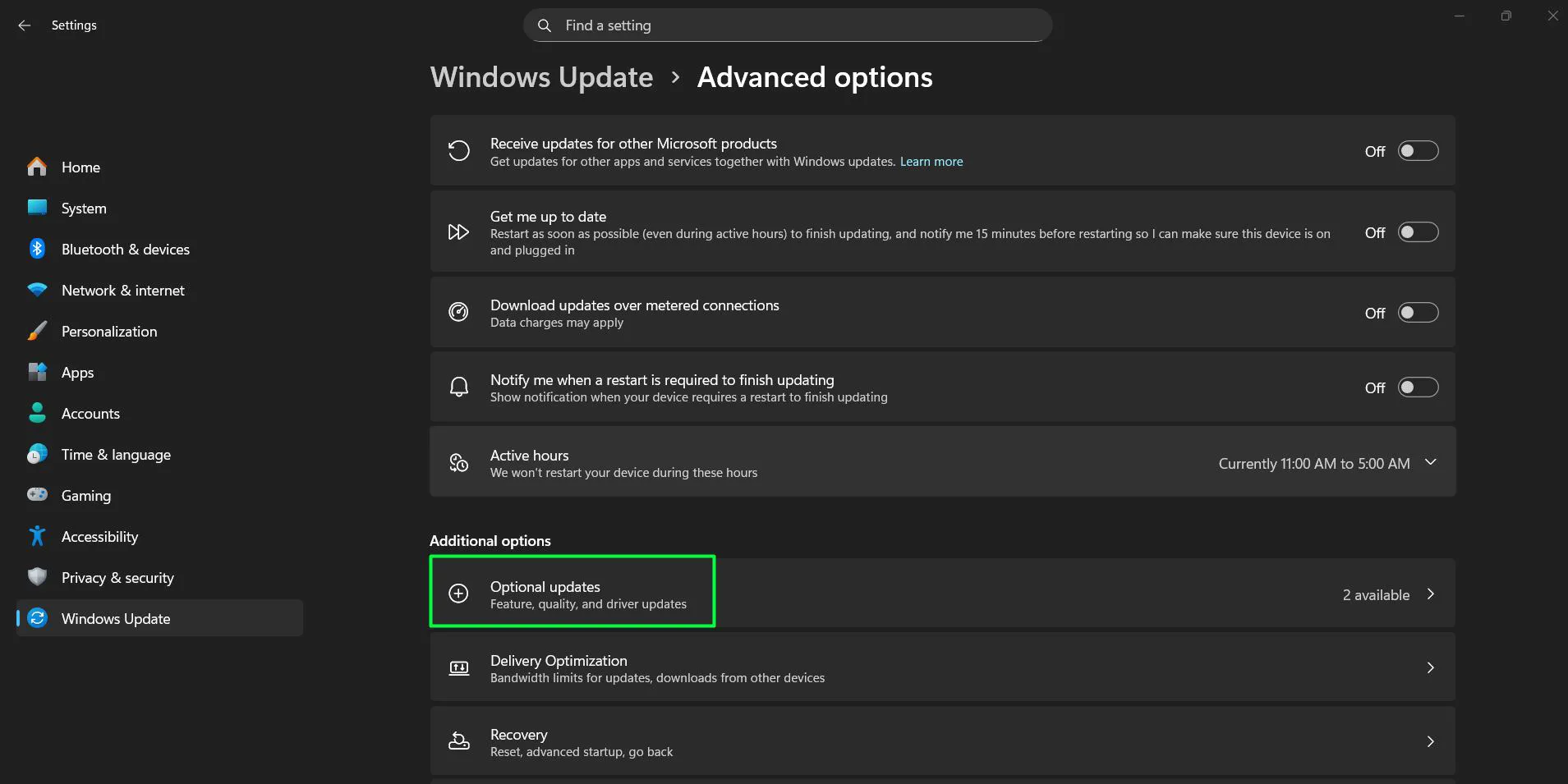
- Expand the ‘Driver updates’ section if available
- Look for Bluetooth driver updates in the list
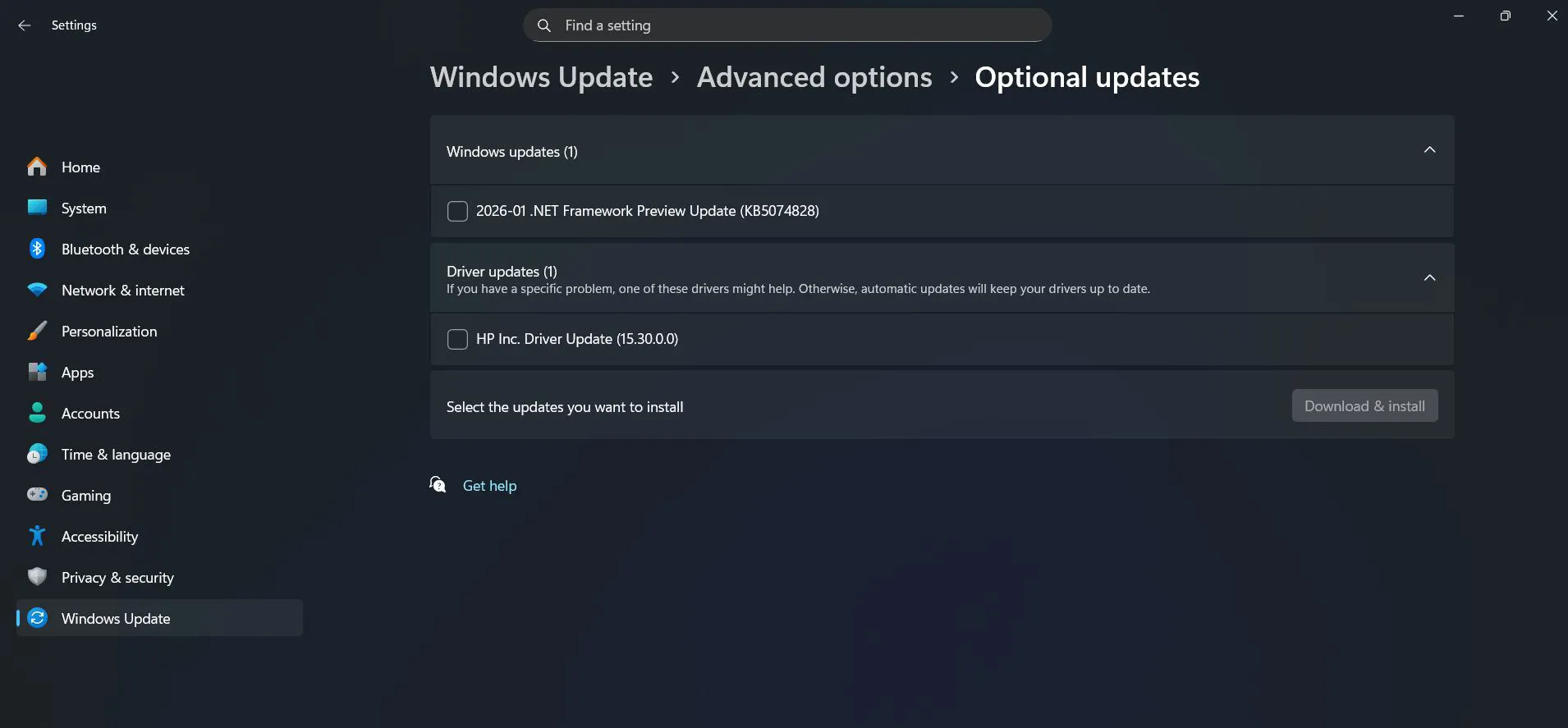
- Check the box next to the Bluetooth driver update
- Click ‘Download & install’
Optional updates sometimes contain newer driver versions that haven’t been automatically deployed to all systems yet. Checking this section after reinstalling Bluetooth drivers can ensure the most current version is installed. This method works particularly well for users who prefer staying within the Windows ecosystem without downloading files from external websites.
Verifying Successful Driver Reinstallation
After completing the reinstallation process, verification ensures everything is working correctly. Several indicators confirm successful driver installation and proper functionality.
- Open Device Manager again
- Expand the Bluetooth category
- Verify the Bluetooth adapter appears without any warning symbols (yellow exclamation marks or red X marks)
- Right-click the Bluetooth adapter and select ‘Properties’
- Check the ‘Device status’ section under the General tab
- Confirm the message reads ‘This device is working properly’
Additionally, the Bluetooth icon should appear in the system tray (bottom-right corner of the taskbar). If the icon is missing, clicking the up arrow near the system tray reveals hidden icons, where Bluetooth should be visible. The presence of this icon indicates that Windows 11 recognizes the Bluetooth adapter and has it ready for use.
Testing Bluetooth Functionality
Practical testing confirms that the reinstalled drivers are functioning as expected. Connecting a Bluetooth device provides real-world confirmation that everything is working properly.
- Click the Bluetooth icon in the system tray
- Select ‘Add device’ or open Settings and navigate to Bluetooth & devices
- Turn on a Bluetooth device (headphones, mouse, keyboard, or speaker) and set it to pairing mode
- Wait for the device to appear in the available devices list
- Click on the device name to initiate pairing
- Complete any pairing confirmations that appear
- Test the connected device to ensure it responds properly
Successful pairing and device operation indicate the Bluetooth drivers are working correctly. This works best when testing with a device that previously connected successfully, as it eliminates variables related to device compatibility. Testing with multiple devices can provide additional confidence that the reinstallation was successful.
Understanding Driver Versions and Updates
Bluetooth drivers receive periodic updates that improve performance, fix bugs, and add compatibility with new devices. Understanding how driver versions work helps maintain optimal Bluetooth functionality over time and prevents future issues.
Each driver has a version number that increases with updates. Checking the current driver version provides a baseline for future reference. To view the driver version, right-click the Bluetooth adapter in Device Manager, select Properties, navigate to the Driver tab, and note the version number displayed.
Keeping Bluetooth drivers current prevents many common issues. Windows Update typically handles this automatically, but checking manually every few months ensures the latest improvements are installed. For comprehensive information about managing Windows components and settings, additional resources provide valuable insights.
Driver Rollback Option
Sometimes a newly installed Bluetooth driver causes problems instead of solving them. Windows 11 includes a rollback feature that restores the previous driver version, providing a quick solution when new drivers create unexpected issues.
- Open Device Manager and locate the Bluetooth adapter
- Right-click the adapter and select ‘Properties’
- Navigate to the ‘Driver’ tab
- Click the ‘Roll Back Driver’ button (if available)
- Select a reason for rolling back when prompted
- Click ‘Yes’ to confirm the rollback
- Restart the computer to complete the process
The rollback option only appears if a previous driver version exists on the system. If the button is grayed out, no previous version is available to restore. In such cases, reinstalling an older driver version manually becomes necessary by downloading it from the manufacturer’s website.
Managing Multiple Bluetooth Adapters
Windows 11 supports multiple Bluetooth adapters simultaneously, which can sometimes create confusion during driver reinstallation. Each adapter requires its own driver, and managing them individually ensures all function correctly.
When multiple Bluetooth adapters appear in Device Manager, identifying which one is active helps target the reinstallation correctly. The active adapter is typically the one listed first or marked as the default device. Reinstalling drivers for all Bluetooth adapters ensures comprehensive coverage if problems affect overall Bluetooth functionality.
For additional assistance with hardware components and driver management, exploring related guides can provide useful supplementary information.
Post-Reinstallation Best Practices
After successfully reinstalling Bluetooth drivers, adopting certain practices helps maintain stable operation and prevent future issues. These practices ensure long-term reliability and reduce the likelihood of needing to reinstall drivers again.
Regularly checking for driver updates through Windows Update or the manufacturer’s website keeps the Bluetooth system current. Setting a reminder to check monthly or quarterly creates a routine that prevents drivers from becoming outdated. Staying current with updates ensures access to the latest bug fixes and performance improvements.
Avoiding unnecessary driver changes also promotes stability. Unless experiencing specific problems, keeping working drivers in place prevents introducing new issues. The saying ‘if it isn’t broken, don’t fix it’ applies particularly well to driver management.
Creating a system restore point before making driver changes provides a safety net. If a new driver causes problems, reverting to the restore point undoes the changes quickly. Windows 11 makes creating restore points straightforward through the System Properties interface, and taking this precaution can save significant troubleshooting time later.
Understanding Driver Signatures
Windows 11 requires digitally signed drivers for security purposes. Signed drivers have passed Microsoft’s verification process, confirming they come from legitimate sources and haven’t been tampered with. This security measure protects systems from potentially harmful or malicious driver software.
During driver installation, Windows 11 automatically checks signatures. If a driver lacks a valid signature, the system may block installation or display warnings. Accepting unsigned drivers should only occur when absolutely necessary and the source is completely trustworthy, as unsigned drivers can pose security risks.
Most manufacturers provide signed drivers, so encountering unsigned drivers is relatively rare. If Windows 11 reports signature issues during Bluetooth driver reinstallation, verifying the download source and obtaining drivers directly from the manufacturer’s official website resolves most concerns. Sticking to official sources ensures both security and compatibility.
Frequently Asked Questions
How long does reinstalling Bluetooth drivers take?
The entire process typically takes 5 to 10 minutes from start to finish. Automatic driver installation through Windows Update usually completes in 1-3 minutes, while downloading and installing manufacturer-specific drivers may take 5-10 minutes depending on internet speed and driver package size.
Will reinstalling Bluetooth drivers delete paired devices?
Reinstalling Bluetooth drivers usually does not delete previously paired devices. The pairing information is stored separately from the driver files. However, in some cases, particularly when selecting the option to delete driver software completely, paired devices might need to be reconnected after reinstallation.
Can Bluetooth drivers be reinstalled without internet access?
Yes, if Windows 11 has a built-in driver in its driver store, it can reinstall Bluetooth drivers without internet access. However, obtaining the latest manufacturer-specific drivers requires internet connectivity. Downloading drivers on another device and transferring them via USB provides an alternative when internet access is unavailable.
What happens if the wrong Bluetooth driver is installed?
Installing an incorrect Bluetooth driver typically results in the device not working properly or not being recognized at all. Windows 11 usually prevents installation of completely incompatible drivers, but if one does install, using the driver rollback feature or reinstalling the correct driver resolves the issue.
Should all Bluetooth-related drivers be reinstalled simultaneously?
Reinstalling just the main Bluetooth adapter driver is usually sufficient. However, if problems persist after reinstalling the primary driver, reinstalling related components like Bluetooth radio devices or Bluetooth enumerators might be necessary. Starting with the main adapter driver and expanding to other components only if needed is the most efficient approach.
Do laptop and desktop computers reinstall Bluetooth drivers differently?
The reinstallation process is identical for laptops and desktops. Both use Device Manager and follow the same steps. The main difference lies in where to obtain manufacturer drivers—laptop users should visit their computer manufacturer’s website, while desktop users might need to identify the specific Bluetooth adapter manufacturer.