
Resetting your PC for a fresh start in Windows 11 is one of the most effective ways to fix persistent slowdowns, software conflicts, and general system clutter that builds up over time. The good news is that Windows 11 has a built-in reset tool that handles the entire process – no installation disk, no technical expertise, and no guesswork required. This guide covers every step clearly so the job gets done right the first time.
Key Takeaways
- Go to Settings – System – Recovery – Reset this PC to start the process
- ‘Keep my files’ removes apps and resets settings but preserves personal files
- ‘Remove everything’ does a full wipe – best for selling or donating the PC
- The reset takes anywhere from 30 minutes to 2+ hours depending on the chosen options
- Always back up files before starting, even when using the ‘Keep my files’ option
- Keep the device plugged in throughout the entire reset process
How to Reset Your PC for a Fresh Start in Windows 11
Everything needed for this process is already built into Windows 11. Follow each step below in order and the reset will go smoothly.
Back Up Important Files First
Before anything else, back up valuable files to an external drive or cloud storage. Even when choosing ‘Keep my files,’ unexpected issues can occasionally occur. Documents, photos, downloads, and any important data should be copied somewhere safe before proceeding.
It is also worth writing down license keys for paid software like antivirus programs or productivity suites. Those will need to be re-entered after reinstalling apps post-reset. Taking five minutes here can save hours of frustration later.
Open Windows Settings
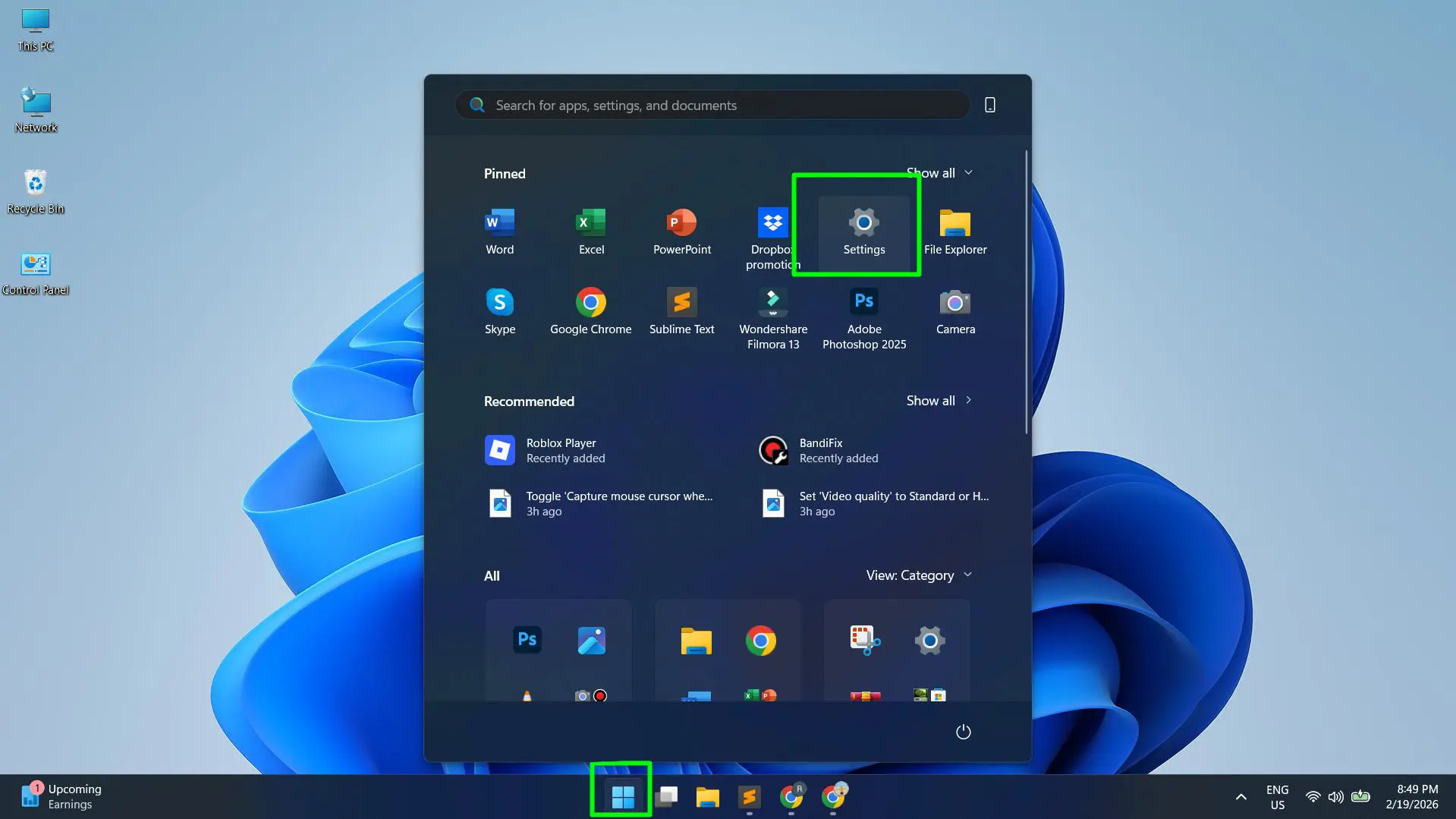
- Step 1: Press Windows + I on the keyboard to open Settings instantly
- Step 2: Alternatively, click the Start menu and select the gear icon
Go to System, Then Recovery
- Step 1: In the left sidebar, click System
- Step 2: Scroll down and click Recovery

The Recovery page is where all the built-in repair and reset tools live. It is a handy section to bookmark for future reference.
Click ‘Reset PC’
- Step 1: Under Recovery options, find Reset this PC
- Step 2: Click the Reset PC button next to it
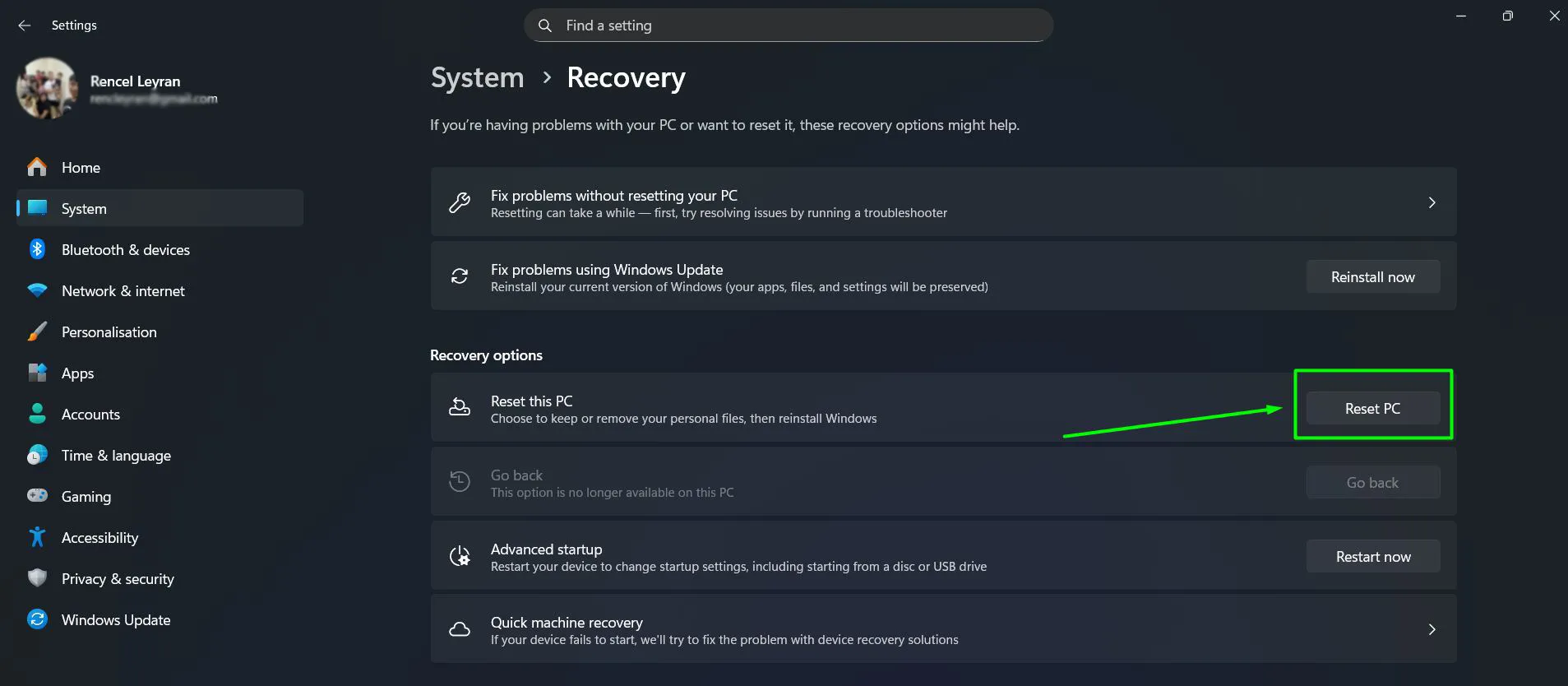
A new window will open with the two main reset options. This is the most important decision in the entire process.
Choose Between ‘Keep My Files’ or ‘Remove Everything’
- Step 1: Select ‘Keep my files’ to remove all installed apps and reset Windows settings while keeping personal files like documents and photos untouched. This is the right choice for users who want a faster, cleaner system without losing their data.
- Step 2: Select ‘Remove everything’ to completely wipe the PC. All files, apps, and settings are deleted and Windows is reinstalled from scratch. Use this when selling, donating, or recycling the PC, or when a truly clean slate is needed.
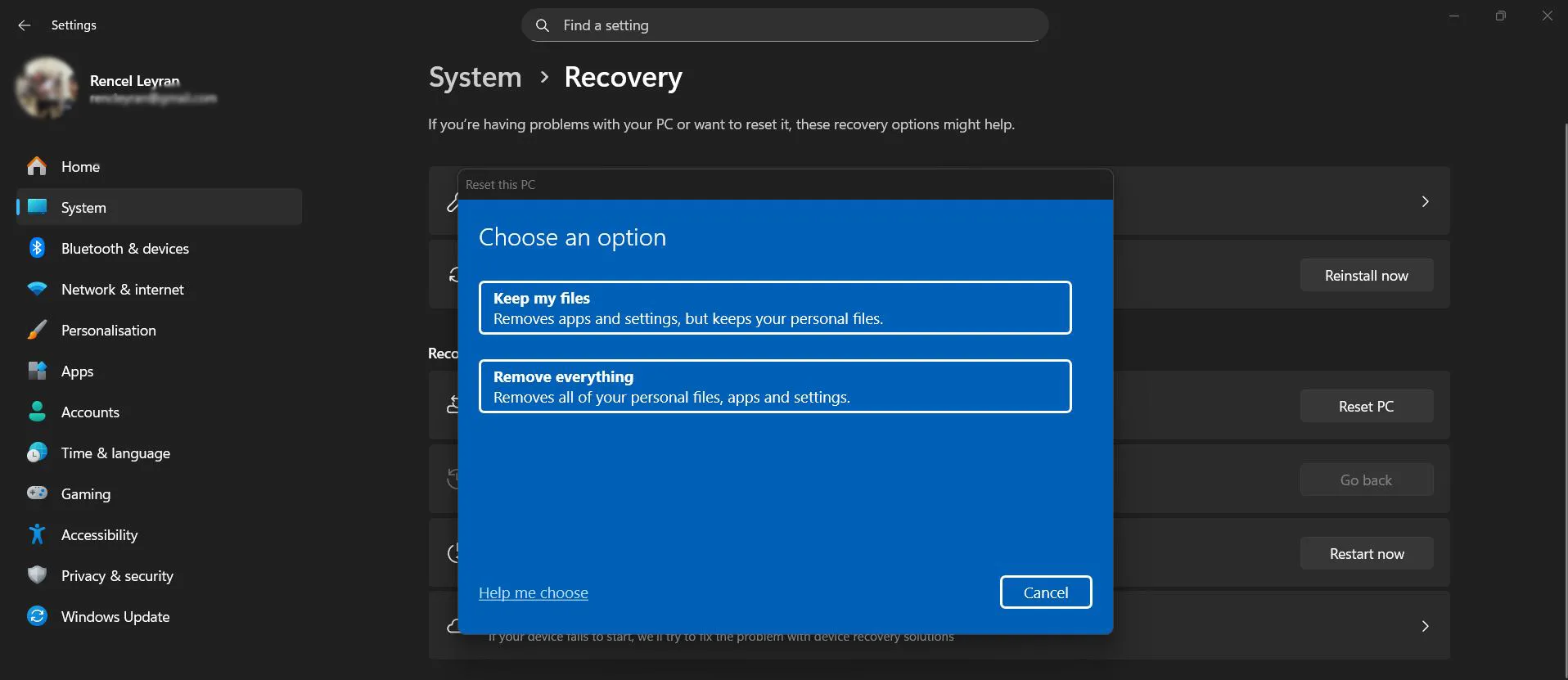
Most people find that ‘Keep my files’ is exactly what they need. It delivers a noticeably cleaner system without the hassle of setting everything up from zero. Before committing, it is worth reviewing any apps through the Add or Remove Programs panel to manually uninstall anything that is no longer needed before the reset runs.
Select How Windows Will Be Reinstalled
- Step 1: Choose ‘Cloud download’ to download a fresh copy of Windows 11 directly from Microsoft. This requires an active internet connection but produces the cleanest, most up-to-date result.
- Step 2: Choose ‘Local reinstall’ to use Windows files already stored on the drive. This is faster and works without internet, but may carry over any file-level issues already present.
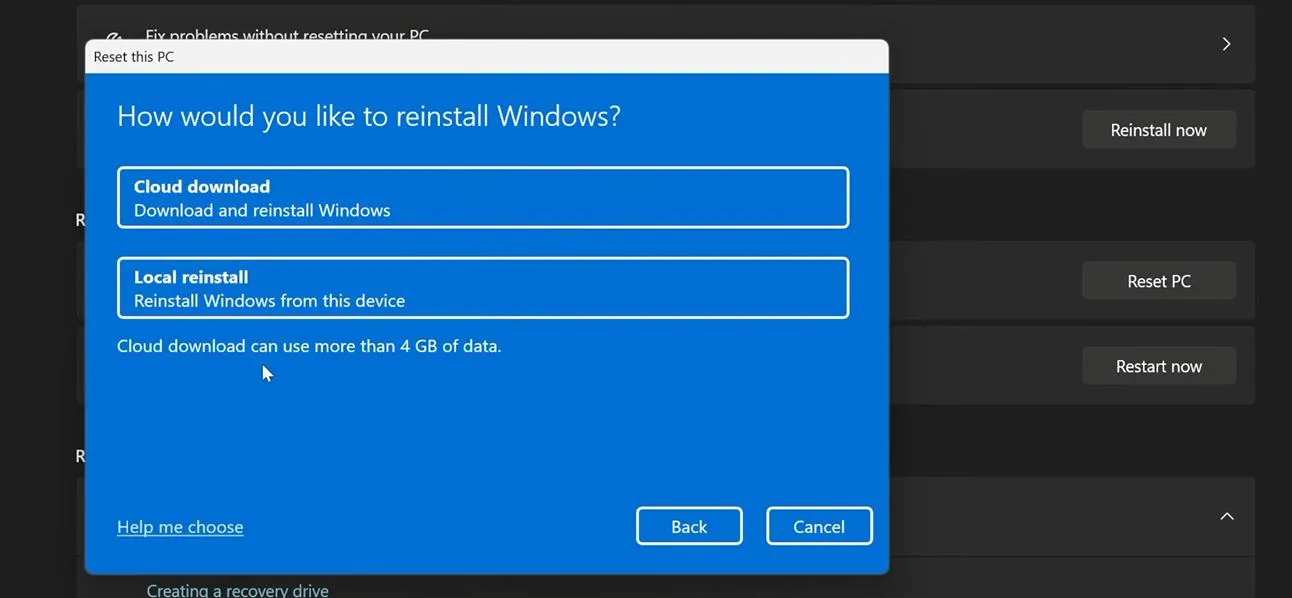
The key is to go with cloud download when a reliable internet connection is available. It is the more thorough option and worth the extra few minutes of download time.
Review Additional Settings
- Step 1: Click ‘Change settings’ if this option appears to review additional choices
- Step 2: If ‘Remove everything’ was selected, enable ‘Clean the drive’ for a deeper wipe – this overwrites data so it cannot be recovered, which matters when giving the PC away
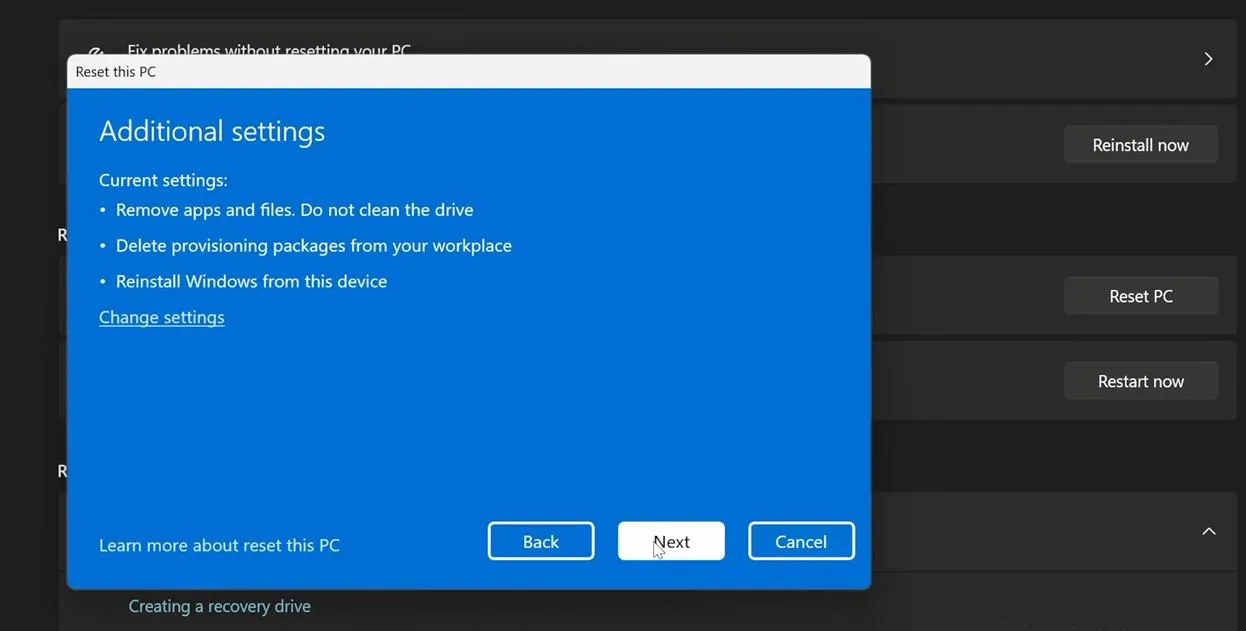
Cleaning the drive takes significantly longer but is the responsible choice when the PC is leaving the household.
Confirm and Start the Reset
- Step 1: Windows will display a summary of exactly what will happen – review it carefully
- Step 2: Click Next, then click Reset to begin
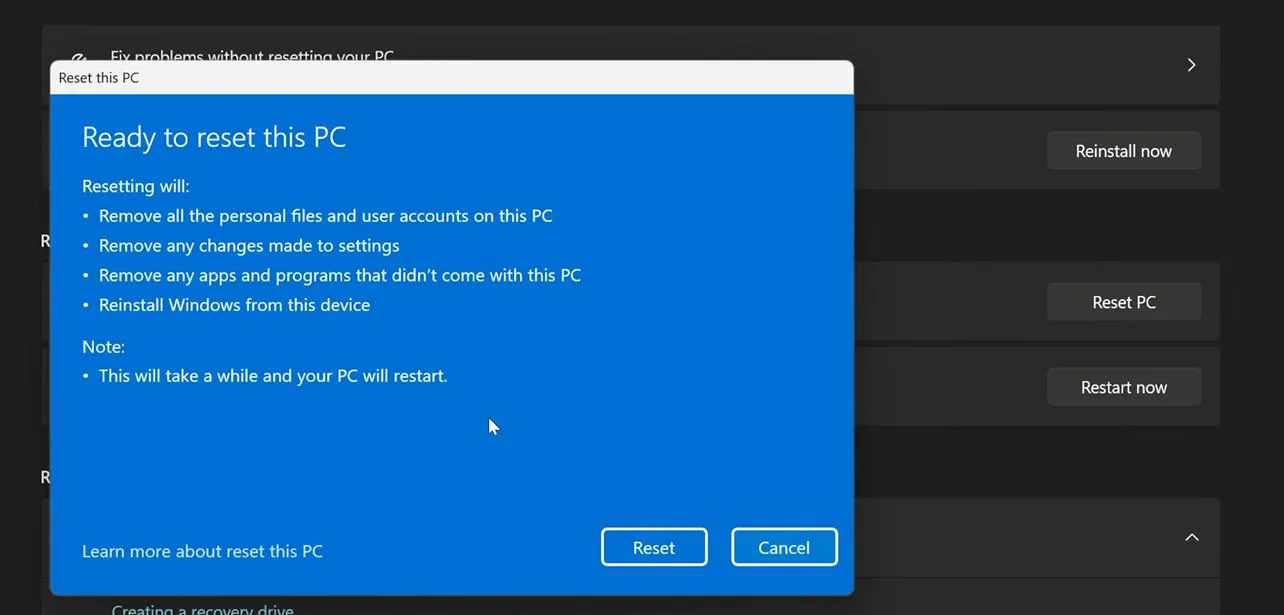
The PC will restart immediately and begin the reset. The screen may go black, display a progress percentage, or restart several times during this stage. All of that is completely normal – just let it run.
Pro-Tip: If using a laptop, plug it into a power outlet before clicking Reset. Losing power during a Windows reset can corrupt the installation and create far bigger problems than the original issue. Do not skip this step.
Complete the Initial Setup After the Reset
- Step 1: Once the reset finishes, Windows 11 will walk through the initial setup – region, keyboard layout, Wi-Fi, and account sign-in
- Step 2: Follow the on-screen prompts to finish setting up the PC
- Step 3: After reaching the desktop, open Windows Update (Settings – Windows Update) and install all available updates before doing anything else
The PC is now reset and running fresh. Reinstall only the apps that are genuinely needed rather than loading everything back on at once – this is what keeps the system clean going forward.
What Gets Kept and What Gets Removed
Knowing exactly what to expect after a reset helps avoid any surprises. Here is a clear breakdown of each option.
Keep My Files
- Personal files (documents, photos, videos, downloads) – kept
- Installed apps and programs – removed
- Windows settings and preferences – reset to default
- A list of removed apps will be saved to the desktop after the reset for easy reference
Remove Everything
- Personal files – deleted
- Installed apps and programs – removed
- Windows settings – wiped
- Windows reinstalled as if the PC is brand new out of the box
How Long the Reset Takes
Reset times vary based on the PC’s hardware, the chosen option, and internet speed.
- Keep my files + Local reinstall: 30 to 60 minutes
- Keep my files + Cloud download: 45 minutes to 1.5 hours
- Remove everything + Local reinstall: 45 minutes to 1.5 hours
- Remove everything + Cloud download + Clean the drive: 2 to 4+ hours
Older hard disk drives (HDD) are significantly slower than solid-state drives (SSD). A PC with an HDD will sit at lower progress percentages longer – that is normal and not a sign that something has gone wrong.
Tips for a Smoother Reset
- Back up all important files before starting, regardless of which reset option is chosen
- Keep the PC plugged in throughout the entire process
- Write down license keys for paid software before resetting
- Choose cloud download for the cleanest result if internet is available
- Run Windows Update immediately after the reset completes
- After getting the system clean and stable, create a restore point so future problems can be fixed without needing a full reset again
- Reinstall apps gradually rather than loading everything back at once – this makes it easier to spot if any one program causes new issues
Pro-Tip: After the reset, Windows 11 saves a file called ‘Removed Apps.html’ to the desktop. Open it in a browser to see the full list of everything that was uninstalled. This makes it easy to remember what needs to be reinstalled without digging through memory.
Common Problems and How to Handle Them
The Reset Is Stuck at the Same Percentage
If the progress bar has not moved for more than an hour, a forced restart (hold the power button for 10 seconds) is generally safe at this stage. Windows 11’s recovery process is designed to handle unexpected shutdowns and will either resume or safely roll back. The PC should boot normally afterward.
Black Screen After the Reset
Wait at least 10 minutes before taking action. The system often finalizes setup in the background before displaying anything on screen. If nothing appears after that, a forced restart typically resolves it and the PC should load into the Windows setup screen.
Drivers Are Missing After the Reset
Windows 11 reinstalls most drivers automatically after a reset, but some hardware – particularly Wi-Fi adapters, printers, and Bluetooth devices – may need manual attention. Open Device Manager and look for any devices marked with a yellow warning icon. The process for reinstalling Bluetooth drivers in Windows is a good reference, and the same method applies to other devices as well.
The ‘Reset PC’ Button Is Greyed Out
This usually means Windows system files are corrupted. Open Command Prompt as administrator and run sfc /scannow to scan and repair system files. Once that completes, try the reset again. If the option is still unavailable, creating a Windows 11 installation USB from Microsoft’s official website and performing a clean install is the next step.
Frequently Asked Questions
Will resetting the PC remove Windows 11?
No. The reset reinstalls Windows 11 – it does not remove it. Depending on the option chosen, it either uses files already on the drive or downloads a fresh copy from Microsoft. The end result is a clean, working Windows 11 installation.
Does ‘Keep my files’ actually keep everything?
It keeps personal files stored in standard user folders like Documents, Pictures, Downloads, and Videos. However, all installed applications are removed and all Windows settings are returned to default. Apps will need to be reinstalled after the process completes.
Is it safe to reset a Windows 11 PC?
Yes. The built-in reset tool in Windows 11 is safe and designed for regular users. The main risk is power loss during the process, which is why plugging in before starting is essential. Backing up files first removes the remaining risk entirely.
How often should a PC be reset?
There is no required schedule. Most users reset only when dealing with persistent performance issues, serious software problems, or before selling the device. It is not a routine maintenance task – it is a targeted fix for specific situations.
Can the PC be reset without a Microsoft account?
Yes. During the post-reset setup, there is an option to create a local account instead. Look for ‘Sign-in options’ or ‘Offline account’ on the sign-in screen during setup to proceed without a Microsoft account.
What is the difference between resetting and reinstalling Windows?
Resetting uses the built-in recovery tool and requires no external media. Reinstalling means creating a bootable USB drive with a Windows 11 ISO and installing from scratch. Resetting covers the vast majority of situations. Reinstalling from USB is only necessary when the reset option itself is broken or inaccessible.
Will a reset fix viruses or malware?
In most cases, yes – particularly ‘Remove everything’ with drive cleaning enabled. This thoroughly wipes the system. However, very advanced malware that embeds itself in firmware rather than the OS may survive even a full reset, in which case a clean install from external media and a firmware check would be needed.
Does resetting the PC actually improve performance?
Usually yes, and often noticeably. Windows accumulates bloat over time – temporary files, unused startup programs, conflicting software, and registry clutter. A reset removes all of it and starts clean, which typically results in faster boot times and snappier day-to-day performance. After the reset, reviewing the tips for improving boot performance on Windows can push things even further.
What happens to the Windows 11 license after a reset?
The license stays intact. Windows 11 digital licenses are linked to the device’s hardware, not the installation itself. After the reset, Windows will automatically reactivate without requiring a product key. No action is needed on that front.
Can the reset be stopped once it starts?
Once the PC has restarted and the reset is actively in progress, stopping it is strongly discouraged. Interrupting mid-process can leave the system in a broken state. If the Reset button has been clicked but the PC has not yet restarted, closing the window is still safe at that point.