
Restarting a computer in Windows 11 is something every user ends up needing at some point – whether the system is running slow, an update needs to finish applying, or an app has stopped responding. Windows 11 offers more ways to restart than most people realize, and each one fits a different situation. This guide covers all of them clearly, step by step, for Windows 11 only.
Key Takeaways
- Quickest everyday method: Start Menu – click the Power icon, then select ‘Restart’
- Best keyboard-only shortcut: Press Win + X, then U, then R
- For frozen or unresponsive screens: Use Ctrl + Alt + Delete and access the Power icon from there
- Fastest single command: Press Win + R, type shutdown /r /t 0, press Enter
- Restart into Safe Mode: Hold Shift while clicking Restart from the Start Menu
- Restart from Lock Screen: Click the Power icon at the bottom-right of the Lock Screen
- Absolute last resort: Hold the physical power button for 5-10 seconds to force power off
How to Restart Your Computer in Windows 11 (All Methods)
Every method below is verified for Windows 11. Each one works reliably – the best choice simply depends on the situation at hand.
Method 1: Restart from the Start Menu (Most Common)
This is the standard, recommended way to restart a Windows 11 PC. It lets Windows properly close all running apps before rebooting.
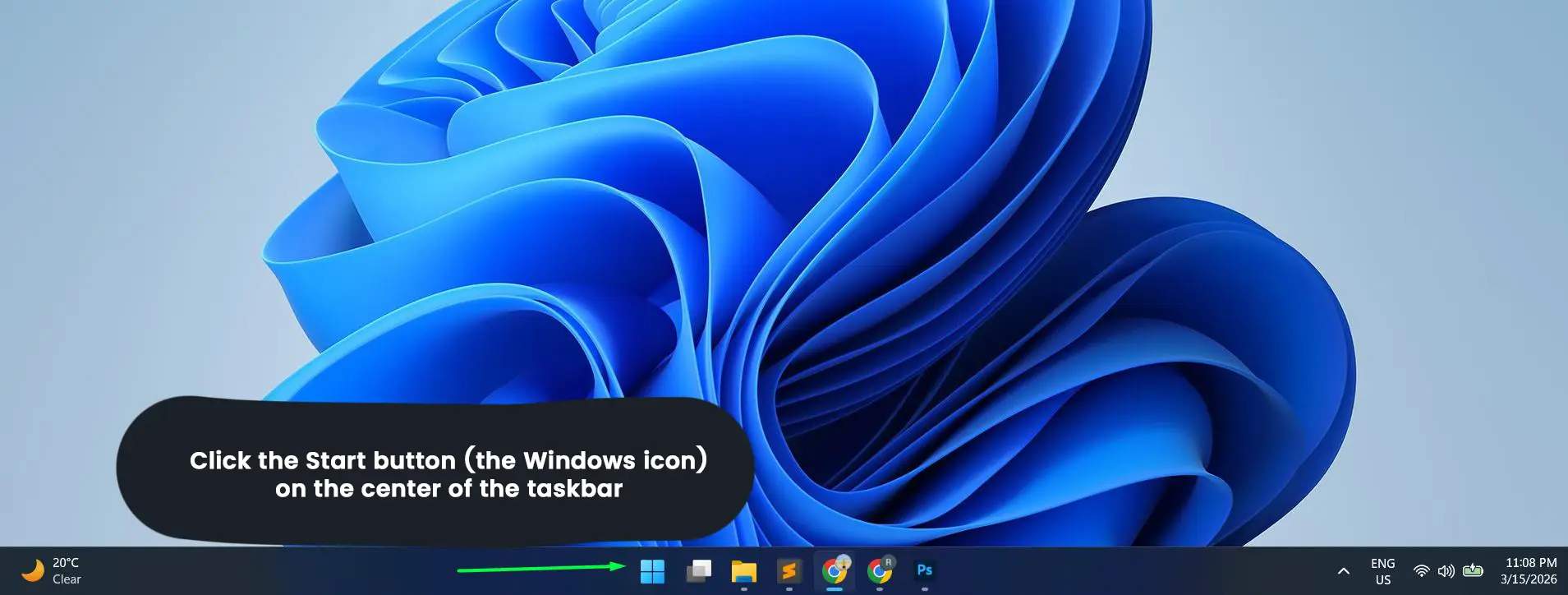
- Step 1: Click the Start button (the Windows icon) on the center of the taskbar, or press the Windows key on the keyboard.
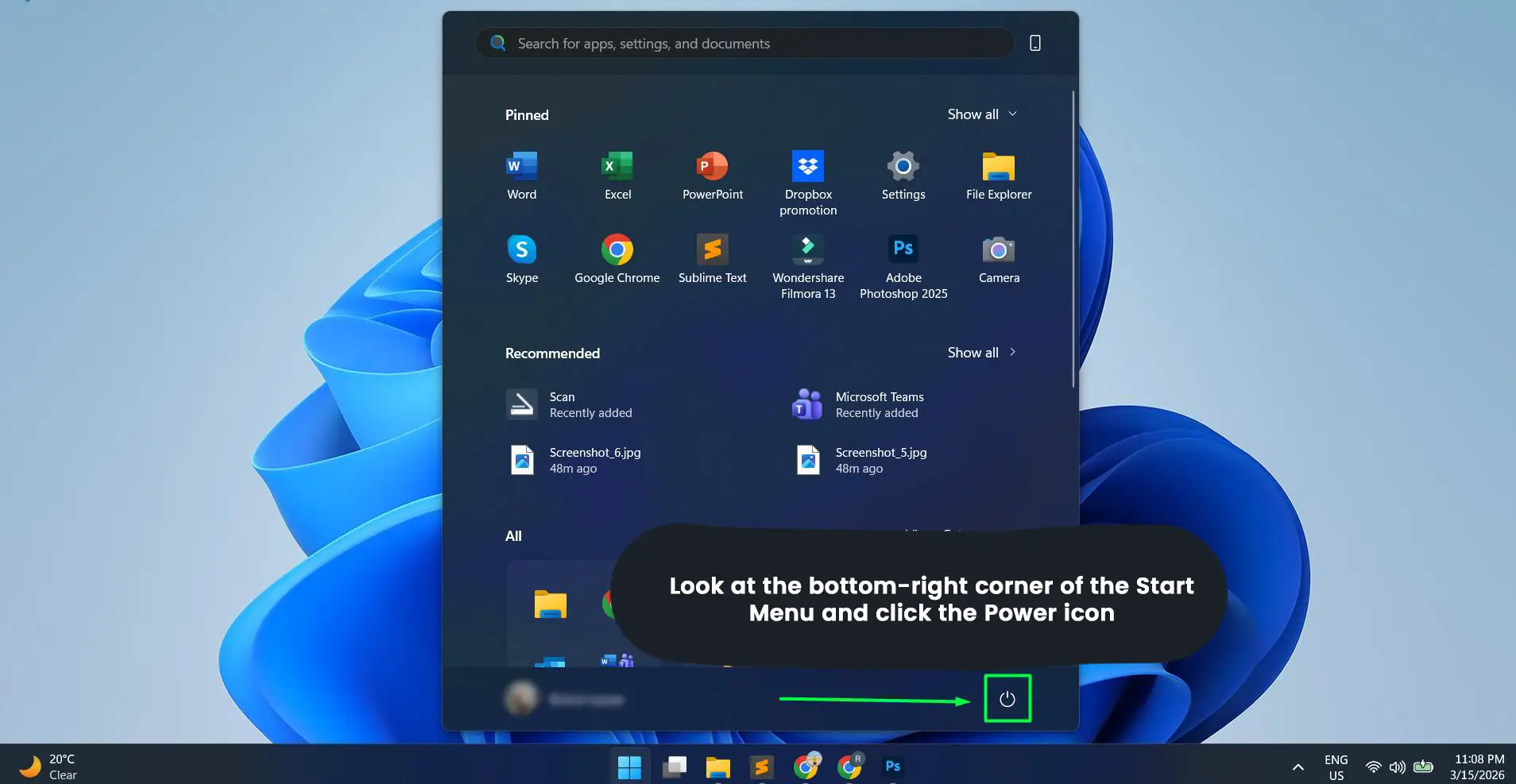
- Step 2: Look at the bottom-right corner of the Start Menu and click the Power icon.
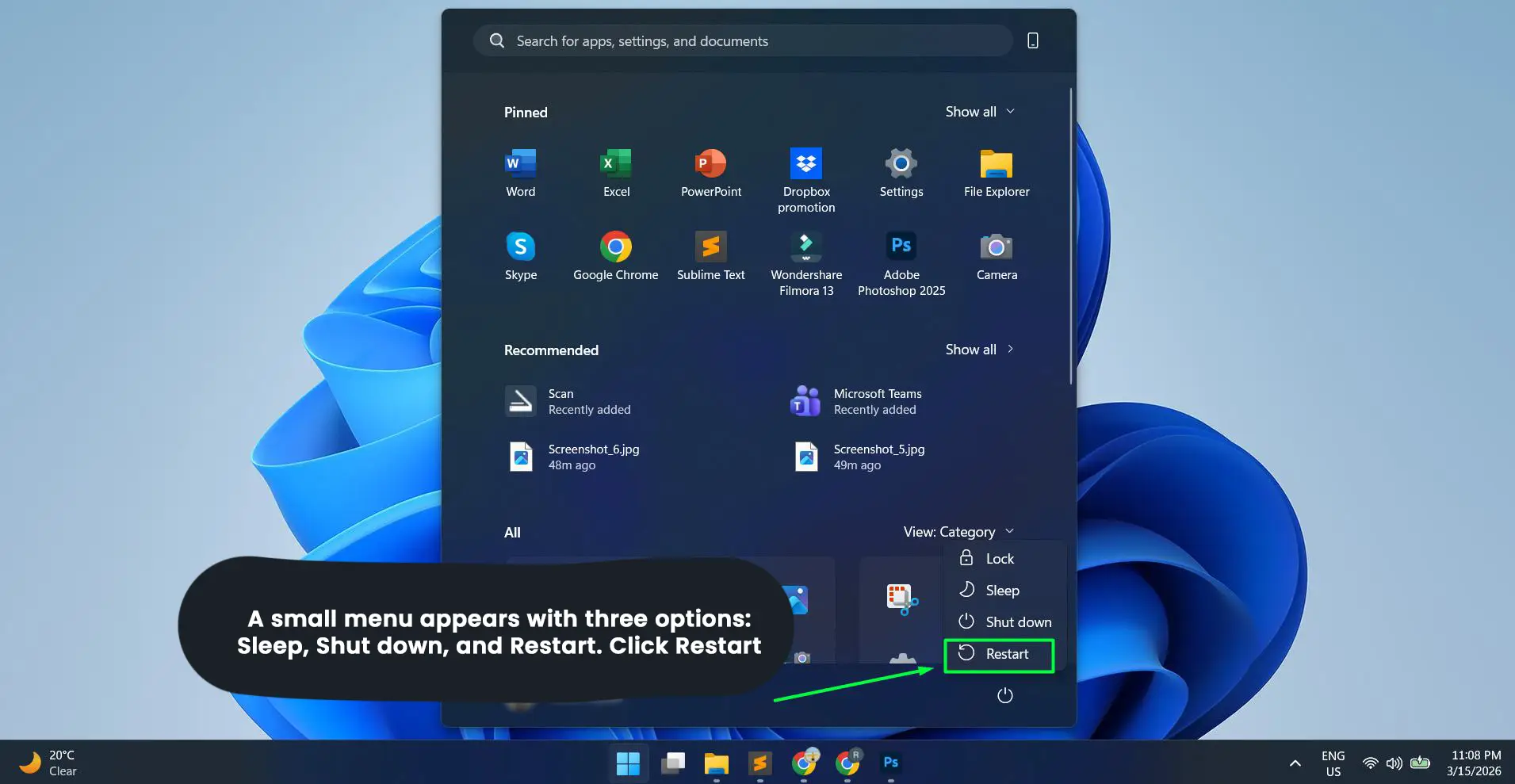
- Step 3: A small menu appears with three options: Sleep, Shut down, and Restart. Click Restart.
- Step 4: Windows 11 will close all open programs and reboot automatically. The screen will go dark briefly before the restart process begins.
If there are unsaved documents open, Windows 11 may prompt to save them before continuing. This is the safest method for everyday use.
Method 2: Restart Using Alt + F4 on the Desktop
This is a fast keyboard-driven method that opens the classic Shut Down Windows dialog directly.
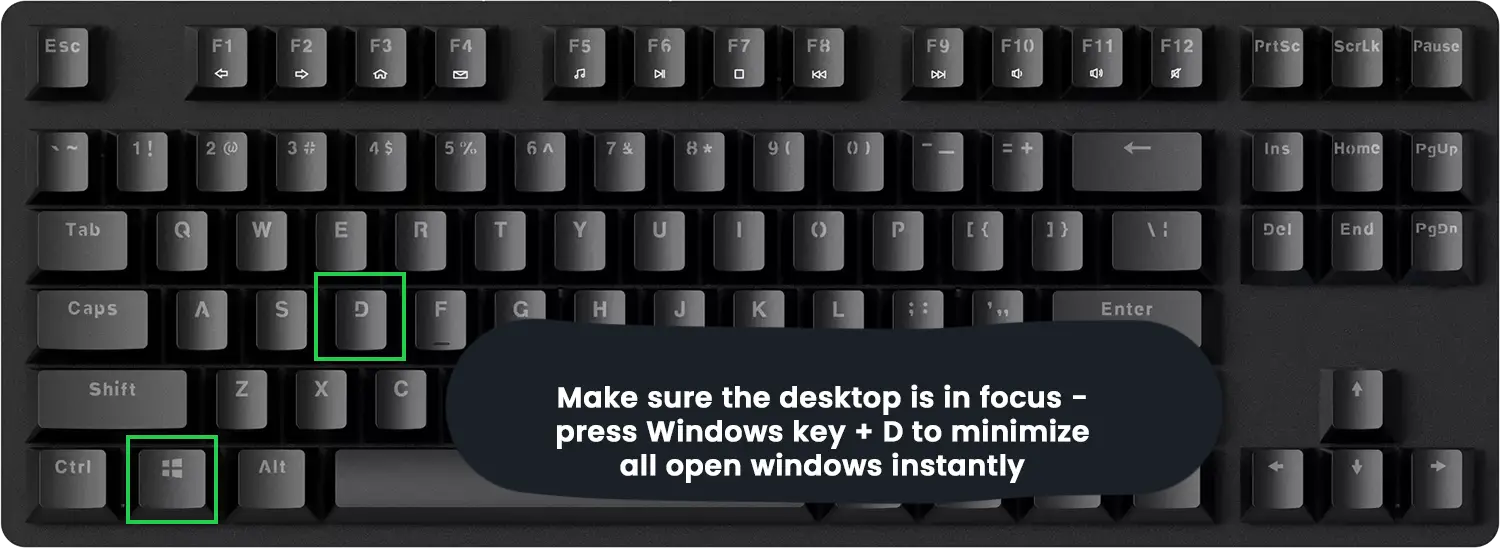
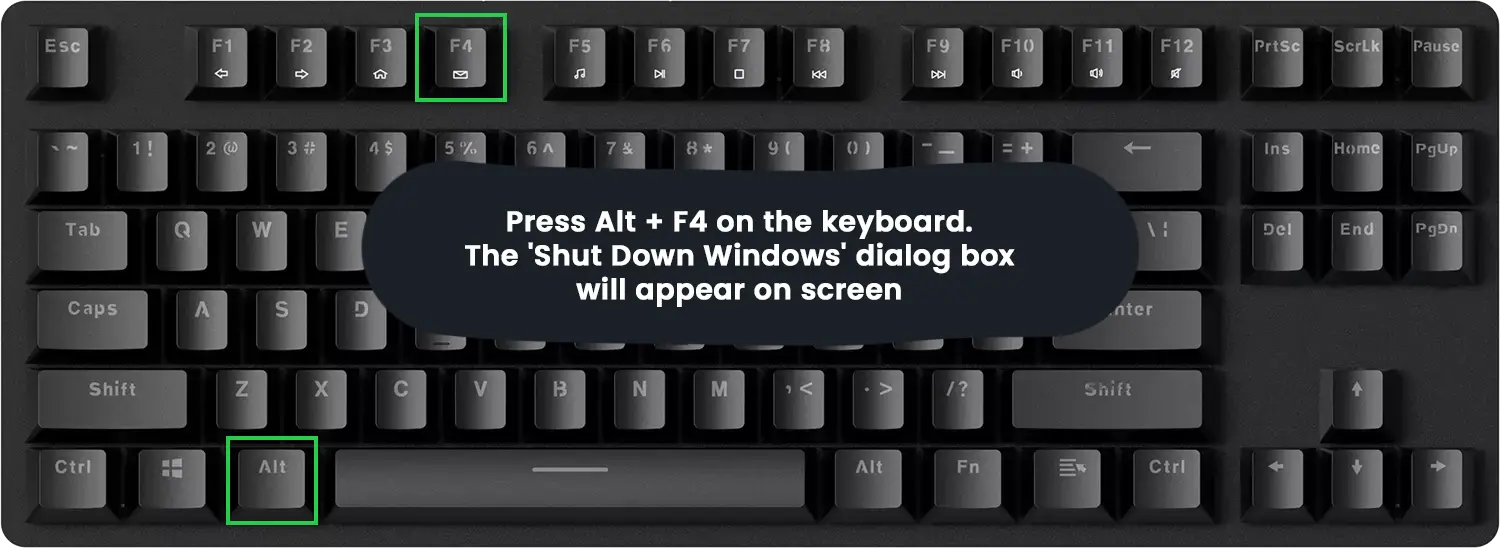
- Step 1: Make sure the desktop is in focus – press Windows key + D to minimize all open windows instantly.
- Step 2: Press Alt + F4 on the keyboard. The ‘Shut Down Windows’ dialog box will appear on screen.
- Step 3: Click the dropdown menu in the center of the dialog. Select Restart from the list.
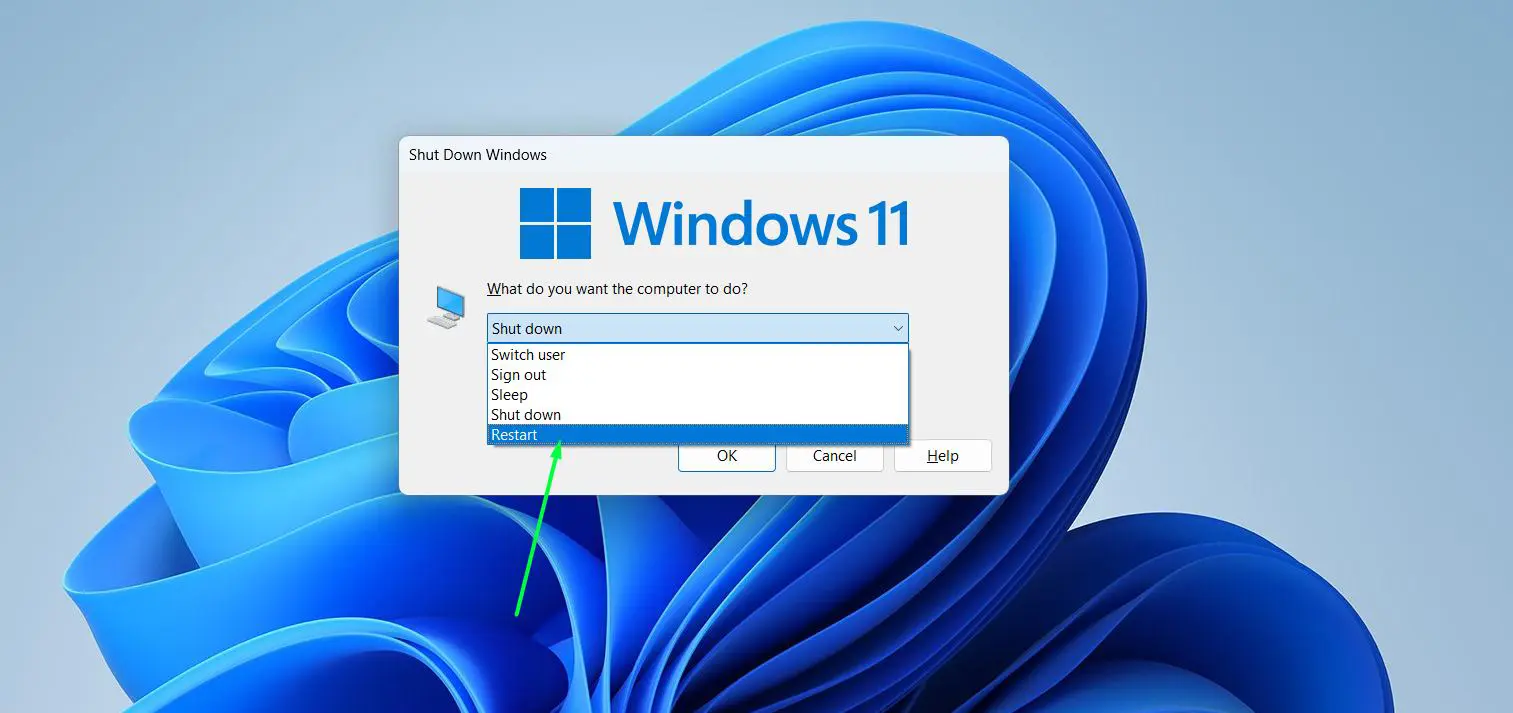
- Step 4: Click OK to confirm. The computer will begin the restart process.
This works best when working directly on the desktop with no active windows. If any application window is currently focused, pressing Alt + F4 will close that app instead of opening the shutdown dialog – so always minimize everything first using Win + D.
Method 3: Restart Using Ctrl + Alt + Delete
This method is especially useful when the taskbar or Start Menu becomes unresponsive. It bypasses the normal interface entirely.
- Step 1: Press Ctrl + Alt + Delete at the same time on the keyboard.
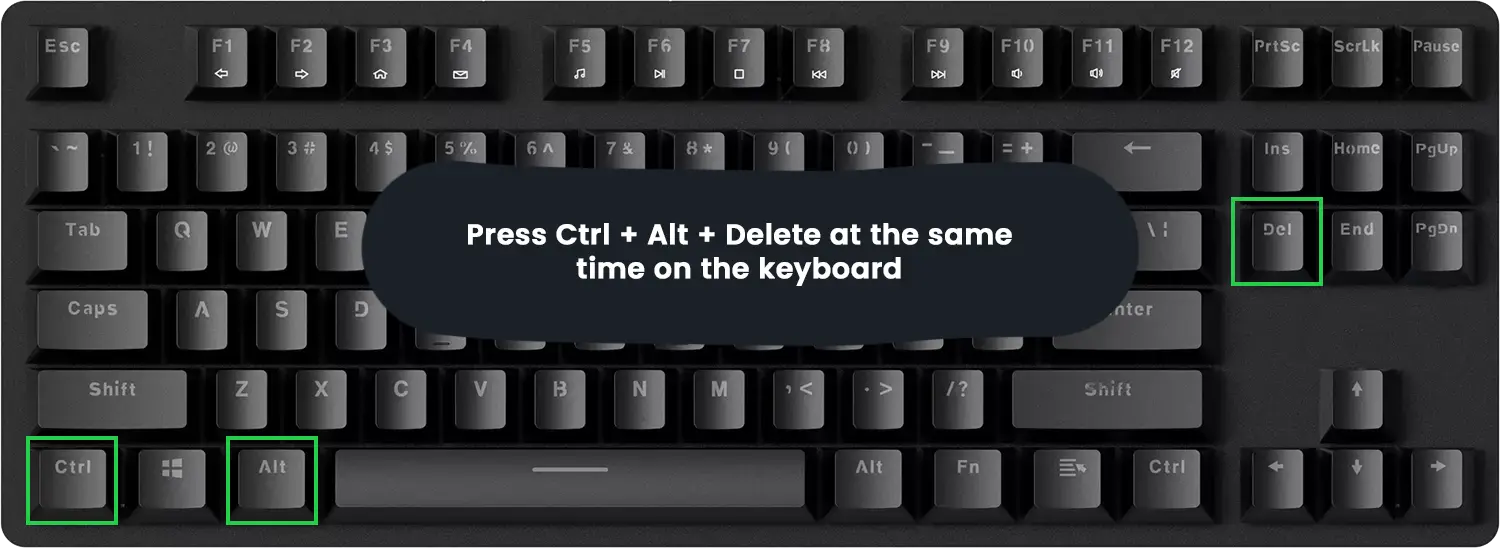
- Step 2: A full-screen security menu appears with options like Lock, Sign out, and Task Manager.
- Step 3: Look at the bottom-right corner of the screen for the Power icon. Click it.
- Step 4: Select Restart from the small popup that appears.
This screen is always accessible in Windows 11, even when the rest of the system feels frozen or sluggish. It is one of the most reliable fallbacks available.
Method 4: Restart Using the Power User Menu (Win + X)
Windows 11 includes a right-click Start Menu packed with system tools – including a direct path to restart.
- Step 1: Press Windows key + X on the keyboard, or right-click directly on the Start button.
- Step 2: A dark menu appears on the left side of the screen. Hover over or click Shut down or sign out near the bottom.
- Step 3: A submenu slides out showing Sleep, Hibernate, Shut down, and Restart. Click Restart.
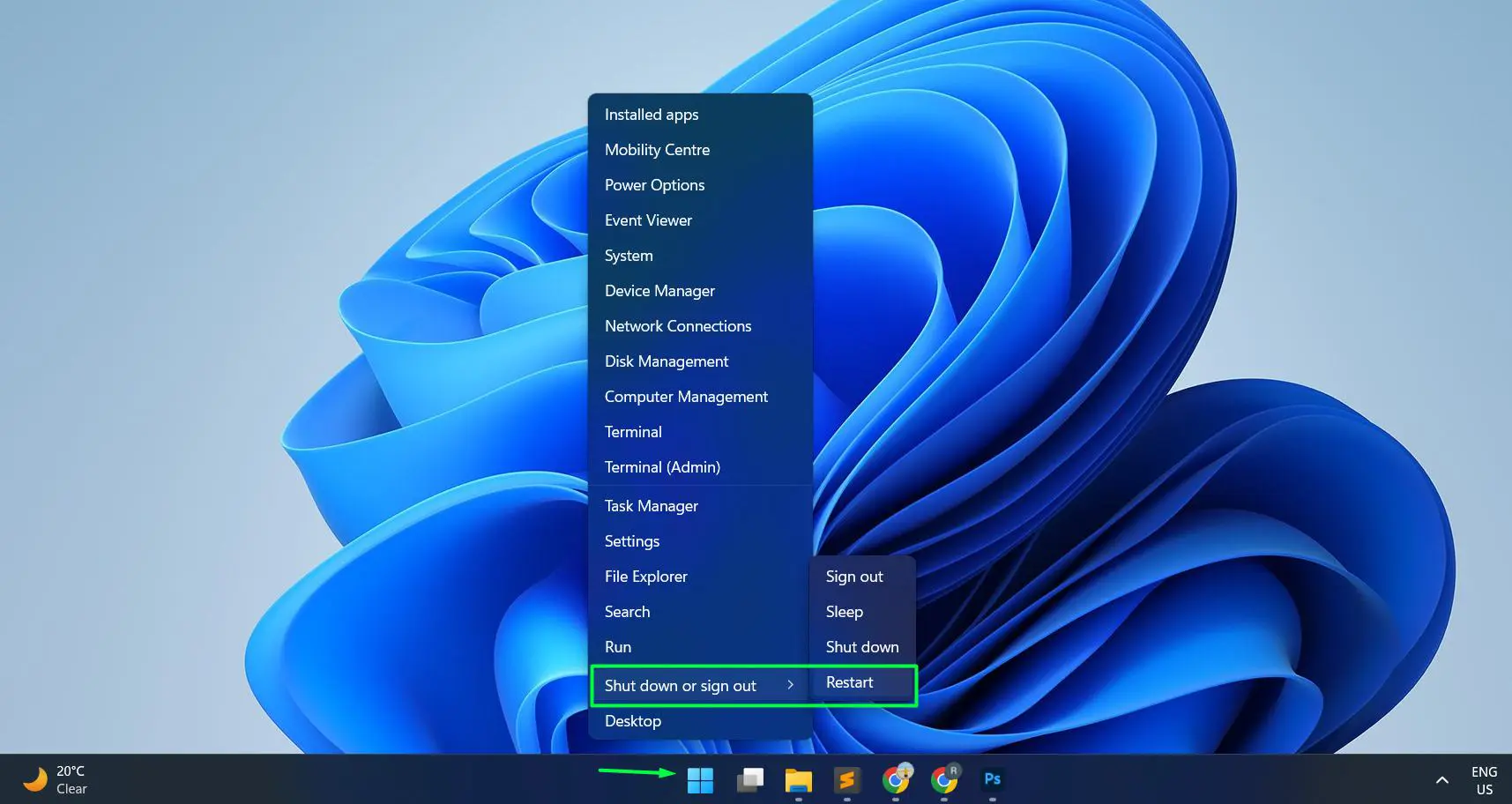
This menu is also where the Device Manager and other system tools live, making it a convenient spot for quick advanced access in general.
Pro-Tip: This is the fastest keyboard-only restart path in Windows 11 with no typing needed. Press Win + X, then press U, then press R – the computer will restart immediately without touching the mouse at all.
Method 5: Restart Using the Run Dialog
This method uses a built-in Windows command and restarts the PC with zero delay. It is particularly handy for power users who want an instant reboot.
- Step 1: Press Windows key + R to open the Run dialog box.
- Step 2: Type this command exactly into the field: shutdown /r /t 0
- Step 3: Press Enter or click OK.
- Step 4: Windows 11 will begin restarting immediately – there is no countdown or confirmation prompt.
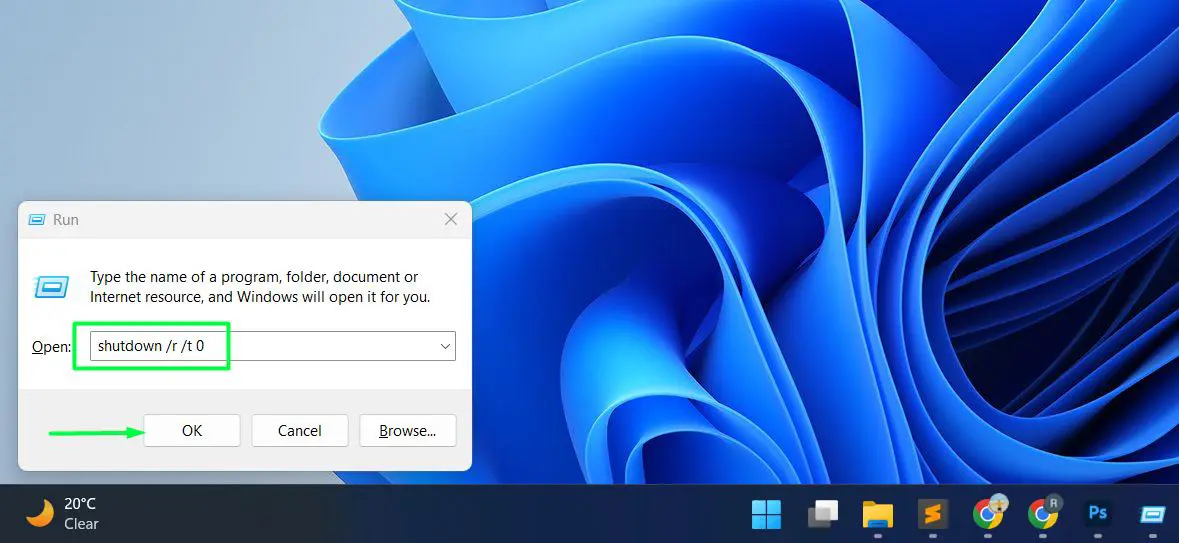
Breaking down the command: /r means restart (not shutdown), and /t 0 sets the timer to zero seconds. Changing 0 to another number (like 30) creates a timed delay in seconds before the restart begins, which is useful if a moment is needed to wrap something up first.
Method 6: Restart Using Command Prompt or PowerShell
For users comfortable with the terminal, this approach is clean and direct. It is also commonly used in scripted or remote management workflows.
- Step 1: Open Command Prompt or Windows PowerShell. Search for either in the Start Menu. For system-level tasks, it is recommended to run CMD as administrator for full elevated permissions.
- Step 2: Type the following command and press Enter: shutdown /r /t 0
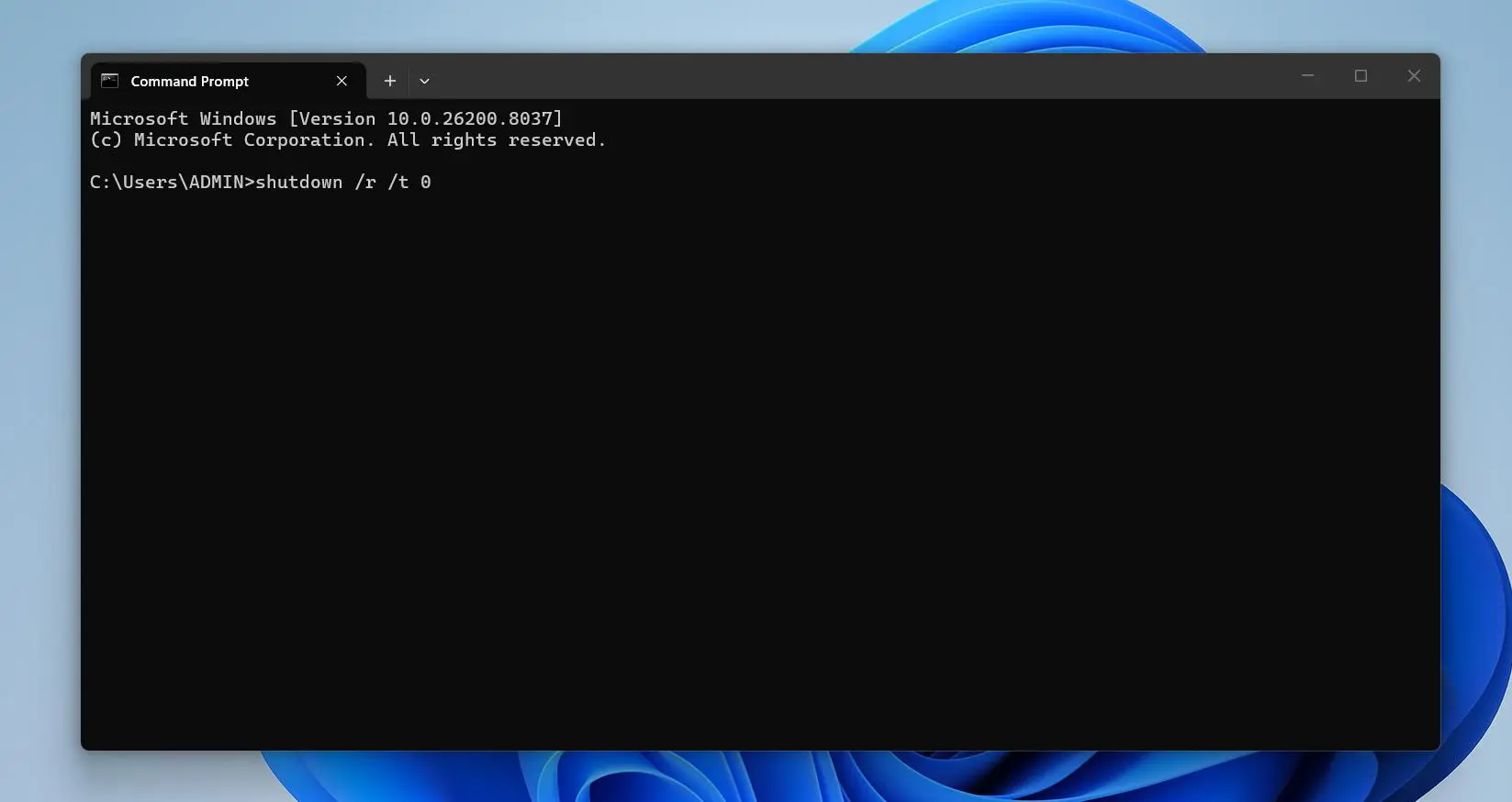
- Step 3: The system will restart instantly. Save all work before running this command as there is no warning or delay.
This is the same command used in the Run dialog but executed from the terminal. IT professionals use this often when managing Windows 11 machines remotely or running maintenance scripts across multiple devices.
Method 7: Restart from the Lock Screen
This is a Windows 11 option that many users overlook. A restart can be triggered directly from the Lock Screen without needing to log in first.
- Step 1: Press Windows key + L to lock the computer and reach the Lock Screen, or wait for it to appear automatically.
- Step 2: Click anywhere on the Lock Screen to reveal the sign-in area.
- Step 3: Look at the bottom-right corner of the screen for the Power icon. Click it.
- Step 4: Select Restart from the options that appear.
This is useful when stepping away from a shared PC or when a restart is needed but logging back in first is not necessary.
Method 8: Force Restart Using the Physical Power Button
Use this only as an absolute last resort – when the computer is completely frozen and none of the software-based methods respond at all.
- Step 1: Hold down the physical power button on the PC tower, laptop, or all-in-one for 5 to 10 seconds until the machine powers off completely.
- Step 2: Wait at least 10 to 15 seconds after the screen goes dark before proceeding.
- Step 3: Press the power button once normally to turn the computer back on.
Pro-Tip: A forced power-off skips the normal shutdown sequence, which can occasionally interrupt background system processes or leave temporary files in an inconsistent state. To reduce the impact of this over time, it is a good habit to create a restore point regularly. If something goes wrong after a hard restart, recovery becomes much faster and easier with a recent restore point available.
Restart vs Shut Down in Windows 11: Why It Actually Matters
A lot of people assume shutting down and turning the PC back on is the same as restarting. In Windows 11, it is not – and the difference is worth understanding.
Windows 11 uses a feature called Fast Startup by default. When the computer is shut down normally, Windows saves a snapshot of the kernel session to disk. The next time it powers on, it loads that snapshot instead of doing a full fresh boot – which is why startup feels quick. However, this also means certain memory states and background processes carry over between sessions.
A Restart bypasses Fast Startup entirely. It performs a complete shutdown and a full cold boot – clearing RAM, reloading all drivers from scratch, and starting every system service fresh. This is why a restart is significantly more effective at fixing software glitches, applying updates properly, and resolving driver conflicts compared to a regular shutdown and power-on.
If the goal is a completely clean system state, always choose Restart over Shut down. Those who want more control over this behavior can explore disabling Fast Startup to make every shutdown behave like a full restart.
Tips for Restarting Windows 11 the Right Way
- Always save open files and documents before restarting – unsaved work in any open app will be lost once Windows begins closing programs.
- Let Windows Update finish downloading before triggering a restart – interrupting the download phase is harmless, but interrupting the installation phase can cause problems.
- After a restart, give the system 1 to 2 minutes before launching heavy applications – Windows 11 loads a number of background services post-boot that need time to initialize properly.
- If the PC restarts very slowly or takes a long time to return to the desktop, reviewing boot performance settings can identify startup programs that are slowing things down.
- For users who notice the system behaving unexpectedly after restarts – such as displays going dark too quickly or sleep activating at odd times – adjusting power and sleep settings often resolves those patterns.
- Avoid making a habit of forced power-off as a regular restart method. It is a hardware override, not a graceful shutdown, and repeated use over time can stress the file system.
Common Restart Problems in Windows 11 and How to Handle Them
The computer is stuck on the ‘Restarting’ screen
This usually happens when Windows is finishing an update installation or when a background process is not closing cleanly. Wait at least 10 to 15 minutes before taking any action – update installations during a restart can take longer than expected depending on the update size. If the screen still has not moved after that time, a forced shutdown using the power button is the next step, followed by a normal boot.
The Restart option is greyed out or not visible
This can happen on managed devices – work computers, school laptops, or enterprise machines – where group policy restricts access to shutdown options. In those cases, try the Command Prompt method using shutdown /r /t 0, or contact the system administrator for access.
The computer restarts but boots back very slowly
Slow post-restart boot times are usually caused by too many startup applications loading all at once. Open Task Manager by pressing Ctrl + Shift + Esc, navigate to the ‘Startup apps’ tab, and disable any programs that do not need to launch automatically at every boot.
Windows 11 keeps restarting on its own in a loop
Automatic restart loops are sometimes triggered by a Windows Update that did not apply correctly or by a critical system error that keeps crashing the OS. If Windows reaches the desktop before crashing again, open an elevated Command Prompt and run sfc /scannow to scan for and repair corrupted system files. If the machine cannot reach the desktop at all, Windows 11 may automatically enter the Windows Recovery Environment (WinRE) after several failed boots, where built-in repair tools are available.
Restart option shows ‘Update and Restart’ instead of just Restart
This is normal Windows 11 behavior. It simply means there are pending updates downloaded and ready to install. Selecting ‘Update and Restart’ applies those updates during the reboot process. The restart may take noticeably longer than usual depending on how many updates are queued.
Frequently Asked Questions
What is the fastest way to restart a Windows 11 computer?
The fastest keyboard-only method with no typing involved is pressing Win + X, then U, then R. For command-line users, pressing Win + R, typing shutdown /r /t 0, and pressing Enter restarts the PC instantly with zero delay or confirmation screen.
Is restarting Windows 11 the same as shutting down and turning the PC back on?
No, and the difference matters. Windows 11 uses Fast Startup by default, which means a normal shutdown saves a kernel memory snapshot and reloads it on the next boot – it is not a true full reboot. A restart skips Fast Startup entirely and performs a genuine cold boot, clearing RAM and reloading all drivers fresh. For fixing software issues or applying updates, Restart is always the more effective choice.
How do you restart Windows 11 without using a mouse?
The quickest keyboard-only path is Win + X, then U, then R. Alternatively, press Ctrl + Alt + Delete, use Tab to navigate to the Power icon at the bottom-right corner, press Enter, use arrow keys to select Restart, and press Enter again. The Run dialog method (Win + R, then shutdown /r /t 0) also requires no mouse at all.
Why does Windows 11 take so long to restart?
The most common causes are pending updates being installed during the restart, too many startup programs loading after boot, or a slow traditional hard drive. Opening Task Manager and disabling unnecessary apps under the ‘Startup apps’ tab usually makes a noticeable improvement. If the system still runs on an older spinning hard drive rather than an SSD, that alone is the biggest single factor affecting restart and boot speed.
Can a restart be scheduled in Windows 11?
Yes. Open Task Scheduler from the Start Menu, create a new basic task, set the trigger to a specific time or recurring schedule, and set the action to run shutdown.exe with the argument /r /t 0. This will automatically restart the computer at the chosen time without any manual input required.
Does restarting Windows 11 delete files or installed programs?
No. A standard restart does not affect personal files, installed applications, or system settings. The only content at risk during a restart is unsaved work in open applications – anything not saved to disk before Windows begins closing programs will be lost. Always save open files before restarting.
What is the difference between Restart and Reset in Windows 11?
These are completely different operations. Restarting reboots the operating system – it closes all processes and loads Windows fresh, typically completing in under a minute. Resetting (found under Settings – System – Recovery) reinstalls Windows 11 entirely and offers the option to remove all personal files. A reset is a major recovery action, not a routine reboot.
How do you restart Windows 11 into Safe Mode?
Hold the Shift key and simultaneously click Restart from the Start Menu Power button. This sends Windows 11 into the Advanced Startup environment instead of a normal reboot. Go to Troubleshoot – Advanced options – Startup Settings, click Restart, and on the following screen press 4 for Safe Mode or 5 for Safe Mode with Networking.
What happens if the restart is interrupted midway?
If power is cut or the machine is forced off while restarting – especially during an active update installation – Windows 11 will typically run an automatic drive integrity check on the next boot. In most cases the system recovers cleanly on its own. If updates were being applied at the time, they may need to reinstall. Keeping a recent restore point through System Restore makes recovery much smoother if something does not come back correctly.
Does restarting Windows 11 fix most common PC problems?
Yes – and more effectively than most people expect. A restart clears RAM, resets all running services, flushes temporary files, and reloads drivers completely fresh. This resolves a wide range of common issues including slow performance, unresponsive apps, audio glitches, display problems, and network connectivity issues. It is always the right first step before trying anything more involved. For persistent issues that survive multiple restarts, running a PC health check is a useful next step to assess the system’s overall condition.
Can Windows 11 be restarted remotely?
Yes. Using Command Prompt with administrative privileges, the command shutdown /r /m \\computername /t 0 restarts another Windows 11 PC on the same local network – replacing ‘computername’ with the actual device name. This requires proper network permissions and Remote Registry access to be enabled on the target machine. It is a technique commonly used in IT and network administration environments.