
Has your screen ever gone black in the middle of a presentation, a video call, or while waiting on a slow download? That is the screen timeout doing its job at the wrong moment. This guide walks through exactly how to take control of that setting in Windows 11 so the display turns off on your schedule, not Windows’.
Key Takeaways
- Screen timeout settings in Windows 11 are found under Settings > System > Power and battery
- Separate timeout values can be set for ‘Plugged in’ and ‘On battery’ modes
- Both ‘Turn my screen off after’ and ‘Make my device sleep after’ can be adjusted independently
- Options range from 1 minute up to 5 hours, or ‘Never’
- Changes take effect immediately – no restart required
- If the screen still turns off after changes, you likely edited only one power mode and left the other untouched
How to Change Screen Timeout Settings in Windows 11
The screen timeout setting controls how long the display stays on when the device is not in use. Windows 11 separates this into two scenarios – when the device is plugged into power and when it is running on battery. Here is how to adjust both.
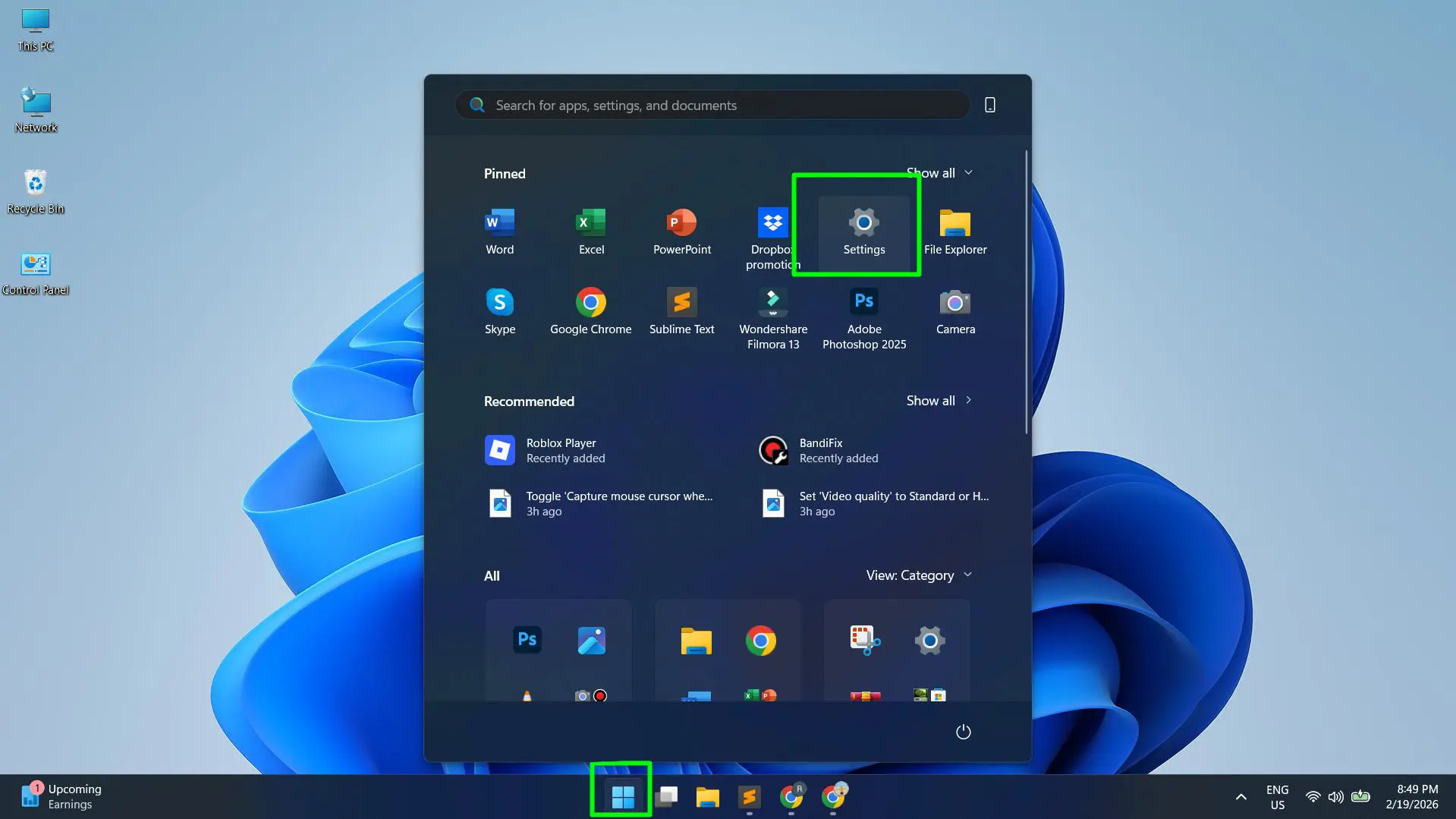
- Step 1: Click the Start button and open Settings (or press Windows + I on the keyboard).
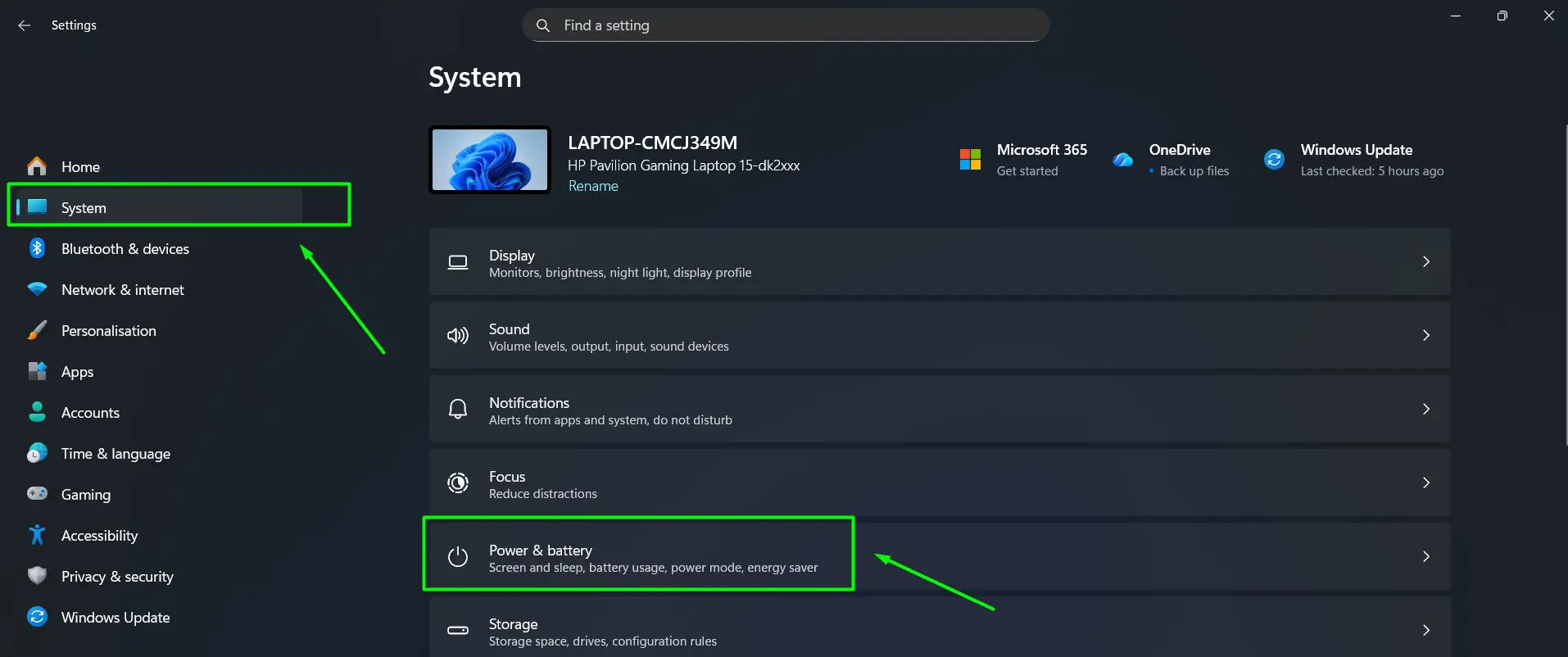
- Step 2: In the left-hand sidebar, click System.
- Step 3: Click Power and battery from the System menu.
- Step 4: Locate the Screen, sleep, and hibernate time-outs section and click on it to expand it.

- Step 5: Under Plugged in, find Turn my screen off after and click the dropdown to choose a timeout duration.

- Step 6: Still under Plugged in, adjust Make my device sleep after to the preferred time as well.

- Step 7: Scroll down to the On battery section and repeat the same adjustments for Turn my screen off after and Make my device sleep after.

That is all there is to it. The changes apply right away. If the screen is still turning off unexpectedly after following these steps, jump down to the Common Problems section below – there are a few things that can override these settings without any warning.
What the Timeout Options Mean
The dropdown for each setting offers several time intervals, from as short as 1 minute up to 5 hours, plus a ‘Never’ option. The screen off timer simply turns off the display while the computer keeps running in the background. The sleep timer puts the whole system into a low-power state.
Most people find that setting the screen off timer a few minutes shorter than the sleep timer works best. For example, screen off after 10 minutes and sleep after 30 minutes gives a comfortable buffer.
Setting Screen Timeout for Battery vs Plugged In
Windows 11 smartly separates the timeout settings into two profiles. This matters because the ideal behavior differs depending on whether the laptop is plugged in or running on battery power.
- Plugged in: Longer timeouts make sense here since power consumption is not a concern. Many users set this to 30 minutes or even longer.
- On battery: Shorter timeouts help preserve battery life. Windows recommends 5 minutes for screen off when on battery, which is a sensible starting point.
This is also the most common reason the screen keeps turning off even after making changes. If only the ‘Plugged in’ setting was updated but the laptop is currently running on battery, the old ‘On battery’ timeout is still the one in effect. Always check both profiles.
If the goal is to get the most out of battery life, pairing these settings with adjusted display brightness settings makes a noticeable difference. A dimmer screen combined with a shorter timeout can significantly extend how long the battery lasts between charges.
Pro-Tip: Set the ‘Turn my screen off after’ timer to a shorter duration than ‘Make my device sleep after.’ This way, the display powers down to save energy while the system stays awake and ready – ideal for situations where a quick return to the screen is expected without logging back in.
How to Stop the Screen from Turning Off in Windows 11
There are situations where the screen should never turn off automatically – think digital signage, kiosk setups, video calls, presentations, or when running a long process that needs to be monitored.
- Step 1: Open Settings > System > Power and battery.
- Step 2: Expand Screen, sleep, and hibernate time-outs.
- Step 3: Click the dropdown next to Turn my screen off after (under the desired profile – plugged in or on battery).
- Step 4: Scroll to the bottom of the list and select Never.

Keep in mind that selecting ‘Never’ for battery mode will drain the battery significantly faster, so this option is best reserved for plugged-in use. For video calls and presentations specifically, it is worth reverting the setting back to a normal timeout once the session ends.
Tips for Screen Timeout Settings
- Use a shorter screen timeout on battery (3 to 5 minutes) to extend laptop battery life during regular use.
- If the screen keeps turning off during video calls or presentations, temporarily set the timeout to ‘Never’ or a very long duration, then revert it after.
- The sleep timeout should always be set equal to or longer than the screen off timeout – Windows will not let the device sleep before the screen turns off.
- For shared devices or office computers, pairing screen timeout with automatic device locking adds a layer of security whenever the screen powers off.
- Windows 11 applies the power mode (Best Performance, Balanced, Best Power Efficiency) separately from timeout settings – changing the power mode does not reset the timeouts.
- Always update both the ‘Plugged in’ and ‘On battery’ profiles. Updating only one is the most common reason changes do not seem to work.
Pro-Tip: After adjusting screen timeout settings, check whether the lock screen is set to appear after sleep. Go to Settings > Accounts > Sign-in options and look for the ‘Require sign-in’ setting. This ensures the device is secure every time it wakes from sleep without needing extra steps.
Is your Windows 11 lock screen turning off too quickly or not respecting your timeout settings? Check this guide on How To Fix Windows 11 Lock Screen Timeout After Inactivity – Step-by-Step Guide.
Common Problems with Screen Timeout Settings
Screen turns off even though timeout is set to ‘Never’
If the screen keeps shutting off despite being set to ‘Never,’ check if any third-party apps or Windows power plans are overriding the setting. Go to Settings > System > Power and battery and make sure the power mode is not set to ‘Best Power Efficiency,’ which may enforce its own display rules. Also check if any screensaver is configured – go to the lock screen settings and disable the screensaver from there.
Screen timeout changes keep resetting
This usually happens when a Windows update resets power settings or when a third-party app (like some antivirus or battery management tools) manages power settings on its own. After making changes, verify the settings are still saved by reopening the Power and battery page. If they keep resetting, check the installed apps for any battery or power management software that might be taking control.
Screen turns off too quickly even after increasing the timeout
Double check that both the ‘Plugged in’ and ‘On battery’ profiles have been updated, not just one. Also confirm which power mode is active – ‘Best Power Efficiency’ mode can override custom timeout values and force shorter intervals regardless of what is set manually.
Screen turns off during video calls or presentations
Most video conferencing apps like Zoom, Teams, and Google Meet request that Windows keep the display on during active calls, but this does not always work reliably. If the screen is still turning off, manually set the timeout to ‘Never’ before the session and restore it afterward. Some browser-based meeting tools do not send the keep-awake signal at all, so a manual override is the safest approach.
The ‘Make my device sleep after’ option is grayed out
This can happen on desktop PCs that do not support sleep mode or when connected to certain external monitors. It may also be grayed out due to group policy restrictions on managed (work or school) devices. In those cases, contact the system administrator to adjust the policy, or check if hibernate is being used in place of sleep.
Screen timeout works on battery but not when plugged in (or vice versa)
This is almost always because only one profile was updated. Go back to Settings > System > Power and battery, expand the timeout section, and confirm the correct duration is set under both ‘Plugged in’ and ‘On battery’ separately.
Frequently Asked Questions
Where are the screen timeout settings in Windows 11?
The screen timeout settings are in Settings > System > Power and battery, under the ‘Screen, sleep, and hibernate time-outs’ section. Separate options are available for plugged-in and battery modes.
How do you stop the screen from turning off in Windows 11?
Open Settings > System > Power and battery, expand ‘Screen, sleep, and hibernate time-outs,’ and set ‘Turn my screen off after’ to ‘Never’ for the desired power mode (plugged in or on battery).
Why is my screen still turning off after I changed the timeout settings?
The most likely cause is that only one power mode was updated. Windows 11 keeps separate timeout values for ‘Plugged in’ and ‘On battery’ – check both. A screensaver, third-party power management app, or the ‘Best Power Efficiency’ power mode can also override custom settings.
Can different screen timeout times be set for battery and plugged-in mode?
Yes. Windows 11 provides separate timeout settings for ‘Plugged in’ and ‘On battery’ modes. Each can be configured independently to match how the device is being used.
What is the difference between screen off and sleep in Windows 11?
Screen off simply turns off the display while the computer keeps running normally in the background. Sleep puts the entire system into a low-power state, saving more energy but taking a moment to wake back up.
Does changing the screen timeout affect the sleep timer?
Not directly, but the two settings are linked in logic. The sleep timer cannot be set to activate before the screen turns off. If the screen off timer is set longer than the sleep timer, Windows may adjust the values to maintain the correct order.
Why does the screen timeout not work on Windows 11?
If the screen does not turn off as expected, a running application may be preventing the display from powering down. Video players, games, and screen capture tools often request that the display stay on. Closing those apps and checking for any power-management software running in the background usually resolves the issue.
Is there a keyboard shortcut to lock the screen manually in Windows 11?
Yes. Pressing Windows + L instantly locks the screen without waiting for the timeout. This is a handy shortcut when stepping away from the desk and security is a priority.
How do you change the screen timeout when the laptop is plugged in?
Go to Settings > System > Power and battery, expand ‘Screen, sleep, and hibernate time-outs,’ and adjust the ‘Turn my screen off after’ dropdown under the ‘Plugged in’ section.
Does screen timeout affect battery life?
Yes. A shorter screen timeout on battery mode reduces how long the display stays on, which directly saves battery. The display is one of the biggest power consumers on a laptop, so even small adjustments to the timeout can extend battery life.
What is the recommended screen timeout for Windows 11?
Windows 11 recommends 5 minutes for screen off when on battery, as shown in the settings dropdown. For plugged-in use, 15 to 30 minutes is a common choice for most users. The right setting ultimately depends on personal preference and how the device is used.
Why does my screen turn off during video calls in Windows 11?
Some apps do not reliably send a keep-awake signal to Windows. If the screen times out during calls, set ‘Turn my screen off after’ to ‘Never’ before the session starts and restore it afterward. Browser-based meeting tools are especially prone to this issue.