
Snap Layouts in Windows 11 is a multitasking feature that lets users organize open windows into predefined grid patterns with a single click. Many people assume this is just a fancier version of the old snap feature from Windows 10, but Snap Layouts goes far beyond simple side-by-side window splitting. It introduces intelligent layout suggestions, zone targeting, and seamless integration with virtual desktops, making it one of the most practical productivity upgrades in the operating system.
Quick Overview of Snap Layouts
| Feature | Details |
|---|---|
| Available Layouts | Six predefined grid patterns (two, three, or four windows) |
| Activation Method | Hover over the maximize button on any window |
| Display Support | Automatically adjusts based on screen size and orientation |
| Snap Groups | Remembers grouped windows for quick restoration |
| Keyboard Support | Works with Windows key + arrow key shortcuts |
| Compatibility | Works with most desktop applications and browsers |
How Snap Layouts Recognizes Screen Real Estate
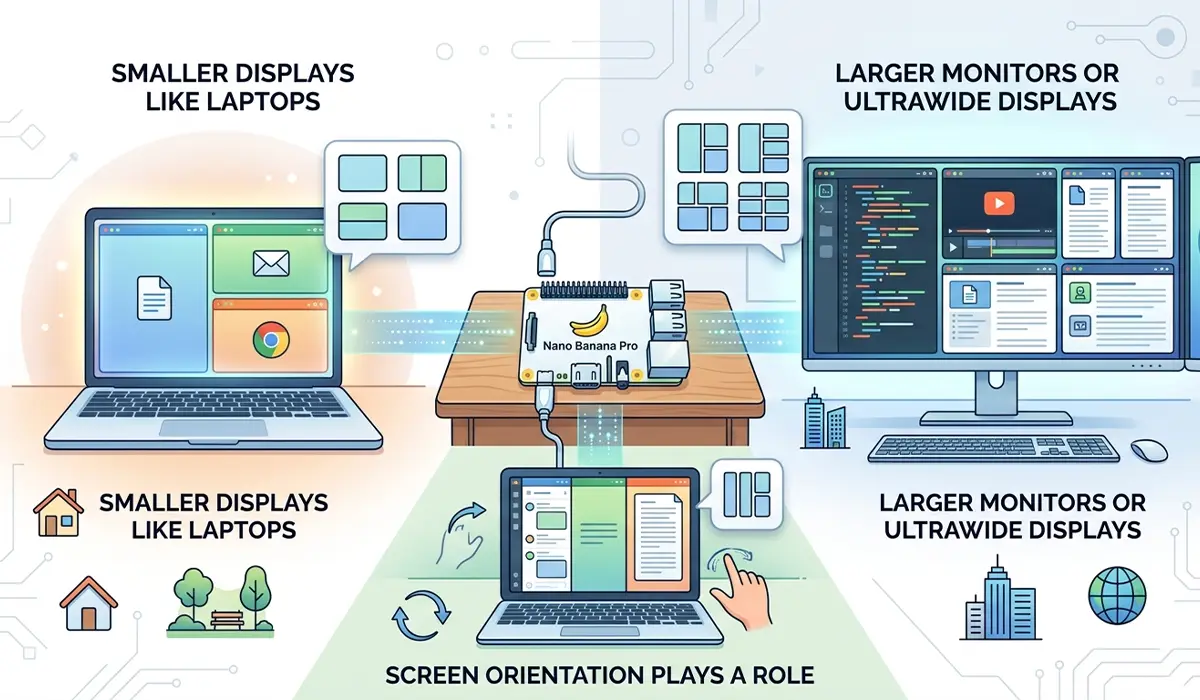
The feature dynamically adapts to monitor size and resolution. On smaller displays like laptops, Snap Layouts typically shows four layout options, focusing on two-window and three-window configurations. Larger monitors or ultrawide displays unlock additional patterns, including layouts that accommodate four windows in complex arrangements. This intelligent scaling prevents clutter on compact screens while maximizing workspace on expansive setups.
Screen orientation also plays a role. When a device switches to portrait mode, such as on a convertible laptop or tablet, the layout options automatically reorient to vertical splits rather than horizontal ones. This ensures that the feature remains practical regardless of how the hardware is positioned.
The Connection Between Snap Layouts and Snap Groups
Once windows are arranged using Snap Layouts, Windows 11 creates something called a Snap Group. This is essentially a memory of which applications were positioned together. Hovering over any app from that group in the taskbar reveals a thumbnail preview showing all the windows from the group, allowing users to restore the entire layout with one click.
Snap Groups persist across sessions. If a computer is restarted or a user logs out, the grouped windows remain linked. The next time those applications are opened, the system remembers the arrangement and can restore it through the taskbar. This becomes particularly useful for repetitive workflows, such as coding environments with an editor, terminal, and browser, or content creation setups with design tools and reference documents.
Pro Tip: Snap Groups work best when specific apps are always used together. For example, pairing a spreadsheet application with a calculator and a notepad tool creates a reusable layout for financial work. The taskbar preview makes it easy to jump back into that exact setup without manually repositioning each window.
Why Snap Layouts Feels Different from Traditional Window Snapping
Previous versions of Windows allowed users to snap windows to the left or right half of the screen using keyboard shortcuts or by dragging a window to the edge. Snap Layouts expands this concept by offering visual zone previews before committing to a layout. Instead of guessing where a window will land, users see highlighted sections showing exactly how the screen will be divided.
The overlay menu that appears when hovering over the maximize button presents all available layouts at once. Clicking on a specific zone within a layout immediately positions the active window in that area, then prompts the user to select other open windows to fill the remaining zones. This guided workflow reduces trial and error compared to manually resizing and dragging multiple windows into place.
Another distinction is the level of precision. Traditional snapping typically offers only half-screen or quarter-screen positions. Snap Layouts introduces asymmetric arrangements, such as a large primary window taking up two-thirds of the screen alongside two smaller windows stacked vertically. These options cater to workflows where one application needs more visibility than others, such as video editing with a large preview pane and smaller tool panels.
When Snap Layouts Becomes Essential for Productivity
Certain tasks benefit dramatically from structured window arrangements. Research work that requires cross-referencing multiple documents becomes faster when a browser, PDF reader, and word processor are simultaneously visible. Developers working with code editors, debugging consoles, and documentation pages can eliminate constant alt-tabbing by locking those windows into a consistent layout.
Snap Layouts also shines during video calls or remote collaboration. Positioning a communication app like Teams or Zoom alongside a shared document or presentation allows participants to see both the discussion and the material without switching views. This setup is particularly effective on ultrawide monitors where horizontal space can accommodate three or four applications without excessive resizing.
For users who frequently switch between different types of work, Snap Groups provide continuity. A writer might have one group for drafting (editor and thesaurus) and another for editing (grammar checker and style guide). Switching between these modes becomes a single click rather than reconstructing the layout each time. This reduces friction and helps maintain focus on the task at hand.
Adjusting Snap Layouts Behavior to Match Personal Preferences
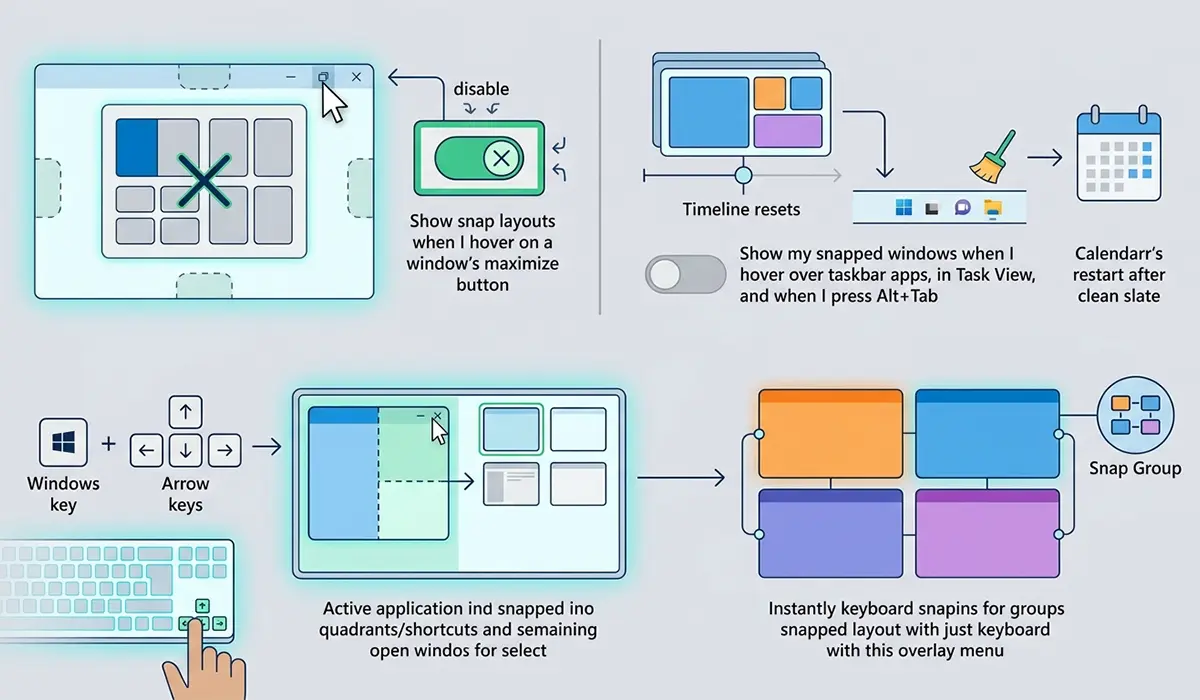
Windows 11 includes several configuration options for Snap Layouts that change how the feature behaves. These settings are found in the system’s multitasking menu, accessible through the settings app. One toggle controls whether the layout overlay appears when hovering over the maximize button. Disabling this option hides the visual menu but still allows snapping through keyboard shortcuts or dragging windows to screen edges.
Another setting determines whether Snap Groups are remembered across sessions. Turning this off prevents Windows from saving window arrangements, which can be useful for users who prefer a clean slate each time they log in or restart. There is also an option to show snapped windows in the taskbar preview, making it easier to identify which apps belong to a specific group.
Keyboard shortcuts provide an alternative way to activate layouts without using the mouse. Pressing the Windows key and an arrow key moves the active window to a snap zone, then displays remaining open windows for quick selection. This method is faster for users who rely heavily on keyboard navigation. The shortcuts work identically to older Windows versions but gain the added benefit of triggering Snap Group creation when multiple windows are arranged.
Common Situations Where Snap Layouts Falls Short
While Snap Layouts handles most scenarios well, there are limitations. Applications that do not support standard window resizing, such as certain older programs or utilities with fixed dimensions, will not snap properly. When attempting to place these apps into a layout, they either refuse to resize or distort in unpredictable ways. This incompatibility is rare but frustrating when it occurs.
Another issue arises with ultra-high-resolution displays or multiple monitors. On setups with more than two screens, Snap Layouts only applies to the active display. There is no system-level tool to create a unified layout spanning all monitors simultaneously. Users must snap windows individually on each screen, which diminishes the efficiency gains the feature is supposed to provide.
Snap Groups can also become cluttered over time. If a user frequently opens and closes applications without deliberately managing groups, the taskbar preview may show outdated or irrelevant window combinations. Windows does not automatically clean up or archive old groups, so manually breaking apart unwanted arrangements by closing grouped apps individually is necessary. This maintenance overhead can negate some of the convenience for users with dynamic workflows.
Performance on lower-end hardware occasionally suffers when multiple resource-intensive applications are snapped together. The operating system must constantly redraw window boundaries and manage memory allocation for each visible app. On devices with limited RAM or slower processors, this can lead to stuttering or lag, particularly when adjusting screen refresh rate settings or resizing windows rapidly within a layout.
Frequently Asked Questions
Can Snap Layouts be disabled if not needed?
Yes, Snap Layouts can be turned off entirely through the multitasking settings in Windows 11. Disabling the feature removes the hover menu from the maximize button but does not affect the ability to manually resize or drag windows. Users who prefer traditional window management can deactivate it without losing other functionality.
Do all applications work with Snap Layouts?
Most modern desktop applications support Snap Layouts, but older programs or those with fixed window sizes may not snap correctly. Applications that enforce specific dimensions or aspect ratios often resist being placed into predefined zones. Testing compatibility with critical software before relying on the feature for workflows is recommended.
How many windows can be included in a single Snap Group?
A Snap Group can include up to four windows, depending on the chosen layout. The maximum number is determined by the grid pattern selected, with the most complex layouts accommodating four applications simultaneously. Adding more windows requires creating a separate group or managing additional apps outside the snap system.
Does Snap Layouts work across multiple monitors?
Snap Layouts functions independently on each monitor. When working with multiple displays, users must snap windows separately on each screen. There is no built-in mechanism to create a single layout spanning all monitors, which limits efficiency in multi-screen setups.
Can custom Snap Layouts be created?
Windows 11 does not natively support custom layout creation. The feature is limited to the six predefined patterns provided by the system. Third-party tools exist that offer more granular control over window positioning, but these are external to the built-in Snap Layouts functionality.
What happens to Snap Groups when an app is closed?
Closing one application within a Snap Group does not automatically dissolve the group. The remaining windows stay linked, and the taskbar preview reflects the updated configuration. If all apps in a group are closed, the group is removed from memory and will not reappear unless the same combination of windows is manually snapped again.
Are there keyboard shortcuts for Snap Layouts?
Yes, pressing the Windows key plus an arrow key snaps the active window to a specific zone. After the first window is placed, a selection interface appears showing other open applications that can fill remaining zones. This method offers the same functionality as the hover menu but relies entirely on keyboard input.
Does Snap Layouts affect system performance?
On most systems, Snap Layouts has minimal performance impact. However, devices with limited RAM or slower processors may experience slight lag when managing multiple resource-intensive applications simultaneously. Reducing the number of snapped windows or closing background processes can alleviate performance issues in such cases.
Conclusion
Snap Layouts transforms how Windows 11 handles multitasking by replacing manual window arrangement with structured, intelligent positioning. The feature eliminates the constant resizing and repositioning that plagued earlier workflows, while Snap Groups ensure that carefully arranged setups do not vanish the moment a window is closed. For users juggling multiple applications daily, this capability delivers tangible time savings and reduces cognitive load. While it has limitations, particularly with legacy software and multi-monitor environments, the core functionality addresses a genuine pain point in modern computing. Understanding how to leverage Snap Layouts effectively can turn a chaotic desktop into a well-organized workspace tailored to specific tasks.