
Switching to a dark background theme on Windows 11 transforms the entire operating system interface into a comfortable, eye-friendly display that reduces strain during extended use. Most people find that dark mode not only looks sleek but also helps conserve battery life on laptops. This guide walks through the exact steps needed to enable dark theme across Windows 11.
Quick Summary Table
- Dark theme reduces eye strain and extends battery life on portable devices
- The Settings app provides the quickest method to switch themes
- Changes apply instantly to all Windows 11 system elements
- Apps that support dark mode will automatically adjust
- The process takes less than 30 seconds to complete
Why Dark Theme Matters
Dark background themes have become essential for modern computing. The darker interface reduces blue light exposure, which can disrupt sleep patterns when using devices before bedtime. For anyone spending hours at a computer, this simple change makes a noticeable difference in comfort levels.
Battery-powered devices benefit significantly from dark mode. OLED and AMOLED screens consume less power when displaying darker colors, potentially adding 30-60 minutes of extra usage time on a single charge.
Switching to Dark Mode Through Settings
The Settings app offers the most straightforward path to enable dark theme. This method changes the appearance of File Explorer, Start menu, taskbar, and all system windows simultaneously.
Watch this video tutorial on How to Switch to a Dark Background Theme on Windows 11 – Quick and Easy
Using the Settings Menu
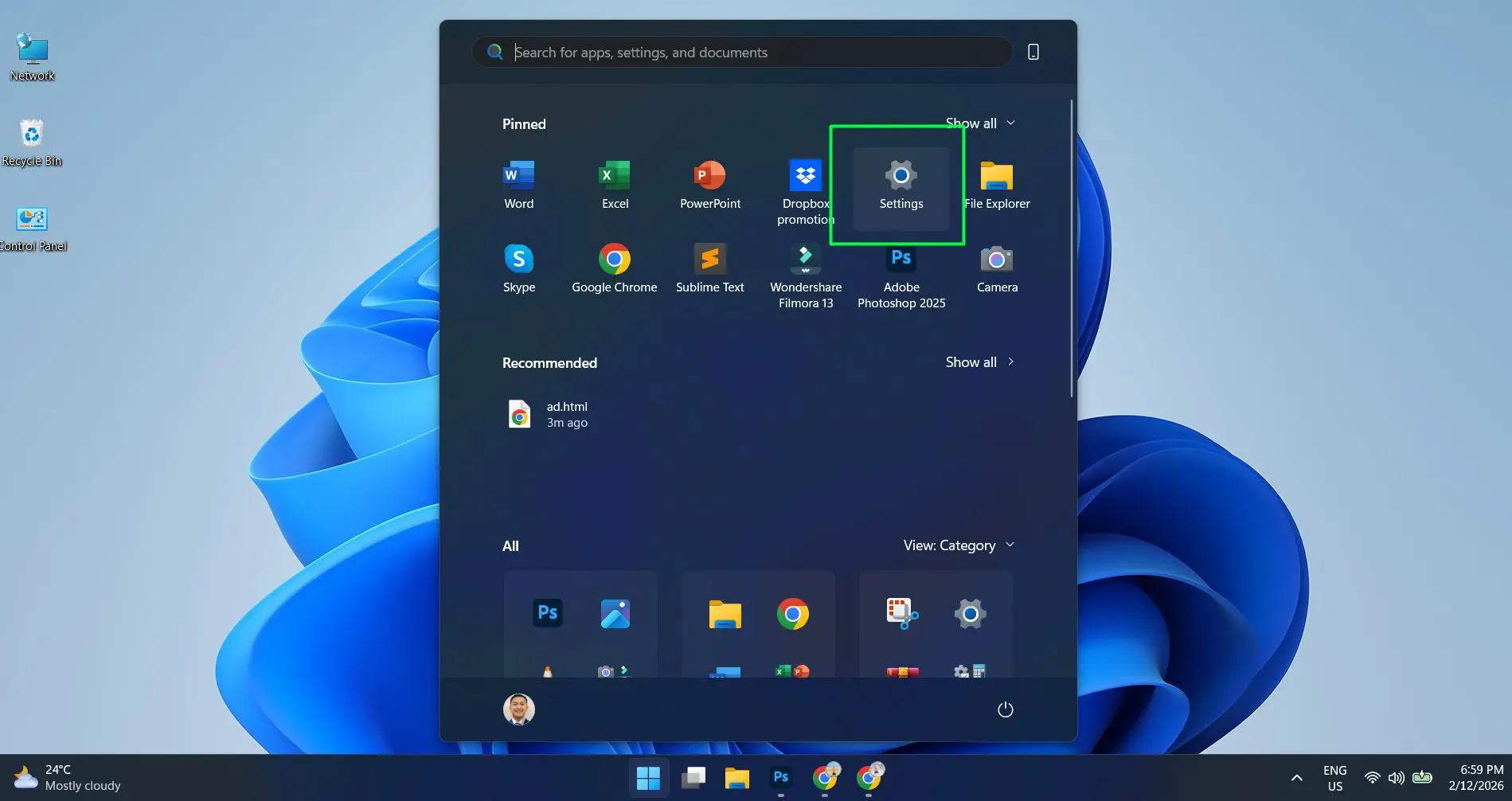
- Step 1: Press Windows key + I to open Settings or Click the Start button then Select ‘Settings’ from the menu
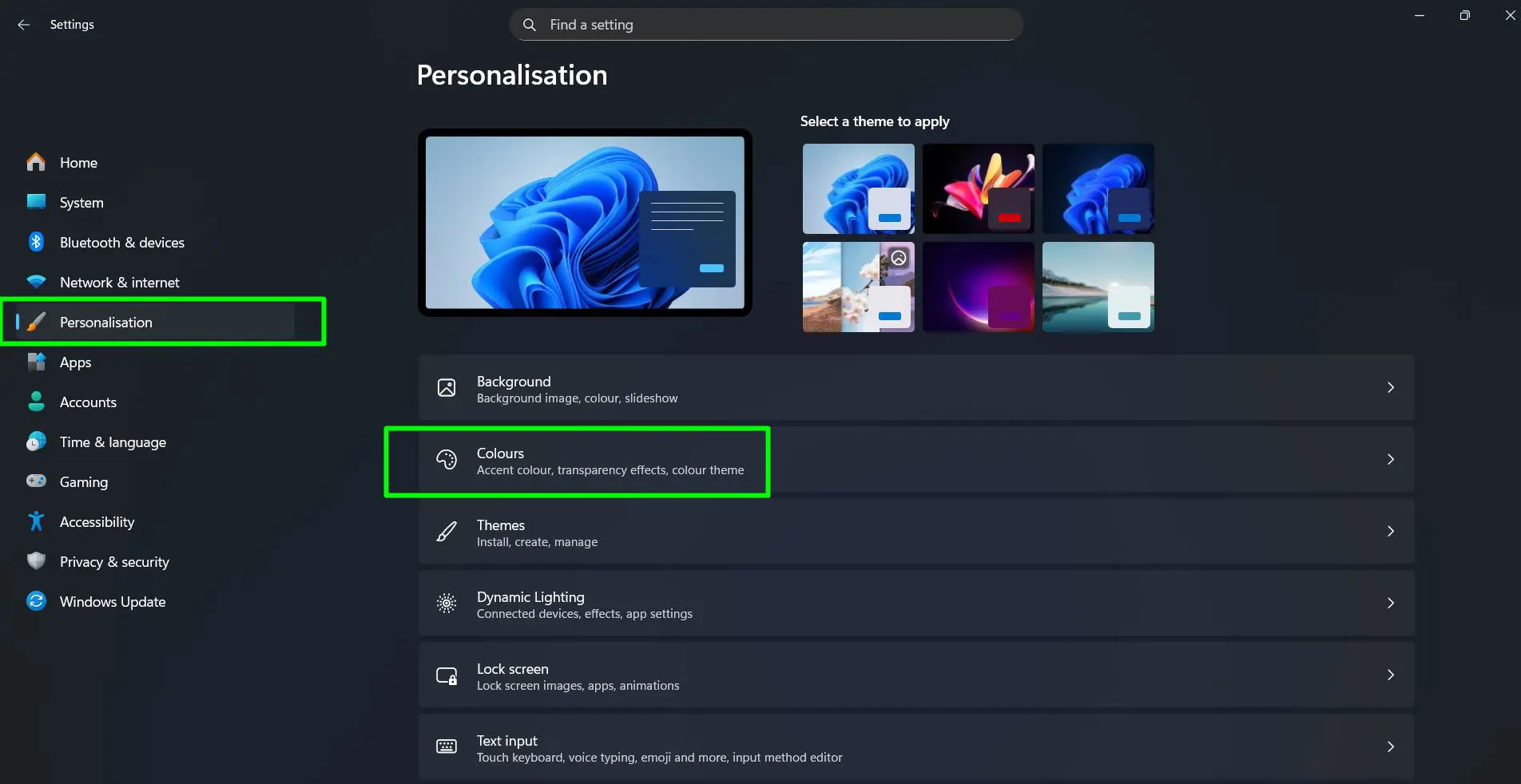
- Step 2: Click on ‘Personalization’ in the left sidebar and Select ‘Colors’ from the personalization options
- Step 3: Locate ‘Choose your mode’ at the top of the page
- Step 4: Click the dropdown menu and select ‘Dark’
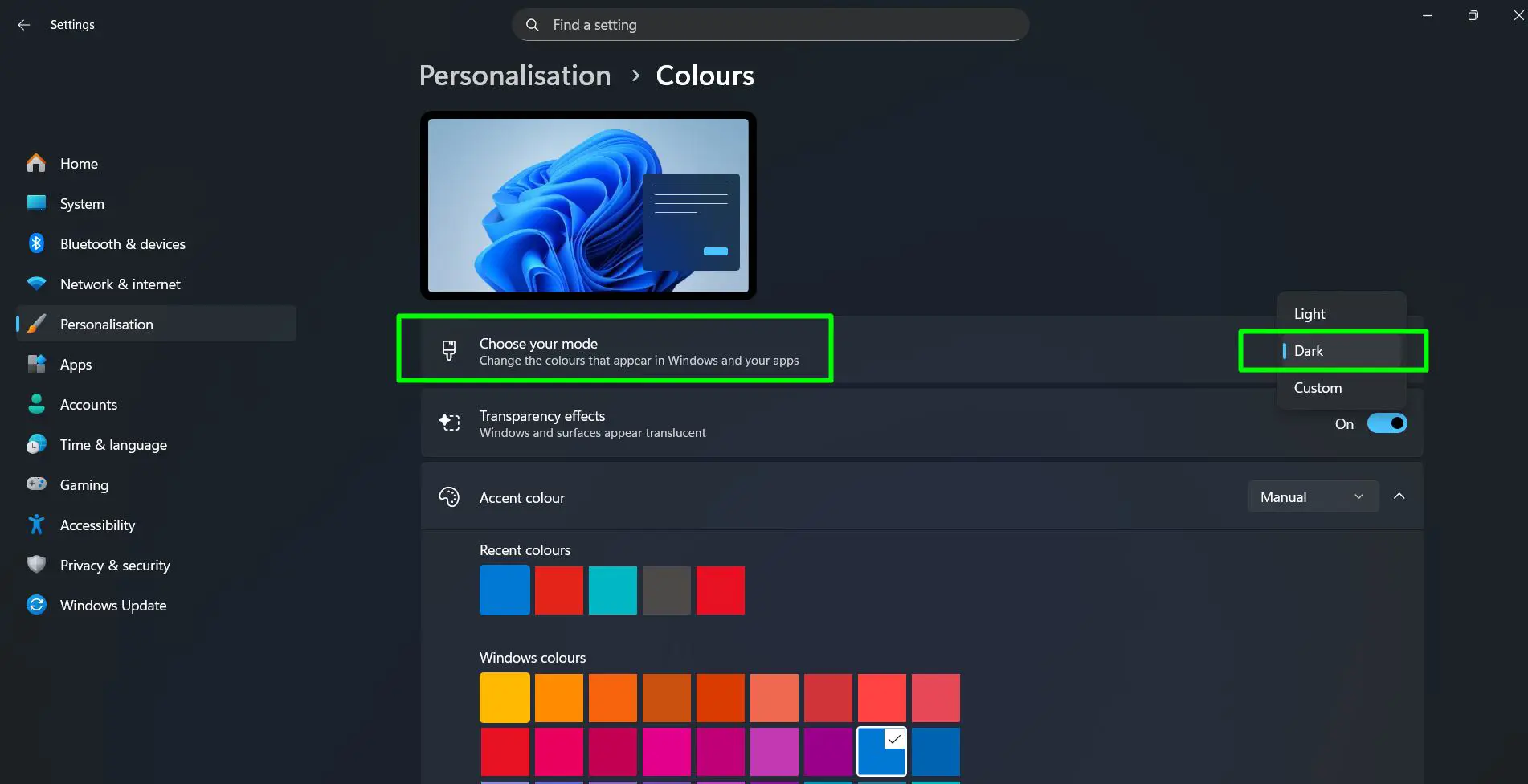
The change happens immediately. Every system window, menu, and interface element switches to dark backgrounds with light text. The taskbar, Start menu, and File Explorer all adopt the new theme without requiring a restart.
Pro-Tip: Selecting ‘Custom’ mode in the dropdown allows mixing light and dark elements. This option lets Windows mode stay dark while apps use light mode, or vice versa. This flexibility works best when certain applications display better in light mode while the system looks better dark.
Quick Access Through Right-Click
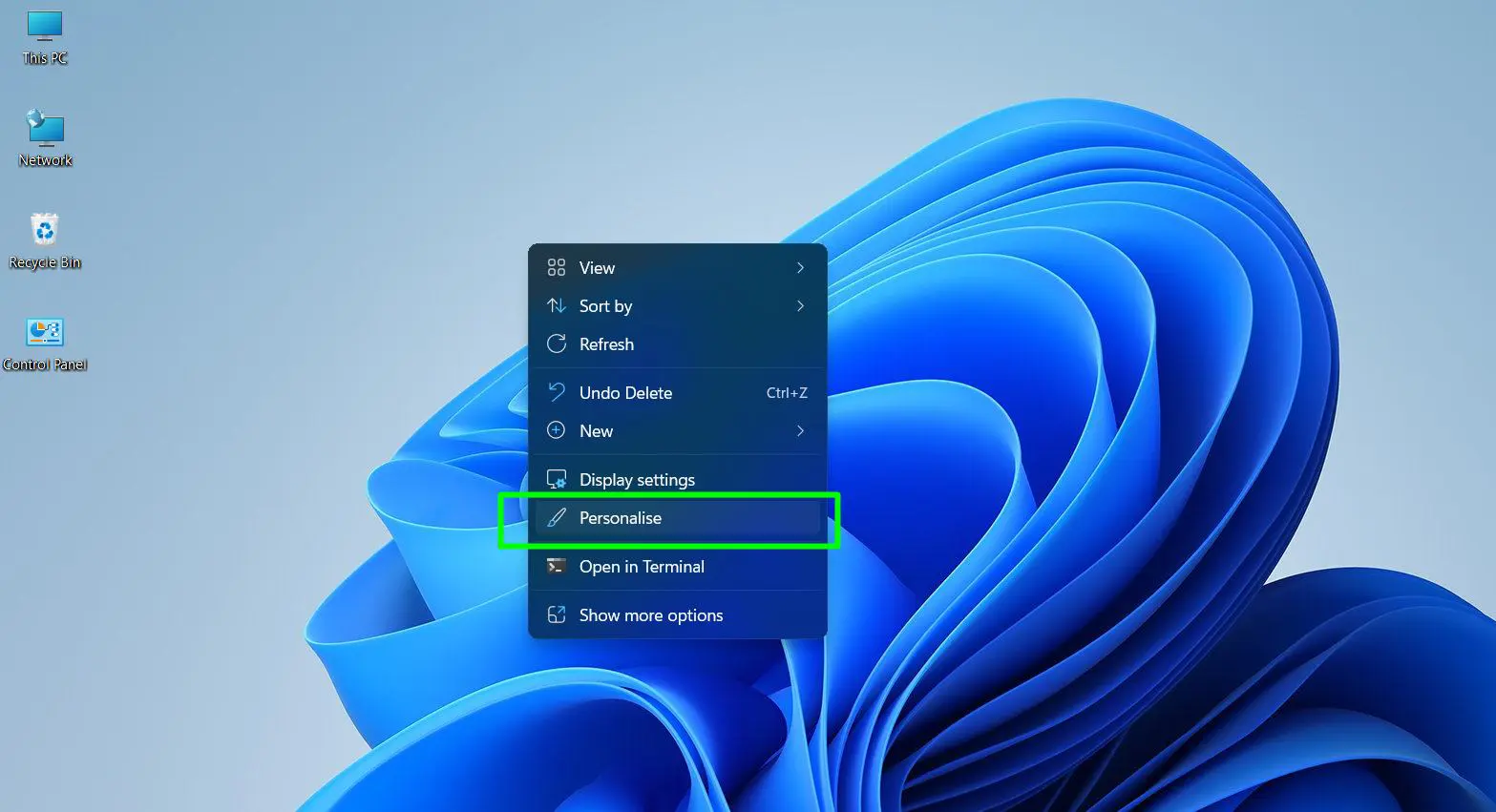
A faster route exists for those who prefer shortcuts. Right-clicking directly on the desktop provides immediate access to personalization settings.
- Step 1: Right-click anywhere on the desktop background and Select ‘Personalize’
- Step 2: Click ‘Colors’ in the personalization window
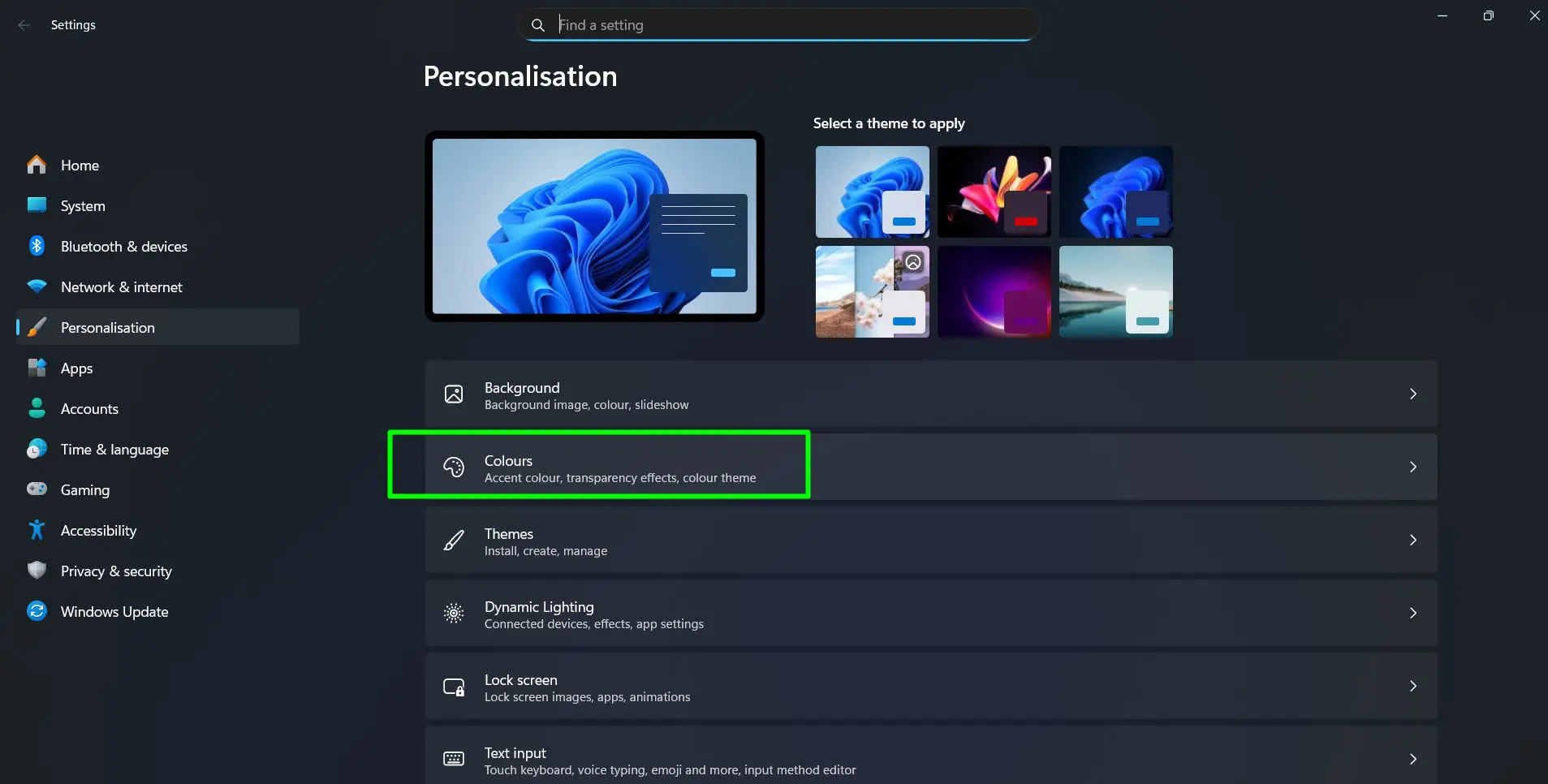
- Step 3: Change the ‘Choose your mode’ dropdown to ‘Dark’
This method shaves off a few seconds compared to navigating through the full Settings app. For frequent theme switchers, this becomes the go-to method.
What Changes With Dark Theme
Enabling dark mode affects numerous Windows 11 components. The transformation is comprehensive and touches nearly every visual element of the operating system.
System Elements That Change
The Start menu background shifts from white to dark gray or black. Text and icons adjust to light colors for visibility. The taskbar follows suit, creating a unified dark appearance across the bottom of the screen.
File Explorer windows receive the most dramatic change. The bright white background becomes dark, making folder navigation easier on the eyes during long file management sessions. Settings windows, notification panels, and system dialogs all adopt the dark theme.
Application Behavior
Modern applications built for Windows 11 automatically detect the system theme. Most Microsoft apps like Edge, Office, and OneNote switch to their dark versions when the system changes. Third-party applications with dark mode support follow the same pattern.
Some older programs may not respond to the system theme. These applications maintain their original appearance regardless of Windows settings. The key is to check individual app settings for dark mode options if they don’t change automatically.
Accent Color Customization
Dark theme works beautifully with accent colors. These colors highlight active windows, buttons, and important interface elements while maintaining the dark background.
The accent color appears in the Colors section of Personalization settings. Windows suggests colors based on the desktop wallpaper, but manual selection allows precise control. Choosing a vibrant accent color against dark backgrounds creates striking visual contrast that improves navigation and aesthetics.
Enabling ‘Show accent color on Start and taskbar’ adds subtle color touches to these elements. This option appears as a checkbox below the color picker in the Colors settings.
Understanding Light, Dark, and Custom Modes
Windows 11 provides three distinct mode options, each serving different preferences and use cases.
Light mode keeps everything bright and traditional. This works best when working in well-lit environments or for users who prefer high-contrast interfaces with dark text on light backgrounds.
Dark mode reverses everything, creating the low-light experience covered in this guide. This becomes the preferred choice for evening use, dim environments, or anyone sensitive to bright screens.
Custom mode offers the best of both worlds. Setting Windows to dark while keeping apps light (or the reverse) provides flexibility. Some find this combination ideal because system menus stay dark while document-heavy applications remain bright for better readability. Explore the Windows customization options to discover more personalization features.
Time-Based Theme Switching
While Windows 11 doesn’t include automatic theme scheduling by default, the Windows 11 Settings app provides the foundation for manual changes. Many users develop a routine of switching themes based on time of day – light during morning hours and dark for evening computing.
Third-party applications and software tools can automate this process for those wanting scheduled theme changes. These utilities trigger theme switches at specified times without manual intervention.
Taskbar and Start Menu in Dark Mode
The taskbar becomes nearly black when dark mode activates. Icons remain clearly visible against the dark background, and the system tray maintains excellent legibility. Hover effects and active window indicators use the accent color for visual feedback.
The Start menu transforms completely. The background darkens, pinned app tiles adjust their contrast, and the recommended section adopts dark styling. Search results within the Start menu also display with dark backgrounds, maintaining consistency throughout the interface.
Dark Theme Performance Impact
Switching to dark mode has minimal impact on system performance. The theme change is purely visual and doesn’t affect processing speed or memory usage. On devices with OLED screens, battery performance actually improves because black pixels consume no power.
Traditional LCD screens see negligible battery differences between light and dark modes. The backlight remains active regardless of displayed colors. However, reduced eye strain often leads to longer, more comfortable computing sessions regardless of hardware specifications.
Reverting to Light Theme
Switching back to light mode follows the same process. Opening Settings, navigating to Personalization > Colors, and selecting ‘Light’ from the mode dropdown instantly reverses all changes. No settings are lost, and the transition happens immediately.
The flexibility to switch between themes at any time makes experimentation risk-free. Testing both modes in different lighting conditions helps determine which works best for specific situations and personal preferences.
Complete the Dark Theme Experience
Dark mode transforms the Windows 11 interface, but personalization doesn’t stop there. The lock screen appears every time the computer starts or wakes from sleep. Customizing the lock screen background creates a seamless dark aesthetic that matches the newly enabled dark theme, providing visual consistency from the moment the device powers on.
Frequently Asked Questions
Does dark mode work with all applications on Windows 11?
Dark mode automatically affects all Windows 11 system elements and modern applications that support theme detection. Older programs may not respond to the system theme and will maintain their original appearance. Check individual application settings for built-in dark mode options if they don’t change automatically with the system theme.
Can dark theme be scheduled to activate automatically at specific times?
Windows 11 doesn’t include native automatic theme scheduling. Manual switching through Settings remains the default method. Third-party applications can automate theme changes based on time of day for users wanting scheduled transitions between light and dark modes.
Does switching to dark mode improve battery life on laptops?
Dark mode significantly extends battery life on devices with OLED or AMOLED displays because black pixels consume no power. Traditional LCD screens show minimal battery impact since the backlight remains active regardless of displayed colors. The primary benefits on LCD devices come from reduced eye strain rather than power savings.
Will changing to dark theme affect my wallpaper or desktop icons?
Desktop wallpaper remains unchanged when switching to dark mode. Icons maintain their original appearance and colors. Only Windows system elements like the taskbar, Start menu, File Explorer, and Settings windows adopt the dark theme. Desktop customization stays independent of the system theme choice.
How does custom mode differ from standard dark mode?
Custom mode allows independent control of Windows elements and application appearance. This means the system interface can use dark theme while applications stay light, or the reverse combination. Standard dark mode applies dark backgrounds to both Windows and apps simultaneously, while custom mode provides selective control over each component.