
Turning on spatial sound in Windows 11 is one of the quickest ways to upgrade the audio experience on any PC. Whether using headphones or speakers, spatial sound creates a three-dimensional listening environment that makes music, movies, and games feel more immersive. This guide walks through exactly how to turn on spatial sound in Windows 11 – step by step, no fluff.
Quick Summary
- Spatial sound in Windows 11 can be enabled through the Sound Settings or the taskbar speaker icon
- Available formats include Windows Sonic for Headphones, Dolby Atmos, and DTS:X Ultra
- Windows Sonic is free; Dolby Atmos and DTS:X Ultra may require a paid app from the Microsoft Store
- Works best with headphones but is also available for speakers
- No third-party software required for Windows Sonic
What Is Spatial Sound in Windows 11
Spatial sound is an audio technology that simulates a surround sound experience even through stereo headphones or standard speakers. Instead of hearing sound from just left and right channels, spatial sound adds height and depth cues, making audio feel like it is coming from all around – above, below, and behind.
Windows 11 supports three spatial sound formats. Windows Sonic for Headphones is the built-in option from Microsoft and is completely free. Dolby Atmos for Headphones and DTS:X Ultra are premium options available through the Microsoft Store. For most users, Windows Sonic is a great starting point.
How to Turn On Spatial Sound in Windows 11 via Sound Settings
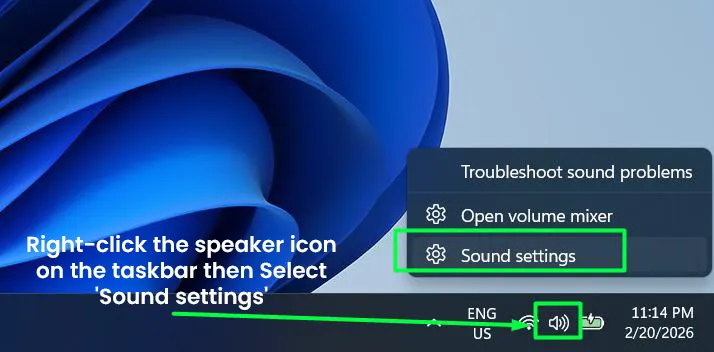
- Step 1: Right-click the speaker icon on the taskbar (bottom-right corner of the screen)
- Step 2: Select ‘Sound settings’ from the menu that appears
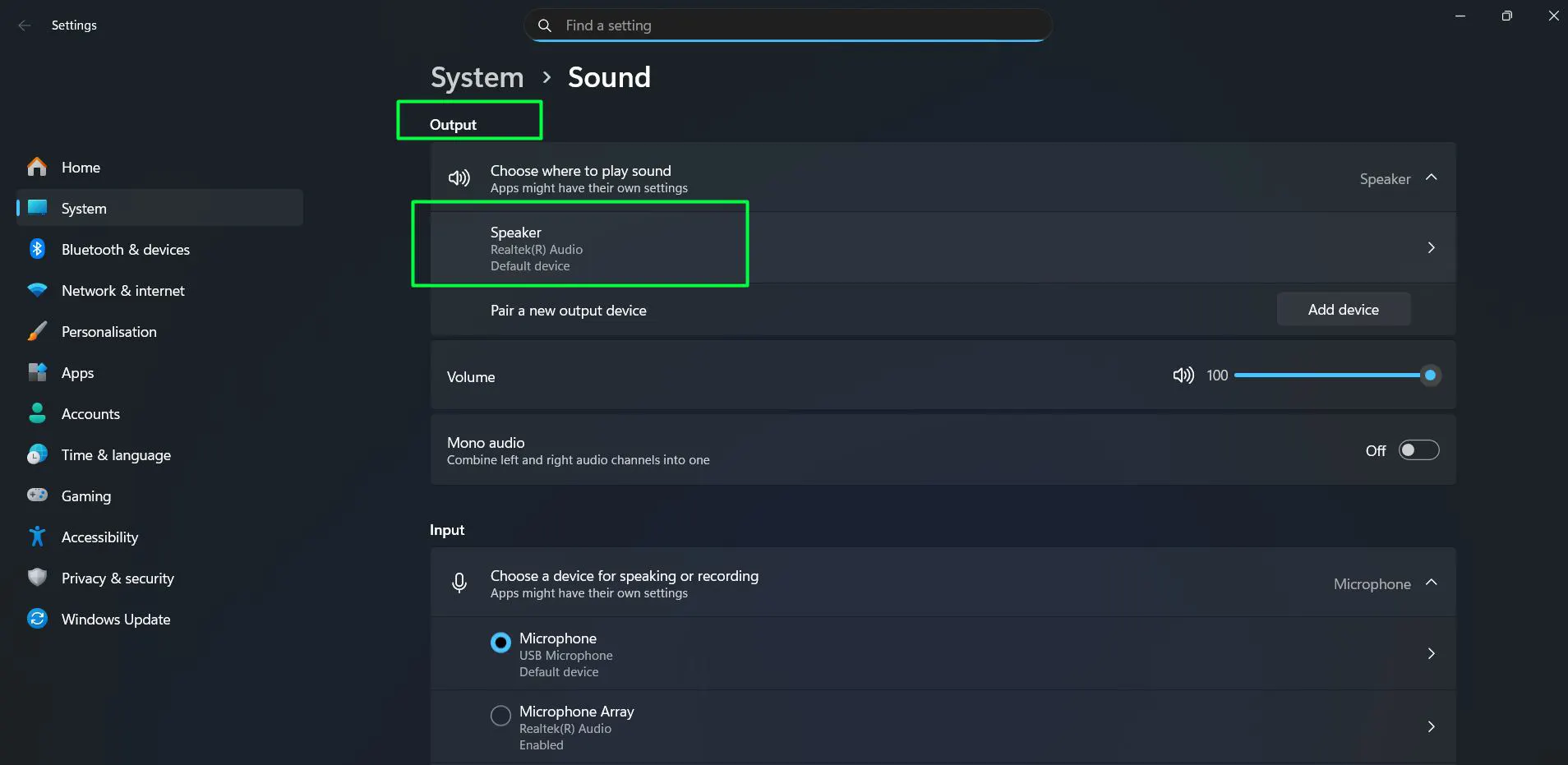
- Step 3: Under the ‘Output’ section, click on the active audio device (such as headphones or speakers) to open its ‘Properties’ page
- Step 4: Scroll down to the ‘Advanced settings’ section
- Step 5: Locate the ‘Spatial sound’ row – it shows the description ‘Choose an immersive audio experience that simulates a realistic environment (3D Spatial Sound)’
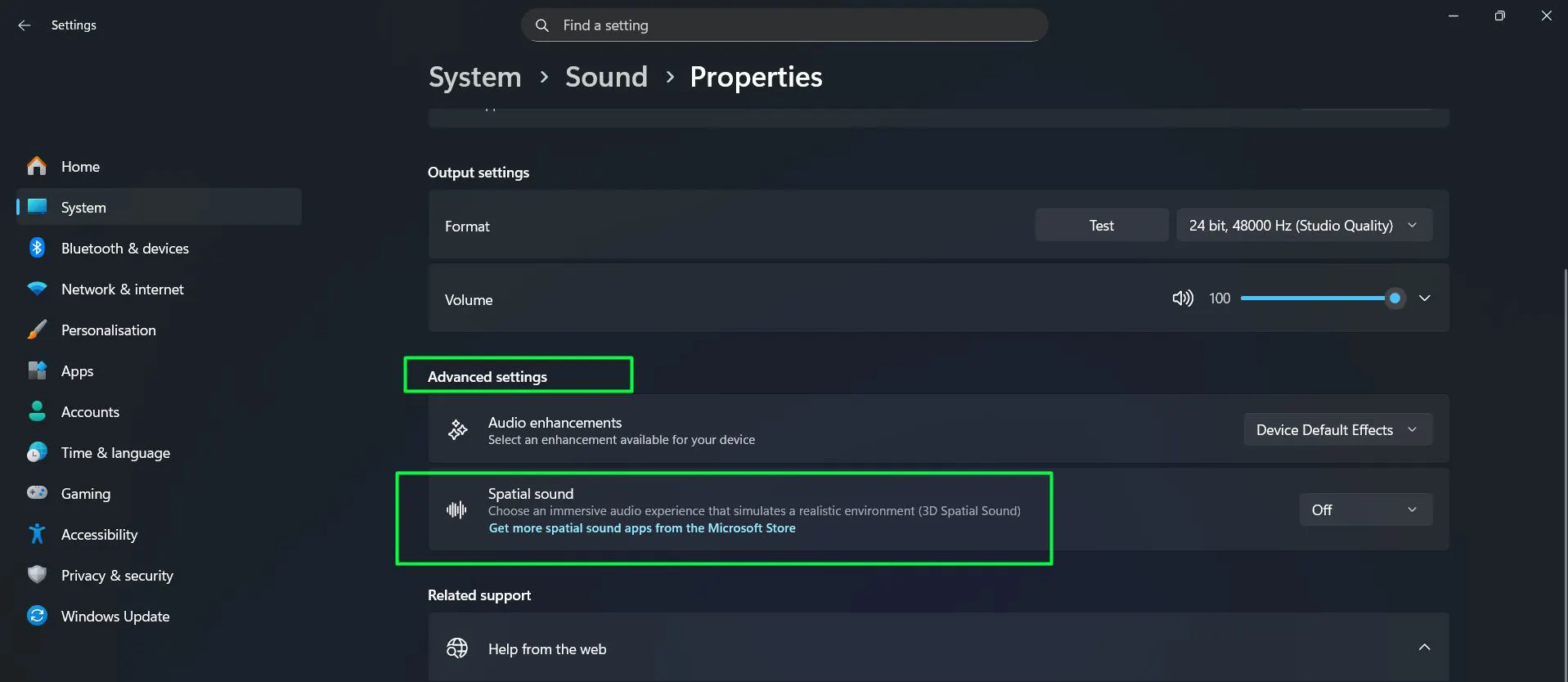
- Step 6: Click the dropdown on the right side, which will show ‘Off’ by default
- Step 7: Select ‘Windows Sonic for Headphones’ from the dropdown
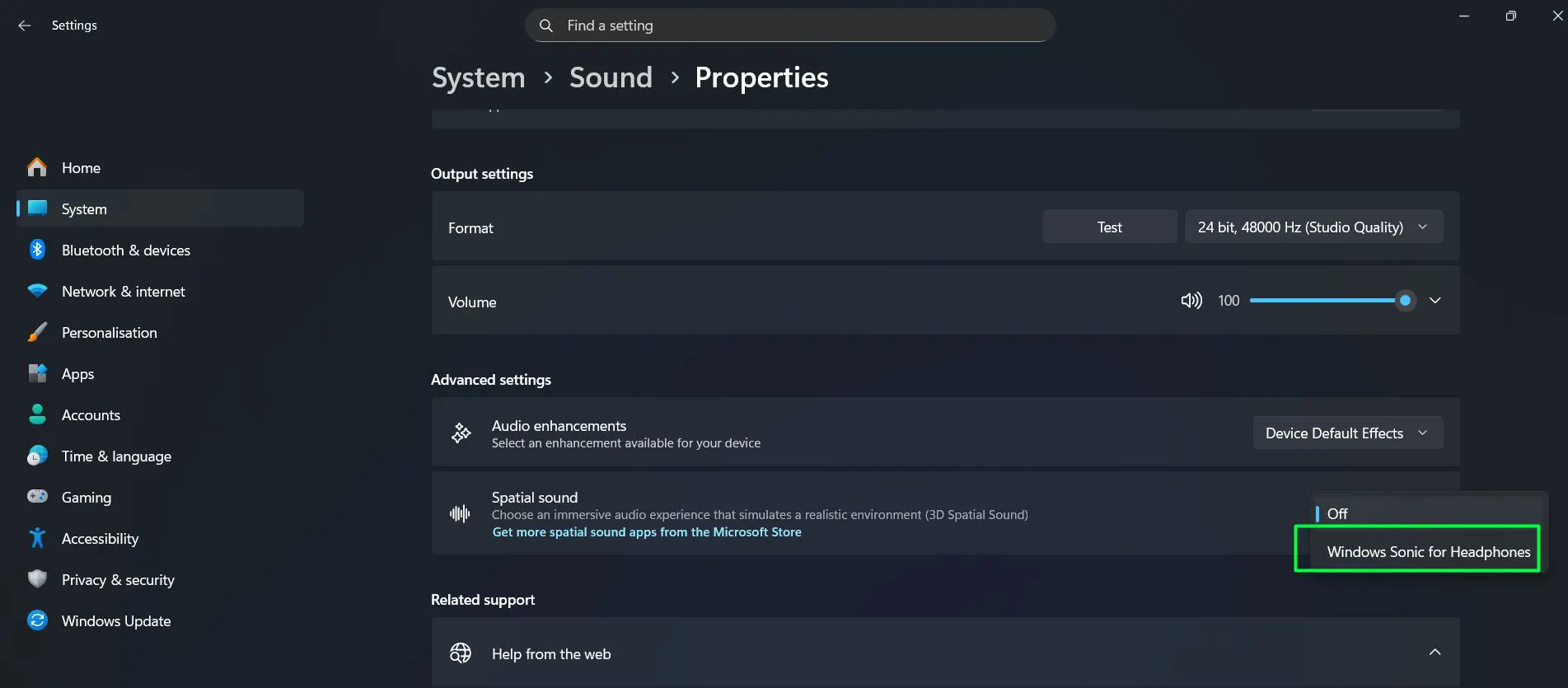
- Step 8: The setting applies immediately – no restart needed
Most people find this method the most straightforward. The device Properties page gives full control over spatial sound for each specific audio output, which is helpful when multiple devices are connected. The ‘Get more spatial sound apps from the Microsoft Store’ link on that same page also makes it easy to explore Dolby Atmos and DTS:X Ultra options.
Watch this video tutorial: How to Turn On Spatial Sound in Windows Easily
How to Enable Spatial Sound via the Taskbar Speaker Icon
- Step 1: Click on the speaker icon in the system tray (bottom-right corner of the screen)
- Step 2: In the Quick Settings panel that appears, locate the volume slider with the volume icon
- Step 3: Click on the arrow button (>) next to the volume slider to expand audio options
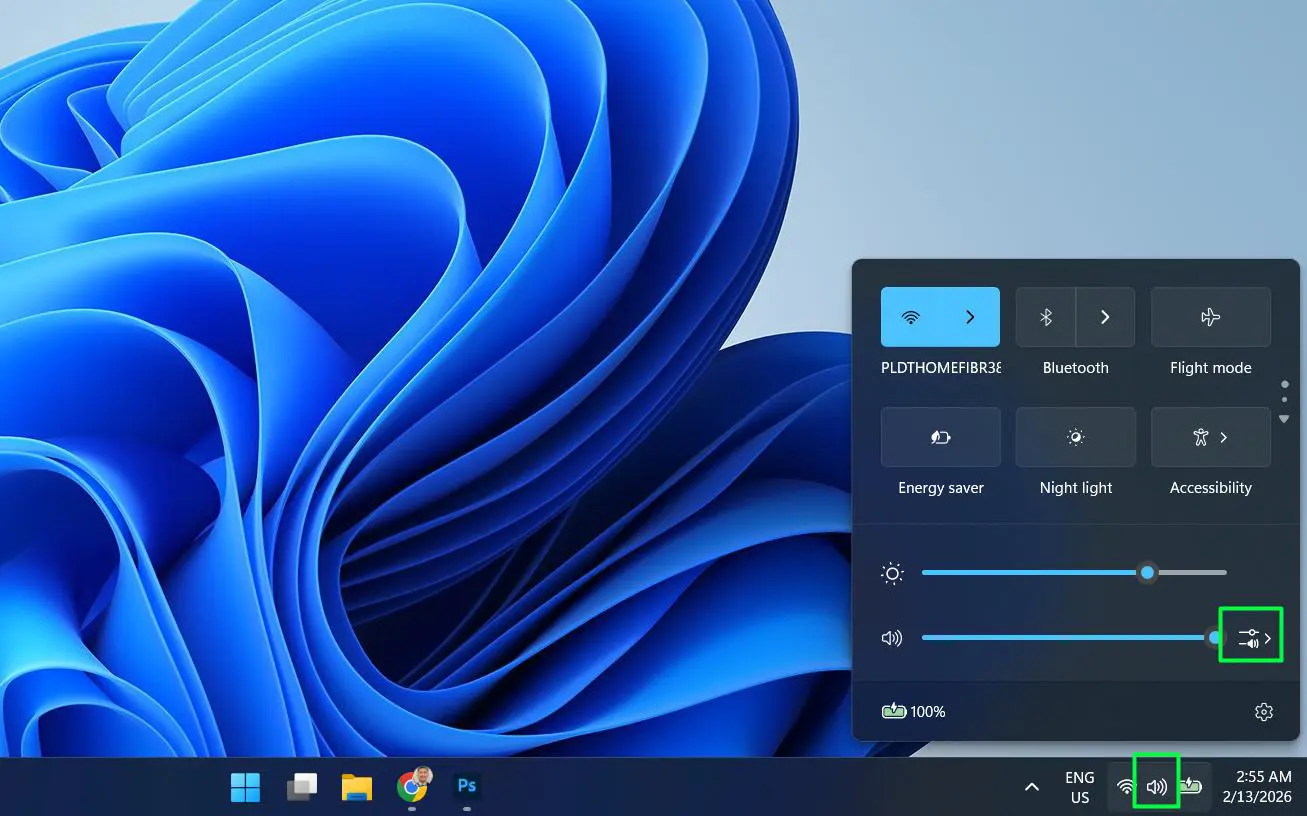
- Step 4: This will open the Sound output settings showing the current output device
- Step 5: Under the ‘Spatial sound’ section, click on the current setting (which shows ‘Off’ by default)
- Step 6: Select ‘Windows Sonic for Headphones’ from the available options
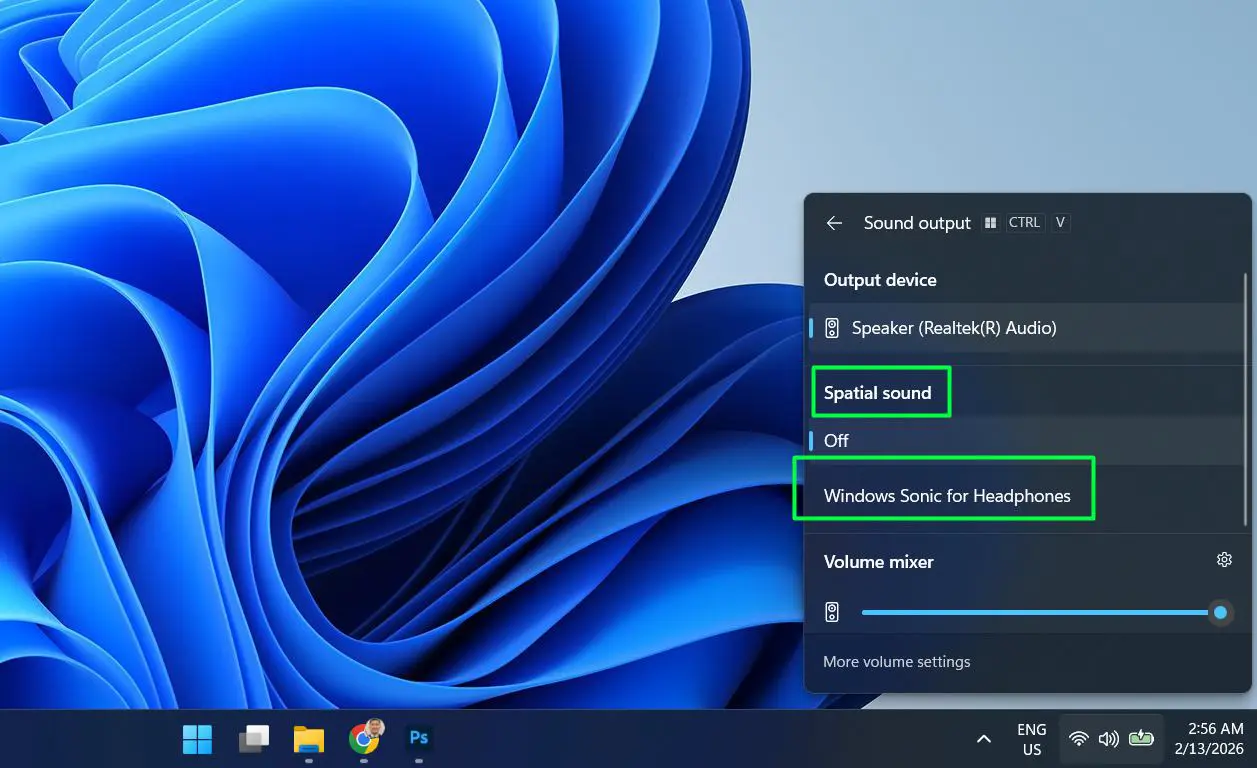
This shortcut method is the fastest way to enable spatial sound without navigating through the full settings menu. It works best when quickly switching audio formats between different activities like gaming and casual listening.
How to Turn On Spatial Sound via the Control Panel (Classic Method)
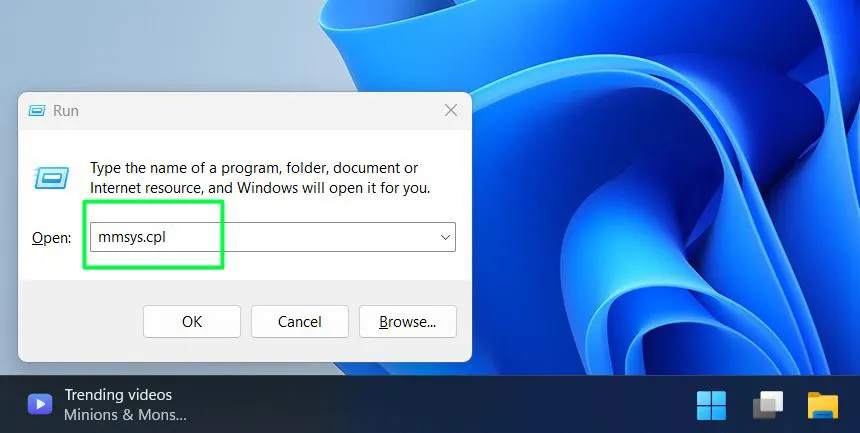
- Step 1: Press Windows + R to open the Run dialog
- Step 2: Type ‘mmsys.cpl’ and press Enter to open the classic Sound control panel
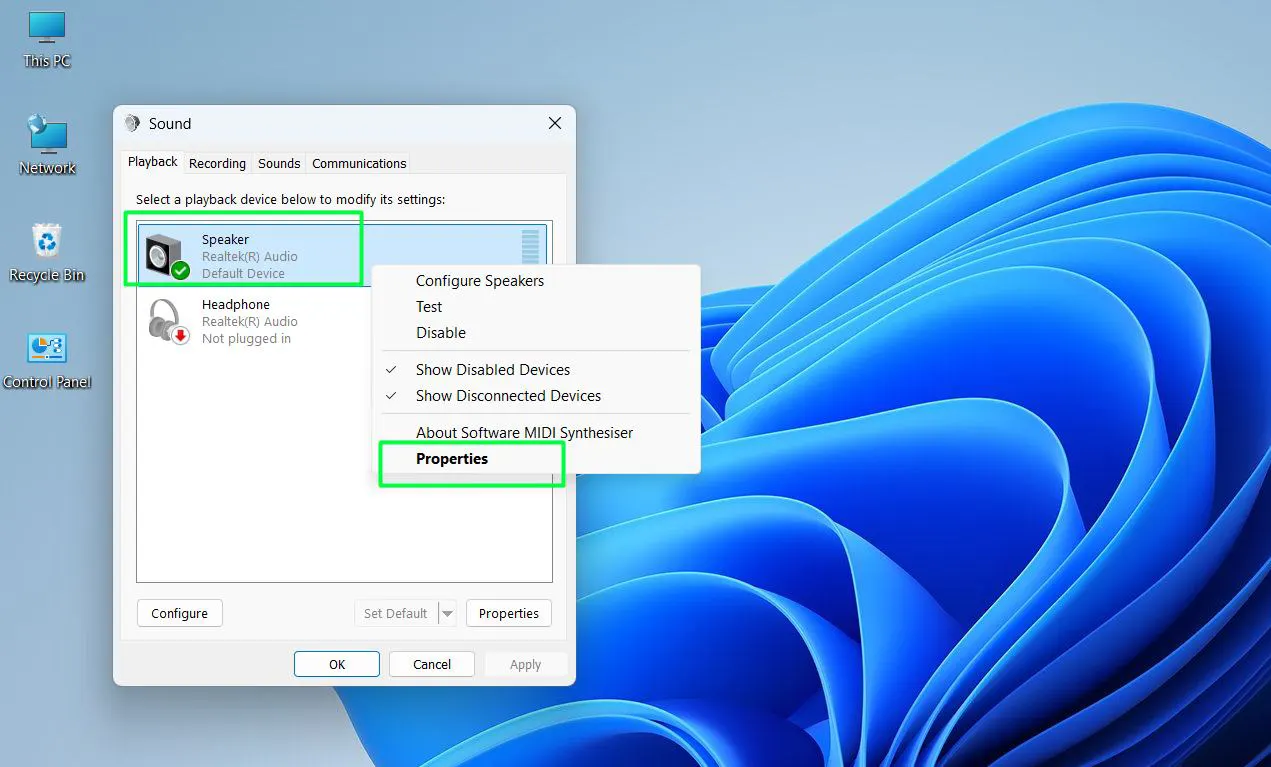
- Step 3: Under the ‘Playback’ tab, right-click the active audio device
- Step 4: Select ‘Properties’
- Step 5: Click on the ‘Spatial sound’ tab
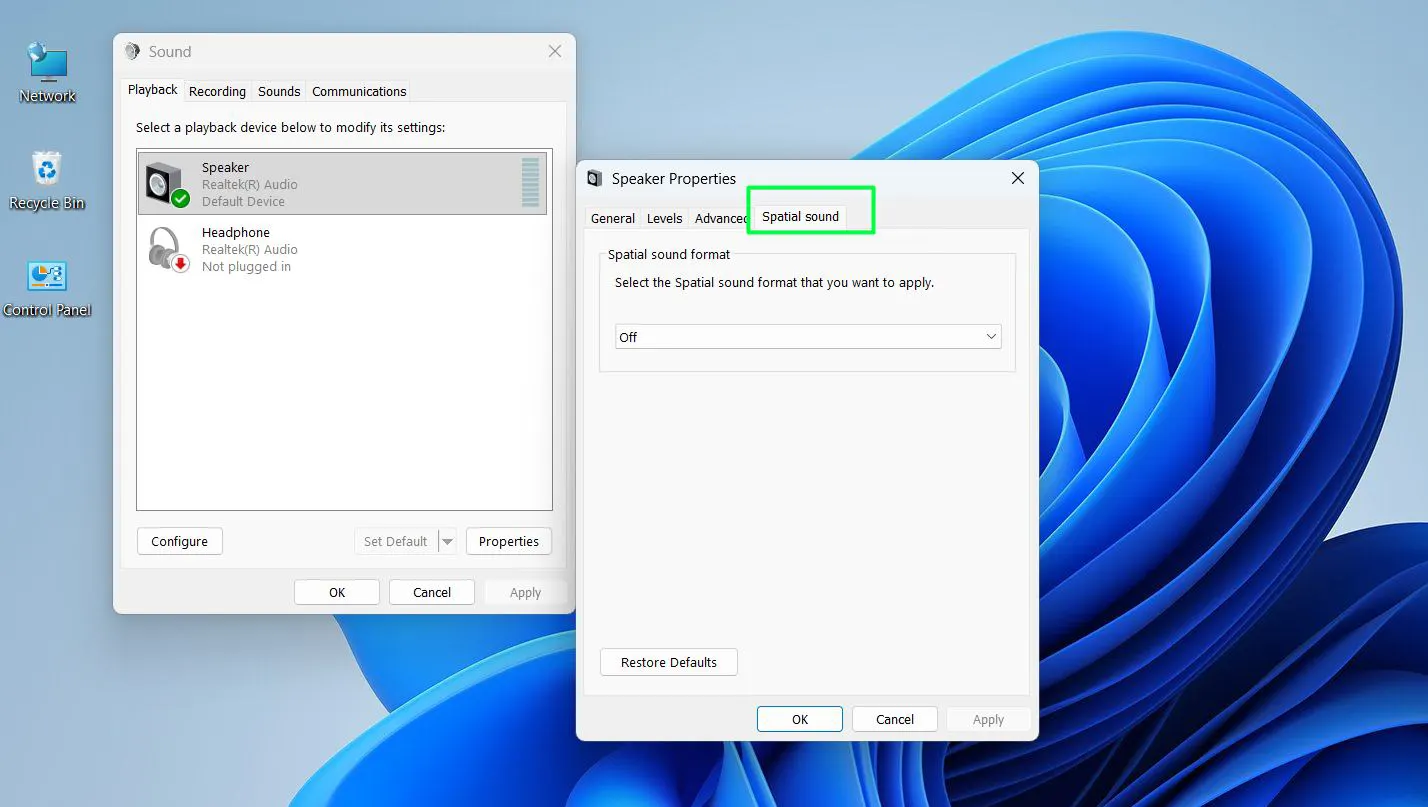
- Step 6: In the dropdown, select ‘Windows Sonic for Headphones’
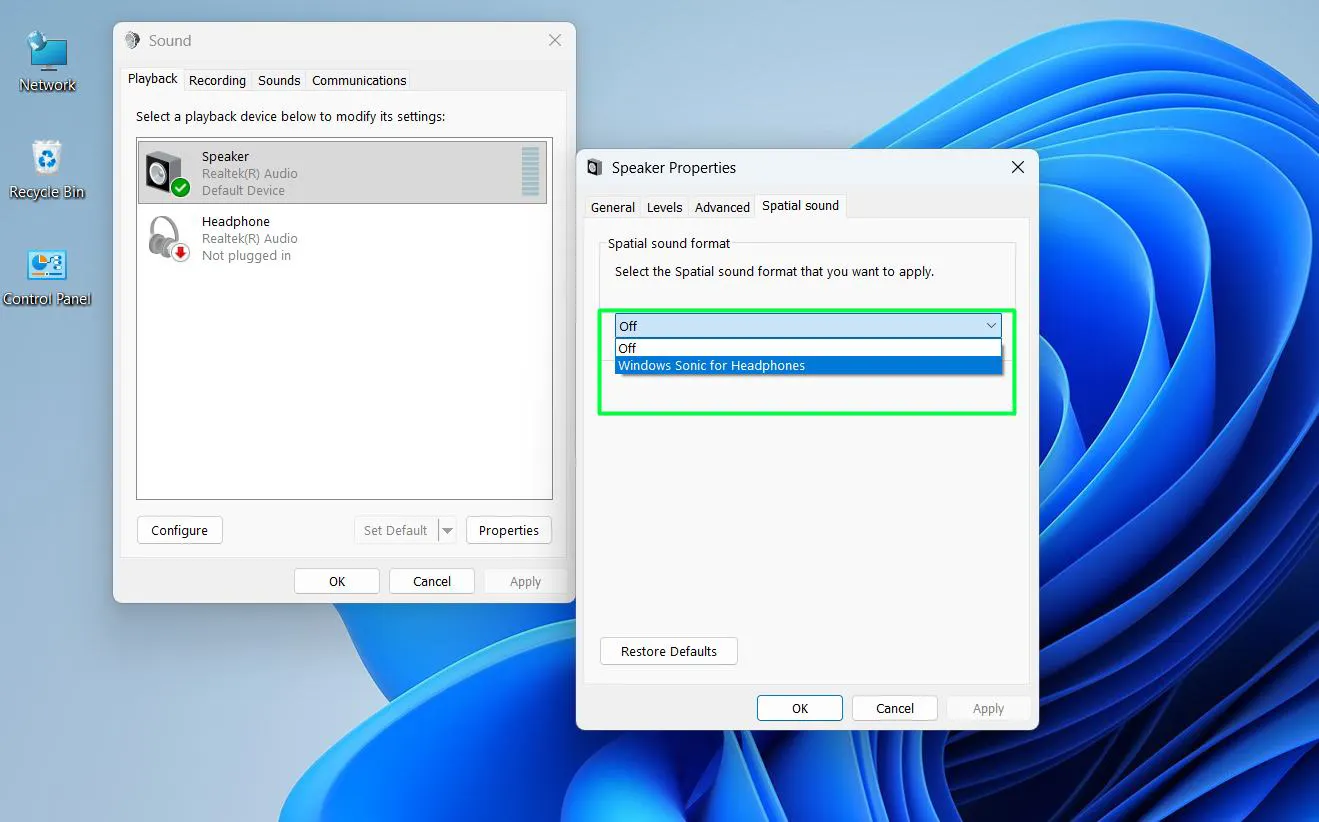
- Step 7: Click ‘Apply’ then ‘OK’
This method is particularly useful for users who prefer the classic Windows interface or are troubleshooting audio device-specific settings that do not appear in the modern settings app.
Spatial Sound Format Options Explained
Choosing the right format depends on the audio setup and personal preference.
Windows Sonic for Headphones – Microsoft’s native, free spatial audio solution. Works well for gaming and streaming. No additional apps required.
Dolby Atmos for Headphones – A premium format that delivers highly detailed, object-based spatial audio. Requires the Dolby Access app from the Microsoft Store, which offers a free trial before a one-time purchase.
DTS:X Ultra – Another premium option known for strong gaming audio performance. Requires the DTS Sound Unbound app from the Microsoft Store.
The key is to test each format with the content that gets used most. Gaming tends to respond well to DTS:X Ultra, while movie watching often shines with Dolby Atmos.
Benefits of Enabling Spatial Sound in Windows 11
Enabling spatial sound does more than just change how audio sounds – it genuinely improves the overall listening experience depending on what the PC is used for most.
- Better gaming immersion – Spatial sound makes it easier to detect the direction of in-game sounds like footsteps, gunshots, or environmental cues, giving a real advantage in competitive games
- More cinematic movie experience – Dialogue, background music, and sound effects feel like they surround the listener rather than coming from just two directions
- Improved headphone audio – Standard stereo headphones can simulate a surround sound experience without needing expensive multi-driver hardware
- No extra hardware required – Windows Sonic works with any existing headphones or speakers, making it a zero-cost upgrade to audio quality
- Easy to toggle on and off – Switching between spatial sound and standard stereo takes just a few clicks, so it can be adjusted based on the activity
Pro-Tip: Match Spatial Sound to the Right Device
Spatial sound works best with headphones. When enabled on speakers, the effect can sometimes sound unnatural depending on room acoustics and speaker placement. If the audio starts to sound hollow or strange after enabling spatial sound, try switching back to ‘Off’ for the speakers and only enabling it for the headphone output device. Windows 11 lets each audio device have its own spatial sound setting, so there is no need to compromise.
How to Turn Off Spatial Sound in Windows 11
- Step 1: Right-click the speaker icon on the taskbar
- Step 2: Go to ‘Sound settings’
- Step 3: Select the active output device
- Step 4: Scroll to ‘Spatial sound format’ and select ‘Off’ from the dropdown
Disabling it is just as simple as turning it on. Some users prefer to keep it off for music listening and only enable it during gaming or movie sessions.
Common Problems With Spatial Sound in Windows 11
Spatial sound option is greyed out – This usually happens when the selected audio device does not support the format, or the audio driver is outdated. Check for hardware driver updates via Device Manager or the manufacturer’s website.
No spatial sound tab in device properties – This can occur with Bluetooth audio devices that do not support spatial sound. Try using a wired headphone connection instead.
Dolby Atmos or DTS:X Ultra not showing up – These options only appear after installing the corresponding apps from the Microsoft Store. Search for ‘Dolby Access’ or ‘DTS Sound Unbound’ in the Store to install them.
Audio sounds distorted after enabling spatial sound – Some audio drivers conflict with spatial sound processing. Try updating or reinstalling the audio driver, then re-enable spatial sound.
Spatial sound turns off after reboot – This is a rare bug. Check if the audio driver is set to reset on startup, and consider reinstalling it. Also verify that Windows 11 is fully updated through Windows Update.
Pro-Tip: Keep Audio Drivers Updated for Best Results
Spatial sound relies heavily on the audio driver to function correctly. If spatial sound sounds off, seems to disable itself, or is missing as an option entirely, updating the audio driver through Device Manager or the PC manufacturer’s support page often resolves the issue immediately. This single step fixes most spatial sound problems people encounter on Windows 11.
Frequently Asked Questions
Is spatial sound available for all audio devices in Windows 11?
Spatial sound is available for most audio devices, but the experience works best with headphones. Some Bluetooth devices or older audio hardware may not fully support all spatial sound formats. Wired headphones generally deliver the most reliable results.
Does Windows Sonic for Headphones cost anything?
No, Windows Sonic for Headphones is completely free and built into Windows 11. Dolby Atmos and DTS:X Ultra are premium options that require purchasing or subscribing to their respective apps from the Microsoft Store.
Can spatial sound be enabled for external speakers?
Yes, spatial sound can be applied to external speakers in Windows 11. However, the effect is generally more noticeable and natural-sounding through headphones. Results on speakers can vary depending on the room environment and speaker setup.
Does enabling spatial sound affect audio quality for music?
Some users notice that spatial sound processing can alter the character of music, sometimes making it sound more diffuse or less precise compared to standard stereo playback. It is recommended to test spatial sound with preferred music and decide based on personal taste.
Why does the spatial sound option disappear after restarting Windows 11?
This is typically caused by an audio driver issue or a Windows update conflict. Updating the audio driver and ensuring Windows 11 is fully updated usually resolves this problem.