
If Windows Security suddenly flags a known-safe file as a severe threat, or throws a stubborn yellow warning triangle that refuses to disappear no matter how many times you reboot, you are likely stuck with outdated threat definitions. Most users just spam the “Check for updates” button in the main Settings app, completely unaware that a hung Windows Update background service will silently block Defender from refreshing its local signatures.
Instead of waiting for the update queue to unstick itself, we need to bypass the graphical interface entirely and use the buried Microsoft Malware Protection Command Line utility to force a direct, immediate signature pull from Microsoft’s servers.
Understanding Windows Security Signatures
Windows Security signatures are definition files that help the built-in antivirus recognize and neutralize threats. Think of them as a constantly updated database of malware fingerprints. Each signature contains patterns and behaviors associated with specific viruses, trojans, ransomware, and other malicious software. When these signatures are outdated, the system might miss newer threats that emerged after the last update.
Most people find that automatic updates work seamlessly in the background. However, certain situations call for manual intervention—like preparing for offline work, troubleshooting detection issues, or simply ensuring maximum protection before handling sensitive files.
Manual Update Through Windows Security App
The most straightforward method uses the built-in Windows Security application. This approach works best when the system has an active internet connection and can reach Microsoft’s update servers directly.
Watch this tutorial: How Update Windows Security Signatures Manually in Windows 11 Easily
Quick Update Process
Follow these steps to manually update security signatures:
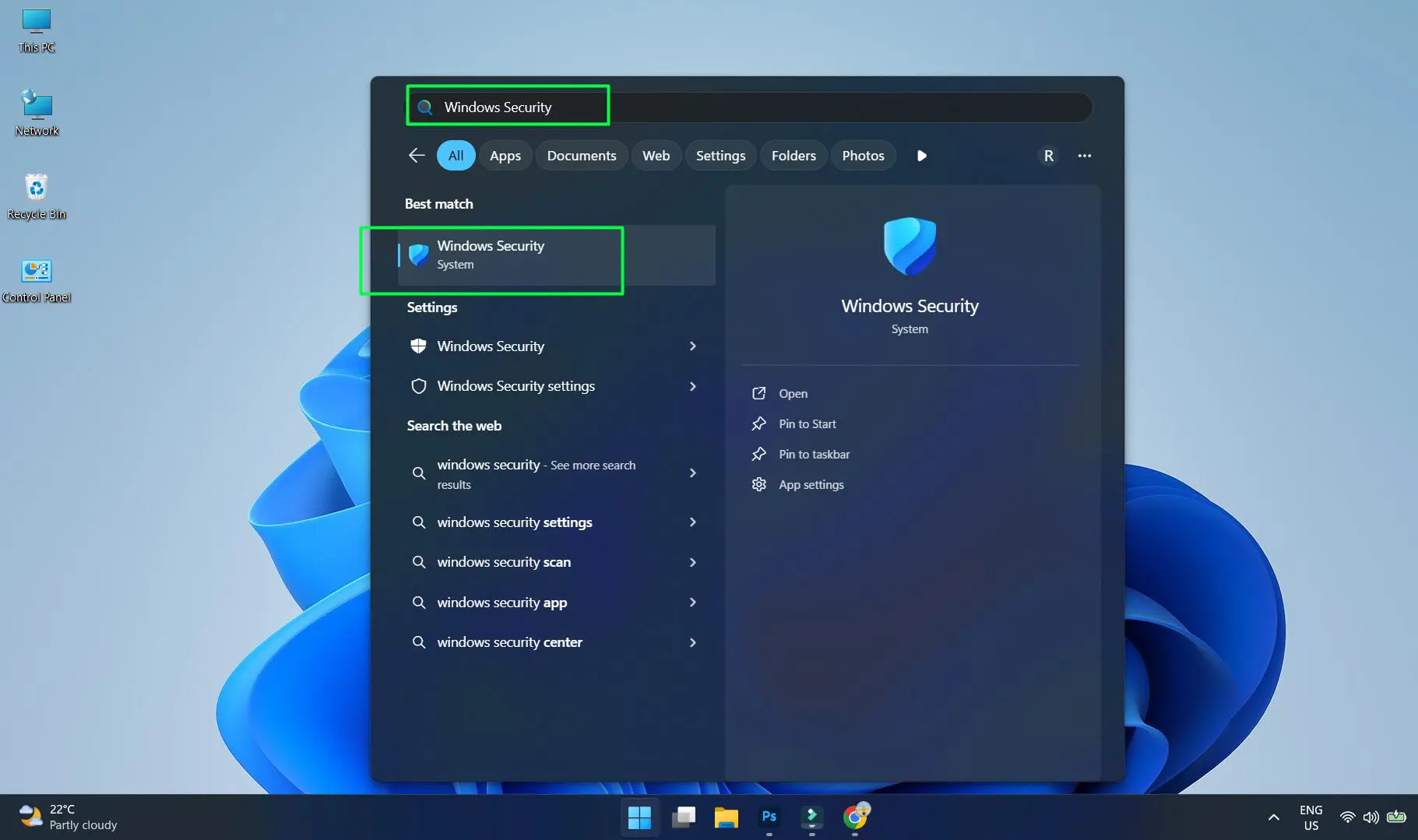
- Press the Windows key and type ‘Windows Security’ then press Enter
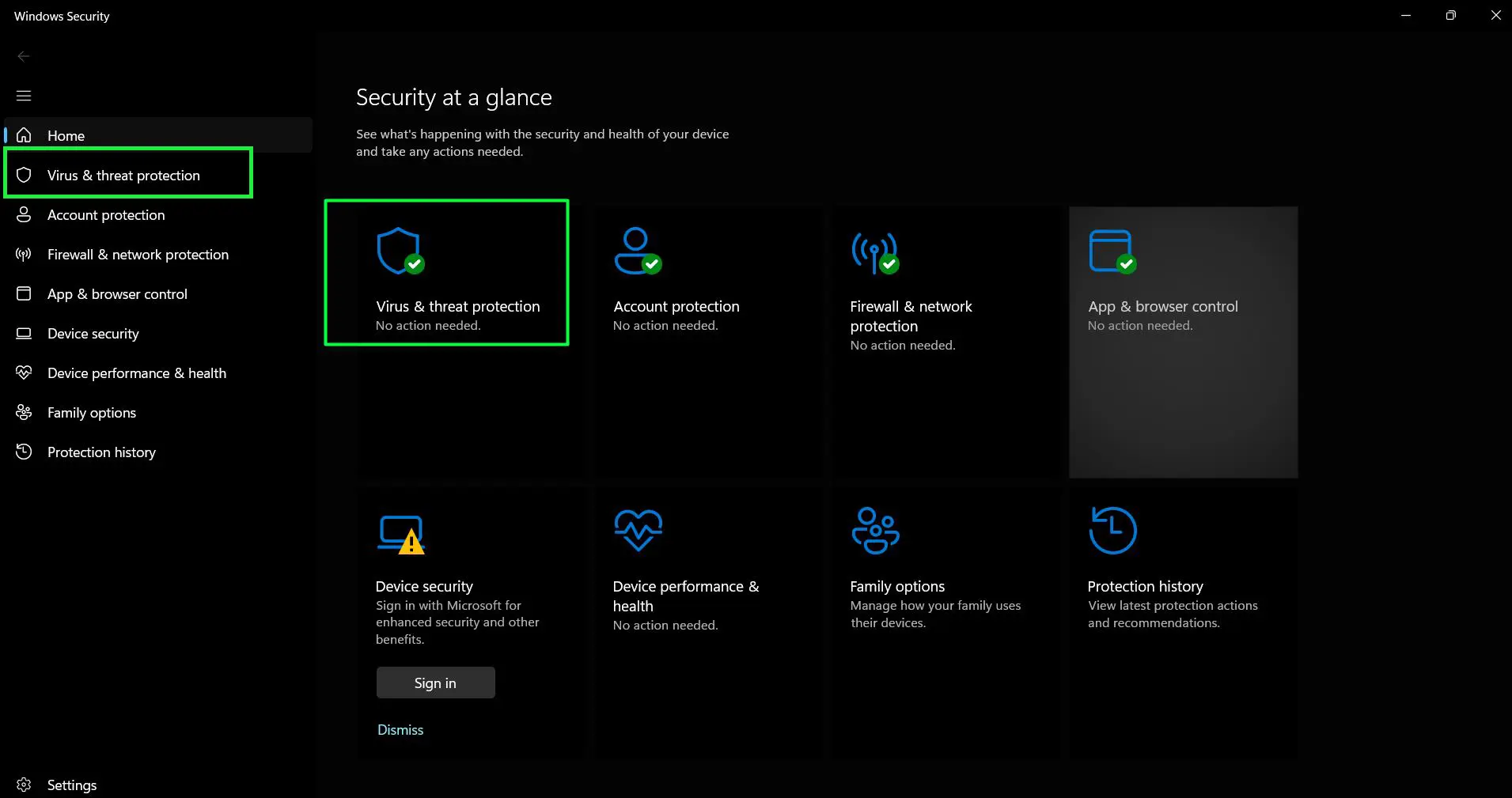
- Click the ‘Virus & threat protection’
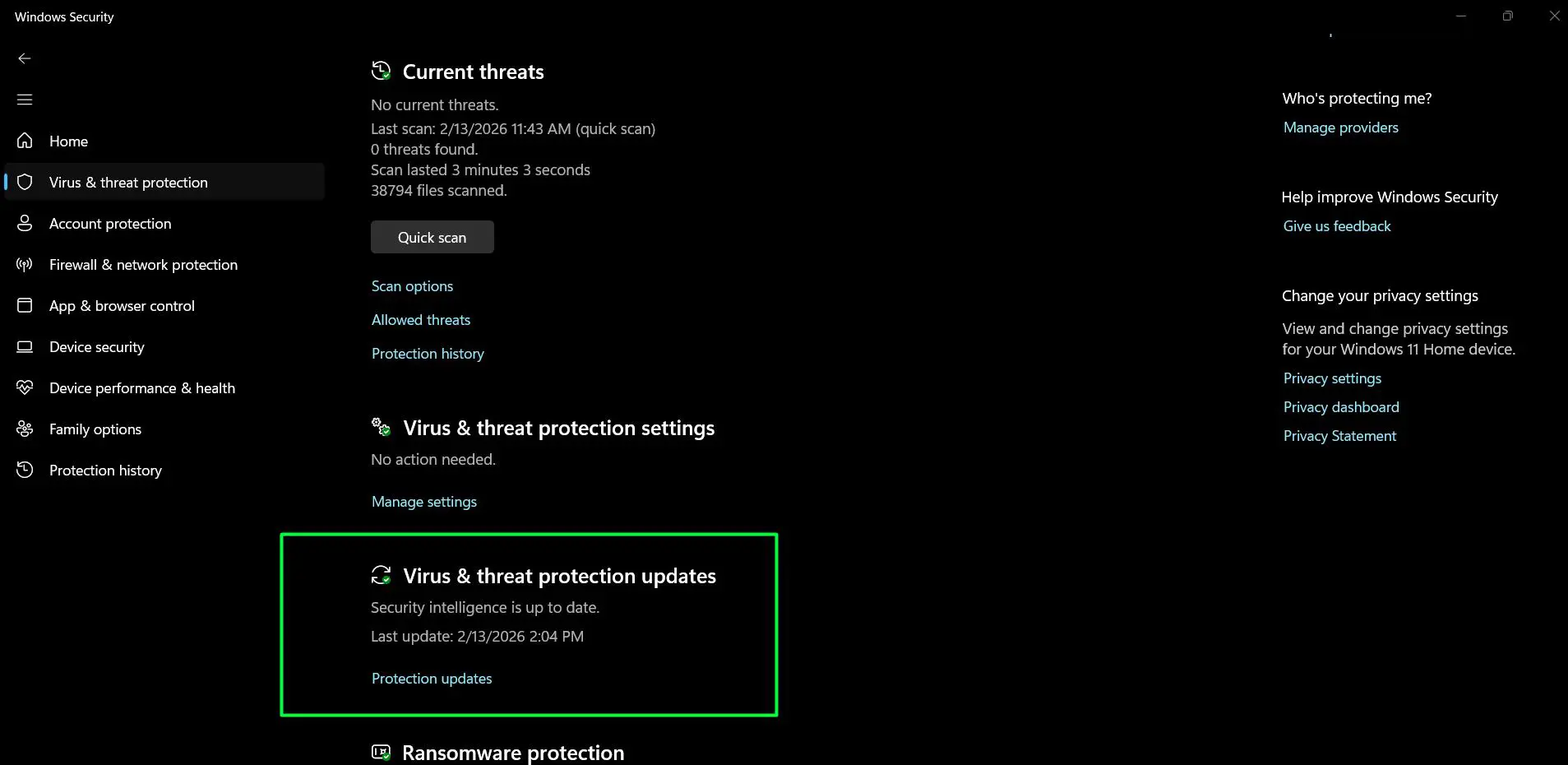
- Look for ‘Virus & threat protection updates’ section and review to confirm your security intelligence is current. The section will display: “Security intelligence is up to date” status message
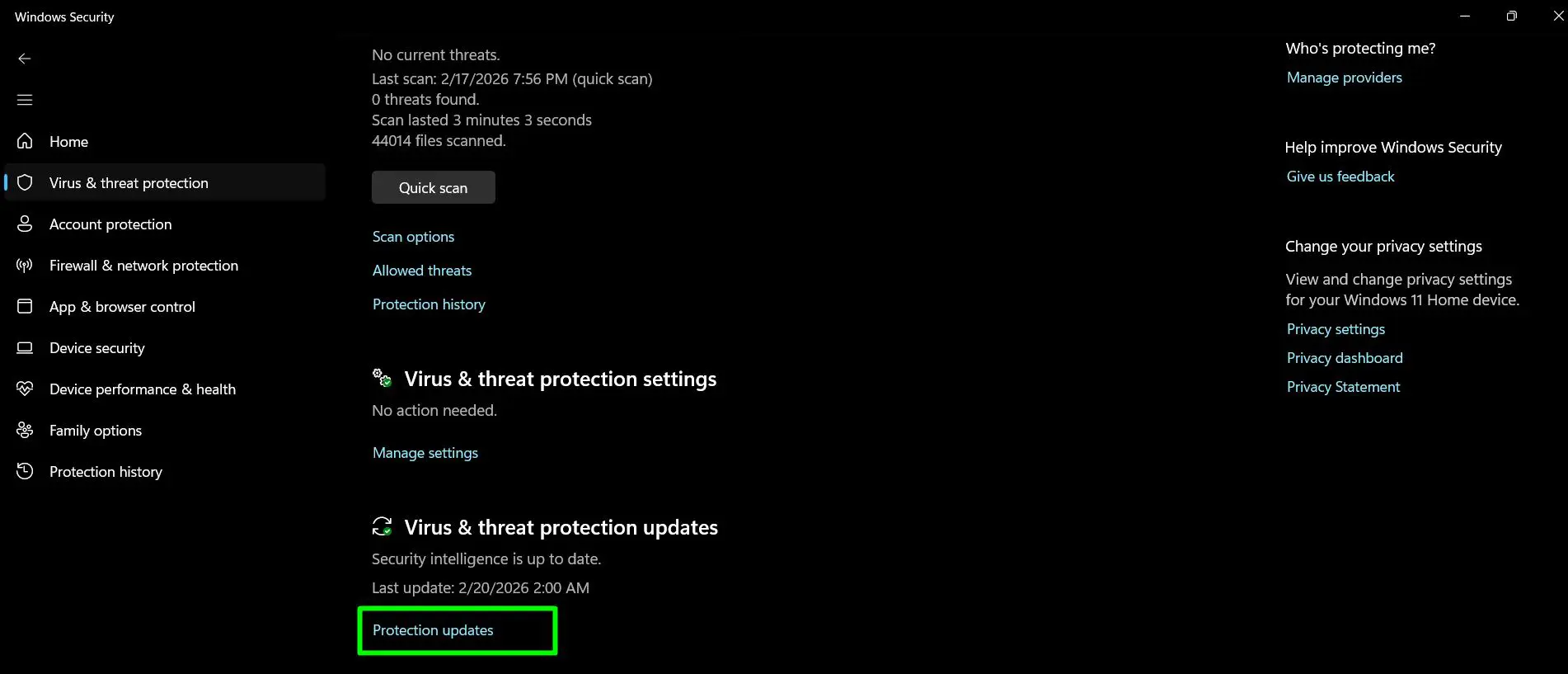
- If you want to verify or manually update, click ‘Protection updates’ to open the Protection updates page.
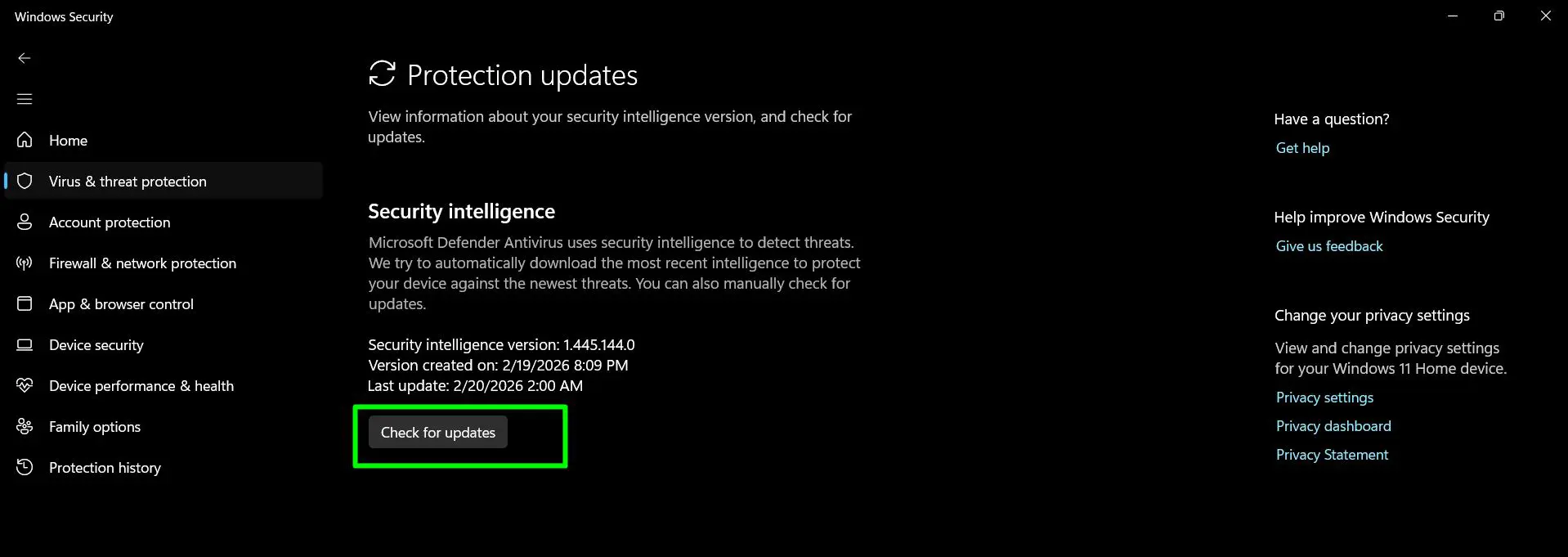
- Click ‘Check for updates’ to manually check for and install the latest definitions.
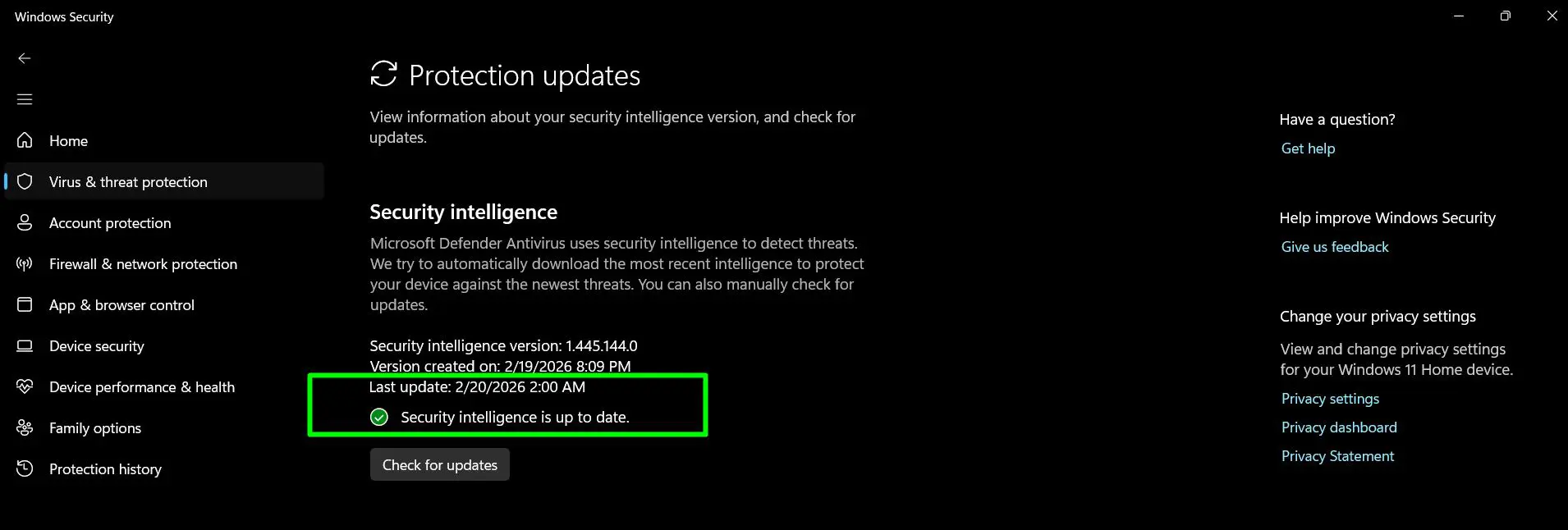
- When complete, you will see a green checkmark confirming ‘Security intelligence is up to date.’
Pro-Tip: After updating signatures, run a quick scan immediately to ensure the new definitions are working properly. This also helps detect any threats that might have slipped through with outdated signatures.
Using Terminal (Admin) for Advanced Updates
Terminal offers a more direct method for updating security signatures, particularly useful for IT professionals or users comfortable with command-line tools. This method provides detailed feedback and can be scripted for automation across multiple systems.
Terminal Command Method
Execute the update using these steps:
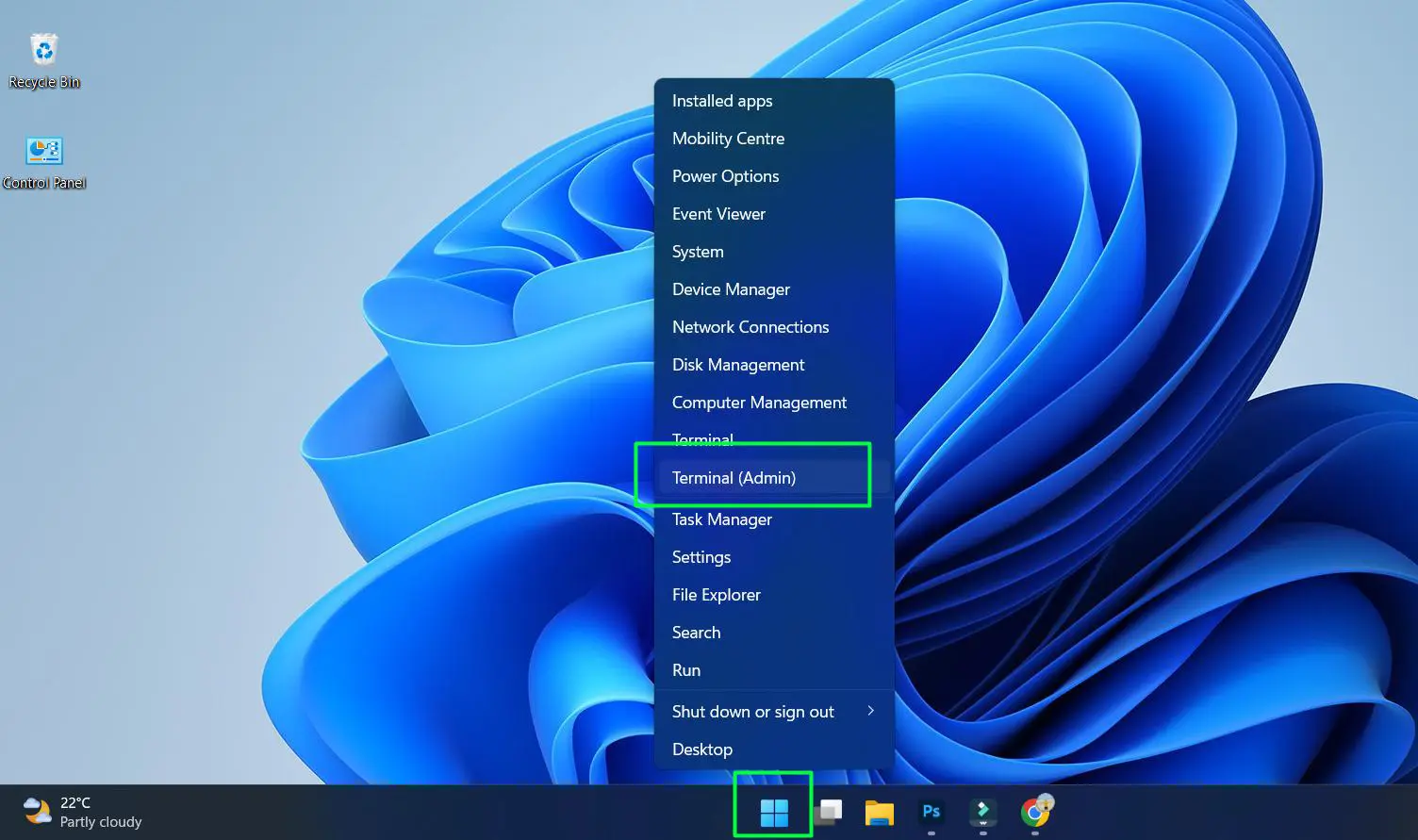
- Right-click the Start button and select ‘Terminal (Admin)’
- Type or paste the command:
Update-MpSignature
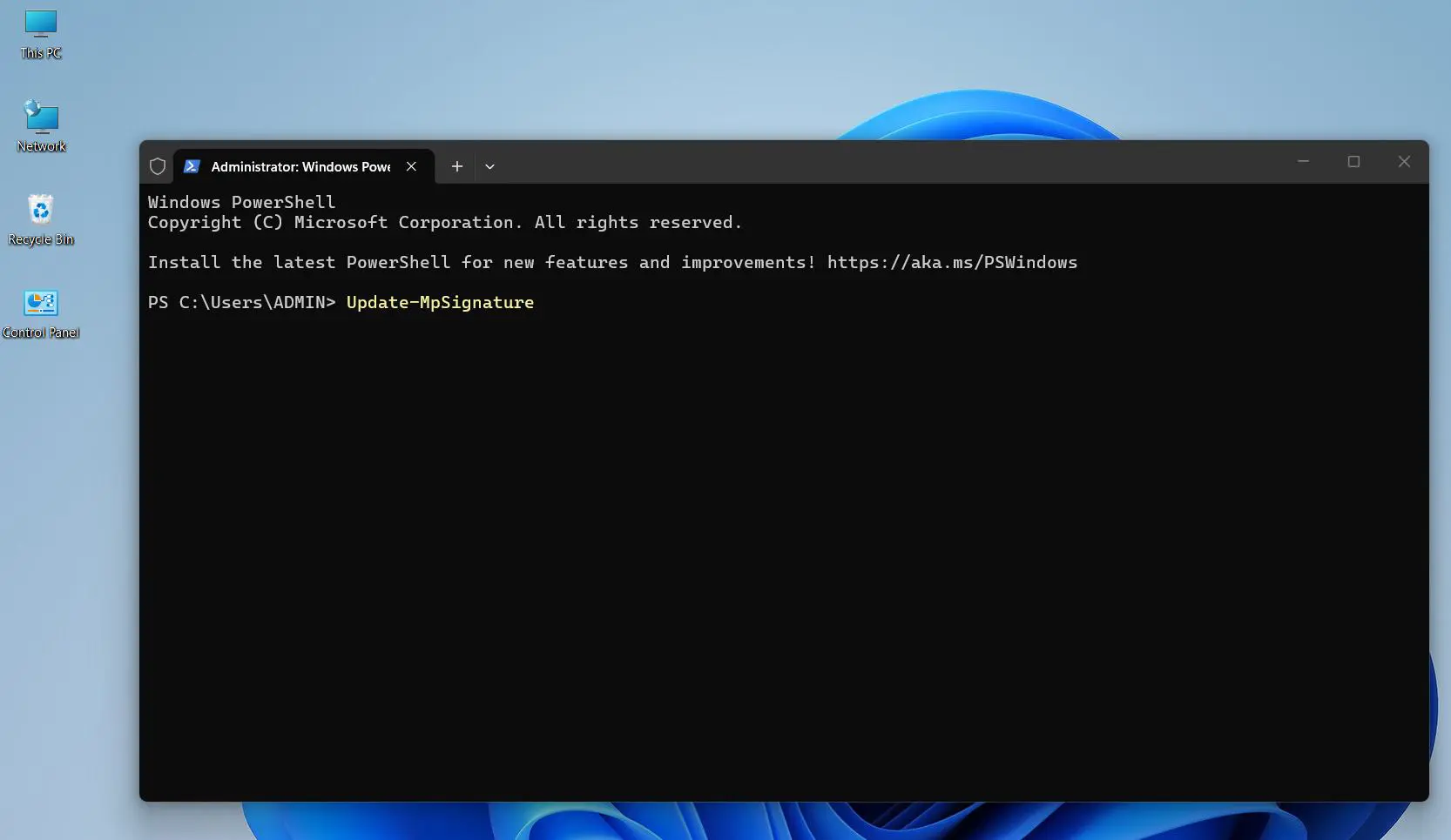
- Press Enter to execute the command
- Allow the process to complete without interruption
- Verify success by checking for any error messages
This command connects directly to Microsoft’s definition servers and pulls the latest signature updates. The key is to run Terminal with administrative privileges—without proper permissions, the command will fail with an access denied error.
Note: Terminal runs PowerShell by default, so you don’t need to switch profiles or specify the shell type.
Downloading Definitions Manually from Microsoft
When internet connectivity is limited or for offline systems, downloading definition files manually provides a reliable alternative. Microsoft maintains a dedicated page where users can download the latest signature packages directly.
Download and Installation Steps
Complete the manual download process with these actions:
- Visit microsoft.com/en-us/wdsi/defenderupdates
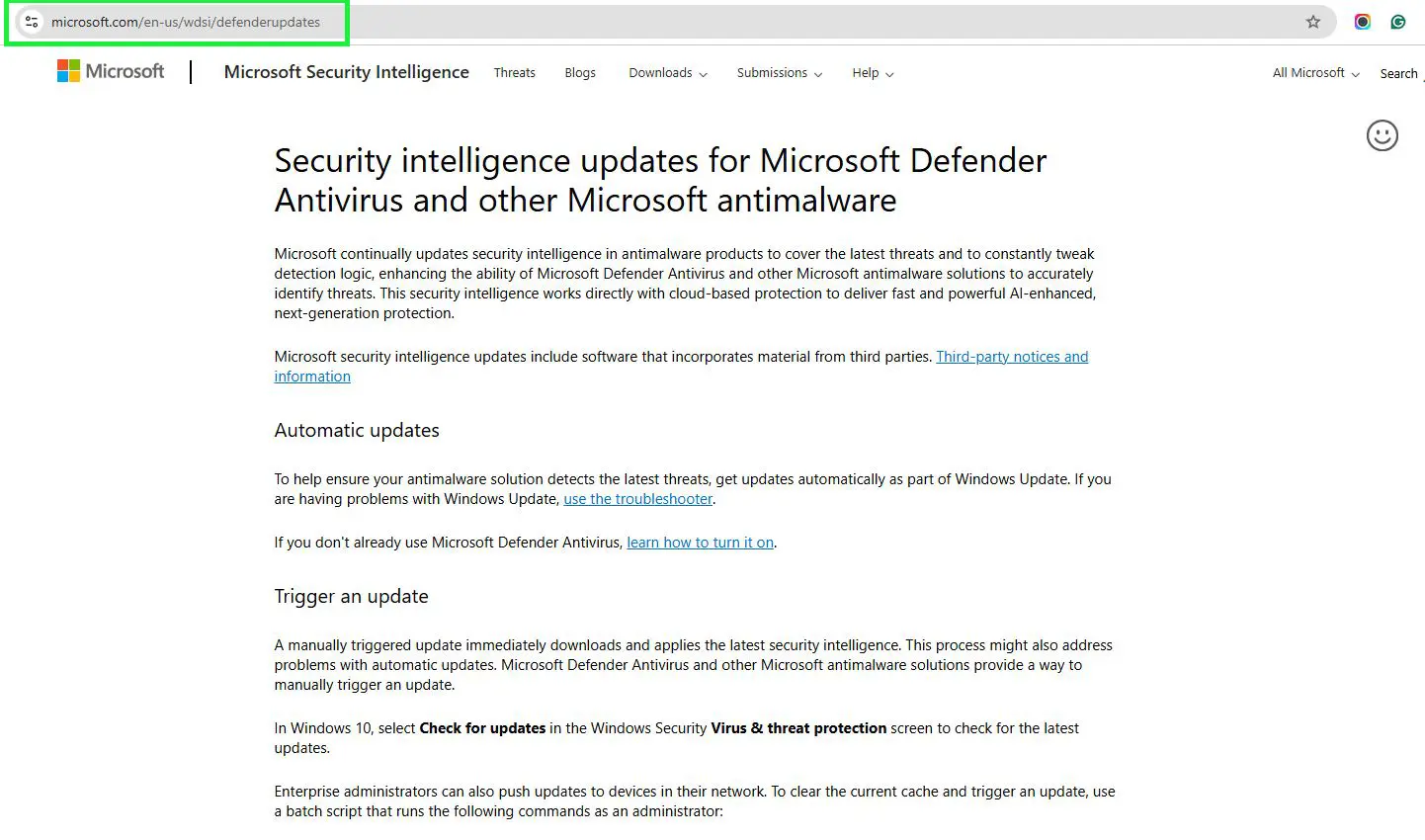
- Identify your antimalware solution from the table and select “Microsoft Defender Antivirus for Windows 11, Windows 10, Windows 8.1, and Windows Server”
- Select your Windows operating system version to match your system
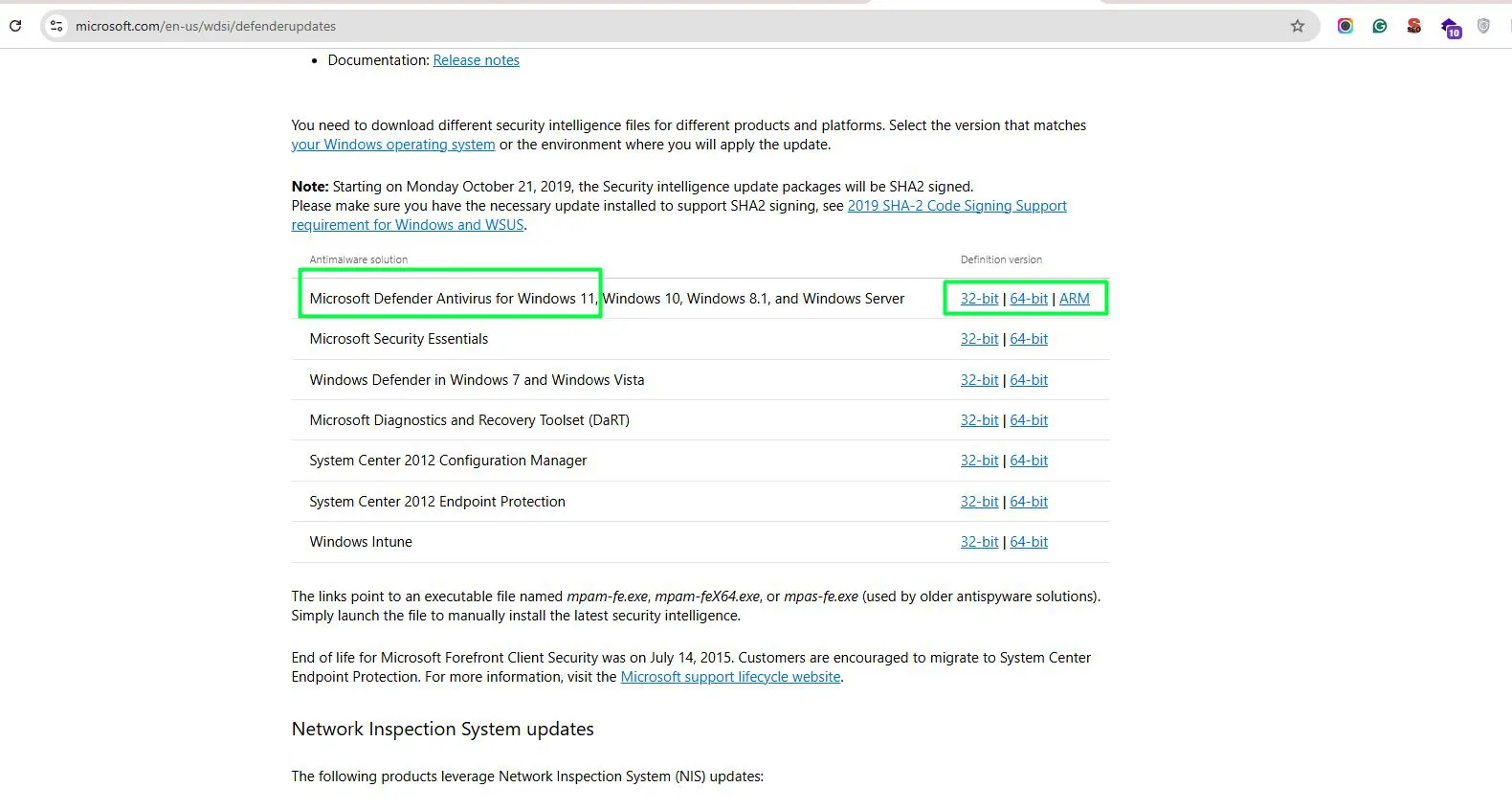
- Click the appropriate architecture link in the “Definition version” column (32-bit, 64-bit, or ARM)
- Download the executable file (mpam-fe.exe, mpam-feX64.exe, or mpas-fe.exe depending on the solution)
- Double-click the downloaded file to manually install the latest security intelligence
- Wait for the installation to complete
This method is essential for air-gapped systems, computers in restricted network environments, or any machine that cannot connect to Microsoft’s update servers directly.
Verifying Signature Updates
After completing any update method, verification ensures the new signatures are properly installed and active. This confirmation step takes just moments but provides peace of mind that the system is truly protected.
Checking Update Status
Verify the update was successful:
- Open Windows Security from the Start menu
- Navigate to ‘Virus & threat protection’
- Scroll to ‘Virus & threat protection updates’
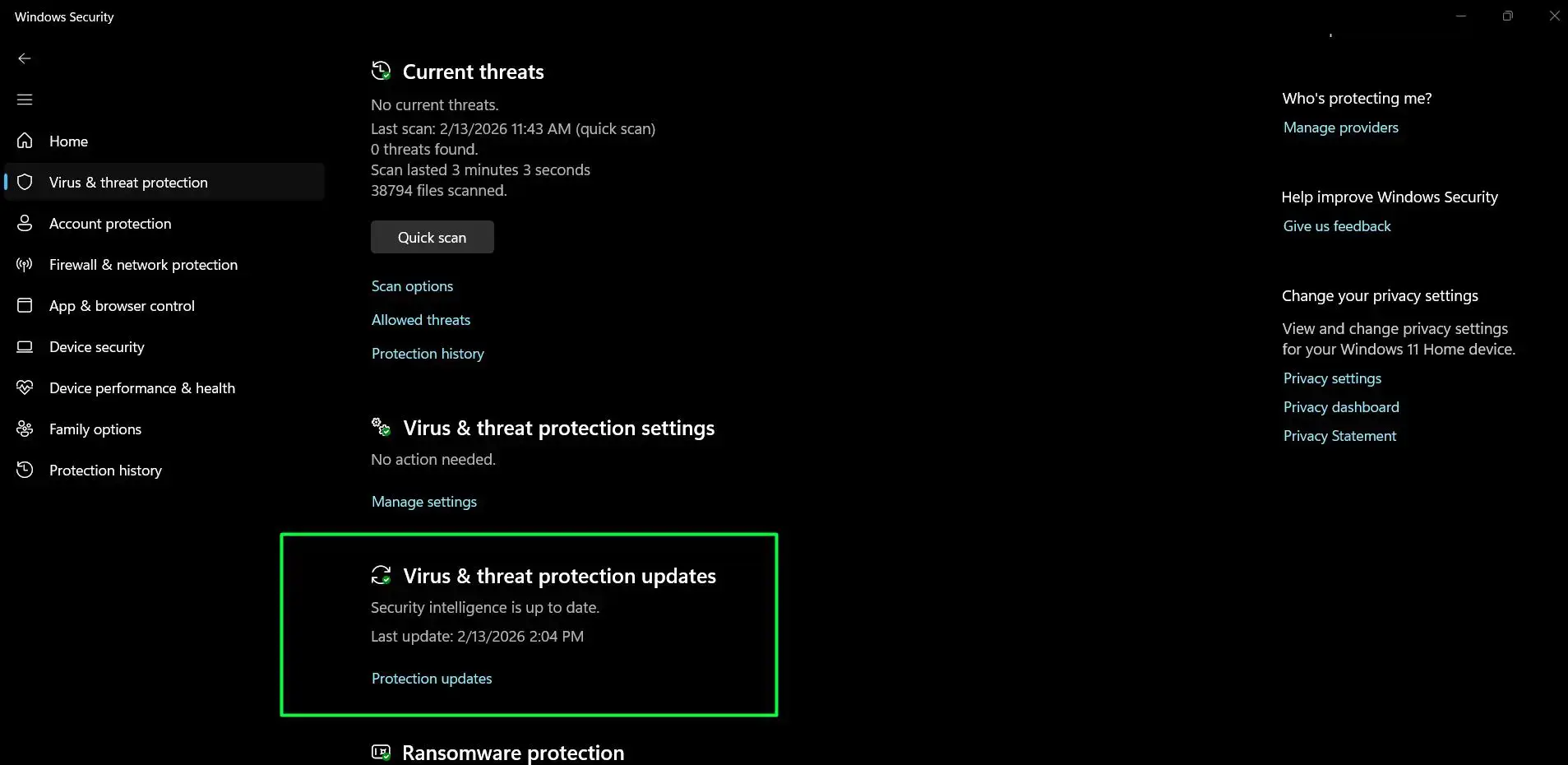
- Review the ‘Last update’ timestamp and version number
- Compare the date and time with the current moment
The version number format typically includes the date encoded within it. For example, a version like ‘1.403.1234.0’ indicates the definition was created on a specific date. Fresh updates should show a timestamp within the last few hours or minutes of the manual update attempt.
Best Practices for Manual Updates
Regular maintenance of security signatures forms a crucial part of system protection. While automation handles most scenarios, understanding when and how to update manually adds an extra layer of control and security awareness.
Check for updates manually before performing important tasks like financial transactions, downloading files from new sources, or after extended periods without internet connectivity. Systems that frequently work offline benefit from scheduled manual updates—perhaps before disconnecting from the network or immediately upon reconnecting.
Consider the update schedule in relation to system usage patterns. Morning updates before starting work ensure protection throughout the day. For shared computers, coordinating updates during off-peak hours prevents interruption to other users while maintaining current definitions.
Network administrators managing multiple Windows 11 devices can leverage the PowerShell method across their infrastructure. Scripting the update process allows for centralized control and ensures uniform protection levels across all managed systems. This works best when combined with proper logging to track which machines received updates and when.
Related Resources
For more Windows-related guides and tips, explore additional resources on Windows optimization and security. Those interested in broader system maintenance can find valuable information about software management and updates.
Here’s the updated section with “Windows Security” incorporated into the H2 heading:
Common Windows Security Problems and Troubleshooting
Even with a straightforward process, Windows Security signature updates can sometimes hit a snag. Here are the most frequent issues users encounter and how to resolve them.
Update Stuck or Taking Too Long
If the update progress appears frozen, wait at least five minutes before taking action. Slow internet connections or large definition packages can cause extended download times. If it remains stuck, close Windows Security, restart the app, and try again. Restarting the Windows Update service via Services (services.msc) can also clear a stuck update.
“Security intelligence update failed” Error
This error typically points to a connectivity issue. Confirm the device has an active internet connection and can reach Microsoft’s servers. Temporarily disabling a third-party VPN or firewall and retrying the update often resolves this. If the problem persists, use the manual download method from microsoft.com/en-us/wdsi/defenderupdates as a reliable workaround.
Check for Updates Button is Grayed Out
A grayed-out button usually means another update process is already running in the background, or a third-party antivirus is managing definitions instead of Windows Defender. Open Task Manager and check for any active Windows Defender or antivirus processes. If a third-party solution is installed, it may have taken over protection duties entirely.
Updates Keep Reverting to an Older Version
If signatures roll back after updating, a corrupted Windows Update cache is often the cause. Open Command Prompt as Administrator and run net stop wuauserv, then delete the contents of C:\Windows\SoftwareDistribution\Download, and restart the service with net start wuauserv. Retry the update after completing these steps.
PowerShell Update-MpSignature Command Fails
An “Access Denied” error means Terminal was not launched with administrative privileges. Close the window, right-click the Start button, select Terminal (Admin), and run the command again. If the error persists, ensure Windows Defender is not disabled via Group Policy, as this blocks all Windows Security signature update methods through the app and command line.
Frequently Asked Questions
How often should security signatures be updated manually?
Manual updates aren’t necessary on a regular schedule if automatic updates are functioning properly. However, updating manually makes sense before important security-sensitive tasks, after system restoration, or when working with offline systems that will soon disconnect from the internet. Once per day maximum is sufficient even for high-security environments, as Microsoft releases definition updates multiple times daily through automatic channels.
What happens if signature updates fail repeatedly?
Repeated update failures typically indicate network connectivity issues, corrupted Windows Update components, or firewall blocking. The downloaded manual definition file method bypasses most of these issues. Ensuring the system can reach *.microsoft.com and *.windowsupdate.com domains resolves most connectivity-related failures. Temporarily disabling third-party antivirus during Windows Security updates can also help, though this should only be done cautiously.
Can outdated signatures still provide protection?
Outdated signatures continue protecting against known threats from their release date, but they miss newer malware variants. The gap in protection grows larger as signatures age. A week-old signature set still catches the vast majority of threats, but month-old definitions leave significant vulnerabilities. This is why maintaining current signatures is critical, especially since updates are free and quick to install.
Do manual updates work without internet connection?
Manual updates through the Windows Security app or PowerShell require active internet connectivity to download definitions. However, the downloaded definition file method works completely offline—download the mpam-fe.exe file on a connected device, transfer it via USB or network share, then install it on the offline system. This makes it perfect for air-gapped computers or systems with restricted internet access.
Will manual updates override automatic update settings?
Manual updates complement rather than override automatic updates. They don’t change any scheduled update settings or disable the automatic update feature. After a manual update, Windows 11 continues checking for and installing new definitions automatically according to its normal schedule. Think of manual updates as an immediate refresh rather than a replacement for the automatic system.