
Updating printer drivers on Windows 11 ensures your printer operates at peak performance with the latest compatibility and security enhancements. This straightforward guide walks through the essential methods to keep printer drivers current without unnecessary complications.
Why Printer Driver Updates Matter
Printer drivers act as translators between Windows 11 and your printing hardware. When these drivers become outdated, print quality may suffer, connection issues can emerge, and certain printer features might stop working altogether. Think of it like having an outdated dictionary—communication still happens, but misunderstandings become more frequent.
Modern printers receive regular driver updates that fix bugs, improve print quality, add new features, and enhance security. Most people find that keeping drivers updated prevents the frustration of sudden printing failures right before important deadlines.
Method 1: Update Drivers Through Device Manager
Device Manager provides more control over individual hardware components, including printers. This approach works particularly well when Windows Update doesn’t find the needed driver or when targeting a specific printer requires attention.
Accessing and Updating Through Device Manager
- Right-click the Start button and select Device Manager from the menu
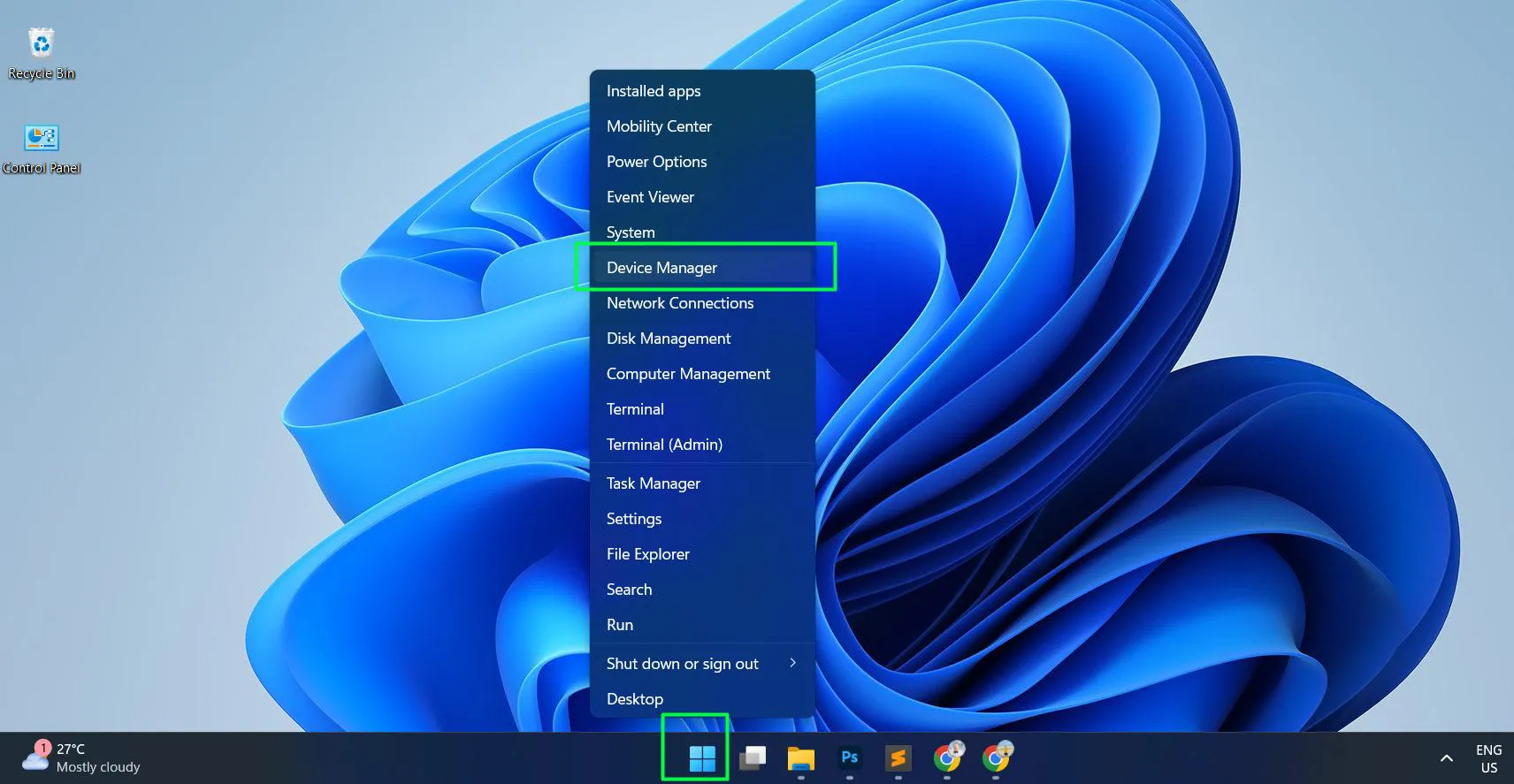
- Locate and expand the ‘Printers’ or ‘Print queues’ category by clicking the arrow next to it
- Right-click on your printer name and choose ‘Update driver’ from the context menu
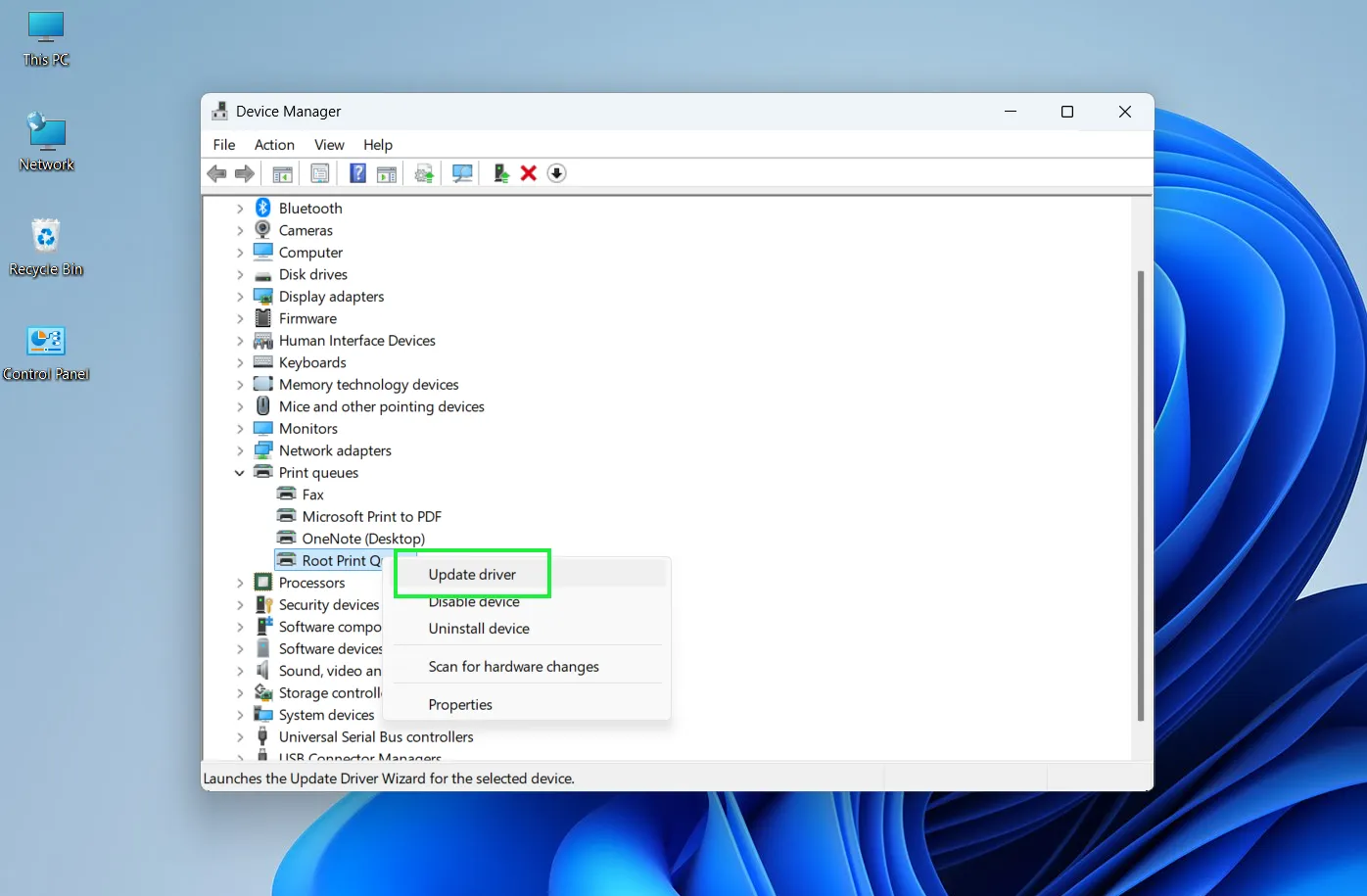
- Select ‘Search automatically for drivers’ to let Windows find the best available driver
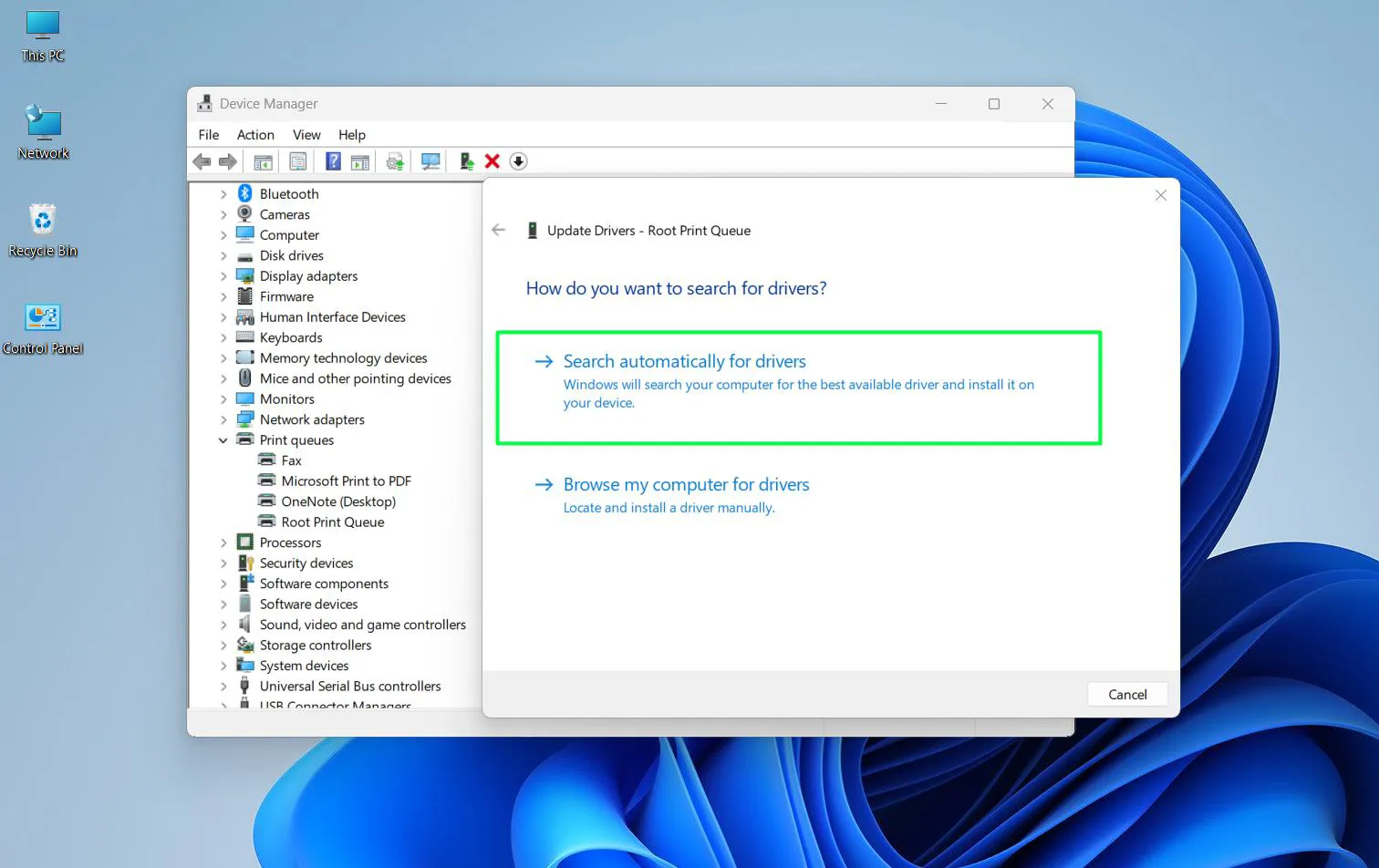
- Follow any on-screen prompts and wait for the installation to complete
- Close Device Manager once the update finishes successfully
Sometimes Windows reports that ‘the best drivers for your device are already installed’ even when newer versions exist elsewhere. This happens because Device Manager only searches Microsoft’s driver catalog, not manufacturer websites.
Method 2: Download Drivers from Manufacturer Website
Printer manufacturers typically release drivers on their official websites before Microsoft includes them in Windows Update. This method ensures access to the absolute latest drivers with all the newest features and fixes. For more software-related guides, additional resources are available.
Watch this: Update Printer Drivers on Windows 11 Easily
Checking Your Printer Model and Brand
- Open Settings by pressing Windows + I on your keyboard
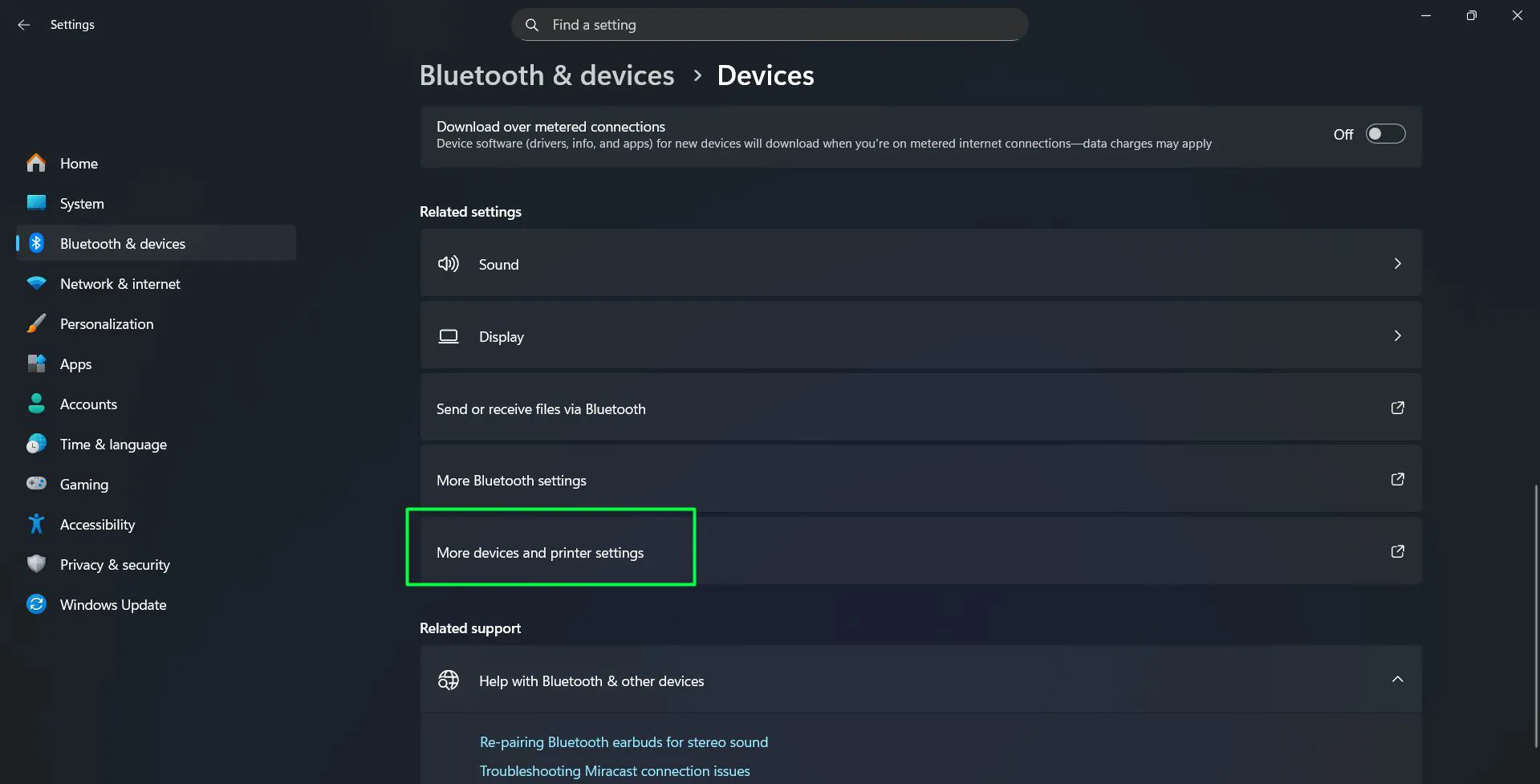
- Click on ‘Bluetooth & devices’ from the left sidebar and Select ‘Devices’
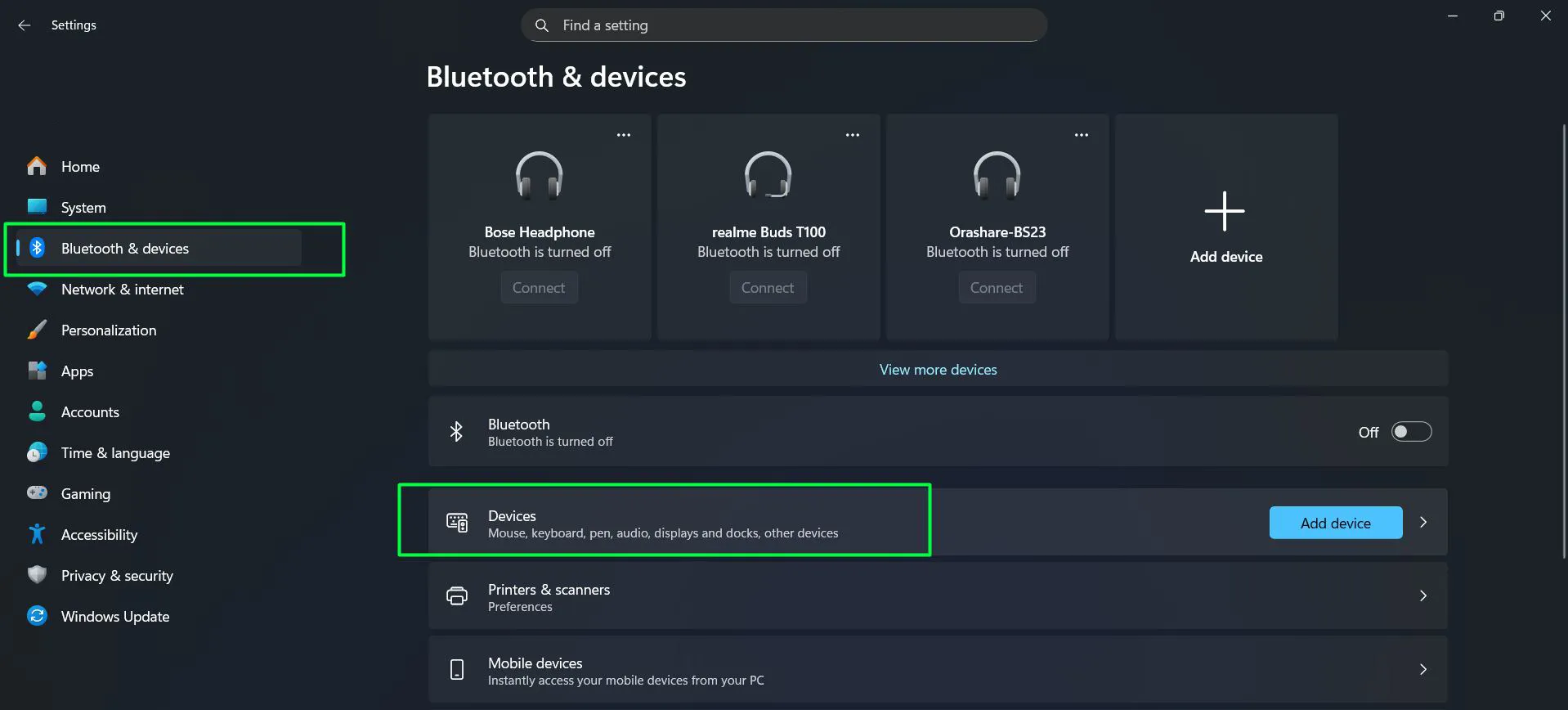
- Scroll down and select ‘More devices and printer settings’ under the Related settings section
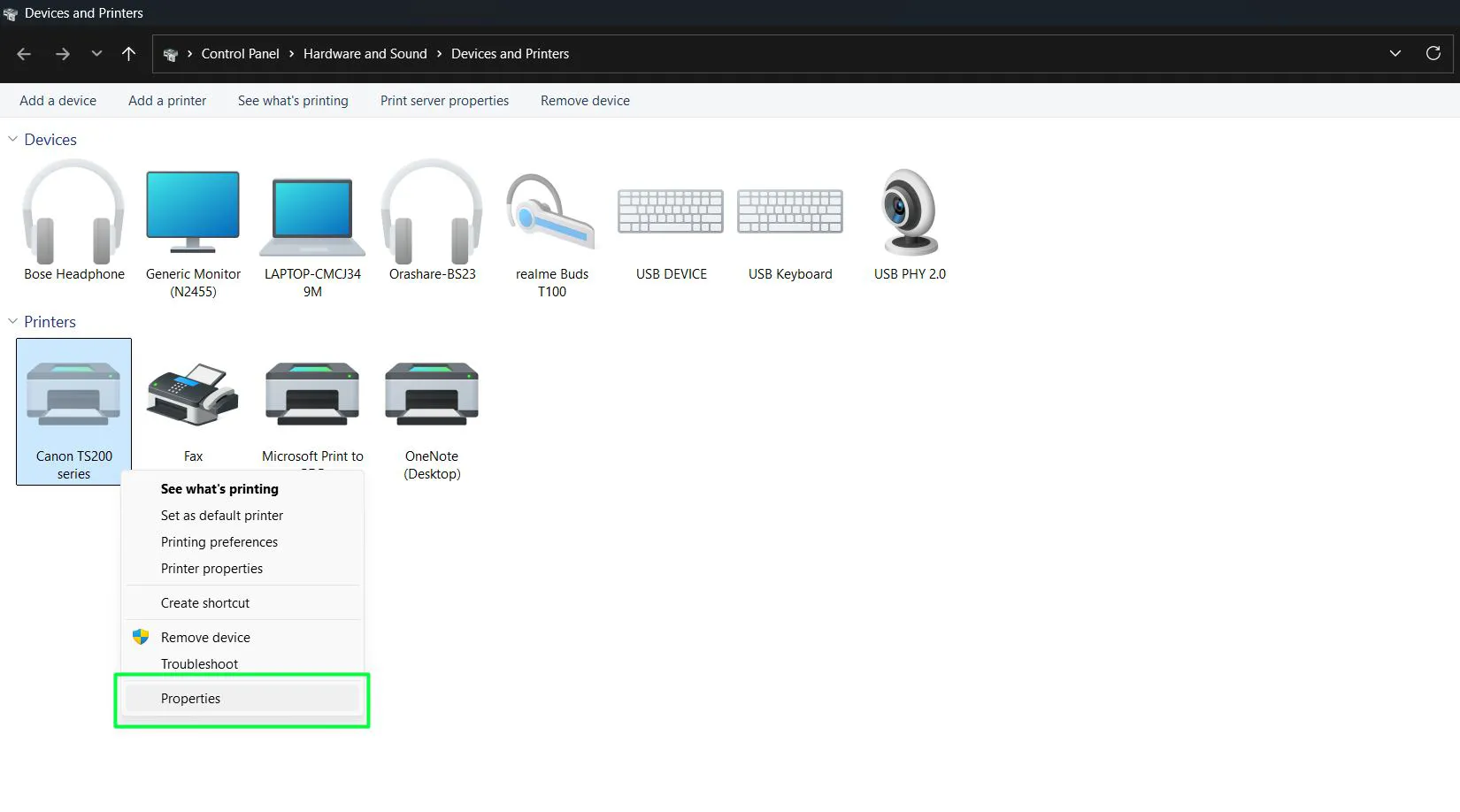
- Locate your printer icon in the Devices and Printers window
- Right-click on your printer and select ‘Properties’ from the menu
- Note down the complete printer model number and brand name displayed in the properties window
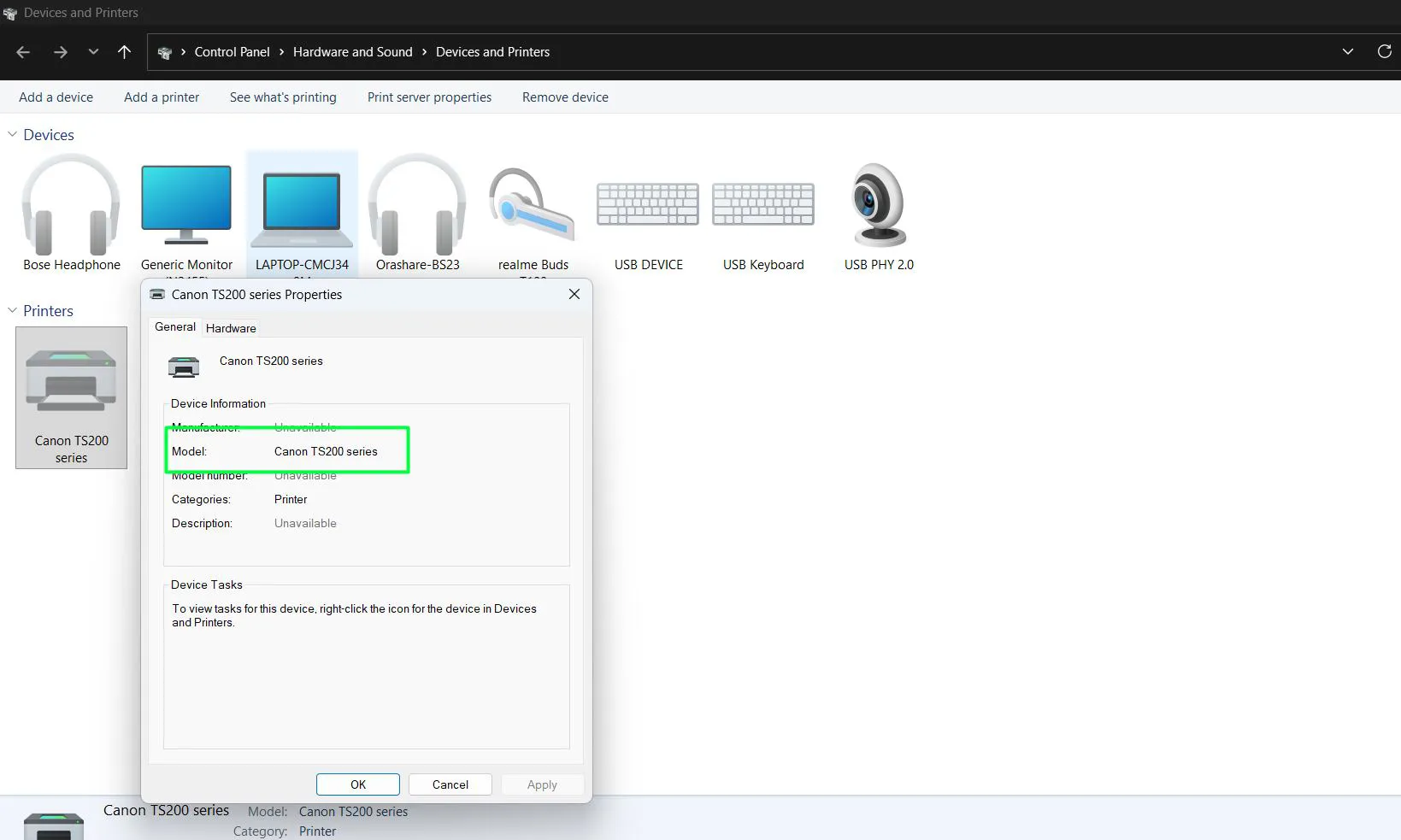
The exact model number is crucial because many manufacturers produce dozens of similar printer models that require different drivers. Finding this information beforehand saves time and prevents downloading incorrect drivers that won’t work with your specific hardware.
Common Printer Manufacturer Support Websites
Most major printer brands maintain dedicated support pages where drivers can be downloaded directly. Here are the official support websites for popular printer manufacturers:
- HP (Hewlett-Packard): support.hp.com
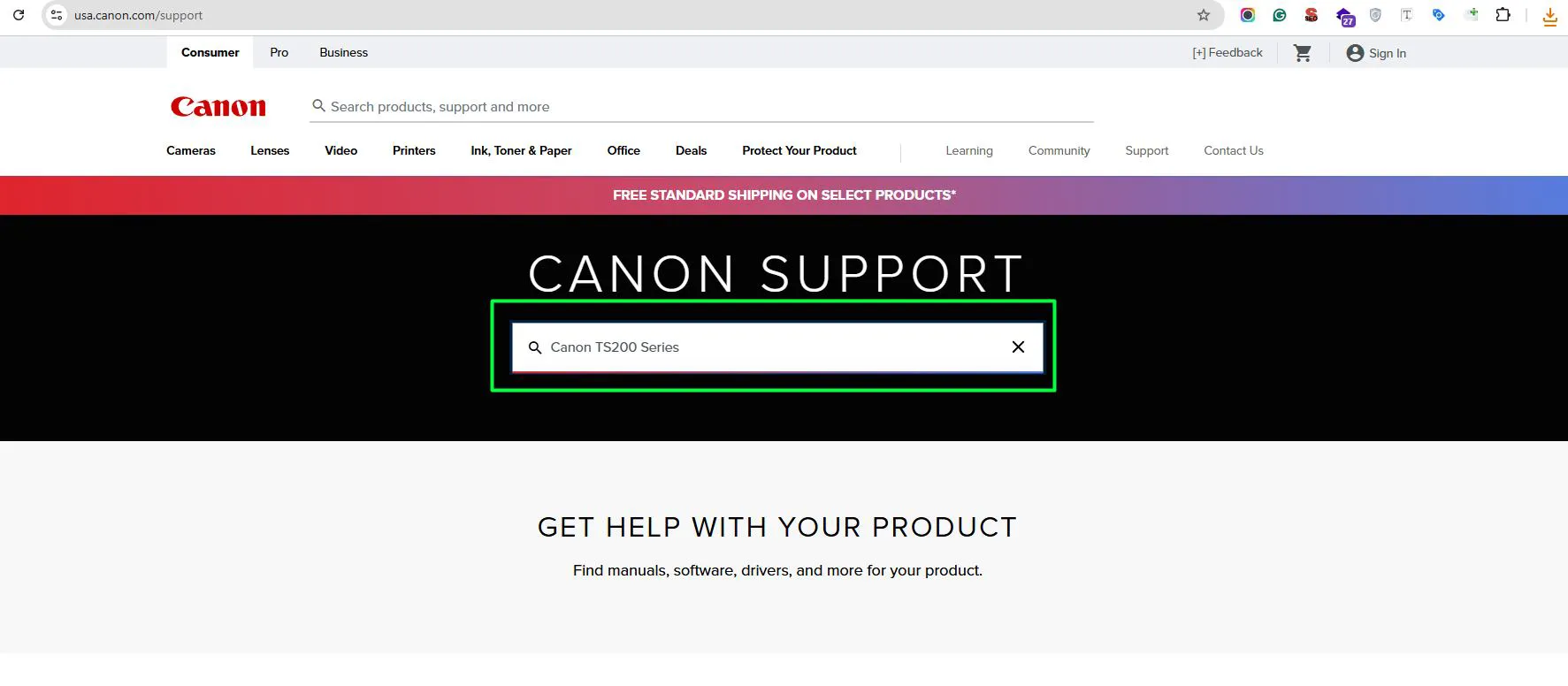
- Canon: usa.canon.com/support
- Epson: epson.com/support
- Brother: support.brother.com
- Samsung: samsung.com/support
- Xerox: xerox.com/support
- Lexmark: lexmark.com/support
- Ricoh: ricoh-usa.com/support
- Kyocera: kyoceradocumentsolutions.com/support
- Dell: dell.com/support
Always verify the website URL matches the official manufacturer domain to avoid downloading drivers from unauthorized third-party sites that might contain unwanted software or security risks.
Installing Manufacturer Drivers
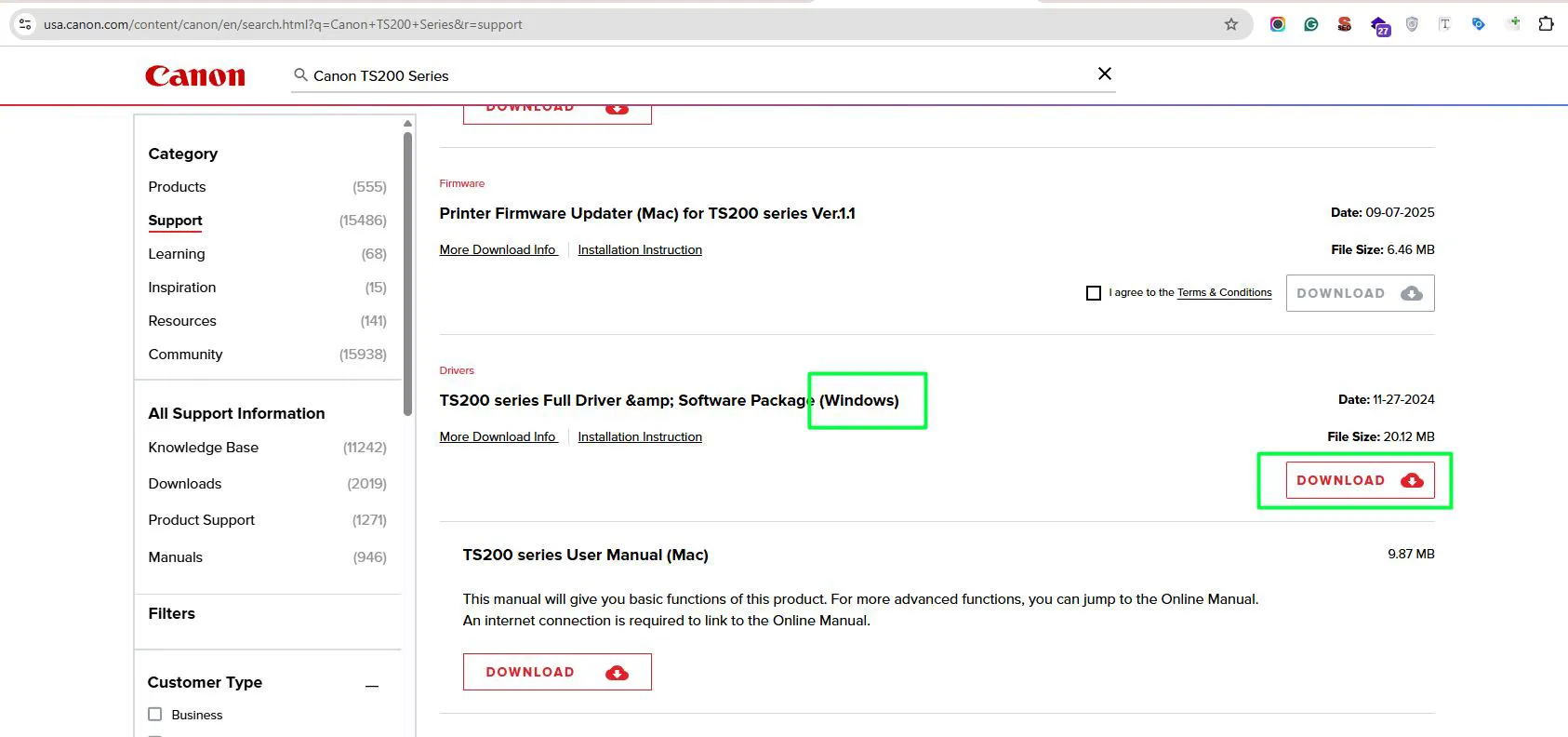
- Open your web browser and navigate to the printer manufacturer’s official support website
- Enter your exact printer model number in the search field or support section
- Select Windows 11 as the operating system from the dropdown menu or filter options
- Download the most recent driver file, which usually ends in .exe or .zip format
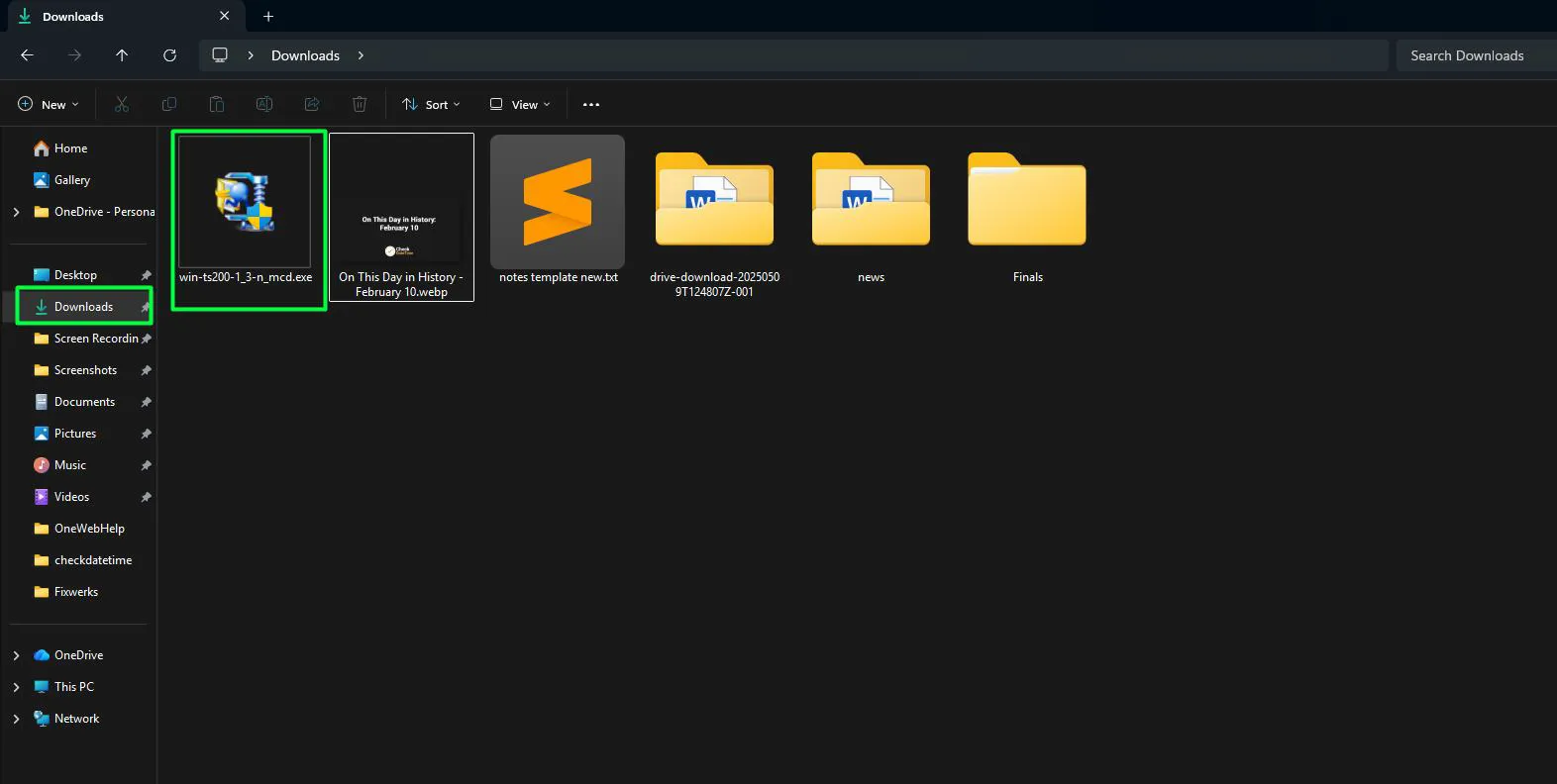
- Locate the downloaded file in your Downloads folder and double-click to run it
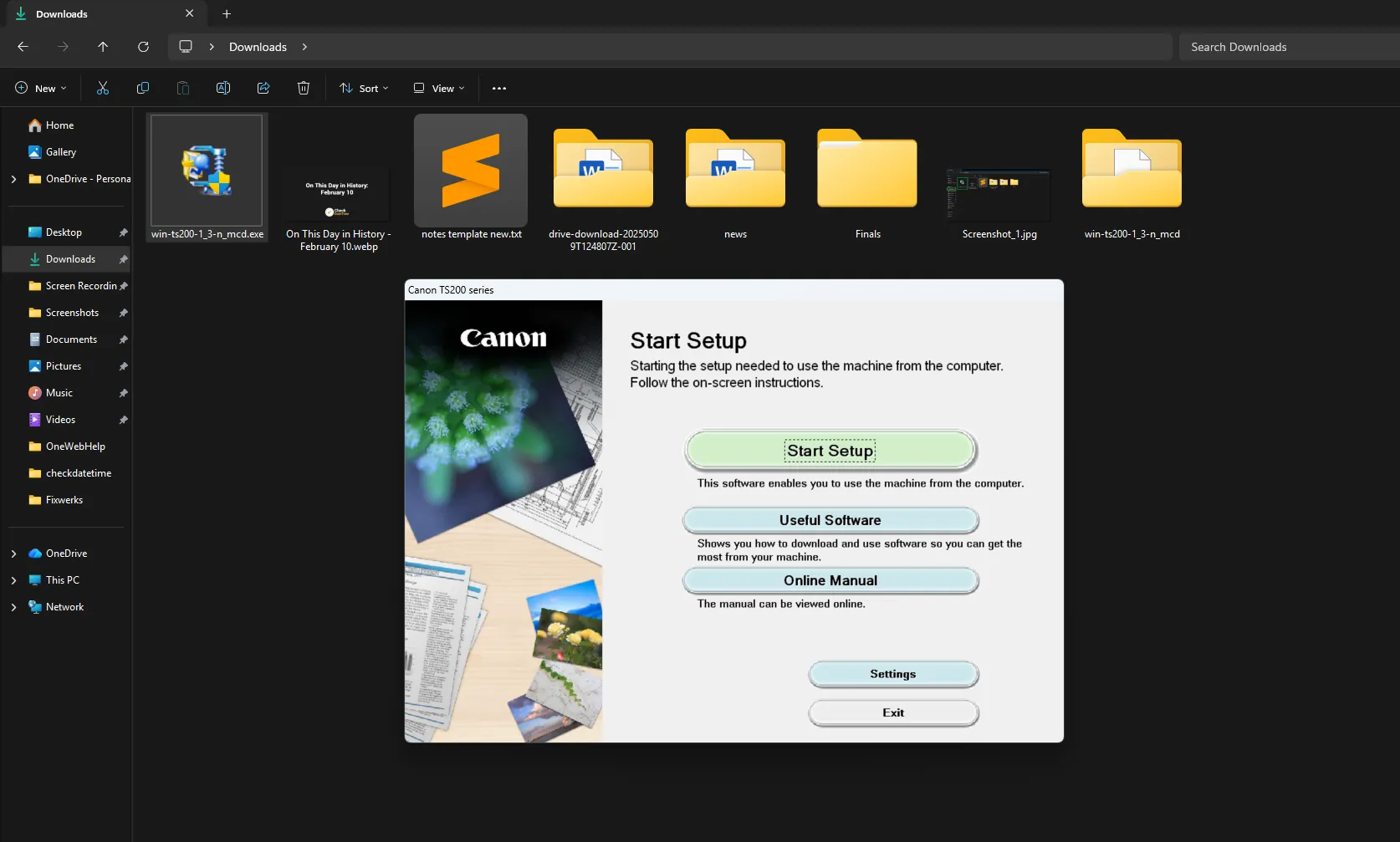
- Follow the installation wizard instructions, accepting terms and selecting installation preferences
- Restart your computer after installation completes to ensure proper driver initialization
Pay attention to the driver version number and release date on the manufacturer’s website. Comparing these details against your current driver version helps confirm whether an update is actually available.
Method 3: Update Printer Drivers Through Windows Update
Windows 11 automatically searches for and installs driver updates through Windows Update. This method works best when dealing with mainstream printer brands that Microsoft includes in its driver database.
Steps to Update via Windows Update
- Open the Start menu and click on Settings, or press Windows + I on your keyboard
- Navigate to Windows Update from the left sidebar
- Click the ‘Check for updates’ button at the top of the screen
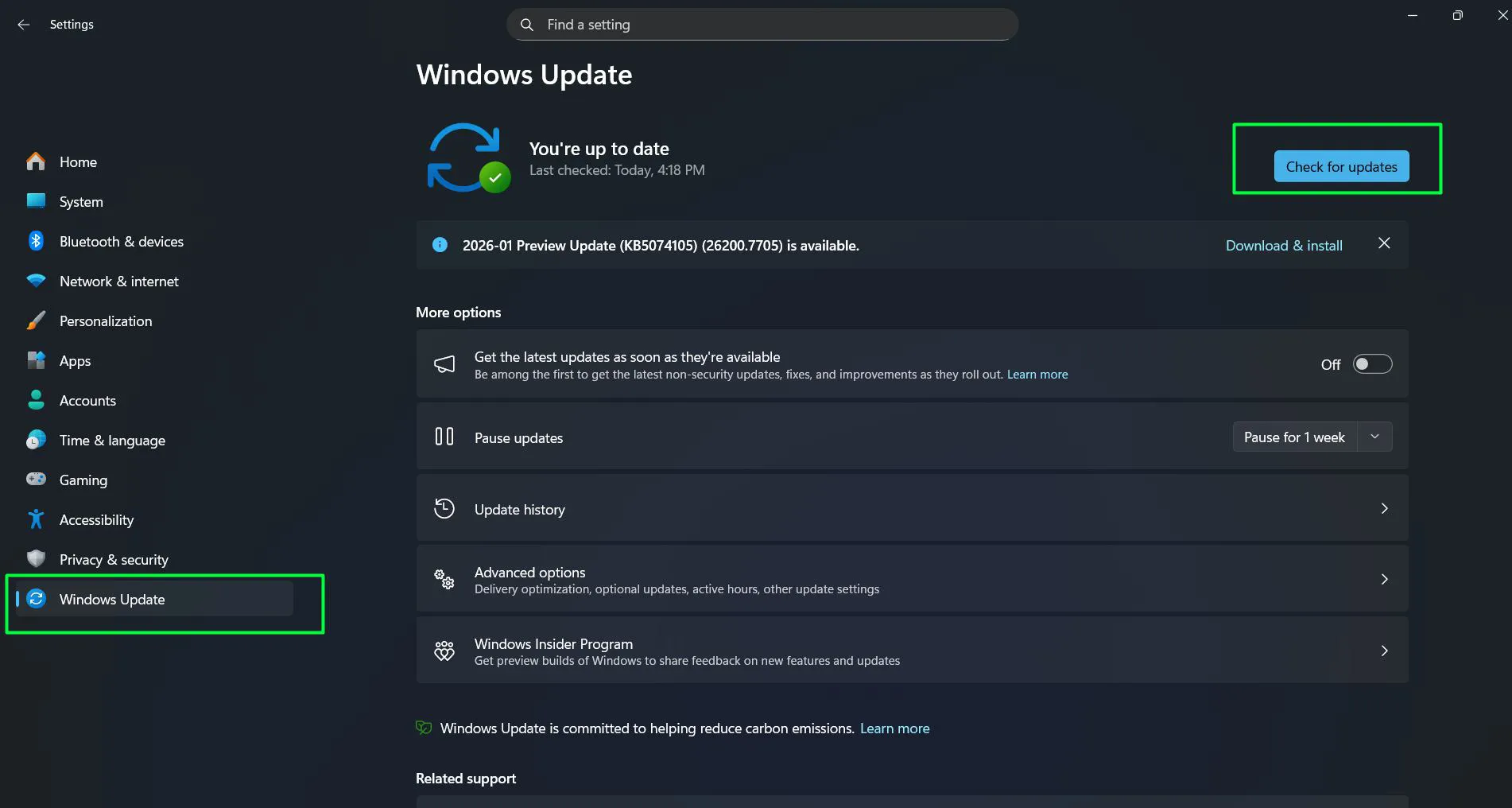
- Wait while Windows 11 scans for available updates, including printer drivers
- If printer driver updates appear in the list, click ‘Download & install’ to proceed
- Restart the computer if prompted to complete the installation
The key is to allow Windows Update to finish completely before attempting to print. This process typically takes between five and fifteen minutes depending on internet speed and the number of updates available.
Method 4: Update Using Optional Updates
Windows 11 separates critical updates from optional ones, and printer drivers often fall into the optional category. Checking this section reveals drivers that Windows considers non-essential but still beneficial. More Windows-specific tutorials can help with system optimization.
Finding Optional Driver Updates
- Open Settings by pressing Windows + I or clicking the Start menu gear icon
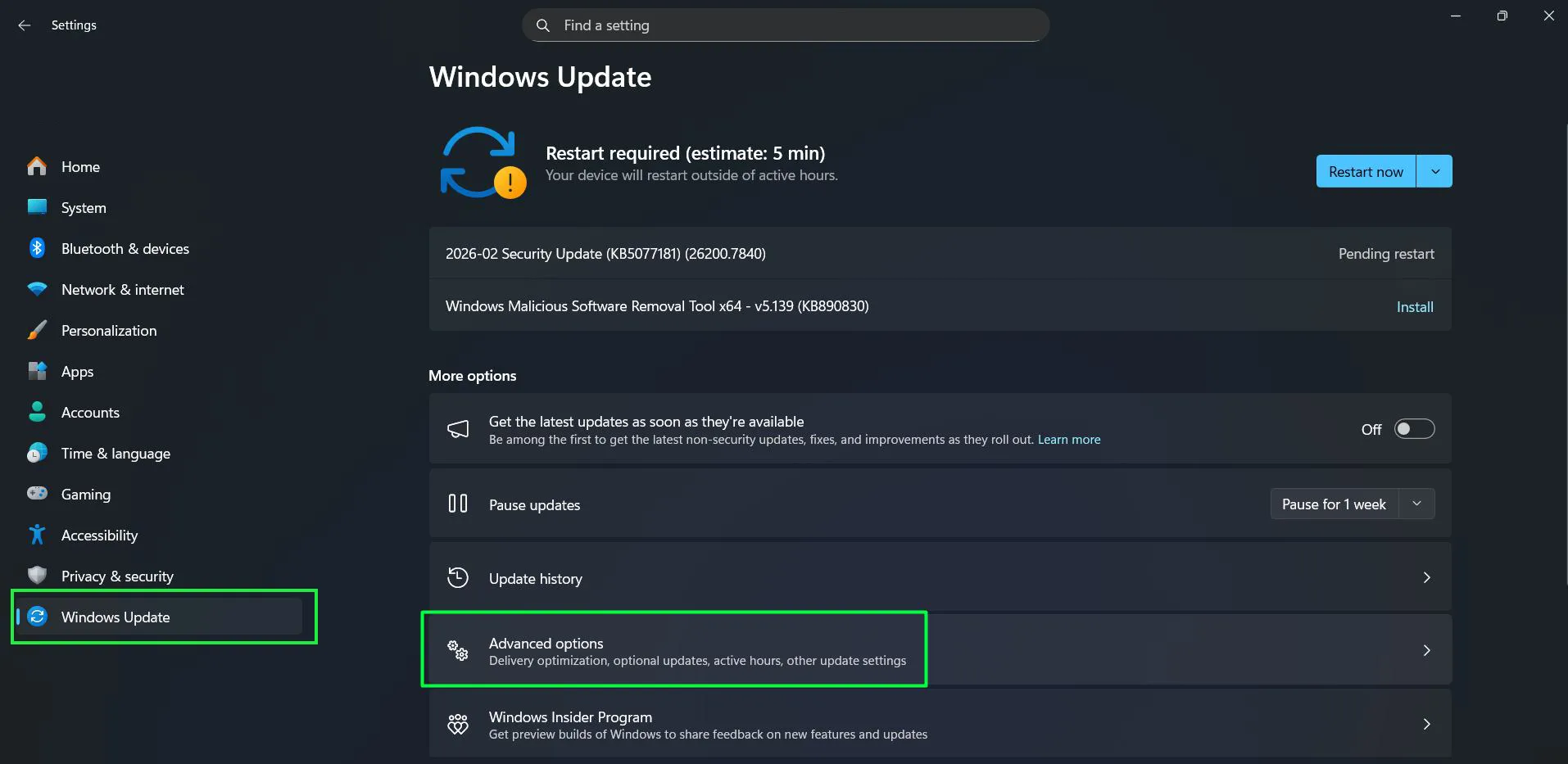
- Click on Windows Update in the left navigation panel
- Select ‘Advanced options’ near the bottom of the Windows Update page
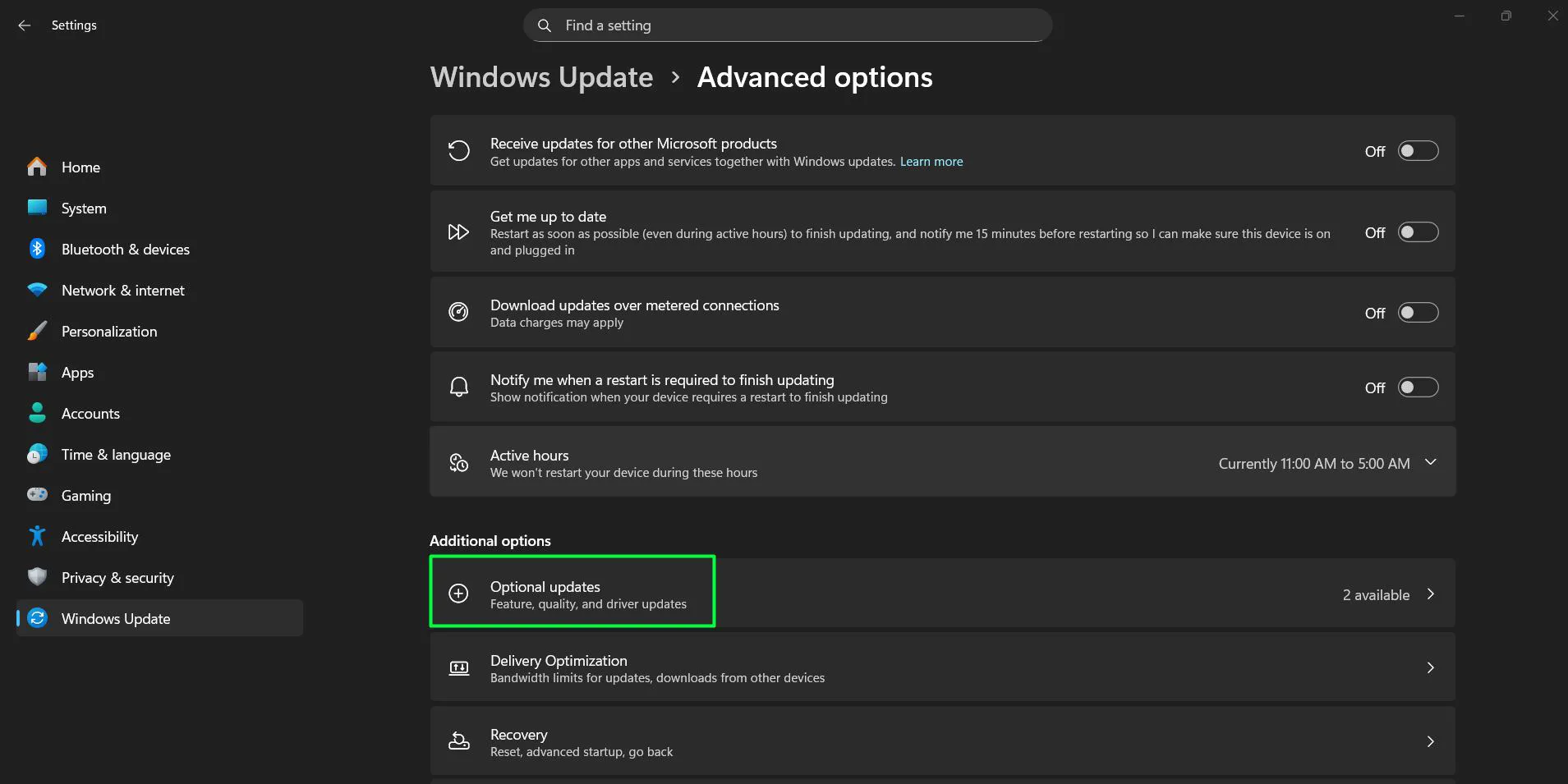
- Scroll down and click on ‘Optional updates’ to reveal additional available updates
- Expand the ‘Driver updates’ section if present
- Check the box next to any printer driver updates listed
- Click ‘Download & install’ to begin the update process
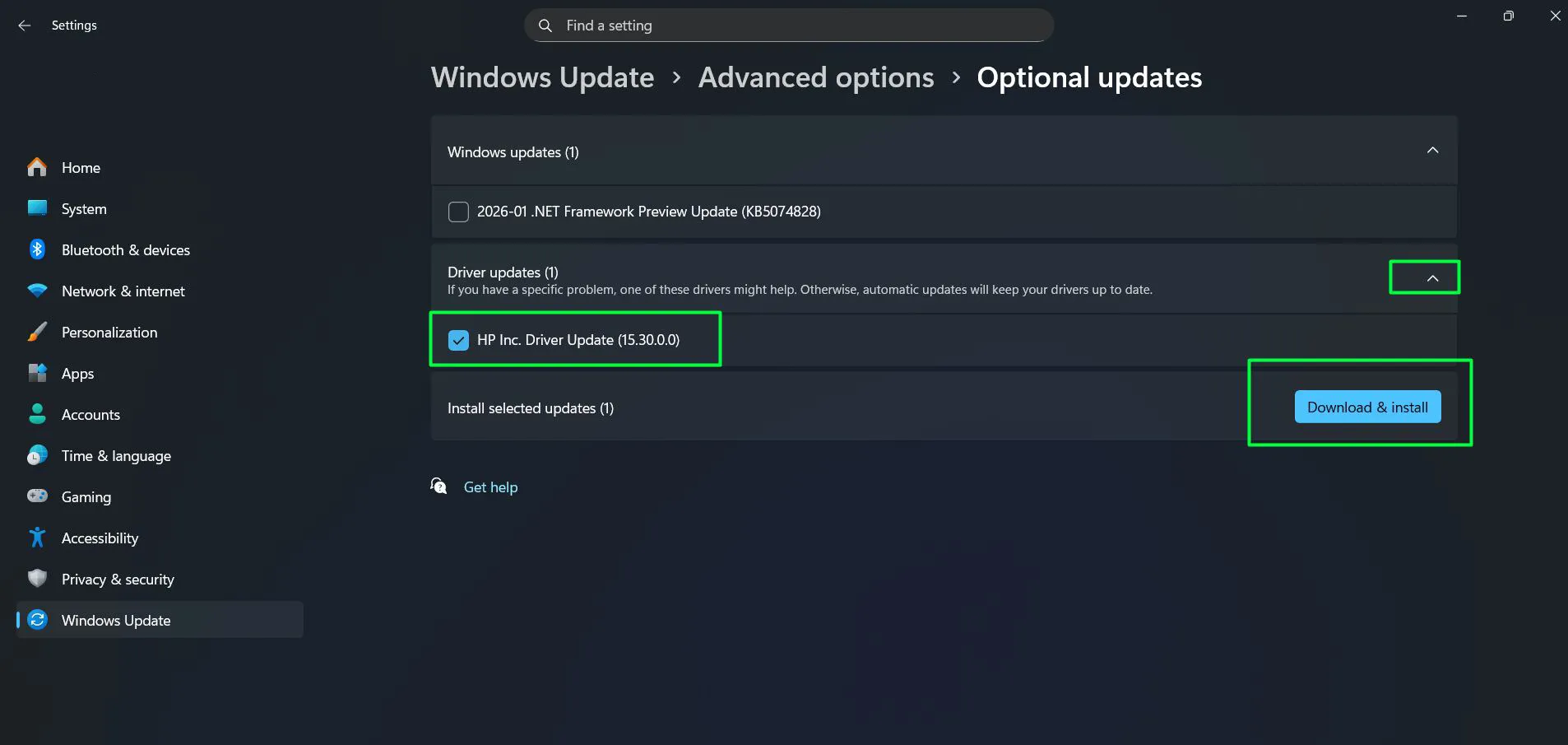
Not every Windows 11 system will show optional updates at all times. This section only appears when Microsoft detects compatible optional drivers for installed hardware.
Verifying Your Printer Driver Version
Confirming the current driver version helps determine whether an update succeeded or if the existing driver is already current. This quick check takes less than a minute.
Steps to Check Driver Version
- Open Device Manager by right-clicking the Start button
- Expand the Printers or Print queues category
- Right-click your printer and select Properties
- Navigate to the Driver tab at the top of the properties window
- Review the Driver Version, Driver Date, and Driver Provider information displayed
Comparing this information with details from the manufacturer’s website confirms whether your printer runs the latest available driver. The driver date is particularly telling—anything more than six months old might benefit from an update.
What Happens After Updating Printer Drivers
Once new drivers install successfully, Windows 11 typically recognizes the printer immediately without additional configuration. Print a test page to confirm everything functions correctly. The test page option appears in printer settings under Devices > Printers & scanners, then clicking on your printer and selecting ‘Print test page.’
Occasionally, updated drivers reset custom printer settings like default paper size, print quality preferences, or duplex printing options. Taking a moment to review printer preferences after updates ensures print jobs come out exactly as expected. This is similar to how hardware changes sometimes require reconfiguration.
Frequently Asked Questions
How often should printer drivers be updated on Windows 11?
Check for printer driver updates every three to six months, or immediately when experiencing printing problems. Manufacturers release updates sporadically rather than on fixed schedules, so regular checks ensure access to the latest improvements and security patches.
Can outdated printer drivers cause printing errors on Windows 11?
Yes, outdated printer drivers frequently cause printing errors, failed print jobs, poor print quality, and connection problems. Updated drivers resolve compatibility issues with Windows 11 updates and fix known bugs that affect printing performance.
Will updating printer drivers delete saved print settings?
Most driver updates preserve existing print settings, though major version changes occasionally reset preferences to defaults. Creating a note of custom settings before updating provides an easy reference for reconfiguration if needed.
What should be done if Windows 11 says the best driver is already installed?
Visit the printer manufacturer’s website directly to check for newer drivers. Windows Update and Device Manager only search Microsoft’s driver database, which may not include the very latest manufacturer releases. Manual installation from the official website bypasses this limitation.
Is it safe to update printer drivers on Windows 11?
Updating printer drivers from official sources like Windows Update or manufacturer websites is completely safe. Always download drivers directly from the printer manufacturer’s official website rather than third-party driver download sites to avoid potentially harmful software.