
Key Takeaways
- Xbox Game Bar is a built-in overlay in Windows 11 for screen recording, screenshots, and performance monitoring
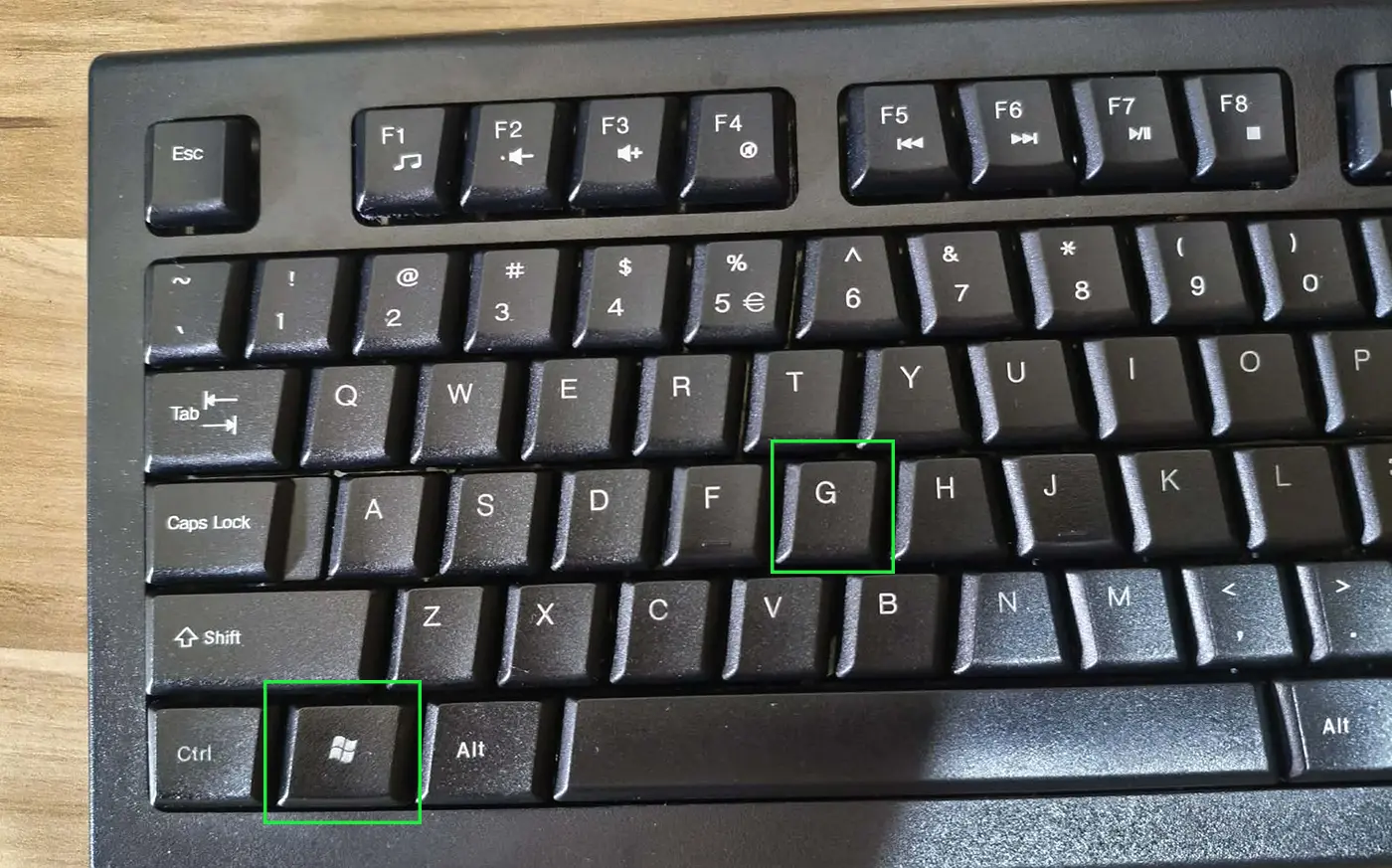
- The default shortcut to open it is Win + G
- Recording can be started with Win + Alt + R and screenshots with Win + Alt + PrtScn
- It works across most apps and games without any third-party software
- Clips and screenshots are saved automatically to the Videos/Captures folder
What Is Xbox Game Bar
Xbox Game Bar is a built-in overlay tool in Windows 11 that lets users capture gameplay, record the screen, take screenshots, and monitor system performance – all without leaving the app or game. It comes pre-installed and ready to use, which makes it one of the most convenient screen recording tools available on a Windows 11 PC.
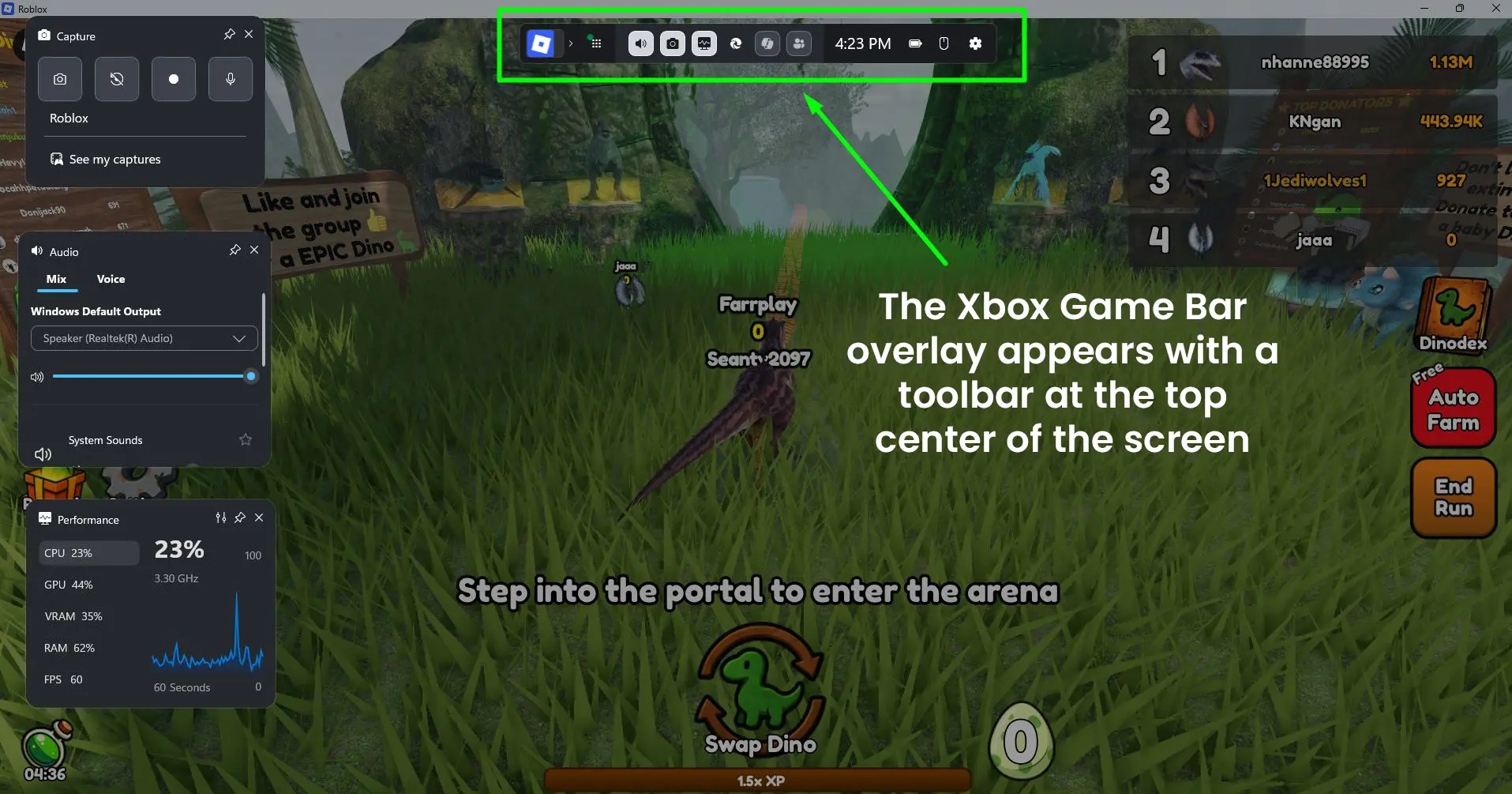
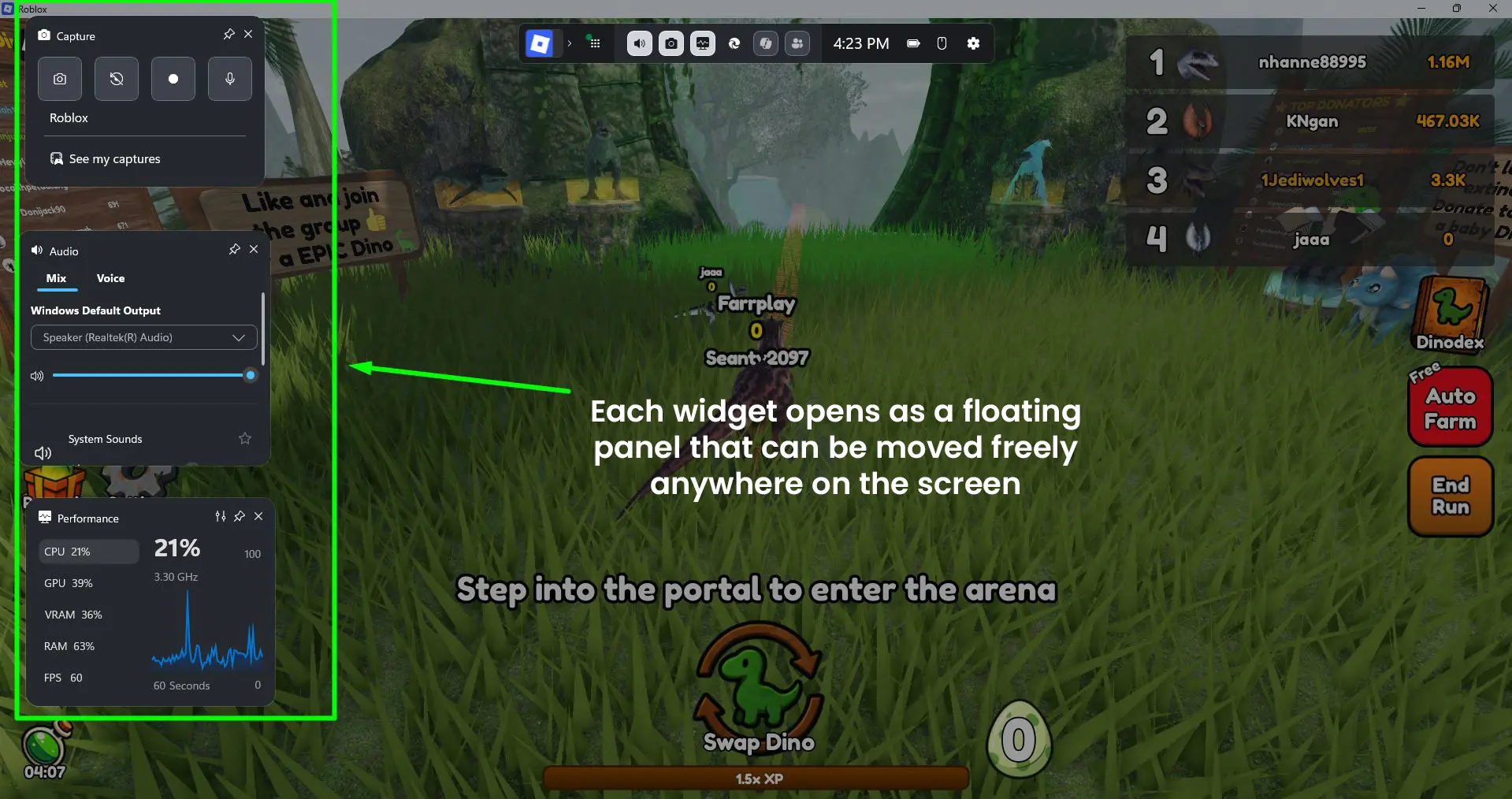
When opened, the overlay displays a top toolbar across the center of the screen with shortcut icons for each widget. Several floating widgets appear on screen at once. The main ones visible when Xbox Game Bar is active include:
- Capture widget – for taking screenshots, recording video, and toggling the microphone on or off
- Audio widget – showing Mix and Voice tabs, with a volume slider for Windows Default Output (such as Realtek audio) and a separate System Sounds control
- Performance widget – displaying live stats for CPU usage and clock speed, GPU usage percentage, VRAM, RAM, and FPS plotted over a 60-second graph
- Xbox Social widget – for viewing friends list, party chat, and social activity
Think of it as a lightweight control panel that floats over any window when called up. It is especially useful for gamers who want quick recordings without setting up separate software.
For more Windows 11 tips and guides, explore the full Windows guides section.
How to Open Xbox Game Bar on Windows 11
Opening Xbox Game Bar is straightforward. Just make sure the app or game is active on screen before using the shortcut.
- Step 1: Press Win + G on the keyboard while any app or game is open
- Step 2: The Xbox Game Bar overlay appears with a toolbar at the top center of the screen – it shows the active app name (for example, ‘Roblox’) along with widget icons and the current time on the right side
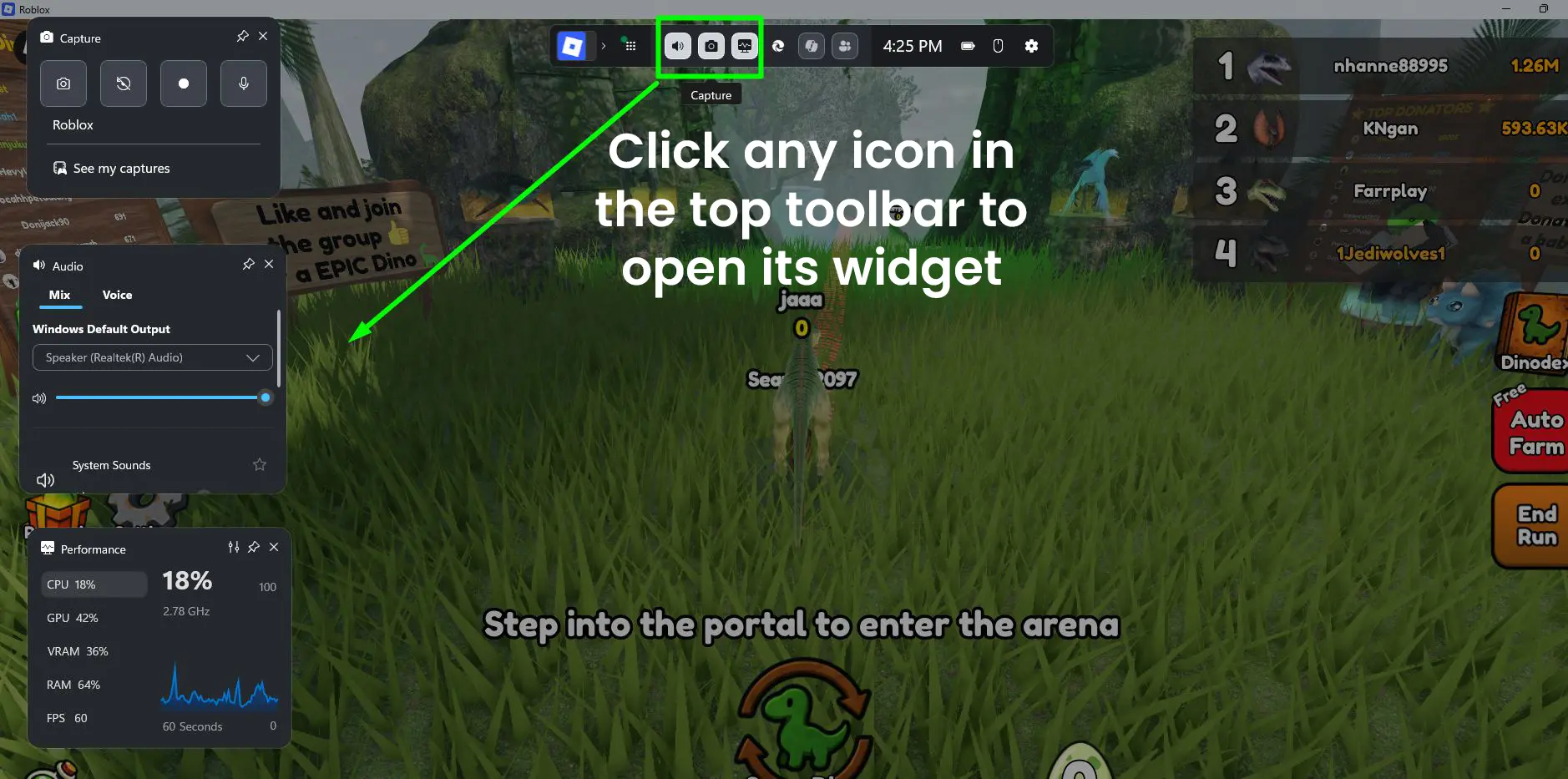
- Step 3: Click any icon in the top toolbar to open its widget – icons include Capture, Audio, Xbox Social, and others running across the bar left to right
- Step 4: Each widget opens as a floating panel that can be moved freely anywhere on the screen
If the overlay does not appear, the feature might be disabled. Here is how to enable it.
How to Enable Xbox Game Bar on Windows 11
- Step 1: Press Win + I to open Windows Settings
- Step 2: Click on ‘Gaming’ from the left sidebar
- Step 3: Select ‘Game Bar’ from the Gaming submenu
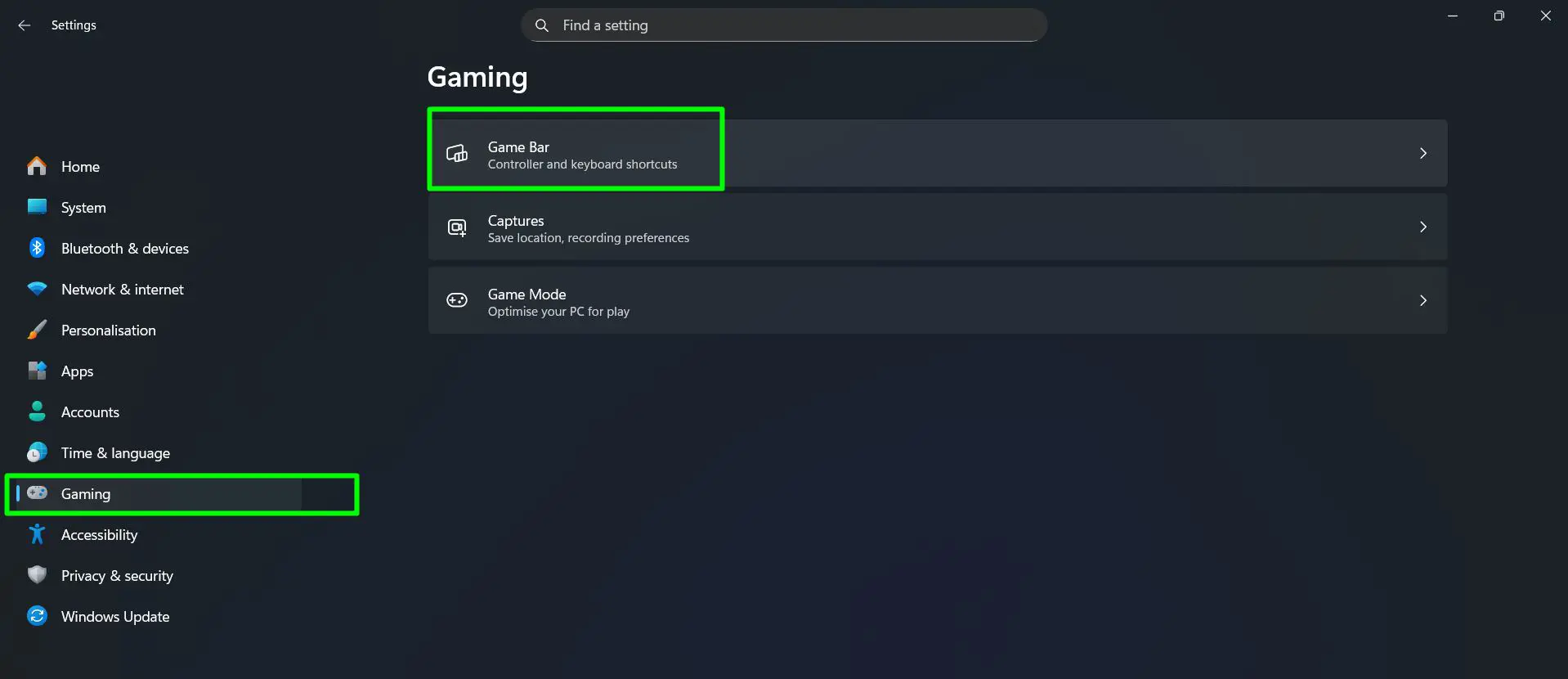
- Step 4: Toggle on ‘Allow your controller to open Game Bar’ to enable the overlay
- Step 5: Optionally, also toggle on ‘Use the Xbox button as Guide button in apps’ to trigger Game Bar overlays in supported apps
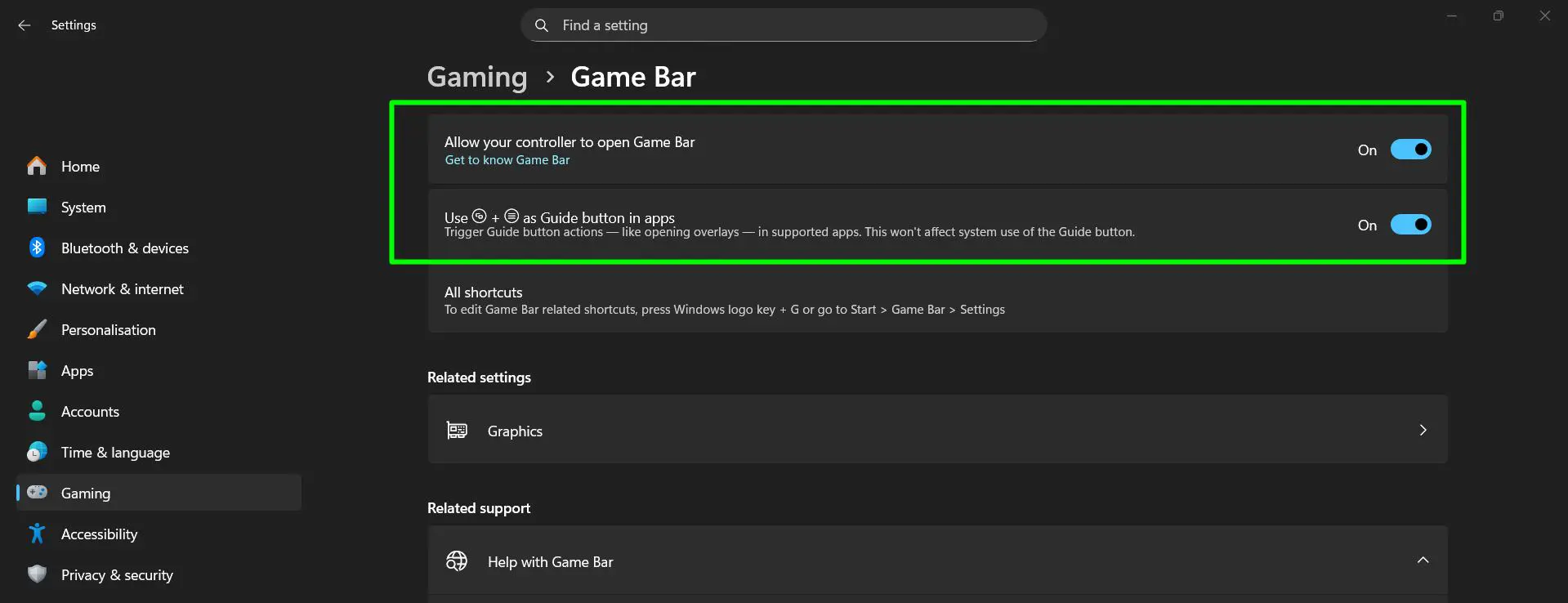
To edit Game Bar keyboard shortcuts, press Win + G or go to Start > Game Bar > Settings. The settings page also includes a ‘Related settings’ section with a Graphics shortcut, and a ‘Related support’ section with helpful links including ‘Record a game clip on your PC with Game Bar’, ‘Fix problems with Game Bar on Windows’, and ‘Keyboard shortcuts for Game Bar’.
Once enabled, the Win + G shortcut will work immediately without needing a restart.
How to Record Screen Using Xbox Game Bar
Screen recording is one of the most-used features of Xbox Game Bar. The process is simple once the overlay is open.
- Step 1: Open the app or game to record
- Step 2: Press Win + G to open Xbox Game Bar

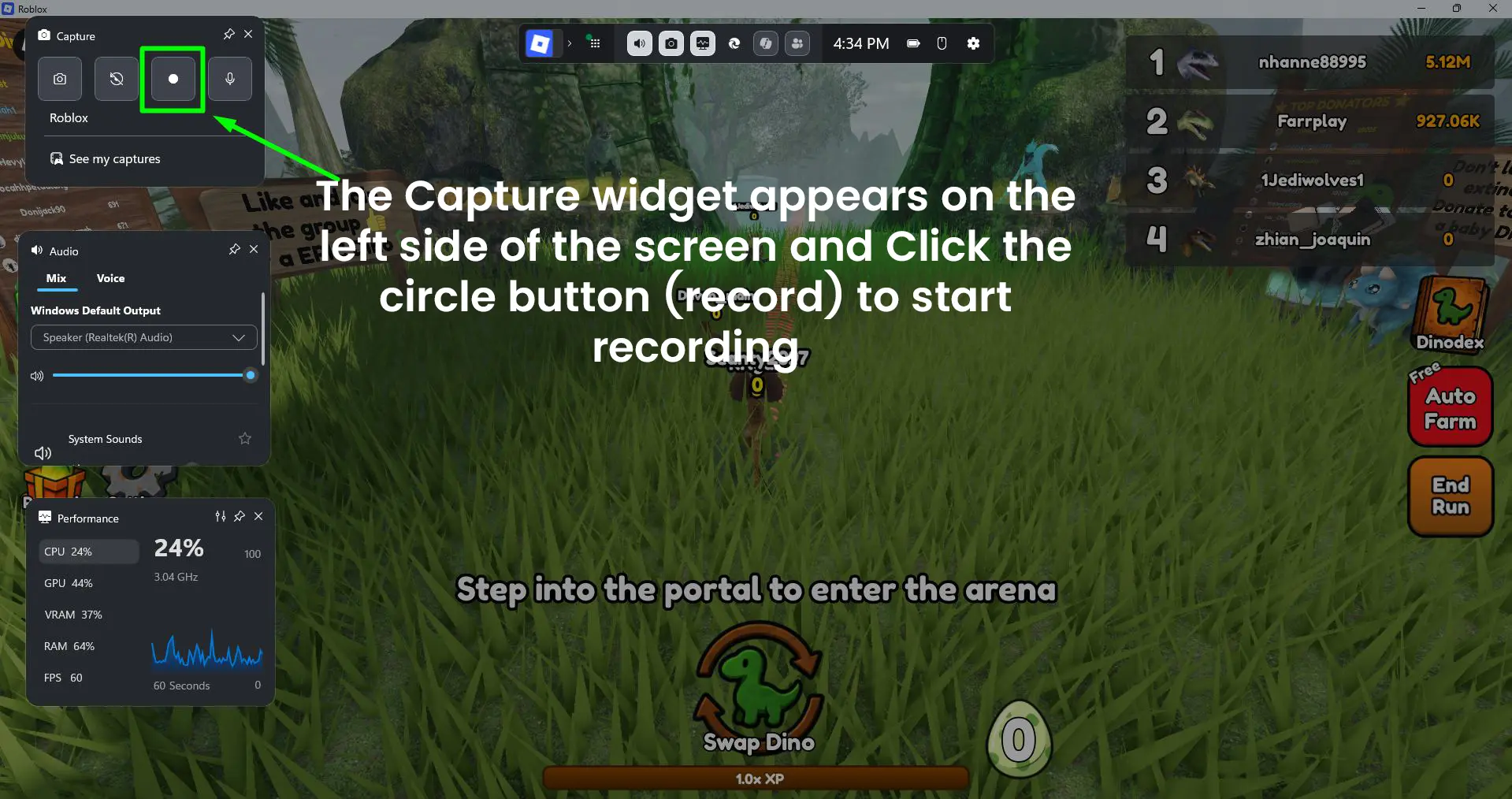
- Step 3: The Capture widget appears on the left side of the screen – it shows the active app name (such as ‘Roblox’) just below the widget title
- Step 4: Inside the Capture widget, there are four buttons in a row: screenshot (camera icon), record last clip (flag icon), start recording (circle button), and microphone toggle
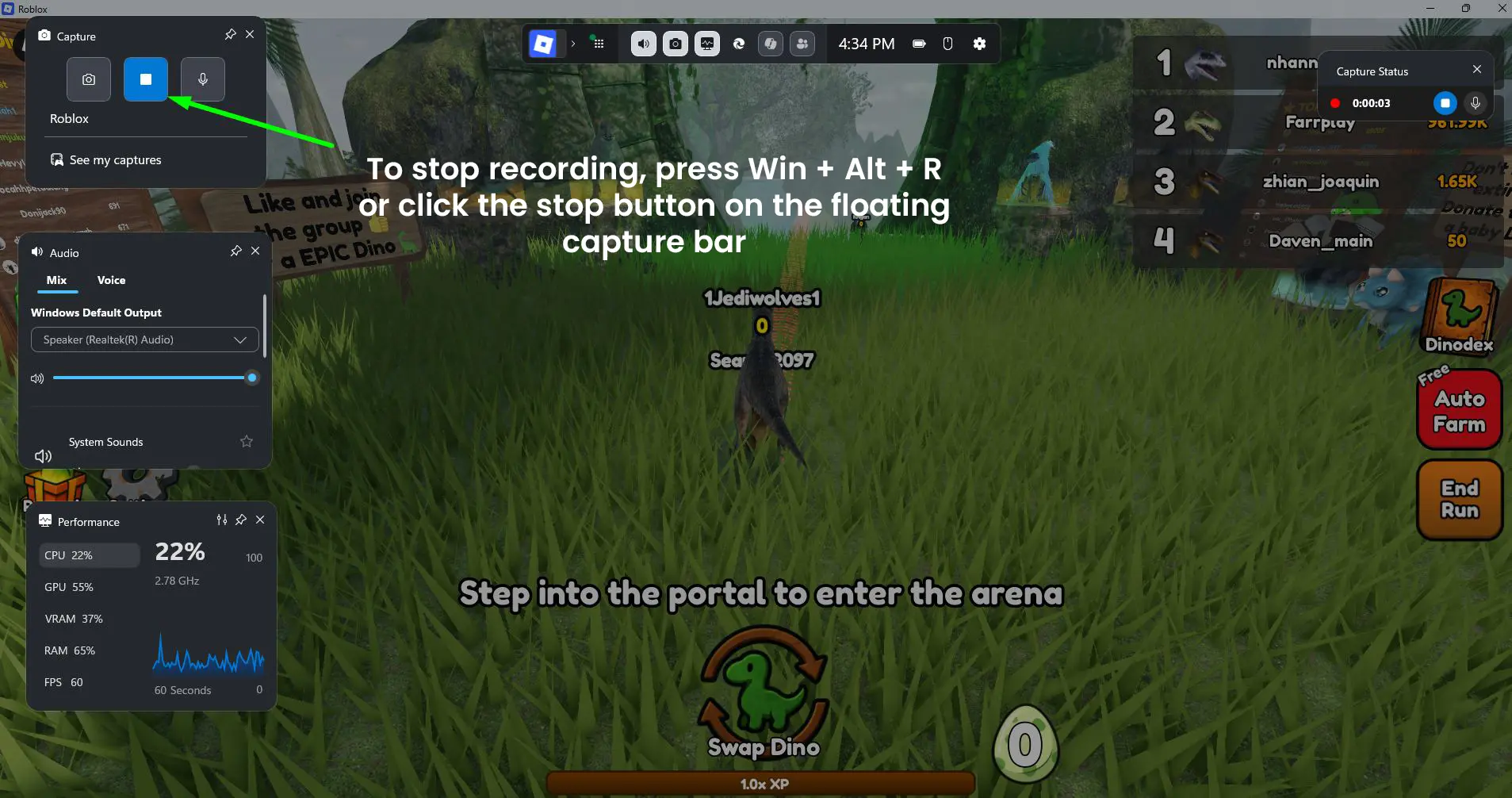
- Step 5: Click the circle button (record) to start recording. A small floating capture bar will remain on screen while recording is active
- Step 6: To stop recording, press Win + Alt + R or click the stop button on the floating capture bar
- Step 7: Click ‘See my captures’ link at the bottom of the Capture widget to view all saved clips and screenshots
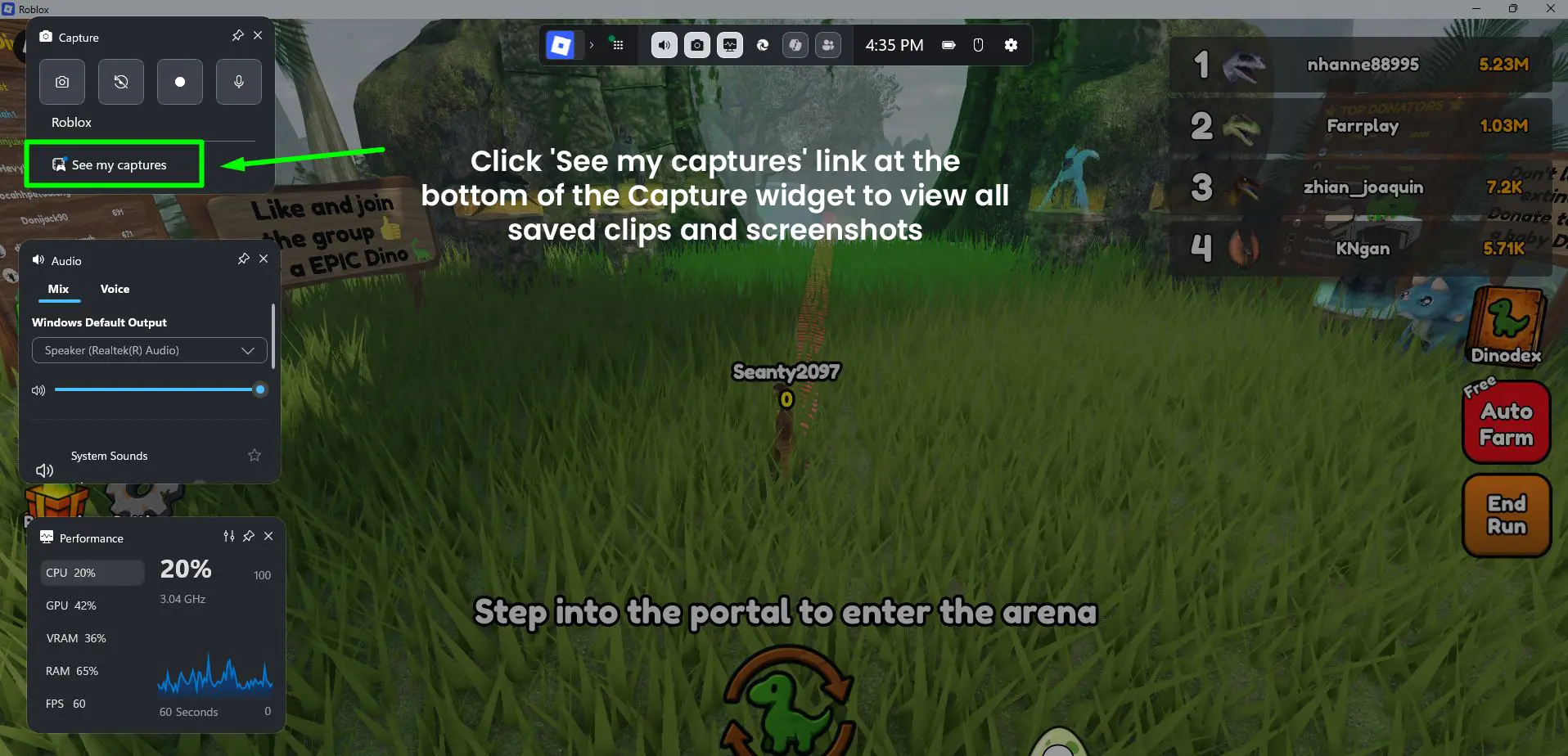
The recording is saved automatically to: Videos\Captures
Pro-Tip: Use the shortcut Win + Alt + R to start and stop recordings instantly without opening the full overlay. This is the fastest way to capture gameplay moments on the fly without any interruption.
How to Take a Screenshot Using Xbox Game Bar
- Step 1: Open the app or window to capture
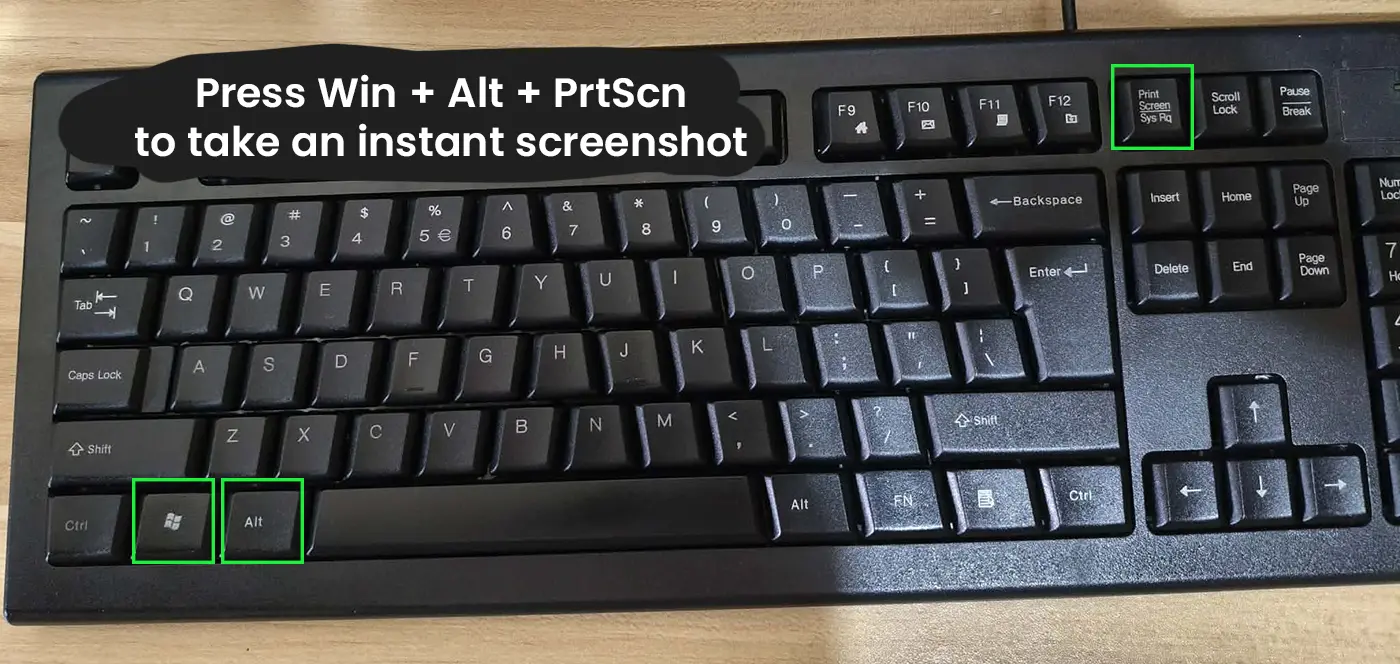
- Step 2: Press Win + Alt + PrtScn to take an instant screenshot
- Step 3: A notification will appear confirming the screenshot was saved
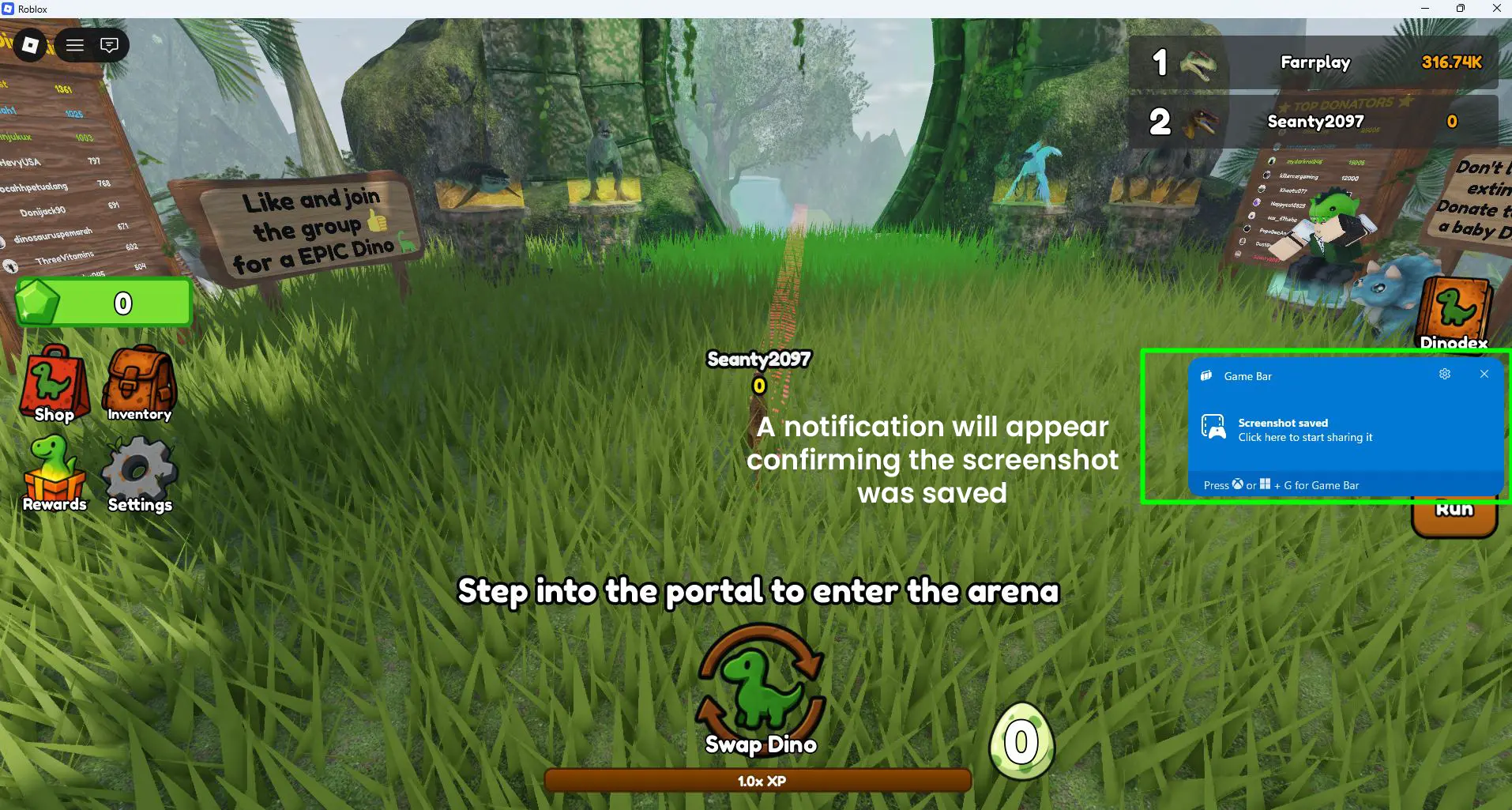
Screenshots are also saved to the Videos/Captures folder, keeping everything organized in one place.
How to Record the Last 30 Seconds (Background Recording)
This feature captures gameplay that already happened – useful when something great happens unexpectedly and there was no recording running.
- Step 1: Press Win + G to open Xbox Game Bar
- Step 2: Go to the Capture widget
- Step 3: Click the ‘Record last 30 seconds’ button (or use Win + Alt + G shortcut)
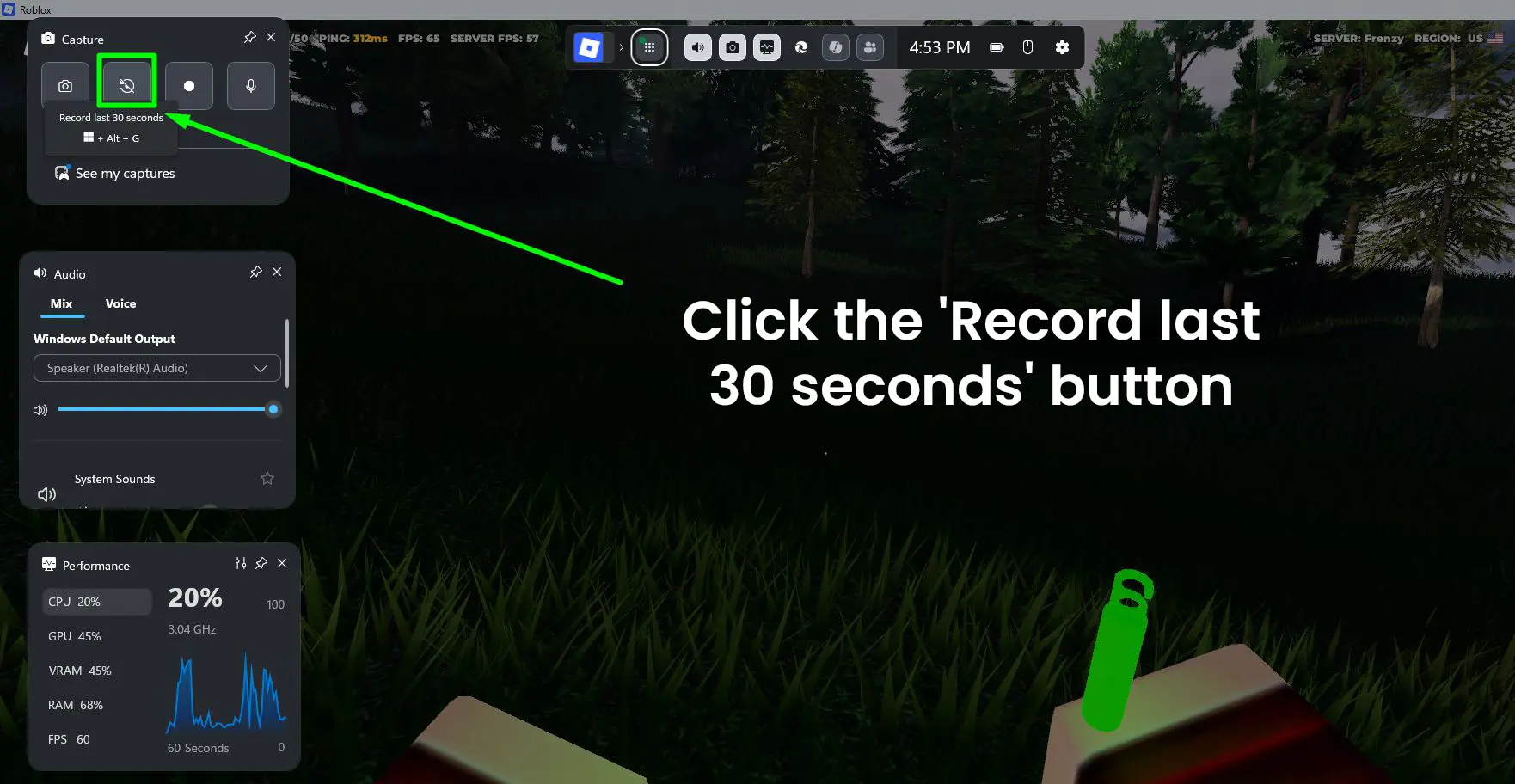
This only works if background recording is enabled. To turn it on, go to Settings > Gaming > Captures and toggle on ‘Record in the background while playing a game’.
Pro-Tip: Adjust the background recording duration in Settings > Gaming > Captures. Options range from 15 seconds up to 10 minutes, so the clip length can match what is most useful.
How to Use the Performance Widget
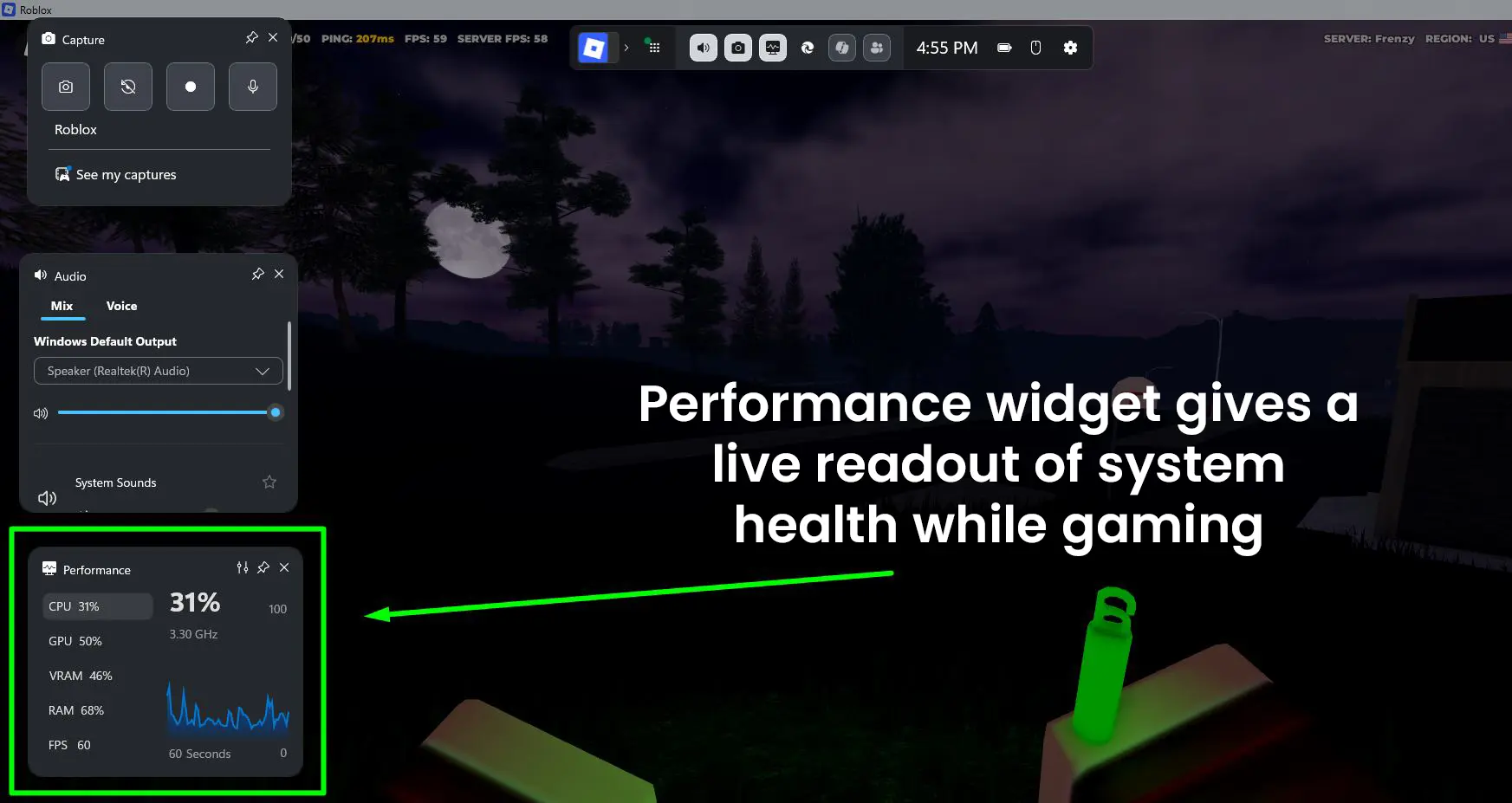
The Performance widget gives a live readout of system health while gaming. It sits as a floating panel and updates in real time. Here is what each stat means:
- CPU – shows current usage percentage and clock speed (for example, 19% at 3.30 GHz)
- GPU – shows the graphics card usage percentage (for example, 39%)
- VRAM – shows how much video memory the GPU is currently using (for example, 36%)
- RAM – shows overall system memory usage (for example, 64%)
- FPS – shows the current frames per second of the active game or app (for example, 60 FPS)
A 60-second scrolling graph at the bottom of the Performance widget visualizes these stats over time, making it easy to spot any sudden spikes during gameplay.
How to Customize Xbox Game Bar Widgets
The overlay is fully customizable. Widgets can be repositioned, pinned, or removed based on preference.
Watch this video guide on How to Customize Xbox Game Bar Widgets on Windows 11:
- Step 1: Open Xbox Game Bar with Win + G
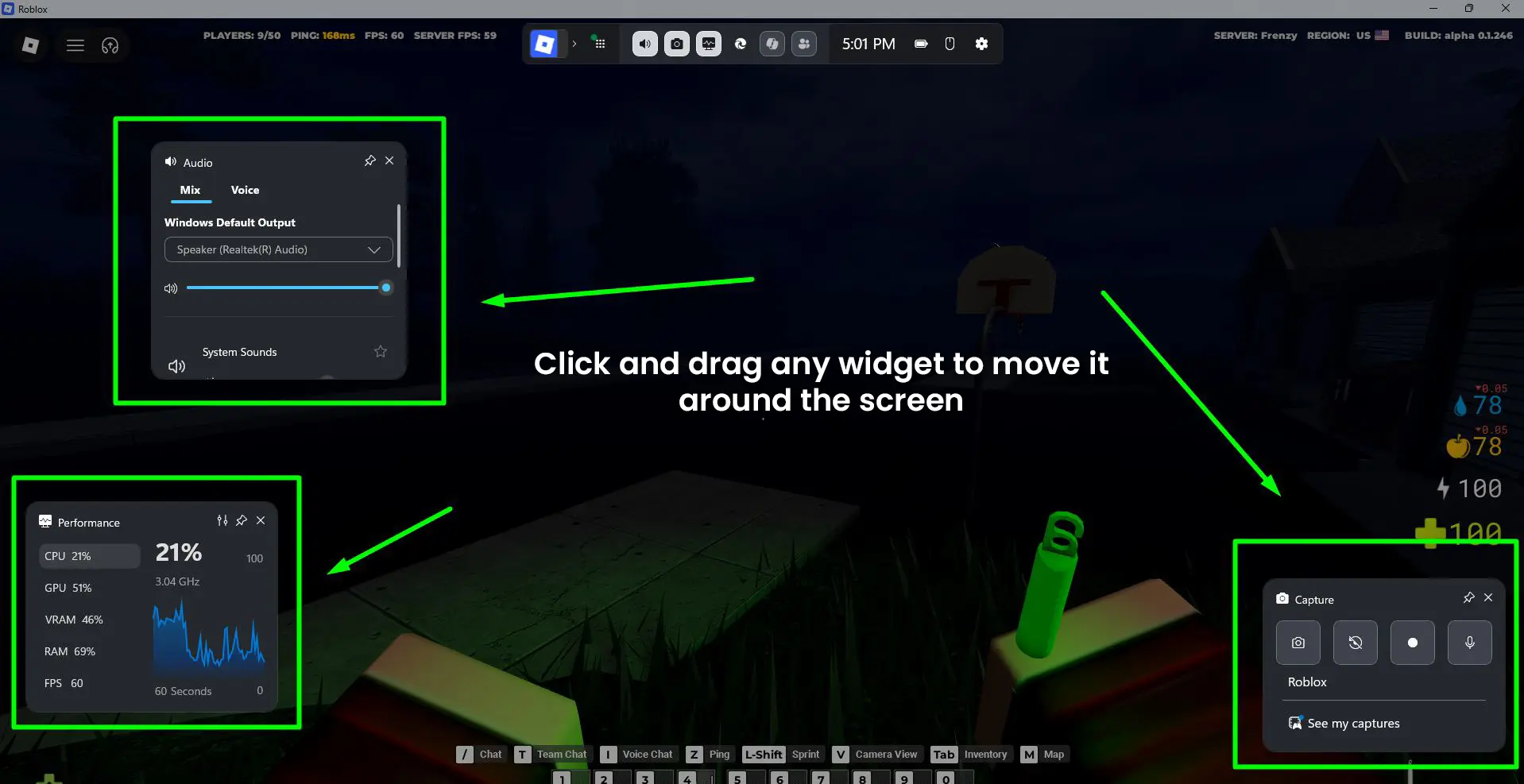
- Step 2: Click and drag any widget to move it around the screen
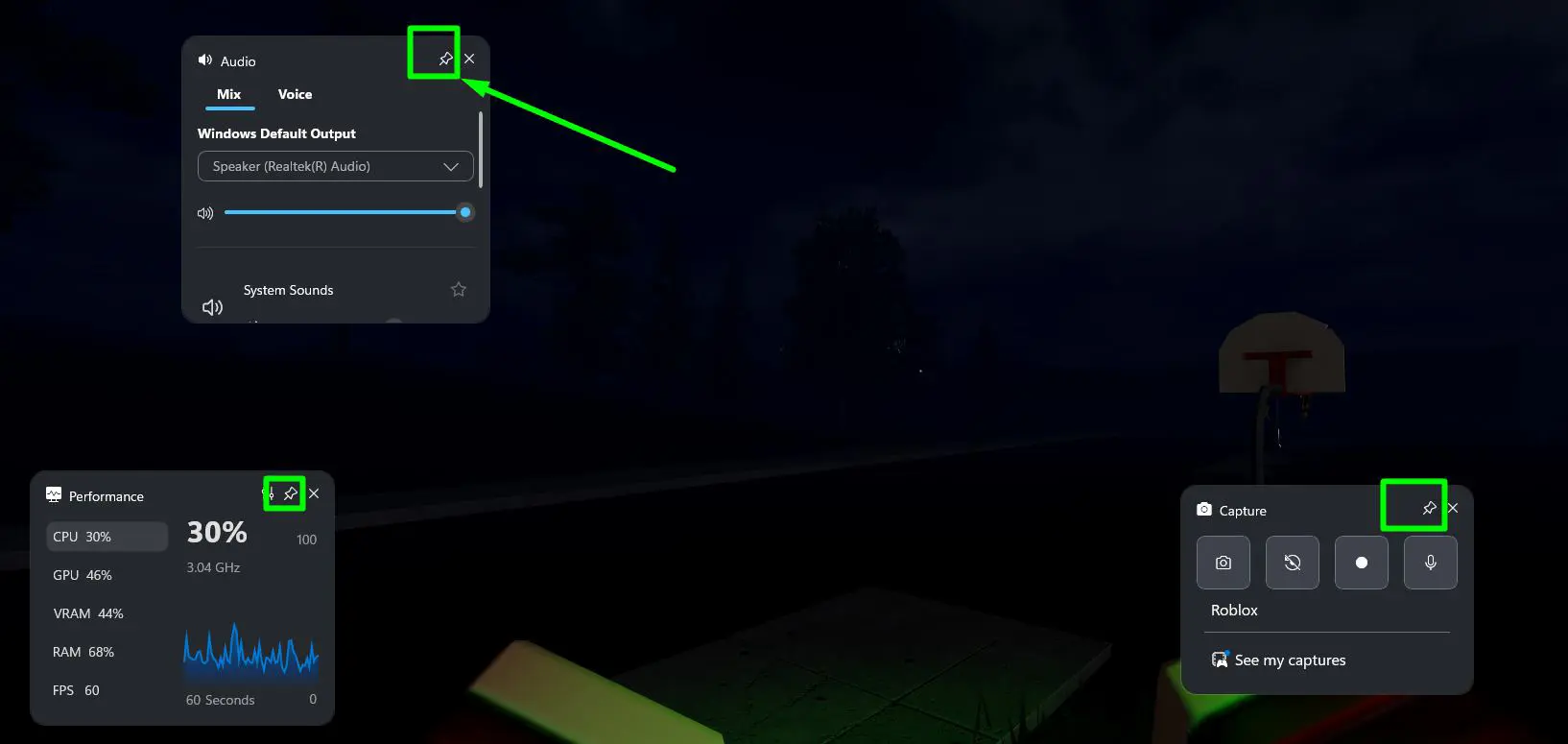
- Step 3: Click the pin icon on any widget to keep it visible even after closing the main overlay
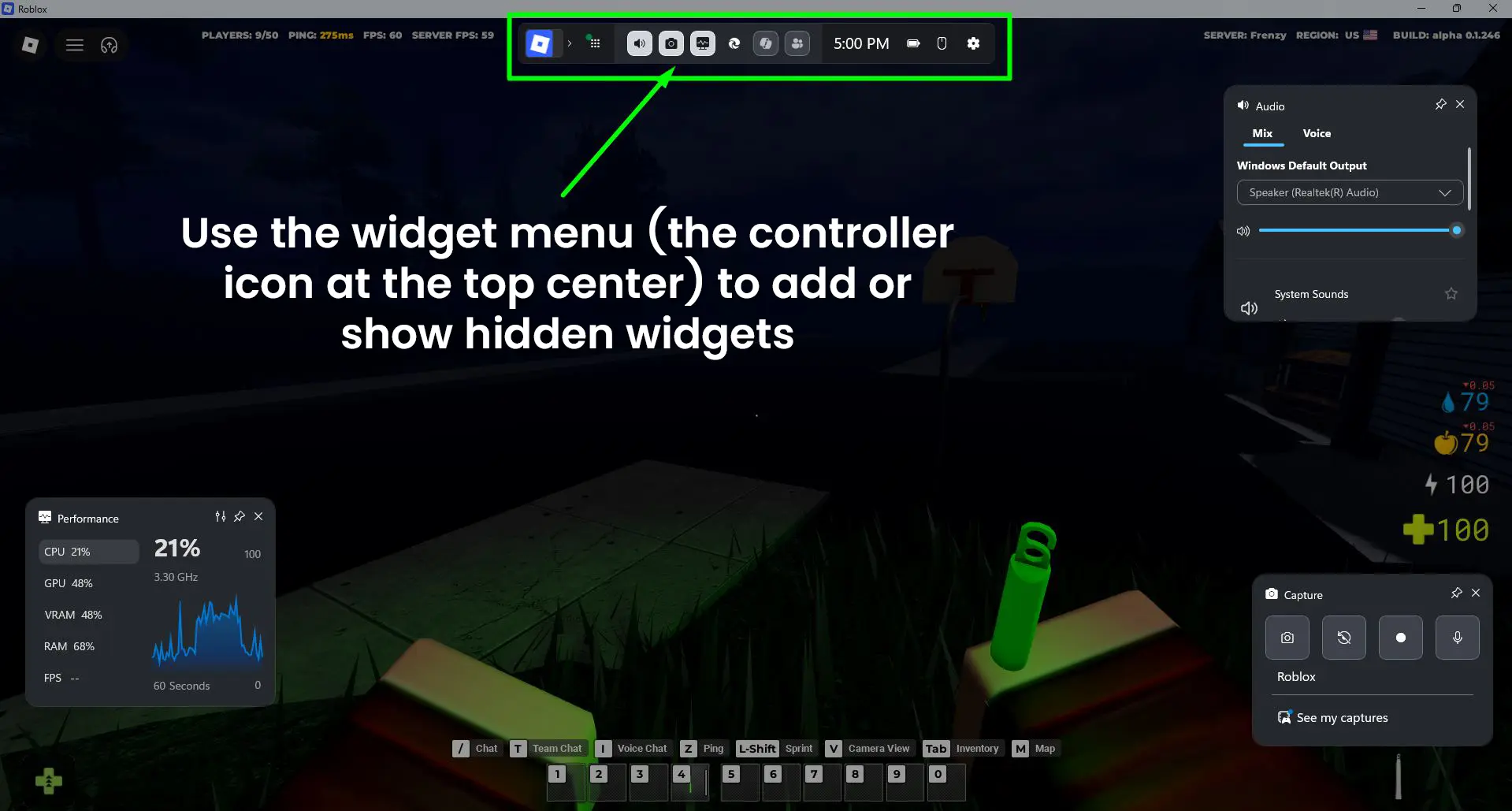
- Step 4: Use the widget menu (the controller icon at the top center) to add or show hidden widgets
Xbox Game Bar Keyboard Shortcuts
- Win + G – Open/close Xbox Game Bar
- Win + Alt + R – Start/stop recording
- Win + Alt + PrtScn – Take a screenshot
- Win + Alt + G – Record the last 30 seconds
- Win + Alt + M – Toggle microphone during recording
- Win + Alt + B – Toggle HDR on/off (if supported)
Where Are Xbox Game Bar Recordings Saved
All recordings and screenshots captured via Xbox Game Bar are saved by default to: \Videos\Captures
To change the save location, go to Settings > Gaming > Captures and update the ‘Captured files location’ setting to any preferred folder.
How to Adjust Recording Quality and Audio Settings
- Step 1: Press Win + I to open Settings, then go to Gaming > Captures
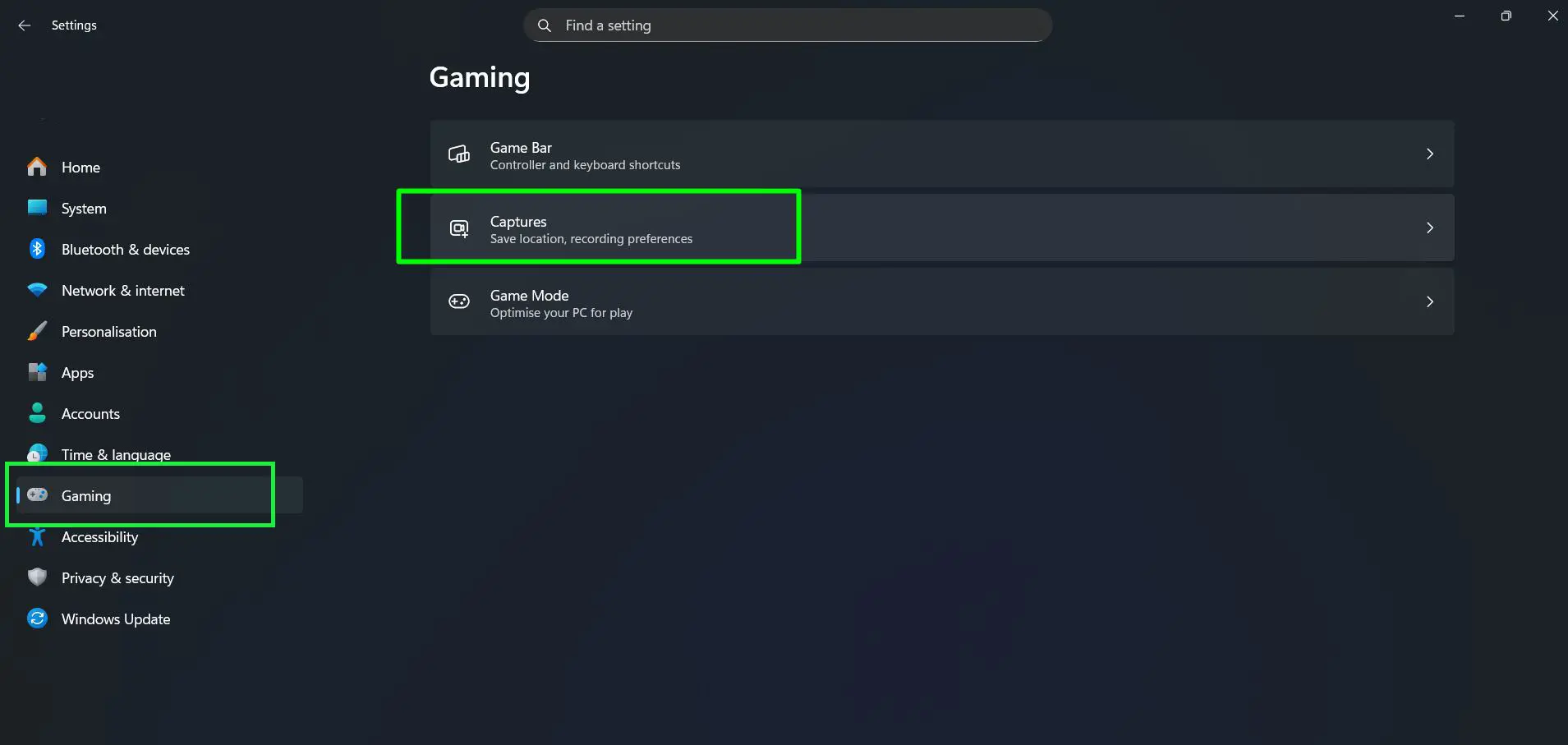
- Step 2: Under ‘Captures location’, the default save path is C:\Users\ADMIN\Videos\Captures – click ‘Open folder’ to access saved clips directly, or click ‘How to save to a different folder’ to change the location
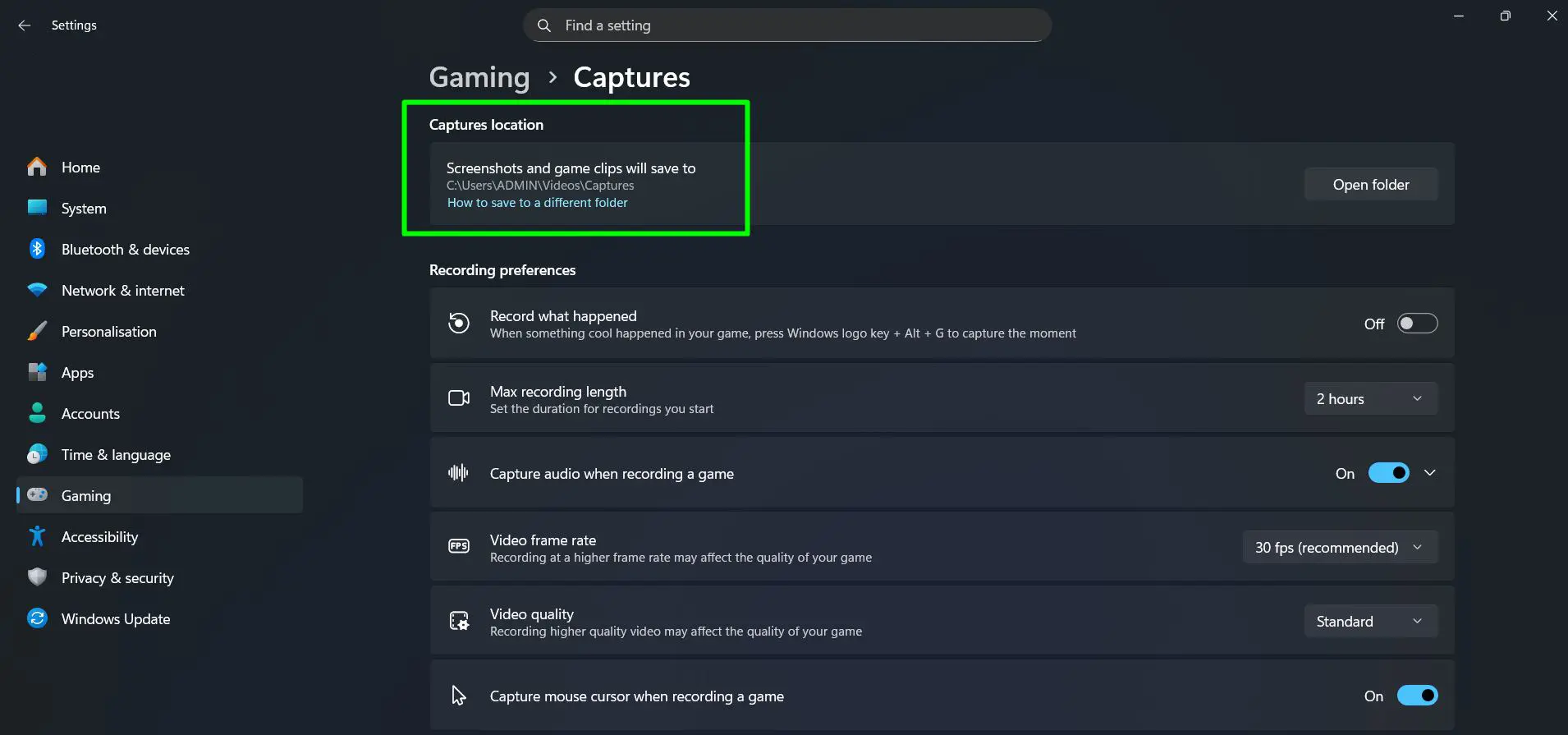
- Step 3: Under ‘Recording preferences’, toggle on ‘Record what happened’ to enable background recording – when something happens in a game, press Win + Alt + G to capture that moment
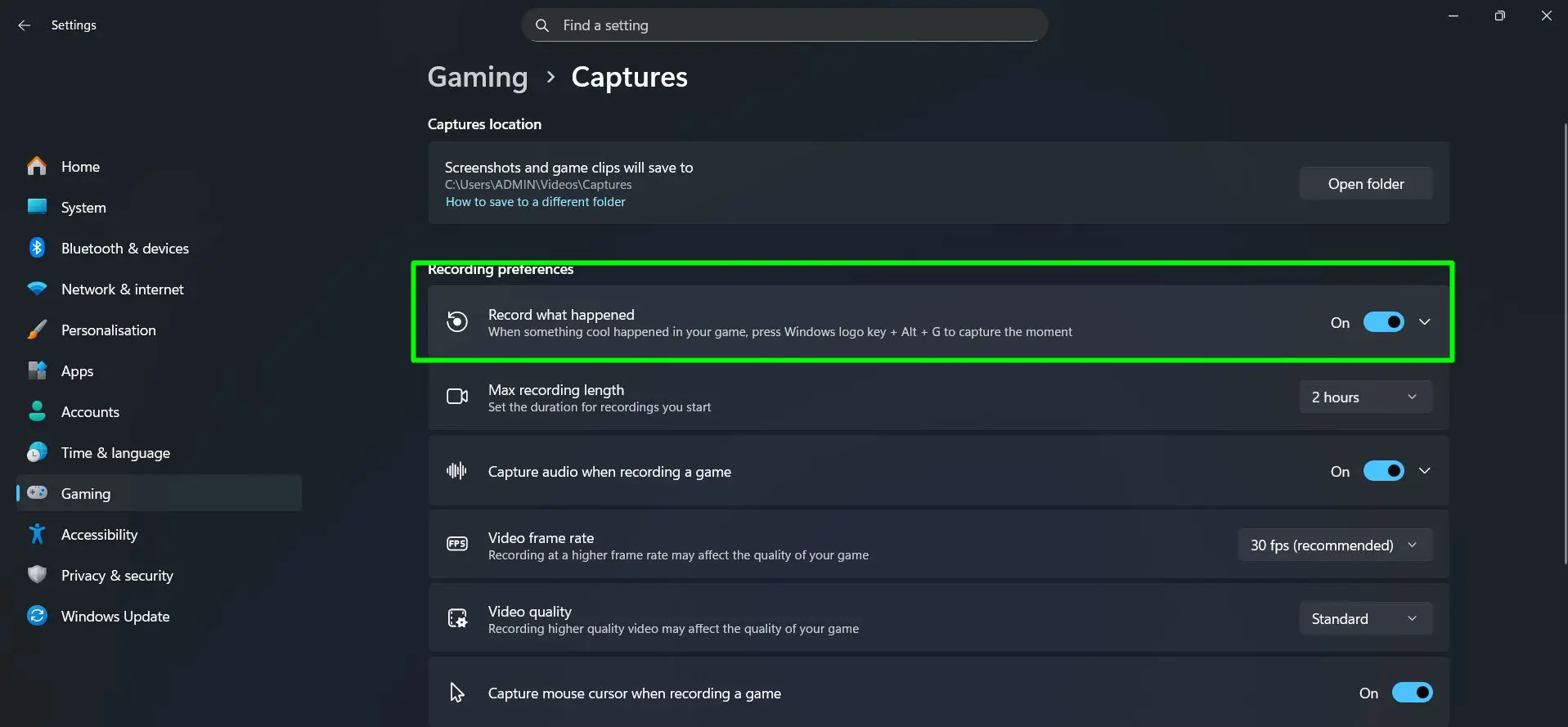
- Step 4: Set ‘Max recording length’ using the dropdown – the default is 2 hours, which sets the maximum duration for recordings started manually
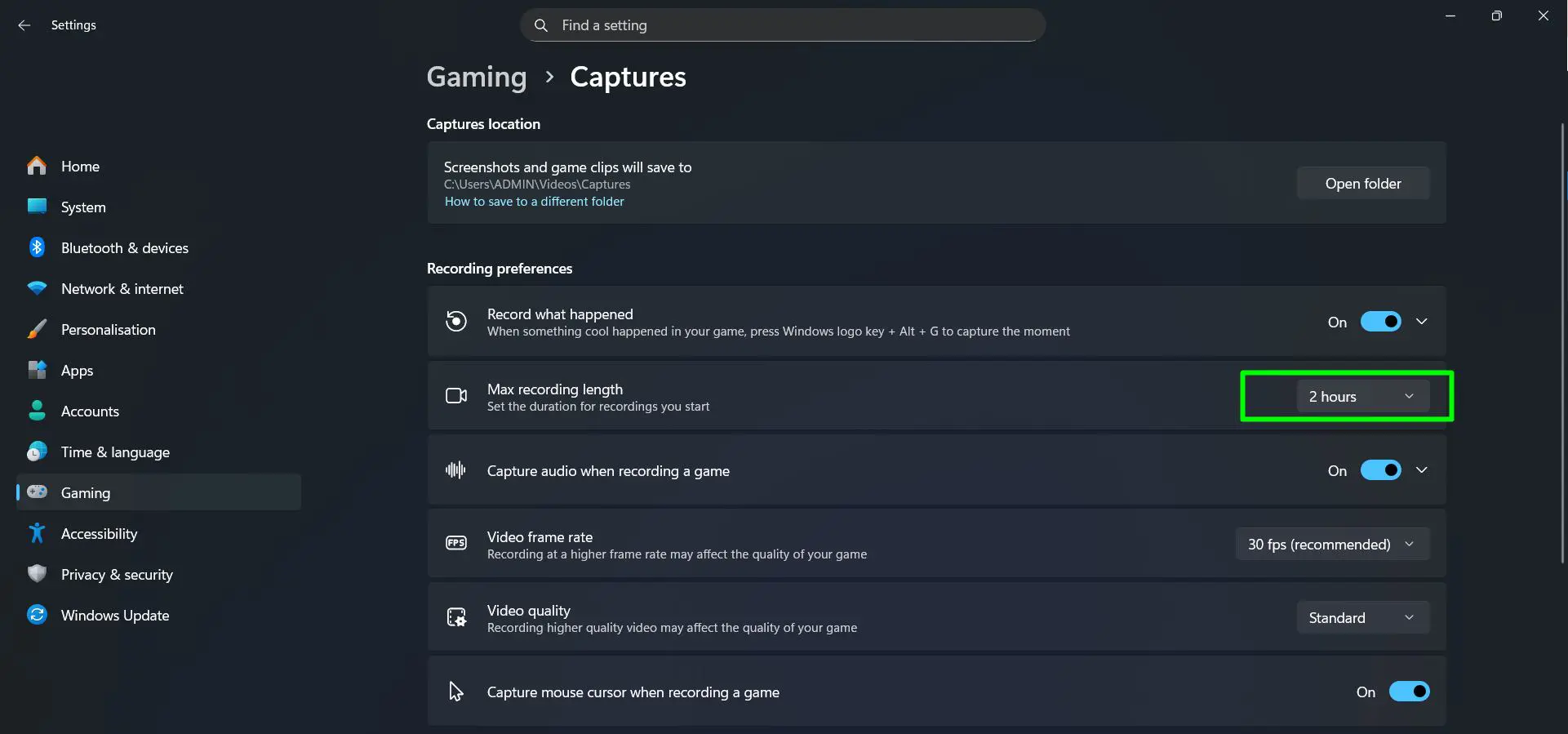
- Step 5: Make sure ‘Capture audio when recording a game’ is toggled on to include sound in all recordings
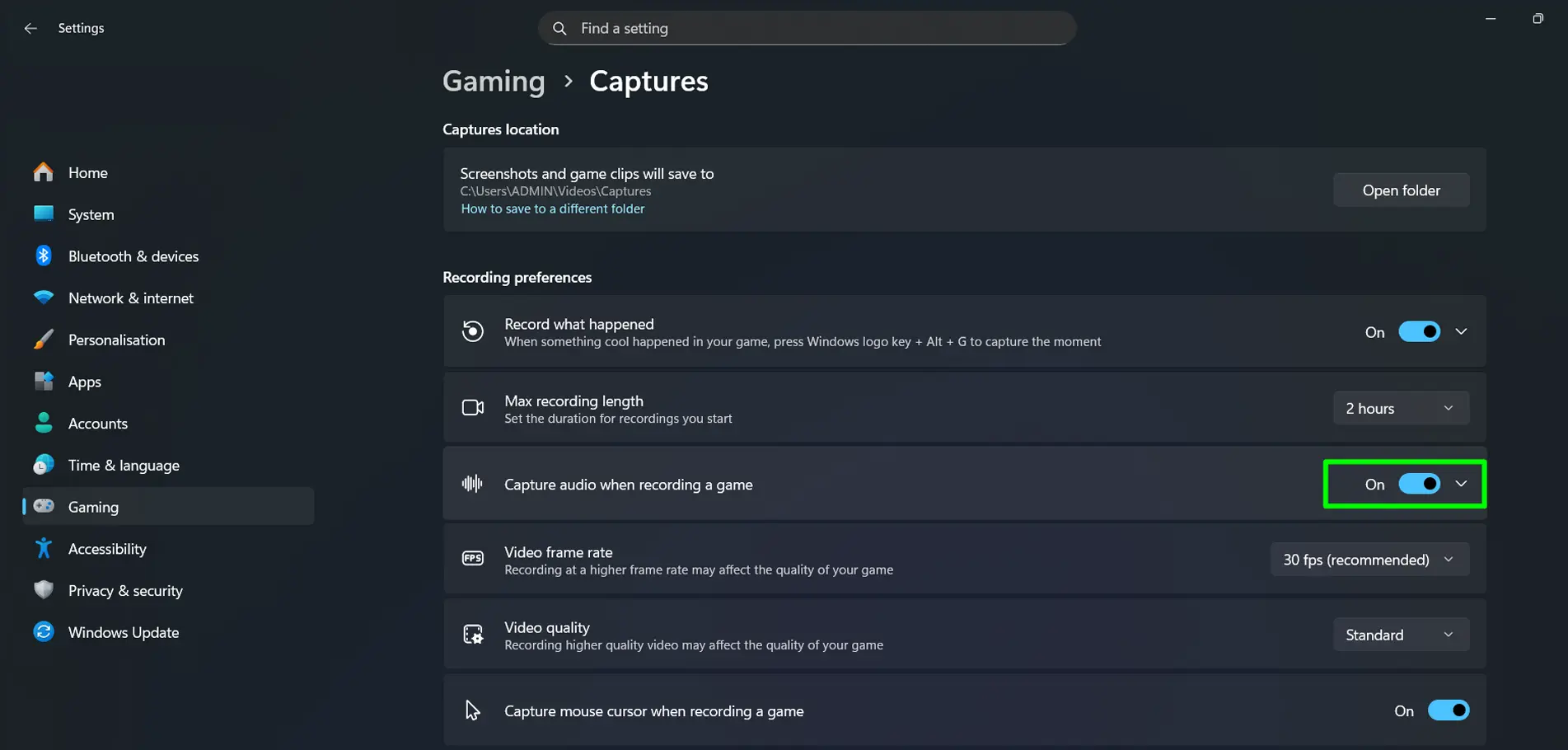
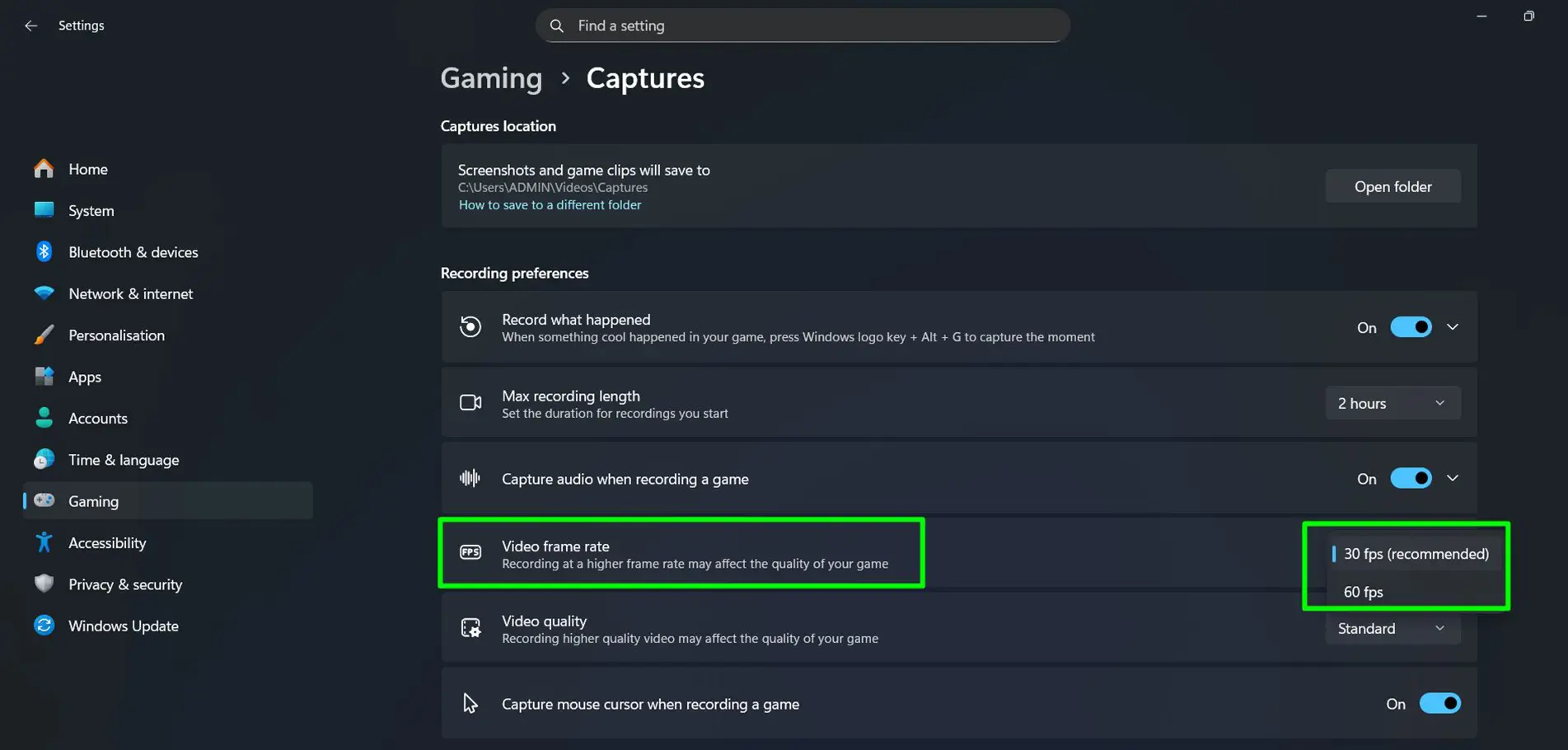
- Step 6: Set ‘Video frame rate’ to either 30 fps (recommended) or 60 fps – note that recording at a higher frame rate may affect game performance
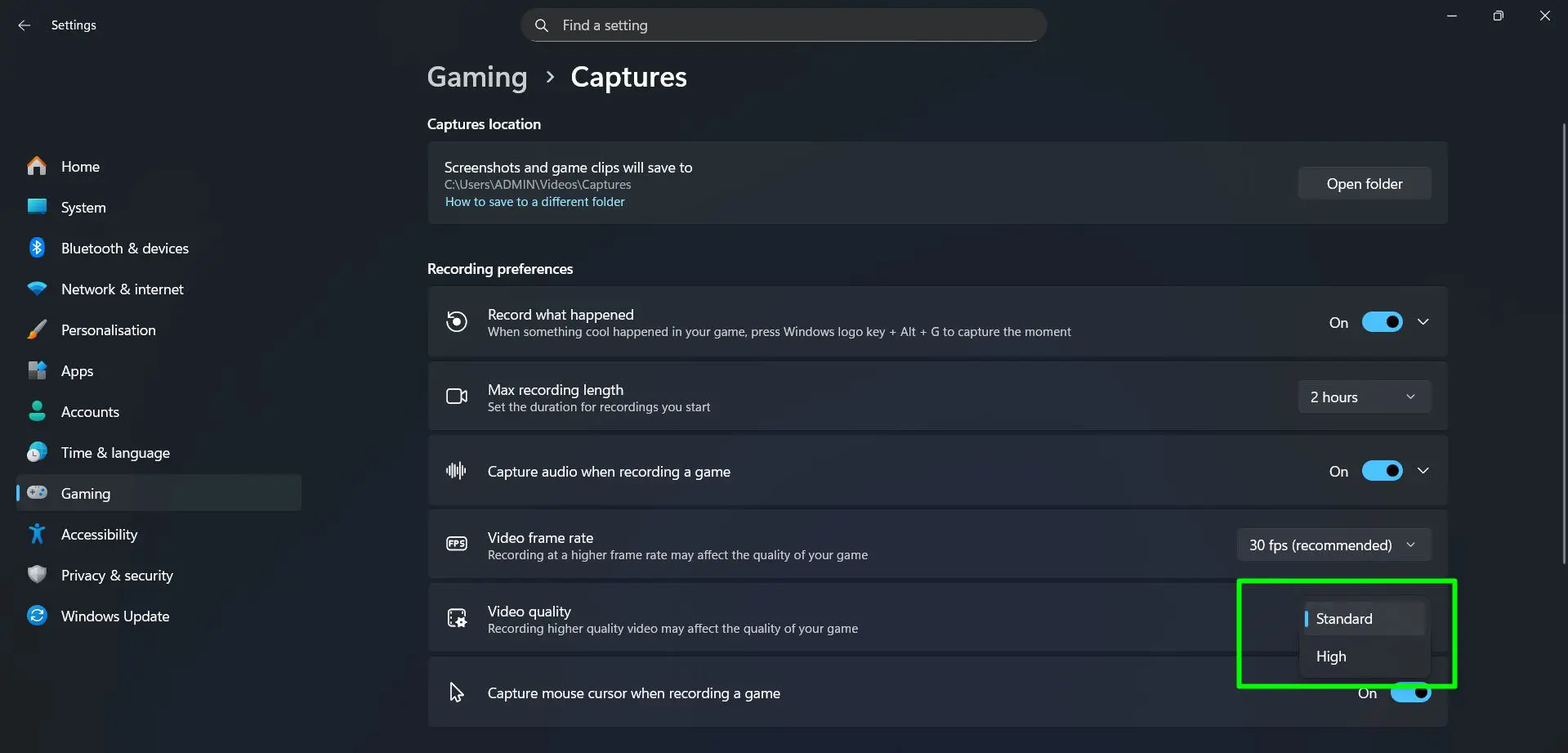
- Step 7: Set ‘Video quality’ to Standard or High – higher quality video may also affect game performance during recording
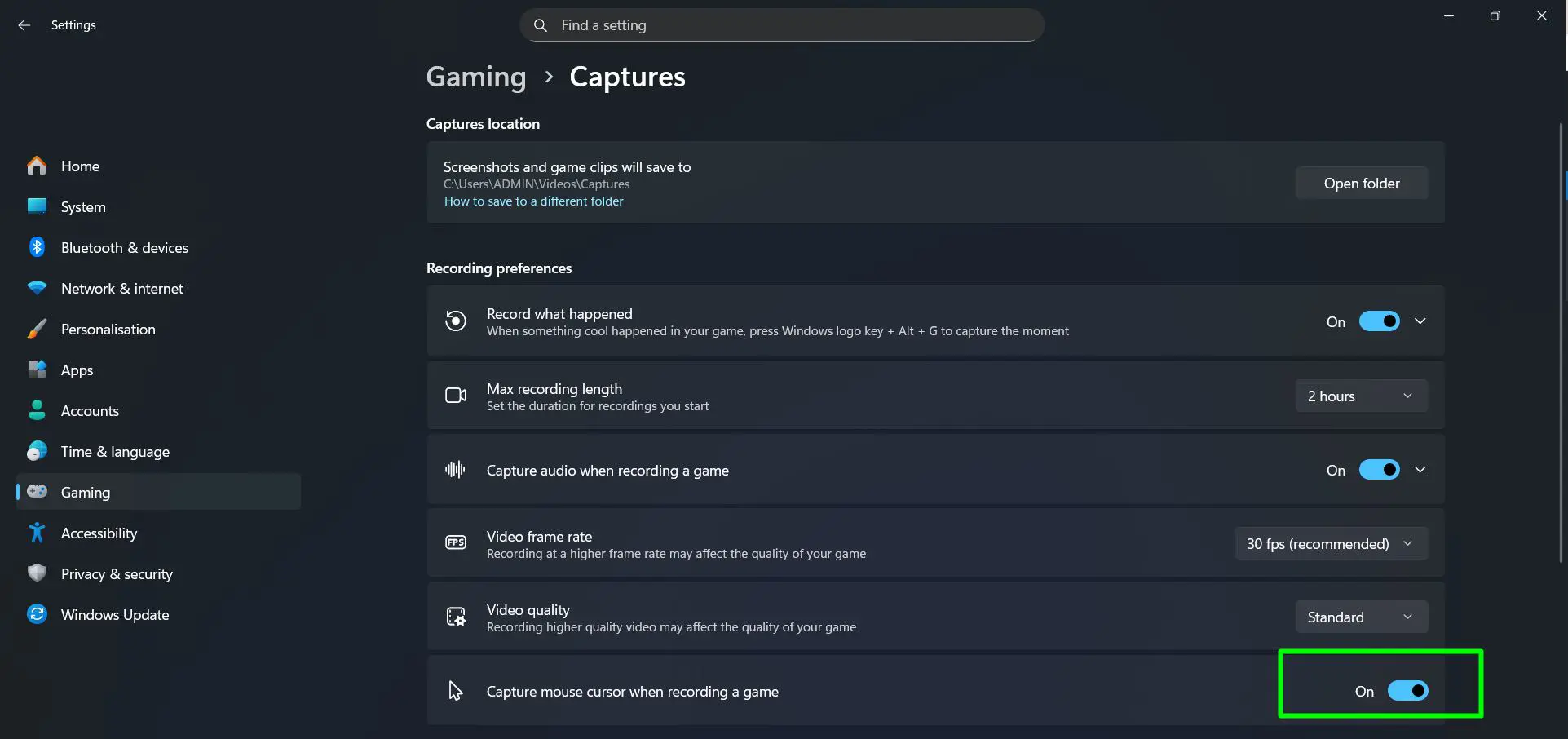
- Step 8: Toggle ‘Capture mouse cursor when recording a game’ on or off depending on whether the cursor should appear in recordings
For smooth gameplay while recording, keeping ‘Video frame rate’ at 30 fps (recommended) and ‘Video quality’ at Standard is the safest starting point. Bumping up to 60 fps and High quality works best on a more powerful PC.
To explore more about software tools and guides, there are detailed articles covering all major Windows applications.
Common Xbox Game Bar Problems and How to Fix Them
Running into an issue with Xbox Game Bar on Windows 11 is more common than most people expect. Here are the three most frequent problems and exactly how to resolve each one.
Xbox Game Bar Not Opening
If pressing Win + G does nothing, the feature is likely disabled or a conflicting setting is blocking it.
- Step 1: Go to Settings > Gaming > Game Bar
- Step 2: Make sure the ‘Allow your controller to open Game Bar’ toggle is turned on
- Step 3: If it is already on, check Settings > Gaming > Game Mode and ensure Game Mode is enabled – some systems require this for the overlay to function
- Step 4: Restart the PC and try Win + G again
Also note that Xbox Game Bar does not work in some full-screen exclusive games. Switching the game to borderless windowed mode usually resolves this.
Recording Not Working
The record button is greyed out or clicking it does nothing – this is almost always tied to the capture settings or app restrictions.
- Step 1: Go to Settings > Gaming > Captures
- Step 2: Make sure ‘Record in the background while playing a game’ is toggled on
- Step 3: Check that the focused app is not the Windows desktop itself – Xbox Game Bar cannot record the desktop directly, only apps and games
- Step 4: Update the graphics driver via Device Manager or the GPU manufacturer’s software, as outdated drivers are a common cause of recording failures
No Audio in Recordings
Recordings save fine but there is no sound in the clip – this comes down to the audio capture settings inside Xbox Game Bar.
- Step 1: Open Xbox Game Bar with Win + G
- Step 2: The Audio widget shows two tabs at the top: ‘Mix’ and ‘Voice’ – make sure the Mix tab is selected
- Step 3: Under ‘Windows Default Output’, confirm the correct audio device is shown (for example, ‘Speaker (Realtek(R) Audio)’) and the volume slider is not at zero
- Step 4: Check that ‘System Sounds’ is also not muted – it appears just below the main output in the Mix tab
- Step 5: Go to Settings > Gaming > Captures and under ‘Audio to record’, select ‘Game and all other sounds’ to ensure all audio sources are captured
- Step 6: Re-test by recording a short clip and checking playback
Want to learn how to turn on Spatial Sound in Windows? Check this guide on how to do it!
Frequently Asked Questions
How do I open Xbox Game Bar on Windows 11?
Press Win + G on the keyboard while any app or game is open. The overlay will appear at the top of the screen with widgets for recording, screenshots, and performance monitoring.
Why is Xbox Game Bar not opening with Win + G?
It may be disabled. Go to Settings > Gaming > Game Bar and make sure the ‘Allow your controller to open Game Bar’ toggle is switched on. Also confirm the current app supports the overlay – some full-screen exclusive apps can block it.
Where are Xbox Game Bar clips saved on Windows 11?
All clips and screenshots are saved to C:\Users\[Username]\Videos\Captures by default. This location can be changed in Settings > Gaming > Captures.
Can Xbox Game Bar record the whole screen on Windows 11?
Xbox Game Bar records the currently focused app or game window. It does not record the entire desktop in the same way a full desktop screen recorder would, but it works well for individual apps and games.
How do I record only the last few seconds with Xbox Game Bar?
Press Win + Alt + G to capture the last 30 seconds (or the duration set in Settings > Gaming > Captures). Background recording must be enabled for this feature to work.
Does Xbox Game Bar affect gaming performance on Windows 11?
When idle, the impact is minimal. Active recording does use GPU and CPU resources, so on lower-spec machines there may be a slight performance dip during recording. Using ‘Standard’ quality recording reduces this impact.