
Converting media files between formats is a common task for anyone working with video, audio, or images on Windows 11. Whether it’s changing a video for compatibility with a specific device or converting audio for a project, having reliable media converter software makes the process quick and hassle-free. This guide covers the three best media converters for Windows 11, focusing on tools that deliver quality results without unnecessary complexity.
Quick Summary Table
| Media Converter | Best For | Key Features | Supported Formats |
|---|---|---|---|
| HandBrake | Video conversion | Open-source, batch processing, presets for devices | MP4, MKV, AVI, WebM, and more |
| VLC Media Player | Quick conversions | Free, lightweight, built-in player | Nearly all video and audio formats |
| Format Factory | All-in-one conversion | Video, audio, images, batch conversion | 300+ formats including documents |
Why Media Converters Matter on Windows 11
Not all devices and software support the same file formats. A video that plays perfectly on one device might not work on another. Media converters solve this by transforming files into compatible formats without requiring technical expertise. The right converter saves time, maintains quality, and supports a wide range of file types.
Most people find that free tools work just as well as paid alternatives for everyday conversion tasks. The key is to choose software that balances ease of use with powerful features.
HandBrake – Best for Video Conversion
HandBrake is an open-source video transcoder that has been trusted for years. It excels at converting video files into formats like MP4 and MKV, making it ideal for anyone who frequently works with video content.
Key Features
- Supports batch conversion, allowing multiple files to be processed at once
- Offers presets optimized for devices like iPhones, Android phones, and gaming consoles
- Provides advanced settings for users who want control over bitrate, resolution, and codecs
- Completely free with no ads or hidden costs
How to Use HandBrake
Download and install HandBrake from the official website. Launch the program and click ‘Open Source’ to select the video file for conversion. Choose a preset from the right panel based on the target device or format. If more control is needed, adjust settings like video codec, quality, and resolution in the ‘Video’ tab. Click ‘Start Encode’ to begin the conversion process. The output file will be saved to the designated folder once complete.
Pro-Tip: When converting videos for mobile devices, use the device-specific presets in HandBrake. This ensures optimal quality and file size without manual adjustments.
Why HandBrake Stands Out
HandBrake handles large video files efficiently and supports a wide range of input formats. The preset system removes guesswork, making it accessible for beginners while still offering depth for advanced users. This works best when converting videos for specific devices or platforms.
VLC Media Player – Best for Quick Conversions
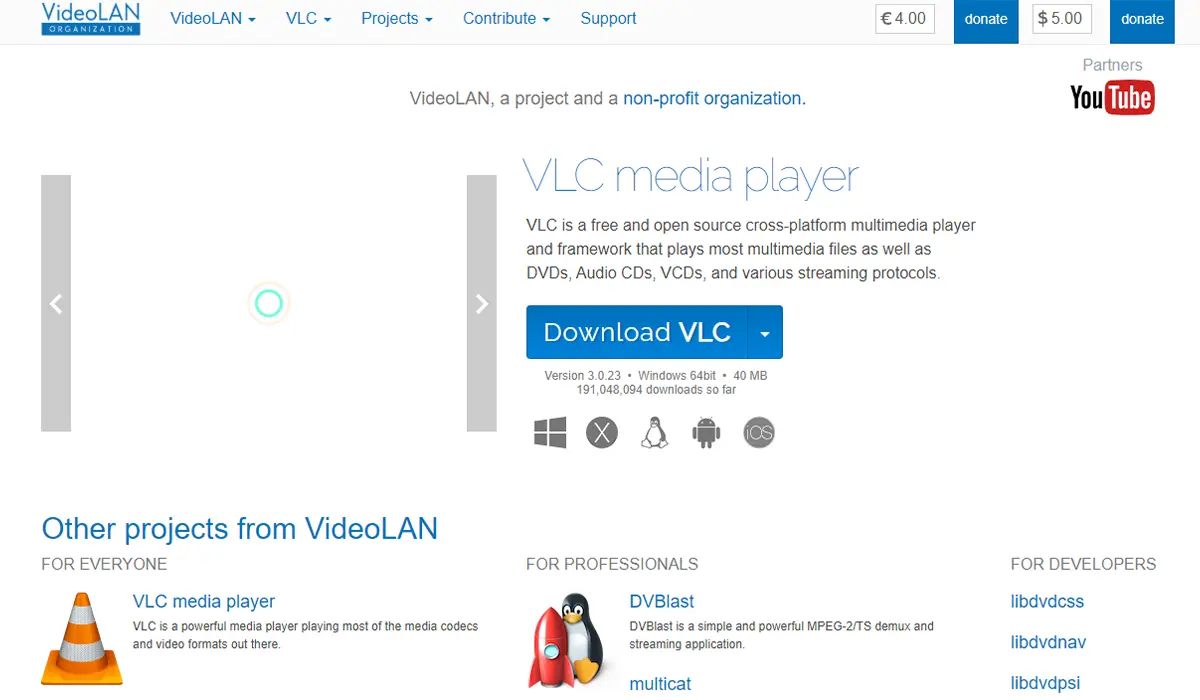
VLC is known primarily as a media player, but it also includes a powerful conversion tool. This makes it a convenient option for users who want to convert files without installing separate software.
Key Features
- Converts both video and audio files
- No additional software installation required
- Supports nearly all media formats, including obscure ones
- Lightweight and fast
How to Use VLC for Conversion
Open VLC Media Player and click ‘Media’ in the top menu. Select ‘Convert / Save’ from the dropdown. Click ‘Add’ to choose the file to convert, then click ‘Convert / Save’ at the bottom. Choose the desired output format from the ‘Profile’ dropdown. Select a destination folder and filename, then click ‘Start’ to begin the conversion.
Why VLC is a Solid Choice
VLC is already installed on many Windows 11 systems, making it a zero-friction option for quick conversions. The interface is straightforward, and the conversion process is fast. While it lacks some advanced features found in dedicated converters, it handles most common tasks without issue. Similar to how users manage settings like adjusting display brightness, VLC offers a simple solution without requiring deep technical knowledge.
Format Factory – Best All-in-One Converter
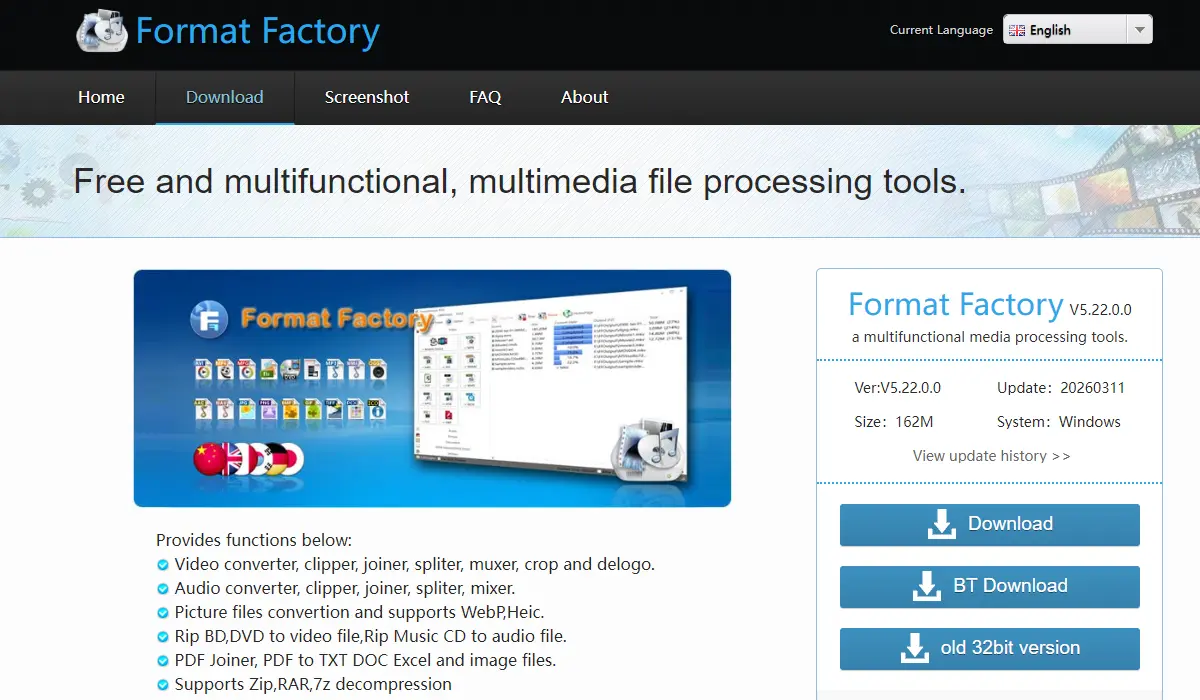
Format Factory is a versatile tool that goes beyond video and audio conversion. It also handles images, documents, and even DVD ripping, making it a comprehensive solution for various media needs.
Key Features
- Supports over 300 file formats
- Includes tools for video editing, such as trimming and merging
- Batch conversion for processing multiple files simultaneously
- Free to use with optional ad-supported features
How to Use Format Factory
Download and install Format Factory from the official website. Open the program and select the type of conversion needed (Video, Audio, Picture, etc.) from the left panel. Choose the specific format from the options provided. Click ‘Add File’ to select the source file. Configure output settings if needed, then click ‘OK’. Click ‘Start’ in the main window to begin the conversion process.
Pro-Tip: Format Factory allows combining multiple conversion tasks into a queue. This is particularly useful when working with different file types, as the software processes everything in one session.
Why Format Factory is Worth Considering
Format Factory’s strength lies in its versatility. It handles not just video and audio, but also images and documents, making it a one-stop solution for media conversion. The interface takes a bit of getting used to, but the range of supported formats and built-in editing tools make it a strong contender for users with diverse needs. Just as Windows 11 users benefit from tools like File Explorer for file management, Format Factory simplifies media management across multiple formats.
Choosing the Right Media Converter
The best media converter depends on specific needs. HandBrake is the top choice for video enthusiasts who want control and quality. VLC suits those looking for a quick, no-installation-required solution. Format Factory appeals to users who need a Swiss Army knife approach, handling everything from videos to documents.
All three tools are free, reliable, and work seamlessly on Windows 11. Most people find that one of these options covers their conversion needs without requiring paid software. The key is to match the tool to the task—simple conversions work fine with VLC, while more demanding projects benefit from HandBrake or Format Factory.
Frequently Asked Questions
Can media converters reduce file quality?
Conversion can reduce quality if settings are configured incorrectly. Most converters offer quality presets that maintain near-original quality. Using high bitrate settings and avoiding multiple conversions of the same file helps preserve quality.
Are free media converters safe to use?
Yes, when downloaded from official sources. HandBrake, VLC, and Format Factory are trusted tools with large user bases. Always download from the official website to avoid bundled adware or malware.
What is the fastest media converter for Windows 11?
VLC Media Player is typically the fastest for single-file conversions due to its lightweight design. HandBrake and Format Factory may take longer but offer more options and better quality control for batch processing.
Can these converters handle large video files?
Yes, all three converters can handle large files. HandBrake is particularly efficient with large video files, thanks to its optimized encoding process. Ensure sufficient disk space is available for the output file.
Do media converters work offline?
Yes, HandBrake, VLC, and Format Factory all work offline once installed. No internet connection is required for conversion, though updates and initial downloads require connectivity.
Can these tools convert audio files as well?
Yes, all three converters support audio conversion. VLC and Format Factory are particularly strong for audio, supporting formats like MP3, AAC, FLAC, and WAV.